The Epomaker MS68 is a compact 65-percent mechanical keyboard, albeit one that's spongy to type with and lacks proper macOS support.
Creating a compact keyboard that appeals to all users is not usually a difficult thing for a manufacturer to pull off. With the market dominated by Windows users, it makes sense for manufacturers to stick to catering to that audience above all others.
That often means macOS users are left behind for the most part. Sometimes companies add switchable configurations, and others even go as far as to add macOS keycaps with their peripherals.
The Epomaker MS68 tries to be more useful to macOS users, but in some ways, it falls a bit flat. Especially when it comes to its extra feature.
Epomaker MS68 review: Specifications
- Layout: 65 percent
- Switch type: Linear
- Dimensions: 328 x 113 x 40 mm
- Connectivity: USB, 2.4GHz donge, Bluetooth
- Compatibility: macOS/Windows/Linux
- Hot swappable: Yes
- Lighting: South-facing dynamic RGB
Epomaker MS68 review: Physical design
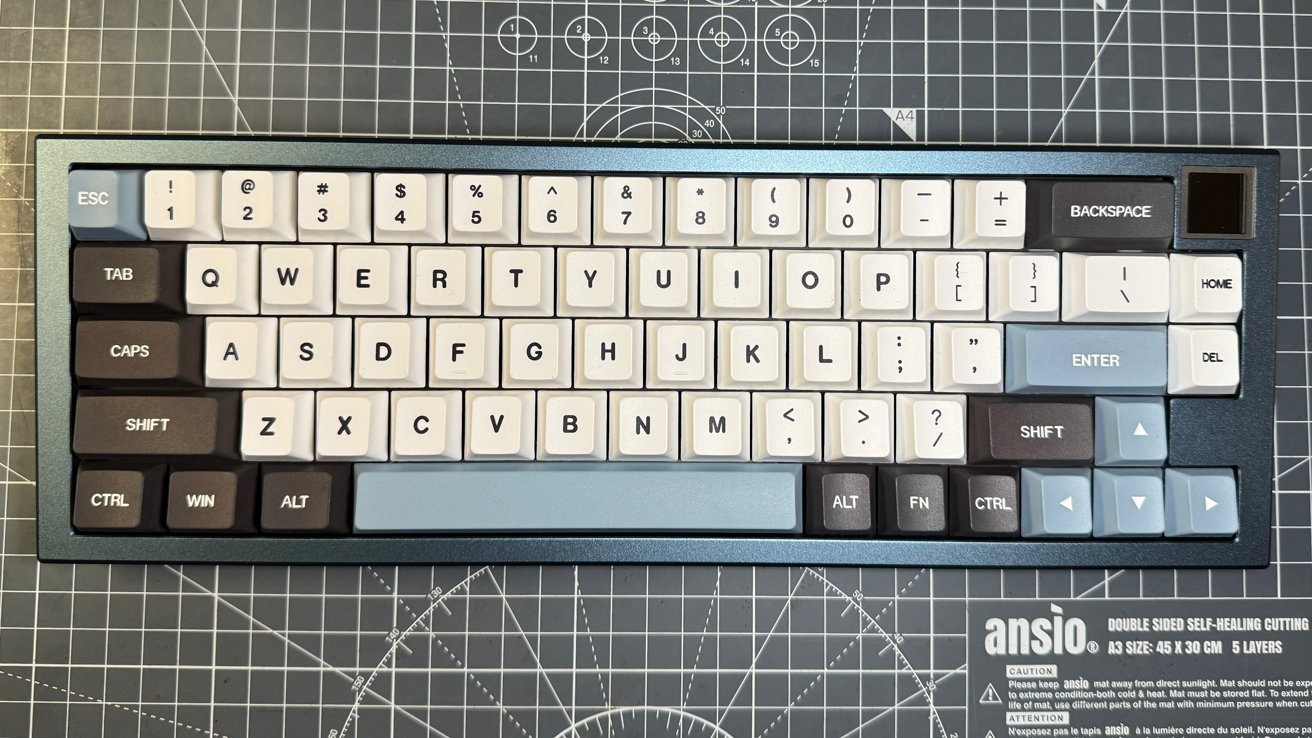
The Epomaker MS68 is a 65% mechanical keyboard in an aluminum casing. It's a sturdy keyboard, weighing in at about 3.3 pounds, making it a little lighter than your typical mechanical keyboard.
At 12.9 inches long and 4.4 inches deep, it's not going to take much space up on your desk at all. At 1.5 inches thick, it's also a fairly typical height for a mechanical keyboard too, which usually necessitates some form of wrist rest usage for long typing sessions.
The outside is made from anodized aluminum, with Epomaker doing a great job with the coating. The blue one supplied for review is also a nice color, if a little unusual for a typical office space.
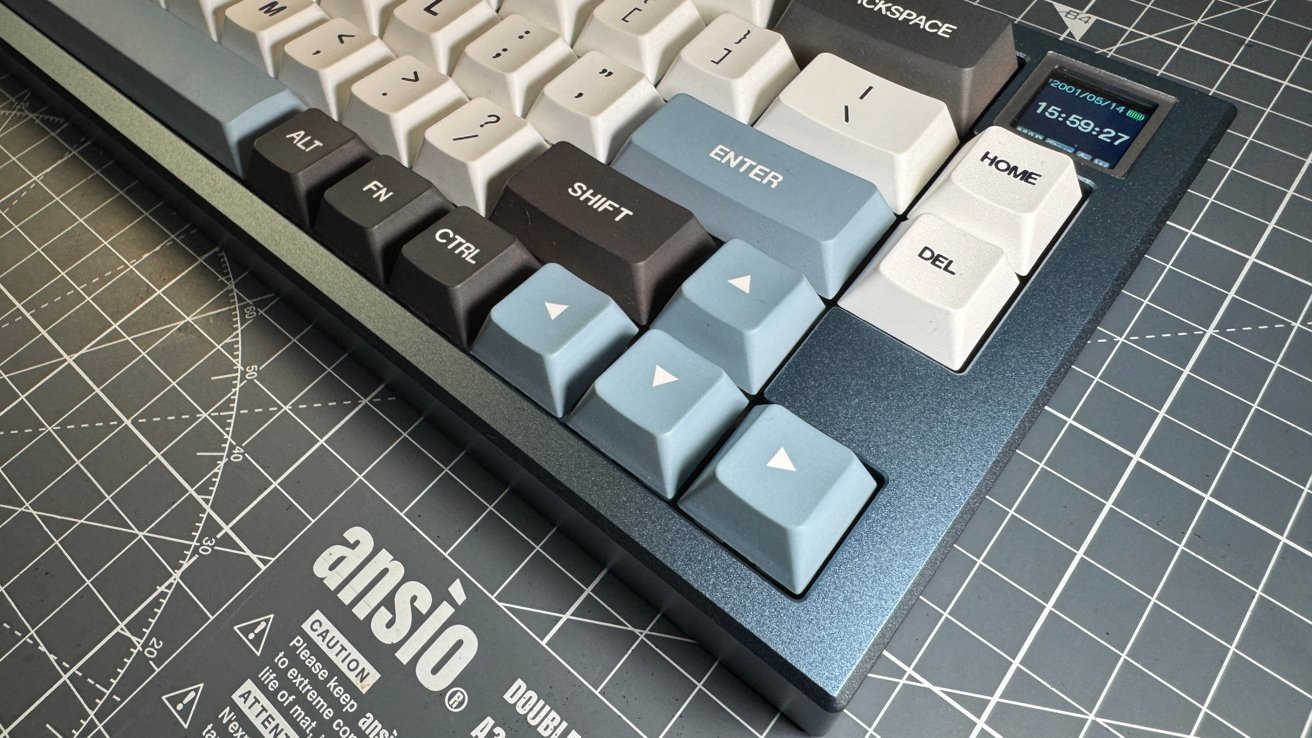
Epomaker MS68 review: Anodized aluminum and the corner display are nice additions.
2
On each end is a wedged cutout, which helps if you want to lift it up from the sides. The base has a few screws for servicing, as well as four rubber feet for grip.
Around the back and off to the left-hand side is a cutout for the USB-C connection, as well as two unlabeled switches. One is used to handle whether it is in a Windows or Mac configuration, while the other handles connectivity.
To the top right is a small 0.85-inch display, which has its uses and novelty factor.
Included in the box is a keycap puller, some spare switches, a wireless dongle, and a USB-C cable for a physical connection.
Epomaker MS68 review: Typing
The 65% layout is a favorite among typists looking for a minimal amount of usable keys. There are no function row keys, nor a side numpad, which eliminates many of the keys used on a full-sized keyboard.
You're also missing out on keys like Insert or End, but you still get Home and Del to play with.
Alas, while you do have a Mac/Windows switch on the rear, Epomaker didn't supply Mac-specific keycaps to replace CTRL, WIN, and ALT. It's not the end of the world for a Mac user, but it would've been nice to include them.
To handle the lack of a function row, there is a function "FN" key. Though this is also used to handle many other functions as well. Page Down, Page Up, Insert, End, Print Screen, and other keys are accessible if you know the key combinations with that FN button.
The construction of the keyboard itself uses a gasket mount and foam strips for added cushioning. The construction also uses three layers of spacers, so it absorbs a lot of the shock when you tap on the Cherry-type keycaps.
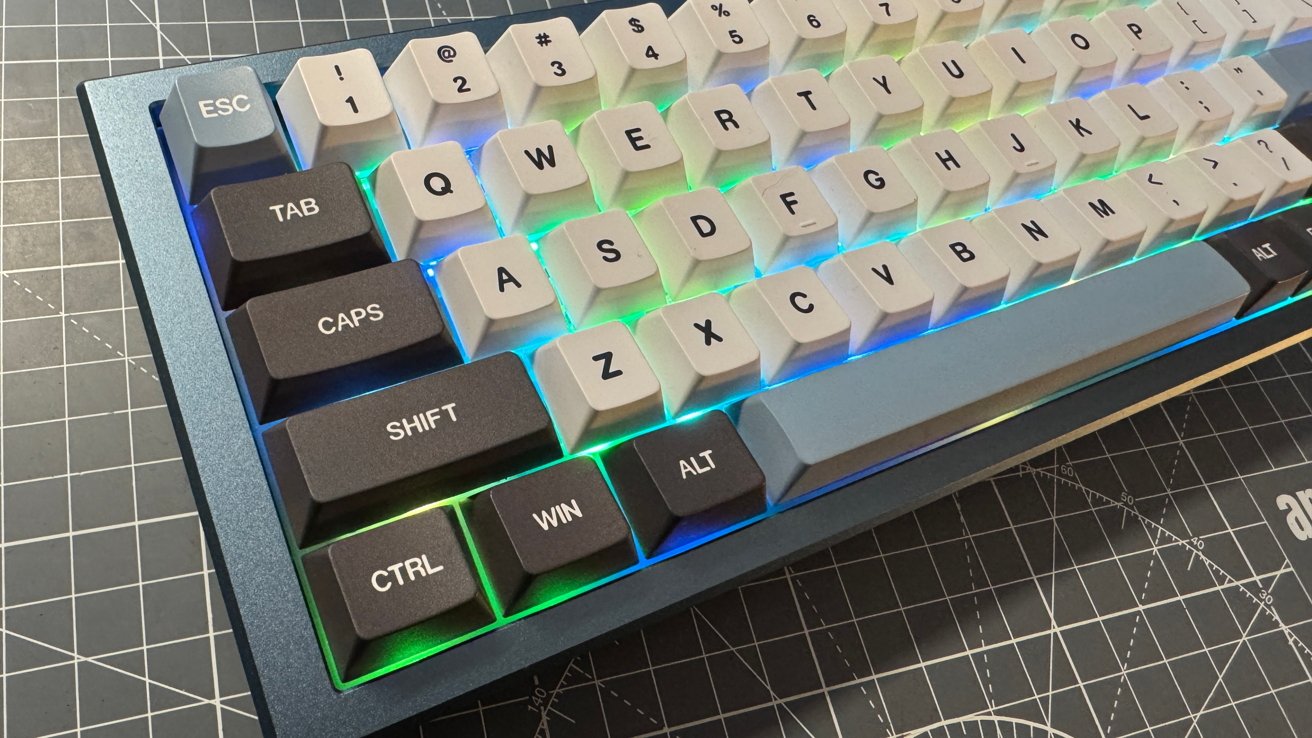
Epomaker MS68 review: The RGB lighting is nice, but typing is spongy.
Underneath is Epomaker's Sea Salt switches, which are linear switches that are factory-lubed and require 60 grams of force to actuate.
In combination, the amount of dampening leads to an odd typing experience.
While you're more likely to bottom out the keys while typing with linear switches, you typically get a firm, hard stop at that point. Here, the dampening leads to a bit of squishiness when fully pressed down.
This isn't necessarily a bad thing, as it probably helps ease the pressure on the fingertips of typists who love to hammer the keys down. It does take some getting used to, though.
The construction also impacts the sound of the keys, which are softer and quieter than typically heard.
Epomaker MS68 review: Connectivity and the display
Connecting the Epomaker MS68 to your Mac happens in three ways. You can use a USB-C cable, which also charges the built-in 3,000mAh battery.
If you would prefer to do things wirelessly, you can use the 2.4GHz USB-A dongle, which works without much effort from the user.
The third way is Bluetooth, which can be paired with up to three devices. While you primarily use the three-way switch to change between the three modes, you also need to use function shortcuts to pair Bluetooth and to switch between devices.
This all works pretty easily in practice, especially when tested across multiple Bluetooth devices.
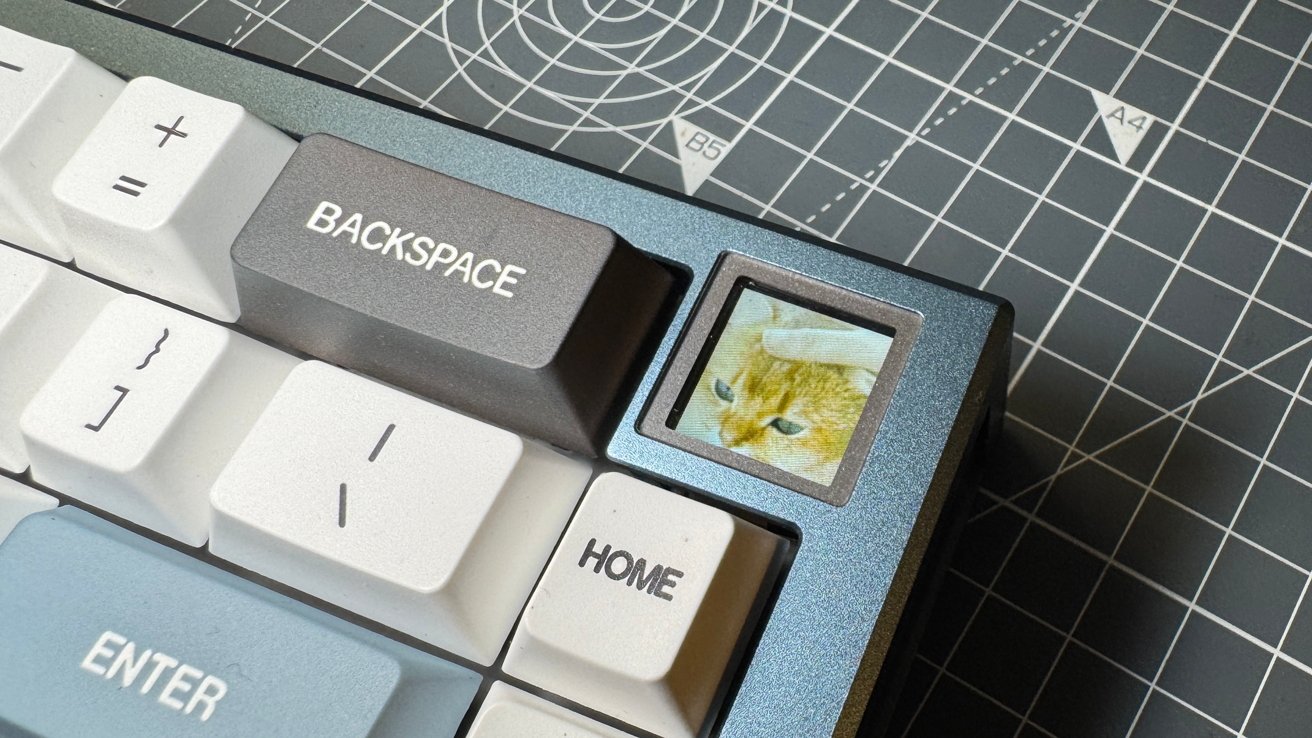
Epomaker MS68 review: The display can show the (wrong) date and time, and a cat being petted.
While you don't have any labels on the rear three-way switch, you do get a small indicator on the display saying which connection is in use. It even says which Bluetooth profile is being used at that moment.
The display is also handy in that it tells you if the keyboard is set to run in Windows or Mac configurations. There's also an icon to say if the caps lock key is engaged or not, and the battery level.
This view, which also shows a date and time, is handy in its own right. With a few keypresses, you can also see some other animations, like a cat being stroked or a car driving over some rough terrain.
These are nice additions and show the kind of thing that you can also set up for yourself. There is a bit of a caveat to that, though.
Epomaker MS68 review: Customization and lacking macOS support
From the outset, the keyboard works fine on macOS. All the keys work, as do the function commands.
These functions also include things like pairing and adjusting the wide variety of lighting effects as well. Those lights are nice and bright, and very adjustable too.
Actually managing the configuration of the keyboard is done through VIA, a software tool familiar to mechanical keyboard enthusiasts. It handles macros and other key configurations, through a browser window.
There is no local driver or software for managing the MS68, though, so Mac users must rely on VIA for their configuration needs.
Annoyingly, this is where things start to break down.
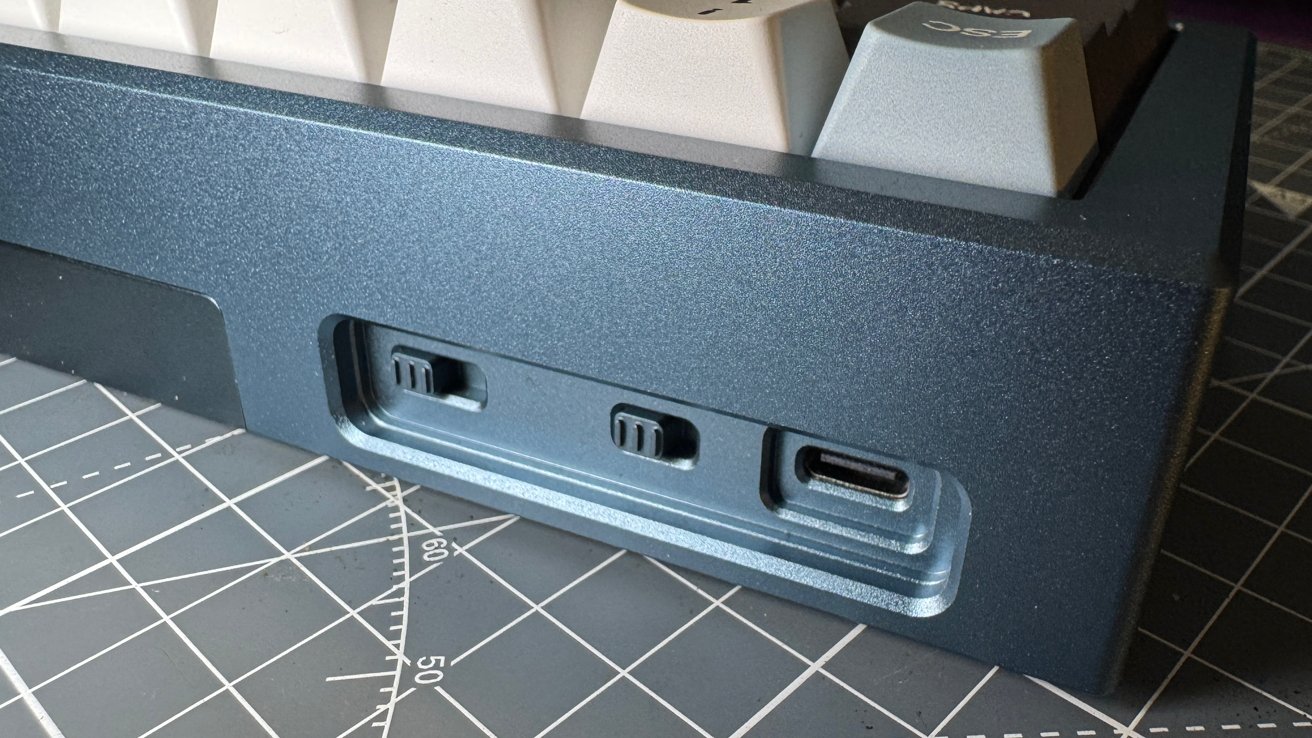
Epomaker MS68 review: USB-C and two switches without labels.
For a start, there doesn't seem to be any way to update the date and time on the keyboard at all. Presumably, there is some sort of automatic mechanism for updating it, but there is no explanation for how that works.
Installing the Epomaker driver tool doesn't seem to see the keyboard either.
As for the images that can be shown on the display, it is possible to create them. However, Epomaker's tool for it is only available on Windows, not macOS.
Epomaker MS68 review: Usable, but not exceptional
As a mechanical keyboard, the Epomaker MS68 is a neat one to use. It's quite compact and looks good on most tidy desks, and most of its functions work out of the box.
However, not everyone will take to the somewhat springy nature of its shock absorption layers. It's a spongy thing to type on, which isn't going to be to everyone's liking.
The display is also a nice-to-have, but extremely limited in what it can do. Sure, capslock and connection indicators are nice, but we cannot change what the clock says.
Preventing Mac users from being able to add their own images if they don't have a Windows PC is also a bit of a problem. Customization of functions is nice, but a lack of personalization here is a failure.
Overall, the Epomaker MS68 is a good keyboard if you want basic functionality and an animated cat in the corner. It's not an exceptional experience, and it's one that Mac users may want to think twice about buying.
Epomaker MS68 Pros
- Nice styling
- Compact size
- Connectivity
Epomaker MS68 Cons
- No Mac keycaps
- Poor macOS support beyond the basics
- Underutilized display
Rating: 2.5 out of 5
Where to buy the Epomaker MS68
The Epomaker MS68 is currently out of stock on Amazon, but it has an MSRP of $130.