Once you get a smart home set up the way you want, moving is an incredible pain. Join Wes as he shuts down his old house, packs up all the gear, relocates everything, and deals with friction along the way.
Smart home technology has come a long way since Apple first revealed HomeKit in 2014. I got in early with Hue smart bulbs and built things out from there, but I was always a renter.
In March 2026, I closed on my first home and moved in. Slowly but surely, I've begun setting up my Apple Home again.
I want to share some of my thoughts, process, and various projects that I'll be undertaking along the way. If you're still renting or never plan to purchase a home, don't worry, this series will still be useful to you.
This first entry will dig into some of the challenges of packing up a smart home and moving it. I've got a lot of plans for this house, but it is best to start simple and do things one at a time.
The biggest tip I can offer right off the bat is this: don't rush. All of the smart stuff doesn't need to be installed, synced, and automated on day one.
As an Apple and tech enthusiast, I was eager to get everything set up quickly. However, a knee injury I suffered while moving made me slow down, for better or worse.
I can say now, it was definitely for the better.
Packing up your smart home
Sadly, our time from closing, to packing, to moving, was a tad abbreviated, so I didn't take all of the usual care I could have. That said, moving is nothing new to me.
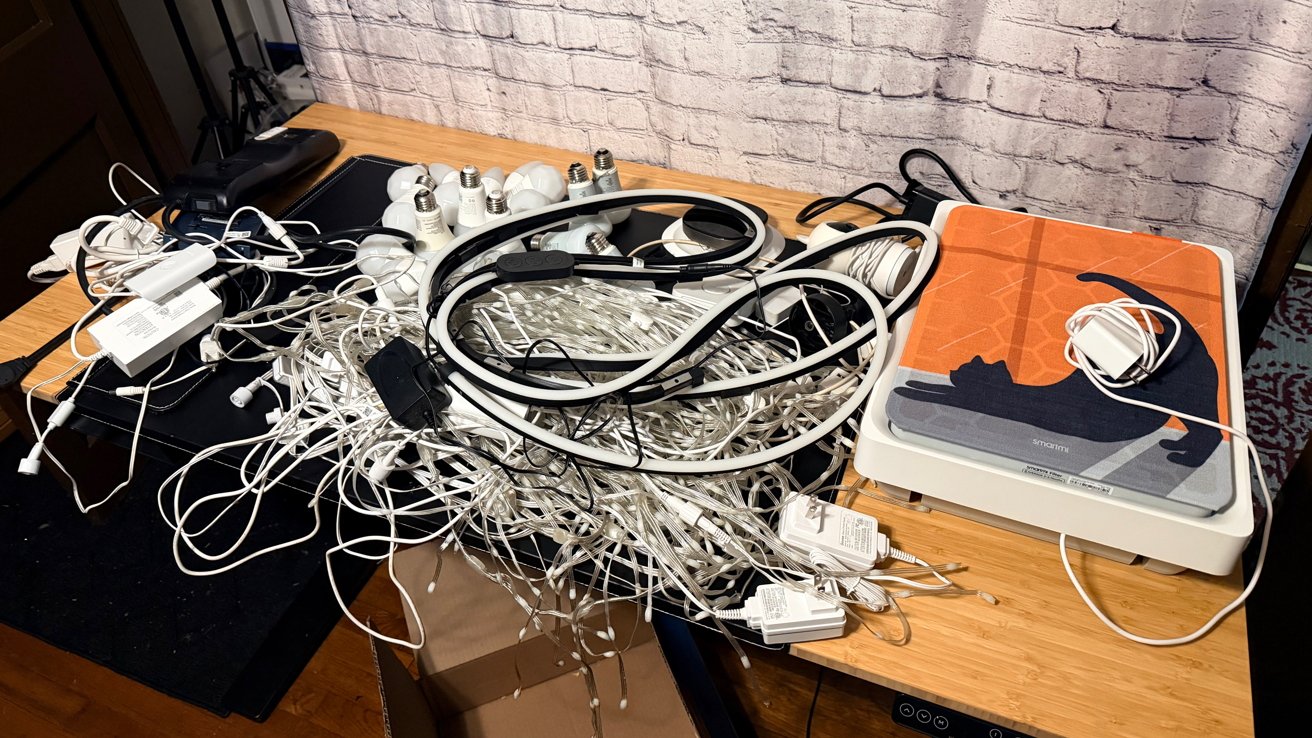
Sorting through a ton of unhooked smart home products
I spent 10 years in the Navy and changed living situations mostly without my input about annually, according to the needs of that Navy. Nearly the entire time I was in was when smart home equipment was a thing, so I've encountered a lot of situations.
First off, when you move, start from scratch. That sounds counterproductive, but trust me.
Instead of having to keep track of which bulb goes to which room or pre-planning layouts and scenes, just set it all up new. Trying to match your new home with the previous one is more pain than it's worth.
Open the Apple Home app, create a new home, then once you've moved, delete the old one. I also changed my home network SSID and password even though many of you reading this balk at the idea.
It's a new home and it deserves a thoughtful and fresh start. Trying to cut corners will only lead to problems later.
I'll spend more time on individual apps and their uses another time, but for now you should definitely have the Home Pass app. Even if you're not moving or planning to anytime soon, download the app and add every piece of Apple Home gear to it immediately.
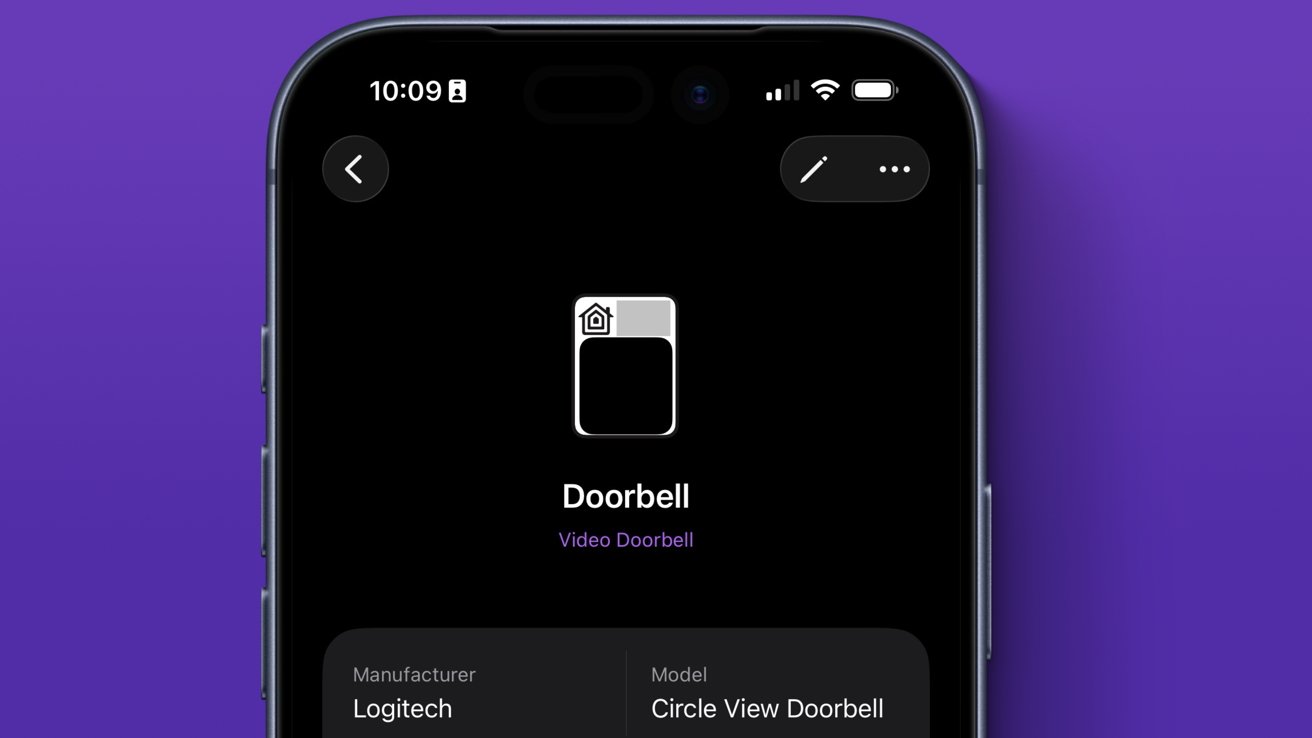
Home Pass is a must have for any Apple Home admin
Each piece of smart tech you set up for your home should go in Home Pass as you buy and install it. Ideally, this would be done over time so it's easy to manage.
If you've got a bunch of stuff already, rip off the band-aid and go ahead and get everything in there during the move. Whether you do it when packing or unpacking is up to you, but doing so while those pairing codes are exposed is the best time.
Home Pass is a lifesaver and you'll need it for future installs or troubleshooting.
Since I started from scratch, I packed all of the smart home equipment into one set of boxes. That way I can more easily keep track of all the gear in my home rather than spreading it out by room.
I had a designated place for all of my rental property's original devices, so it was easy to reinstall the previous doorbell, deadbolt, and thermostat. Always document complex wiring by photographing the wires and storing the images in Files.
It also helps if you have your Apple Home app open and delete each product you pack up. That way you don't have any chance of accidentally forgetting some light switch or bulb that isn't easy to spot.
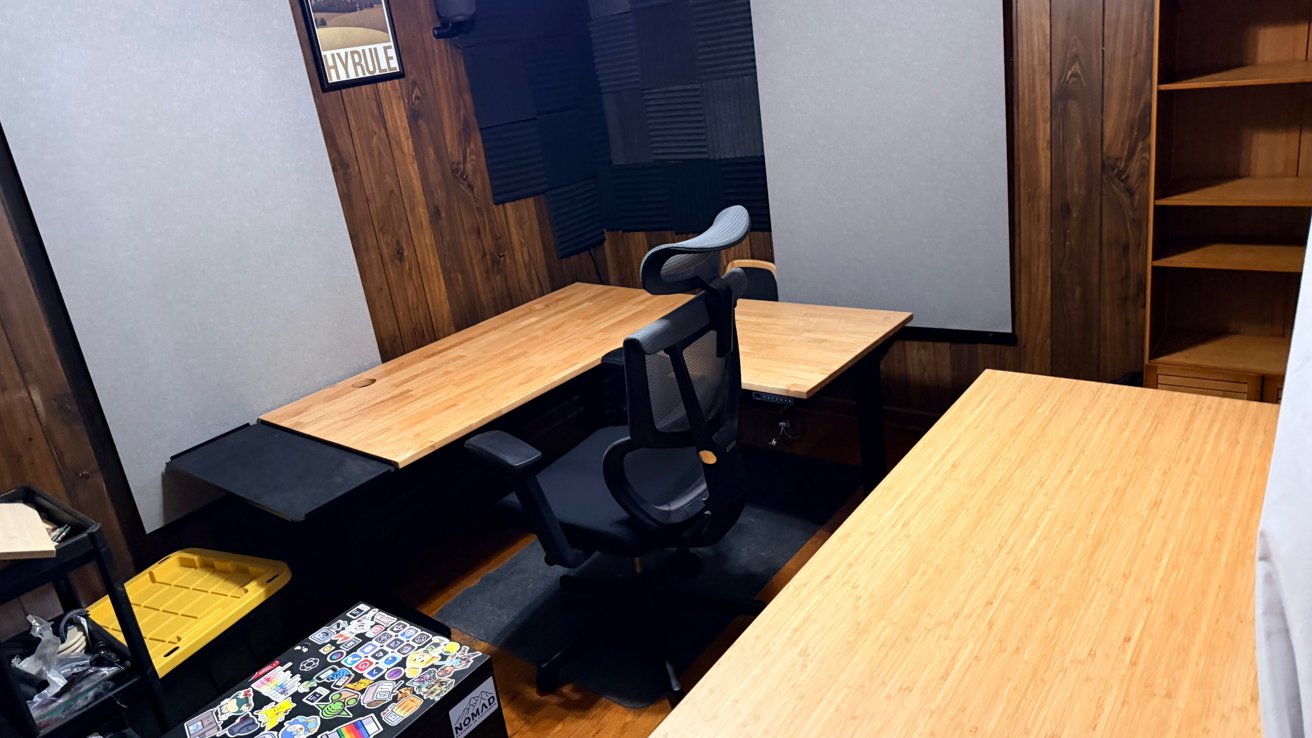
Say goodbye to the office that served me for five years
The Home Pass app should act as a kind of repository for most of your smart home goods, though keep in mind devices with hubs won't show up. So, Aqara sensors or Hue bulbs will have to be cataloged separately.
If you're worried about forgetting anything, keeping a Reminders list with categories is useful. There's also the Home Devices app, but that syncs with the Apple Home app.
So, if you delete a product from the Home app, then Home Devices will not show it either. It isn't a definitive list, but a very useful app for researching products and keeping tabs on what you've already got installed.
Setting up the new home
It would be a rather short series if I talked about every product, installation, and plan here today, but I do want to provide a basic starting point.
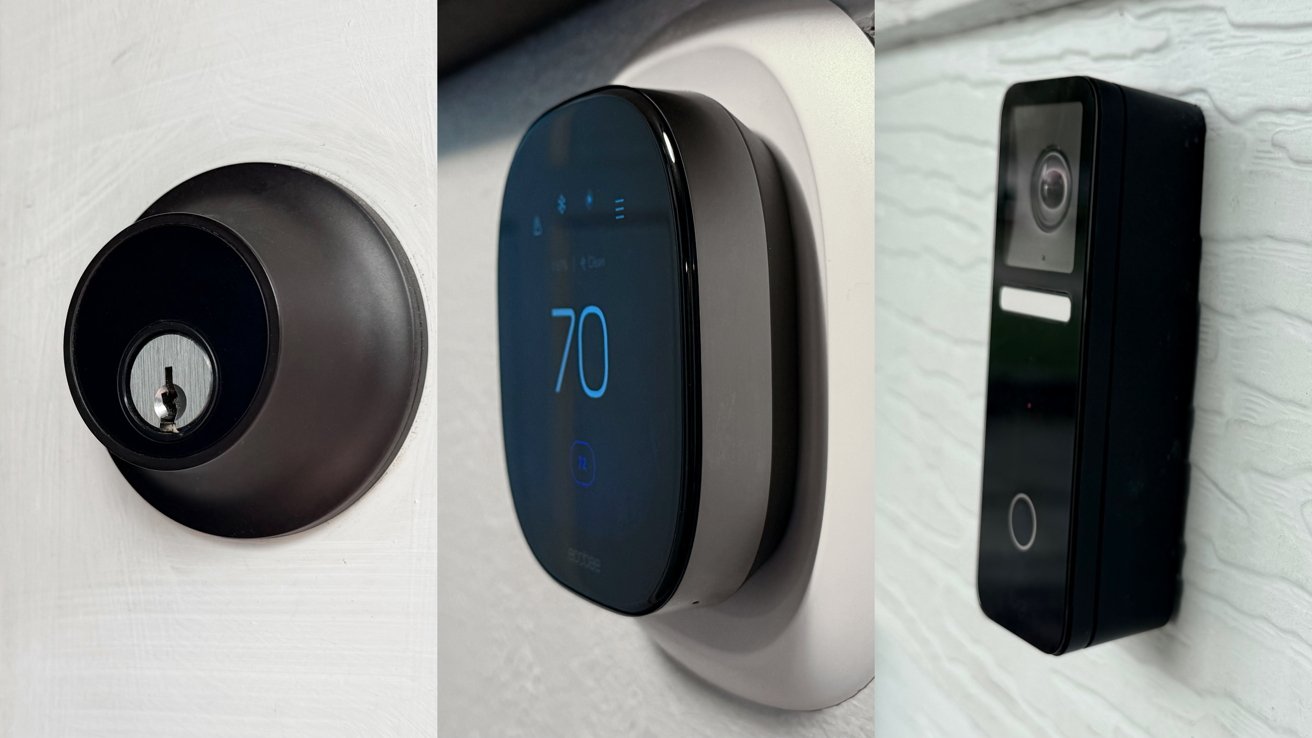
Setting up the basics for comfort and security
My top priorities when moving into a new home are comfort, security, and access. So, the first things I set up are the last things I took down in the old home: the thermostat, doorbell, cameras, and smart lock.
My new house didn't have a doorbell, so I had to hire an electrician to install the necessary wires for my Logitech Circle View Doorbell. Yes, I was an electrician in the Navy, but I wanted it done professionally and my knee wasn't going to let me either way.
The electrician had a minimum of two hours, so I found some other work to get done, and my final cost was under $250. I was quite surprised that no one had bothered having a doorbell installed before.
The Level smart lock and Logitech Circle View cameras were much easier to deal with. It was the thermostat that was an entire endeavor.
Of course, I should have had the electrician install the thermostat too, but it is a rather simple process. Do note that you absolutely must turn off power to your HVAC system or else you might blow a fuse.
Sure, being shocked can be deadly and that's a reason too, but many don't realize that accidentally touching the hot wire to any of the others could blow an internal fuse and cause much more work.
My home was built in the 1940s and the current AC system was the second set of ducts built into the home. The air handler and fan were both basically ancient, so it wasn't as simple as installing the thermostat.
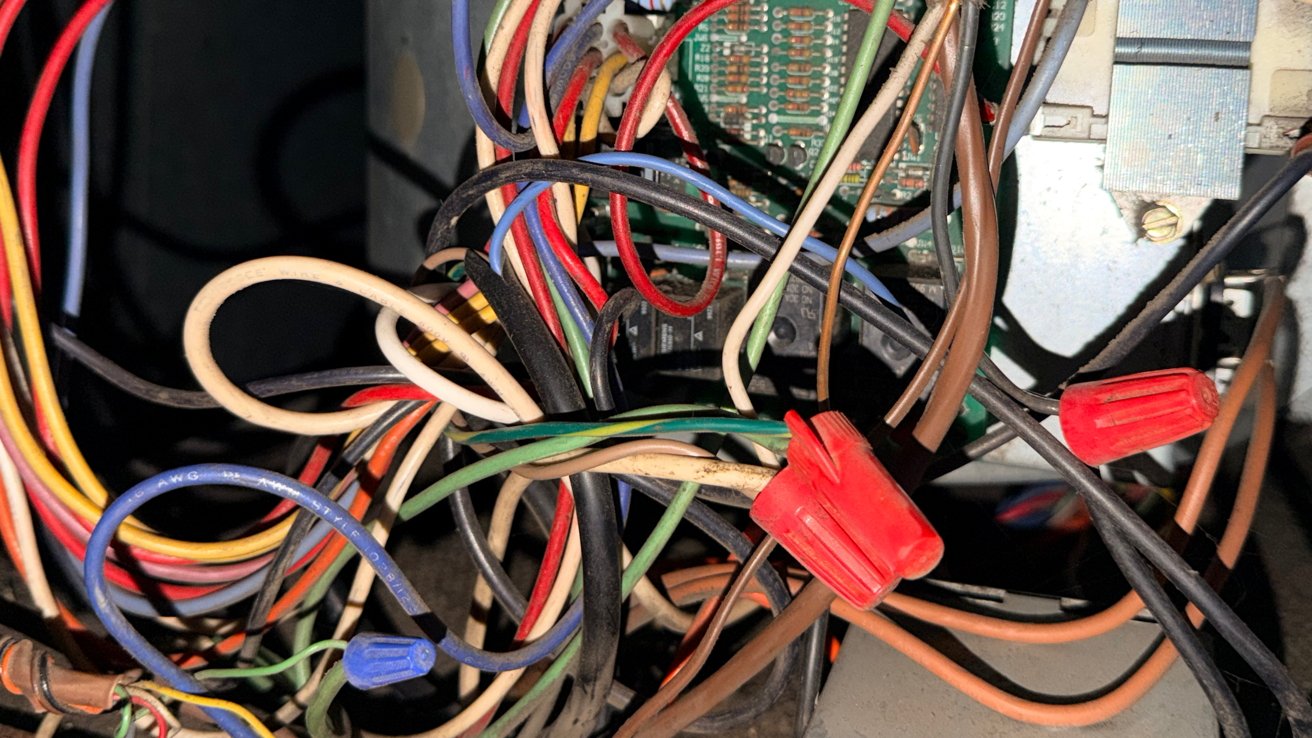
The wire bundles from the air handler. If this intimidates you, call an electrician.
Thankfully, the wire bundle behind the thermostat had several unused wires, so the installation didn't need the additional wire harness included with the Ecobee thermostat.
I did have to go into the crawl space, open up the air handler, and get one of the spare wires tied to a properly energized bundle. That required a phone call to Ecobee support, and they very helpfully told me exactly which bundle to tie the wire to.
Again, please don't do any of this if you're any amount of unsure of what I've just described. It's always worth calling a professional to help when needed.
Now with the basics installed, the beginnings of my new Apple Home have begun taking shape.
Planning for the future
To recap, I shared that the Home Pass app is an essential part of any smart home and Home Devices is another useful tool. Also, start from scratch and take your time.
Here's the devices I have installed so far:
- Logitech Circle View Doorbell
- Logitech Circle View cameras
- Ecobee Smart Thermostat Premium
- Level Lock Plus
I also went ahead and set up each of my Apple TVs and HomePods. You need at least one of these devices to act as your Apple Home hub.
This is going to be a battle for some time. Up next will be the setup of my various smart lights, switches, and other devices. Cleaning robots, mowing robots, air purifiers, and other gadgets will be discussed — when I get to that point.
Keep an eye out for each installment of the Owning an Apple Home series over the next weeks and months. New tips, stories, reviews, and more will be provided as they are implemented.