
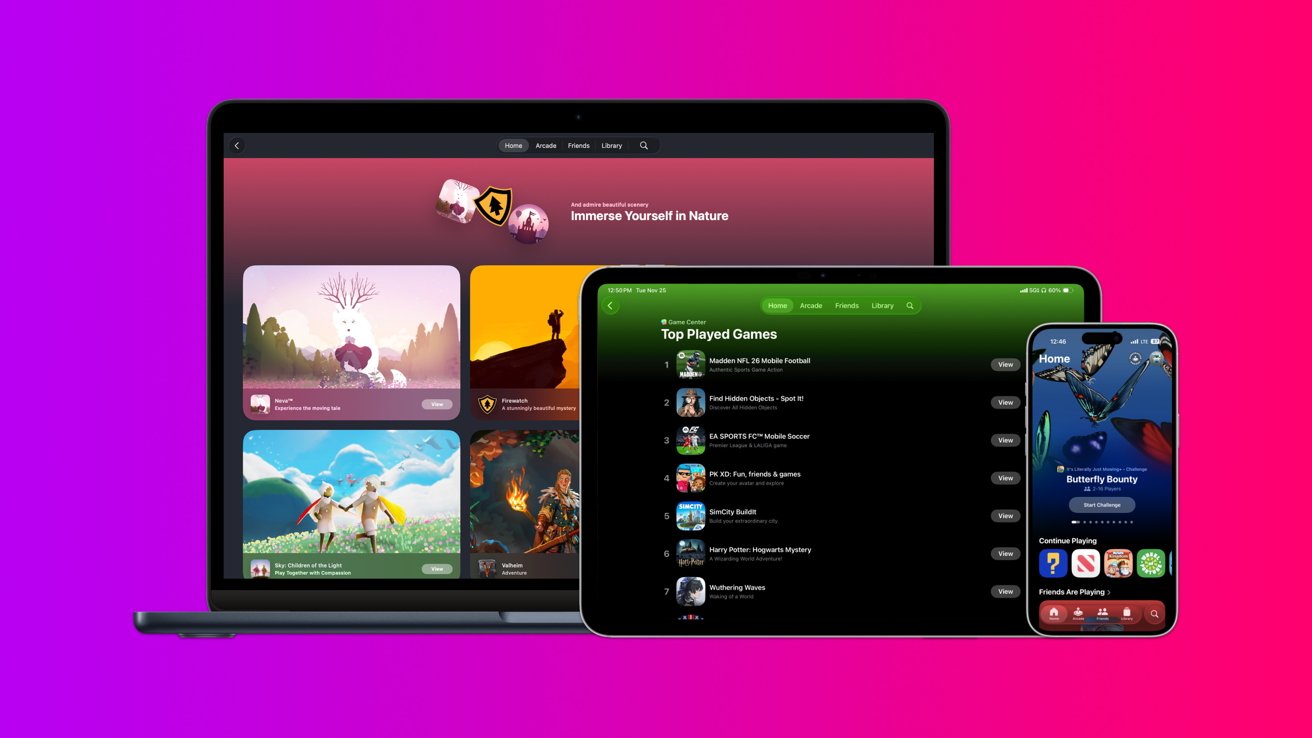
Apple has a way for videogamers to keep progress and friends synced, leveraging iCloud to do it. Here's how to get the most out of Apple Games and Game Center.
Apple's revamped gaming tools let players jump between iPhone, iPad, Mac, and Apple TV, without losing progress or juggling accounts. The combination of the Apple Games app and Game Center turns Apple's ecosystem into a cohesive option for gamers.
Apple has turned its once basic Game Center system into a unified gaming experience built around the Apple Games app. The app brings together your library, recommendations, achievements, social features, and Apple Arcade titles in one place.
Game Center handles profiles, syncing, and multiplayer in the background, so you rarely need to manage anything manually.
Apple Arcade adds a subscription library with no ads or in-app purchases, which many beginners and families appreciate. It pairs well with Game Center because most Arcade titles support cross-device play and cloud saves.
Requirements & setup
A smooth experience requires a few basics.
- Recent versions of iOS, iPadOS, macOS, or tvOS
- The same Apple ID on every device
- Game Center enabled
- An internet connection
- Optional: iCloud Drive for cloud saves
Apple TV uses the Apple ID tied to the active user profile. Switching users changes the Game Center identity, which matters in shared households.
Apple Games app
The Apple Games app acts as a hub for browsing, managing, and launching games. Its tabs include Home, Arcade, Friends or Play Together, Library, and Search.
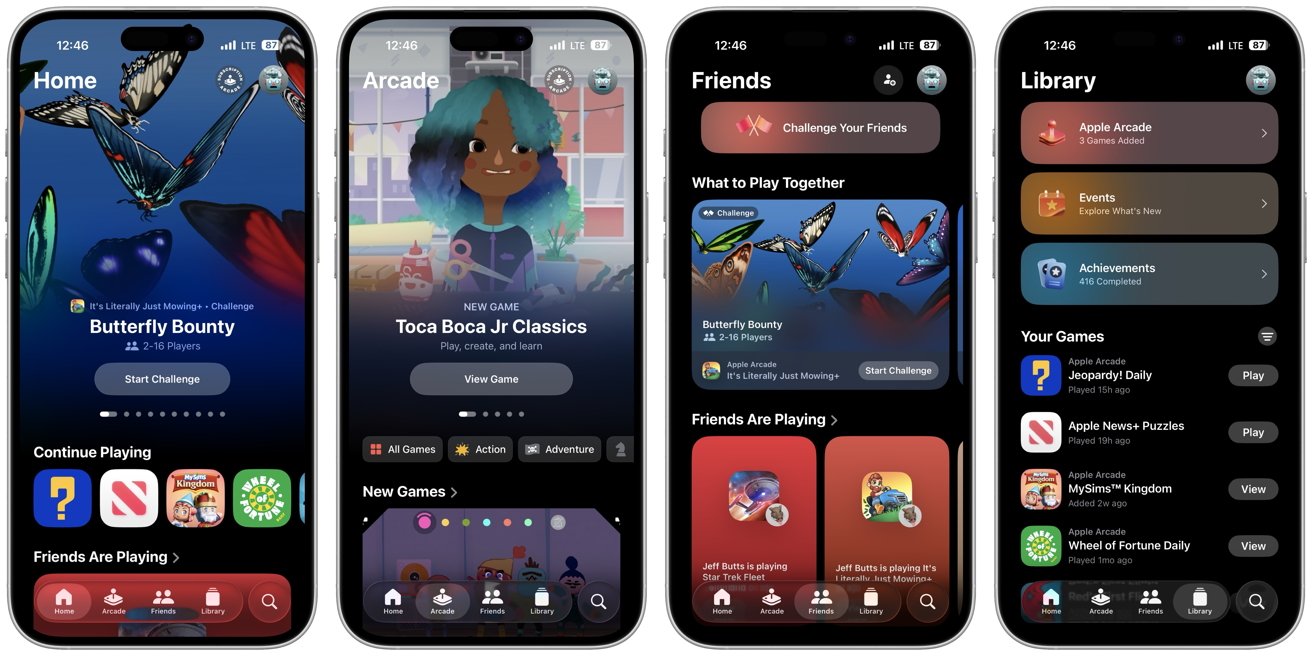
Game Center handles profiles, syncing, and multiplayer in the background
The layout stays consistent across iPhone, iPad, and Mac, making it easy to learn.
The Home tab highlights new releases and shows a Continue Playing section for quick access. The Library tab lists every game tied to your Apple ID, including titles you previously downloaded.
Your Game Center profile includes a unique nickname and avatar that appear in supported games. You can update both at any time and adjust privacy settings to limit activity sharing to friends or keep everything private.
Apple TV uses the profile automatically, but edits must be made on an iPhone, iPad, or Mac.
Finding & managing games
You can browse games through the Apple Games app or the App Store. Detail pages show screenshots, age ratings, controller support, and whether Game Center features are included.
- Tap Get or the price button to download the game.
- A cloud icon indicates that you have downloaded the game before.
- Use the Library tab to quickly reinstall previously obtained games.
Deleting a game frees space, but local saves may disappear unless the title uses iCloud or Game Center syncing.
Apple Arcade
Apple Arcade offers a curated catalog with no ads or microtransactions. You subscribe through the Apple Games app or Settings.
Family Sharing makes the subscription available to everyone in the household, which ultimately saves you money.
Many Apple Arcade titles support cross-device play and offline use. When a game leaves Arcade, it may stop launching through the service, though some reappear in the App Store.
Managing your Apple Arcade subscription takes place in Settings or System Settings, depending on the device you're using.
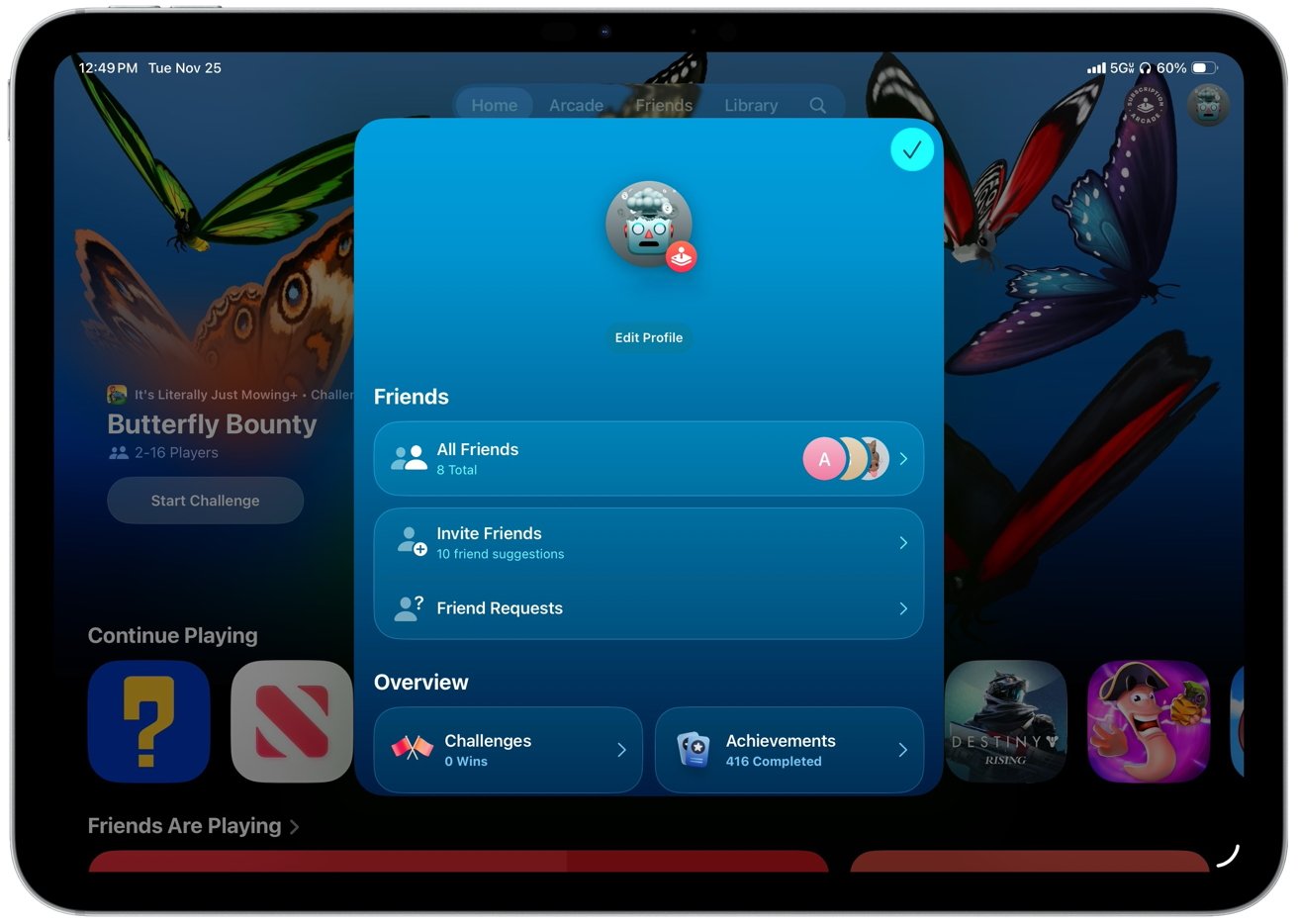
Your Game Center profile includes a unique nickname and avatar that appear in supported games
The Apple Games app allows you to track your progress across all supported games. Achievements celebrate milestones, while leaderboards let you compare scores with friends or globally.
Challenges make single-player games feel like friendly competitions. You can invite friends, choose a leaderboard, and set time or attempt limits.
Playing with friends
You can add friends by searching for their nicknames or choosing from your stored contacts. Invites from others appear as notifications, which open in the Games app or directly in the games themselves.
Most multiplayer sessions start inside the game using an Invite Friends option.
Nearby Invites use Bluetooth and Wi-Fi for quick connections with nearby players. SharePlay allows supported games to sync during a FaceTime call, letting everyone play together while chatting remotely.
Multiplayer games can include real-time and turn-based options, enabling both synchronous and asynchronous gameplay. Many games also allow cross-platform play between different categories of Apple devices.
The Apple TV handles local multiplayer really well with multiple controllers.
Syncing progress & parental controls
Using the same Apple ID on every device is essential. Many games sync automatically through Game Center or iCloud.
If progress doesn't appear, check the network, reopen the game, or ensure iCloud Drive is enabled. Some older games store data only on the device, so progress won't transfer.
Family Sharing and Screen Time provide strong controls. Parents can set limits, restrict downloads by age rating, block multiplayer with strangers, disable adding friends, and require approval for new games through Ask to Buy.
These limits apply across iPad and iPhone, as well as the Apple TV.
Controllers & accessories
Apple devices support many Bluetooth controllers, including Xbox and PlayStation models. Pairing through Bluetooth settings only takes a moment.
Controller support varies by game, but the Apple Games app lists it clearly.
To play a game with a controller:
- Put your controller in Bluetooth pairing mode.
- Open Bluetooth settings on your Apple device.
- Select the controller from available devices.
- Wait for a successful connection.
- Open the Apple Games app.
- Check whether a game supports controllers.
- Launch a supported game and play.
Headphones and accessibility tools such as AssistiveTouch, subtitles, and motion reduction improve comfort and usability.
Troubleshooting
Most issues relate to Apple IDs, network access, or outdated software. Restarting or signing out and back in fixes many problems.
Subscription recognition issues can affect Apple Arcade. There's also the possibility that removed titles will stop launching entirely.
Controller pairing problems often resolve after disconnecting and reconnecting the accessory, or unpairing and re-pairing it.
Other things to keep in mind when using the Apple ecosystem for gaming:
- You don't need Apple Arcade to use Game Center
- Saves return when reinstalling if the game uses cloud storage
- Android and Windows players can join only if the developer supports cross-platform play
- Changing Apple IDs separates progress and friends permanently
Apple's gaming ecosystem emphasizes convenience. Once everything is set up, the Apple Games app becomes a reliable hub for discovering and enjoying games, all across every Apple device you own.