Apple has made it decidedly more difficult to import .EPUB and .PDF files from Messages to the Books app — but it's not impossible. Here's how to do it on iPad, iPhone, and Mac.
If you're an avid bookworm and you like reading on your iPhone, chances are you might be a fan of the Apple Books app. You can easily buy ebooks and sync them across multiple platforms, which is great if you're the type to start reading on one device and pick up on another later.
Before you start, make sure you've got Apple Books downloaded to your device of choice. You can grab it from the App Store for free.
How to import a PDF into Books on iPhone or iPad
Importing PDFs from Messages to Apple Books on iPhone and iPad is very easy. It's just a couple of quick taps.
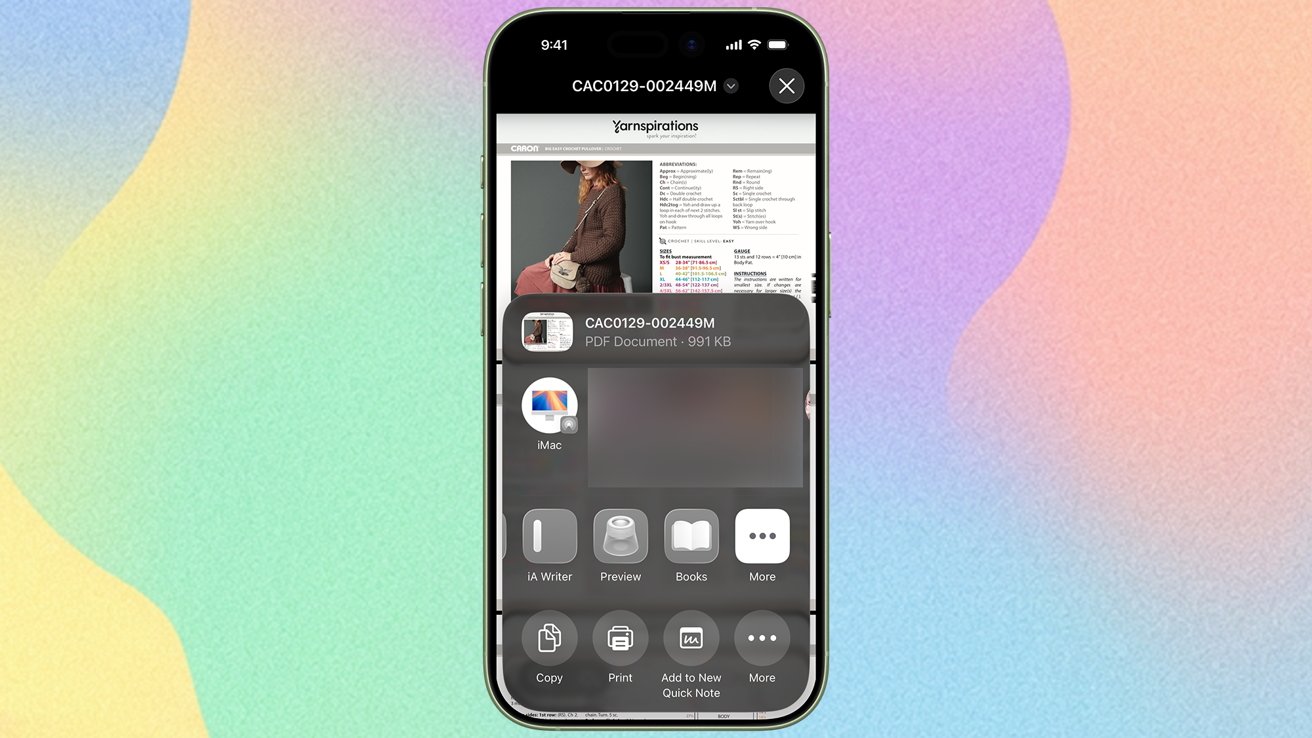
The share button does the heavy lifting, here.
- Open Messages
- Tap on the PDF you wish to import into Books
- When it opens, tap the Share button in the bottom left corner
- In the menu that appears, tap the Books icon — you may need to swipe further than you realize
How to import an ePub into Books on iPhone or iPad
Prior to iOS 26, it was, more or less, a two step process to save an .EPUB to Apple Books from the Messages app on your iPhone. Unfortunately, for whatever reason, Apple has killed off the ability to do this easily.
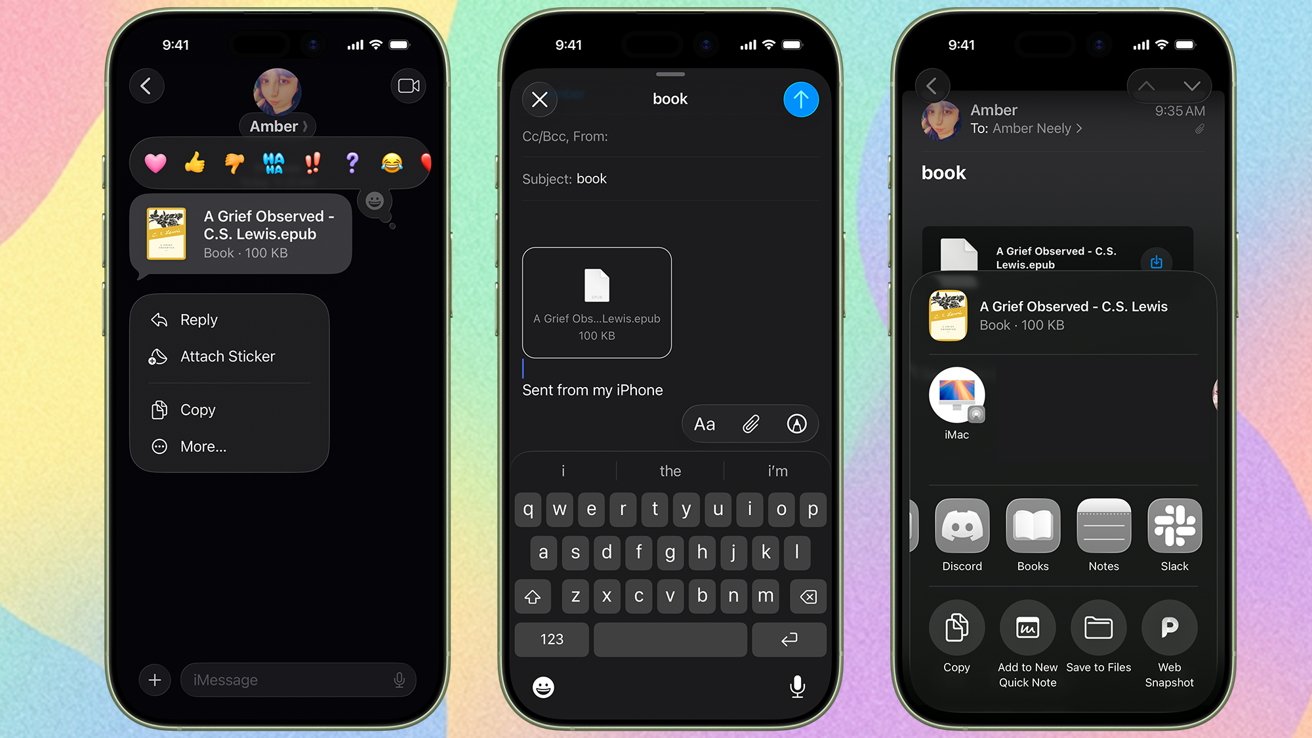
Moving a .EPUB file from Messages to Books
Now, that doesn't mean that it can't be done. It just means that you'll need to work the system.
- Open Messages
- Tap and hold the .EPUB file you wish to save
- In the menu that appears, tap Copy
- Open your email client of choice — we're using the native iPhone Mail app
- Compose a new email to yourself
- In the body of the email, long press until the menu appears
- Tap Paste
- Tap Send
Of course, if you're comfortable giving your email to whoever sent you the .EPUB over Messages, it cuts out the middle man entirely. But we understand that may not always be the case.
Once you've got the .EPUB in your email, you can get it into Books by following the blessedly brief steps below.
- Open the email with the .EPUB you wish to import
- Tap on the .EPUB file icon
- In the window that pops up, tap the Books icon — you may need to scroll a bit further than you think
And that's it. Pretty anticlimactic for as much effort as it takes to get it into your email in the first place.
However, maybe you don't have an iPhone, or maybe you'd rather just import it straight to Mac. That's easy enough to do, too — just follow these steps.
How to import an ePub from Messages into Books on Mac
If you've got a Mac, opening an ePub file can be done in two clicks.
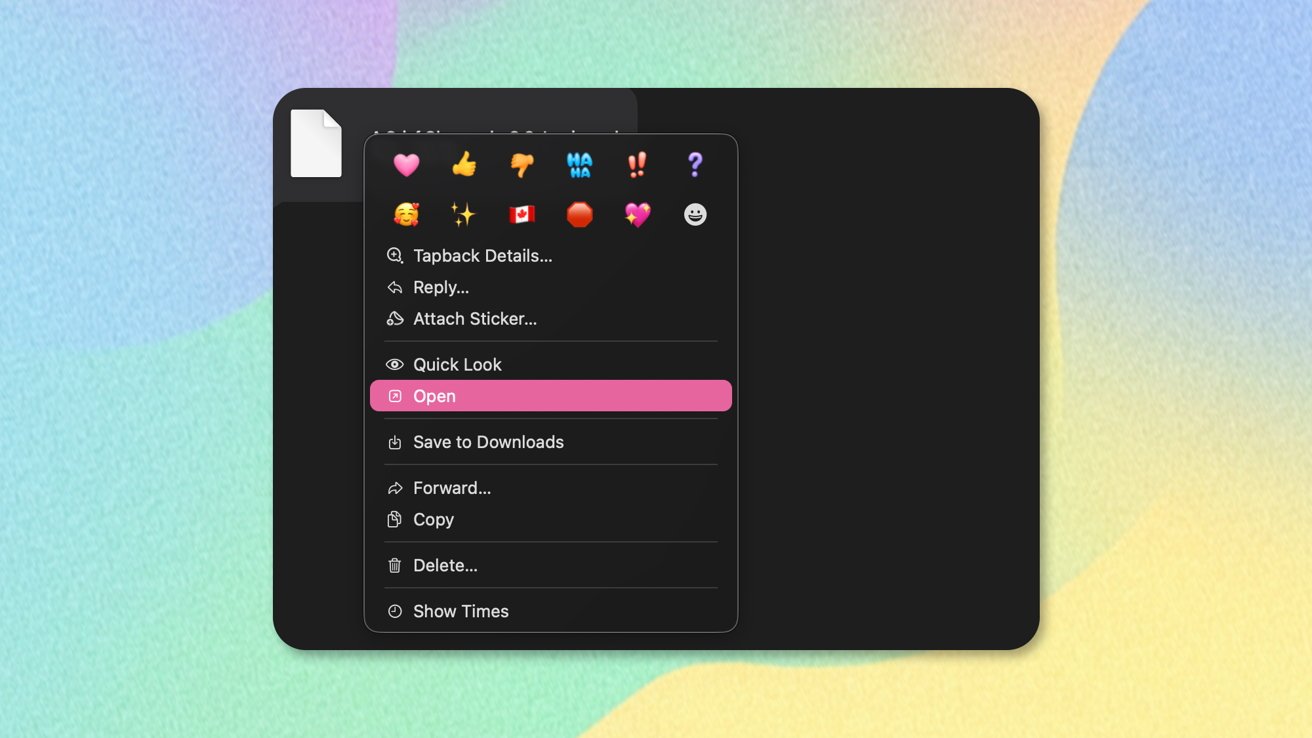
That's right, you can just open it right from Messages into Books — if it's an .EPUB and you're on Mac
- Open Messages
- Click on the message that contains the file you want to import
- Right-click on the .EPUB
- Click Open
How to import a PDF from Messages into Books on Mac
The process changes slightly for PDFs. Fortunately, it's still pretty easy.
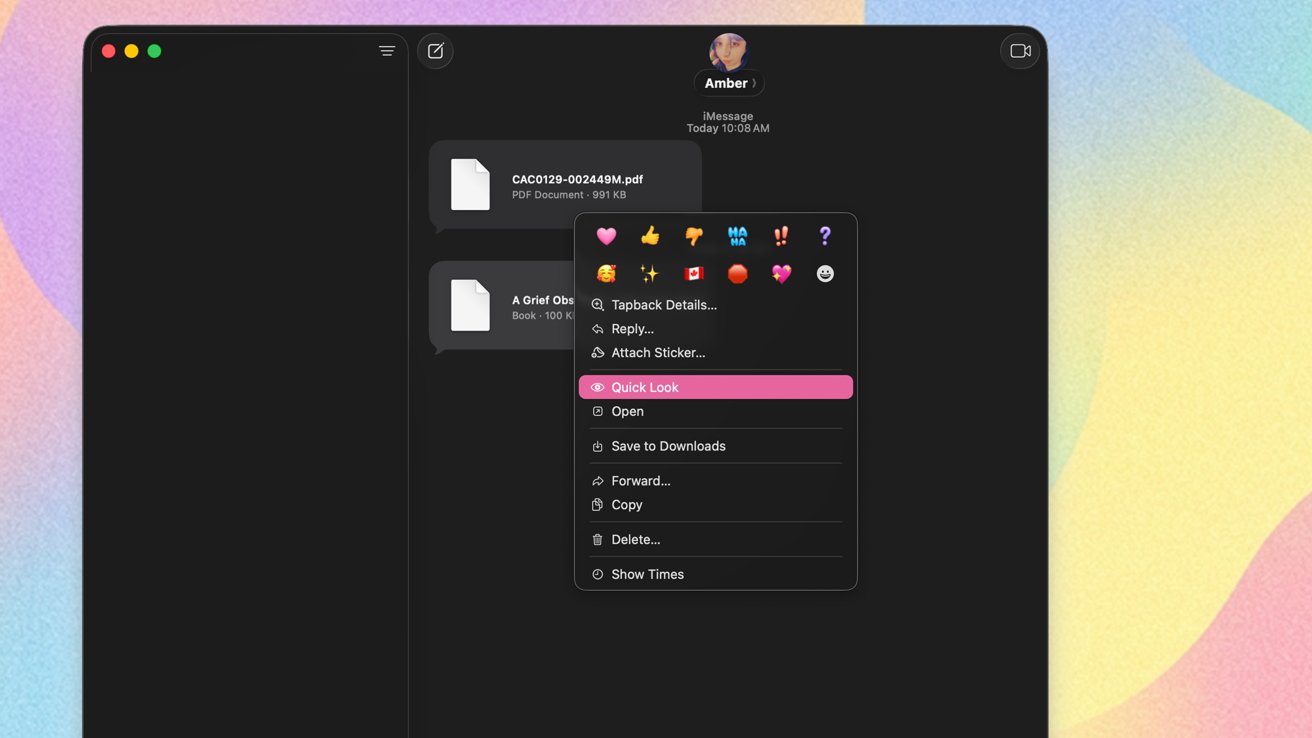
Using the Quick Look menu restores the share option which has since been hidden
- Open Messages
- Click on the message that contains the file you want to import
- Right-click on the .PDF
- Click Quick Look
- In the Quick Look window that appears, click the Share button in the top right corner, it looks like a box with an upwards arrow
- In the menu that appears, click Open with Books
So while Apple has made it harder this time around, it's not impossible to import books and PDFs from Messages to the Apple Books app. And, once you've got the files in your Books library, you can access them from every device — provided you have iCloud sync turned on.