
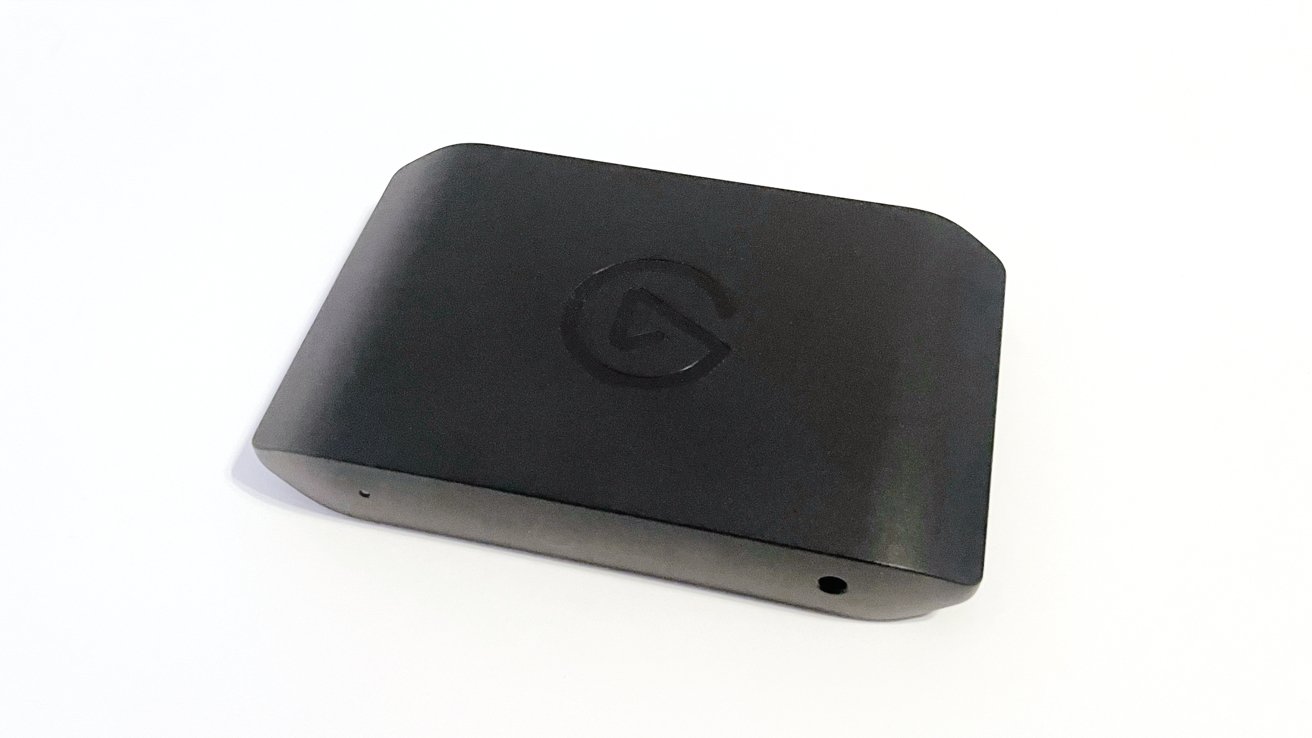
The Elgato 4K S is a powerful external peripheral that provides an easy way for Mac users to not just capture video, but also stream gameplay to Twitch, or to just about any place that will allow live video streaming.
In this day and age, the odds are very high that you, or someone you know, is livestreaming on one of the major streaming platforms.
From video games to art and crafts, to music and talk shows, streaming is ingrained into modern media. Many use services like Twitch as a way to cultivate communities, bring friends together, and share experiences.
There's also the small chance of making a few dollars for drinks and pizza in the process.
In the early days of the livestreaming industry, the prohibitive cost of entry held back new streamers and limited the overall quality of their content.
However, in 2025, streaming hardware and software is more affordable and accessible than ever. Multiple companies are clamoring for consumer dollars with high-quality kit.
At the front of the pack is Elgato, one of the original innovators in the streaming hardware market. It has a deep catalog of quality streaming peripherals and accessories, from microphones to green screens, cameras, stream decks, and teleprompters.
In effect, Elgato has positioned itself as the one-stop shop for all things streaming-related.
The Elgato 4K S external capture card is its newest capture card, and one was sent over to put it through its paces in a Mac-specific environment.
Elgato 4K S review: An overview
The Elgato 4K S is an HDMI capture card that Elgato advertises as powerful and easy to use. Its feature list includes 4K60 support, lag-free passthrough, high resolutions, variable refresh rate support, and portability/functionality for mobile workspaces.
While the primary focus of my review is the performance of the Elgato 4KS in a macOS environment, I did conduct a quick Windows test as well.
Mac Requirements:
- OS: macOS 13 or later, iPadOS 18 with USB-C
- CPU: Apple M1 or better
- GPU: Apple M1 or better
- Port: USB 3.0 Type-C
Windows Requirements:
- OS: Windows 11 or later
- CPU: Intel Core i5 (8th gen or later) / AMD Ryzen
- GPU: NVIDIA GeForce RTX 10xx or equivalent
- Port: USB 3.0 Type-C
For testing in a macOS environment, I used my current daily workspace setup and equipment. I use an M1 Max Mac Studio with a Xencelabs 24 Pen Display as my primary screen and an ASUS VY279 as my secondary.
For streaming, I use OBS Studio, while the first Nintendo Switch serves as the console to be connected to the unit.
Elgato 4K S review: Specifications
- Connections: 2 x HDMI 2.0, 1 x USB-C
- Passthrough Resolutions: Up to 2160p60, 1440p120, 1080p240
- Capture Resolutions: 2160p60, 1440p60, 1080p120, 1080p60, 720p60, 567p, 480p
- HDR10 Passthrough: Up to 2160p60
- HDR10 Capture: Up to 1080p60 (Windows only)
- Variable refresh rate support
- Dimensions: 112 x 72 x 18mm (4.4 x 2.8 x 0.7 inches)
- Weight: 3.2 ounces
Elgato 4K S review: Opening the box
The Elgato 4K S arrived in a single, well-secured Elgato-branded box. Inside was the Elgato 4K S unit, a single HDMI 2.0 cable, a single USB-C to USB-C cable, and a quick start guide.
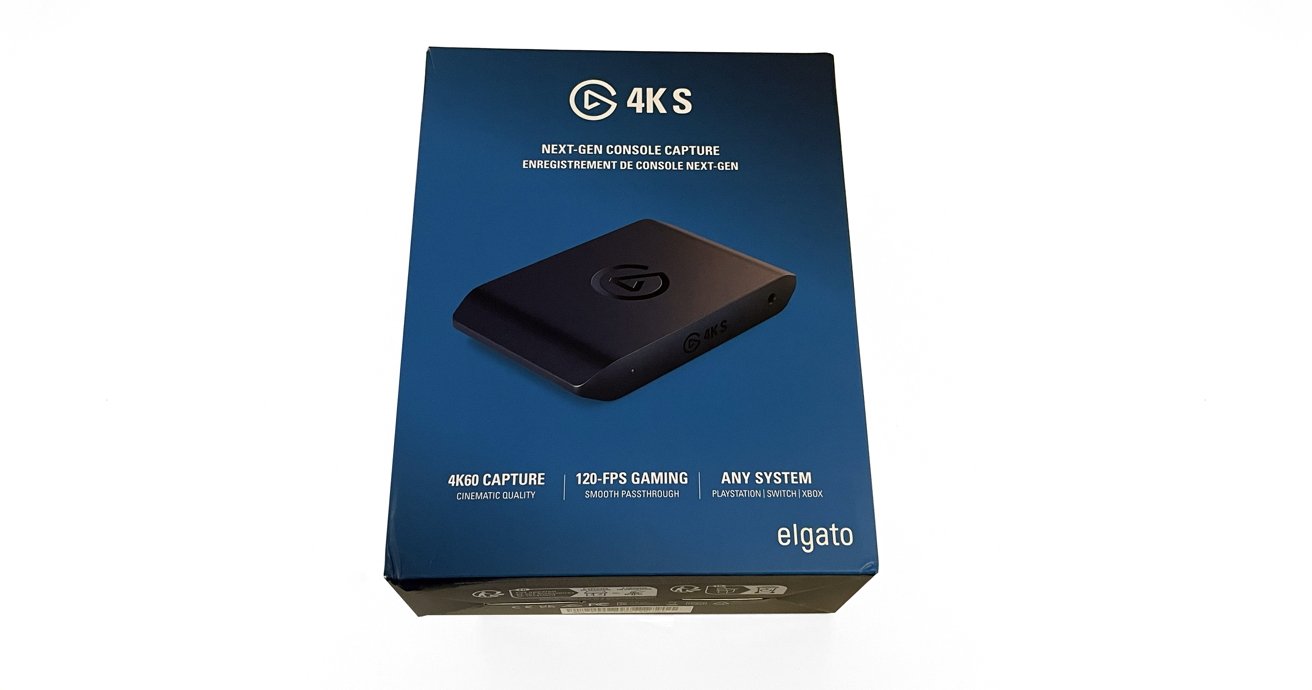
Elgato 4K S review: The box.
Out of the box, the Elgato 4K S is a compact, rectangular unit. It has a clean, black matte finish and a simple shiny Elgato icon on the center top.
The Elgato 4K S is only sold in black, which I do not mind personally. But with Elgato offering their Stream Decks in white as well as black, I could see some consumers wanting to keep a consistent look across their peripherals.
It would be nice to have white as an option in the future.
The HDMI input and output ports and the single USB-C port reside on the back side of the Elgato 4K S. A 3.5mm analog line input and power indicator light are on the front side.
There is no external AC port or plug required with the Elgato 4K S, as it is bus-powered over USB-C. This is a nice feature for cable management and clean workspaces in mind.
Elgato 4K S Review: In Use
Setting up out of the box is the smoothest and easiest experience I have ever had with a capture card.
I plugged one HDMI cable into the input and my Nintendo Switch dock. A second HDMI cable was connected to the output and my ASUS monitor.
Lastly, I plugged the USB-C cable into the port on the Elgato 4K S and my Mac Studio.
Powering everything on, the Nintendo Switch feed immediately appeared on the ASUS monitor with no issues.
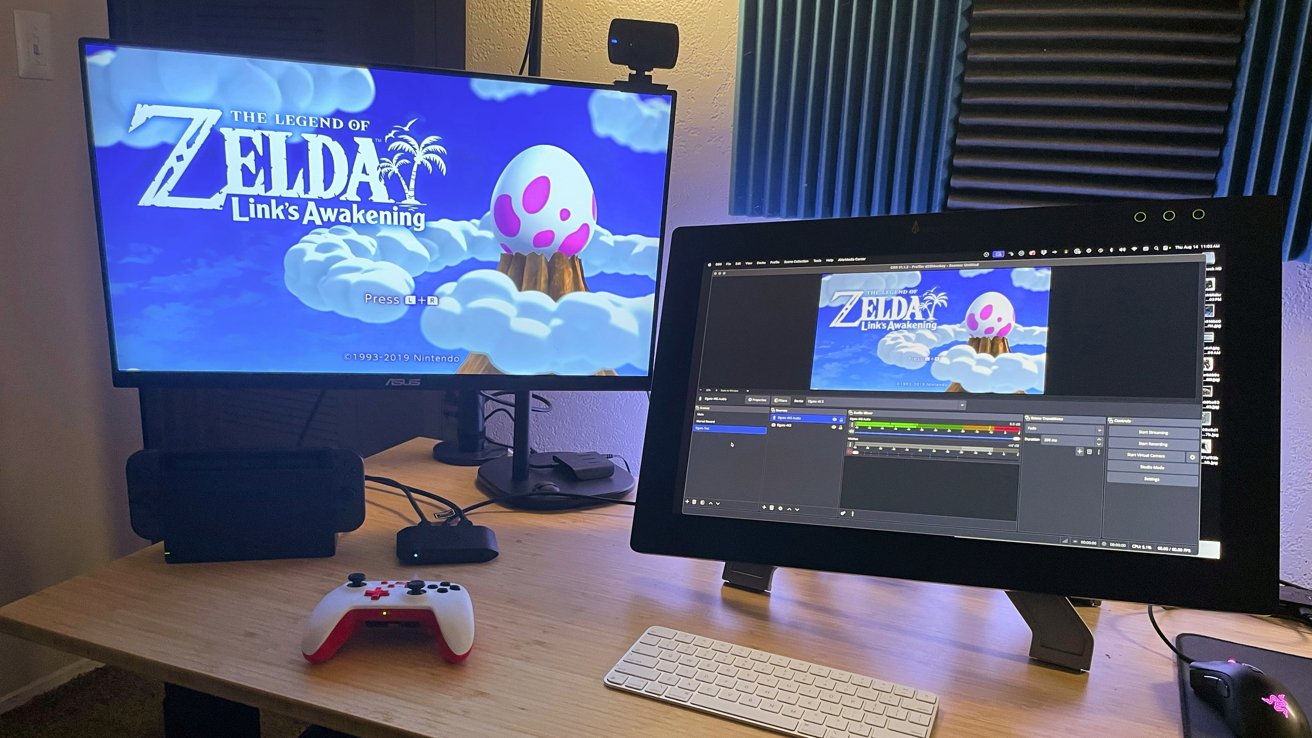
Elgato 4K S review: In use in the test streaming setup.
Elgato recently released its Elgato Studio software. While it is very polished and user-friendly, the app is basic, and users cannot stream directly from it the way Streamlabs, OBS Studio, and others do.
Elgato Studio is designed purely to capture gameplay. It does that task well, but that isn't the focus of my review and testing.
I opened OBS Studio, created a scene, and added a new video input capture. The Elgato 4K S option appeared immediately, and after selecting it, the Nintendo Switch feed appeared in OBS Studio.
After that, I added a new audio input capture for the Elgato 4K S, then tweaked my sound monitoring and output settings. In less than 10 minutes, I was ready to hit "Go Live" in OBS Studio and stream Link's Awakening if I wanted to.
To be thorough, I also tested the same setup with Streamlabs, and everything worked perfectly. I could not ask for a more seamless setup experience.
Some capture card manufacturers use proprietary apps to gate-keep the full potential of their hardware. With Elgato, the apps are add-ons that enhance the experience and provide deeper levels of control, but they never hide or restrict functions.
The Elgato 4K S takes advantage of HDMI 2.0 ports for the input and the passthrough. This is an excellent feature that allows you to get the most out of 4K at 60 fps.
Variable refresh rate support is a welcome addition to overall video quality.
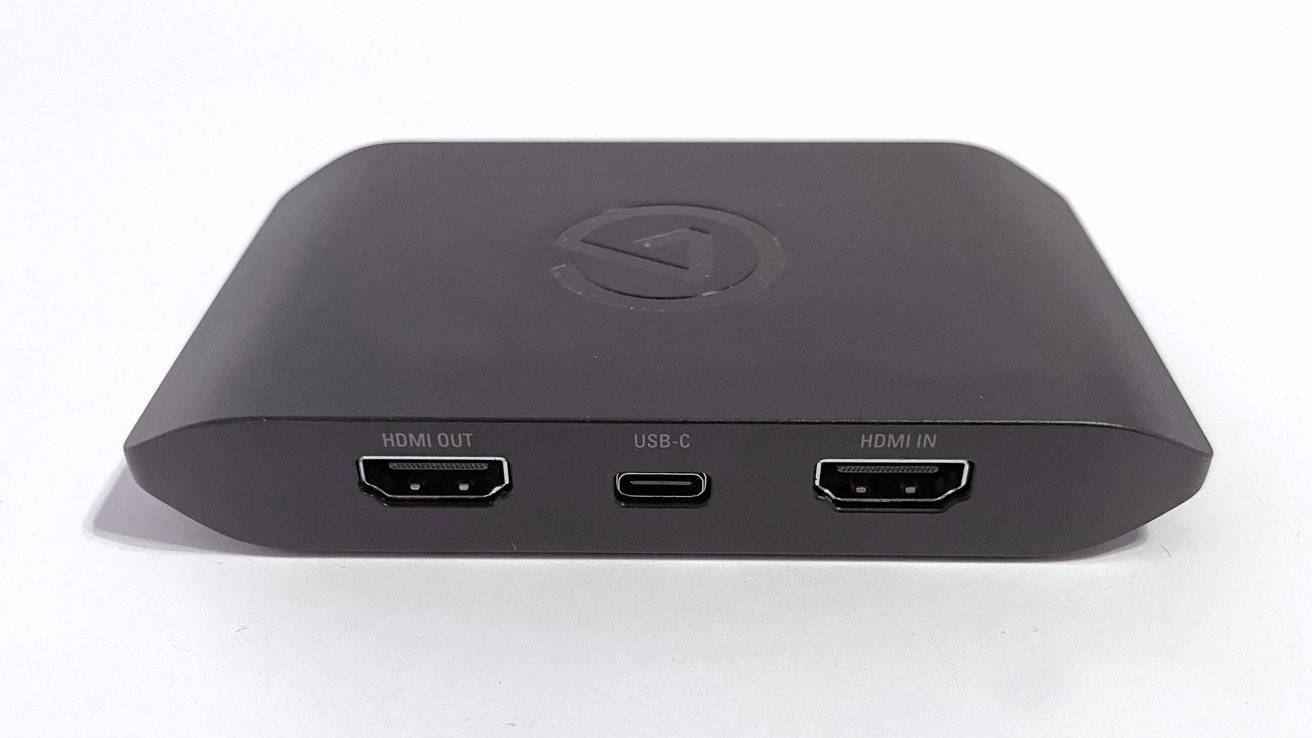
Elgato 4K S review: The main ports for video.
In the time I spent playing, I did not experience any video or audio lag in the captures. That said, the Nintendo Switch is not a heavy lift for a capture card like the Elgato 4K S.
I did a bit of research outside of my own testing and didn't discover any issues that would prevent me from recommending the use of the Elgato 4K S with beefier systems. That includes more powerful gaming PCs and consoles like the PS5 or Xbox consoles.
The capture quality of the Elgato 4K S is staggering, considering it is such a small package. This capture card is perfect for permanent residence in a home setup, or as an added component for mobile gaming and streaming.
It's not hard to imagine seeing the Elgato 4K S making trips to gaming conventions, gatherings, and events for streamers on the go. Both for live streaming purposes and for capturing gameplay to be published later.
The only two drawbacks are the system requirements and the (obvious) inability of the device to capture HDCP-protected video.
Elgato 4K S Review: Small but mighty
At $159, the Elgato 4K S is not inexpensive, but it does not break the bank. For me, the investment is worth the cost for the quality delivered.
For streamers leaning into console play as their driving source of content, the Elgato 4K S works as intended and delivers on the claims made by the company.
This is a very good capture card, and as a part-time streamer myself, the Elgato 4K S now holds a permanent spot on my desk for future Zelda and Mario RPG streams.
Elgato 4K S pros
- Pure plug-and-play experience with no hassles
- Small workspace footprint
- Dual HDMI connections for input and passthrough
- Reasonable price for amazing quality
- Excellent for mobile streaming or capture setups
Elgato 4K S cons
- Older hardware excluded
- Elgato software is for gameplay capture only
Rating: 4.5 out of 5
Where to buy the Elgato 4K S Review
The Elgato 4KS is available in Elgato online store for $159. It's also available from Amazon for $159.99.