Apple's Spotlight feature has been around for a long time, but with macOS Tahoe, it enjoyed its biggest update in years. Here's how to make the most of its powerful new features.
Spotlight, never further than a keyboard shortcut away, has long been a quick and easy way to open apps and find files. But some Mac users chose to use more capable alternatives like Alfred and Raycast.
Yet now with macOS Tahoe, Spotlight offers many of the same power user features of those apps, without the need to install anything. And because it's built into macOS, it's absolutely free.
Consequently, Spotlight has never been more capable than it is today, and here's how to use its new features to get the most out of your Mac.
Quickly open apps and files
At its most basic level, Spotlight is a great way to open apps and files quickly. Your fingers need never leave your keyboard.
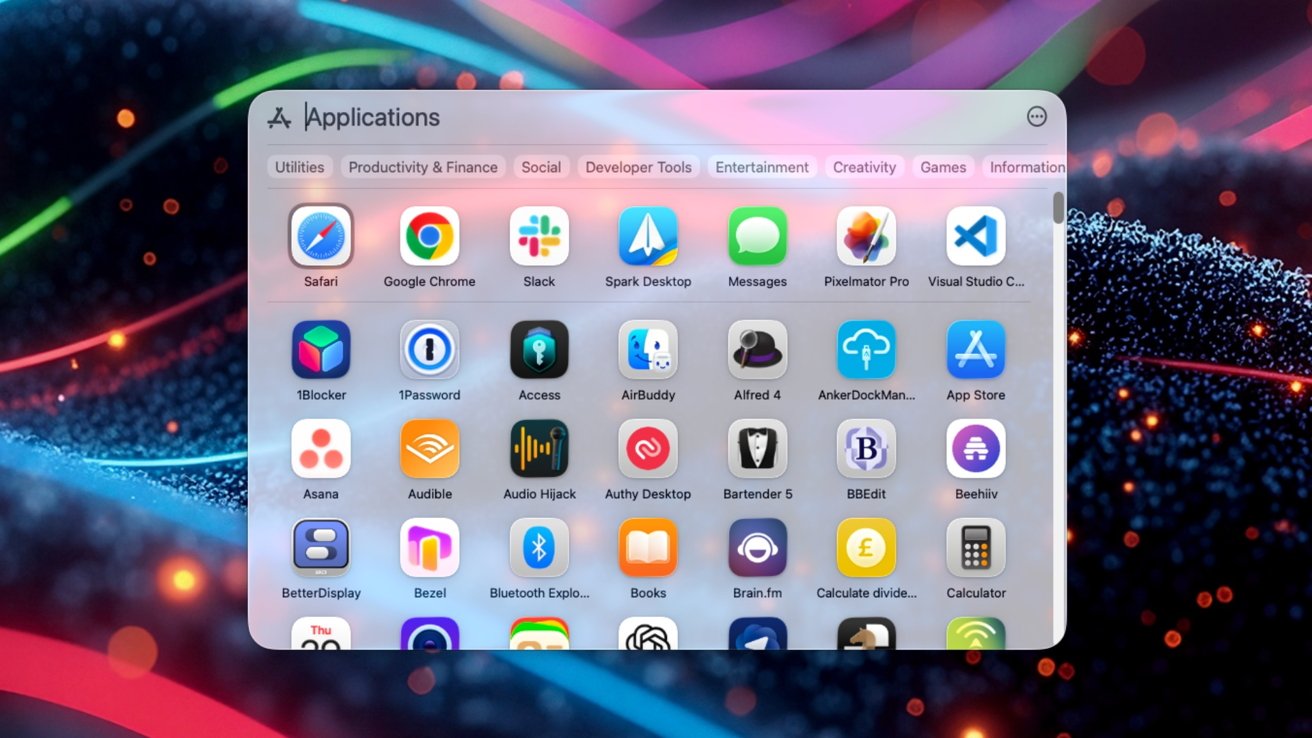
Launching apps is easier than ever
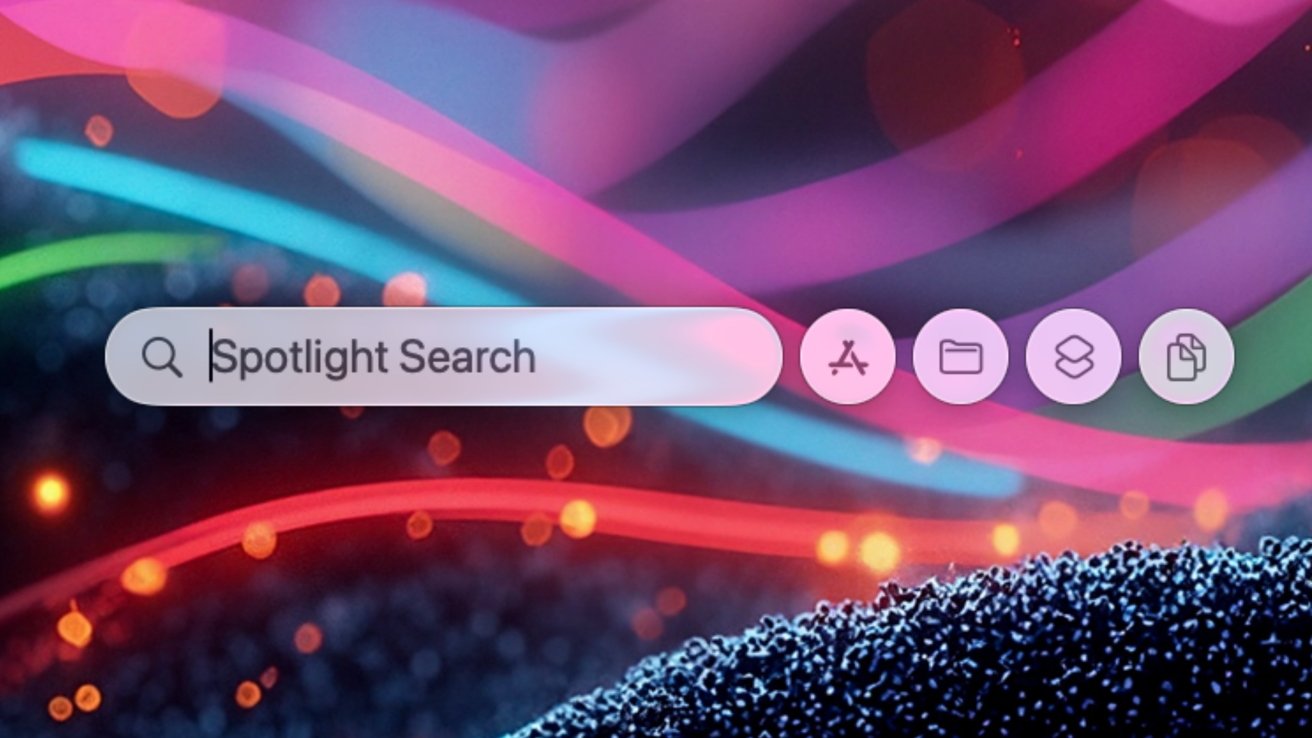
Pressing Command + Space opens Spotlight with a blinking cursor, ready for you to type. Type the name of the app you want before pressing Return to open it. You can use the arrow keys to move up and down the list of results, too.
Alternatively, you can press Command + 1 or click the App Store icon to get started. You can then click an app or click one of the categories to drill down — perfect for those of us with a large number of apps installed. You can also use the right arrow key to move through the list of categories.
Apps installed on your iPhone will be listed beneath those installed on your Mac. Clicking an App will open it via the iPhone Mirroring feature.
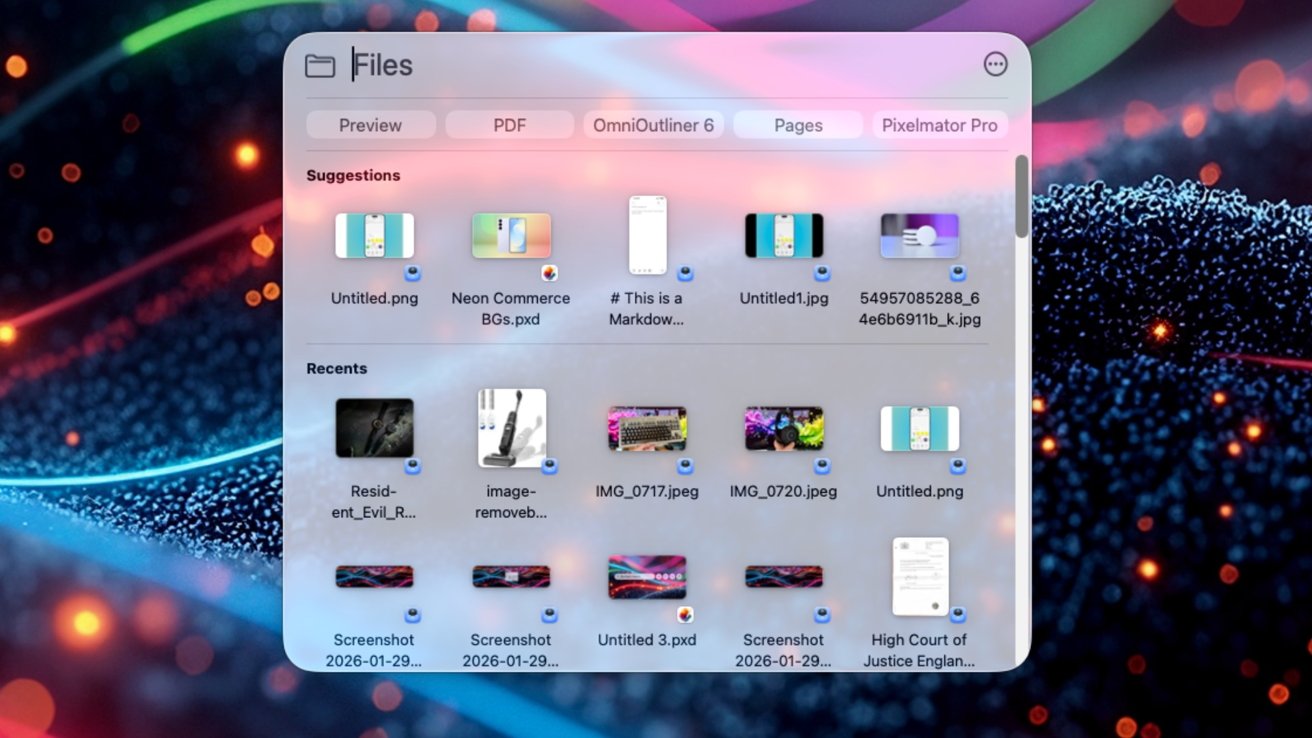
Easily find and access your files with the updated Spotlight
Spotlight can be used to open files, too. Spotlight indexes your Mac's storage so it knows exactly which files are where. Type the name of the file before pressing Return to open it.
Similarly to apps, press Command + 2 or click the file icon, and Spotlight will show a list of suggested files as well as the most recently accessed ones. Clicking a file will open it, while the arrow keys can be used to move through the list of files.
Run shortcuts and launch app features
With macOS Tahoe, Spotlight can dip into Mac apps to launch specific actions and run shortcuts.
Press Command + Space to open Spotlight and then press
Examples of actions available include sending a message to a contact, starting a timer, adding an event to your calendar, and more.
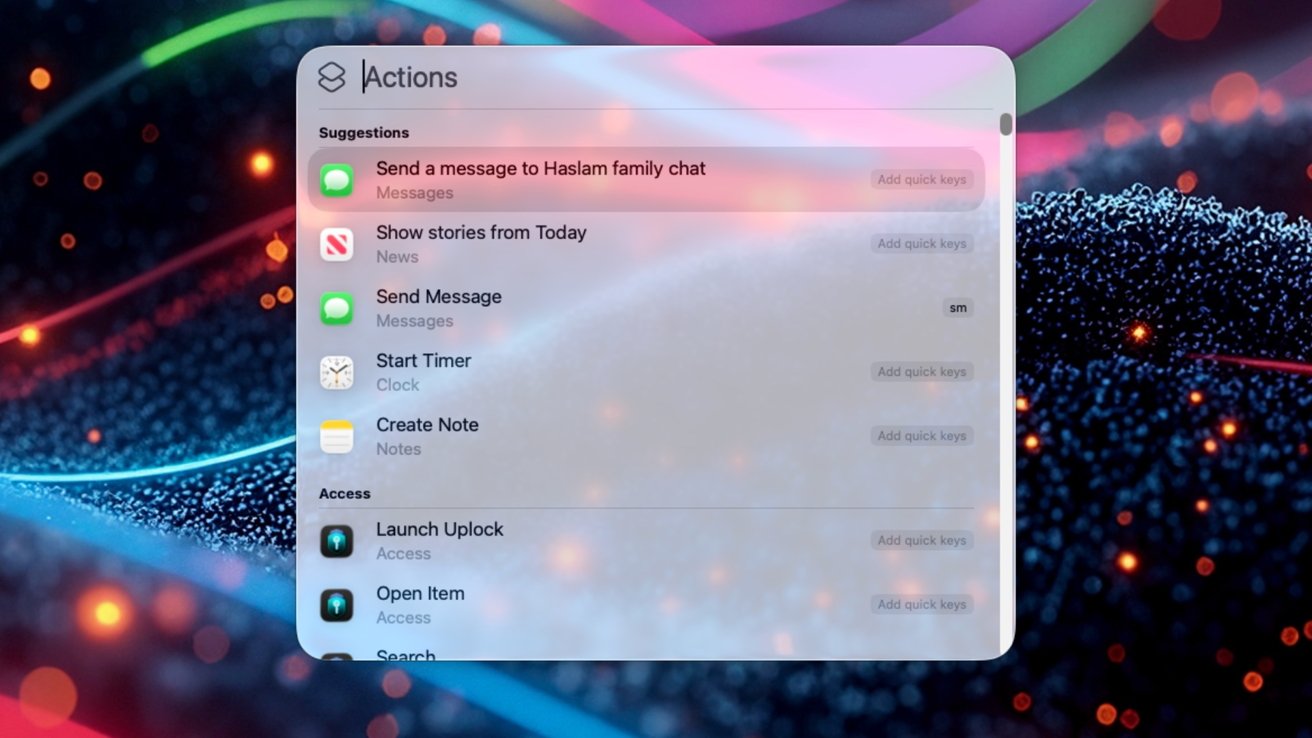
Using your Mac without ever touching your mouse just got easier
If speed is of the essence, click Add Quick Keys to assign a text shortcut for quicker launching. "Stimer" could replace "Start a Timer", for example.
I recommend browsing the options available, especially for your most-used apps. Spotlight hooks into App Intents, something app developers have been building into their apps for the last few years.
With App Intents, Spotlight (and Siri before it) can perform actions that would normally require users to open an app and tap some buttons. App Intents give Spotlight a way to interact with those actions without ever opening the app itself, saving time and reducing clicks.
You might be surprised how much Spotlight can do right thanks to App Intents.
As an example, try selecting the Send Message action. Type the content of your message, press Tab and type the name of the person you want to send the message to. Select their contact, press Return, and you're done. This works for emails using the Mail app, too.
There are multiple benefits to using Spotlight in this way. It's quicker than clicking through the Messages or Mail apps, for example, and you won't be distracted by your inbox or new messages, either.
Access your clipboard history
Perhaps the biggest addition to Spotlight with the macOS Tahoe update is quick access to a searchable clipboard history. Text, files, and more are supported, and you can quickly copy items from your clipboard history, ready to paste elsewhere.
This is the first time that Apple has offered a way to easily access your clipboard history. It's a feature that Mac users have long requested, but instead had to rely on third-party apps to fill the void. This feature won't replace more advanced clipboard managers, but it's a huge step in the right direction.
However, it's important to remember that Spotlight will remember everything that you copy. That includes passwords, something dedicated clipboard managers often ignore to ensure they remain private.
Press Command + Space to open Spotlight and get started. Press Command + 4 or click the icon with two pieces of paper to access the clipboard feature.
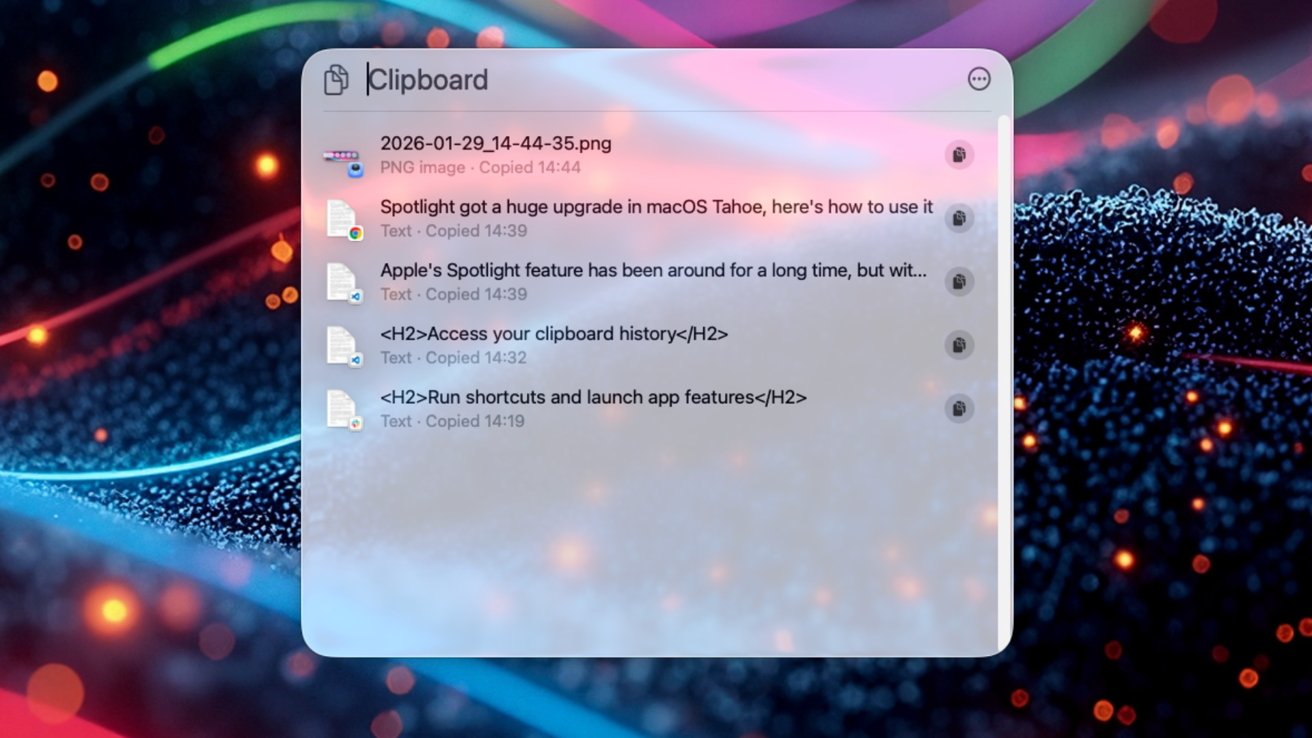
Quick access to your clipboard can be super useful
Use the arrow keys to move through your clipboard history. You can press Command + C to copy an item back to your clipboard, ready to be pasted in another app.
Spotlight shows the last eight hours of items copied to your clipboard by default. That timeframe can be changed in the Spotlight settings found in the System Settings app. You'll also find a button to clear the clipboard history there, too.
Customize Spotlight
You can adjust how Spotlight works in the System Settings app, allowing you to enable or disable specific features and customize others.
Enable the "Show Related Content" option to allow Spotlight to highlight content from its partners. That could mean seeing Google image search results or web-based information about a location, for example. Disable the feature to prevent that content from appearing.
Click Reset Quick Keys to reset your Spotlight Quick Keys to their default settings. You can also reset your search history by clicking the Delete Search History button.
The privacy-conscious can also prevent Apple from using your data to improve Apple's search features. Toggle the Help Apple Improve Search option to the off position to do so.
Finally, Apple offers toggles to allow or prevent content from apps from appearing within Spotlight. This includes App Intents, Safari search results, and any other feature that uses an app to function. This is also the first place to check if an app's features don't appear in Spotlight as expected — toggle the app on or off to match your preference.
Similar toggles to control whether results from apps, files, folders, iPhone apps, and menu items are offered. Finally, the Results from Clipboard toggle allows or prevents Spotlight from searching and displaying content copied to your clipboard.