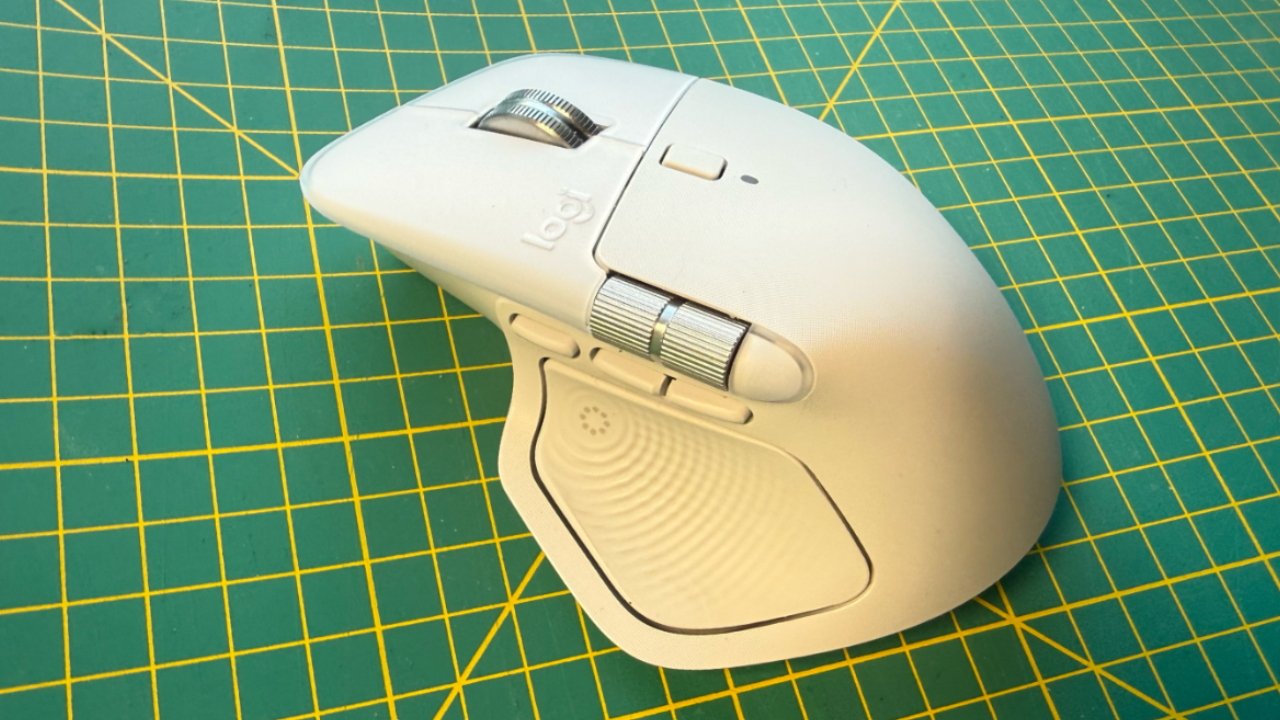
You do have to be right-handed, but if you are, the new Logitech MX Master 4 mouse for Mac beats even its predecessors, specifically because of its new Actions Ring.
I am such a die-hard trackpad user that I rarely try out a mouse and when I do, none of them have tempted me to switch — until now. I'm still not a full convert, there are still things Apple's Magic Trackpad seems better at for me, but for the first time I want to use both.
That does make it a shame that the MX Master 4 is only available for right-handed people. It would be handy for me if I could use the mouse on the left of my keyboard and the trackpad on the right, but the mouse isn't built to be held that way.
What is built for, and this is the key difference the updated model brings, is to have your thumb operate a new button. You can change what this does in software, but by default, pressing this new button under your thumb launches an on-screen Actions Ring.
Logitech MX Master 4 review — Actions Ring
This is just superb. Wherever your cursor is on however many monitors you use, it is surrounded by options whenever you press this button with your thumb.
Press this and ring of eight icons appear, spaced equidistantly around your cursor. They stay on screen until you:
- Click on one
- Click on the center icon
- Click away from the ring
Logitech calls this button a Haptic Sense Panel. It does give you haptic feedback when you select an option.
Speaking of options, you can set up ones you want — so I have my most commonly-used applications set. Press my thumb in, use the mouse to move my cursor a fraction, and I'm clicking to launch or switch to OmniFocus, for instance.
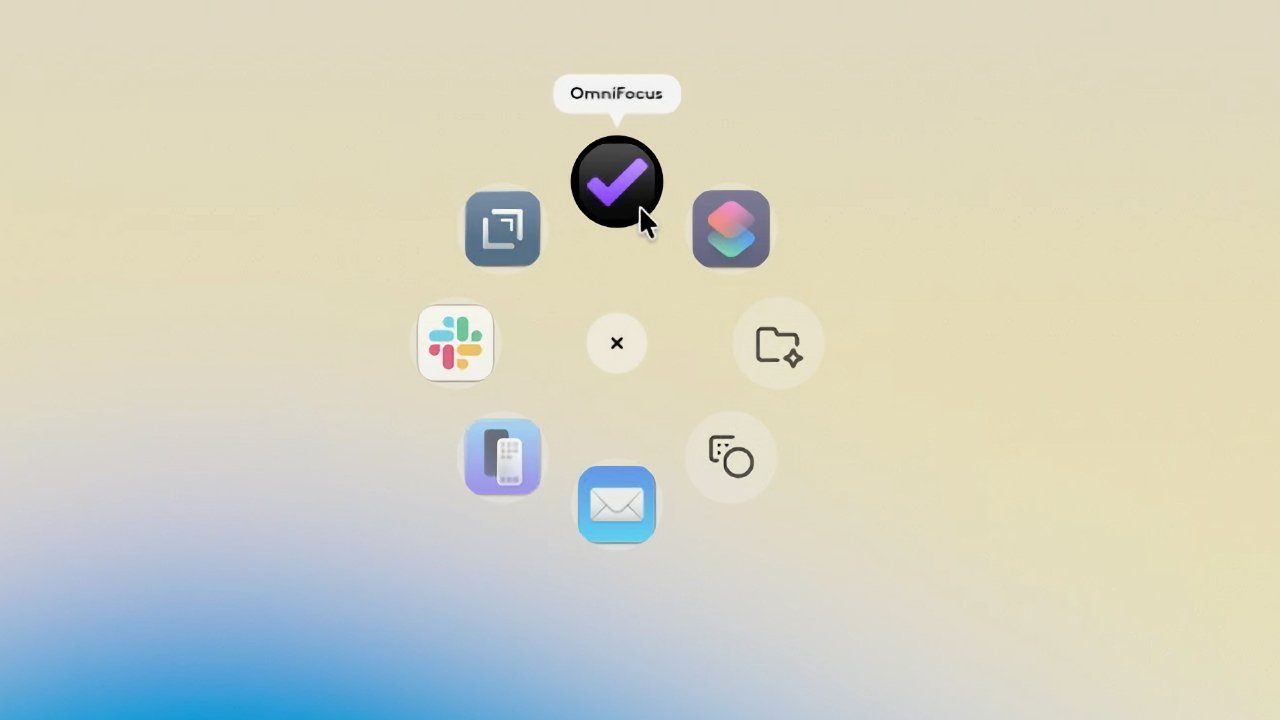
One example of the Actions Ring — it can be configured to put most controls near your mouse cursor
Or you can add often-used folders to the ring and so in a flash be zooming around your Mac.
Logitech Marketplace also provides sets of Actions Ring options called profiles. With these, you have different sets of options on the Action Ring depending on wat app you're using.
Although at time of writing, only a very limited number of these pre-built profiles are available. Currently they are only provided for controlling Adobe applications.
Logitech claims that this Actions Ring speeds up productivity — and I know it's true. Not only because that's exactly what I've found while using it, but because this same kind of on-screen, cursor-surrounding set of tools has been done before.
In May 2025, Elgato launched Virtual Stream Deck to do much the same thing. You have to own a physical Stream Deck, though, and that must at least occasionally be connected to your Mac.
The Stream Deck hardware doesn't have to be connected all of the time, though. So if you have one Stream Deck device you can move it between a Mac and a MacBook, enabling the Virtual Stream Deck on both.
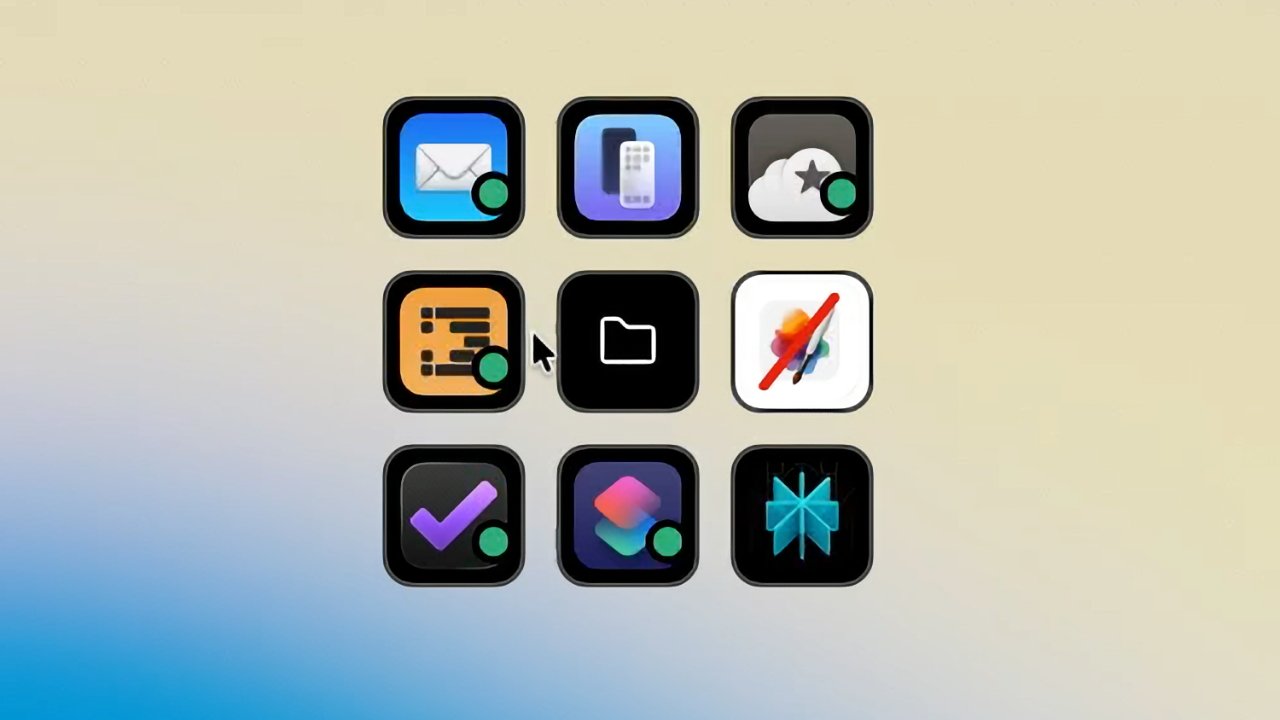
Elgato's Virtual Stream Deck offers the same functionality as Actions Rings
With it enabled and running, you can press a keystroke to call up options that surround wherever your cursor is. There is more scope for a greater number of options than Logitech offers, and they can be arranged in more combinations of rows and columns.
There's also at present a greater range of options, such as the ability to run specific Shortcuts or Keyboard Maestro macros.
Logitech's implementation of the same idea beats the Virtual Stream Deck aesthetically, though. Stream Deck requires you to add your own icons, if you want, and I'm clearly not as good at art as Logitech's artists are.
Plus having this side button for your thumb is much better than having to first find a keystroke. So much better that I've added an option to the Actions Ring to trigger the keystroke, to launch the Virtual Stream Deck.
If that seems like overkill, you haven't yet used this thumb button. This Actions Ring feature alone is a reason to buy the Logitech MX Master 4.
Logitech MX Master 4 review — more controls
Just above this thumb button that I so like, there is a set of three smaller ones, with one slightly spaced ahead of the others. That one is a Gestures button and you hold it in while you move the mouse.
So far the most useful for me has been switching Spaces by holding that button in, then moving the mouse left or right. That's actually feels faster and more precise than finger-swipe gesture I'm used to with the trackpad.
But you can equally well hold in the Gestures button and move the mouse forward to get Mission Control, or back for App Expose.
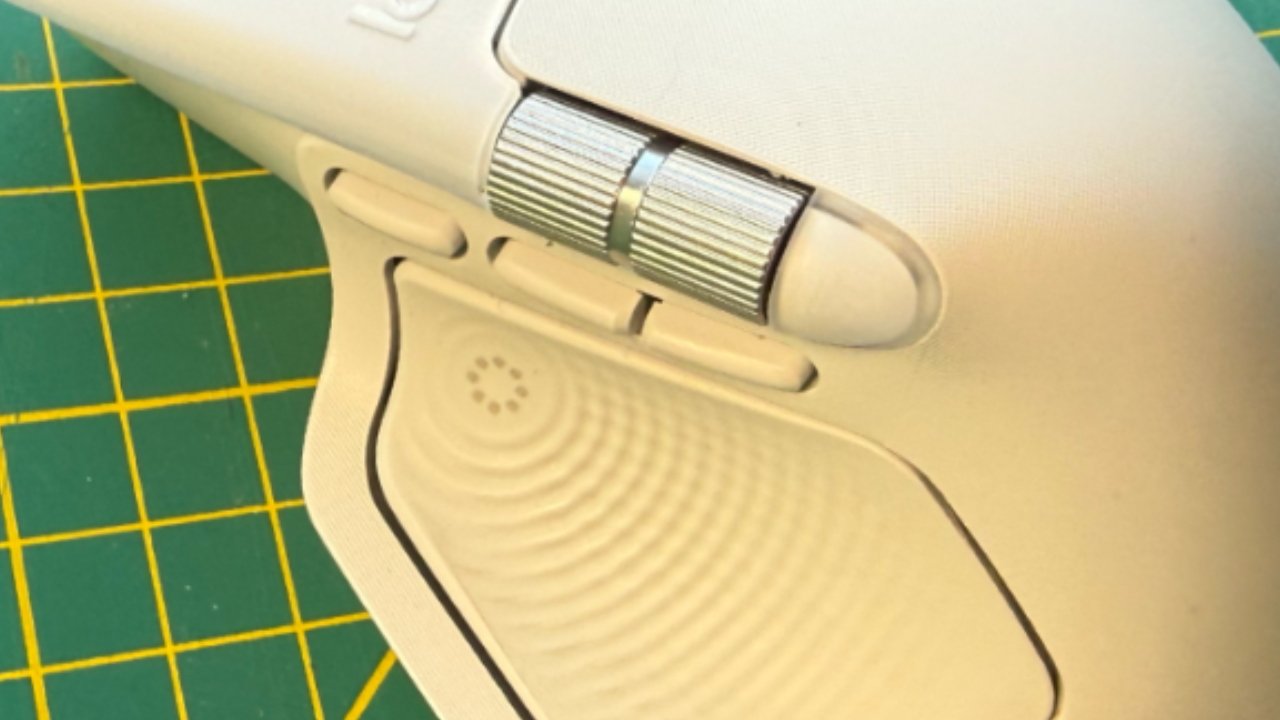
Below the silver horizontal scroll wheel there are buttons for Gestures, Smart Zoom, and BackBelow the silver horizontal scroll wheel there are buttons for Gestures, Smart Zoom, and Back
Of the other two buttons, the one furthest toward the back of the mouse, is Back. Again, it's handier than the Back gesture on a trackpad.
The remaining button is less absolutely useful, but it does go some way to addressing something a mouse tends to lack compared to a trackpad. It's a Smart Zoom button.
So where I am used to pinching and zooming in and out of a document or a webpage with a trackpad, here you can just press the button. It zooms a web page up to where the main text fits whatever size your window is.
It doesn't do that in word processor documents, or in image editing apps. Also, in a web browser, it doesn't allow you any control over the zoom level — but then the same button does also take you back out again.
For where it works, this button and its Smart Zoom is usually very good. As with many different types of mouse, you can also zoom by holding the Control or Option key, and rotating the scroll button.
But I have to say Control or Option to you because I only ever got it to work once. And that was by ignoring online instructions and trying the opposite key.
So despite scrolling with Control or Option, and despite Smart Zoom being excellent in certain circumstances, trackpads are better for pinching and zooming.
Logitech MX Master 4 review — scrolling controls
The mouse does come with two silver scroll wheels. One is a vertical scroll that sits under your index finger, and one is horizontal and lies near your thumb.
Both need adjusting for speed and also direction to suit you, but otherwise the vertical scroll is good.
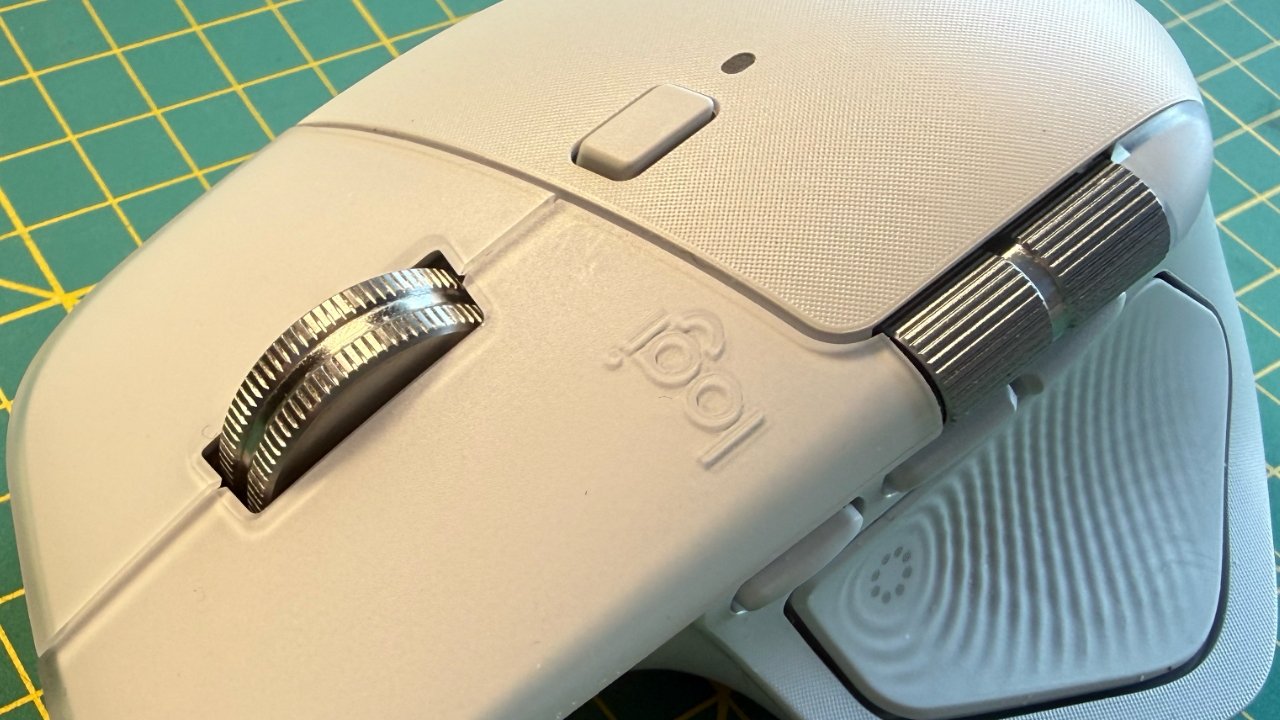
The two silver scroll wheels give you vertical and horizontal scrolling
The horizontal one is a bit less universally useful. Despite adjusting the speed, it can be slow.
Plus in apps such as iPhone Mirroring, using the horizontal scroll button to move between screens is frustrating. It's better to click on an empty part of the iPhone screen and move the mouse left or right.
Logitech MX Master 4 review — precision controls
All of this works on any Mac, but you probably only feel the benefit on desktop ones. More, this ability to surround your cursor with controls is clearly most useful when you're using multiple displays, or one very large one.
If your large monitors are high resolution, though, there's another benefit with this mouse. Optionally, it can be set to work with 8K monitors, enabling faster scrolling — and also much more precise cursor position control.
I didn't get to test that, nor multiple monitors, but I have a 49-inch curved display. Not only was it useful in that it saved time dragging the cursor all the way across, but if I ever lost the cursor, I could thumb the button and spot where it was.
Logitech MX Master 4 for Mac, though, was not great with Apple's Universal Control. I moved my cursor over to a MacBook Pro, then unthinkingly shut the lid on that laptop.
What should happen then is that the cursor just goes back to the screen of the other Mac. What happened here was that it went a bit crazy.
There was no cursor on my main Mac and no way to bring it back without opening up the lid of the MacBook Pro. Except when I did that, the MacBook Pro display kept flashing black and looping around the login screen.
It required a restart of the MacBook Pro to get everything working.
Logitech does, though, support a system it calls Logi Flow which is effectively Universal Control. Only, setting up that seems to entail using Terminal and it hardly seems worth the trouble when Universal Control ought to work.
Logitech MX Master 4 review — Pros
- Actions Ring is reason enough to buy
- Smart Zoom
- Vertical and horizontal scroll
- Comfortable grip
Logitech MX Master 4 review — Cons
- Surprisingly only for right-handed use
- Doesn't play nice with Universal Control — but Logitech offers a workaround
Logitech MX Master 4 rating: 4.5 out of 5
Where to buy Logitech MX Master 4
Logitech MX Master 4 is available direct from Logitech and on Amazon for $119.99. It comes in Graphite, Black, or Pale Gray.