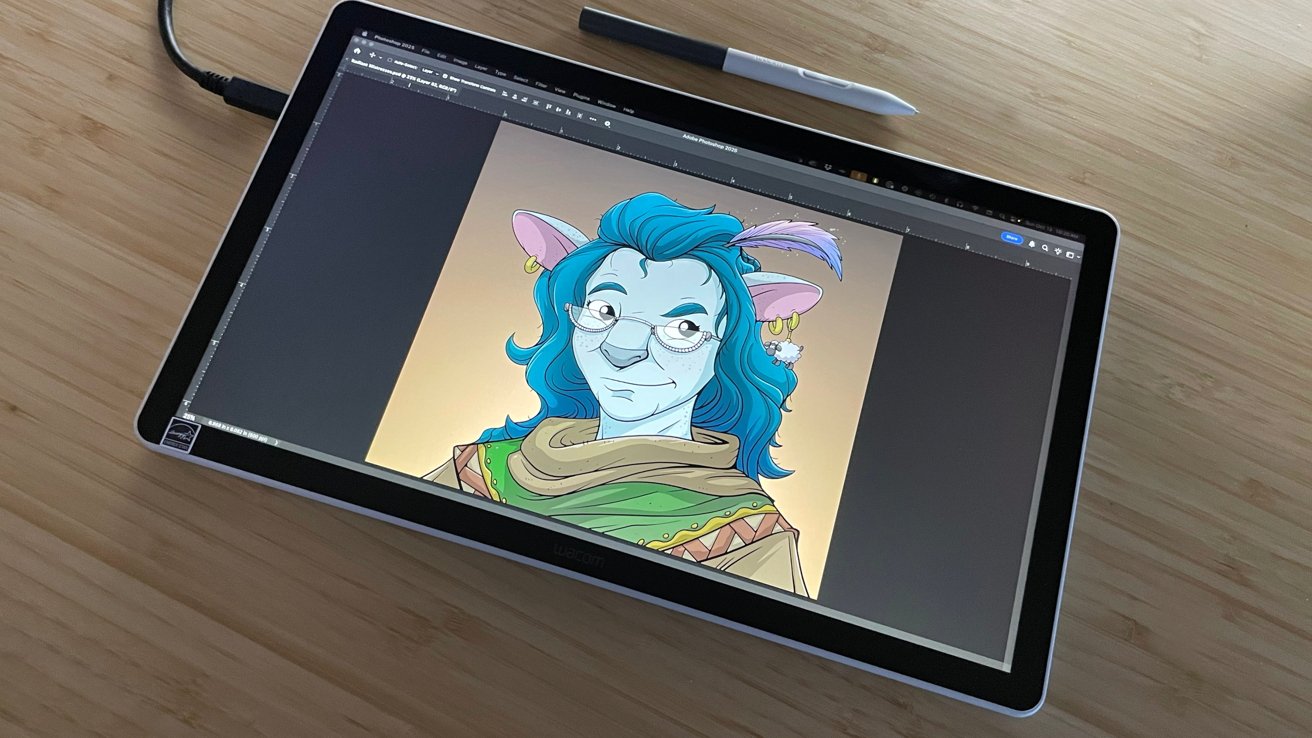
The Wacom One 14 is a computer-tethered pen display that tries to pull artists away from the iPad, but its solid specifications can't fend off a changing market forever.
As a professional digital illustrator with 15+ years of experience across comics, gaming, and everything in between, I love pen displays. Pen display tablets and digital art are vital to my day-to-day workflow and productivity.
My very first pen display was a Wacom Cintiq, and for many, many years used Wacom products exclusively for all of my illustration needs.
Primarily because Wacom offered the standard bearer for such hardware. Secondly, because the industry was brand new, with few alternatives available.
It remained this way for many years, but it's not like that now. In 2025, the pen display market is populated with solid manufacturers producing a variety of pen displays to meet every need and nearly any budget.
For the first time, Wacom is not the definitive go-to manufacturer. As the saying goes, competition is good for everyone.
Wacom continues to release new pen displays, ranging from large professional models to smaller, portable models for creatives on the go and stationary alike.
The company's newest release is the Wacom One 14. It's a versatile 14-inch color pen display aimed at casual artists and professionals with a need to get their ideas down at a moment's notice.
Wacom provided a Wacom One 14 to take out for an extended test drive. I took the opportunity to see if their quality and execution live up to the reputation Wacom has held onto for so many years.
Wacom One 14 Review: Inside the box
The Wacom One 14 arrived in a padded shipping box from Wacom. It had simple and vibrant branding, as well as a box that is very efficient in the protection and delivery of the components.
Inside the box are the display, the pen, a USB-C cable, the quick start guide, three replacement nibs, and a nib remover tool.
Wacom One 14 Review: Specifications
Main unit specifications
- Color: White
- Dimensions: 13.2in x 7.9in x 0.4in
- Weight: 1.65 lbs.
- Screen size (approx.): 14"
- Screen Resolution: 1920 x 1080
- Color Depth: 8bit x RGB (24bits)
- Screen size: 14.0in
- Display resolution: 1920 x 1080 pixels
- Technology: IPS
- Glass / surface: AG + AF Glass
- Active area (inch): 12.2 x 6.9 in
- Aspect ratio: 16:9
- Supported resolution: 640x480 @60Hz, 720x480 @60Hz, 720x576 @50Hz, 800x600 @60Hz, 1024x768 @60Hz, 1280x720 @50/60Hz, 1280x1024 @60Hz, 1600x1200 @60Hz, 1920x1080 @50/60Hz
- Pixel pitch: 0.1611 (H) x 0.1611 (V) mm
- Viewing angle: 178 deg. (89/89) H/178 deg. (89/89) V (typ)
- Color depth: 8bit x RGB = 24bit
- Color gamut coverage ratio: sRGB 98% (CIE 1931) (typ)
- Contrast ratio: 1000:1 (typ)
- Brightness: 285cd/m2 (typ)
- Response time (G2G): 16ms (typ)
Pen specifications
- Pen pressure levels: 4096 levels
- Pen type: Pressure-sensitive, cordless, battery-free
- Number of switches: 2 side switches
- Pen tilt supported: 60 degrees
- Pen resolution: 2540 lpi
- Pen technology: Electromagnetic resonance technology
- Reading height: 8 mm
- Maximum report rate: 360 reports/second
- Pen dimensions: 149.9mm x 9.8mm
- Pen weight: 9.9g
Wacom One 14 Review: Quality and Features
The Wacom One 14 is an incredibly well-made pen display from top to bottom. Nothing about the Wacom One 14 feels cheap or like a dramatic shift from the quality Wacom has maintained in its engineering for many years.
The Wacom One 14 does not include any HDMI ports or USB-A ports. Wacom is leaning fully into a single USB-C connection to drive the pen display.
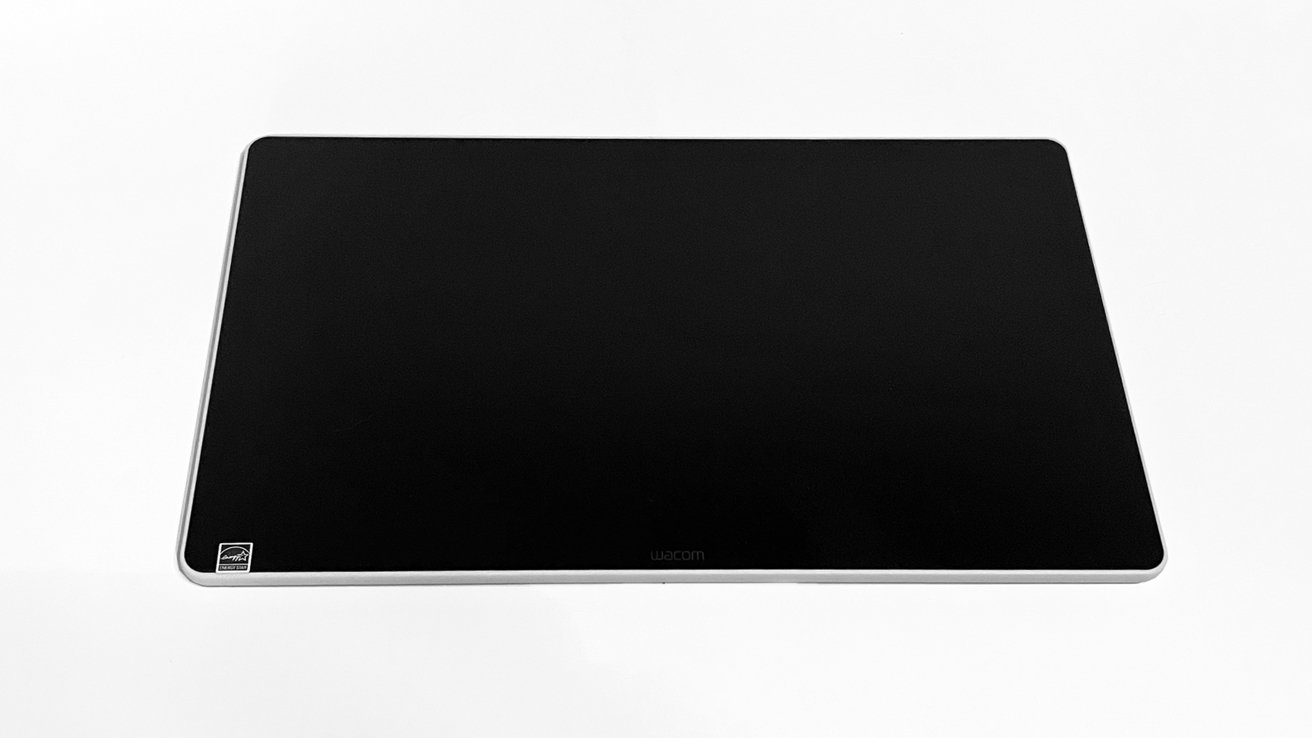
Wacom One 14 review: The pen tablet out of the box
Wacom includes the Wacom One 14 Standard Pen with the display, a solid stylus pen. It is one of the thinner models that is closer to an actual pencil in size and feel.
I currently use an old-school stylus with my display tablet that has the feel of a fat pencil. But it is one that but I find that is easier on my hands for long hours of drawing.
However, this Wacom One 14 pen is lovely and very comfortable, and it could make me a believer.
Wacom One 14 Review: Setup
Setting up the Wacom One 14 was incredibly easy, outside of one small issue Wacom needs to address immediately.
After unboxing and sorting the few components, I plugged everything into my Mac Studio, booted up, and was ready to go. It was truly that easy to get the Wacom One 14 plugged in and connected.
In my workspace, the Wacom One 14 appeared as a third monitor and never missed a beat. I could change the arrangement in iOS system preferences like normal, and it was pure joy to have it all online and ready.
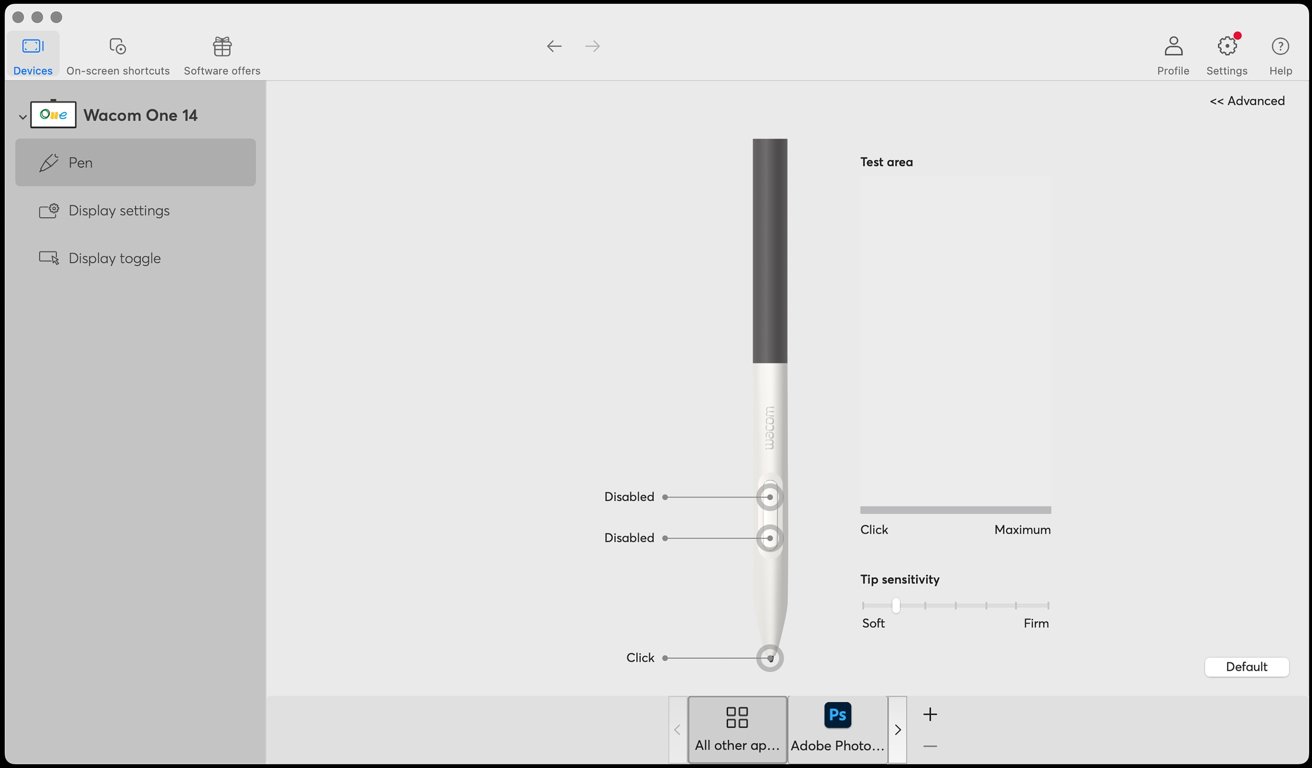
Wacom One 14 review: Using the software is easy.
Once the driver was installed, everything clicked perfectly. I had zero issues, and I set up my pressure sensitivity and pen button configuration quickly.
The Wacom software also allows you to customize gestures, menus, and a bounty of features.
Wacom One 14 Review: In use
After setting up the Wacom One 14, I opened a fresh Photoshop document and settled in to draw and made a few immediate observations.
First, there is no fan noise. None. The Wacom One 14 is whisper-quiet. Your mileage may vary, but I use a Mac because it's quiet, and a quiet tablet is important to me.
Next, there is no noticeable rise in heat from the display. I worked on a piece for a few hours, and I never noticed any change in surface temperature.
The pen included is lightweight and very sturdy. It doesn't feel flimsy or easily breakable, and I love the pencil-like dimensions. The pen nibs included are the standard plastic nibs offered by Wacom.
I prefer felt nibs in my pen display stylus, but that's a persona preference. The paper-like texture to the glass and surface area made all the difference in this case.
Drawing on the Wacom One 14 feels very close to drawing on actual paper. It's got just that right amount of drag and resistance you feel when a pencil moves across paper.
During my drawing experience on the Wacom One 14, I was relieved to see the sharpness of the line quality and responsiveness on the display. It not only remained excellent and consistent with the drivers Wacom is known for, but had improved since the last time I used them.
Wacom has never had an issue with "cursor float" or drifting, but the fine responsiveness of the Wacom One 14 is extraordinary.
I have commented in other pen display pieces that I once considered Wacom drivers as the gold standard for pen displays. But in recent years, companies like Huion and Xencelabs were not only meeting its standard, but exceeding it.
I am happy to see Wacom continuing to move forward and improving on excellence.
Wacom One 14 Review: Downsides
The Wacom One 14 is a great pen display, but it suffers from the same issue many, many other pen displays suffer: A pronounced lack of angle adjustment.
The Wacom One 14 is effectively a tablet and offers no angle adjustment outside of how you hold it, prop it up, or integrate the optional Wacom foldable stand in its online shop for $99.
Working on a flat surface means the tablet is flat. As a member of the Hunched Artist Society, I can tell you I did that for exactly ten minutes before I made other arrangements to correct my posture and improve my drawing experience.
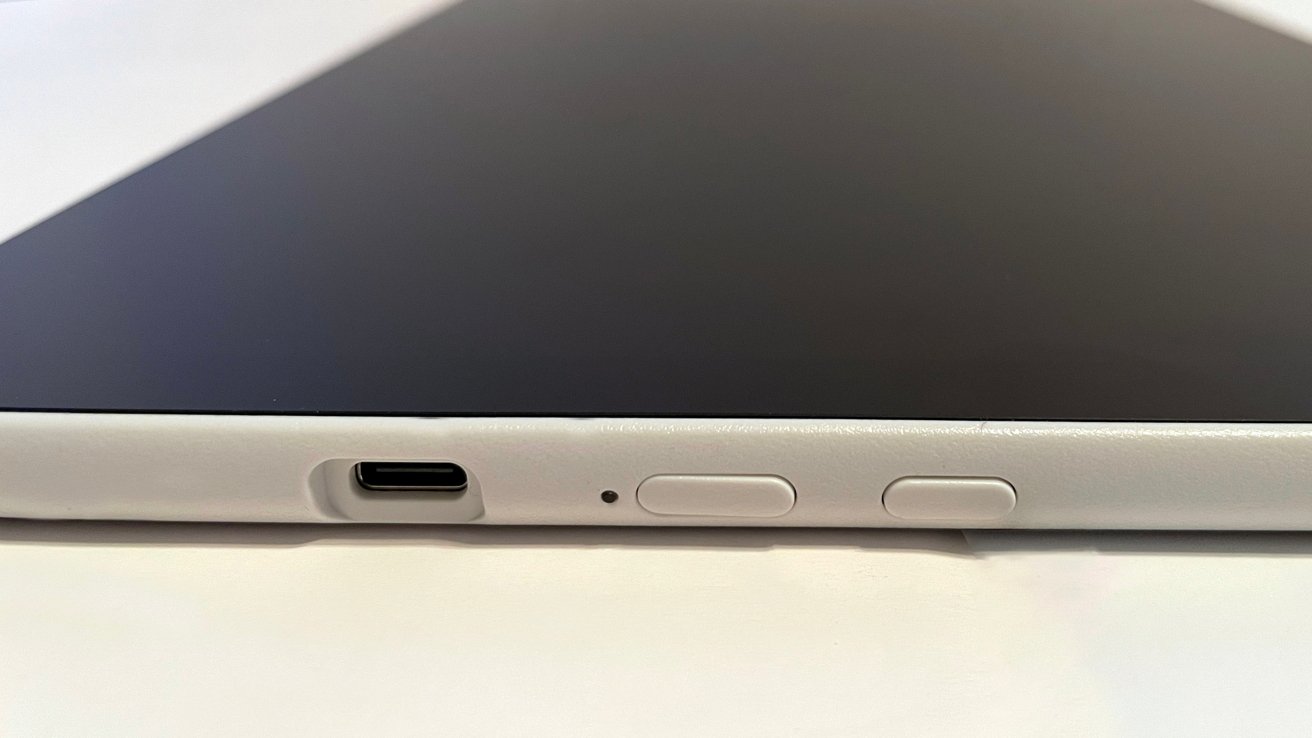
Wacom One 14 review: Side buttons and the USB-C port
I understand what Wacom and Wacom Marketing want here with this approach. They want that hopeful, romantic visual of a young artist sitting in a window on a rainy day with the Wacom One 14 in their lap, sketching and creating.
They want the hip college kid pulling out the Wacom One 14 around their friends to show off their latest design in a bustling scene.
This is all great, and I know the Wacom One 14 can do that, but sitting somewhere and drawing for hours requires some stability and comfort. I achieved mine with a rolled-up towel under the Wacom One 14 to give it more angle, and once I did it was lovely.
The other physical downside to the Wacom One 14 is the size of the application UI text. Know that if you have trouble reading small print, the Wacom One 14 will present challenges if you run at the 1920 x 1080 resolution.
I did, and as a Gen X artist, I had to boost all the text sizes up to reduce my eye strain. It is a specific issue, but it is worth mentioning.
Wacom One 14 Review: Cost
The Wacom One 14 retails in the Wacom online shop for $299.
By the standards set in the pen display industry, $299 is not a huge investment. It is an iPad-level investment and one that must be weighed against the alternatives available.
The Wacom One 14 is a pen display and a pen display only. It is a very good pen display, but it has one job and does one thing.
To do that job, the Wacom One 14 also requires a laptop or desktop computer with USB-C.
Comparatively, an iPad retails for $349, and the Apple Pencil retails for about $99, depending on which you get — but both are often on sale. Add Procreate for $12 and you're off to the races with a tablet that allows you to sketch, draw, and create and you also have the benefit of having a full iPad.
That is $490 for a full-fledged multi-purpose device at full retail vs. $299 not including the required computer, and the difference is not negligible. But there is an argument to be made, and I think it comes down to individual budgets and available resources.
I can easily see a Wacom One 14 purchase for an artist in a house with shared computers or laptops to keep the overall cost down. All while still benefiting from the excellent hardware and software Wacom delivers with the Wacom One 14.
Wacom One 14 Review: Good, but in a crowded market
I know that the Wacom One 14 is an excellent pen display, and I enjoyed working on it. However, I do not see a scenario where it replaces larger pen displays for professionals or artists acclimated to the iPad/Apple Pencil ecosystem.
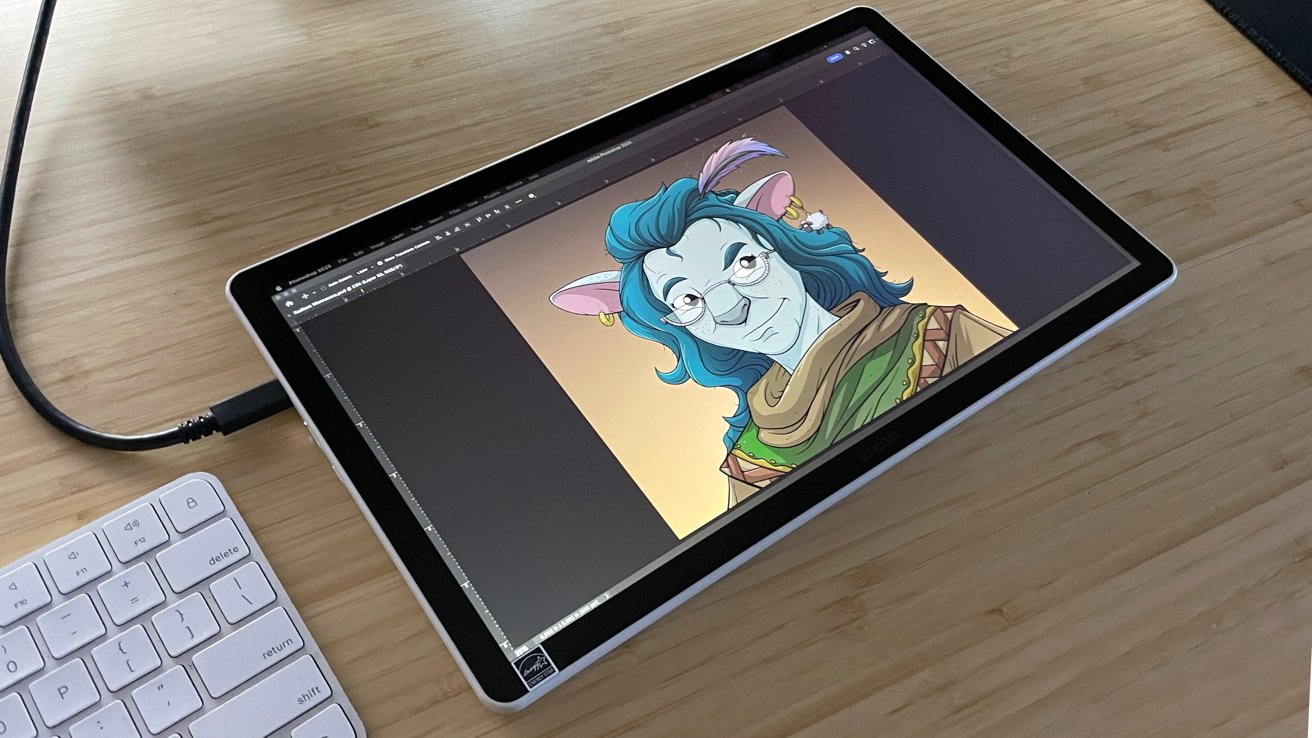
Wacom One 14 review: It's good, but Wacom's rivals have caught up.
The Wacom One 14 is a solid offering from Wacom, but it is no longer the only game in town. With so many options, the Wacom One 14 may have trouble finding its place in the market.
Wacom One 14 Pros:
- Easy installation
- Beautiful display
- Zero fan noise
- Sturdy construction
- Amazing line quality and pressure sensitivity
Wacom One 14 Cons:
- No built-in stand or feet
- Possible additional cost for stand
- Not a "cheap" option for a casual artist, and an iPad is still probably a better choice
Rating 3.5 out of 5
Where to buy the Wacom One 14
The Wacom One 14 is currently available through the Wacom online store for $299.95. It's also available from Amazon, on sale for $249.95.