Apple has introduced two interesting ways to view photos across its platforms, Spatial Photos and Spatial Scenes, and each adds depth in its own way. Here are the differences and what you need to know.
Apple has created some confusion with its similar naming schemes for media, especially since it started dabbling in spatial computing. When viewing your Photo Library on Apple Vision Pro, there are two distinct ways to enjoy every photo with some added depth.
While Spatial Scenes and Spatial Photos have similar names, they're two very different implementations of similar ideas. One is a view-only change while the other is more permanent.
Spatial Scenes can be created on iPhone, iPad, and Apple Vision Pro, while Spatial Photos can be captured with iPhone or Apple Vision Pro and viewed on Apple Vision Pro. There's also the ability to convert any 2D photo to a Spatial Scene or Spatial Photo.
Separate the two and they are much easier to understand.
Spatial Scenes
Spatial Scenes are a new concept that Apple introduced for iOS 26, iPadOS 26, and visionOS 26. When in the Photos app, any 2D photo that isn't a panorama can be converted into a Spatial Scene.
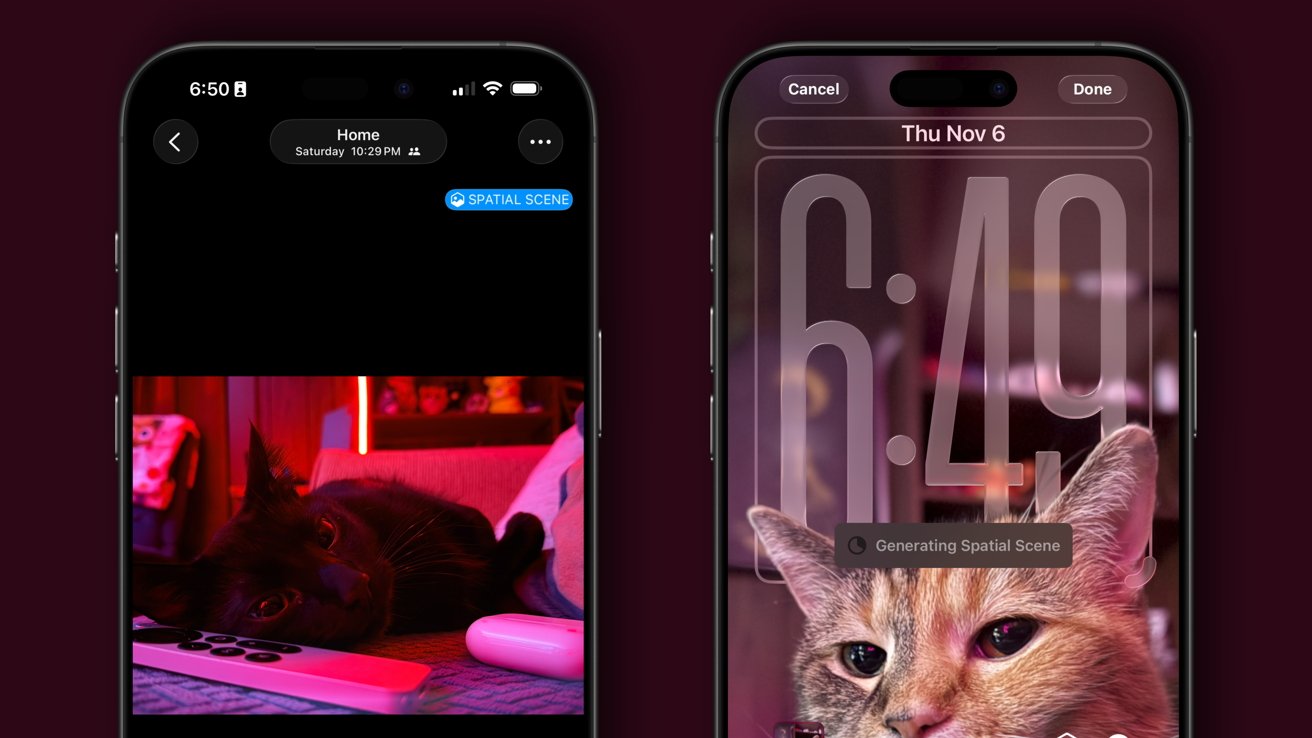
Spatial Scenes can be created on iPhone, iPad, or Apple Vision Pro
A Spatial Scene is a photo that has been converted into a kind of diorama the user can look into. Apple Intelligence attempts to separate layers so that users can look around "inside" a photo.
On iPhone and iPad, the result is similar to a holographic card or lenticular poster. Tilt the device to peer around the photo, even "around" objects in the foreground.
The AI doesn't attempt to fill in the area behind objects, so you'll just see a smeared background behind objects. It's an interesting effect, but not perfect, especially in 2D.
Do the same in Apple Vision Pro, and the Spatial Scene makes a lot more sense. You can look around a scene by turning your head, and the layers are shown with a depth effect.
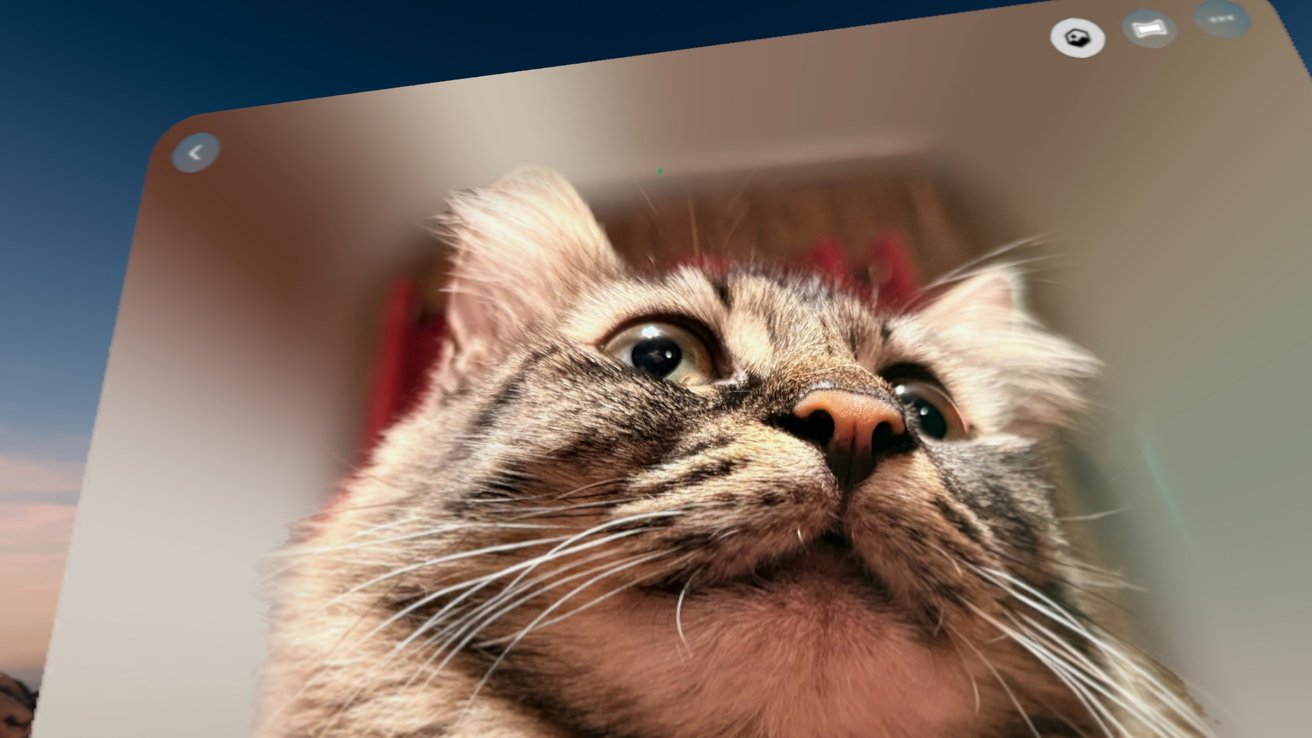
Spatial Scenes won't generate content for what is behind an object
It's a fun way to browse photos on Apple Vision Pro and adds a new level of depth and life to a photo, even if it is an older one. Spatial Scenes can be generated from any 2D photo or spatial photo, just not things like panoramas.
On iPhone, Spatial Scenes serve more purpose than a simple viewing window. Users can set a Spatial Scene as a Lock Screen wallpaper, which shifts and moves with the device.
To view a photo as a Spatial Scene, open the Photos app and select any photo, then tap the "Spatial Scene" button in the top right corner. The scene is a temporary change and won't remain after closing the Photos app.
Spatial Photos
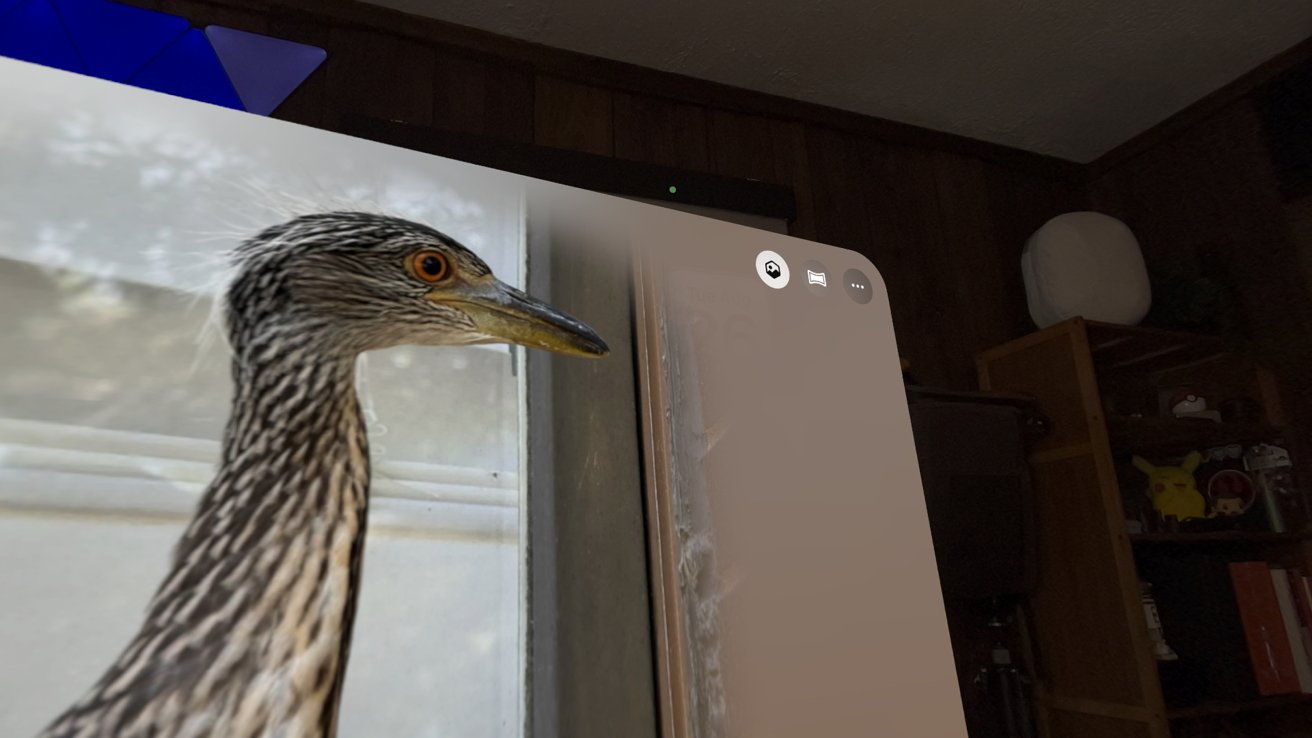
Unlike Spatial Scenes, which is a view-only medium, Spatial Photos is a format. Photos can be captured or converted into Spatial Photos to be viewed in 3D on Apple Vision Pro.
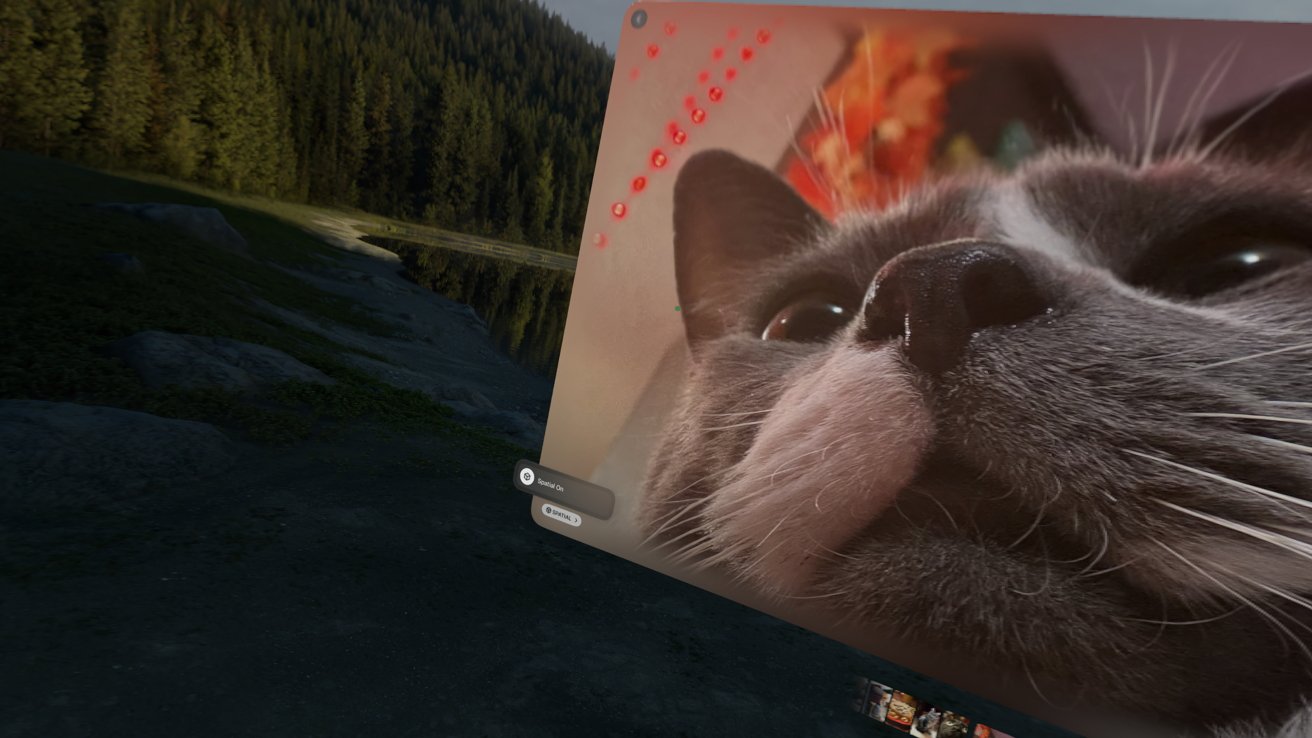
Toggle Spatial Photos without converting them to 2D using a toggle
The Spatial Scene button on Apple Vision Pro was previously used to convert 2D photos to Spatial Photos. That function still exists, but is found in the ellipsis menu.
Whether a photo was captured on iPhone or Apple Vision Pro, or was converted, it is shown with a feathered edge. This effect is what distinguishes between a standard 2D photo and Spatial Photo, as the effect is meant to ease the transition into the environment from a photo or video.
The feathered edge is baked into the file, so converting a photo to be a Spatial Photo is a persistent and reversible change. That's the primary distinguishing feature between Spatial Scenes and Spatial Photos — scenes are just for temporary viewing.
The point of Spatial Scenes and Spatial Photos
Since both Spatial Scenes and Spatial Photos aren't the primary way to view a captured photo, users shouldn't worry much about when each is used. Since any photo can be convincingly converted to a Spatial Photo, it is always better to just capture the photo using the standard camera settings and convert it later.
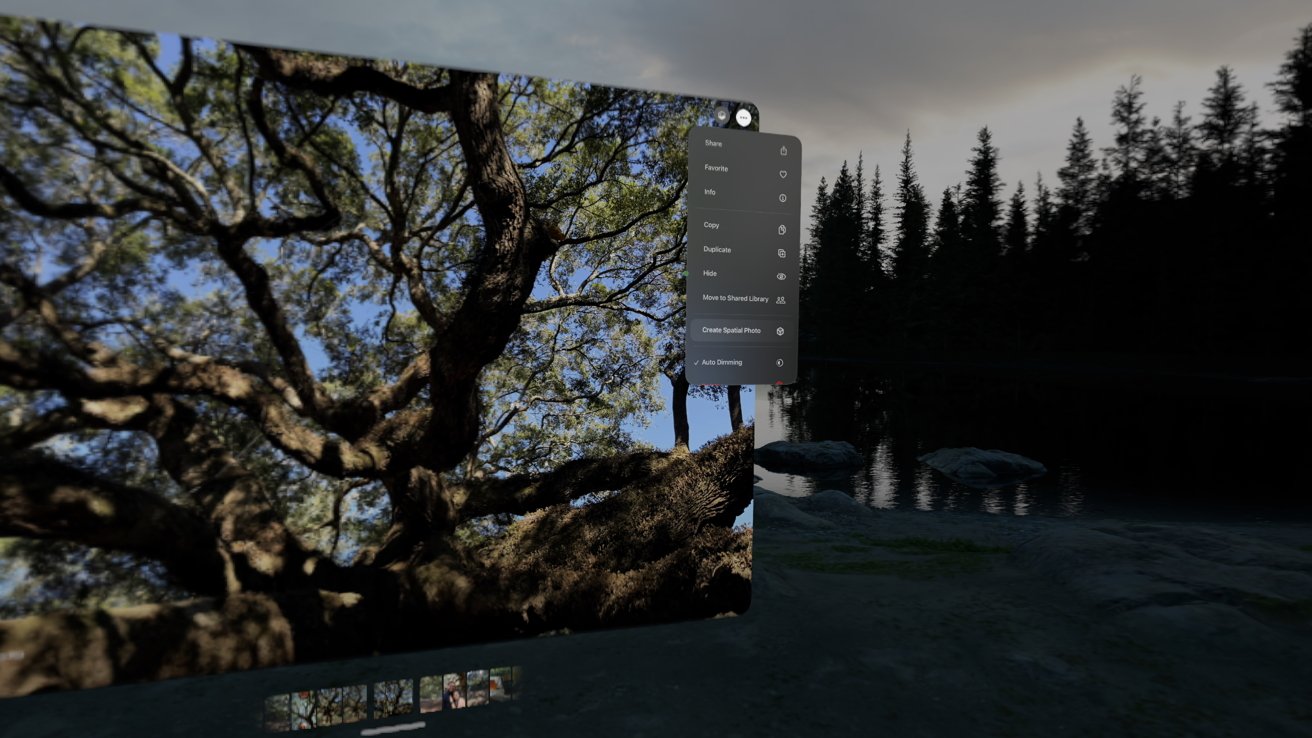
Convert 2D images to Spatial Photos using the ellipsis menu in Photos on Apple Vision Pro
Or, if you want the best possible results, capture both a regular photo and then a Spatial Photo so both are available. Of course, Spatial Photos captured on Apple Vision Pro will still be the best result of the three options.
Spatial Photos can't be edited, so keep that in mind too. You shouldn't be defaulting to Spatial Photo capture.
Spatial Scenes are always temporary, but they add an interesting effect and are especially cool for the Lock Screen. Scenes can also be generated from Spatial Photos, so it isn't as if you have to choose one over the other.
Apple is using these photo viewing options and formats as a way to showcase its device technology and AI. If you haven't tried viewing a Spatial Scene on iPhone or iPad, or viewing a Spatial Photo on Apple Vision Pro, it's quite the compelling experience.