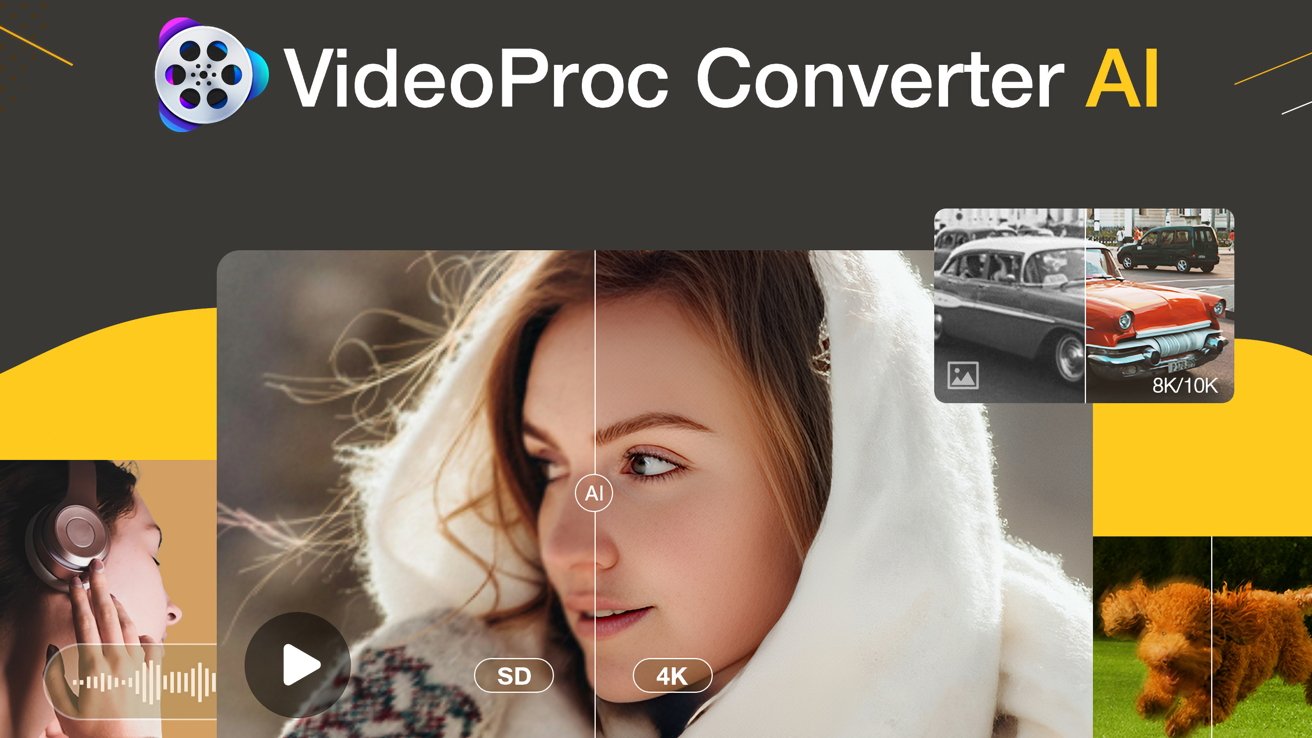
Digiarty's VideoProc Converter AI can enhance your old, grainy, shaky, and low resolution video by using AI to enhance it and increase the output resolution by up to 4x, making it much sharper for viewing on modern 4K displays.
We've all faced common video issues: grain and noise from low-light shoots or incorrect ISO settings, pixelation that ruins details when zooming in, or VHS and DVD memories that look off on a sharp UHD 4K Apple TV. Even minor camera shake from handheld recording can make a video less than perfect.
This is exactly where VideoProc Converter AI comes in for Mac users. Powered by advanced AI algorithms, this video enhancer effortlessly upscales low-resolution videos by up to 400%, delivering stunning 4K clarity on your Mac.
It helps fix issues like noise, grain, wobble, shaky footage, low frame rates, and more, making it the perfect tool to improve your videos and bring them to a higher quality.
What is VideoProc Converter AI?
VideoProc Converter AI is an all-in-one multimedia solution that has become a top choice for Mac and Windows users seeking to enhance their videos. Its AI features, such as Super Resolution, Stabilization, and Frame Interpolation, help address common video problems like low resolution, blurriness, noise, and shakiness.
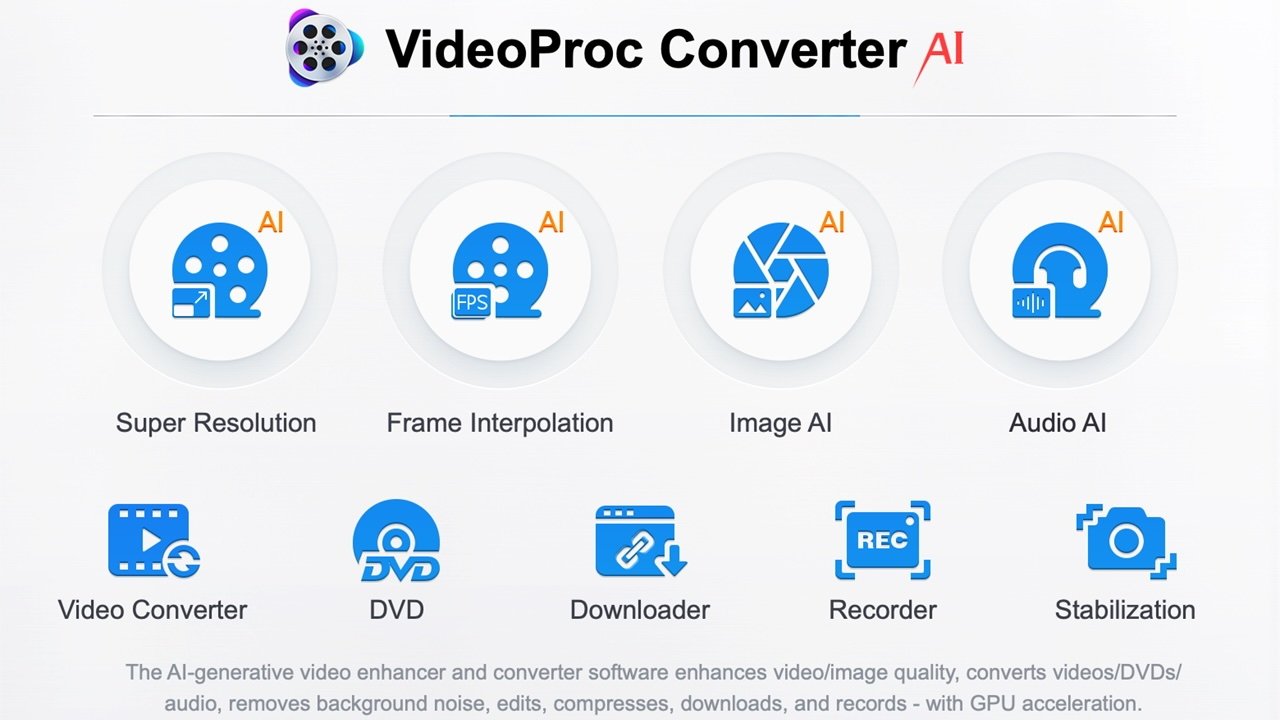
The VideoProc Converter AI interface. Image source: Digiarty
But it doesn't stop there. It also has tools for enhancing images and audio. You can upscale photos up to 10K, restore faces in old pictures, colorize faded images, and remove background noise from audio, all with the help of AI.
VideoProc Converter AI also includes a range of useful media processing tools: a GPU-accelerated video converter, a versatile video editor, a media downloader, and a screen/webcam recorder. It's a complete solution for all your multimedia needs.
Download and test out VideoProc Converter AI for free today! Or, unlock a lifetime of powerful media enhancement with an unbeatable, time-limited discount.
Black Friday offer: get 61% off the Lifetime License and enjoy lifetime free upgrade to any minor or major updates.
Discover highlights from the latest major updates:
- New & faster AI Super Resolution models for upscaling low-resolution footage, anime, and real-world videos.
- New Audio AI Feature: Vocal Remover - Choose to Keep Vocals or Keep Instrumentals (background music) only.
- AI Stabilization - A core new feature that minimizes camera shake to make videos smoother and steadier.
- Enhanced Downloader - Now supports inputting multiple video links simultaneously.
How VideoProc Converter AI enhances your video quality
VideoProc Converter AI enhances every aspect of your footage, from resolution and clarity to stability and audio quality. Using advanced AI models trained on large datasets of high-quality visuals, it effectively fixes issues like noise, blurriness, and grain, while restoring fine details for a sharper, clearer final video.
1. Upscale to 4K/8K: Rebuild pixels with AI Super Resolution
VideoProc Converter AI upscales videos by 2X, 3X, or 4X, turning 240p-720p sources into refined 1080p, and enhancing 720p/1080p footage to true 4K. With four specialized AI models, including Gen Detail v3 and Real Smooth v3, the AI Super Resolution module reconstructs missing details instead of simply enlarging pixels, producing sharper and more natural-looking videos.
Ideal for:
- Upscaling low-quality, blurry, low-light footage/animation/AI-generated videos while preserving detail.
- Enlarging old VHS/VCR/DVD videos to 4K for pixelation-free display on UHD TVs.
- Making zoomed video crops usable in professional video projects.
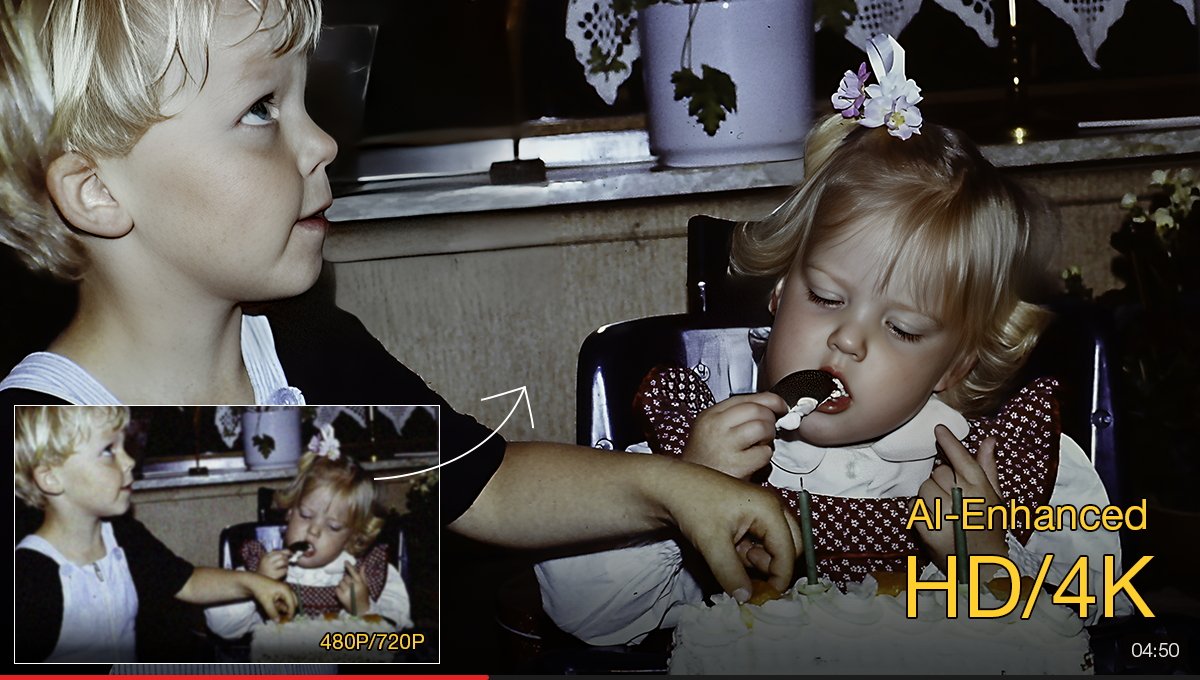
Upscale videos up to 400% of their original resolution. Image source: Digiarty
2. Denoise & deblur for pristine footage
VideoProc Converter AI's Super Resolution feature can differentiate between noise/blur and essential texture. It meticulously cleans up visual flaws and transforms imperfect clips into pristine, professional-grade footage without introducing artifacts.
Ideal for:
- Eliminating noise and graininess from high-ISO/low-light recordings or VHS/analog transfers.
- Removing compression artifacts (macro-blocking) from old or downloaded videos.
- Fixing camera sensor defects like fixed pattern noise and stuck pixels.
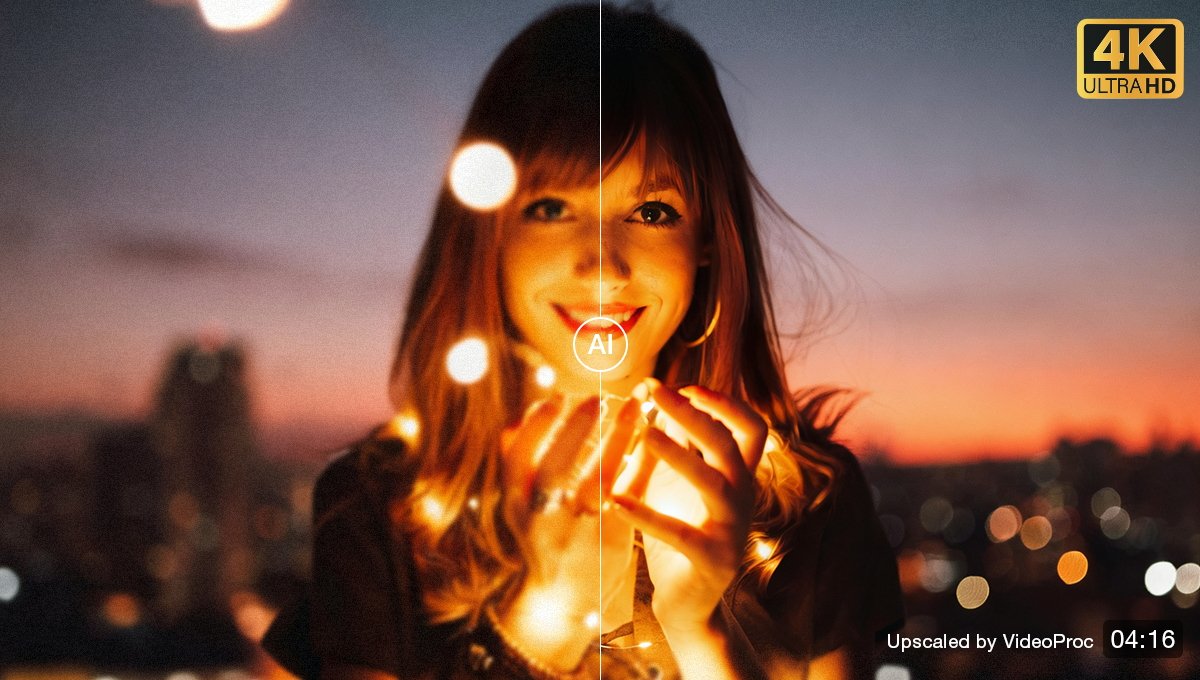
Enhance low light video with AI. Image source: Digiarty
3. Sharpen for better clarity
The Super Resolution feature of VideoProc Converter AI reconstructs subtle textures and extrapolates lost micro-details using trained neural networks. This helps you sharpen the video, boost overall visual fidelity, and keep intricate details preserved.
Ideal for:
- Sharpening subtle textures lost due to heavy compression or low-bitrate encoding.
- Restoring sharpness lost from strong video effects, like edits that blur or soften the image.
- Making blurry footage from expansive shots, low light, or fast motion look sharp.
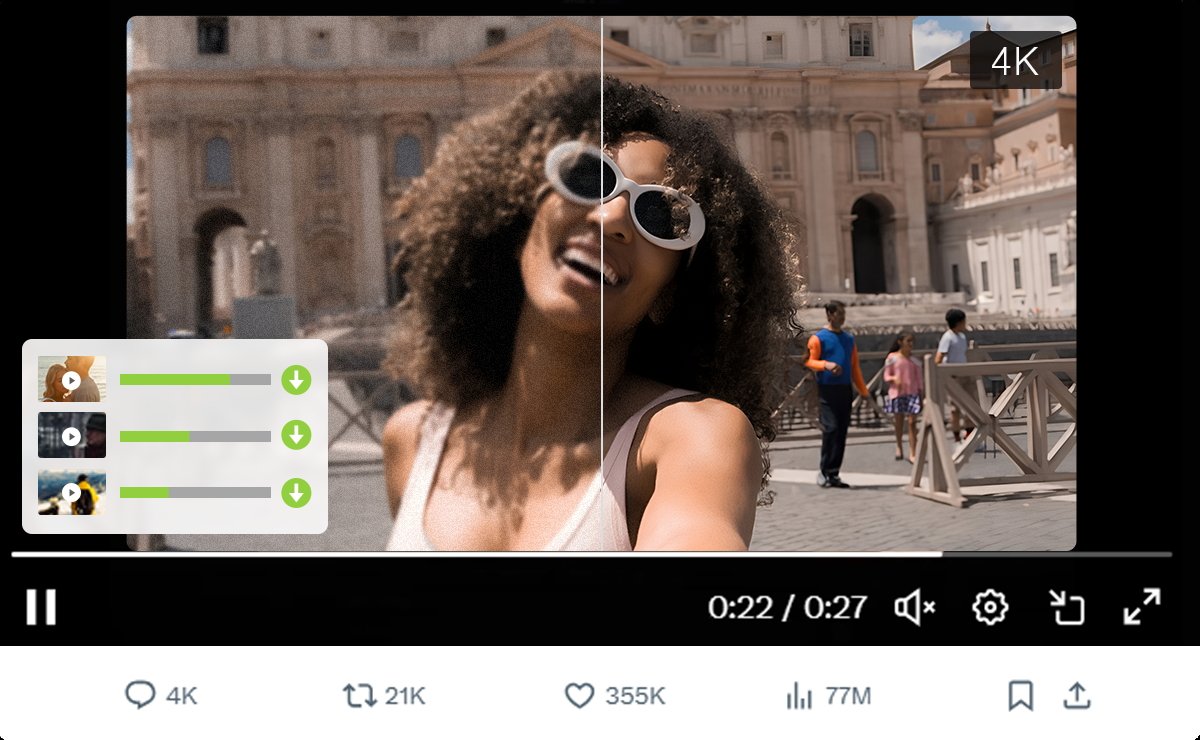
Make noisy video sharper. Image source: Digiarty
4. Stabilize shaky footage: Smooth out camera jitters
Handheld shots often come with the price of camera shakes. With VideoProc Converter AI, you can stabilize shaky footage, eliminating distracting jitters and creating smooth, professional-looking videos.
Ideal for:
- Handheld family footage, vlogs, or vacation videos.
- Videos recorded with minimal or poor in-camera stabilization tools.
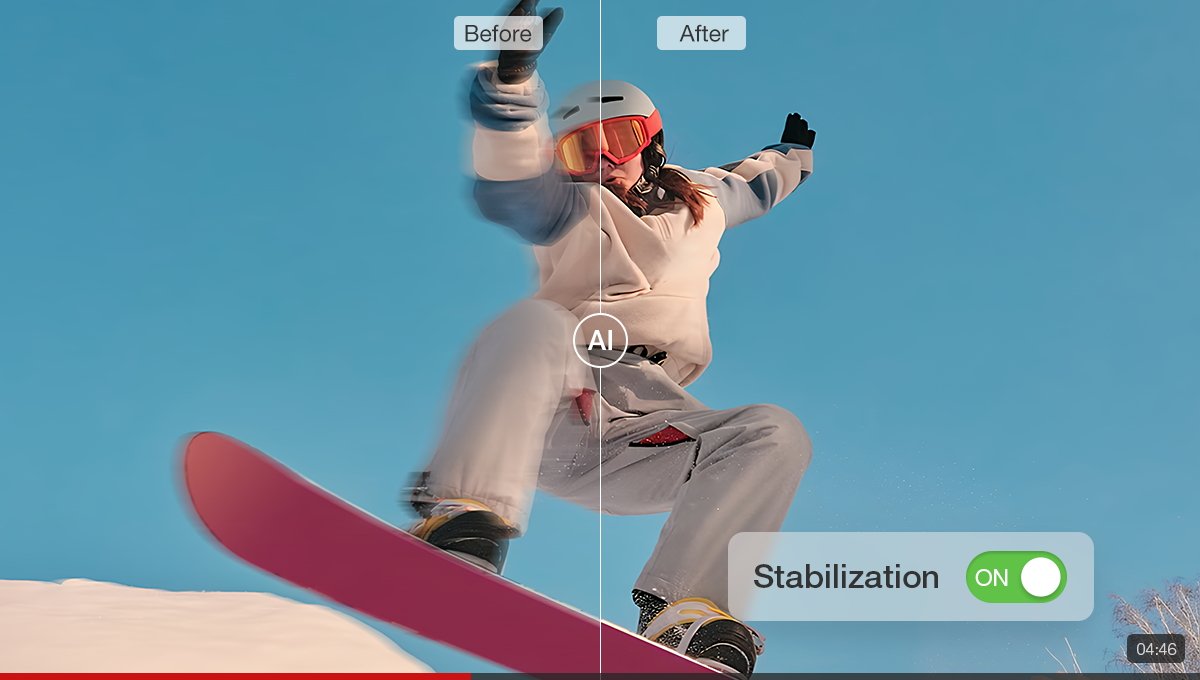
Action video can be stabilized with AI. Image source: Digiarty
5. Boost low frame rate: Create fluid movement
If you're dealing with choppy footage or wanting ultra-smooth slow motion, there's a solution. VideoProc Converter AI increases the frame rate, instantly turning stuttering videos into fluid motion.
It achieves this by converting from 24/30/60FPS to ultra-high frame rates like 120/240/300/480FPS and beyond.
Ideal for:
- Smoothing choppy footage from early digital cameras or older smartphones.
- Creating super-smooth, high-quality slow-motion clips with no glitches or artifacts.
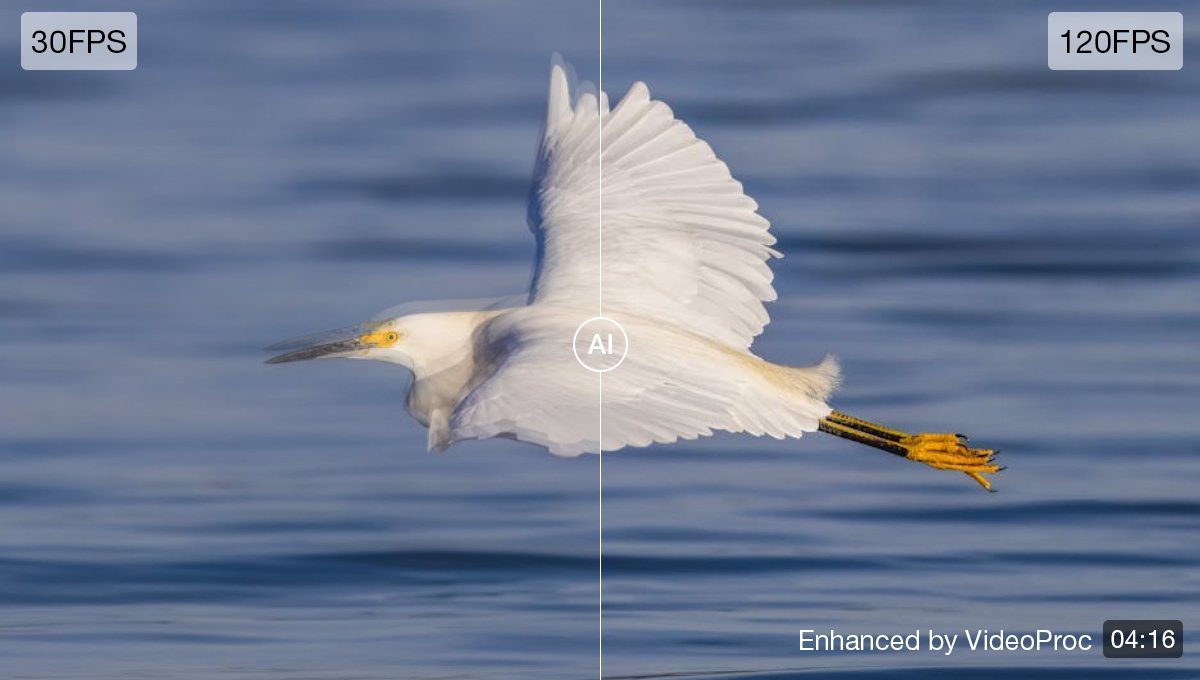
Boost frame rates to make motion less jittery. Image source: Digiarty
6. Remove audio noise from video
VideoProc Converter AI's Audio AI allows you to remove unwanted audio noise, improving sound clarity and ensuring your videos sound as good as they look.
Ideal for:
- Cleaning up constant noise in podcasts, voice memos, or interviews (hiss, static, hum).
- Eliminating background noise like wind noise, fan whir, electrical hum, or air conditioner buzz.
7. Optimize your video's color and detail with easy toolkits
Beyond the powerful AI models, VideoProc Converter AI offers an array of easy-to-use tools in Video Converter to give your footage the final polish. Adjust color and brightness, remove fisheye distortion, and more; it's all at your fingertips.
Toolkit highlights:
- Adjust color & brightness: Fine-tuning contrast and brightness to correct exposure or set a specific mood.
- Defisheye: Removing the spherical lens distortion common with action cameras (GoPro, drones).
AI and beyond: The all-in-one media solution you need
Alongside its revolutionary video enhancement toolset, VideoProc Converter AI maintains its value as an all-encompassing media suite, extending its AI capabilities to photos and audio, and covering every traditional media task.
1. Enhance image with AI
The Image AI module of VideoProc Converter AI offers Super Resolution and Image Restoration features. Super Resolution can upscale old photos to 4K, 8K, or even 10K, remove noise, and restore missing details.
For further enhancement, the Restoration feature lets you retouch faces and colorize faded or black-and-white images.
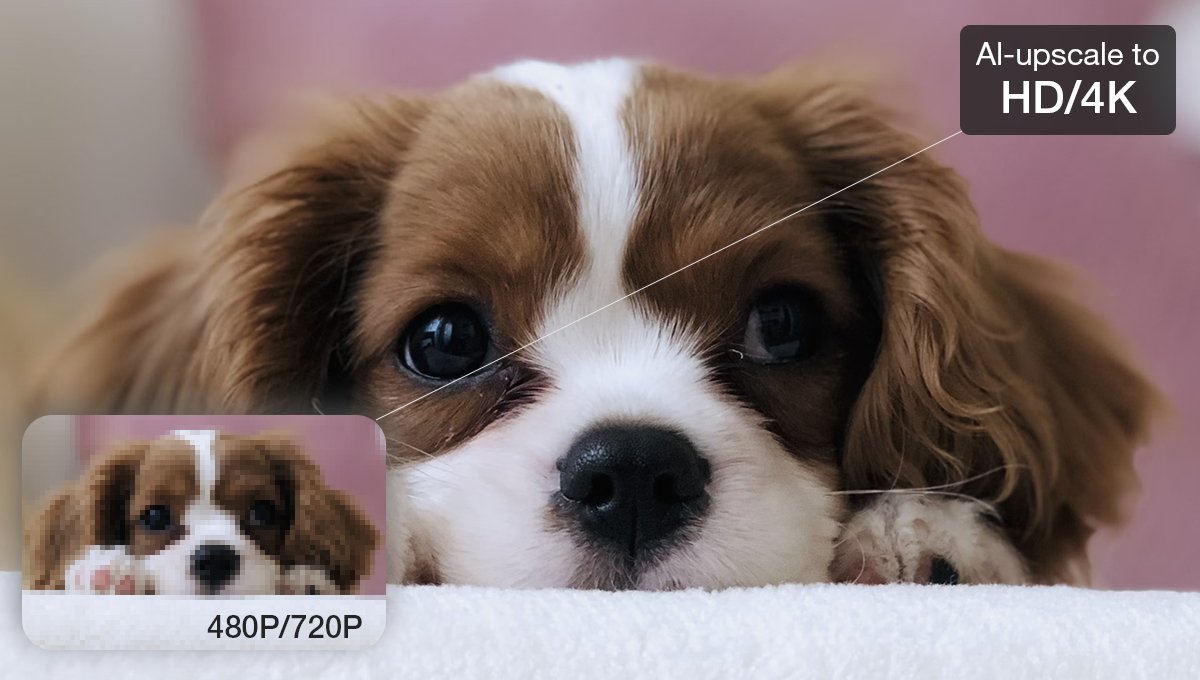
Upscale images with AI. Image source: Digiarty
Super resolution: It is ideal for upscaling low-resolution smartphone photos for large prints or high-quality displays, enhancing images for professional use in advertising, marketing, or exhibitions, and removing digital noise from photos taken in low-light or high-ISO conditions. It also excels at improving old scanned photos by turning grainy images into sharp, crisp versions, and enlarging anime artwork or screenshots while preserving original details.
Face restoration: It excels at reviving facial details. It can restore clarity to old or faded portraits, repair pixelated features, and enhance group photos with blurred faces.
Colorizing: It adds vibrant, lifelike colors to black-and-white historical photos, revitalizing old artwork with detailed hues, and transforming baby photos, family portraits, or vintage travel pictures into vivid memories. It can also restore the charm of classic advertisements or old films through natural colorization.
2. Enhance audio with AI
VideoProc Converter AI's audio tools include a Vocal Remover that removes audio background noise while keeping the main voice clear. It also offers Noise Suppression to help separate voice and music tracks accurately.
Noise suppression: Remove Background Noise helps deliver cleaner, clearer audio by enhancing voices recorded in noisy environments and eliminating unwanted sounds such as wind, fan whir, electrical hum, or air conditioner buzz.
Vocal removal: It lets you easily separate vocals from music tracks to create karaoke versions, isolate instrumentals for remixing or cover performances, or extract vocals to generate clean background music.
3. The complete media processing toolkit
Beyond AI enhancement, VideoProc Converter AI serves as a complete media toolkit for Mac users. It allows you to convert any video, audio, or DVD into the right format for smooth playback, easy sharing, or seamless editing.
The software works reliably with footage from GoPro, DJI drones, 4K cameras, and OBS recordings. You can also compress large files without noticeable quality loss, make quick edits, and download videos or music from more than 1,000 websites.
It's designed to save time, simplify your workflow, and prepare your media for any device or platform.
- Convert 370+ formats to 420+ others with full hardware acceleration and no quality loss.
- Reduce video size by up to 90% by adjusting bitrate, resolution, and target size.
- Access 29-quick edit tools: trim, cut, merge, rotate, flip, and change video speed.
- Digitalize DVDs and use AI Super Resolution to upscale the footage to 4K.
- Record screen, webcam, or desktop activity, and download from over 1,000 online sites.
How to enhance video quality with VideoProc Converter AI
Enhancing your video with VideoProc Converter AI is simple. Just follow the easy steps below, or refer to the user guide for a detailed, step-by-step tutorial.
To improve video resolution & clarity via AI Super Resolution
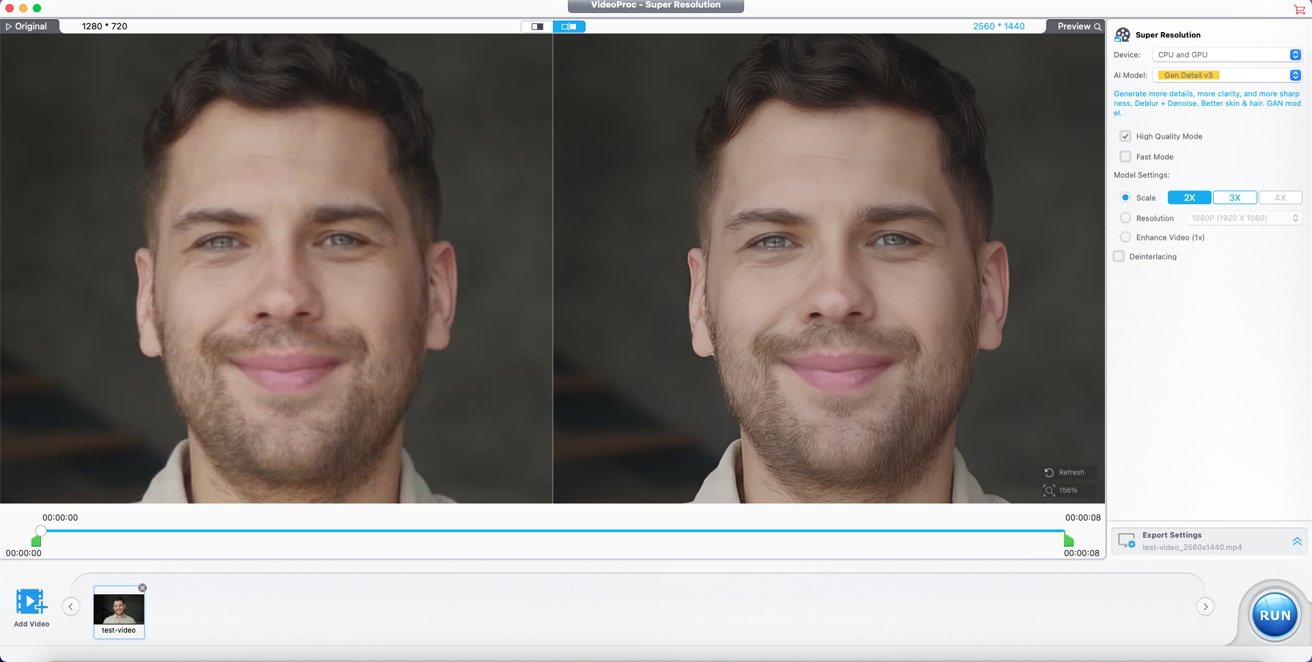
Improve video resolution with AI. Image source: Digiarty
- Download, install, and open VideoProc Converter AI, then click the "Super Resolution" icon on the main UI.
- Import your video into the program. Choose an AI model: Gen Detail v3 and Real Smooth v3 are highly recommended.
- Choose your target resolution or upscale ratio. You can upscale your video by up to 400% to reach 4K clarity, though starting with 2x is suggested for the most natural look.
- Click the RUN button to begin enhancing and exporting your video.
Options:
- For the best export quality, we recommend setting the Quality Level to High.
- If you're working with interlaced DVD footage, select Deinterlace to remove the interlaced lines.
To smooth video and boost frame rate via frame interpolation
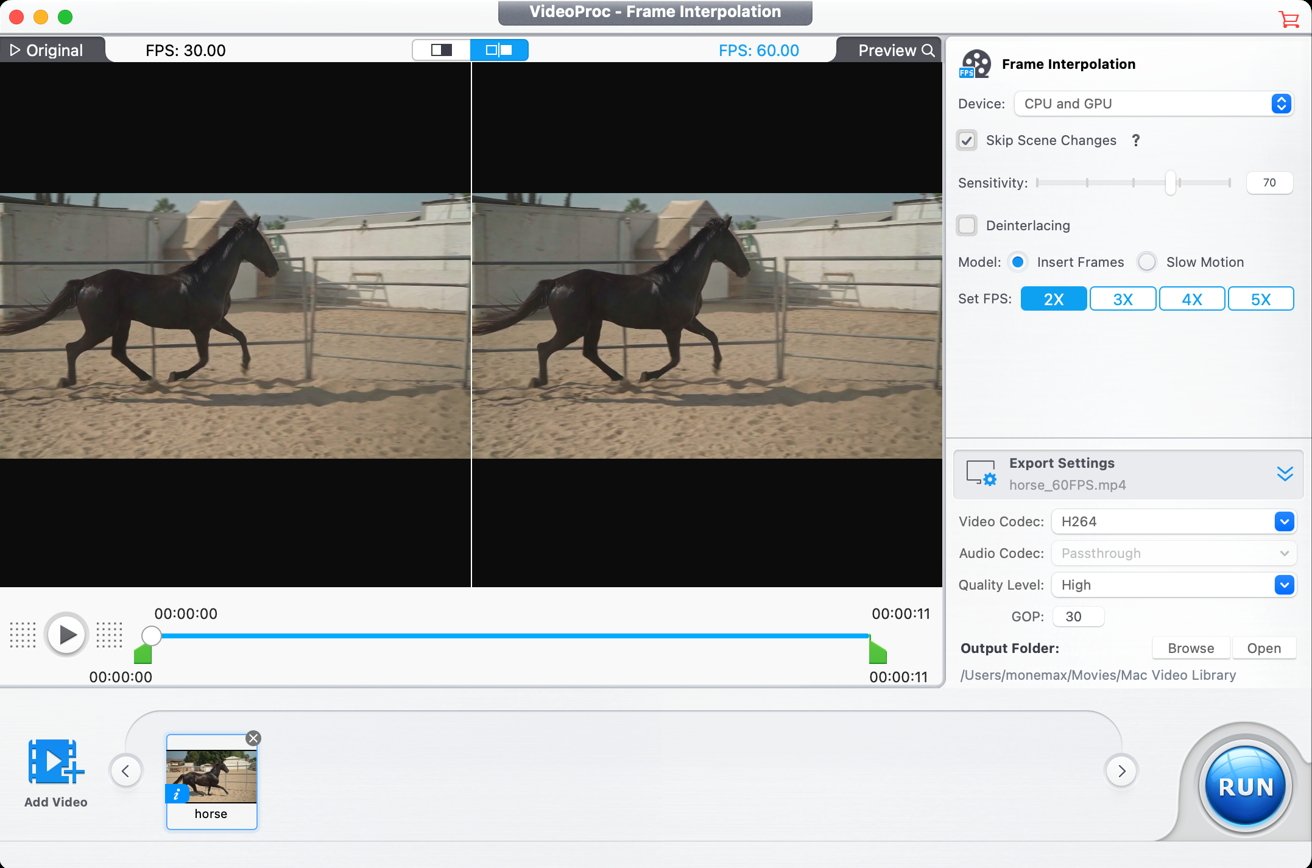
Smooth video with AI. Image source: Digiarty
- Download, install, and open VideoProc Converter AI. Click "Frame Interpolation" icon on the main UI.
- Drag and drop to import your original footage. Choose 2x, 3x, 4x, or 5x to define the new frame rate.
- Configure Export Settings such as Video Codec, Quality Level as needed.
- Click Run to start interpolation, then export your smoother videos.
To fix shaky footage via stabilization
- Download, install, and launch VideoProc Converter AI.
- Click Stabilization. Add your original shaky footage by drag and drop.
- Select Preset and Mode in the parameter area, and hit Analyze.
- Hit RUN to export the stabilized footage.
Limited-time Black Friday offer
For a limited time, get a lifetime licensed VideoProc Converter AI, save up to 61% now! Every license comes with a 30-day money-back guarantee and lifetime updates.
Plus, you'll receive free bonus apps, including an AI image background remover, video editor, iPhone manager, and a versatile media player. Don't miss out — upgrade your media experience today!
FAQ
Is VideoProc Converter AI safe to use?
Yes, VideoProc Converter AI is a safe and legitimate software from the established company Digiarty Software, Inc. It is widely trusted, with numerous positive user reviews and high ratings on major review platforms.
Since all video enhancement and processing is done locally on your computer, there is zero privacy risk.
Is VideoProc Converter good for beginners?
Yes, VideoProc Converter AI is excellent for beginners. Its clean layout and straightforward access to core functions like Super Resolution, Image AI, and Video Converter allow users new to media enhancement and conversion to get the job done without hassle.