Taking a quality screenshot of a YouTube video can be challenging, but it doesn't have to be. Here's how you can take a great screenshot on your Mac today.
Taking a screenshot of an app or your desktop is easy, and you can go that route when grabbing a screenshot of a video, too. But you're unlikely to be happy with the result.
Screenshots of videos can be a blurry mess, making them almost useless. Bug taking a good, crisp screenshot of a video is easier than you might think — and you probably already have the tools already installed on your Mac.
In fact, you only really need one — Google Chrome.
Whether or not you use Chrome as your browser of choice, this tip might make it worth having it installed regardless. Especially if you take a lot of screenshots.
Here's how to capture the perfect video screenshot each and every time.
Using Google Chrome to take a screenshot of a video
Make sure that you have the YouTube video open in Google Chrome to get started.
- Navigate to a few seconds prior to the part of the video that you want to take a screenshot of. While you can choose to pause the video before taking the screenshot, the result can be poor.
- Right click on the video and then right click on it again to bypass the Google controls and open the Chrome controls instead.
- Click copy video frame from the list. If you don't see it, you likely clicked outside of the area of the video.
- Open the Preview app.
- Press CMD + V to paste the screenshot as a new image. Alternatively, click File followed by New from Clipboard.
- Save the image or edit it as required.
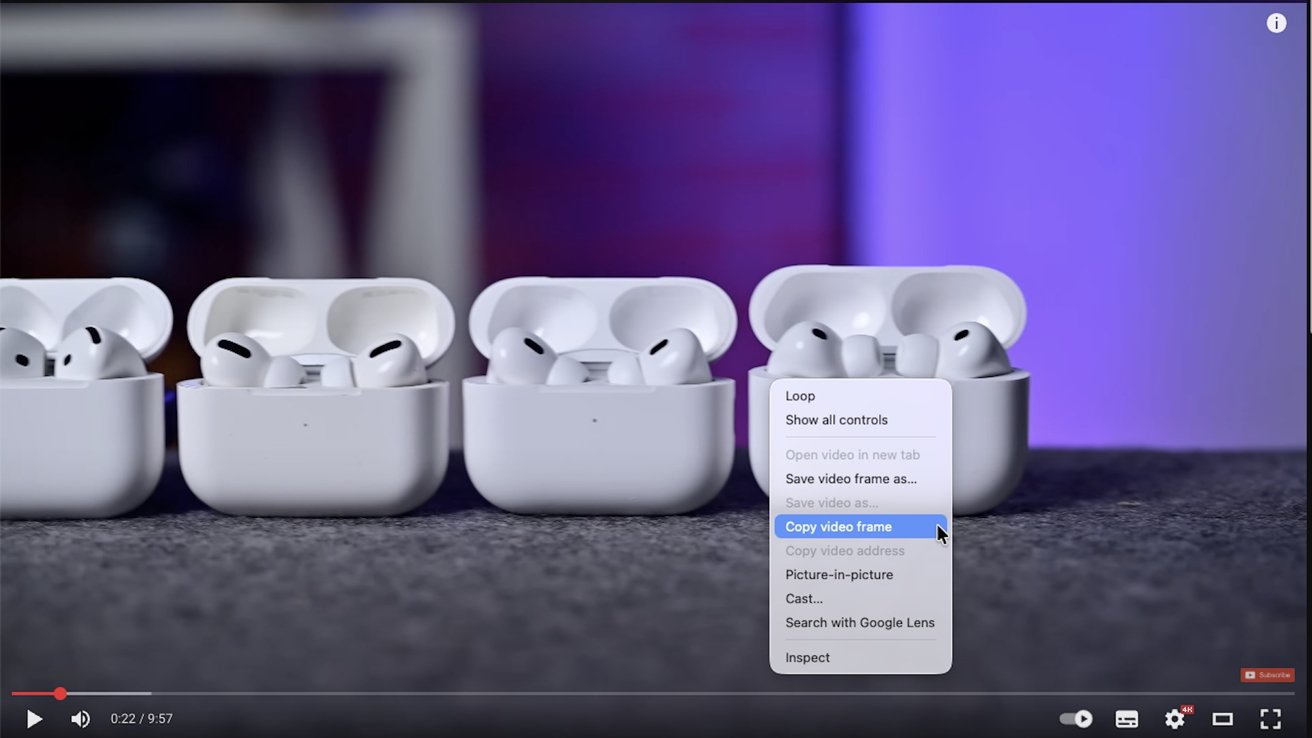
You can take high-quality screenshot is just a couple of clicks
You can also paste the screenshot straight into another app, rather than Preview, if you don't need to save it for later use.
That's all there is to it. Now you can capture frame-perfect screenshots of videos — and not a blurry pixel in sight. This method of taking a screenshot will even work for any other video that you can play in Chrome, not just YouTube.