If you're worried about privacy, a webcam cover could make sense. But it could also break your MacBook's screen, and built-in macOS and hardware features mean that you don't need one anyway.
You've probably seen webcam covers in the wild, even if you've never used one yourself. They're little accessories that clip over the front of a laptop's screen, hiding the camera above the display in the process.
The theory is simple. Nobody can remotely access the webcam — and see your surroundings — because all they'll see is the webcam cover itself. But those covers add bulk, which is as problem.
Especially if you use a MacBook of any sort.
Apple has already warned MacBook owners not to use a webcam cover for a variety of reasons. The most obvious is that the cover itself distributes force unevenly when the lid is closed. This can damage a MacBook's display when it's shut or moved.
"If you close your Mac laptop with a camera cover installed, you might damage your display because the clearance between the display and keyboard is designed to very tight tolerances," Apple warns.
But it goes further than that.
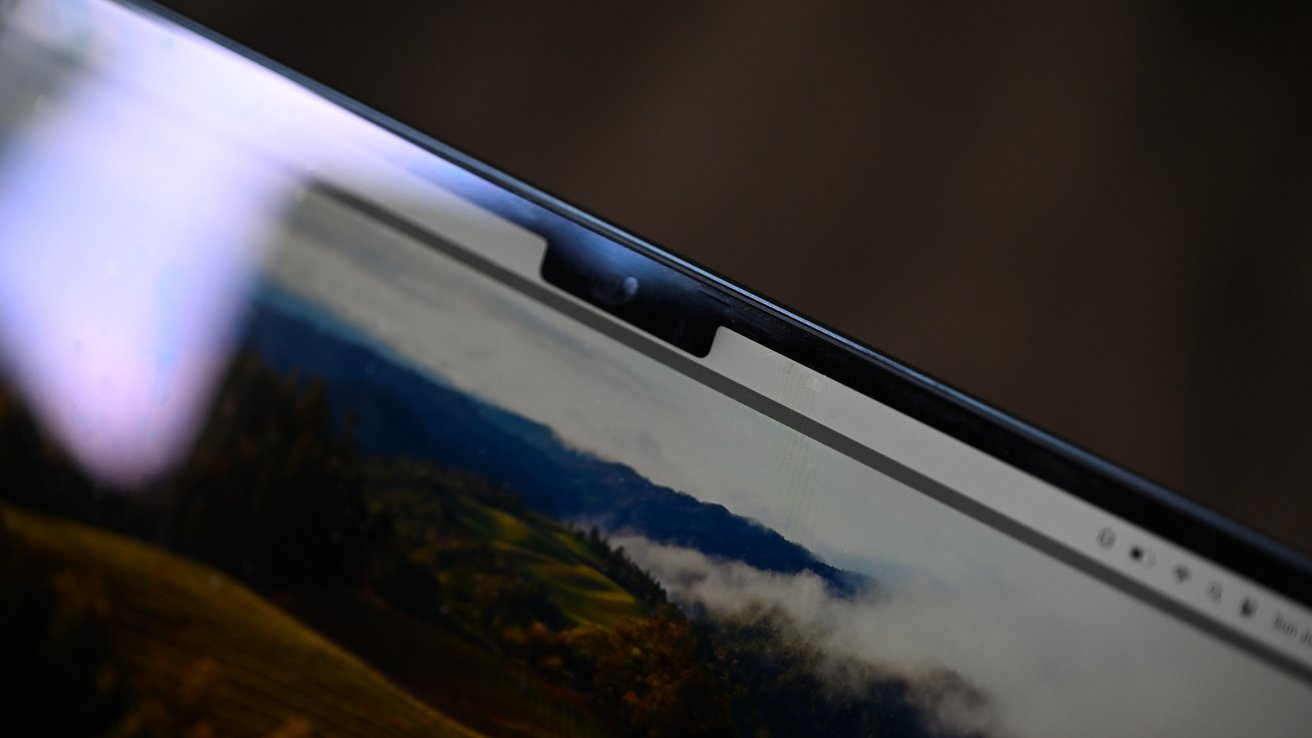
The webcam isn't the only thing you'll find in the notch at the top of your MacBook's display. Apple warns that a camera cover can also interfere with the ambient light sensor, affecting features like automatic brightness control and True Tone.
Thankfully, that doesn't mean that you have to just hope nobody is using your webcam to spy on you. Apple's macOS and a feature in the hardware of MacBook webcams has your back.
macOS privacy controls to the rescue
Owners of modern Macs will be aware of the green indicator light that appears whenever a camera is active. It even pops up on the iPad and iPhone, too.
Any time the camera is live, whether that's capturing video or simply ready to take a photo, the green light illuminates. If you aren't using your camera, but you see the light, something's amiss.
Importantly, Apple says that there is no way for the camera to be used without the green light turning on.
"The camera is engineered so that it can't activate without the camera indicator light also turning on," Apple's support article explains. "This is how you can tell if your camera is on."
Alternatively, Mac users can also control which apps can use their camera in the first place. So long as you're using macOS Mojave or later, apps must ask permission to use your camera. And you can revoke access at any time via System Settings.
The "company policy" problem
All of this means that your privacy should be safe and sound when using your MacBook, whether at work or at home. But that isn't always enough for some workplaces.
If you work in an office that requires a camera cover at all times, Apple says that you can use one — so long as you're careful.
The company recommends a camera cover that is no thicker than a piece of paper and that it should be removed before the lid is closed. It shouldn't have any adhesive that could damage the display or its anti-reflective coating, either.
This is also a good rule of thumb if you're worried about skin oils or food debris from the keyboard being transferred to the display. Anything too thick could damage the display, just like a webcam cover.
If you must use something, we recommend using the ultra-thin paper that was between the keyboard and display when you first unboxed your laptop. Or just keeping a microfiber cloth handy, instead.
One Reddit thread discussing the webcam cover situation might have found the answer. A literal piece of paper.
"Fold a small piece of paper and hang it over to block the camera," suggests one Mac user. "Remove it before closing."
Other suggest a cut-up piece of a Post-It note would get the job done. Just avoid any part with adhesive on it, and you should be fine.
And if you do insist on using a webcam cover with your MacBook, taking out AppleCare+ might be a good idea. Just in case.