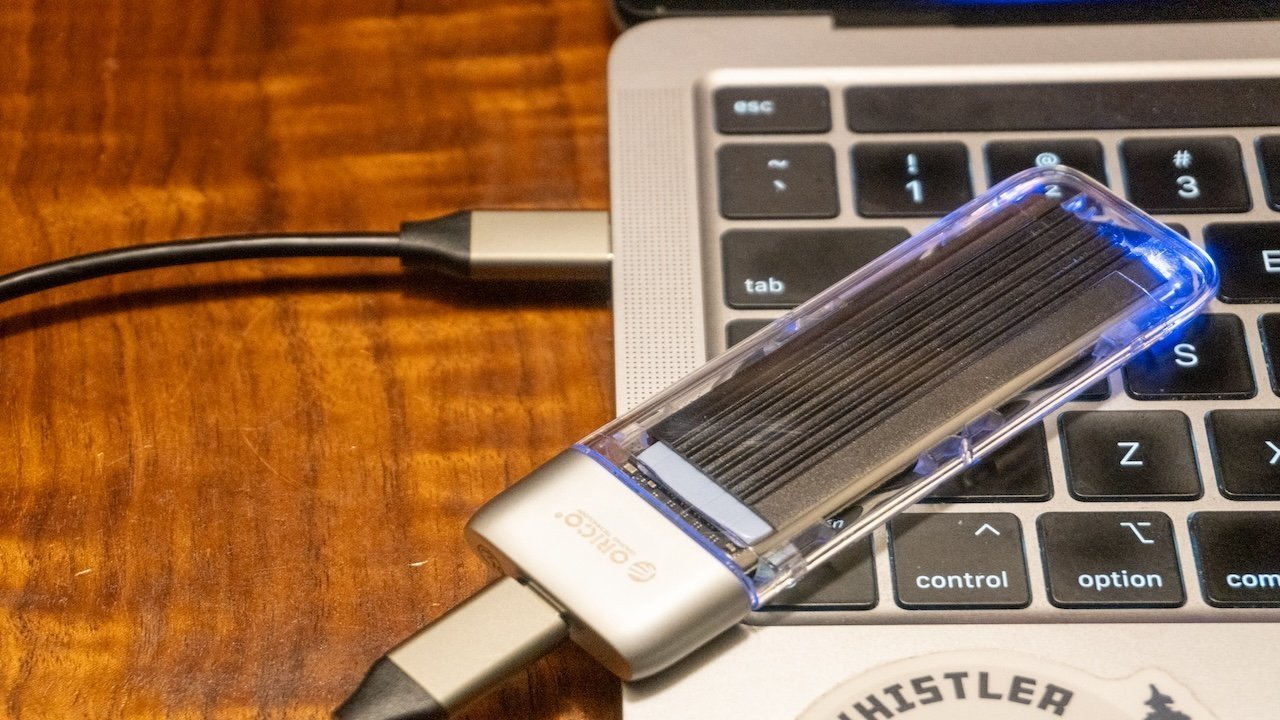
Apple's storage prices can be rough. Why spend that kind of money for less, when you can get more by making your own high-speed external SSD. Here's everything you need to know about SSDs and the enclosures you need to buy.
One of the frequent criticisms Apple faces with its Mac and MacBook lineups is the sheer cost of storage. Adding more capacity for data can quickly turn a premium product into something that is too highly priced for the average person to consider.
Even worse, outside of rare exceptions such as the Mac Pro or adventurous users upgrading the internal storage on a M4 Mac mini, you're not going to get a way to add more storage while still being reasonably possible to actually do.
That leaves consumers with looking elsewhere for their storage needs.
The easy option is to use cloud storage, like iCloud, since it doesn't require new hardware. However, you're at the whims of your cellular or home Internet connection, as well as the Internet as a whole, when it comes to speed.
There's also the question of paying a monthly fee to keep your files safe online, which can quickly add up. And the whole problem of privacy, since there's a chance that the data could be analyzed, turning you into a company's revenue source.
Adding a network-attached storage device is also another way, but that's a conversation for another day. External hard drives are an option too, but if you need speed, the only way to go is a SSD.
The external drive landscape
Many people will be familiar with thumb drives or flash drives. Those are flash storage too, like SSDs, but they tend to be slow and low capacity, which makes them a poor choice of local storage expansion.
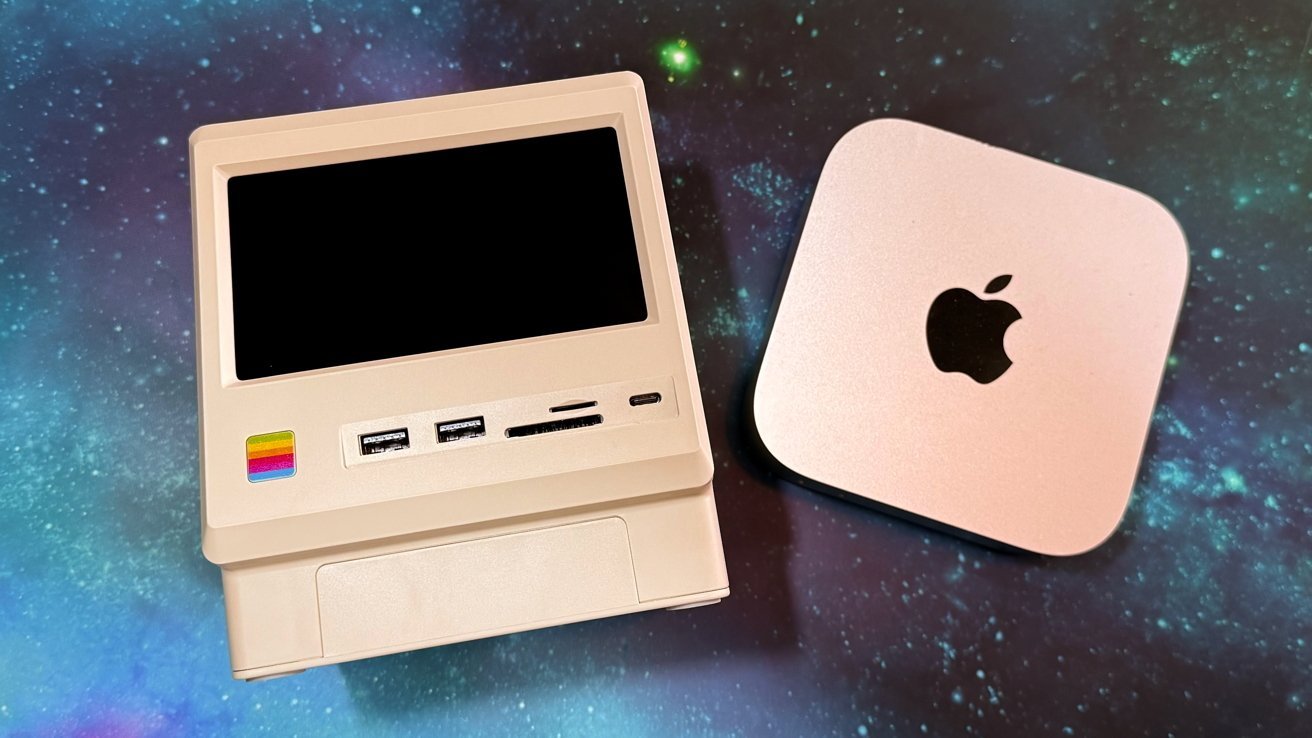
You don't necessarily need a drive-only enclosure. The Wokyis M5 Mac mini Dock has M.2 storage capacity...
For those who need both capacity and speed, the real answer is to get an NVMe external SSD. Going down this route combines a fast connection to the external drive, along with the sheer speed of access that NVMe drives tend to have.
These sorts of drives can usually provide the same sort of speed of access as opening a file on your Mac's local storage. Sometimes it's even faster.
They also don't necessarily have to take the form of just an external stick-form SSD. A glance at the dock market will show many hubs for expanding connectivity with added storage capacity, or the option to add your own drives.
Why roll your own external SSD?
For anyone who wants an external SSD without any of the effort, there are many options on the market already. There's nothing wrong with picking one up and using it with your Mac straight away.
Doing so is certainly a case of paying for convenience instead of seeking value from the purchase. It's almost always cheaper to make your own, though.
In short, you pick up an enclosure, an M.2 NVMe drive to insert into it, put one inside the other using a few screws, maybe add a thermal pad, and you're off to the races.
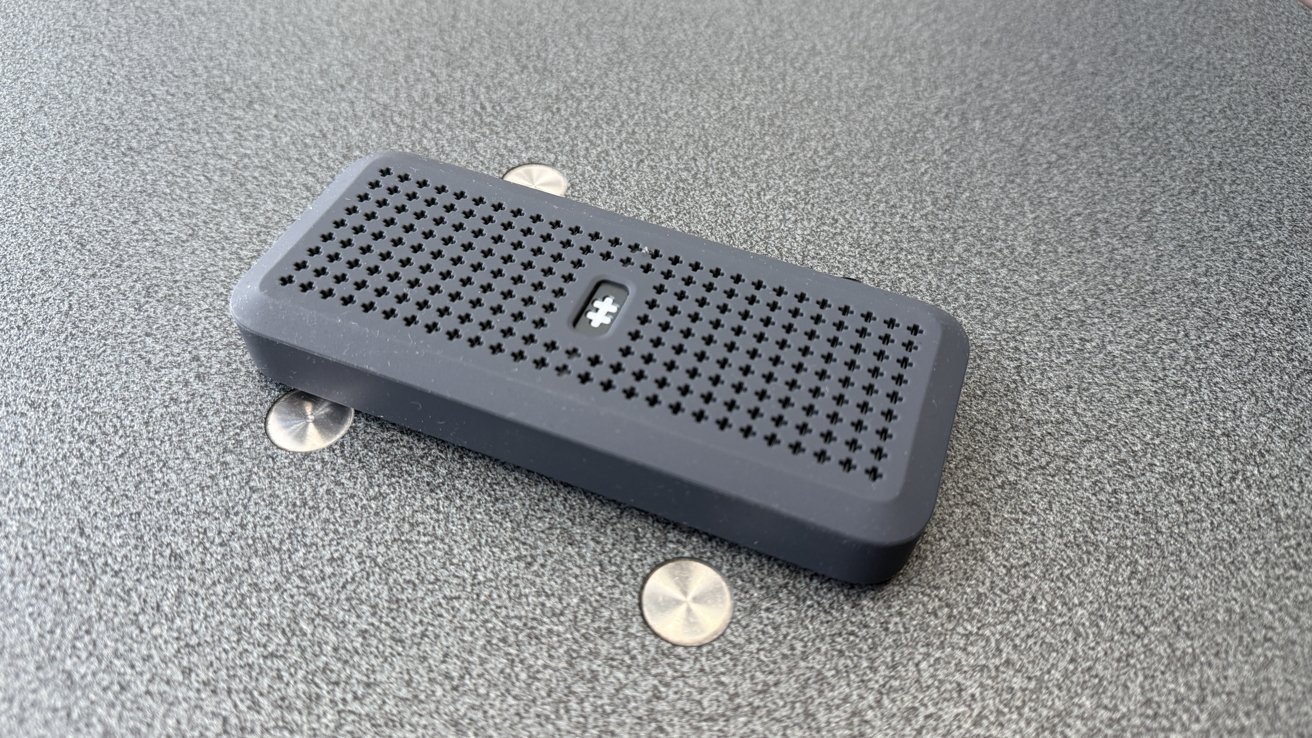
Hyperdrive USB4 SSD Enclosure
For a start, you could be really picky about what you want. There are many different designs and specifications of enclosure on the market, so you can pick the one that looks the way you want, or has the features you demand.
This ability to combine the enclosure with the drive to your preferences makes rolling your own appealing. Add in that it is typically quite a simple thing to assemble, and it becomes even more of a viable option.
Rolling your own: Storage
When it comes to producing your own external storage, there are two broad things to consider.
- The storage speed and capacity you're going to use
- The enclosure you're going to put it in.
You could go down the route of using a standard 2.5-inch SATA SSD, which will fit into enclosures designed for similar-sized hard disks. A few years ago, this would be the typical route to take.
However, while still an option, it's not the best route unless you already have a drive on-hand. Aside from the drives using a lot of plastic to match the form, the speeds are not good enough.
A typical Serial Advancement Technology Attachment (SATA) SSD will be able to reach speeds of around 500 megabytes per second for reads and writes at best. This is faster than a hard drive, and there are benefits from random-access drive reads.
Other modern options work at far faster speeds.
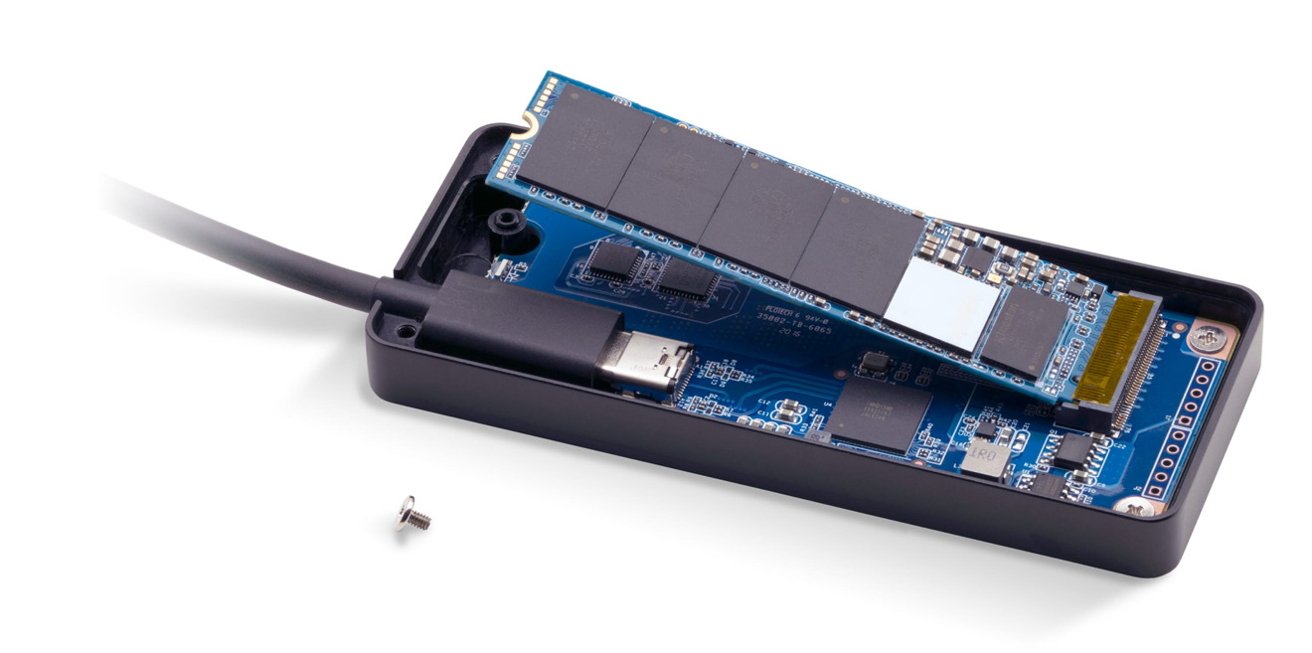
You can buy the storage and enclosures separately, and can get the exact storage setup you want.
The more modern approach is to use a drive with an M.2 connection. These are usually long and thin sticks that connect to a slot in an enclosure, and are typically made to be more power efficient.
These drives are usually denoted with an extra four-digit number, referring to the width and the length of the module. For example, a typical drive described as 2280 refers to a width of 22 millimeters and a length of 80 millimeters.
The size is important, as it needs to fit the enclosure. It alone has little to do with capacity aside from being able to physically fit all of the chips. In most cases, these drives will be 2242 or 2280.
In many cases, you could be able to fit a 2242 drive into an enclosure designed for a 2280. Since the drives are often secured in place by the notch at the end, either by a screw or a retaining bit of plastic, and the two sizes use the same size of connector, you'll frequently see elements allowing the smaller drive to be installed.
You can also find mSATA and mini-SATA drives on the market, but they are not interchangeable with normal M.2 drives. They do have a place in the market, usually for notebook storage rather than enclosures.
Apple does not use M.2 storage internally. They either use custom connectors like in the case of the Mac Pro, Mac Studio, and M4 Mac Mini, or use soldered flash media like in the MacBook Air or MacBook Pro.
SATA vs NVMe
While M.2 defines the connection mechanism and the form factor, it doesn't play a part into defining the speed of the drive.
SATA is an older connection standard. You could get M.2 drives that used SATA, but this has been deprecated as manufacturers switch over to NVMe.
Since it is limited to 6 gigabits per second peak, you're not going to see read or write speeds much above 500MB/s in the real world. It's not a dealbreaker, but you can do better.
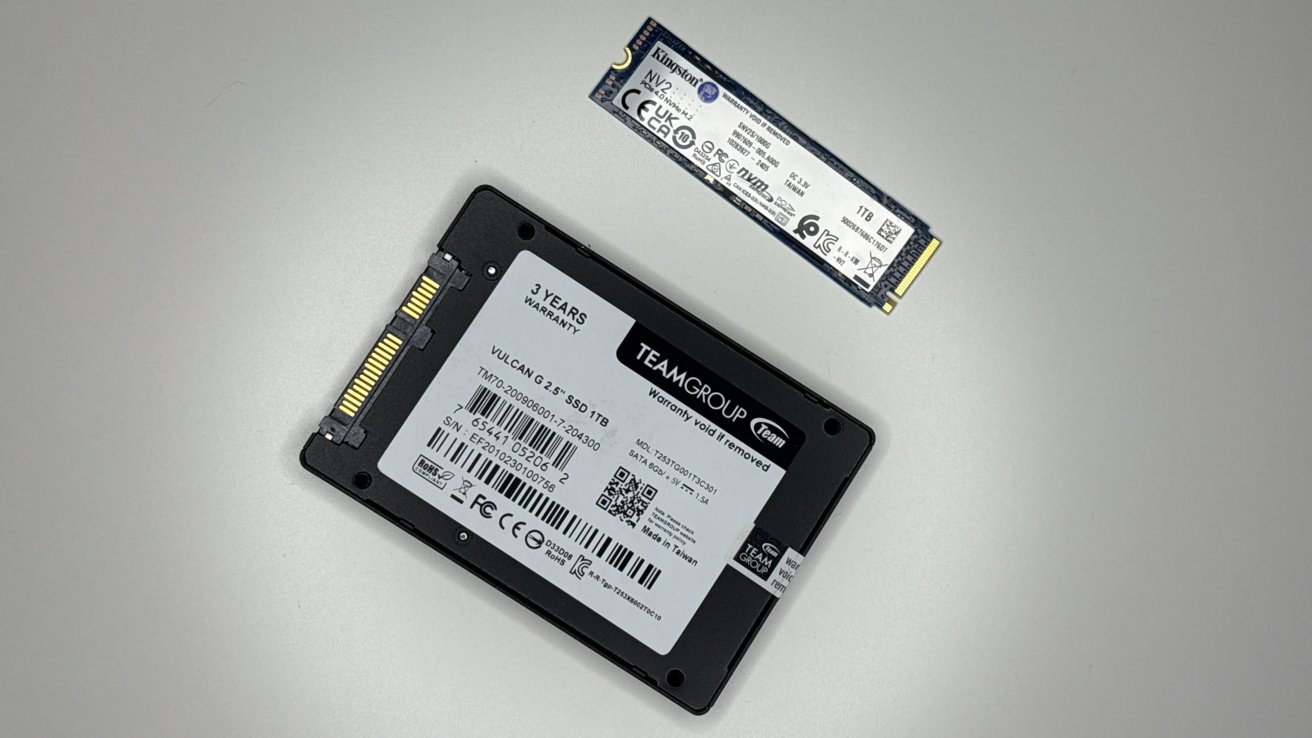
A traditional U.2 SATA SSD [bottom] and an M.2 version [top]
The alternative in use is NVMe (Non-Volatile Memory Express). NVMe drives were designed to use the Peripheral Component Interconnect Express (PCIe) slot on a PC motherboard, which had considerably more available bandwidth than the SSD equivalent.
With the use of M.2 as a connection, the support for NVMe connections have increased, and has become the preferred method due to its speed. It's not out of the ordinary to see read and write speeds in the ballpark of 3 gigabytes per second, with the right combination of drive, connection method, and case compared to the more limited SATA connections.
Not long ago, price was still a consideration when it comes to picking drives, but the difference in cost is less of an issue. NVMe drives are still sold at a premium, but usually in the tens of dollars range compared to their SSD equivalents.
Where possible, and especially if you want your data read and write speeds to be as fast as possible, opt for NVMe drives.
Cache: Temporary storage for fastest speeds
Caches are temporary stores for data, used to speed up transfers. A cache usually consists of high-speed RAM or flash media. In every case it is smaller than the drive's listed capacity, but it acts as temporary storage, pending a move to the slower long-term storage.
For example, on mechanical drives, this would take the form of flash chips ingesting data and holding it as part of a write process. It's then held as the spinning disc portion of the drive gradually writes what's in the cache to disc at a slower rate.
While an M.2 stick of storage is usually fast in its own right, they too can have caches, all to act faster to consumers.
It can also hold the Flash Transition Layer (FTL), a map of the Logical Block Addresses (LBA) of the flash memory where your data is stored. This is very important, as reading and using the LBA can have considerable impact on the overall speed of the drive.
On an SSD, this usually takes the form of DRAM. This is very fast temporary storage that's volatile — meaning it wipes when power is unexpectedly lost. Flash media is nonvolatile, meaning it retains what's held, even with no power.
While DRAM is fast, it's also expensive, increasing the price of drives that use it.
DRAM Cache:
- Drives are expensive
- Fastest speeds
- Includes DRAM specifically for data caching and storing the Flash Transition Layer
- Maintains drive capacity
After the release of NVMe 1.2, DRAM-less SSDs became more useful, since it would use something called Host Memory Buffer (HMB).
HMB relies on using the host computer's memory to store the FTL, with it directly accessing and using the system memory. However, this round trip to access the memory means it is not as fast as local DRAM chips doing the same job.
DRAM-less HMB-based drives are still reasonably fast, but not at the sheer levels of DRAM-equipped storage. The main advantage here is pricing, as not using DRAM reduces the cost of manufacture.
HMB Cache:
- Drives are cheaper
- Slower speeds
- Uses system memory for Flash Transition Layer storage
- Maintains drive capacity
There is a third way, in the form of an SLC cache. SLC refers to the Single-Level Cell type of flash memory, an expensive form compared to the Triple-Level Cell (TLC) flash memory typically in use in such drives.
SLC, MLC (Multi-Level Cell), and TLC refers to the number of bits of information a cell can hold. As the names progress, the number of bits held per cell of flash memory increases, but the cost reduces as does the performance and endurance.
In an SLC cache, the drive handles its own FTL without going down the HMB route. Instead, the FTL map is kept on the same flash memory cells as used for storing data.
This is usually a very slow way of treating the FTL, and can significantly impact the speed. However, even that can be sped up.
Pseudo-SLC (pSLC) temporarily treats TLC cells as if they are SLC in nature, simply by only dealing with one bit in each cell used for the FTL. Since there are fewer bits to manage in the cell, it speeds up read times of the FTL.
Pseudo-SLC (pSLC) Cache:
- Drives are cheaper
- Mid-range speeds
- Stores Flash Transition Layer on converted flash memory
- Consumes drive capacity
There are tradeoffs, such as using up higher capacities of storage. As each cell used for pSLC only handles one bit instead of the usual three of a TLC cell, the other bits remained unused under the mode.
Once the allocation of cells for pSLC is consumed, or it's idle for too long, that data is also shifted over to the slower TLC storage. Doing so can reduce the speed of accessing that shifted data again, but it also frees up the pSLC allocation for more data too.
When deciding on the drive, you should consider getting DRAM versions if you can afford them. There's nothing wrong with DRAM-less drives with HMB or pSLC, but remember that you're sacrificing speed for cost.
In practical use, when any kind of cache fills up, a SSD will slow down to hard drive speeds, or slower. Most system-level reads and writes are little chunks at a time. This is something to keep in mind, depending on your use case.
If you have a use case where you're writing terabytes of data constantly, more cache will mean more time until the drive slows. Cache matters less for working on the drive, gaming, or similar day-to-day usage patterns.
Rolling your own: Enclosures
The other half of the equation is the enclosure, which can be acquired in a wide variety of shapes and sizes. Going down the M.2 route, the basic type of enclosure shape you will see is as a long, thin rectangular case, not much bigger than the drive itself.
These are usually the cheapest and most compact options for creating an external drive. They're also the easiest to shop for, due to their simplicity.
This even extends to their construction. While a lot rely on a few screws to hold the enclosure together, some can easily be pulled apart and be assembled with the drive, all without tools.
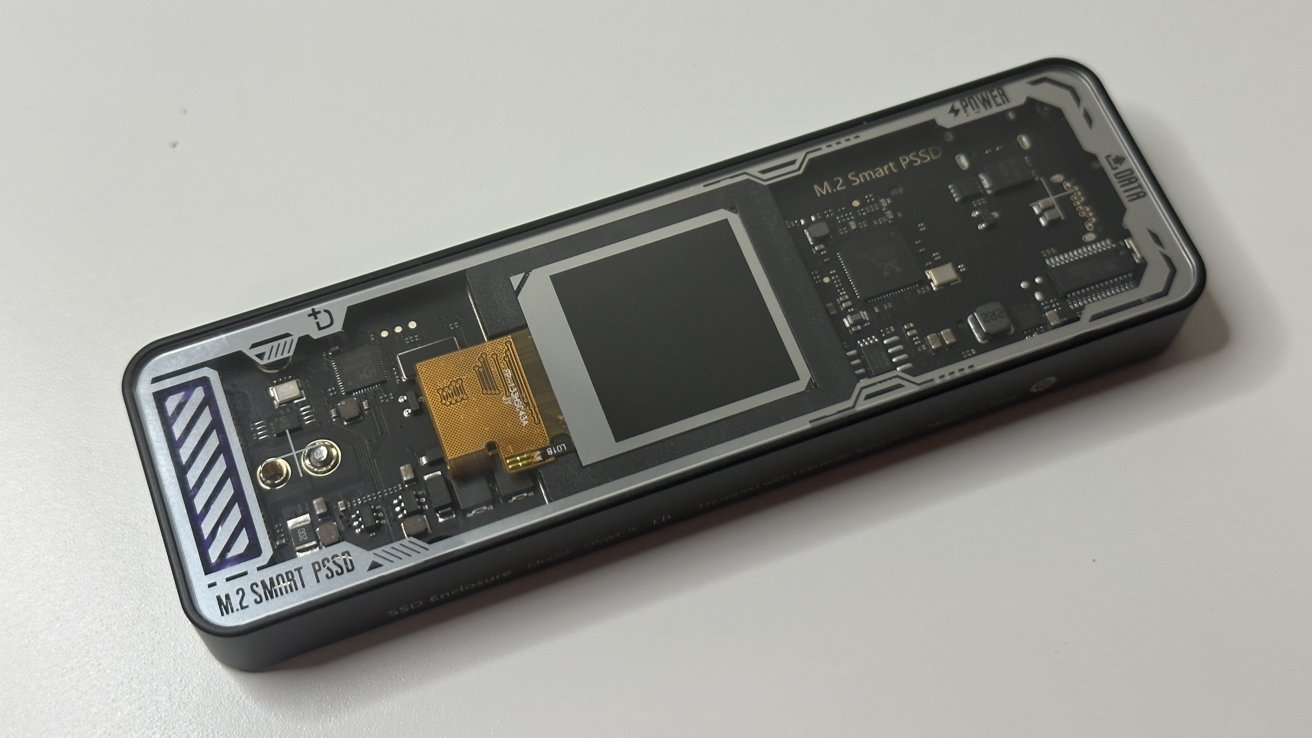
Dockcase Explorer Edition Pro, one of the more unusual enclosures.
You'll also see a lot of variety on the market, most are plastic, at least in part, with a metal heat exchange surface.
The enclosure doesn't just have to deal with just one M.2 stick of storage. Some on the market are able to accept multiple M.2 drives.
Then there are hubs that expand the number and selection of ports of your Mac. In many cases, you can find such hubs that have a slot for the M.2 NVMe drive, adding more storage capacity.
However, you must also take into account a few other elements if you care about access speeds.
Mac connection
One of the main elements to do with speed is how fast the connection between the drive and your Mac actually is. If you have a very fast drive, there's no point using a slow connection.
Generally, this means checking how the drive connects to your Mac. This will usually be USB-C 3.2 or some form of Thunderbolt or USB 4 connection.
USB-C 3.2 enclosures are OK if you're looking for cheap and functional enclosures, but they are speed-limited. A peak of 10 gigabits per second sounds like a lot, but that translates to not much above 1 gigabyte per second for file transfers.
Complicating matters is that you can find drives that work at the 20 gigabit per second USB-C 3.2 Gen 2x2. For a few reasons, Apple doesn't support USB 3.2 Gen 2x2 on Mac. If you connect a USB-C 3.2 Gen 2x2 enclosure to a Mac, it'll run at the slower 10 gigabits per second speed at most, not 20 gigabits per second.
When used as part of a hub-style enclosure, the storage will also be competing for bandwidth against anything else connected to the hub. That eats into the available bandwidth, further lowering the drive speed depending on the other hardware.
USB-C 3.2 works well enough for a basic setup for a lone drive enclosure. But you can do a lot better.
Going to a Thunderbolt or USB 4 drive will give you considerably more bandwidth to play with. Even with USB 4 and Thunderbolt 3 or Thunderbolt 4, you have 40 gigabits per second of bandwidth, which is far more than is needed to maximize the bandwidth of an NVMe drive on its own.
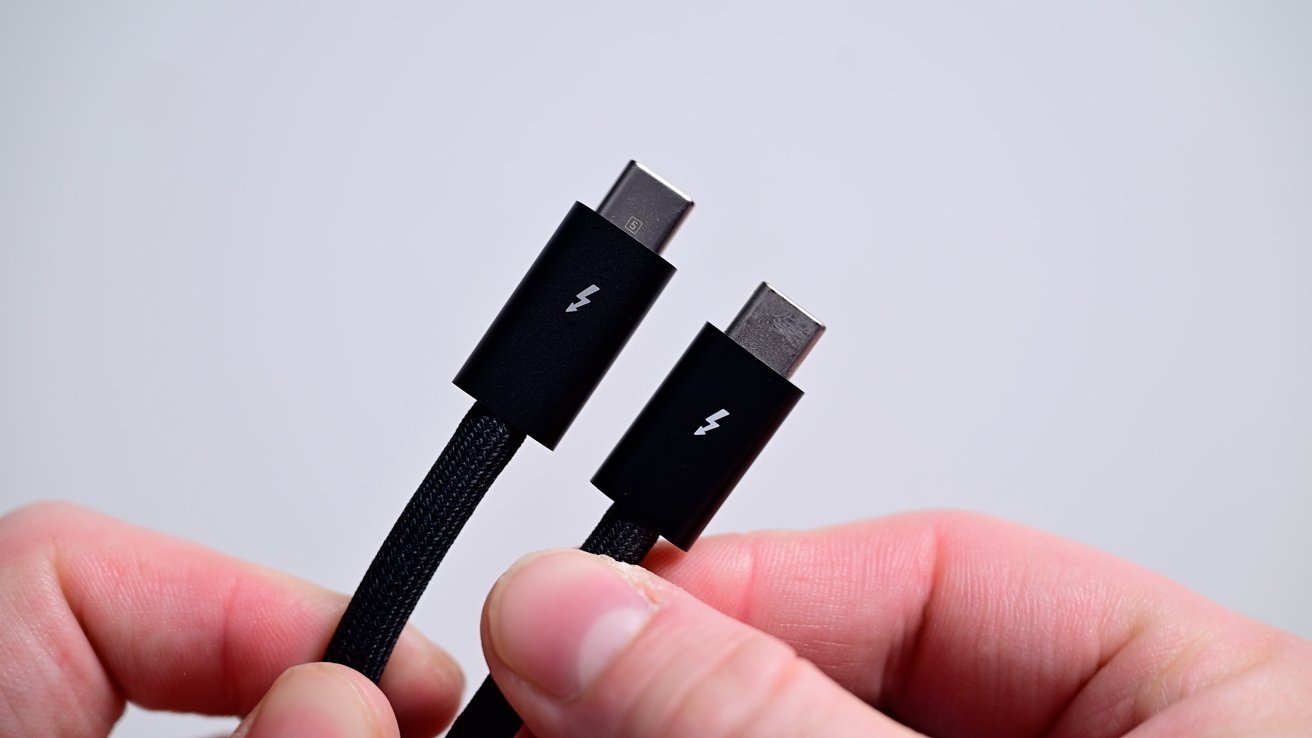
If you want masses of speed on a Mac, go with a Thunderbolt-based enclosure.
It's also the better route when it comes to hubs. There's more than enough bandwidth to handle multiple attached devices, so far less chance of there being connectivity constraints. This is why we don't generally recommend 10 gigabit per second USB-C hubs that have a SSD slot.
That said, you will also find that Thunderbolt-supporting drive enclosures will tend to be more expensive.
If speed is worth the extra cost, you may want to consider Thunderbolt 5 enclosures. These are enclosures and drives that are coming onto the market that routinely take advantage of 80 gigabits per second of bandwidth available through the connection. And in some cases, that speed can surge to 120 gigabits per second.
In cases where the enclosure provides other ports, there will be far more bandwidth available to handle them, without affecting the storage's bandwidth at all.
As to how fast Thunderbolt 5 drives can be, there are models on the market claiming transfer speeds in excess of 6 gigabytes per second.
Thanks to backwards compatibility built into the standards, you could acquire a Thunderbolt 5 enclosure and use it with a slower Thunderbolt 4 or 3 connection. Futureproofing in the standards means the faster enclosures will work with older and slower connections, but with less bandwidth available to achieve high speeds.
Chipset
The performance of the enclosure is also dependent on the drive itself, but also the capabilities of the onboard chips running the show.
An enclosure with an older chipset will run slower than newer and more premium versions. The chipset will also determine how stable the connection is, too.
For high-speed enclosures using Thunderbolt, you'll often see the use of Intel's chips. They are designed to work specifically with Thunderbolt, and tend to be faster than other options on the market.
The difference between chips could mean a few hundred megabits per second speed difference with another similar enclosure using an alternate chipset. It's a small factor to consider, but at the high end of the scale, it can be a deciding factor on which hardware to buy.
External SSD build guide: Enclosure recommendations
We've reviewed a lot of enclosures and docks. We have some recommendations. Over time, we will add to this list.
External SSD build guide: Budget enclosure - Sabrent USB 3.2 Type-C Tool-Free Enclosure
If all you want is a simple enclosure for some NVMe storage and cost matters more than speed, you can't go far wrong than the Sabrent USB 3.2 Type-C Tool-Free Enclosure. As the name indicates, the aluminum case can be opened up without needing tools, making installation easy.
It works at 10 gigabits per second, and is compatible with M.2 SATA and NVMe drives in 2242, 2260, and 2280 sizes. It also ships with its own 8-inch USB-C cable.
The Sabrent USB 3.2 Type-C Tool-Free Enclosure is priced at $40 full retail on Amazon. It is frequently on sale for $25 or so.
External SSD build guide: Thunderbolt 4 enclosure - Ugreen 40Gbps M.2 NVMe Enclosure
The Ugreen 40Gbps M.2 NVMe Enclosure is an aluminum and fin-covered enclosure, designed for heat dissipation without needing a fan. The enclosure itself supports SSDs in 2230, 2242, 2260, and 2280 sizes up to 8TB in capacity.
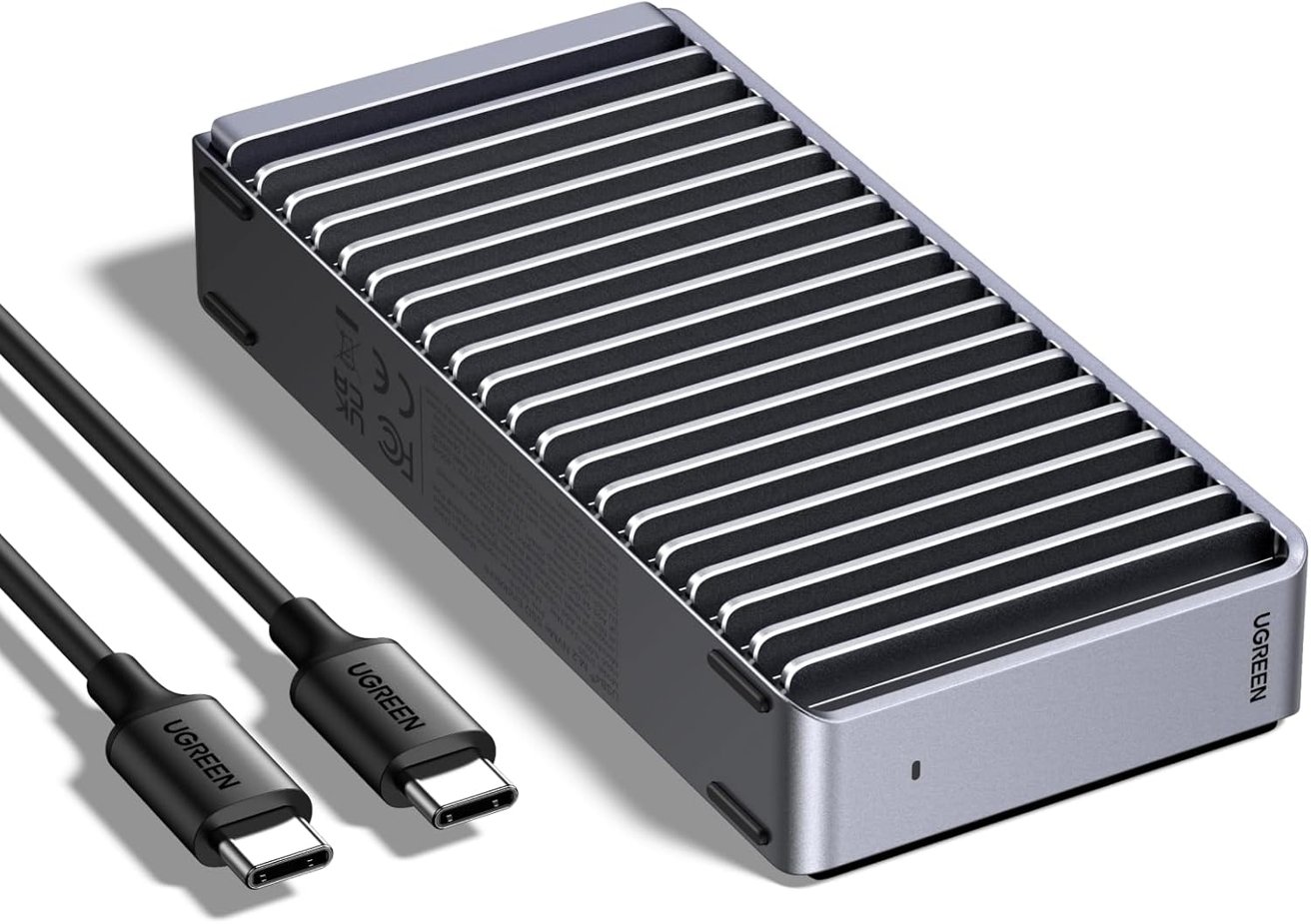
Ugreen 40Gbps M.2 NVMe Enclosure
The key to this compact drive enclosure, aside from price, is its speed. It can support USB 2.0 to USB 4, and Thunderbolt 3 and 4, with the latter enabling speeds of up to 3.6 gigabytes per second.
The Ugreen 40Gbps M.2 NVMe Enclosure is available on Amazon and retails for $109, but it's often on sale for about $70.
External SSD build guide: Thunderbolt 5 enclosure - OWC Express 1M2 Portable NVMe SSD
If transfer speeds are all you need with no extra ports or other elements, consider the OWC Express 1M2 Portable NVMe SSD. Sold as an enclosure or with included storage up to 8TB, this is a build-your-own option that works fast.
It has connectivity support for Thunderbolt 5, which means that with the right drive, it can perform transfers at over 6 gigabytes per second for the more expensive model.. As for drives, there's compatibility with PCIe Gen 3.0 to 5.0 NVMe M.2 SSDs.
The DIY enclosure only option for the OWC Express 1M2 is on sale for $99 direct from OWC for the 40 gigabit per second version. The 80 gigabit per second version is $219 on Amazon and from OWC direct. We have yet to see the faster model go on sale at Amazon, but OWC periodically has sales or open-box models available.
External SSD build guide: Hub with storage - Sonnet Echo 13 Thunderbolt 5 SSD Dock
One of the earliest Thunderbolt 5 docks on the market, the Sonnet Echo 13 Thunderbolt 5 SSD Dock is a hub that adds another 12 ports to your Mac, including 2.5 gig Ethernet and four more Thunderbolt 5 ports. As of October 21, 2025, it is our recommended Thunderbolt 5 dock.
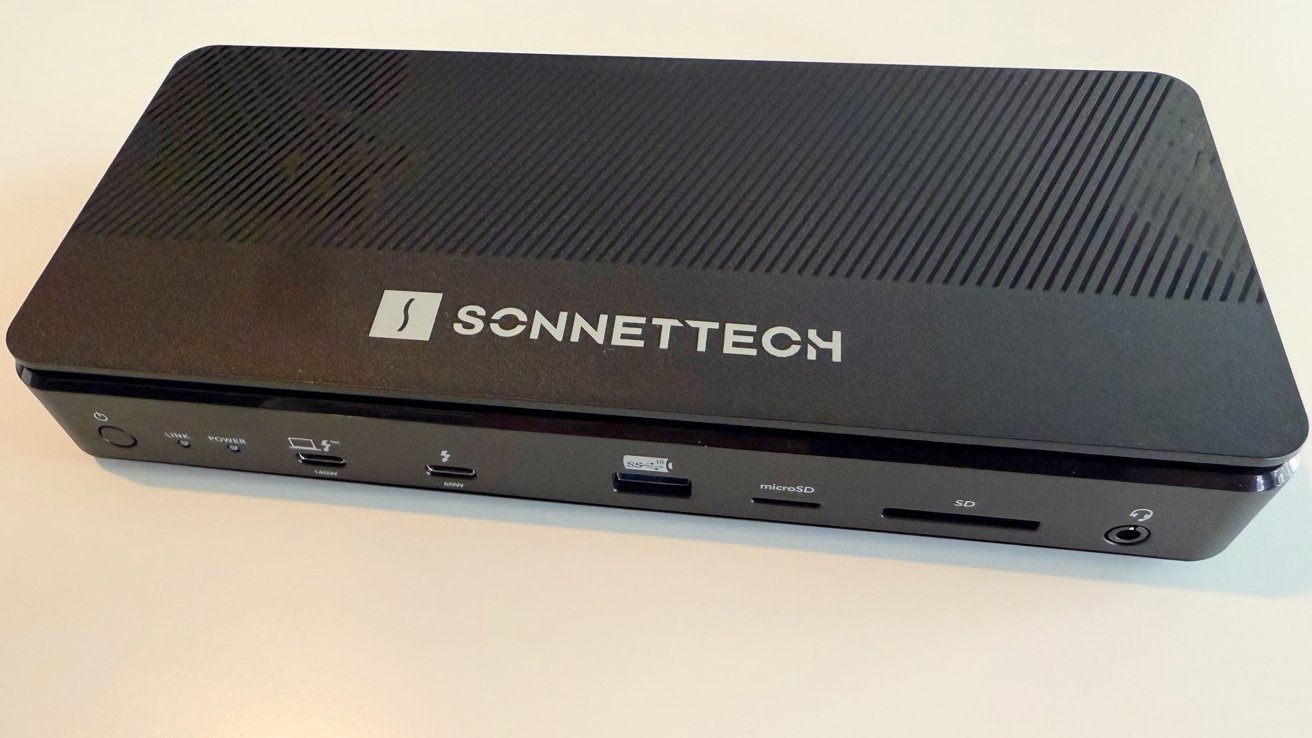
Sonnet's Echo 13 Thunderbolt 5 SSD Dock
Sonnet does supply the Echo 13 with built-in storage, in the form of 1TB, 2TB, or 4TB Kingston PCIe 4.0 NVMe SSDs. However, you can still replace them with more capacity in the future. We also reviewed it very favorably, scoring it 4.5 out of 5.
The Sonnet Echo 13 Thunderbolt 5 SSD Dock starts from $369.99 with 1TB of storage on Amazon, rising to $649.99 with 4TB of storage. We have yet to see it on sale.
External SSD build guide: Storage recommendations
There are many drive options you can choose from to put into your enclosure. The selection is much wider than for enclosures, with capacity and speed being big considerations along with whether it actually fits into your selected enclosure.
External SSD build guide: Budget drive - Sabrent Rocket 4
When it comes to value, Sabrent is one of the better options out there. Its Rocket 4 NVMe SSD works using PCIe 4.0 and is a single-sided M.2 2280, a pretty much ubiquitous size.
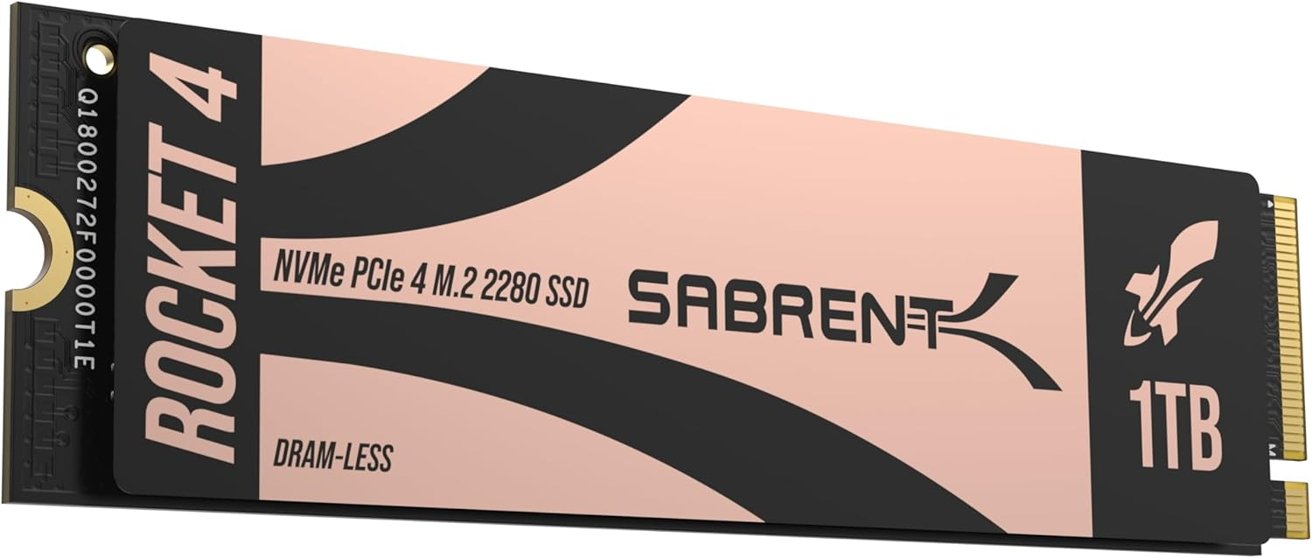
Sabrent Rocket 4
You can get performance at up to 7.4 gigabytes per second for reads and 6.1 gigabytes per second for writes, with it also capable of delivering up to 800,000 random IOPS for reads and writes. However, it is a DRAM-less drive, despite the high speeds.
Sabrent's Rocket 4 starts from $99.99 for 1TB, going up to $349.99 for 4TB on Amazon.
External SSD build guide: Fast DRAM-equipped drive - Samsung 990 Pro
The Samsung 990 Pro is the company's consumer drives prioritizing speed and stability. A PCIe 4.0 NVMe M.2 SSD, it has read and write speeds of up to 7.4 gigabytes per second and 6.9 Gigabytes per second, respectively, as well as IOPS at up to 1.4 million and 1.55 million.
As a DRAM-based drive, it's bound to work at lightning-fast speeds. There's also power efficiency over the previous version, with it performing 50% better per watt over the 980 Pro.
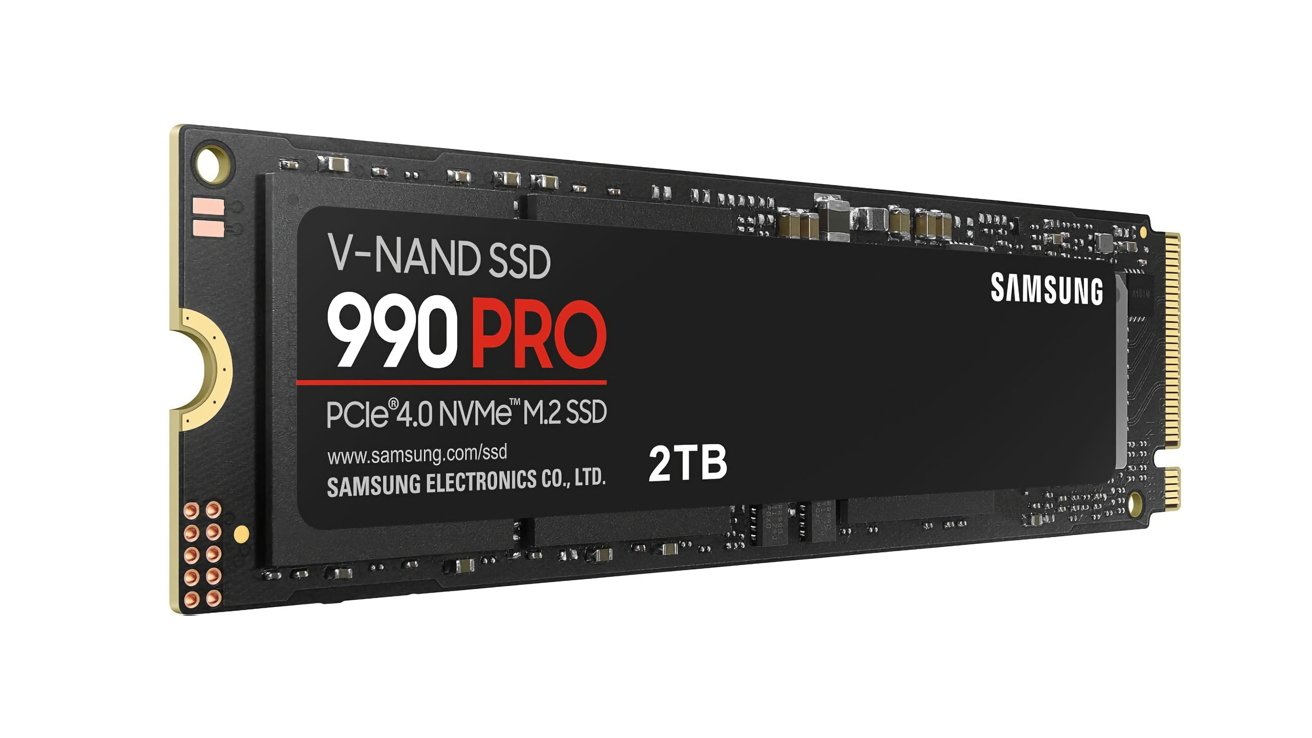
Samsung 990 Pro
The Samsung 990 Pro is available on Amazon starting from $109.99 for 1TB, rising to $319.99 for 4TB, without a heatsink.
External SSD build guide: Solid HMB drive - Samsung 990 Evo Plus
While the Pro line is Samsung's DRAM-equipped option, the Evo Plus is its HMB alternative. This time it has PCIe 4.0 x4 and PCIe 5.0 x2 support to maximize its bandwidth potential.
Those speeds are still high, at 7.2 gigabytes per second for reads and 6.3 gigabytes per second for writes. It may not have onboard DRAM, but under the right conditions, it's a pretty good choice.
The Samsung 990 Evo Plus starts from $74.99 for 1TB on Amazon and B&H Photo, rising to $249.99 for 4TB.