Social media sites and advertisers aren't actually using your iPhone microphone to spy on you, but what's happening is complex. Here's how to limit the amount of access Big Tech has to your data, by performing a quick privacy audit.
It happens to all of us. You'll be talking about something, and then later you'll see an advertisement pop up on Facebook or Instagram. It couldn't be a coincidence, right?
It might feel like you're being actively spied on, but you aren't.
Or, at the very least, they're not spying on you in the thriller sense, where your device is constantly listening to you and piping that information to Instagram or Facebook.
It is, unfortunately, somehow both more and less sinister.
If you've got any social media apps, you're probably scrolling at high speed past dozens of ads a day, minimum. If you pause for even a second, that information gets routed back to your data profile.
Pretty much every website or social media platform is tracking you in one manner or another. And all that juicy data you provide gets packaged up and shipped off to data brokers.
Those same data brokers know your age range, gender, what accounts you follow, what type of content you're most likely to click on, and your purchase history from websites like Walmart and Amazon. They can cross-check that data with other similar customers and come up with things that people in your demographic are most likely to buy.
They even track you across devices, so what you search on your Mac could show up on an app on your iPhone.
Voice assistants are listening, though
If you've ever used "Hey, Siri," you probably are aware that your phone actually is listening to you. Not in a nefarious way, it really is just listening for that trigger, but it's still a little creepy.
"Hey, Siri" is opt-in, but you typically enable it upon activating a new phone. That means you may have opted in so long ago that you've entirely forgotten it was enabled in the first place.
Because of that, it can make any erroneous activations feel especially invasive. Nothing stops a conversation dead in its tracks like Siri chiming in with, "Hmm, what was that?"
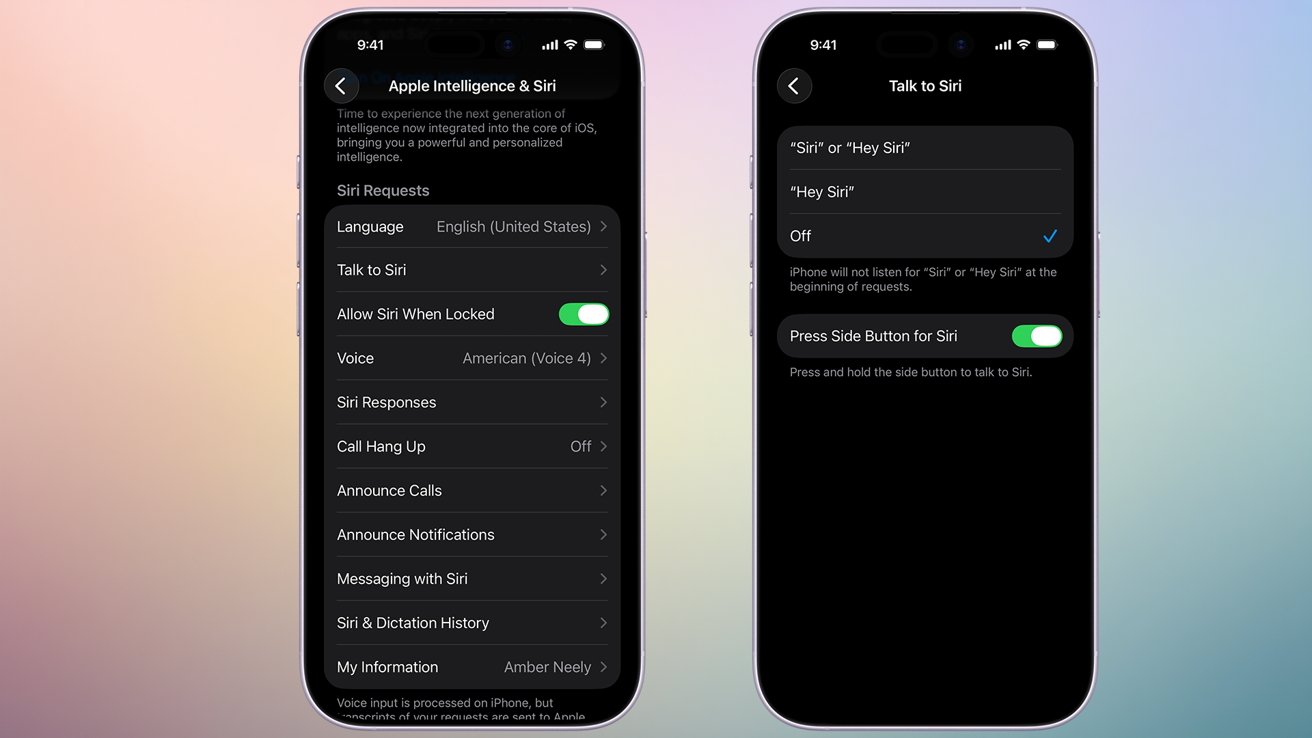
Disable "Hey, Siri" if you don't use it
If you don't use "Hey, Siri," it's not a bad idea to disable it. You can do so easily:
How to disable "Hey, Siri" for Siri on iPhone and iPad
- Open the Settings app
- Scroll down and tap Apple Intelligence & Siri
- Tap Talk to Siri
- Tap Off
It's also not a bad idea to disable it on macOS, too, if you don't use it. Here's how to do that.
How to disable voice triggers for Siri on macOS
- Open Settings
- Click Apple Intelligence & Siri
- In the drop-down menu next to Listen For, select Off
Disable Analytics Sharing
Analytics sharing is the process Apple uses to help provide anonymized data to developers. While useful for developers to see how their apps are being used, it's reasonable to want to keep that information to yourself; here's how to disable it.
- Open Settings
- Tap Privacy & Security
- Tap Analytics & Improvements
- Toggle off Share iPhone & Watch Analytics
Managing third-party app permissions
One of the nice things about being in the Apple ecosystem is that developers of apps, for the most part, are supposed to inform you of what they're going to need access to. These third-party apps also need to request access to certain information, such as location, microphone, and camera, tracking data, photos, and more.
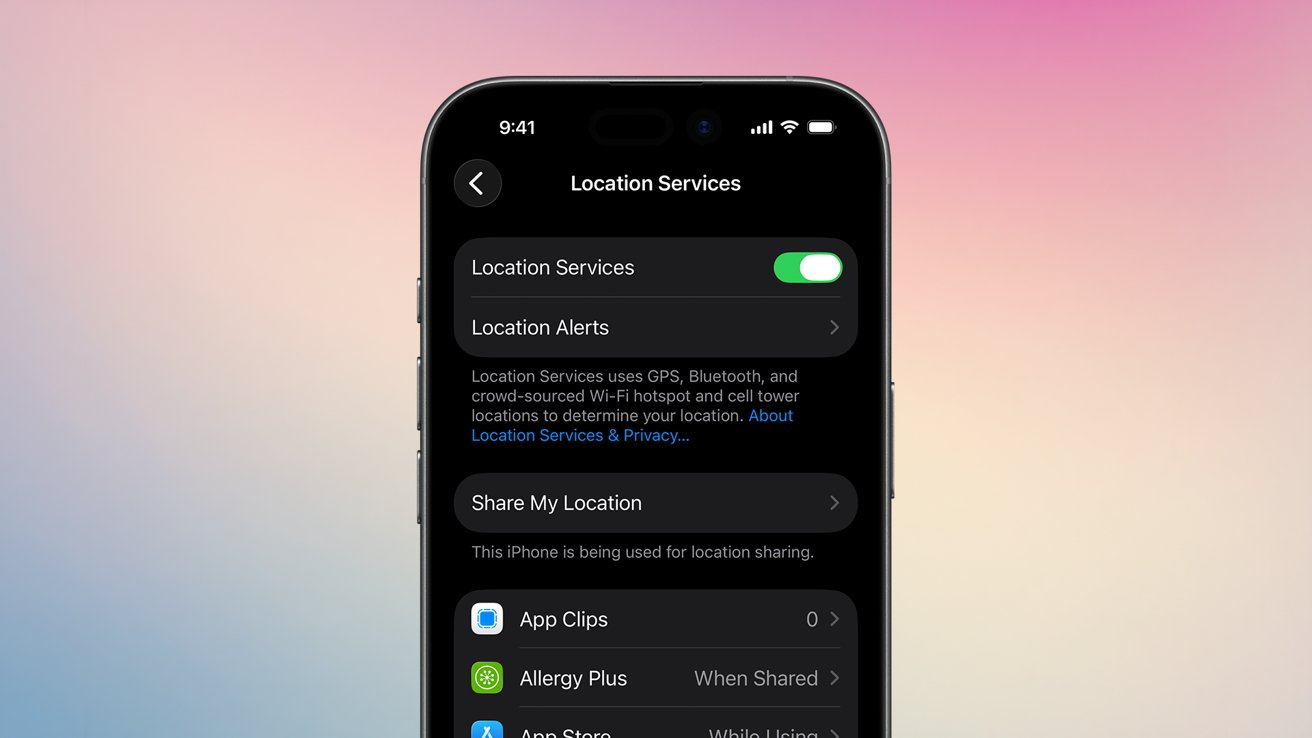
Managing your location sharing on a per-app basis
Apple has also taken it a step further and allows you to go in and revoke permissions that you may have granted before. Here are a few you may want to take a look at.
Revoking third-party microphone access on iPhone and iPad
Plenty of apps want access to your microphone. Many of these apps, predictably, are social media, while others may have occasional, not-often-used features that ask for access, even if you don't use them.
You can revoke these permissions pretty easily by following the steps below.
- Open Settings
- Tap Privacy & Security
- Tap Microphone
- Toggle off any apps you don't want
Revoking third-party camera access on iPhone and iPad
Like the microphone, plenty of apps want access to your camera. This can be to record video or take pictures, to scan QR codes, or to use AI-powered identification features.
You can revoke these permissions by following the steps below.
- Open Settings
- Tap Privacy & Security
- Tap Camera
- Toggle off buttons next to apps to revoke access
Revoking location access from third-party apps on iOS and iPadOS
You'd be surprised how many apps want access to your location information. Sometimes, it makes sense.
For example: maybe you've got a marathon training app, and it wants to help record routes you've run. That's a great use case for allowing the app to access your location.
Other times, it's not entirely clear why an app might need your location, other than to provide it to data brokers. Here's how to revoke location or limit access to location.
- Open Settings
- Tap Privacy & Security
- Tap Location Services
- Manage location settings on an app-by-app basis
This is one category where you have a bit of flexibility. For example, maybe you're alright with a specific app using your location while you're using it, but not while the app is closed.
If that's the case, you can set it to "While Using." If not, you can always set it to "Never" to revoke access entirely.
Limit app tracking
Apps can ask for permission to track you across other apps and websites. If enabled, you are giving the app permission to sell or otherwise provide data to data brokers. We highly suggest turning this feature off.
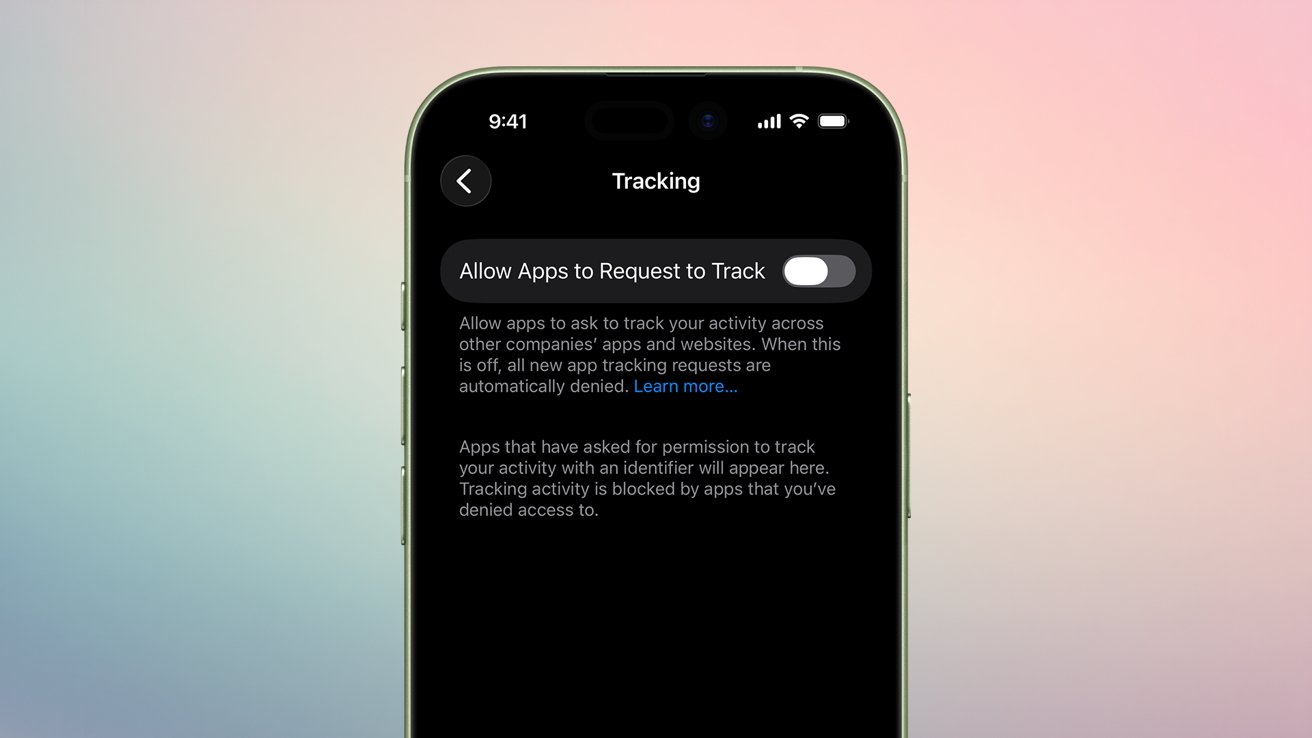
Disable App Tracking to avoid third-party apps passing your data to data brokers and advertisers
Apple provides an option to revoke this access, as well as revoke their right to ask.
- Open Settings
- Tap Privacy & Security
- Tap Tracking
- Toggle off any app you do not want to track you
- To stop all apps from asking for permission to track you, toggle off Allow Apps to Request to Track