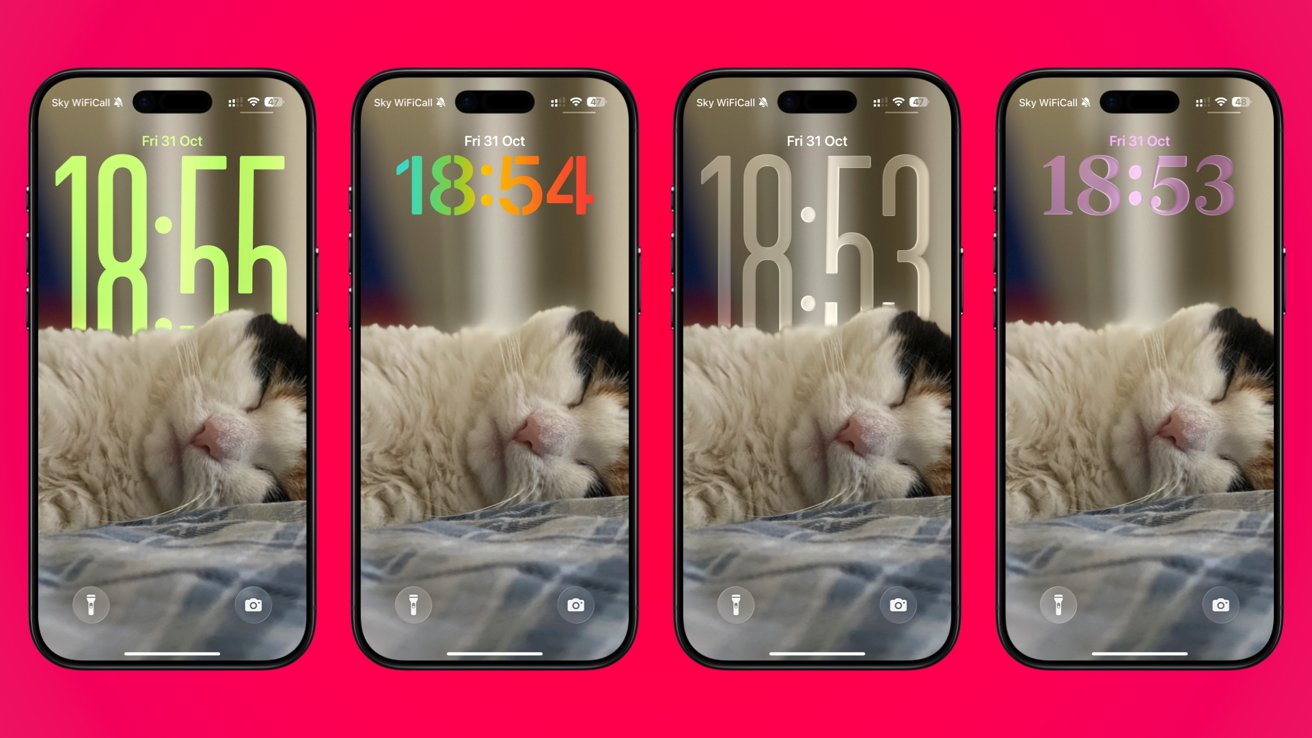
Apple added a ton of features and tweaks with iOS 26, including to the iPhone's Lock Screen. Here's how to customize your iPhone's clock, including its size.
The clock might be one of the most-used things on your iPhone, and you probably don't realize it. Especially if you have a model with an always-on display, like the iPhone 17.
For even if you have an Apple Watch, glancing at your iPhone is often the easiest way to check the time. Yet the clock hasn't changed all that much since the iPhone shipped in 2007.
With iOS 26, however, Apple has updated the clock with a new look and some new customization options. Perhaps the biggest change is the ability to resize the Lock Screen clock so it fits perfectly with your wallpaper of choice.
You can, of course, also change the color of the clock as well as adjust the font. There's even an option for a Liquid Glass-inspired look to match the iOS 26 design language, too.
We're going to run down how to customize the Lock Screen's clock to make it look just the way the want. And we're going to start with the font, thickness, and color.
How to customize the clock's color, font, and thickness
Make sure that your iPhone is turned on and at the Lock Screen to get started.
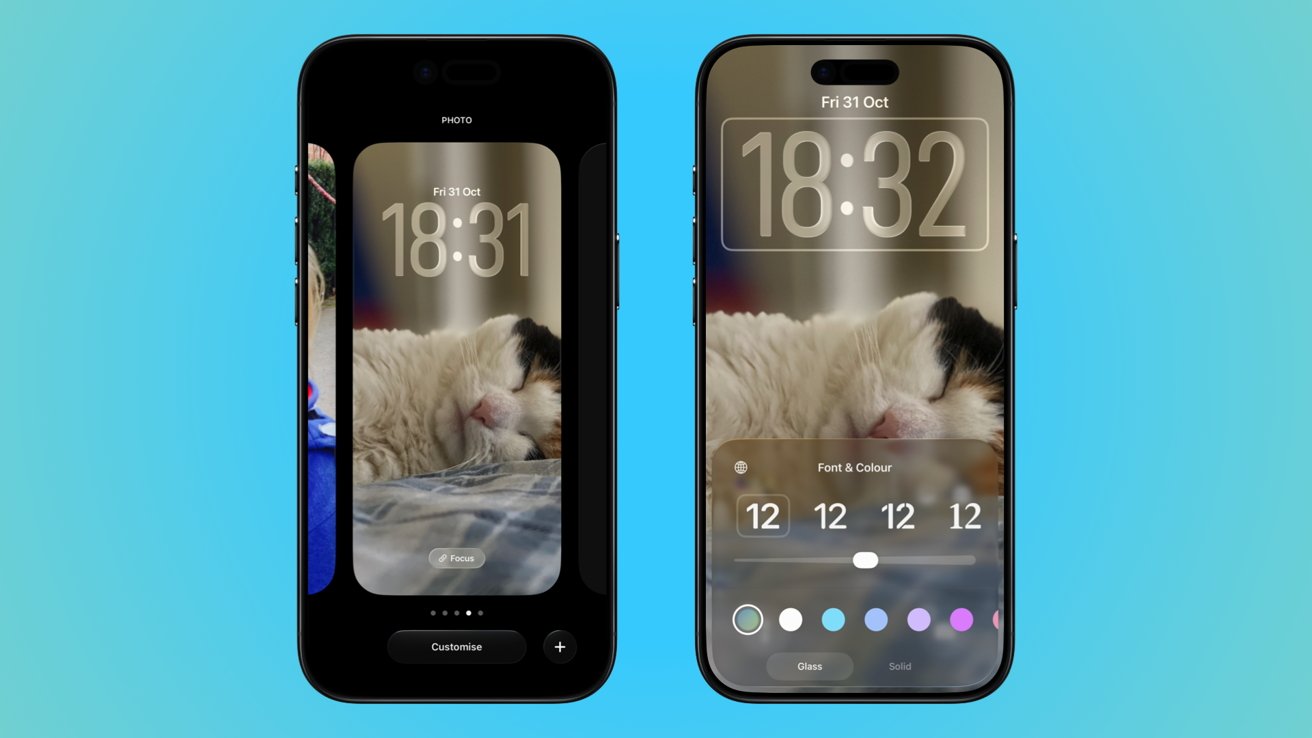
Editing your Lock Screen is easier than you might think
- Long press anywhere on your iPhone's Lock Screen and tap the Customize button.
- Tap the time at the top of the screen.
- Tap Glass or Solid at the bottom of the screen to choose how the clock will appear.
- Tap the globe icon and choose which language you want the clock to use
- Tap one of the different fonts shown to select the one you like best.
- Use the slider to change the thickness of the on-screen time.
- Tap your chosen clock color at the bottom of the display. Use the slider to adjust the opacity.
- Tap anywhere else on the Lock Screen and then tap Done to save your changes.
Now that you have the overall look of the clock down, you can also choose how big it is as well.
How to resize the clock
For the first time with iOS 26, you can now make the clock taller to fill more of the screen. Here's how.
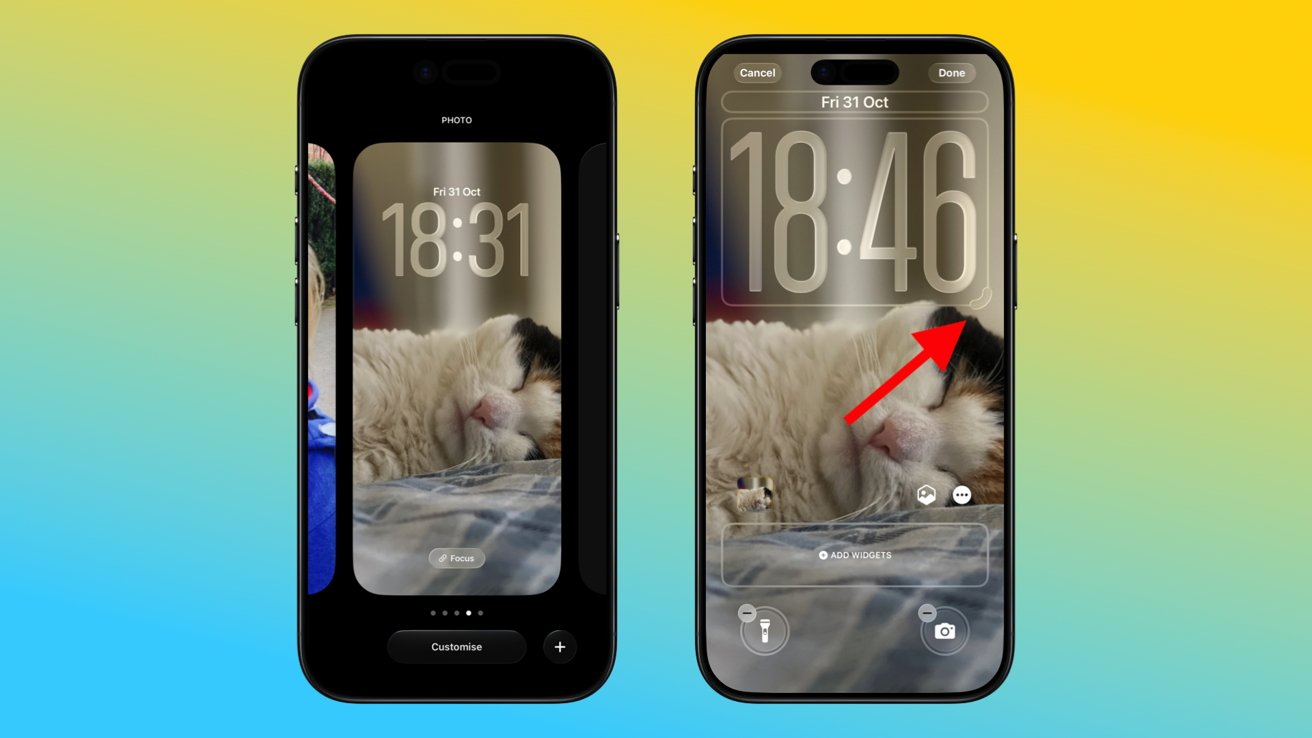
The clock will extend behind images with 3D aspects
- Long press anywhere on your iPhone's Lock Screen and tap the Customize button.
- Long press the bottom-right corner of the clock and drag it to resize it.
- Tap Done when you like how your iPhone's clock looks.
That's all there is to it, and you now know exactly how to make your iPhone's clock look just the way you like it.
Remember that iOS 26 also allows you to customize your Lock Screen widgets and icons so you can get the perfect setup for both aesthetics and productivity.