The Files app has grown a lot since its introduction in iOS 11. While it's not quite Finder on Mac, it's more than enough to get work done.
When the Files app first debuted with iOS 11 in 2017, it was borderline unusable as a file manager. Apps were siloed, and saving files from Safari was considered a new feature.
Eight years on, and Files has become the go-to place for file management and storage on iPhone, iPad, and Apple Vision Pro. It can show connected servers, cloud clients, and local files with tags and more.
The Files app got a bad name because of its limited use cases at launch. It was part of why many considered iPad an unlikely platform to get work done, as it required users to jump through hoops to do even the most minor tasks.
There's still plenty of work Apple could do to make Files better, but it is increasingly serving standard use cases. More niche use cases either need a Mac or a third-party app.
Not Finder
The Files app is not the same thing as the device file system. On Mac, when you open Finder, you can see application bundles and dive all the way down to the actual executable.
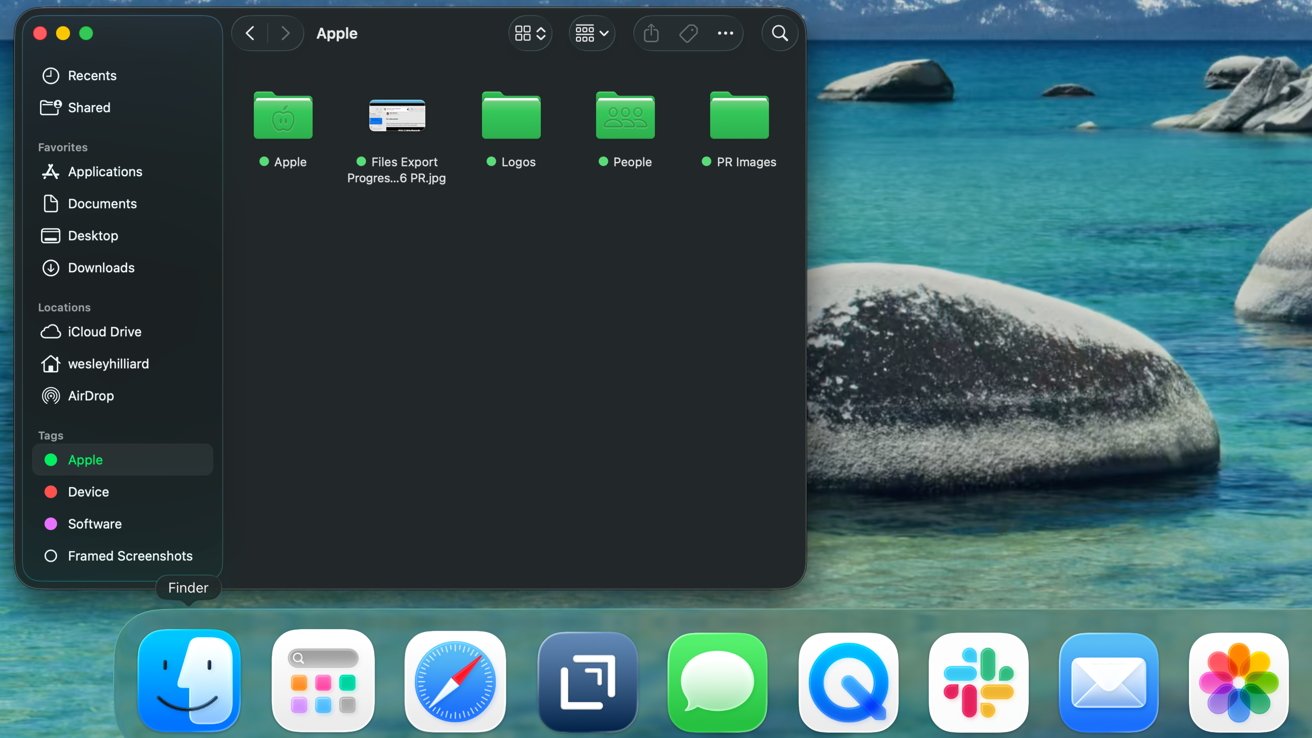
Even if Finder and Files look similar, they've got very different levels of functionality
Users can manage every portion of the Mac software stack and even potentially break stuff if something is deleted or misplaced. It's the top-down view of the user database containing every app, system, and user file.
On iPad, iPhone, and Mac, the Files app is purely a user-generated file system. It shows things saved from the web, save files from games, or files that belong to apps like Photomator.
There's no folder called "applications" that lets users peek into application bundles. Instead, users can still find local or iCloud Drive file directories siloed to different apps.
Keep that in mind when using Files on iPad. It's more of a Dropbox-style application versus local file system access.
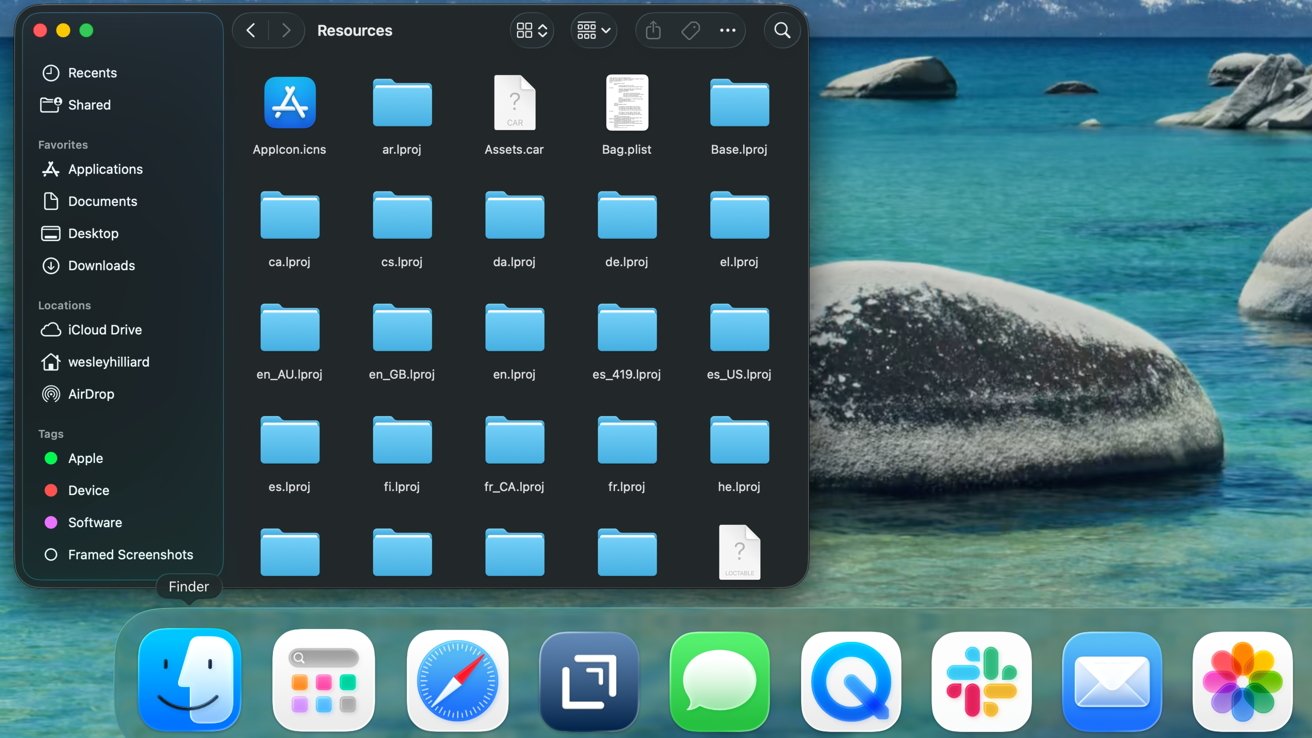
Finder allows users to check an application's file container
That said, there are some utilities unique to Files that aren't available in other cloud storage platforms. For example, even though users can't modify the Minecraft source files, users can place texture packs and more within the Files app Minecraft folder to have them appear in-game.
The legacy per-app file structure has evolved to become a much more functional tool. It gives users direct control over files associated with apps and how they are synced via iCloud.
Files: the basics
If you've never used the Files app and open it for the first time, you might be surprised to find it isn't completely empty. There should be a directory in the Sidebar showing common destinations, including iCloud Drive, On My [Device], and Recents.
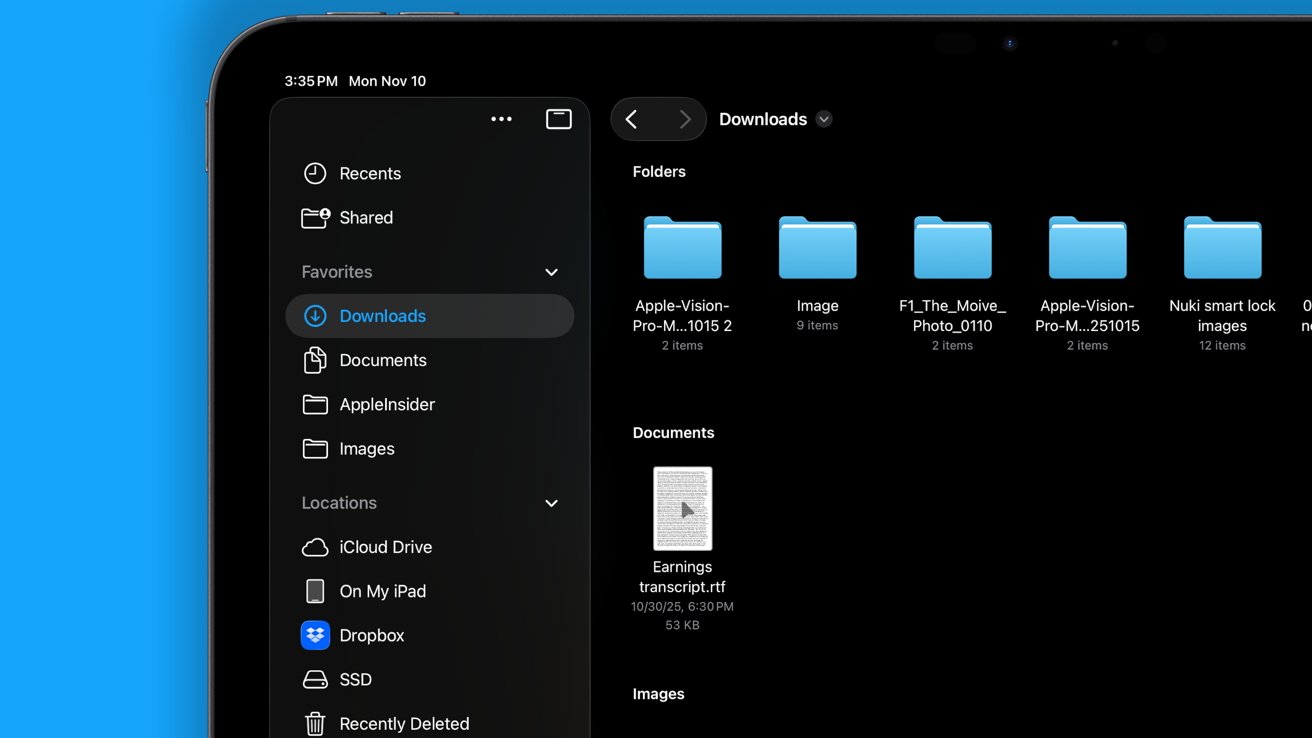
The Finder Sidebar has a list of top-level directories by default
Tapping into any of these should surface files saved from applications on your device, if any. It's not always obvious when an app creates a file container within the Files app, so there may be a few you weren't expecting.
For example, Photomator shows I have 1,154 linked files to photos I've edited taking up 18.59 GB. Oops, time to empty that folder.
Photomator shows up in my iCloud Drive folder, which is exactly what it sounds like. It's a folder equivalent to Dropbox that syncs across all of your Apple devices and also appears on iCloud.com.
Everything in the iCloud Drive folder syncs, so if you've got a Mac, you'll see a Desktop folder as well. There's also Documents and Downloads.
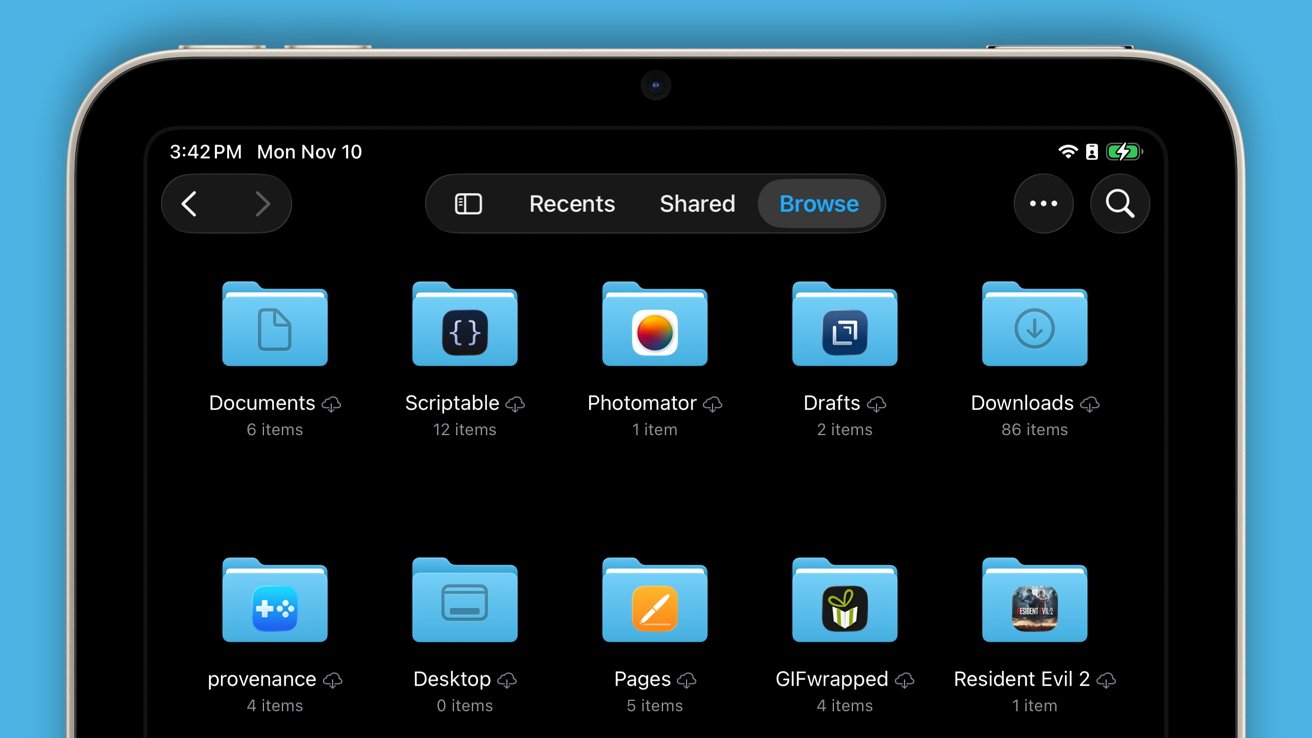
The iCloud Drive directory shows everything that syncs across Apple devices
Documents is a folder that only contains things placed there by the user. It's where I keep my work, personal, and other folders for easy organization and syncing.
For most, this folder is likely empty.
Downloads is also self-explanatory as it's the folder where Safari downloads are placed by default. If you've gone to Settings, Apps, Safari, and selected "On My iPad," for Downloads, this folder will be in that section instead and won't sync.
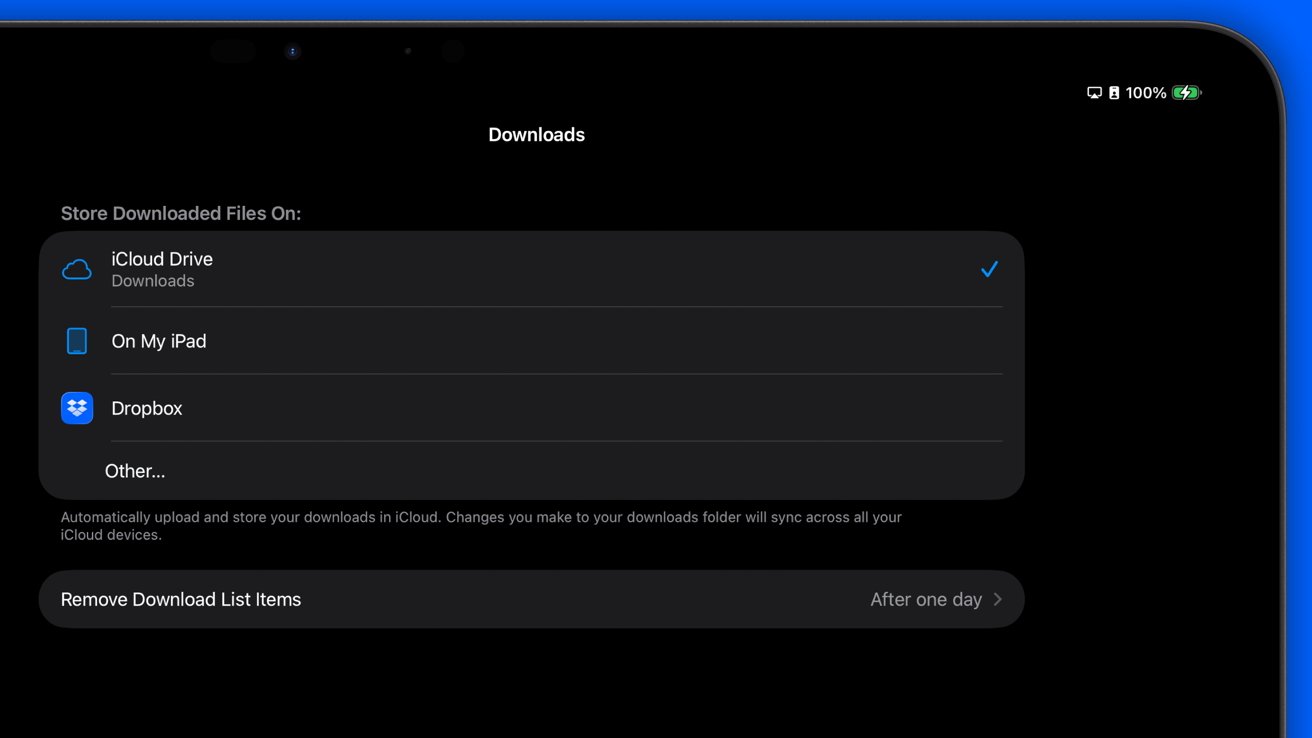
Choose a custom location for files downloaded from Safari to appear
Every other folder in iCloud Drive and On My iPad should be one either created by the user or an app. I can see iZip Pro, Provenance, and Minecraft have created folders in the Files app.
Understanding this basic structure is the first step in getting started with the Files app. Go in, create a folder, and put some stuff in it! It's that simple.
My advice for beginners is to create a "From the Internet" folder in your Documents folder. Move all of the memes and other images from your Photos app to this folder so your Photos app can get back to being what it's for — photos.
On that note, move screenshots, document photos, and anything else that isn't what you'd call a "photo" to dedicated folders in the Files app. Folders can also be customized using icons and colors.
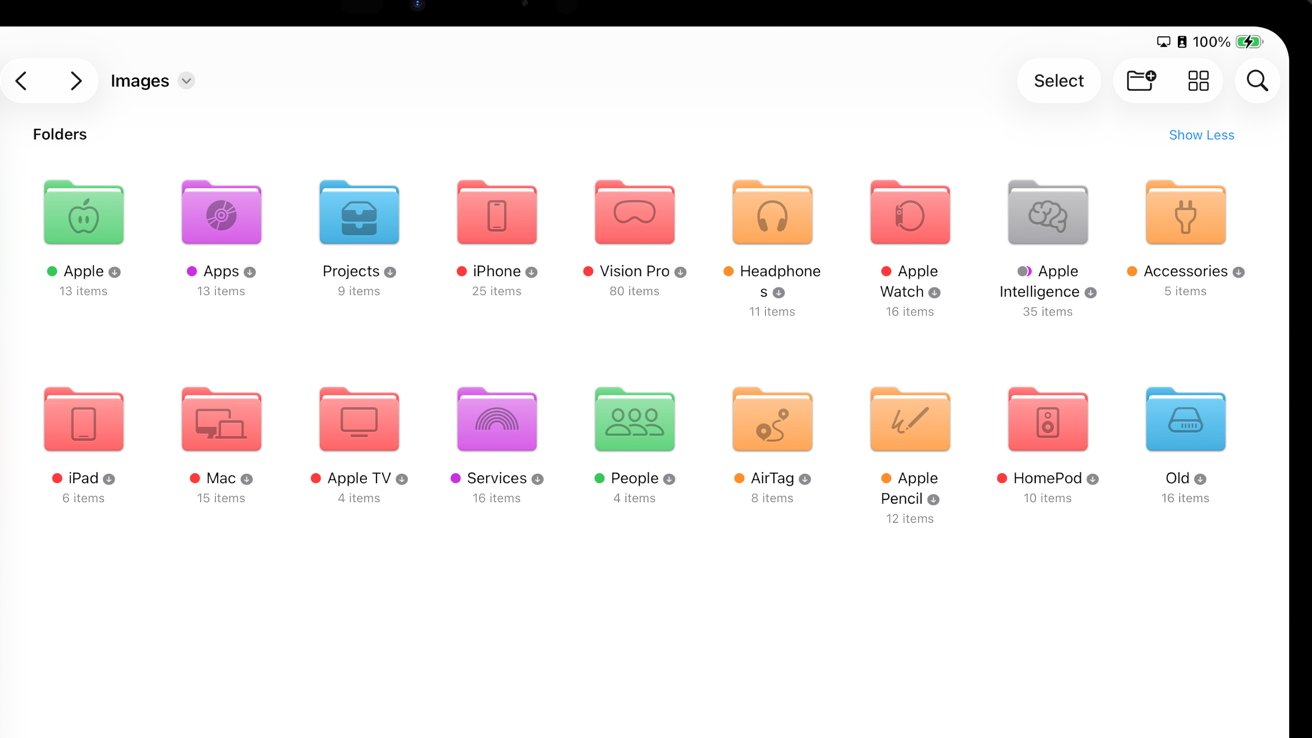
Folders can be customized with tags and icons
Apply an icon or even an emoji to make a folder stand out, then take it a step further by using tags. When a tag is applied, the folder becomes the color of the tag for faster identification and simple customization.
You're well on your way to utilizing Files to its fullest. It is an app that expands its utility based on your needs, so stopping at the basics is enough, but you can do so much more by reading on.
Scan Document
For many, it has likely clicked that your iPhone camera is good enough for capturing documents for digital use. Whether you're sending a fax, signing a contract, or re-capturing a physical photo to add it to your Photos app, the iPhone or iPad can get that job done.
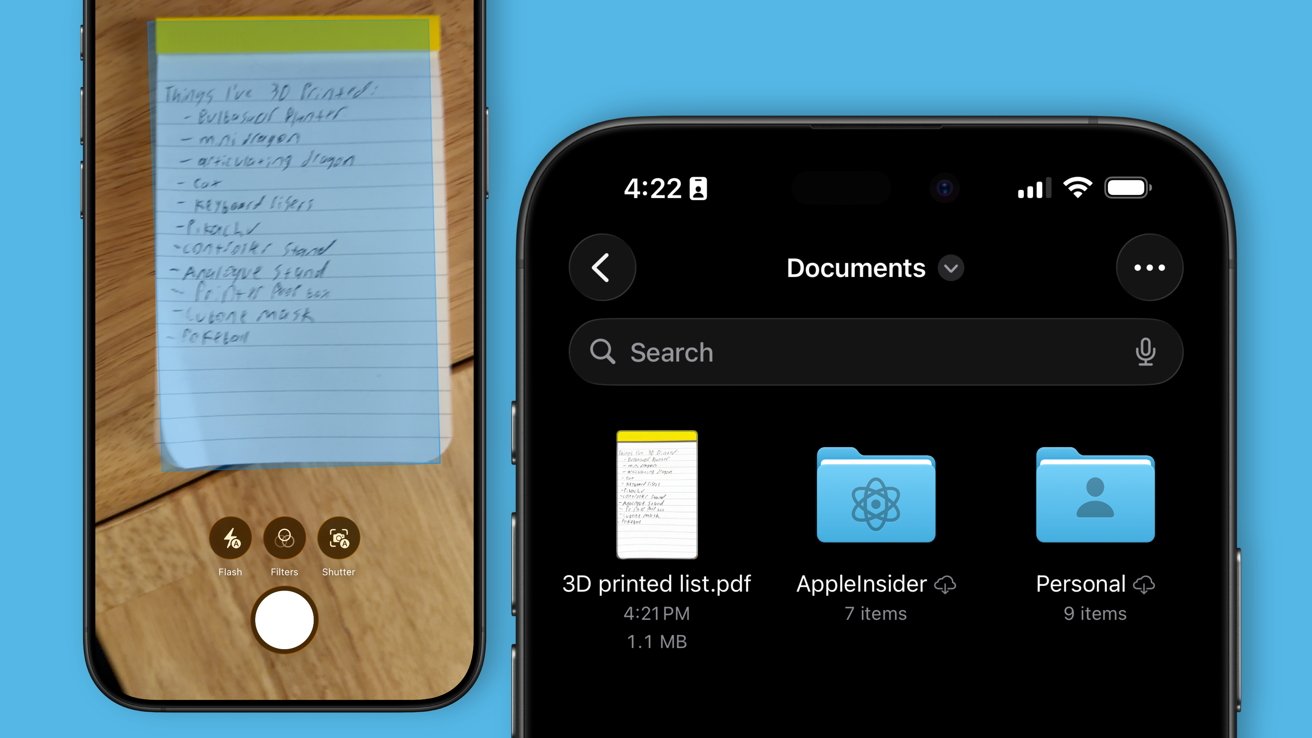
Scan a document and save it to Files as a PDF
However, it isn't as simple as opening the Camera app and snapping a photo. Doing so will result in a HEIF file, not a PDF, and limit how you can interact with and edit it.
Inside the Files app, there is an ellipsis in the top right corner (iPhone) or in the Sidebar (iPad, Mac, Apple Vision Pro) that should always have an option of "Scan Document."
When selecting "Scan Document" on Apple Vision Pro or a Mac, it's done via an iPhone or iPad. The device goes into a specialized camera view that looks for document boundaries and automatically scans them.
Users can scan multiple pages or photos, then edit their boundaries and add a filter for legibility. The end result is a PDF containing all of the scans as pages.
If you're new to the Files app, one useful utility is making it into your digital repository. Scan your personal documents, medical records, contracts, and even mail for sorting and storage in a safe, encrypted file system.
Files: Navigation
OK, now that you've got some structure to the Files app with multiple folders and locations in the Sidebar. The next step in getting the hang of Files is understanding how to get around the app in general.
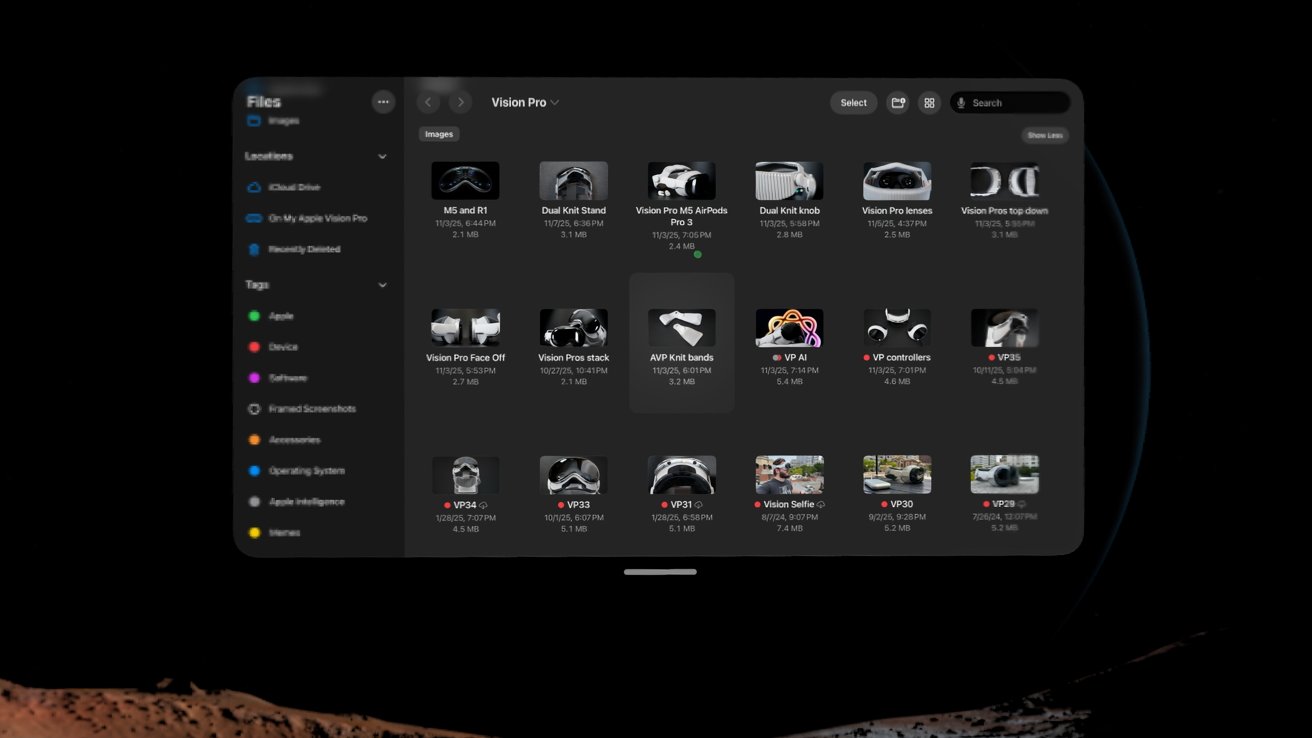
Apple Vision Pro has a Files experience nearly identical to iPad
There's not much difference between iPhone, iPad, and Apple Vision Pro in terms of navigation besides layout. When on iPhone, viewing the Files app in a vertical orientation gets a single view of a folder or navigation sidebar.
A bottom bar on iPhone gives users quick access to important locations: Recents, Shared, and Browse.
Rotate the iPhone horizontally, and you'll get a similar layout to the iPad's app. To simplify this discussion, I'll point out when things are different across platforms because otherwise, the functionality and layout are the same.
Sidebar
The Sidebar on iPad is the main navigation pane on iPhone. It's the base level of the Browse section.
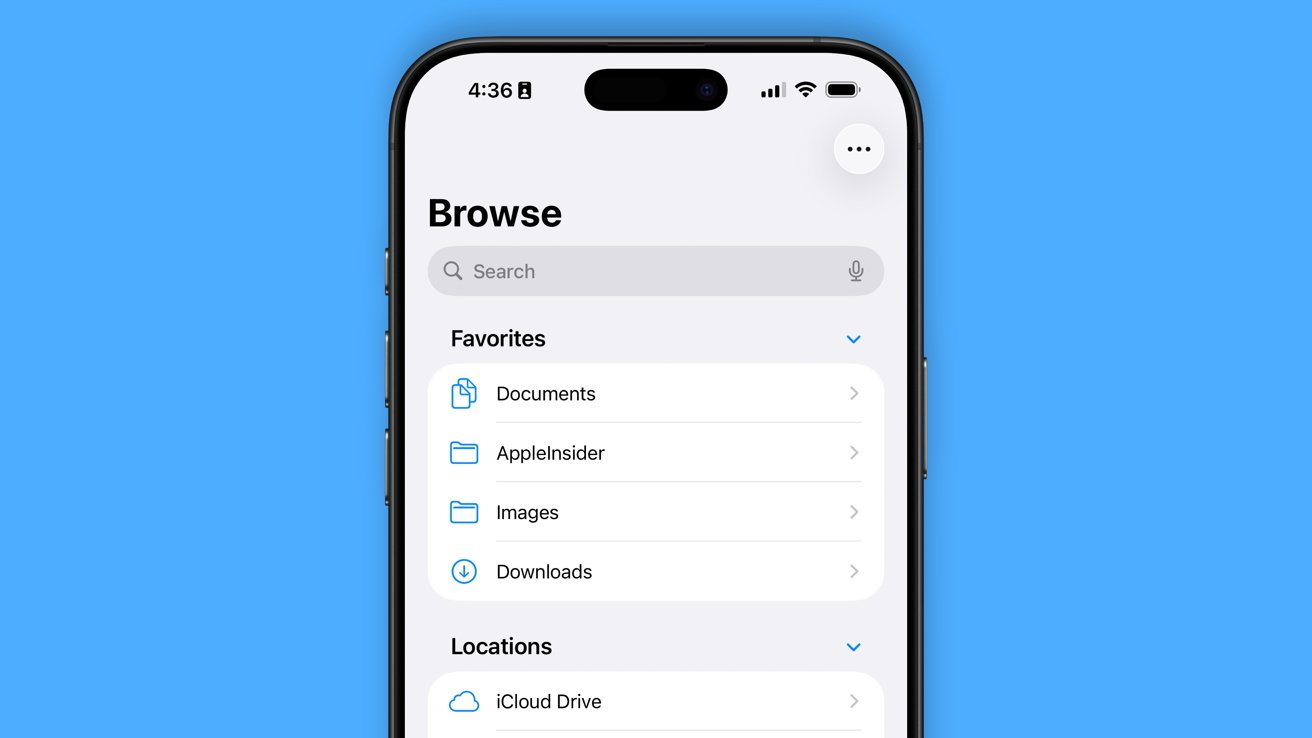
The top directory in Files is shown as a Sidebar or main page depending on the device
The top of the Sidebar will always show Recents and Shared. Recents is what it sounds like — every file the user has interacted with in chronological order. I'll explain the Shared section later.
Next is Favorites, which are user-selected folders. This is a great place to keep the Downloads, Documents, and top-level folders for various uses.
The Locations area is populated automatically by directory-level services. It contains iCloud Drive, On My iPad, connected external media like SD cards, and the Recently Deleted folder.
If you install an app like Dropbox, Google Drive, Box, or others, they show up here too. Users can edit what shows up in this section using the ellipsis in the Sidebar.
The last area is Tags, which I'll cover in the next section.
Tags
The tagging system for Files was revamped with the operating system 26 updates. Users can create tags with a designated color, but that color must be picked from a list: none, red, orange, yellow, green, blue, purple, and gray.
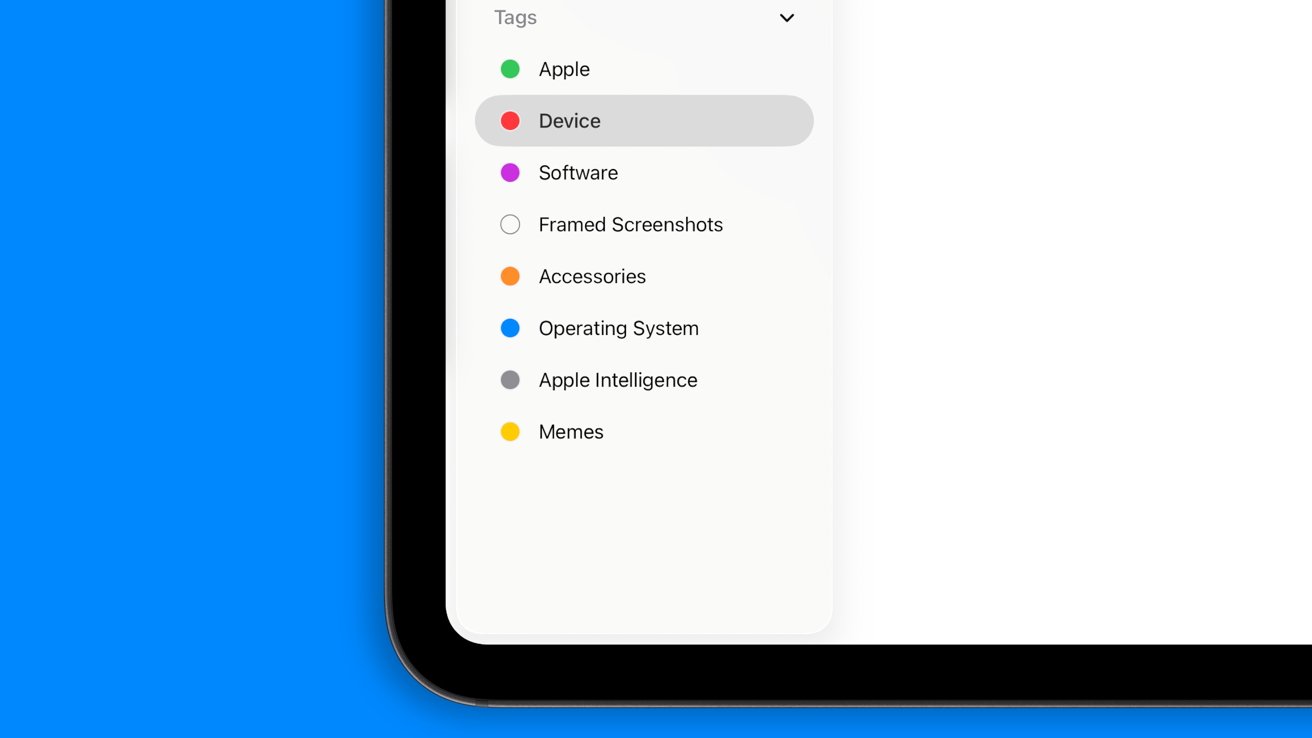
Tags in the Files app sort documents and folders
Multiple tags can be made with the same color, so it's not too limiting, but like with many things in tech, less is more. Wrapping your head around why you might want to use tags and how it organizes your files can be difficult if you've never done it before.
For example, I use the Files app a lot while working from iPad, so my tags are focused on work. If I want to find images of a specific device, I can open the red device tag and see every file and folder tagged in one place.
Tags are great for surfacing multiple files from different locations that meet specific criteria you set as the user. They also change the color of folders to make them more identifiable when they're in larger groups.
There's no real art to using tags. You either need them or you don't. Try simple tags based on how you're using the Files app and ramp up complexity from there.
View Options
Part of navigating the Files app is choosing how to organize and view the contents of folders. A four-square icon or menu behind the ellipsis on iPhone has view options to choose from.
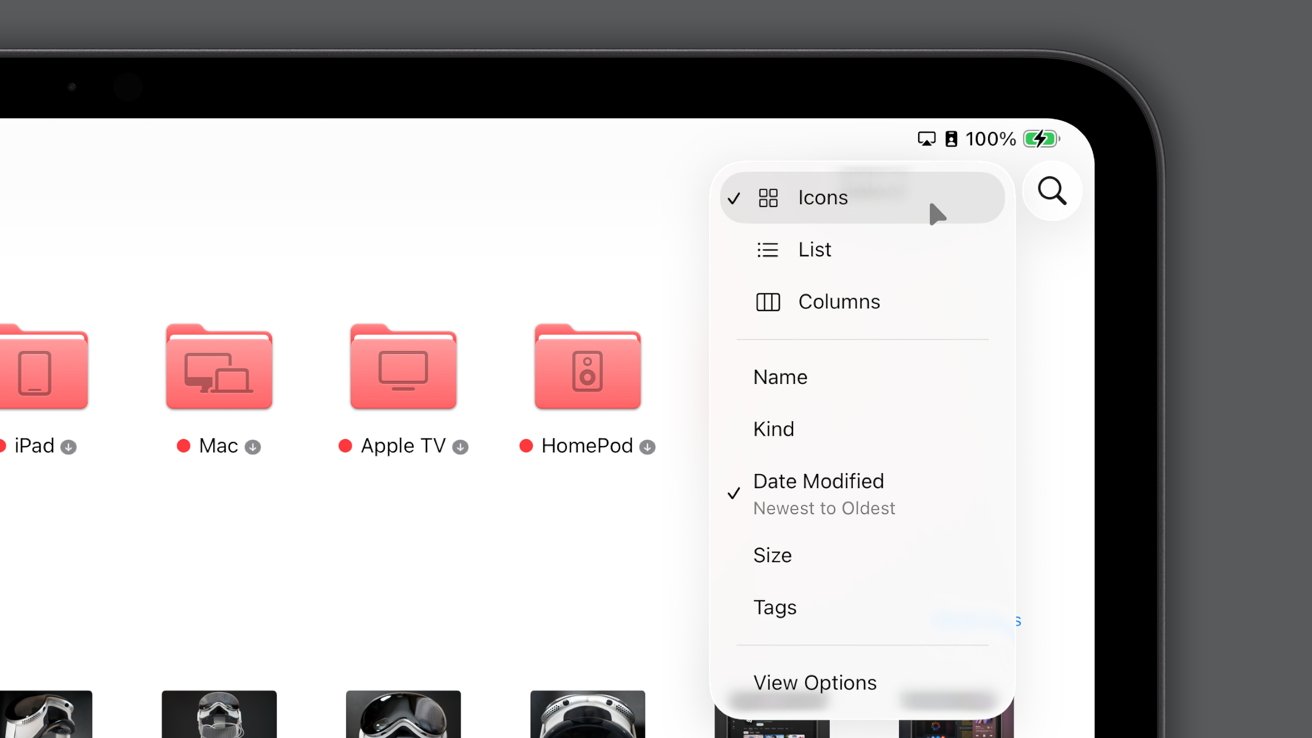
Several View Options are available in the Files app
Choose to show large icons in a grid, a list view with file details shown in a classic view, or a column view that keeps parent folders visible. Each view is useful for different use cases, so swap between them to find the one that suits your workflow.
When in the standard grid view, previews of images and documents are larger and easier to identify by sight. The list view has smaller preview images, but shows additional columns with information like date modified, size, tags, and more which the user can customize.
Columns make it easiest to manage files you're moving around or when jumping between parent folders frequently. It is the best option when dealing with multiple levels of folders and fastest to navigate.
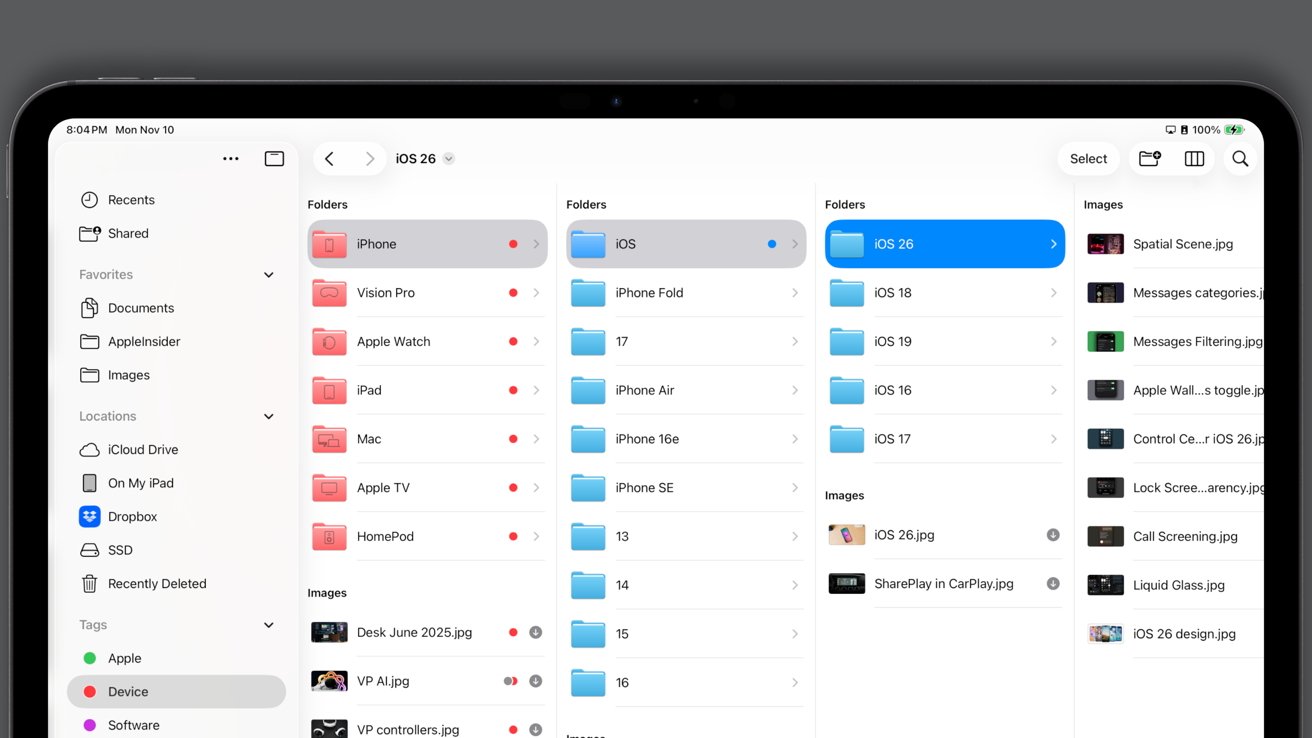
Columns let parent and child structures stay visible while navigating
The visible content can also be sorted by Name, Kind, Date, Size, and Tags. Additional controls are in the View Options menu at the bottom of this menu.
The expanded View Options modal provides more than what is visible in the drop down. The Sort By section gains Date Last Opened, Date Created, Date Added, and iCloud Status.
The Group By section adds an additional sorting layer on top of how the content is being viewed and ordered. Choose Kind to split folders, PDFs, audio files, and other file types up into different sections.
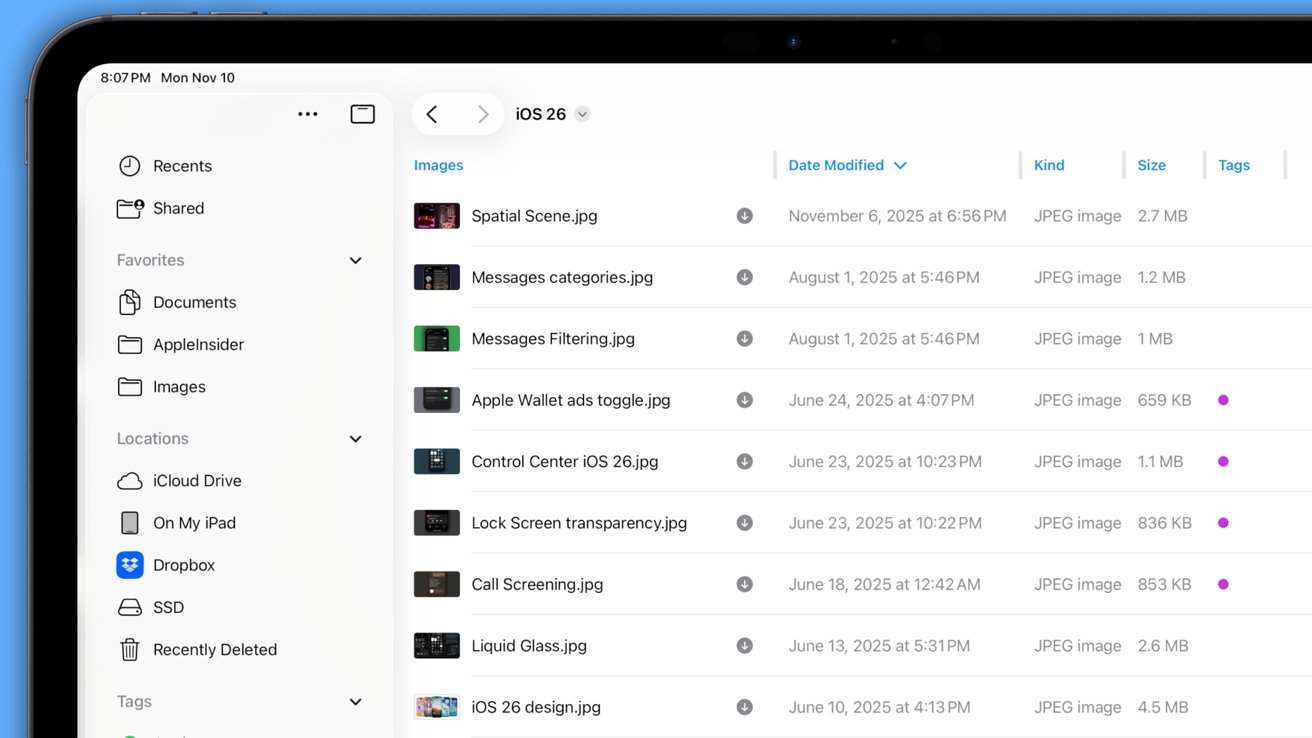
The List view has adjustable columns with various file datapoints
There are also options to group by Date, Size, and Shared By.
The Icon and List Size option lets users choose a smaller size to fit more data on the screen. There's also a toggle for Show All Filename Extensions so they're visible and can be modified when using the Rename function.
File menu
There is a lot the user can do with a file without ever opening it. Right-click or long-press on a file or folder to bring up a menu.
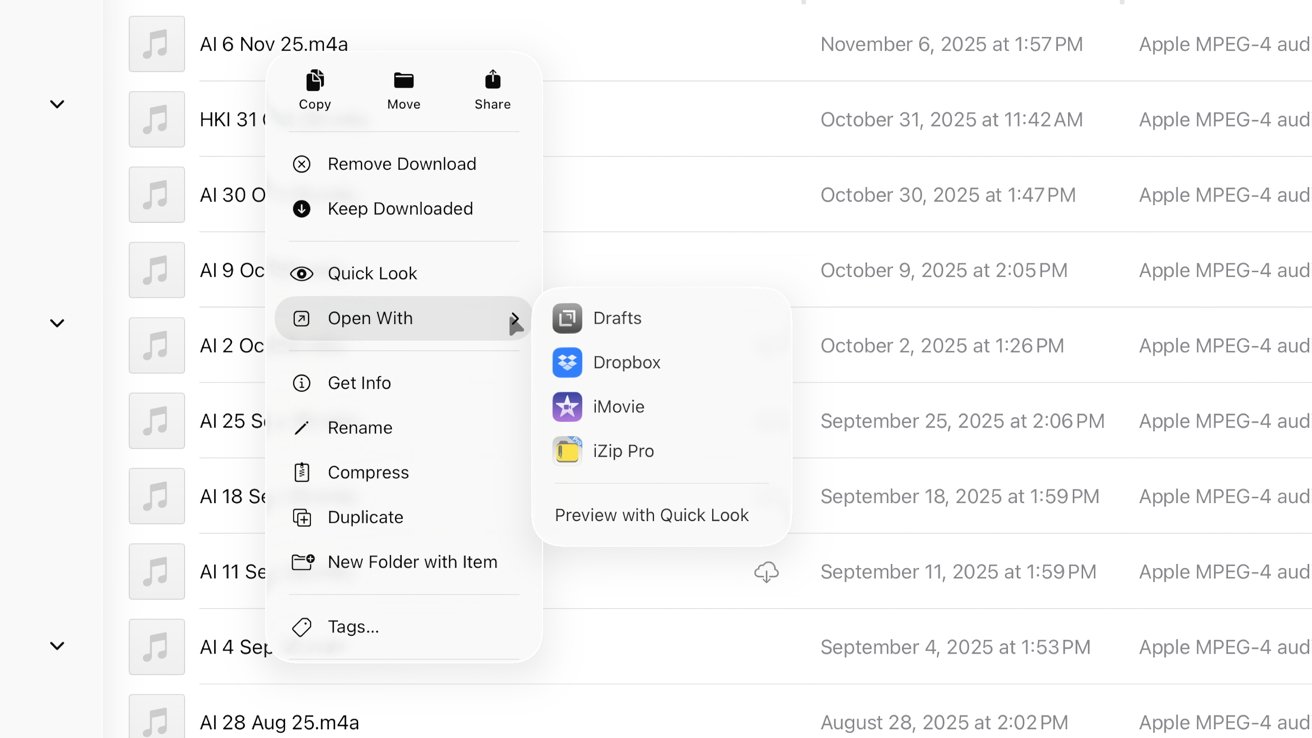
The right click menu brings up a long list of actions
Different functions will show up based on the file type, whether it is in an iCloud folder, or if it is a file shared from an email.
The following selections show up most often:
- Remove Download - deletes the local copy of the file but doesn't delete it from the iCloud folder
- Keep Downloaded - ensures the downloaded file is never offloaded by the system
- Quick Look - some file types, like images, will open within the Files app preview function without directing to an external app
- Open With - the user can pick an app to launch the file into, but choosing this won't affect the default
- Get Info - view file information, change default app opening options, add tags
- Rename - change the file name and/or extension
- Compress - create a zipped file with the selected items
- Duplicate - create an exact copy of the file
- New Folder with Item - create a new subfolder with the selected item already moved into it
- Tags - add or remove tags for the selected file
When selecting a folder, the option to customize that folder appears. Also, users can favorite folders or move them to the iPad dock from this menu.
The Get Info function gives the users a broad overview of the file's data, size, version, and more. It's also where the user can modify the default opening location for that file.
The Always Open With section will show all of the apps that are compatible as destinations for that file type. When one other than the default is selected, a pop-up will ask if that should be the default app for that file type or just the specific file.
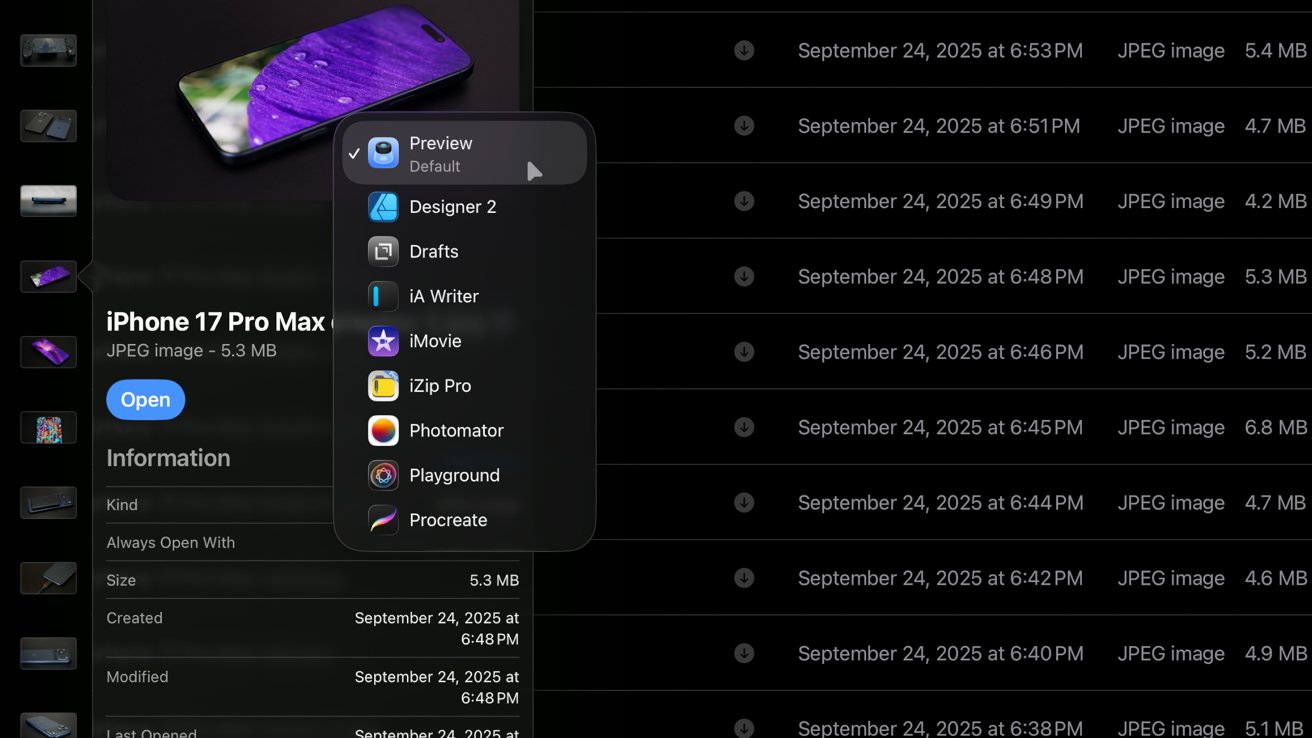
Choose between your available 'always open' options in the info pane
So, if you do this with a .jpg file, it means all .jpg files will open from Files into that default app you've selected. If you choose the Only Open this File option, then all .jpg files will open in the original default and only the selected file will use this default.
It's a powerful tool for pro users that most likely won't need. Though, it can be an excellent way to solve some odd issues with the file app.
For example, some apps may claim the .txt file for instructions, like an emulator, and it becomes the default, but you'd prefer .txt open in a text editor. The solution would be to make all .txt files open in the text editor but then change specific emulator configurations files to target the emulator.
It should be a function you'll only need sparingly, if ever.
External media
The iPhone and iPad both have the ability to access physically connected drives and SD cards. Connected external drives will show up in the Sidebar under the Locations section.
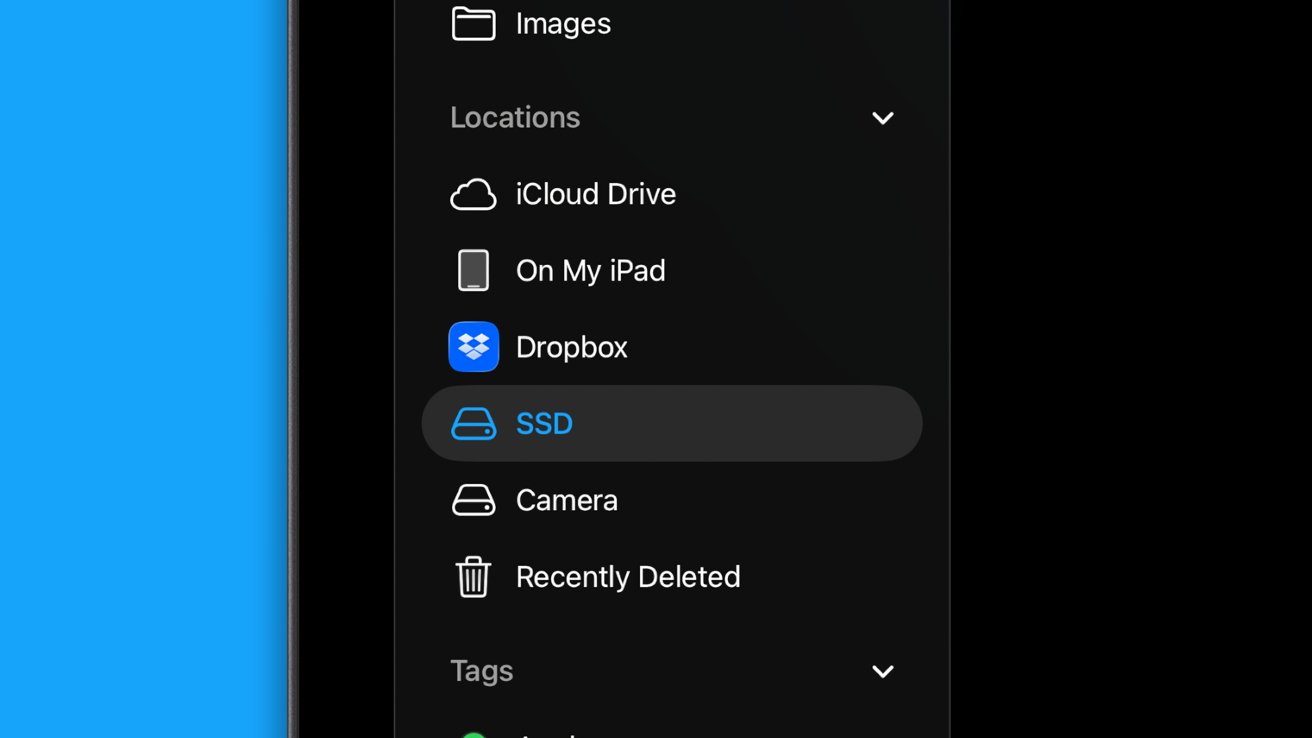
Attached external media shows up in the Sidebar
Users can copy data into and out of external drives the same way they can move files around within the Files app. A progress bar will show how long until the transfer is complete, which even shows up as a Live Activity on iPhone and vibrates the iPhone upon completion.
Users can also reformat connected drives or SD cards, but be aware that doing so will delete everything on the device and render it unrecoverable. Choosing the new format is also important, because you may limit the drive's use based on the format chosen.
The APFS, Apple File System, option is great if you expect to only use the device with your iPhone, iPad, or Mac. However, your SD card won't work with a digital camera if it is formatted in APFS.
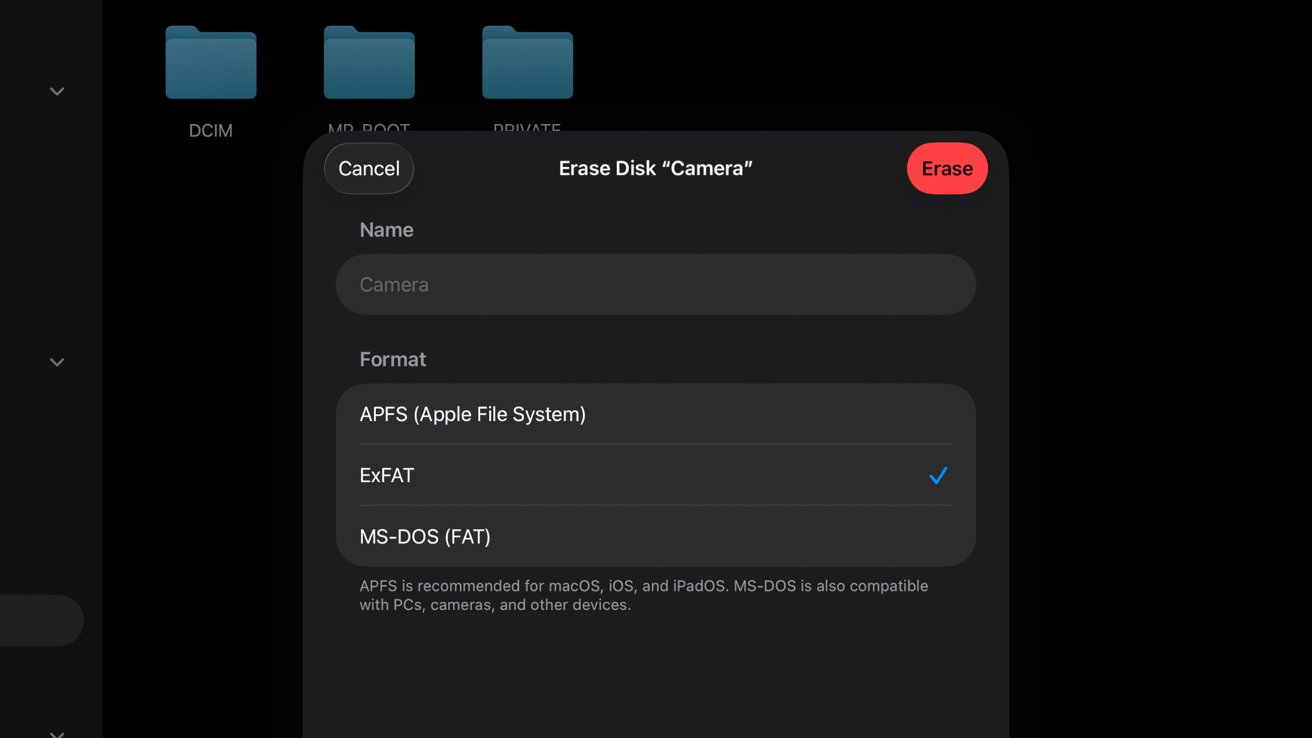
Format external media to something suitable for your needs
The ExFAT option is more universal and works with things like Windows. The MS-DOS (FAT) option is older and won't always be compatible, so be sure to understand which format you need.
Apple has configured the iOS and iPadOS operating systems in a way that ensures ejecting external media is no longer necessary. Don't bother looking for an eject option — it isn't there. Just pull the cable out and walk away (if you're not actively copying anything).
Shared files
File sharing has often been a headache in the modern era. The world moved on from CD drives and USB sticks, but cloud infrastructure was immature, leaving users with few options.
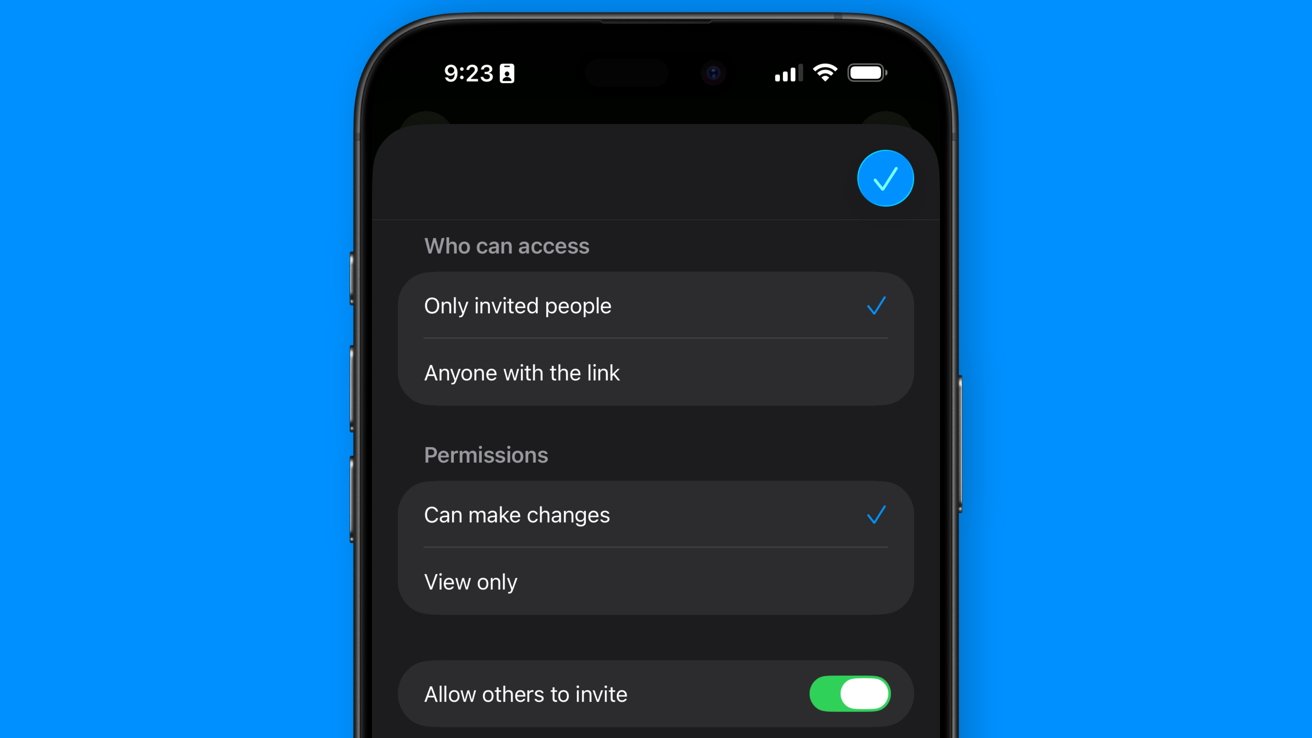
Create a shared folder with view only or public settings
Thankfully, things have gotten much better in the past decade, and that's mostly thanks to cloud file sharing services. Apple allows users to create files or folders in the Files app and share them with others.
Any file in a shared folder, or a single shared file, becomes available in the Shared section of the sidebar. Every change made by one user appears for every user.
Shared files are different from collaboration tools within apps like Pages. If a user modifies a file while another user is editing the same file, the one who saves last is the canonical version of the file.
That said, cloud file and folder sharing is an excellent utility in Apple's ecosystem, but only when sharing with others in Apple's ecosystem. Shared files are accessible on other platforms via browsers and apps, but it's more cumbersome.
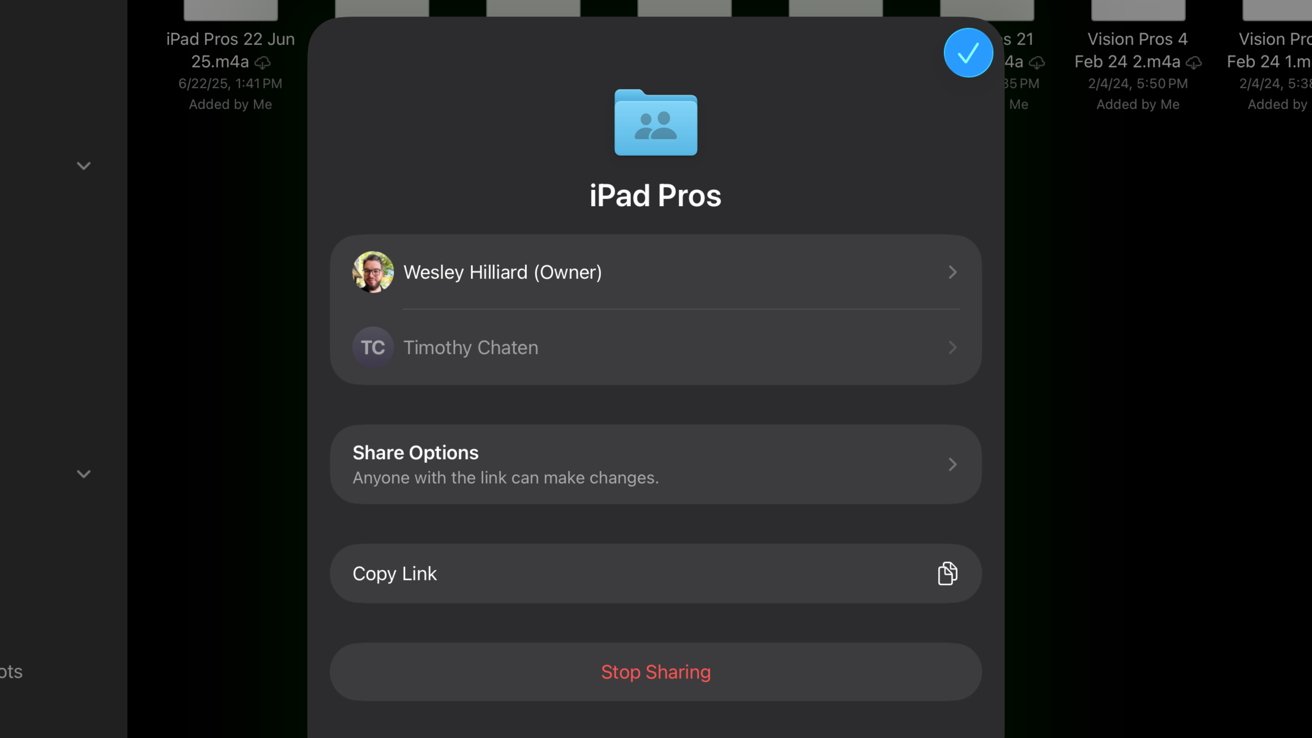
A shared folder is easily managed from the Files app
Users can make shared files read-only. That's useful for sharing reference documents or other kinds of media.
For example, I've made a shared folder with contact cards for everyone within a group chat. That way, whenever someone new joins a group chat where they don't know the participants, they can easily add everyone using the shared folder without all the back and forth.
Third-party services like Dropbox might be more universal or offer more features, so choosing which to use isn't always straightforward. Users will have to pick based on their needs.
However, sharing folders in Apple's Files app may be the most beneficial for most Apple users because it relies on iCloud storage you're likely already paying for. Any other service will require the user to pay for storage separately.
Third-party apps
Speaking of third-party apps, Apple's Files app interacts with many apps and services not offered by Apple. I've mentioned a few already here, but let's detail how some of these might interact with Apple's Files app.
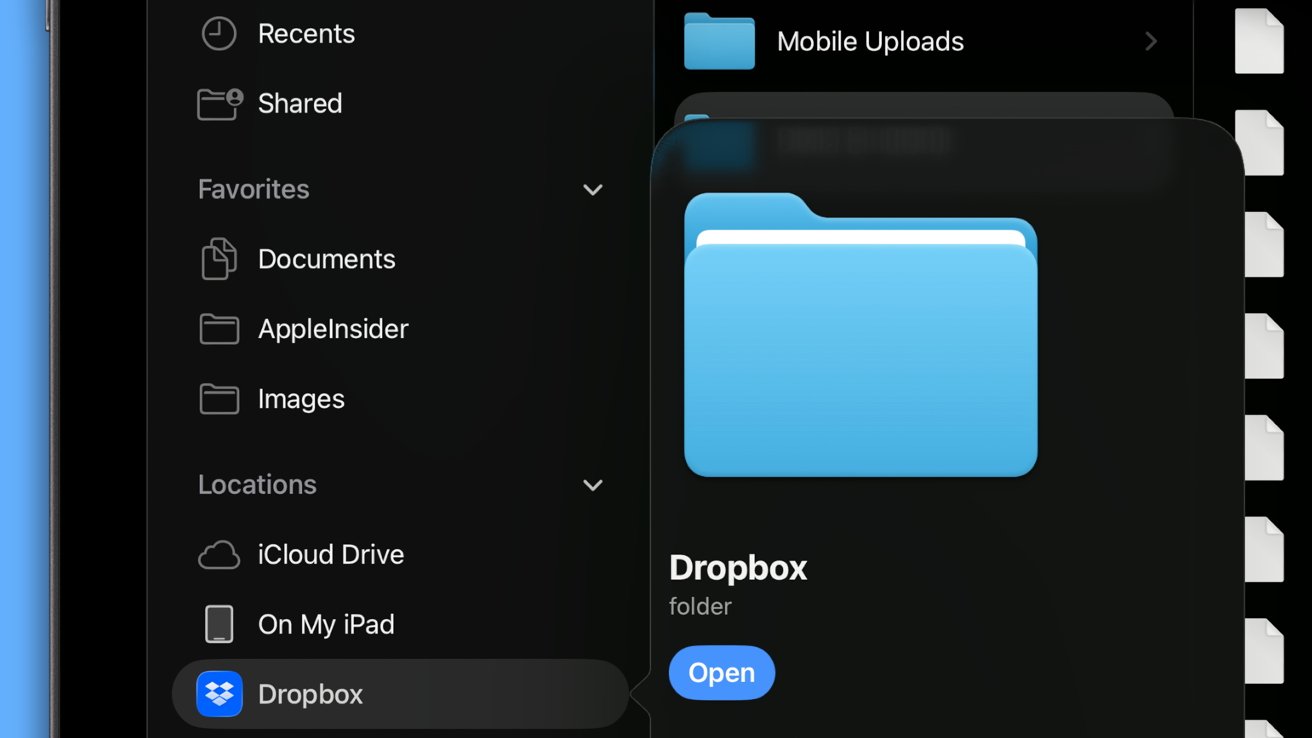
View folder directories from installed third-party apps like Dropbox
Third-party services like Dropbox, Google Drive, Box, and more can be added as Locations in the Sidebar. Simply install the app and they'll appear.
These integrations simply bring the folder structure of those cloud storage apps to Files. Only functions available within the Files app can be performed on them, so don't expect Google-specific functions here.
However, it is handy too because it allows users to label and tag folders in these external containers. So, if you add multiple third-party file services and tag files and folders within them, they'll all show up in the Files app's tag sections together.
Next up are third-party apps that use Files as their primary directory. This can be anything from an unarchive utility to a video game.
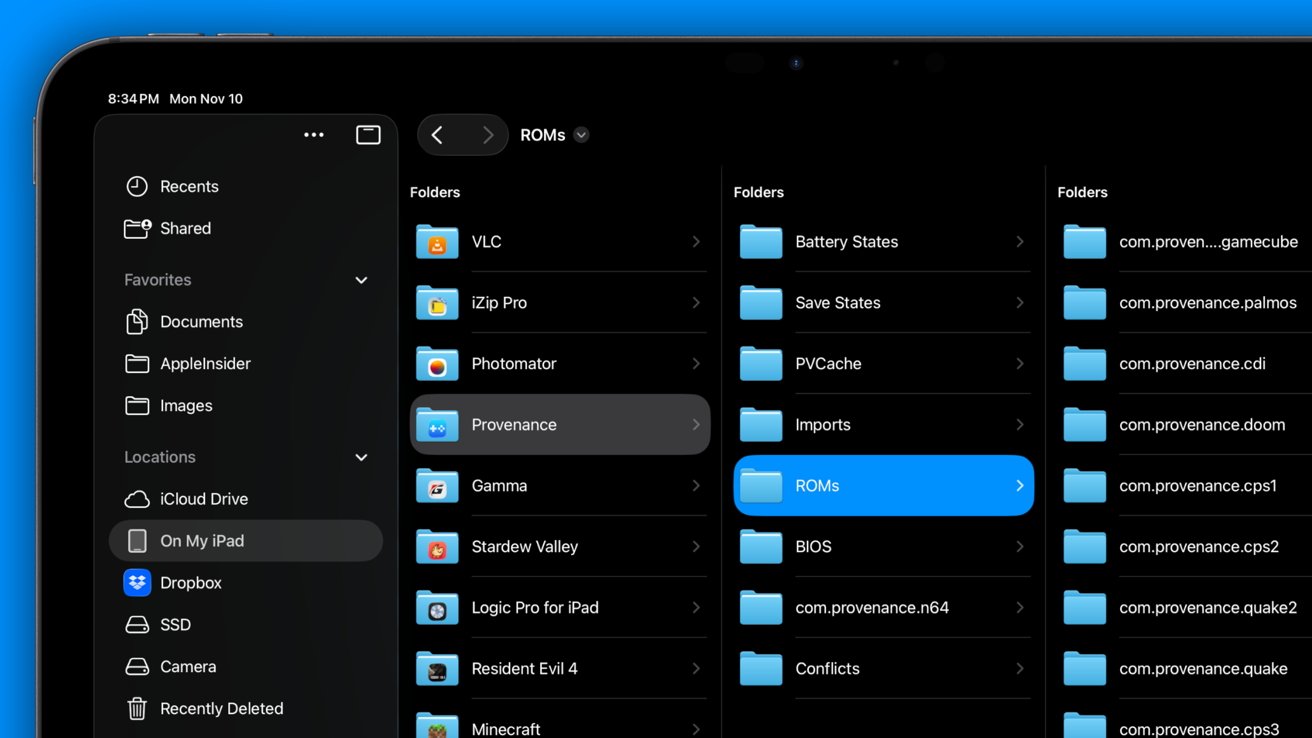
Many apps use Files as an underlying directory that can be accessed in app
These folders can show up in the iCloud Drive or On My (Device) folders, depending on user settings. They work just like any other folder, but they're labeled with the app icon and serve as that app's default folder.
Since they're automatically generated, users don't have to do anything to manage these folders. They can, however, use this directory as a way to move files between apps as needed.
Then there are third-party apps that can pin existing folders within their UI for use in the app. Tying multiple apps to a single folder can result in some interesting systems.
For example, if you use an app like Working Copy to surface a GitHub repository in Files, and then target that folder with iA Writer, you can directly manipulate the files and push changes to GitHub. Add in apps like DataJar and Scriptable, and power users can create some complex file interaction structures.
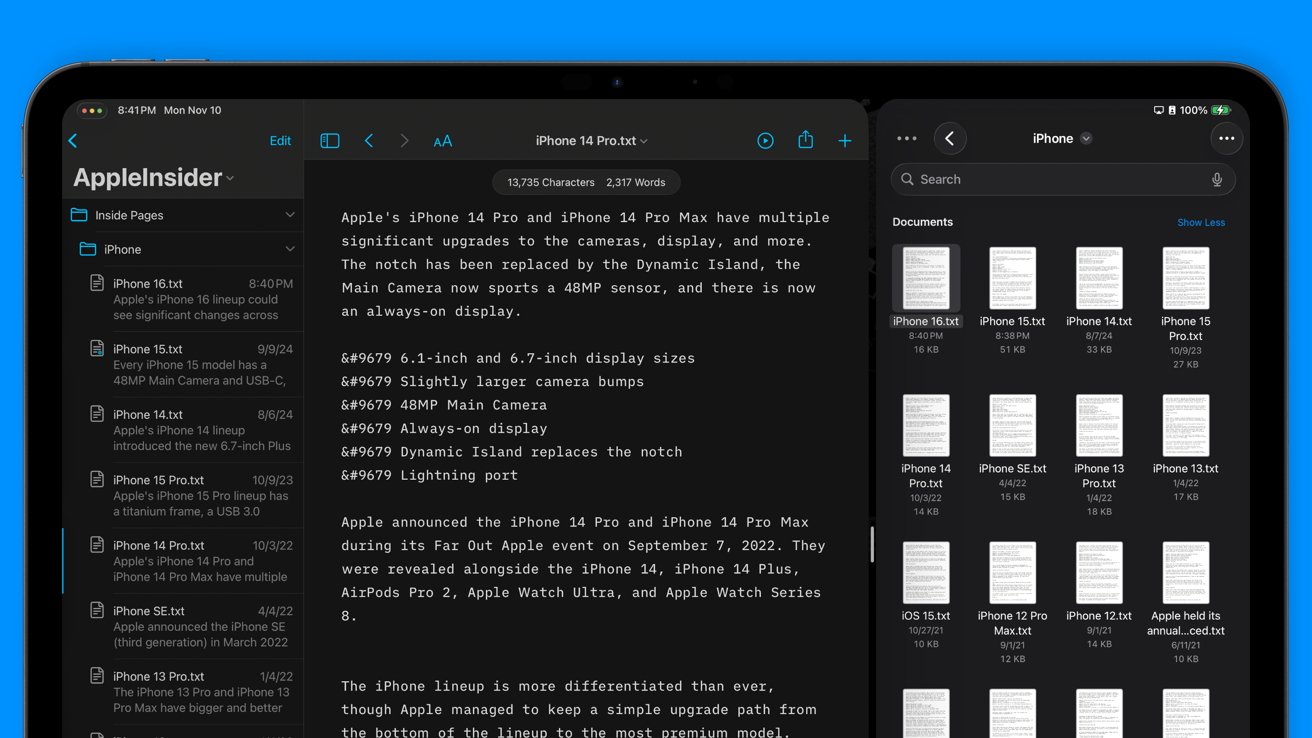
Designate a folder in Files as a repository for documents from apps like iA Writer
Then there are just mountains of utilities that can add functions to Files. If you are missing the ability to just create a .txt file anywhere within Files, then an app like Subtext will let you do that.
Finally, there are apps that let the user navigate the Files app with different UI and additional features. Readdle has an entire suite of apps that act as a replacement interface for Files.
Readdle's Documents app adds additional file organization and sorting options, built-in file conversion, and a more versatile media player. While Apple's Files app is quite robust on its own, third-party apps can expand its function or fill user needs not served by the first-party app.
Preview
While Preview isn't a part of Files, I felt it needed mentioning as it plays an important role in file management. Apple added Preview to iOS, iPadOS, and Apple Vision Pro in the operating system 26 releases.
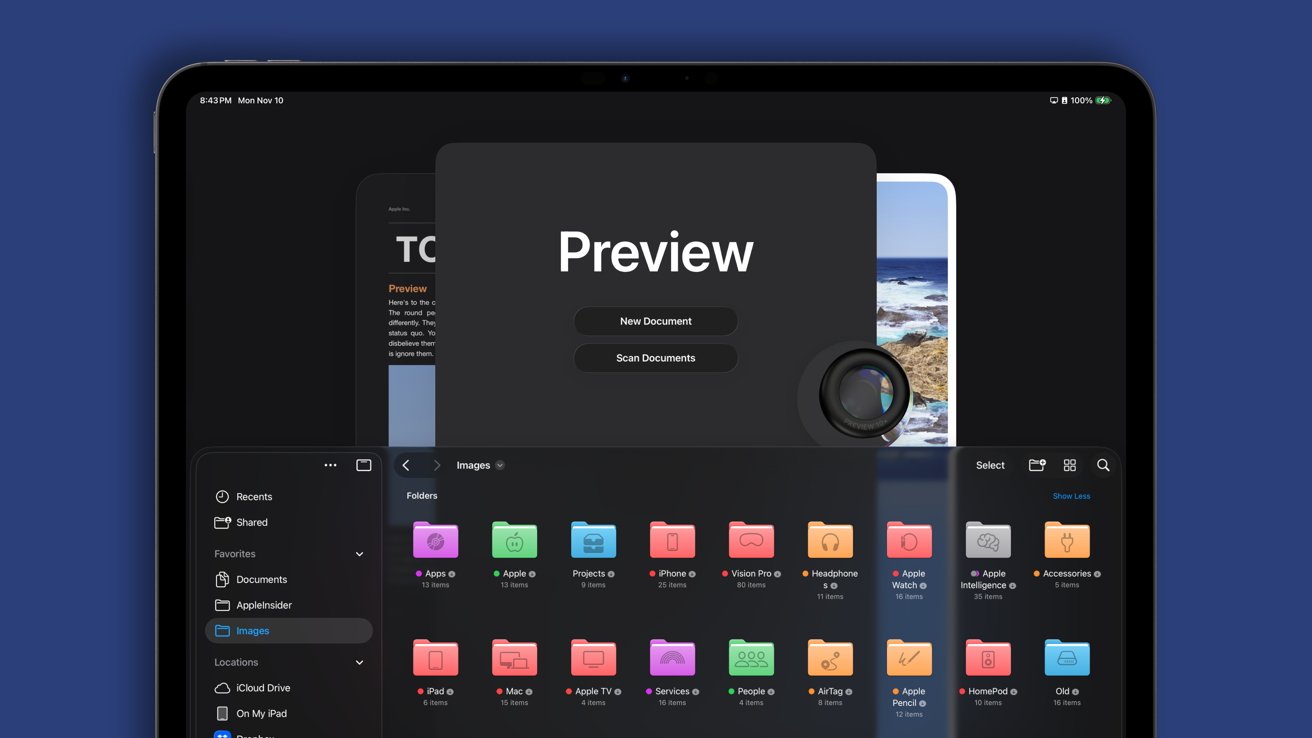
Preview was added to OS 26 releases as another way to view files
Preview is automatically set as the default client for viewing images, PDFs, and similar files. However, Quick Look is still an option if users want to view files without exiting the Files app.
Users can navigate the Files interface within Preview to see compatible files that can be interacted with using the app. Open something like an image to view it, rotate it, remove the background, or export it as a different file format.
Adding a server
If you've got a home, school, or work server that can be connected to via a URL, it can be added to Files. Servers appear in the Locations section of the Files sidebar.
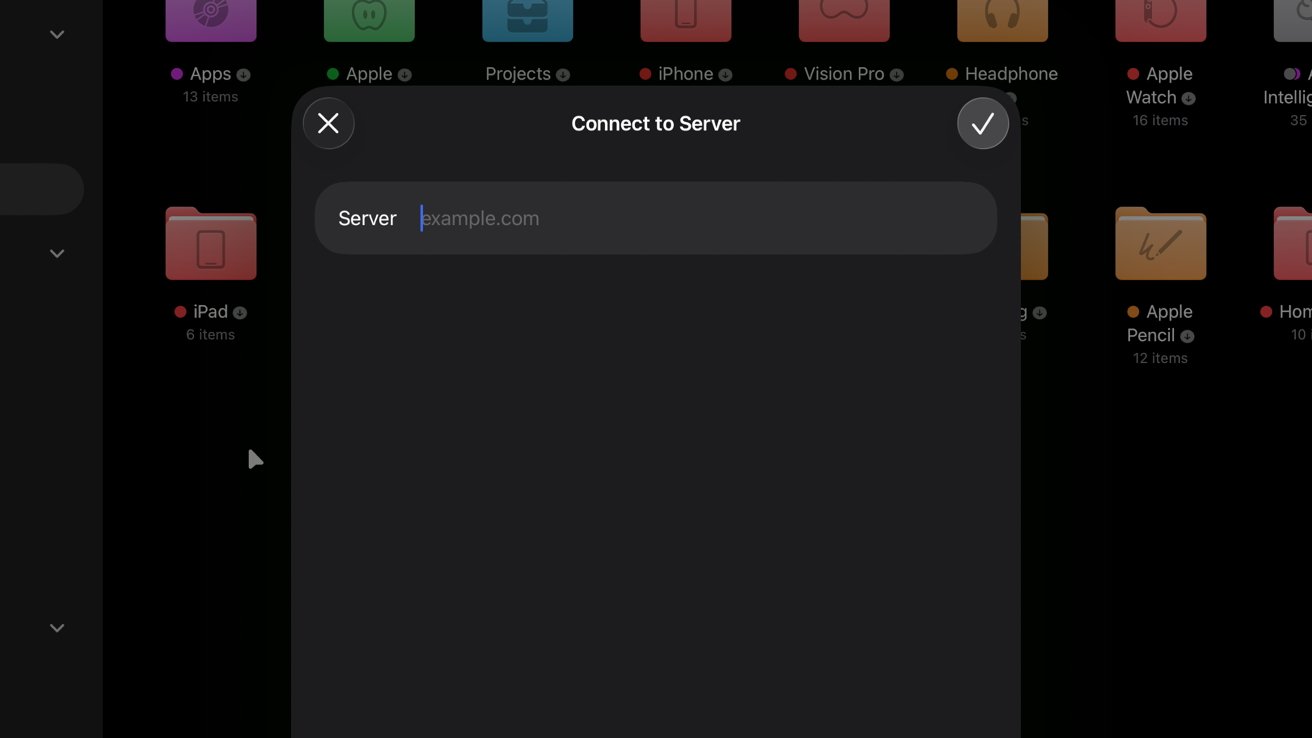
Add an external server for easy access to those files
File servers can come in all shapes and sizes. The kind of server you might be most familiar with is the one generated by using file sharing on your Mac.
Perhaps your family has an old Mac that is used as a Plex server filled with files, while users can manage things via Plex. Sometimes, direct access to the file directory is necessary.
Instead of going to that Mac to log in, or using cloud-synced folders, the user can simply set up file sharing and access the folder on any device they've set up the server with. It's a power-user feature that's separate from this discussion, so we won't get into how you can set up your own server here.
If you need it, you likely already have it. Just note that you can connect to servers in Files and interact with them as native directories.
Using Files
Finally, you've just got to use the app. Understanding all of the parts and pieces of Files is great, but you've got to actually populate the app to get anything done.
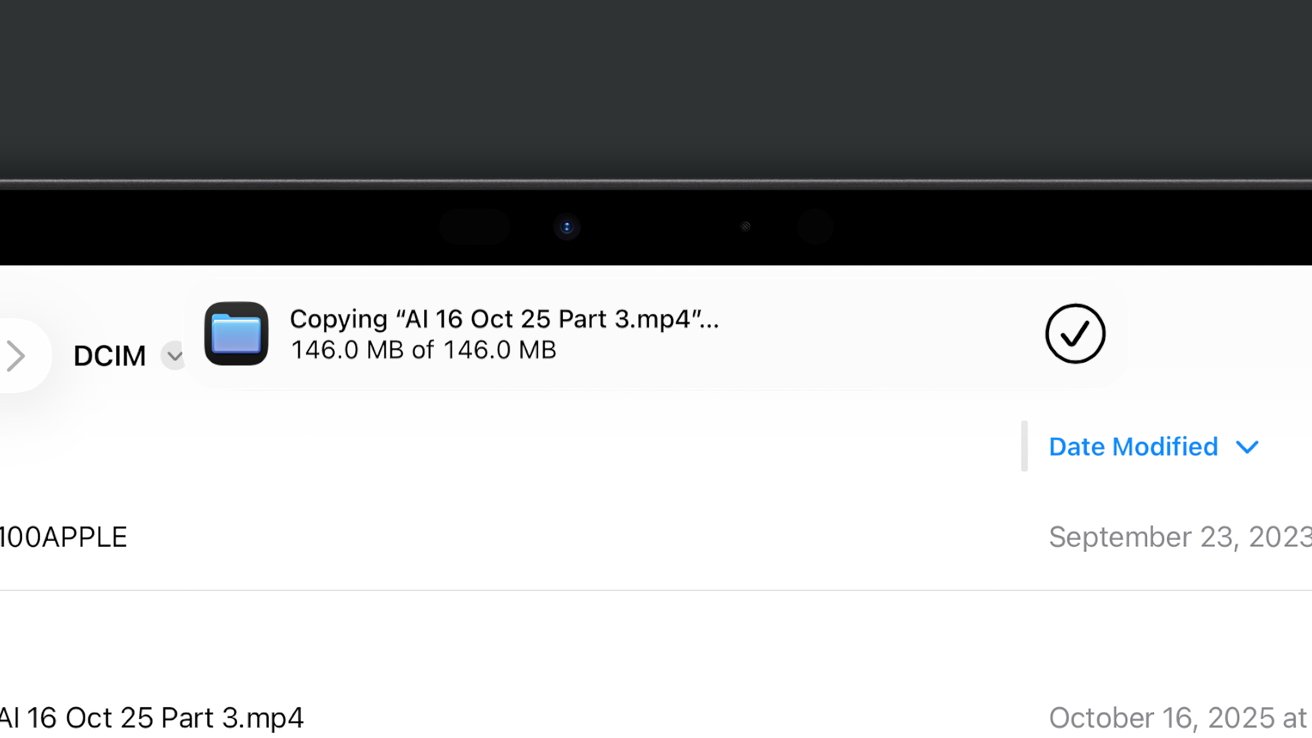
File transfers and downloads show up as Live Activities and pop ups
Two of the biggest uses of the Files app will be downloading or moving files. When doing either, a progress bar will appear at the top of the screen that can be minimized.
Tags can be helpful, so be sure to label and use tags that make sense. It is also important to name files and folders logically and not create more folder levels than necessary.
Searching for files becomes a lot easier when you've taken the time to name, tag, and sort every file you're adding to Files. Unlike on Mac, there are no automation tools to make this any faster based on extension or source.
However, more enterprising users can use the Shortcuts app to build complex systems for managing files. That's beyond the scope of this piece today.
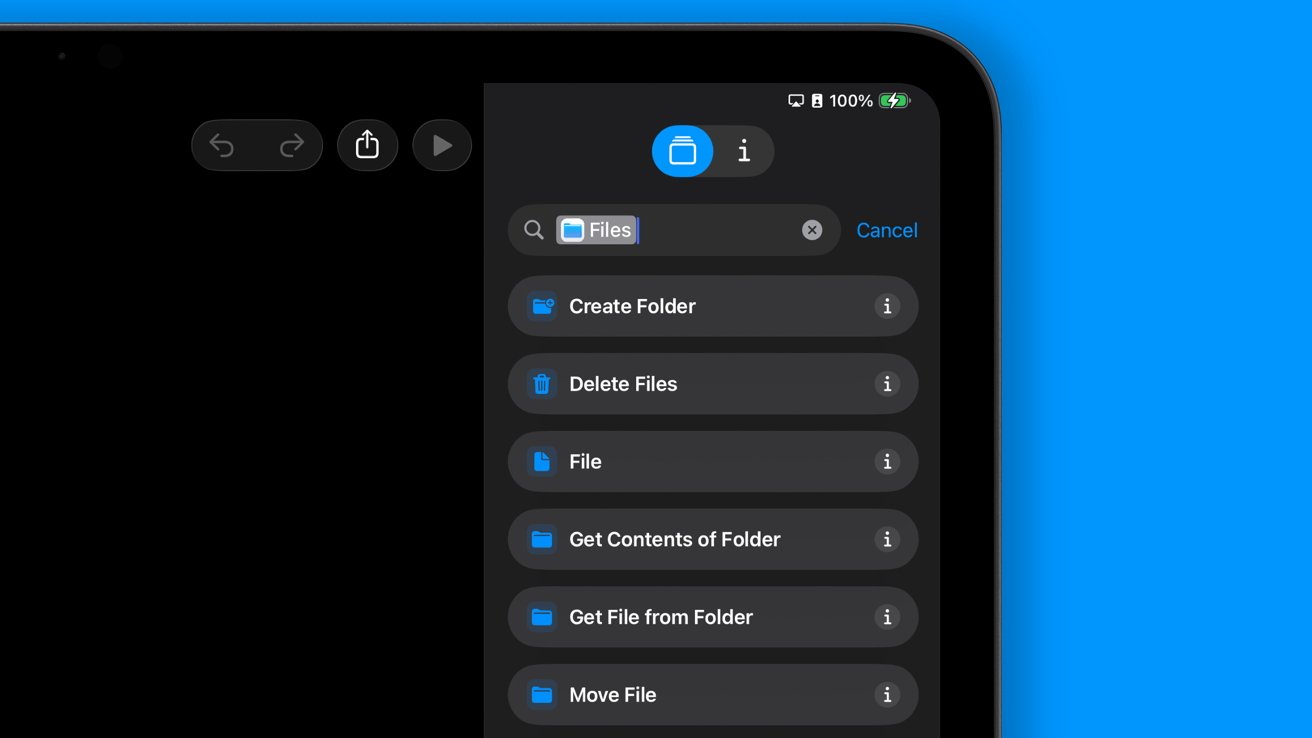
Shortcuts can automate some file management tasks
I only detailed a handful of third-party apps that utilize the Files app. There are tons more, so if you're looking for a function that Files doesn't have by default, it may be able to be added.
For example, it's possible to connect a GitHub repository via Working Copy and edit the text from that within iA Writer. Get even more involved by using ShellFish, which lets users interact with the Files app via an SSH Terminal.
The Files app is as simple or complex as you need it to be. Using it should be as commonplace and straightforward as accessing the Photos app.