It is simple to start a podcast now — but there's so much to decide that it doesn't seem all that simple, plus it's extremely easy to make one people won't listen to or that you get bored making. Here's how to plan podcasts, record them, and get them out to people, whether you use an iPhone, iPad, or Mac.
The one single thing you can guarantee about any podcast you want to make, is that it will never be one single episode. Whether it's a true-crime non-fiction serial, or you reviewing the week's latest movies, podcasts have to be in it for the long run.
They have to be. No one will ever find a single, standalone episode, but they will find a series. And especially so if you have taken steps to plan what you want to make before you go anywhere near a microphone.
Podcasts are technical endeavours where you need equipment and apps, but those are just the delivery mechanism. They're essential to get right, but without a solid idea and plan behind them, they're just nice toys.
You might record tests or even pilot episodes in order to find what you want to do. But before you go to series, you need to have thought about:
- The idea and the format
- Duration
- Regularity
- Who will present it
- Whether there will be co-hosts or guests
- Whether it's scripted or non-scripted
- Recording dates or a schedule
- Technical issues
Podcasts are not radio
Podcasts can be of any duration, they can go out at any time you're ready, and if you make a mistake, you can edit it out before releasing it. None of this applies to most broadcast radio — but there are specific radio techniques that will help you make a podcast, gain and audience, and keep it running.
These techniques get ignored because they are the opposite of those three podcast benefits. And because podcasts should be unhampered by broadcast constraints or rules.
But if you act as if the podcast were being broadcast live and so never say anything you wouldn't want heard, you speed up the editing later. Treat every microphone as being live, all the time, and every word as being heard.
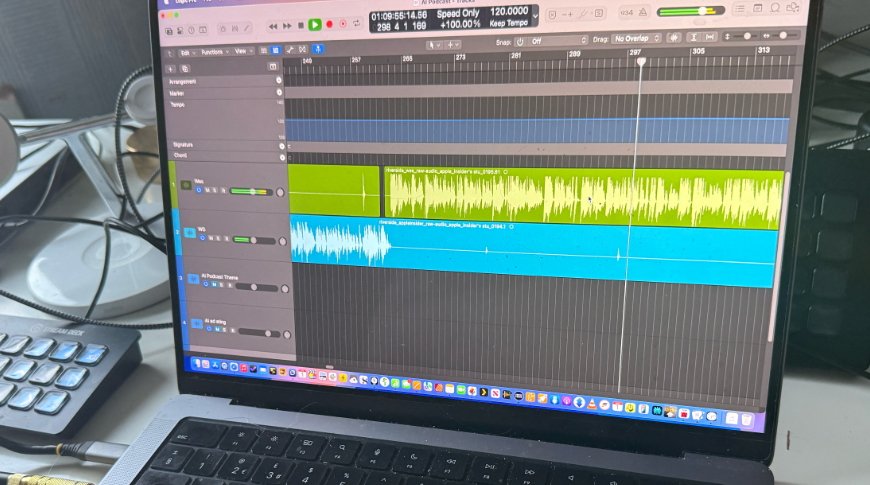
Editing the AppleInsider podcast on a MacBook Pro with Logic Pro
Anecdotally, there have been podcast editions where the hosts end the episode but forgot the microphone was still on. In one case, they talked for 20 more minutes and libelled just about everyone mentioned in the episode.
That's an example of both of being unprofessional and unable to edit. You can have one or the other.
And you can have a specific duration for an episode, or you can just wing it every time. Generally a scripted episode will be shorter than an unscripted one, but aim to hit a certain duration — and probably no more than an hour.
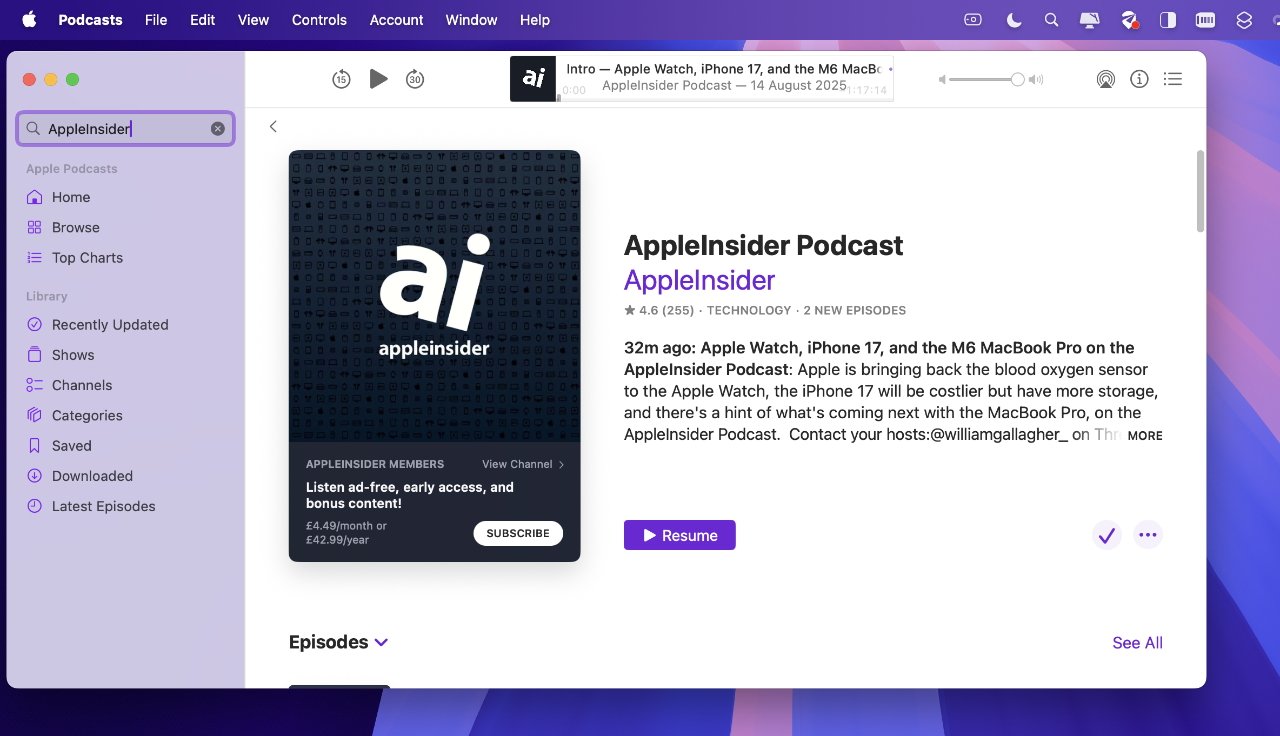
AppleInsider podcast on the Apple Podcasts app on Mac
For the AppleInsider podcast, we took the conscious decision to aim for around an hour, but allow it to go over if the news of the week warranted it. Lately it always has, but the episodes will not be padded out unnecessarily.
The episodes will also always go out at the same time every week. This is another broadcast requirement that seems unnecessary, but it's important for building up a listenership.
No podcast producer would expect a listener to be able to name the time or even day that new episodes drop. But when those episodes do not arrive on time, it gets noticed.
If they keep not arriving on time, the podcast gets forgotten.
This is not to say that you must run episodes every week forever. You can have specific runs, announcing them as seasons, but set a pattern and stick to it.
Which also means setting a pattern for the recording of the episodes. That's partly to ensure you have new editions ready when you need them, but also because if you're working with other people, establishing a recording schedule helps everyone.
Presenting your idea
What your podcast is about is of course entirely up to you, but there are ways to present it that help you get the message across. Chiefly, it's down to who presents the show, and how.
If you use just one person, you're probably going to need to script it to make sure that it is delivering enough interesting material to the listeners. If you have very many people, it's what's known as a zoo format or since there are all these overlapping voices, also an extremely irritating format.
It's most common to have two people co-hosting. In that case, avoid using two people who sound similar.
The audience has only your voices to go by, so mixing up ages and genders is best. But also if you both think the same about a topic, if you both bring the same opinions, you'll end up telling each other things you already know and it will sound false.
Setting up a podcast recording
All you need is a microphone — and both the iPad Pro and the MacBook Pro come with studio-quality ones — plus something to record into. And every Mac comes with QuickTime Player, while every iPad has Voice memos.
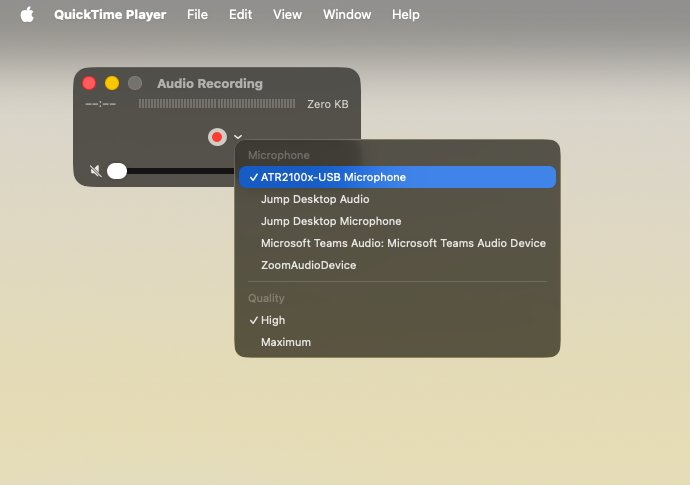
The free QuickTime Player that comes on every Mac is invaluable for simple, quick recordings
There are other apps, such as the superb Audio Hijack from Rogue Amoeba, and there are ones you have to call overkill, like Apple's Logic Pro. Really, Logic is intended for mastering something like Kate Bush albums rather than two men talking for an hour, but you use what's available to you.
If you're going to spend any money, buy an external microphone for your Mac. For the AppleInsider podcast, co-host William Gallagher has run the gamut of microphones before settling on the Audio-Technica 2100x.
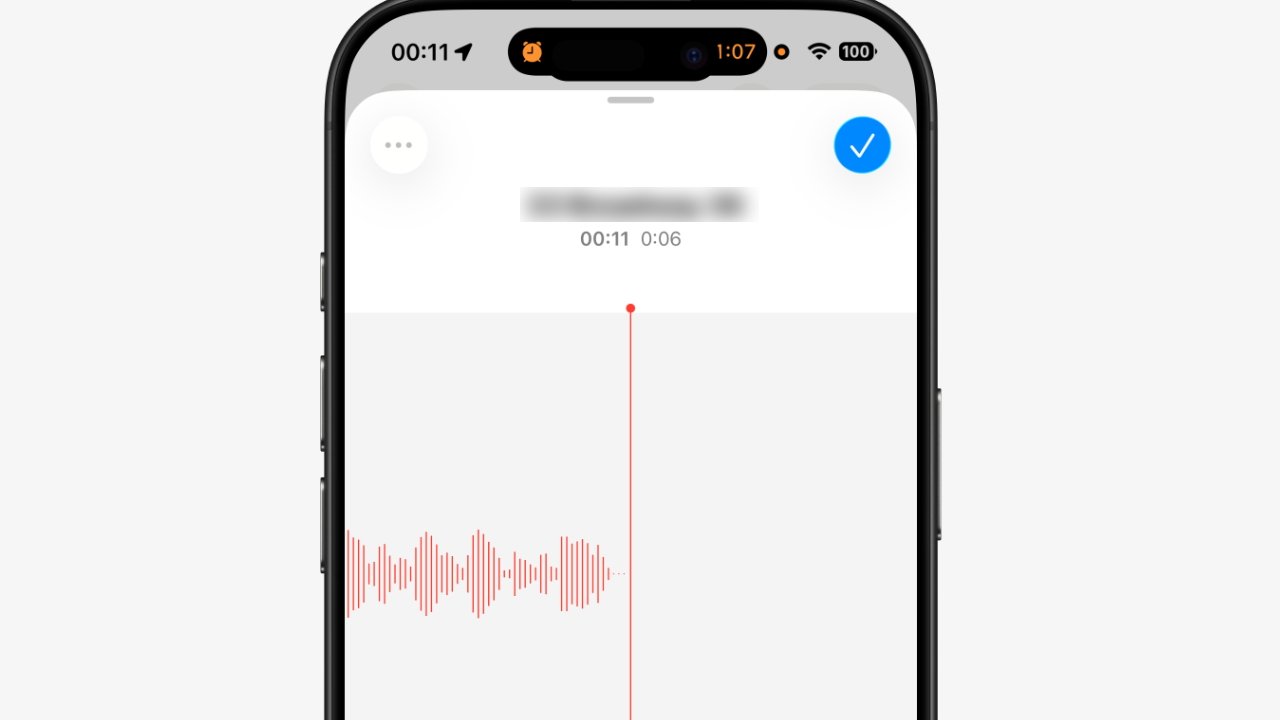
Voice Memos on iPhone and iPad is a free and very good Apple audio recording app
But if one Mac, one mic, and one pair of headphones make for perhaps the best setup, you can go far, far the other way and spend time and money on iPad and Apple Vision Pro setups.
Podcasting on iPad: almost there
The other co-host of the half of the AppleInsider podcast, Wesley Hilliard, is an affirmed iPad and Apple Vision Pro fan — who has come up against both the problems and the promise of each device for podcasting.
While he has currently admitted defeat and records from a Mac mini hidden away on his bookshelf, he still aims to use his iPad Pro. Apple has finally acknowledged that this is something people might want to do with their iPad with iPadOS 26.
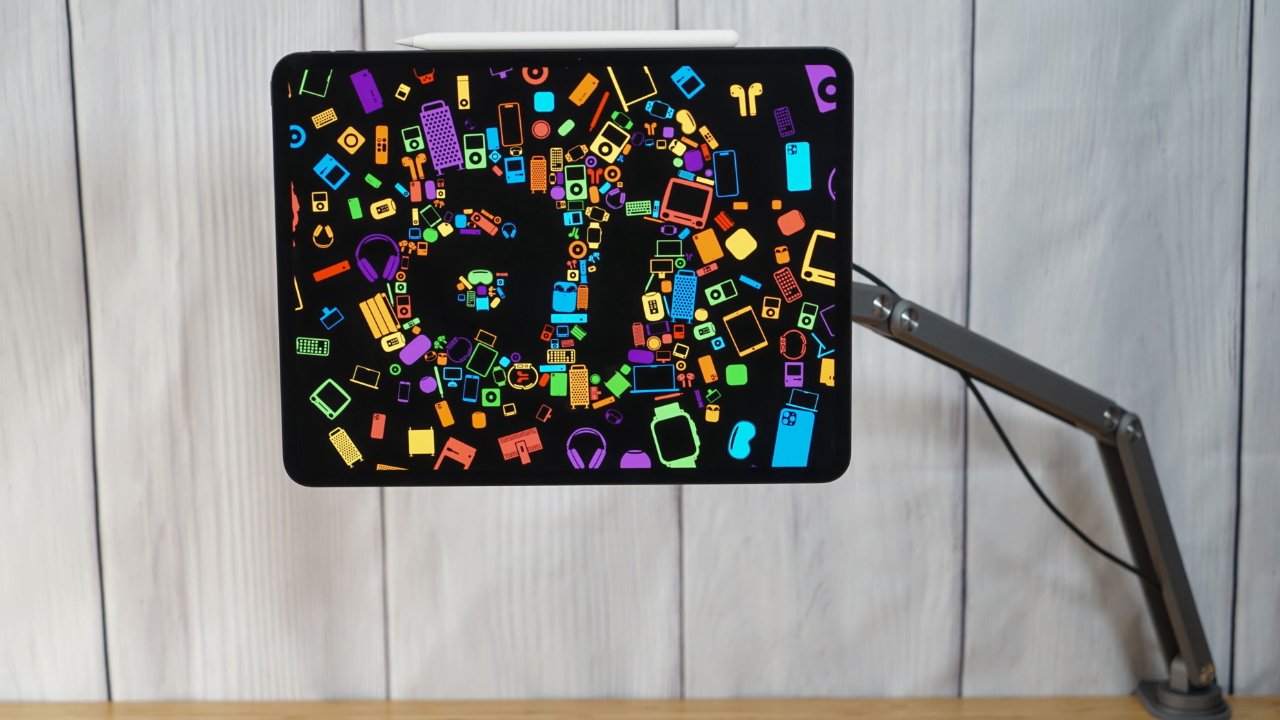
The iPad should be a better podcast tool than it is, but it's getting there.
The new audio intent system lets users designate multiple inputs and outputs simultaneously while recording locally. The local recording is captured directly from the connected microphone, whether that's a USB mic, AirPods, the built-in mic, or even via an audio setup over XLR.
The problem is, Apple doesn't offer any gain control over the connected microphone.
Another issue that will be resolved once third-party apps start getting updated is the ability to capture backup tracks.
That doesn't sound like something you'd need for anything but a music podcast, but it's actually been a consistent problem that has prevented the iPad being used for podcasters. That's because the backup track in question is a local recording, a second safety recording.
Backup tracks and editing
You're an AppleInsider reader, so you are familiar with technology — but your co-host may not be. And the odds are that any guest you have certainly won't be.
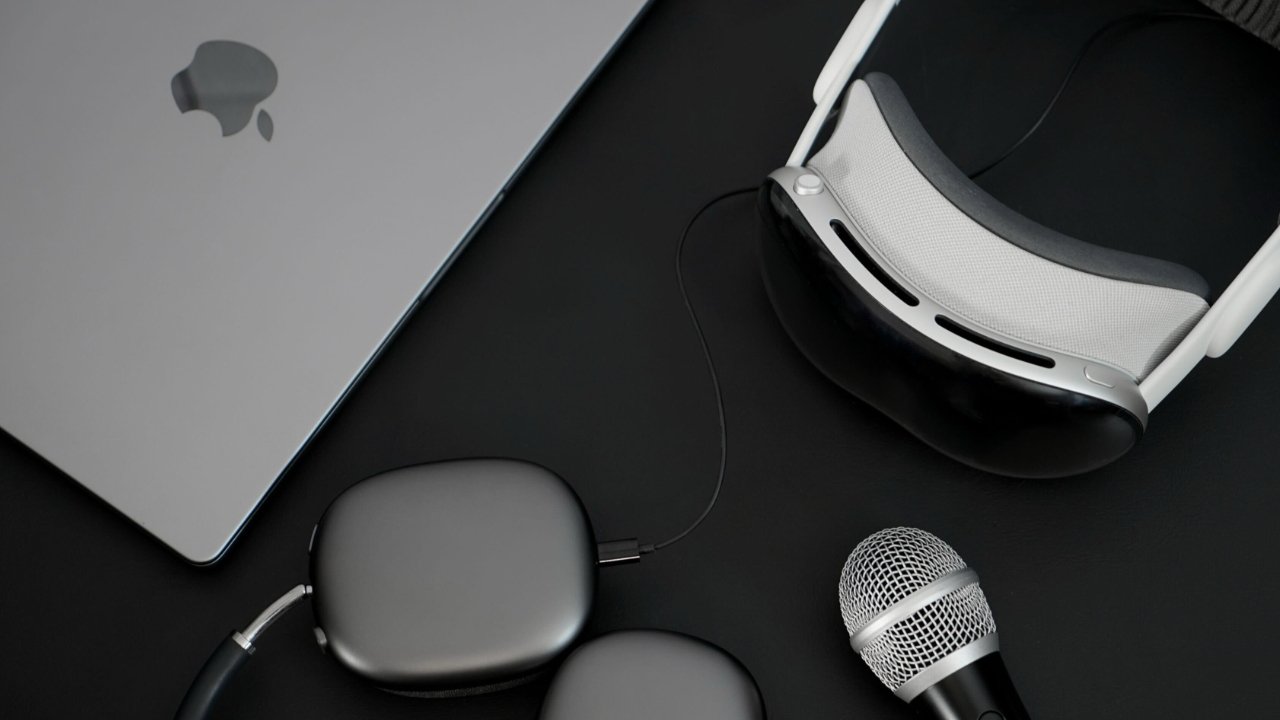
A podcasting setup using the Apple Vision Pro
When everyone on the podcast is comfortable with technology, the best option is to have each person record there own audio separately. Recording to their own devices means — or should mean — no issues over, say, the internet connection going wrong.
It does also mean that everyone has to send their audio tracks to whoever is editing the podcast. That always means the editor having to mix those tracks, but it can also mean delays while your guest tries to figure out how to send you an attachment.
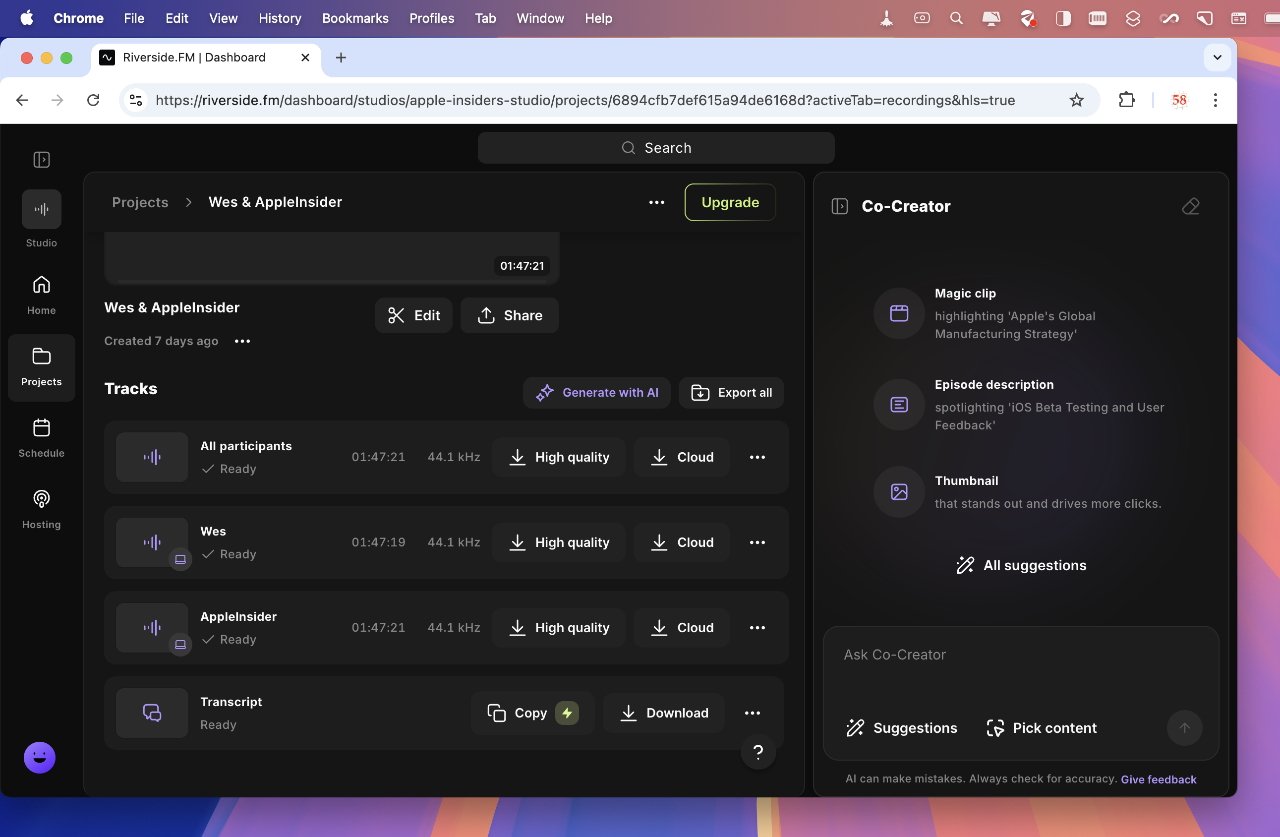
You should always record locally on your device, but services like Riverside make the job easier for your guests
There is an alternative, in fact there are several alternatives. Unless you are all recording in the same studio, you are using the internet and so you can use internet audio services.
AppleInsider uses Riverside, which connects two hosts and any guests, and does an online recording of each person separately, plus a mix of them all. The advantage is that once the recording is done, you already have every separate audio track, you don't have to wait to receive one.
Plus, all separate Riverside tracks start recording at the same moment you press the button. So every track is already in sync, you do not have to line up different audios that started at different points.
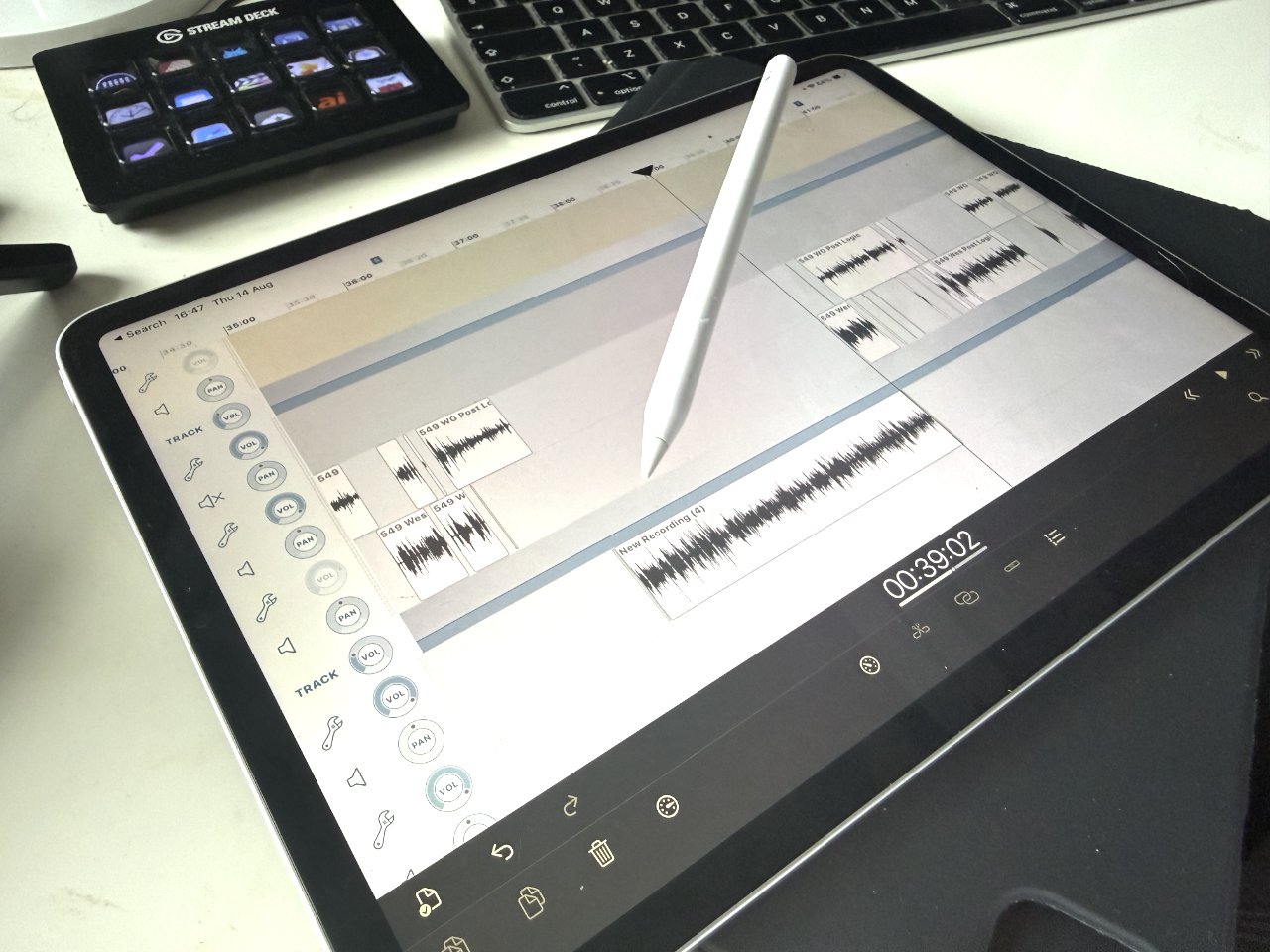
While an iPad isn't yet great for recording, it does have the superb Ferrite app for editing
You should still get everyone to record a local copy if they are able, but you can find that Riverside or the like is the simplest solution.
Only, Riverside is not problem-free, and it also requires Google Chrome. That's fine on a Mac, but not on an iPad.
Local and remote recording on iPad
Apple's iPadOS doesn't have access to any browser except those powered by WebKit, so Riverside has been out of the question for iPad users. There is now an iPad app, but AppleInsider has yet to test it.
What we have tested is what appeared to be a great fix to the problem — Apple adding the ability to record backup tracks via the native FaceTime Audio recording. It did mean that Wes and William could be on a FaceTime call and both were also able to record locally, Wes on the iPad and William on the Mac.
But, presumably for security reasons, Apple inserts a chime tone randomly when a FaceTime call is being recorded. It shouldn't be audible on the local recordings, it should just be there to make sure both speakers know they're being recorded, but sometimes it would bleed through.
Also at one point, whenever an app like Audio Hijack was used to record the FaceTime Audio call, the call volume was dropped down to practically nothing.
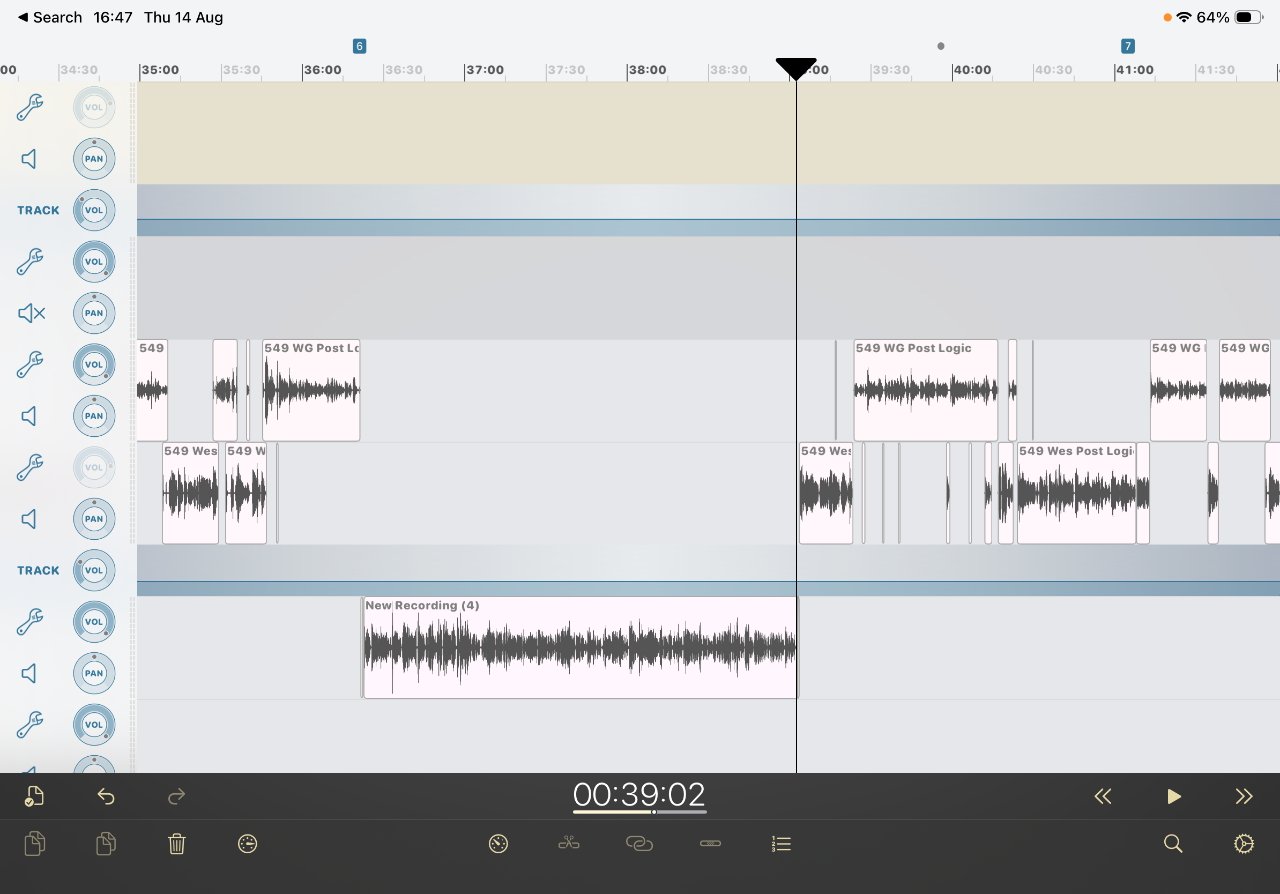
Editing a podcast in Ferrite on an iPad. It is particularly good and fast if you are also using an Apple Pencil
Nonetheless, if it isn't the hoped-for improvement yet, it's a step towards it — and it seems third-party developers will be able to take advantage of these new audio systems pretty easily. Once an app implements local and call recording in one place, possibly Ferrite or similar, recording the AppleInsider Podcast on iPad should be as easy as doing so on Mac.
It might take a bit longer before it can be done on the Apple Vision Pro, though, because it isn't exactly what you'd call a podcast machine.
For one thing, the Apple Vision Pro doesn't have external input options beyond Bluetooth, and that's a no-no for podcasting.So, until Apple releases an Apple Vision Pro that can connect to an external dock, its use in podcasting is a bit limited.
However, that isn't to say it's of no use at all.
Using Apple Vision Pro while podcasting
Rather, Apple Vision Pro is an interesting tool that has an advantage traditional computing platforms don't — no display. One of the biggest issues in podcasting is ensuring the audio is pristine, and environmental issues like solid surfaces can ruin a recording.
So, sitting in front of a 27-inch piece of glass to reference notes can prove challenging. The Apple Vision Pro, however, removes this challenge as it can have any number of virtual displays floating in front of you.
One of the windows can be the Mac Virtual Display that shows the apps for recording your podcast.Most of the AppleInsider podcast episodes released after the debut of the Apple Vision Pro were recorded with Wesley wearing the headset.
It allowed easy access to show notes and various apps for discussions. One issue did arise during the visionOS 26 beta period that caused the Apple Vision Pro to be put away during recording, though.
For a time, it spun up its fans regularly, which wasn't the normal before, and they could be heard subtly in the recording.
So while the Apple Vision Pro has proven to be a novel way to manage windows and avoid echoes when podcasting, it isn't foolproof.
Expect future iterations to be better for performing such tasks, though perhaps leave the process of actually recording to dedicated hardware like the Mac or iPad.
After recording comes editing
Even if you've managed to avoid accidentally swearing, and you've not once coughed during the whole recording, your podcast needs editing. The radio phrase is topping and tailing, which goes back to the days of reel to reel tapes, but just means putting a start and an end on it.
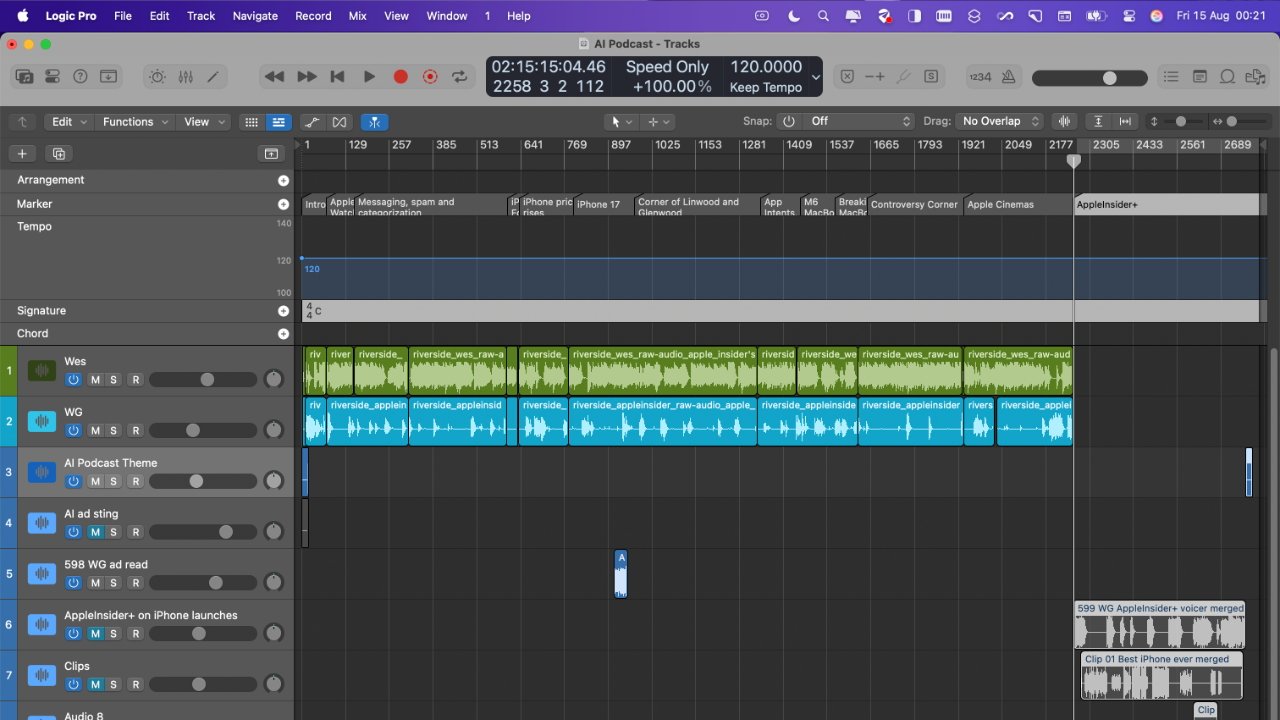
Editing in Logic Pro. This is from the Mac version, but there's also an excellent Logic Pro app on the iPad
That might mean theme music, it might be that you need to set up the topic for the week. Or maybe you've had a guest and they don't need to stick around for you promoting the next episode.
And then speaking of guests, there's their local recordings — if they've done one. Their recording level will be different to yours and anyone else on the episode, so you need to match those up as well as line up the starts of each audio.
Ferrite on the iPad is superb for controlling the positions of different tracks. Once they are lined up, it's also brilliant for helping you find unwanted silences and gaps.
With Ferrite on an iPad, you can just swipe rapidly along until you see a part with no waveforms. If you have an Apple Pencil, you can delete those silences and close up the gaps quite incredibly quickly.
For ease of use, Ferrite is at least one of the best options. Yet for AppleInsider, its system for making different tracks come out to the same audio level is fiddly.
There's an auto-levelling feature but it just never seemed to produce quite the desired result. Consequently, William uses about half a percent of the features of Logic Pro to edit the AppleInsider podcast.
Speed up editing
Since you are human, you are going to cough, you are going to change your mind and rephrase something — and you and your co-host will accidentally talk over each other. You are going to need to edit, and it can be a slow job.
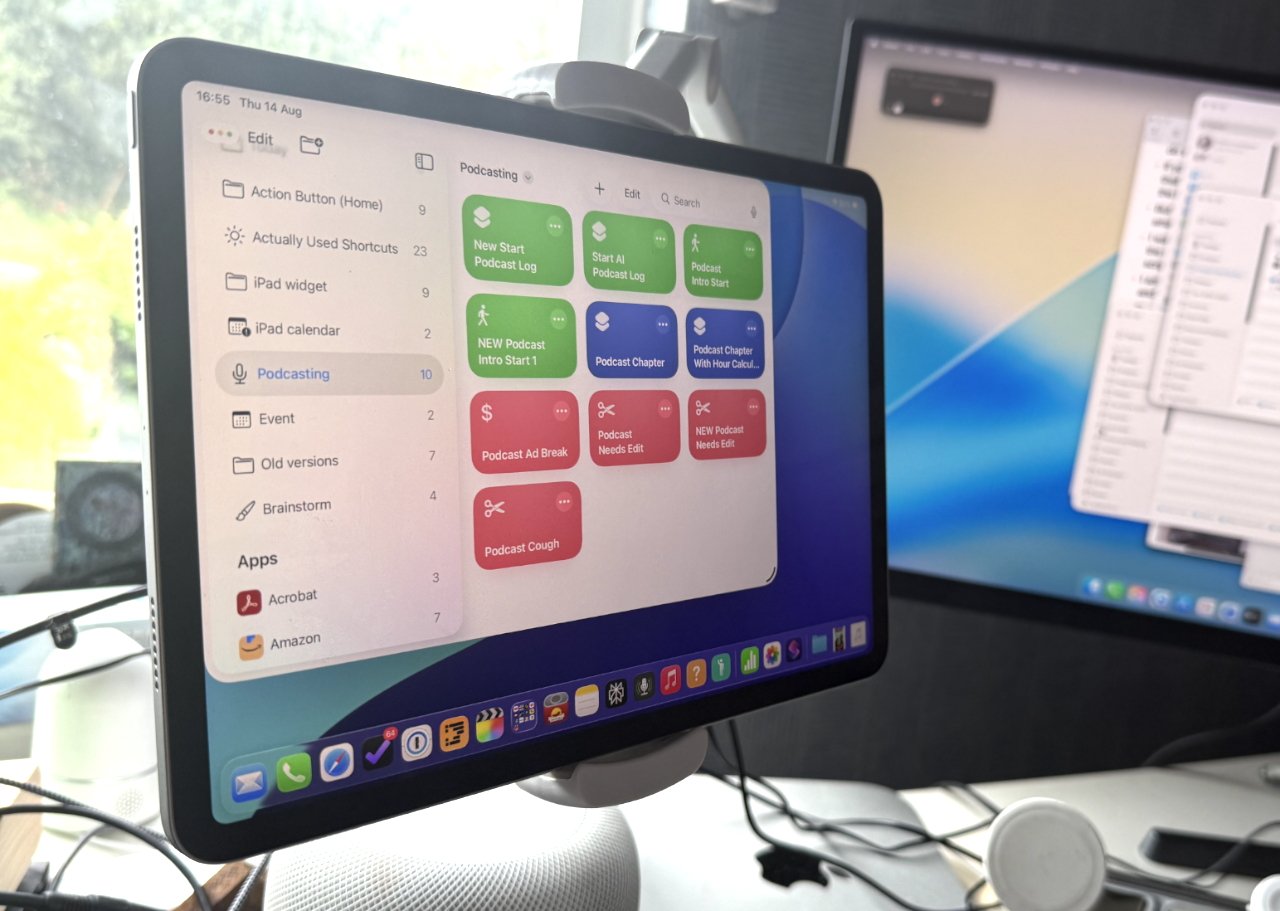
Each of those Shortcuts adds a timestamp to a document and details whether there's been a cough or a retake
Consider making a shot list during the recording. This could just be you making a note somewhere that there was a cough, though you don't want to end up recording the sound of pen scratching or keyboard typing.
For AppleInsider, we use a series of Shortcuts that mean tapping a big red button that says "Cough" or "Needs Edit", and that Shortcut entering a timestamp into a Drafts 5 document.
Some podcasters use an Elgato Stream Deck pedal, so that they just tap their foot when there's an issue. They've set that up to enter a timestamp into a document too.
If you do anything like this, though, be sure to edit backwards. Because if, say, a fire alarm went off for five minutes during the recording, when you've removed that, all of your subsequent time stamps are wrong.
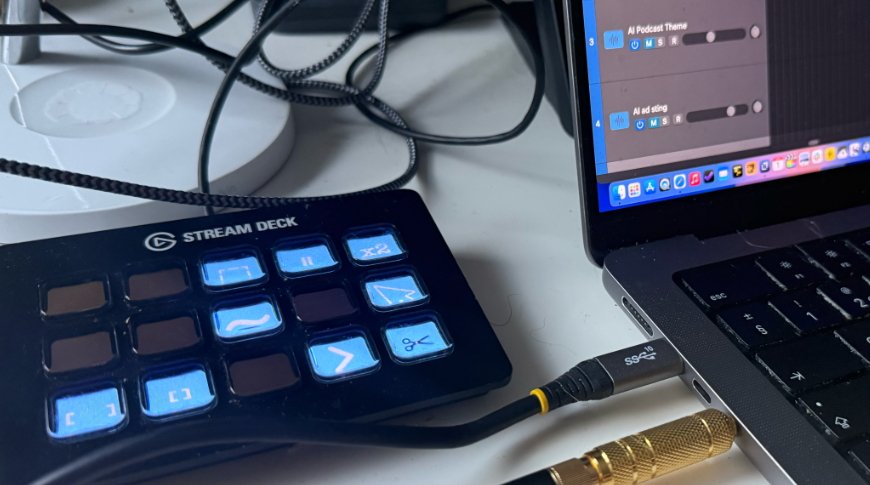
Now indispensible, this is a Stream Deck set up with one-tap controls for editing functions in Logic Pro
And one last suggestion for something that has proven particularly useful for speeding up editing — a regular Stream Deck. Placed next to your keyboard and set to show editing controls when you go into your choice of editor, it startling how much more rapidly you can fly through taking out tiny moments or selecting tracks to move them around.
Getting your audio to your audience
Naturally, it doesn't matter how you edited, what you recorded, or which devices you used, if the podcast stays on your Mac or iPad. You have to get it out to people and for this the answer is very simple — but potentially very long.
The shortest version is that you need a podcast platform, and actually Apple's Podcasts might as well be your first choice. It was the original podcast platform and its podcasts are available far and wide.
But there is also Spotify, there are also alternatives such as Podbean. Or you could use Soundcloud to host your audio while you embed it in your website or email newsletter.
There is a bewildering array of options and pretty much every one has vocal fans.
But this isn't a one-and-done deal, you can experiment trying out different services. And it's also not that the services are mutually exclusive, so you can keep adding them as you go.
Start with one, and the one to start with is whichever one you listen to yourself. If you're a die-hard Spotify fan, that's the one to go for — and the same if you've never listened to anything that wasn't on Apple Podcasts.
This business of where to release your podcast is actually a fair example of the whole idea. Really you are recording, editing, and releasing, but each one of those steps comes with so many possible choices that it's easily overwhelming.
Yet as an Apple user, you already have the tools to do every part of this. You might well want to buy more, like microphones and editing apps, but you could make a podcast this minute with what you already have.
It's already being forgotten that the "pod" part of "podcast" comes from Apple's iPod. But Apple really created an industry here, and did it by giving us all the ability to create audio for ourselves.