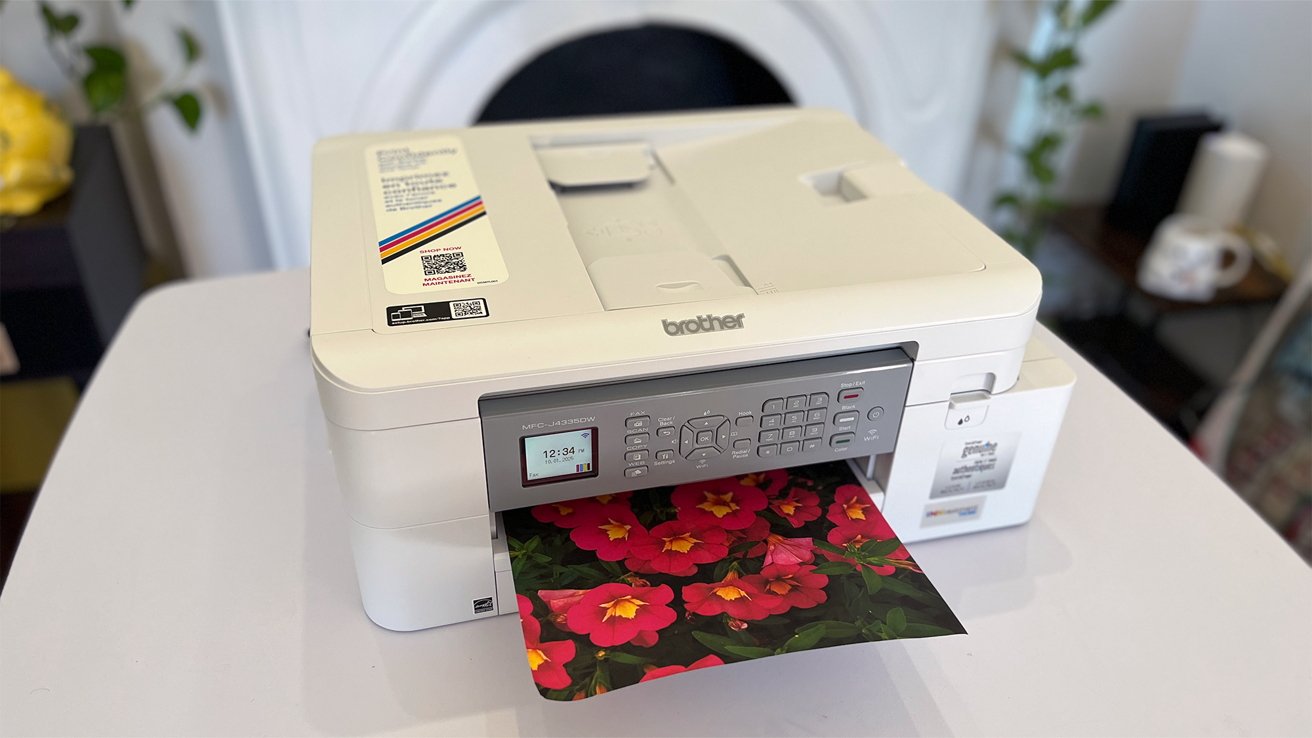
Brother's MFC-J4335DW all-in-one printer keeps things simple and affordable enough for casual printing, with trade-offs you'll want to know about before buying.
It's 2025, and we're still, somehow, printing. Sure, we're probably not printing as much as we used to, but the need still arises.
For me, I find that I can't quite go without a printer just yet. This is especially true because of some of my hobbies.
It can be difficult to find a printer that checks all the boxes. For at-home use, you don't want to spend an arm and a leg.
But at the same time, if you're going to get a printer, you may as well get one that has some extra features. If you're going to print, chances are, you might want to scan, after all.
Brother has tried to hit the intersection of that criteria with its MFC-J4335DW all-in-one color inkjet printer. It's a little machine that is trying to do a lot — to varying degrees of success.
Brother MFC-J4335DW printer review: Compact size, home-friendly design
At just over 17 inches wide and 14 inches deep, the Brother MFC-J4335DW is not the smallest printer. That being said, it's not the largest printer, either.
I wouldn't say it's desk-sized, really, but maybe "top-of-bookshelf" sized. Definitely "office-side-table" sized.
That makes it decent for a home office setup, especially if you don't want a hulking printer taking over your workspace. I think it also works nicely in dorms or shared apartments.
It's technically pitched as an all-in-one for both home and small office use. Realistically, I'd call this better suited to occasional household printing than heavy office workloads.
Brother MFC-J4335DW printer review: Setup and initial thoughts
Setting up the MFC-J4335DW was much easier than setting up any other printer I've set up in recent history. This isn't surprising, though, considering plenty of Wi-Fi-enabled devices allow you to set them up via the app.
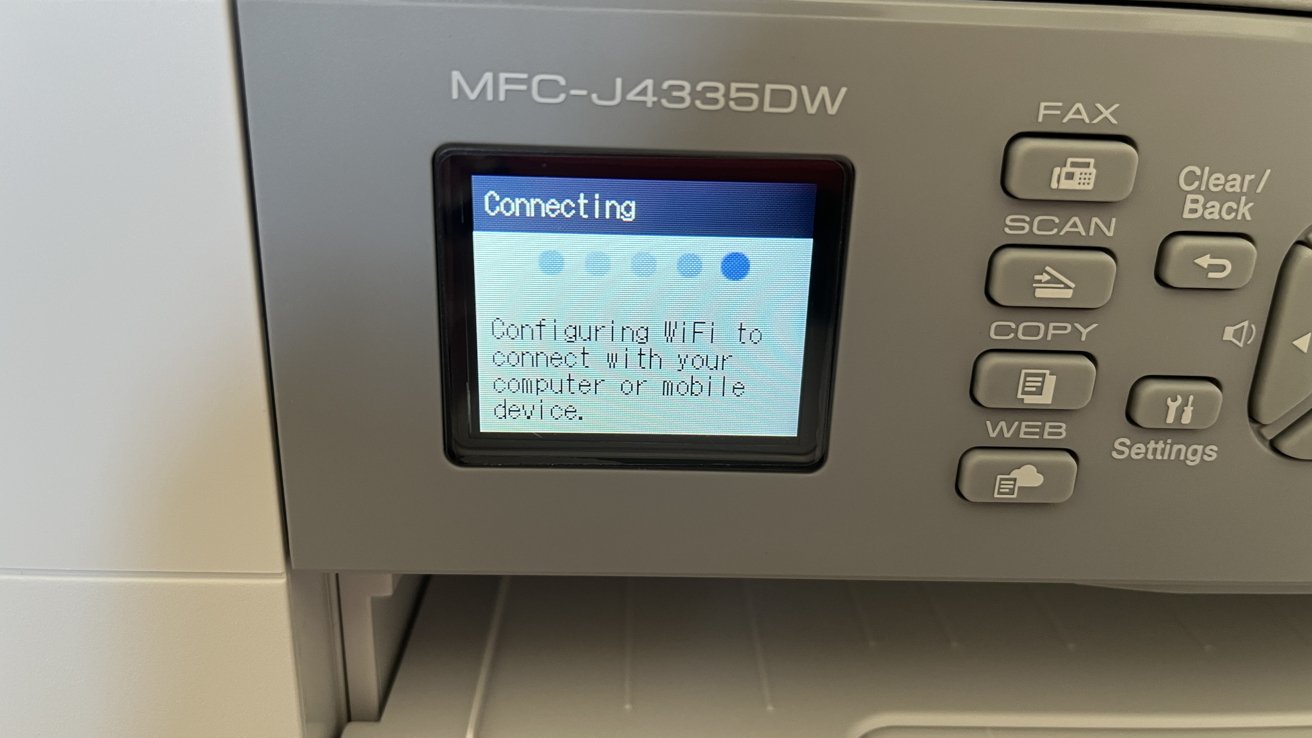
Brother MFC-J433DW INKVestment Tank printer: The little screen will walk you through the setup process
The setup process goes largely like this:
You unbox your printer, toss it on a level surface, and remove all the packing materials and wrapping. Do the same for your ink cartridges.
The printer springs to life the second you plug it in, and the little LCD screen will walk you through the rest of the process.
That process largely involves clicking in your ink cartridges and putting printer paper in the tray. It will prompt you to print a couple of test sheets to ensure your printer is working as intended.
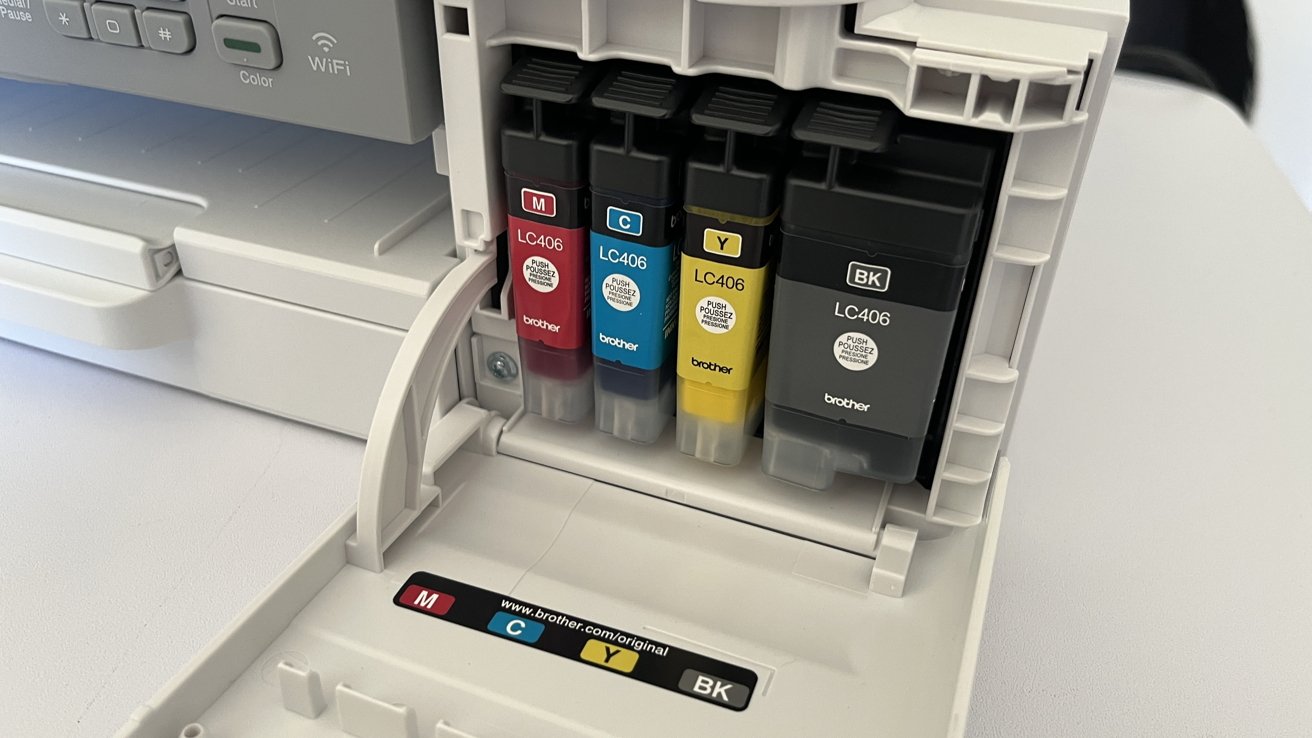
Brother MFC-J433DW INKVestment Tank printer: the INKvestment cartridges snap in with a satisfying click
Then, from there, you download the app and connect your printer to your home network. And that's it.
The entire process took me maybe six or seven minutes from start to finish.
Printing is just as easy. Since your printer is already on your home network, it should automatically show up as an option on your Apple devices.
I didn't have any problems printing from my iMac, MacBook Air, iPhone, or iPad. Again, this is one of those things that printer manufacturers have really nailed down.
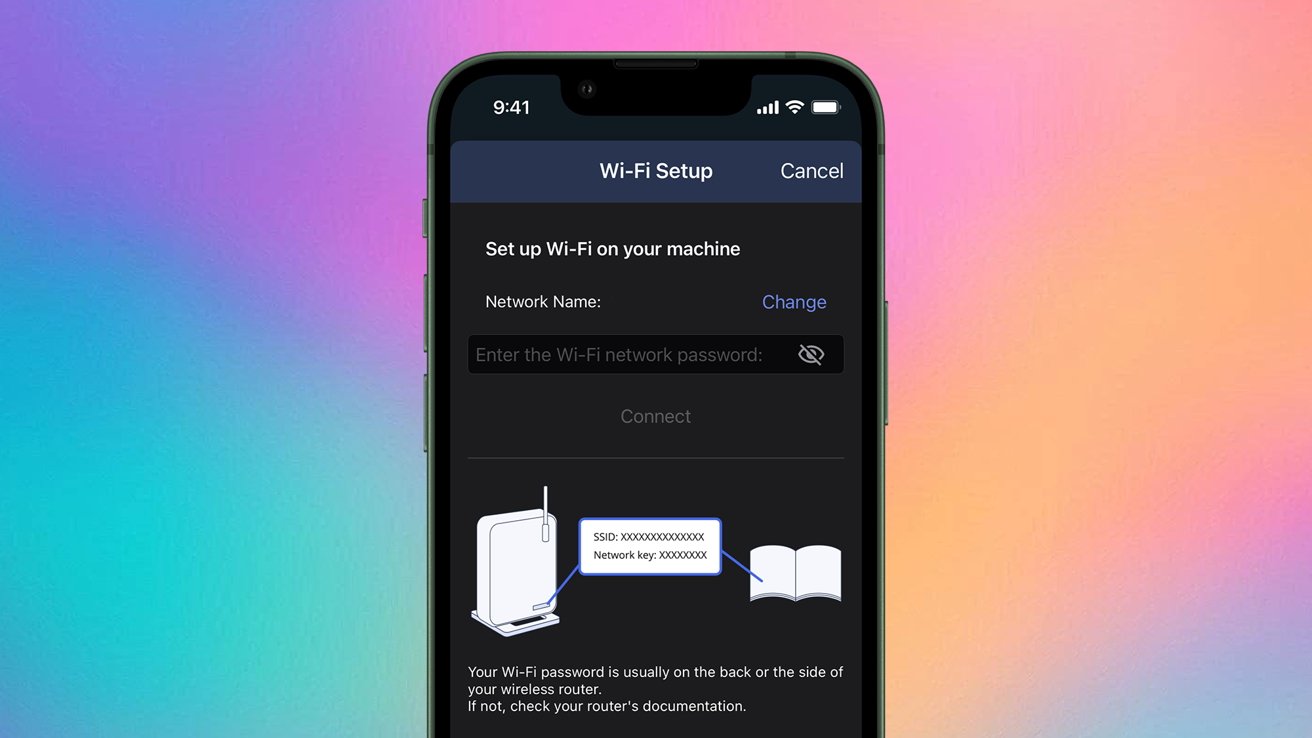
Brother MFC-J433DW INKVestment Tank printer: the Brother Mobile Connect app makes adding the printer to your network easy
Wireless printing just works. And we're all better for it.
I did get a kick out of the fact that Brother suggests you can print and scan directly from the printer without using a device. It would require you to connect your accounts for services like Dropbox, Box, OneDrive, and more.
Yes, you absolutely can do that, but I'm pretty sure you don't want to do that. Especially if you can already do that from your MacBook or iPhone.
Brother MFC-J4335DW printer review: A middleground option
From a wear-and-tear perspective, Brother says this printer can handle up to 2,000 pages a month. I think that probably seems pretty good for both home and small office use.
Most families probably won't hit anywhere near 150 pages a month, which is what Brother assumes when it says you'll get a year of ink.
On the flip side, if you're running a business that has moderate to heavy printing needs, this printer probably won't keep up. It falls into that awkward middle ground.
Of course, for large offices, you're probably going to look at a toner printer anyway.
That said, I can see it fitting well for families with multiple kids printing homework. Or in a college apartment where you are routinely printing out those 20-page research papers.
Or, if you're like me and find yourself printing out sewing and embroidery patterns you've purchased on Etsy, it actually does pretty well with that, too.
Brother MFC-J4335DW printer review: Ink; a blessing and a curse
The "INKvestment Tank" branding makes a big deal about ink longevity. You're promised up to 3,000 black-and-white or 1,500 color pages with standard yield settings.
If you use the high-yield feature, you can push that up to 6,000 black-and-white or 5,000 color. That's pretty decent.
But here's the catch: inkjets clog. I know this because I've killed a fair amount of printers — at least four at this point — by not printing enough.
I strongly suspect this one could clog with even mild inactivity. You'll want to run a maintenance print every week or two just to be safe.
It is annoying to print "just because," but that's how you keep an inkjet alive. Otherwise, those savings on cartridges won't matter when the heads gum up.
I'm not entirely sure if you've ever tried to dispose of a printer, but it's really not easy. It usually requires a trip to a special recycling center.
And then you're out of a printer. Personally, I would try to avoid that, if possible.
Brother MFC-J4335DW printer review: Features you'll actually use
I don't know if anyone else scans as much as I do, but I always appreciate a good scanner. It's quick, reliable, and makes the whole package feel more useful day-to-day.
Two-sided printing is another feature that deserves attention. When it works in your workflow, it's a great way to save paper and keep things neat.
The printer is also Energy Star certified, which is a nice touch for anyone watching power consumption. It's not life-changing, but I'll take it.
And yes, there's fax capability built in. I have no idea who is faxing in 2025, but it's there if you need it.
Brother MFC-J4335DW printer review: App and device management
The Brother Mobile Connect app is decent. It's not flashy, but it's the easiest way to manage the printer without spending a bunch of time using the little screen on the printer.
I hate trying to do anything from the on-device little screen, no matter how easy the manufacturer claims it is. Especially because I keep my printer on a low shelf that would require me to sit on the floor to use it.
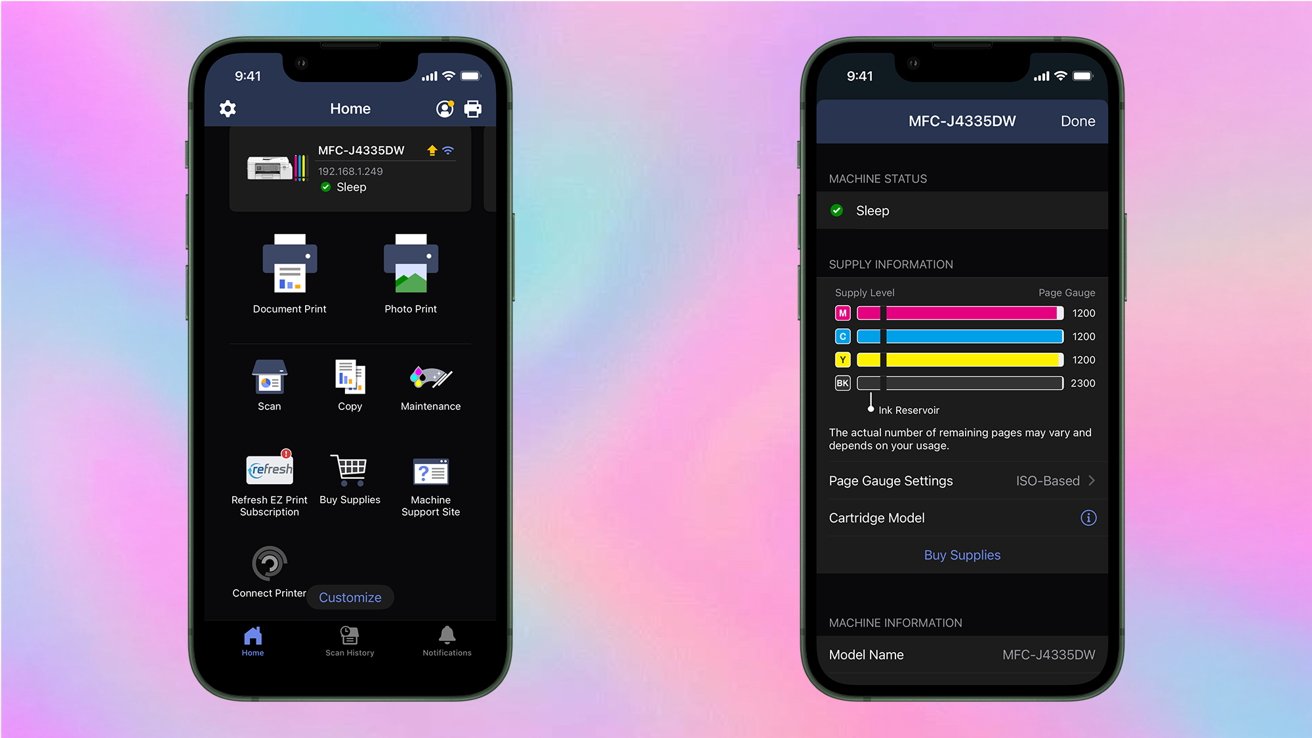
Brother MFC-J433DW INKVestment Tank printer: Brother Mobile Connect app
The standout here is Brother's "Page Gauge" feature. It gives you a clear sense of how much ink is left, both on the printer and in the app.
The app can also handle basic printing and scanning from your phone. That's good, considering in 2025, you're probably printing as much from your phone as you are from your computer.
Brother MFC-J4335DW printer review: Connectivity options
You can connect over your wireless, directly to the device with Wi-Fi Direct, or the tried and true USB cable. It's flexible enough for most setups, which I appreciated.
Weirdly, Brother doesn't include the USB cable. For a printer that costs $179.99, leaving out a two-dollar cord feels strange, though I suspect most people have a cord on hand anyway.
The MFC-J4335DW also works with Alexa. As a person who doesn't have access to Alexa, I had to do a little research to find out why someone might want to do this.
Apparently, Alexa can print out puzzles like Sudoku and crossword puzzles. It can also print out graph paper, lined paper, and coloring pages.
I'm not entirely sure why this is a chief selling point, but to each their own.
If nothing else, I think it's not a bad option for a house with kids. Free-ish coloring pages are certainly not an unwelcome addition.
Brother MFC-J4335DW printer review: Performance and reliability
As far as speed goes, it's decent. It cranks out up to 20 black-and-white pages per minute, or 19 color.
As someone who doesn't print a lot, it's always hard for me to gauge how fast an inkjet printer should be. But I also assume many people at this price range are in a similar boat as I am.
Print quality looked solid for everyday needs. This isn't a professional photo printer, but for homework, documents, and casual use, it does the job.
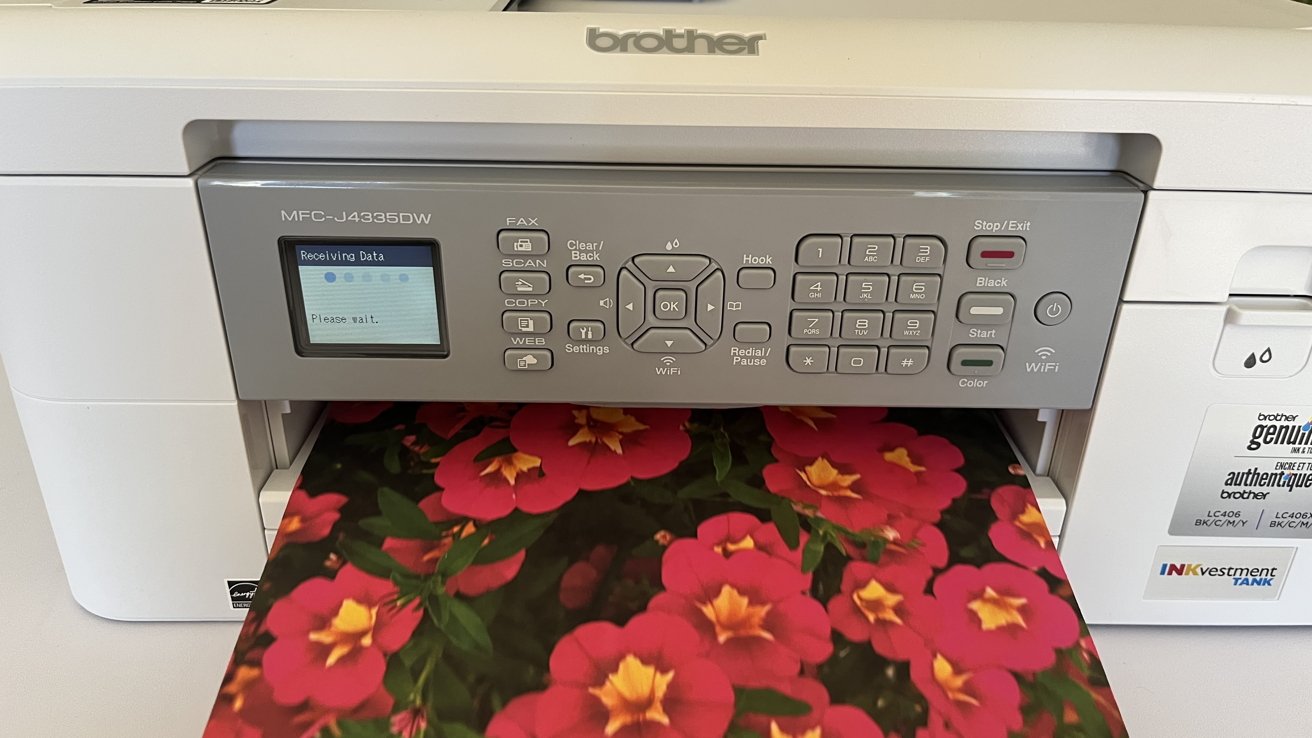
Brother MFC-J433DW INKVestment Tank printer: Highly saturated, borderless prints look pretty great.
Color reproduction is what I'd personally expect. Printing photos at home is always a little bit of a crapshoot.
We take pictures in RGB and typically print in CMYK. This can lead to some minor differences in tone and warmth, but it's not a problem exclusive to this device.
I thought it did pretty well at printing out a full-page picture I took of my mom's Calibrachoa hybrida. It wasn't 100% color accuracy, but it still looks good.
Plus, I absolutely love that this printer has true borderless printing.
One detail worth noting is its operating environment. It's rated for 50 to 90 degrees Fahrenheit and 20-80% humidity, which matters if you're keeping it in a garage or a backyard studio.
Noise levels are reasonable, and it didn't walk off its stand on longer runs. Reliability is still a question mark in the long term, especially around ink clogging.
Brother MFC-J4335DW printer review: Pricing and alternatives
At $189.99, the Brother MFC-J4335DW isn't exactly "a steal", but it's not highway robbery, either. For what you get, it sits in a reasonable middle ground.
Brother does offer cheaper models, like the MFC-J1360D for under $100. For average home use, that may honestly be the better choice.
The catch, again, is inkjet longevity. If your household doesn't print often, even the cheaper model might wind up a brick after months of inactivity.
This is why I keep hammering on the idea of maintenance prints. Again, this isn't ideal, but if you wanna get years out of your printer, this is how you do it.
Brother MFC-J4335DW printer review: Final thoughts
The Brother MFC-J4335DW is a decent, versatile printer that tries to be all things to all people. Sometimes that works, and sometimes it doesn't.
For a busy household or a college apartment, it's a great fit. Honestly, this would have been the exact printer I would have wanted when I got my undergraduate degree.
It's also probably sufficient for small office needs if you're coming in under that 2,000 pages a month number. Doubly so if your office only prints incidentally.
As far as value goes, printers are always sort of a crapshoot. Yeah, you might get a year's worth of ink — assuming you meet the strict standards of what Brother considers average use.
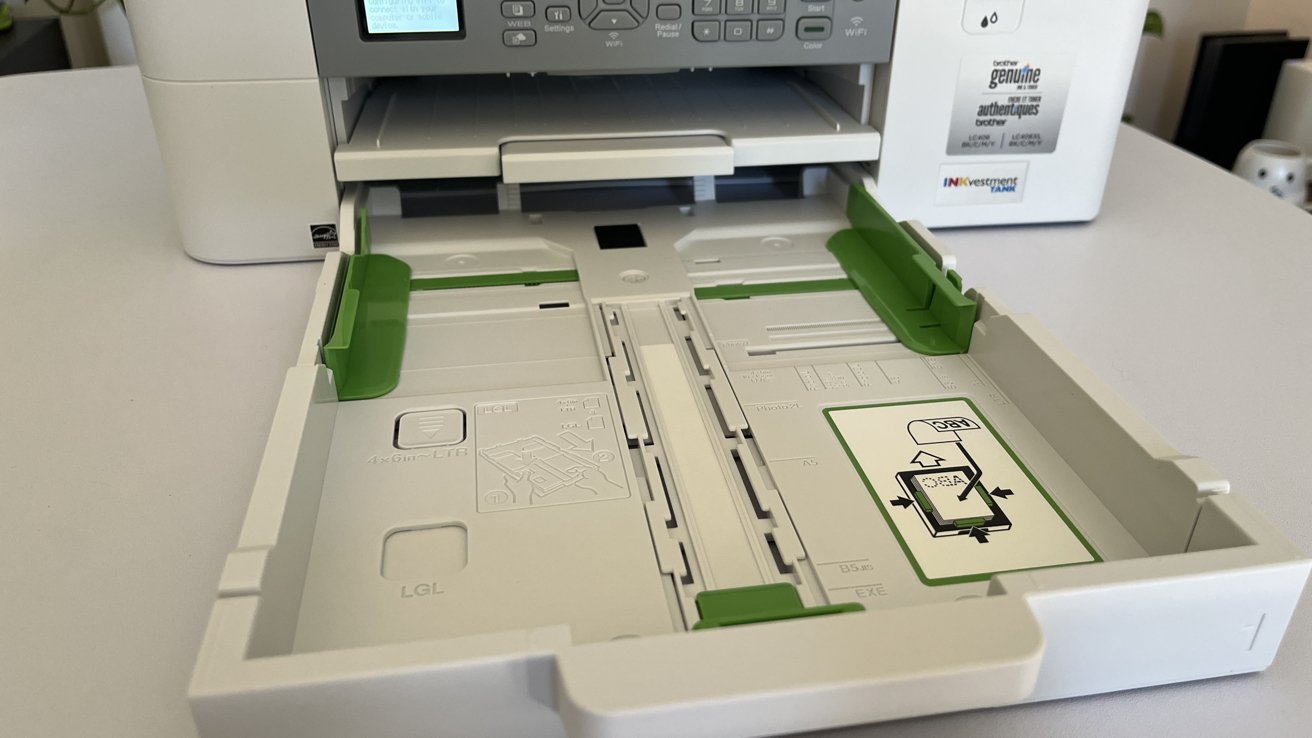
Brother MFC-J433DW INKVestment Tank printer: the adjustable paper tray makes it easy to print in different sizes
Or maybe you'll get six months of ink. Or three months of ink. Or maybe you'll ruin your printer by not printing enough.
As we often say here at AppleInsider: your mileage may vary.
At the end of the day, this printer is exactly what it looks like. It's an all-in-one printer, with all the baggage that implies, but at least it's a capable one.
Rating: 3.5 out of 5 stars
Brother MFC-J4335DW printer pros
- Compact size, great for home offices and dorms
- Solid printing speed (20 ppm B/W, 19 ppm color)
- Duplex printing is a huge plus
- Scanning works really well
- App is decent for monitoring and management
- Mobile printing is very easy
- Energy Star certified
- Page Gauge ink tracking is genuinely useful
Brother MFC-J4335DW printer cons
- Inkjets can clog with even mild inactivity
- One year of ink assumes heavier printing than most homes do
- USB cable not included
- Fax support feels outdated in 2025
- Not ideal for heavier office use
- Price sits in an awkward middle zone
Where to buy the Brother MFC-J4335DW printer
If you'd like to get your own, you can pick one up at Amazon for $189.99.