
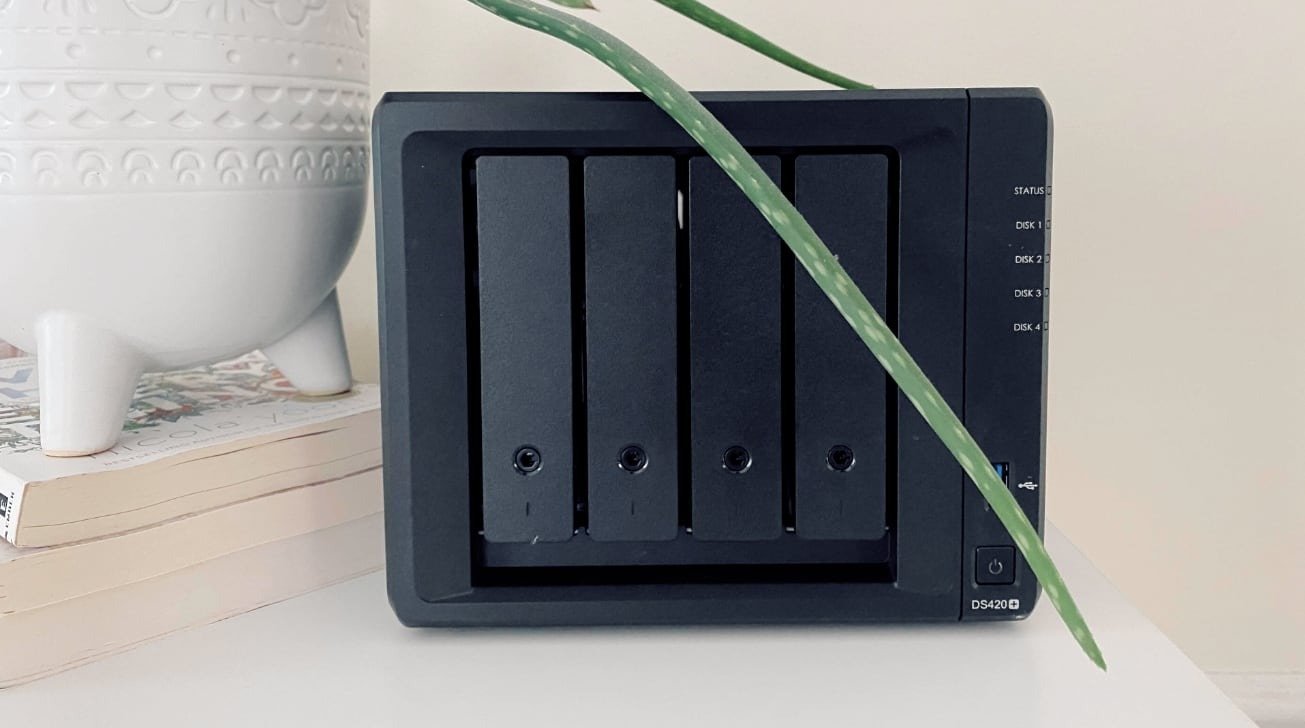
Adding storage to your home network will give you more than just a place to keep your Mac backups. Here's what to know when buying network-attached storage.
Apple device users will be very aware of storage costs for their hardware. Configuring more storage on an iPhone, an iPad, or a Mac costs quite a lot, and it's something you can't directly upgrade in the future.
External drives are certainly one answer. If an entire family is involved, or there are lots of devices needing access to that data, getting network-attached storage (NAS) is probably the better idea.
Here's what you need to know about a NAS, and what you should look for when buying one for your network.
NAS buyers guide: What is a NAS?
A NAS at its simplest is basically a file server, providing a large amount of storage that can be accessed, written to, and read across the local network at the least, and perhaps across the Internet as well, when properly configured.
Unlike your typical server, it's one specifically made to deal with data storage. It can do more than just be a storage appliance, but storage is its main focus.
While you can get by with external storage attached to a Mac, it's not a great solution for every need. It isn't going to be accessible by others unless you physically move it or you delve in your Mac's network-sharing features.
A NAS, on the other hand, is on the local network. Practically anything with access to that network can also connect to the NAS, so your Mac and your iPhone can access the same storage.
Multiple devices can also connect to the NAS simultaneously. External drives are typically limited to only one user at a time.
A NAS is not as fast to access as an external drive connected over USB-C or Thunderbolt. But the flexibility of using it on the network can outweigh the speed.
We like fast local storage. We also like slower networked storage. Not everything needs 40 gigabit per second transfer speed.
NAS buyers guide: A word on backups
We use the term backup to refer to storing a copy of your data just in case your original gets destroyed somehow. However, while having a copy of your data is technically a backup in its own right, it isn't a good backup strategy for your data on its own.
The reality is, using a NAS on your network to copy your drives to is protective, but not a proper backup plan without additions. Likewise, while you can have a copy of your data in the cloud, that is helpful but not really a backup either.
A better backup strategy is to consider having multiple backups of your data. This can include a NAS as part of the program, but it isn't the sole data store.
The 3-2-1 backup rule is a basic strategy that most users should build from at a minimum. It means:
- Three copies of your data, consisting of your original data and two copies.
- Two different types of media storage. In the olden days, this could mean tape as well as a server, but it can also include a cloud storage service that specifically provides backup services.
- One of the copies should be off-site. Again, this used to mean a separate building or a server in a different town, but it can also mean dedicated backup cloud storage services again.
A NAS can form part of this strategy in two ways. It can be the first copy of your data on your home network, as the more obvious one.
The other is as the off-site backup store, with it located elsewhere, such as at home for business backups or at a partner's or trusted friend's house. You would then ideally trigger backups overnight over the Internet.
The main thing to remember is that a NAS can help you establish a proper backup strategy for your data. It is not a backup plan in its own right.
NAS buyers guide: NAS storage options
A NAS is an enclosure filled with multiple drives. As the number of drives grows, more storage capacity is available on the network.
A simple NAS can use two or four high-capacity drives, which can be used by multiple client Macs. This is more than enough for a typical household or a small office, depending on your data needs.
For commercial storage, the number of drive bays can go up considerably, into double digits in some cases. In these cases, other specifications also increase to match the added load.
Simply put, having more drives available in the NAS means it'll have a lot more storage capacity at its disposal.
However, there are benefits beyond sheer capacity. By using the drives in specific configurations, you can get other benefits from using many drives, beyond sheer capacity.
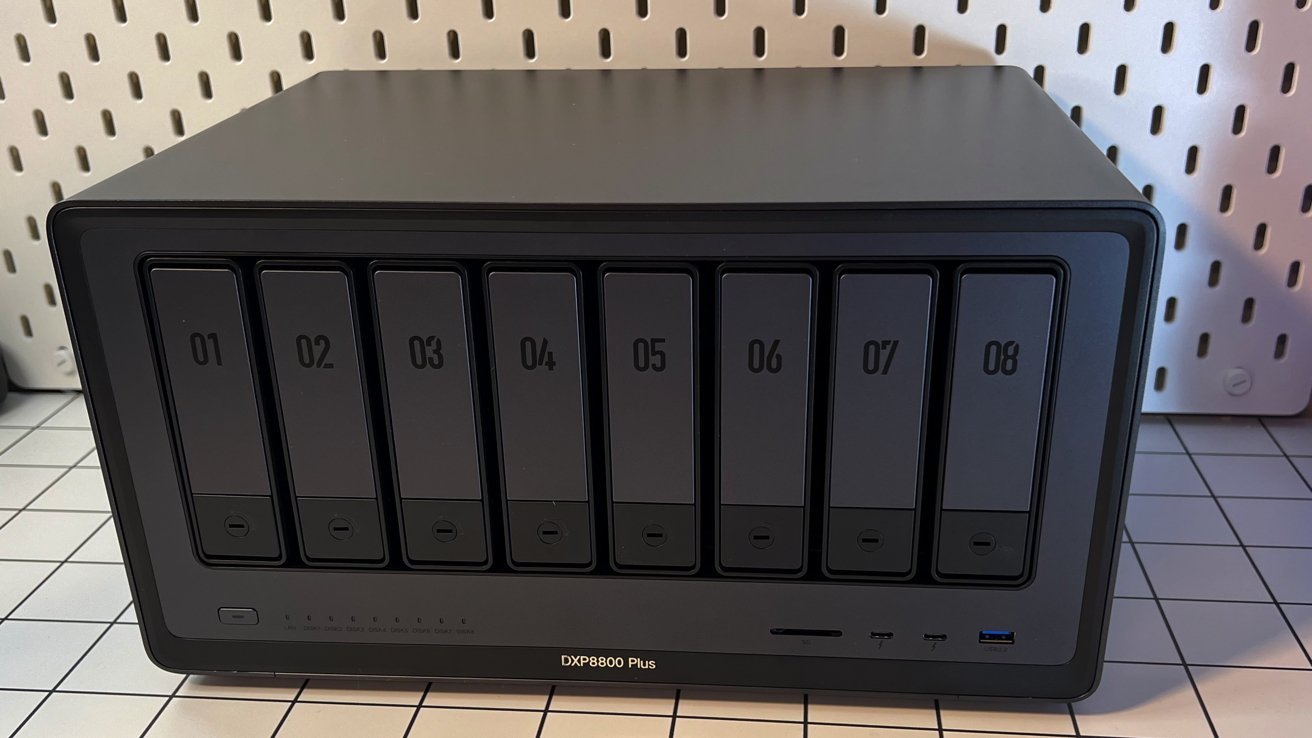
NAS buyers guide: Sometimes, a NAS can have very high numbers of drive bays.
These configurations are often referred to as RAID. Each RAID iteration handles the data differently and has different benefits.
RAID is why you should consider a proper NAS with two or more drive bays. There are single-drive NAS options on the market, but you just won't get any RAID benefits from them.
NAS buyers guide: JBOD simplicity
JBOD, or "just a bunch of drives," is a configuration where the files are simply stored directly onto the drives.
This could be with each drive being shown as a separate volume of storage, much like typical computer storage. It can also be set up as one large singular volume that includes all of the available drives.
JBOD provides a way to use the maximum available capacity. However, this is done without any benefits of redundancy or speed.
If you have a lot of different capacity drives to use with the NAS, JBOD may be appropriate. But you'll want to avoid JBOD if you can.
NAS buyers guide: Speedy striping
Striping refers to the distribution of your data across multiple drives on a device. Striping splits the data across multiple drives, treating two or more drives as one large drive.
In effect, you're treating a bunch of drives as one single volume. The benefit of this is that you can potentially access files extremely quickly versus just one drive, since multiple drives are in use simultaneously.
This is especially true for mechanical hard drives, which have fairly slow access times. It's less beneficial when using SSDs.
However, there is a risk to this performance boost. If any of your drives fail, you lose the blocks of data stored on the drive, and theoretically, all of the data on the NAS.
It's a benefit, but a high-risk strategy in favor of performance.
NAS buyers guide: Parity redundancy
A NAS is a natural place to store your Mac's Time Machine backups. However, it can also make your backups even safer, thanks to redundancy.
In most cases, a multi-bay NAS will offer a variety of configurations, including some with redundancy. This means a portion of the drive space, usually one entire drive, will be used for parity bits.
While this does cut down on the overall available storage capacity, it does offer a lot of safety to the data.
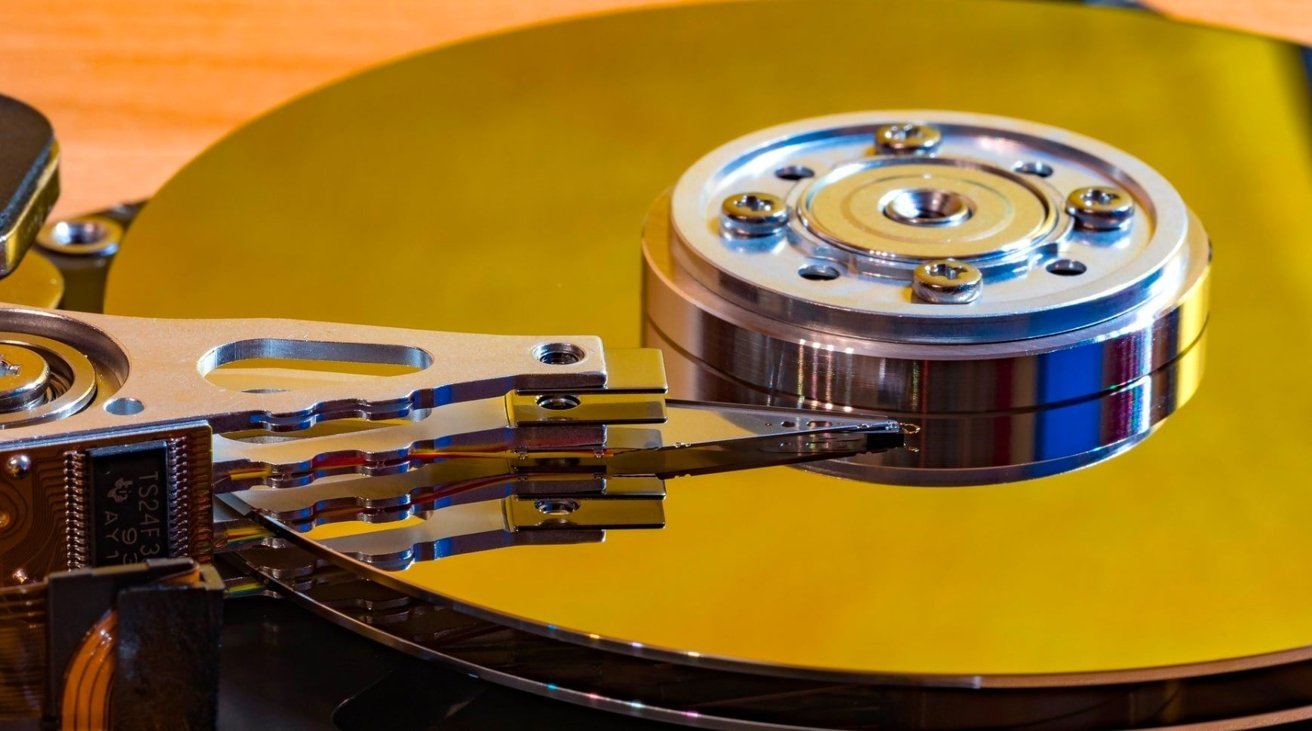
NAS buyers guide: Parity configurations save your data if a NAS drive dies.
If any of the other drives die, the remaining drives and the parity drive can be used to work out what the missing data is. Together, they can rebuild the complete storage volume again, after you replace the damaged disk with a new one.
Likewise, if the parity drive dies, the others will work fine, and the parity drive will be rebuilt once the damaged one is replaced.
Using this configuration is useful for ensuring data is safe, aside from the loss of space.
However, the largest drive is usually designated the parity drive. In such cases, there will be a large chunk of unusable space on that drive, depending on how much larger it is versus the other drives.
Parity benefits can also be work with data being spread across multiple drives with a parity block. In such cases, the drive containing the parity block varies to a different drive for each matching set of blocks.
This is a much more prevalent configuration in setups with multiple drives.
It is also possible for multiple parity blocks to be used. While this reduces capacity further, it does mean that you can lose up to two physical drives without losing data.
It's a much more secure way of storing the data on the NAS, but again at the cost of how much you can store with it.
NAS buyers guide: Mirroring redundancy
While a parity setup is useful for error detection, a similar alternative is drive mirroring. As the name implies, using two drives, the content is duplicated across both drives in full.
For systems with more than two drives, mirroring involves splitting the data into blocks, which are duplicated on other drives to have the same effect.
This is a middle-ground approach, as you could get some of the benefits of striping by using mirrored drives. However, you also benefit from having protection, since the data is stored on multiple drives.
The drawback is that this technique effectively halves your available capacity. It's not a great option if the amount of available storage is important.
NAS buyers guide: RAID
The different levels of RAID refer to how the drives are set up. Sometimes a RAID needs a minimum number of drives to function, or has specific requirements.:
- RAID 0 - Striped volumes. Requires at least two drives.
- RAID 1 - Mirrored. Requires at least two drives.
- RAID 5 - Striped and Parity. Requires at least three drives.
- RAID 6 - Striped and Parity, with two Parity blocks. Requires at least four drives.
These, and JBOD, are the main configurations for home RAID usage. However, there are others.
For a start, there are such things as Nested RAID levels, such as RAID 0+1, which combine multiple base RAID levels together. Unless you're working in a corporate environment or have massive amounts of data to manage, you're probably not going to need to know about them.
There are also custom ones made by NAS producers, such as Synology Hybrid RAID or SHR. They can provide benefits over the typical RAID configurations, so they are worth exploring.
NAS buyers guide: Drive selection
Not all drives are created equal. Depending on the drive you use, there could be a considerable difference in speed and cost.
The traditional mechanical hard drive with spinning platters is a reasonable option due to its very high capacity. It's also the cheapest per gigabyte based on cost, but it is also the slowest type to actually use.
As prices have gradually come down, SSDs have become an option if speed is needed. However, it's still very expensive compared to hard disk drives, and less desirable for the typical NAS user.
For most NAS cases, mechanical hard drives are the best choice.
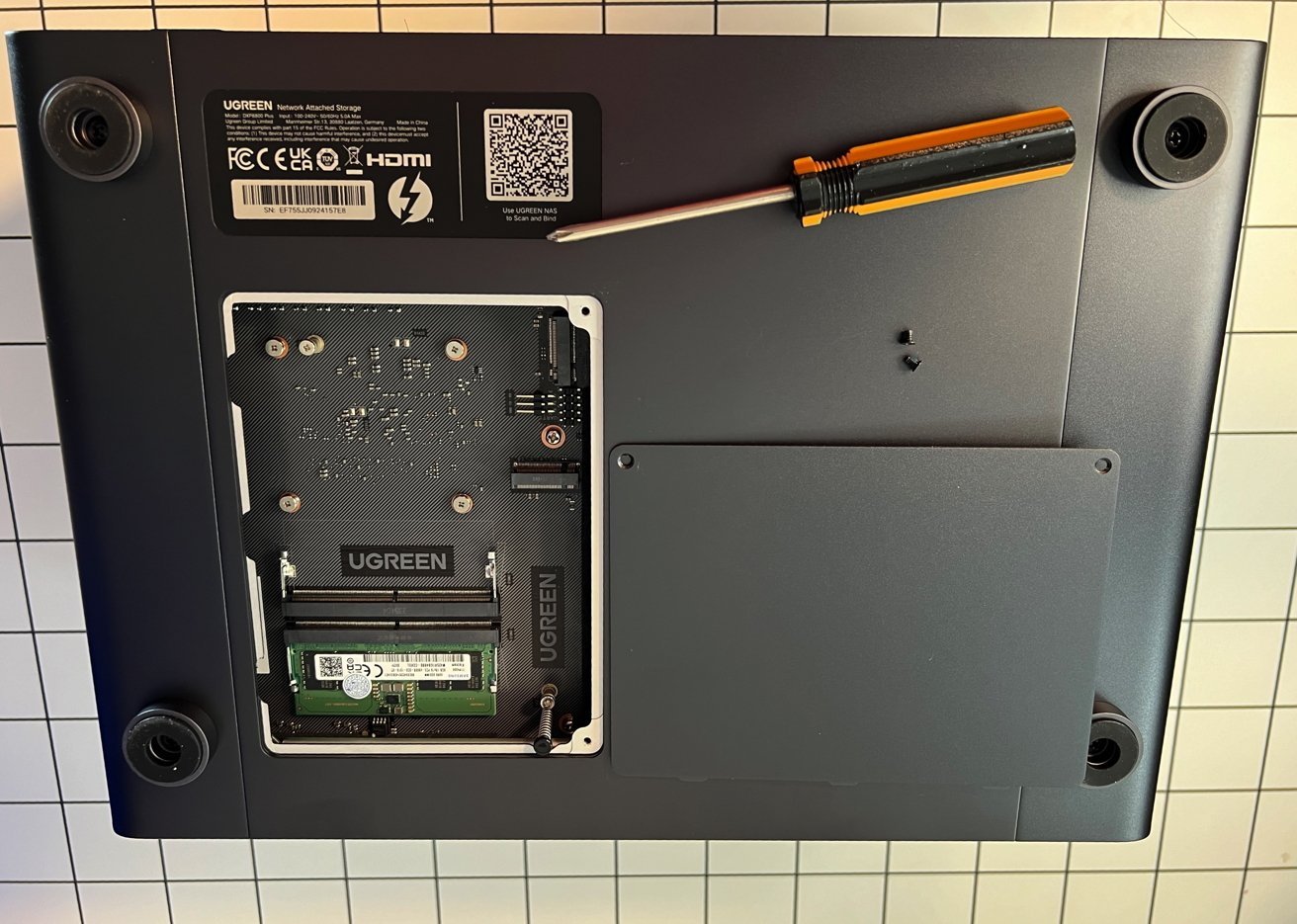
NAS buyers guide: For some NAS users, upgrading memory or adding an NVMe M.2 drive can work wonders.
Some NAS producers do provide options to speed up the access times by using M.2 NVMe drives. Added to the NAS storage, it is frequently used as a cache for data.
Frequently accessed files could be stored on the fast NVMe storage, rather than on the main drives. This dramatically cuts the time it takes to pull the data for the user, but only for data stored on them.
This is an expensive add-on, certainly. But if speed is of the essence, it may be a worthy addition to the NAS.
Mechanical drives can be found in various varieties, including some intended for computer use and some for a NAS or server. They are made specifically to handle the vibrations generated by multiple drives in close quarters.
These are the types of drives that should be used in your NAS.
NAS buyers guide: Accessibility
At its simplest, a NAS operates as a lump of storage on a network. Depending on how it is configured, anyone with network access can connect to it.
However, you can change the configuration in many ways, just like a normal server. Permissions can limit file access to specific user credentials.
There are often other configuration options available based on users needing to log in. For example, you can limit how much data a particular user can consume.
In most cases, this is configured through a dedicated app or a web interface.
While usually network-specific, many manufacturers refer to their NAS as a "private cloud." In reality, this means you can access data on the NAS through the manufacturer's app off your network, such as over an iPhone's cellular connection.
This is often a more secure way of accessing the NAS over the Internet without exposing the NAS to the world. There are other ways too, but that is outside the scope of this article.
Suffice it to say, it's quite useful to be able to store your photos on your own local network storage and be able to access it while out of the home. It's like your own version of iCloud, but without the monthly fees.
NAS buyers guide: Network Speed
In the vast majority of cases, you're going to be using Ethernet to hook up a NAS.
At the very least, the connection will be Gigabit Ethernet, but this can vary depending on the NAS.
Some NAS units can have multiple Ethernet ports available. This can enable network aggregation, increasing bandwidth by using multiple network connections.
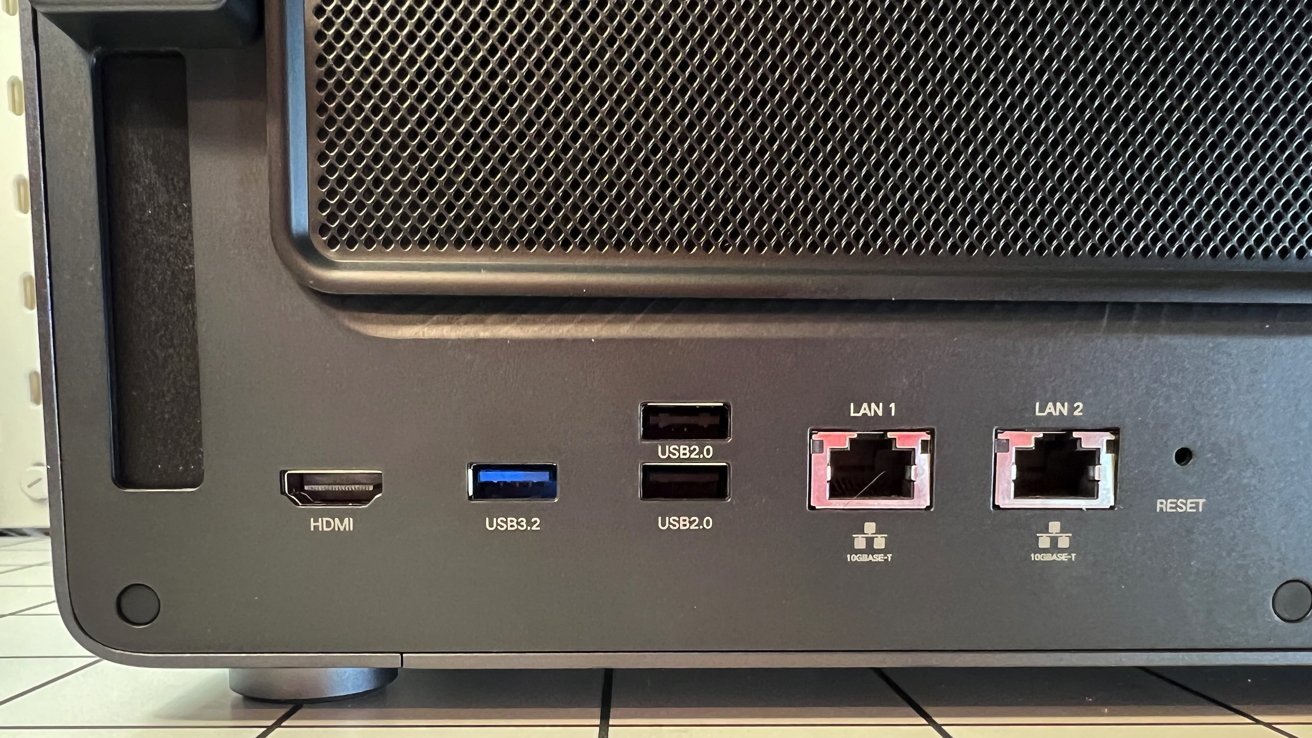
NAS buyers guide: A NAS can have multiple network ports, and even USB ports.
The Ethernet ports can also increase the bandwidth available simply by supporting faster speeds. You can often find 2.5GbE and 5-Gigabit versions in consumer models, with 10-Gigabit Ethernet seen more on commercial systems.
You do need to have the network infrastructure available to take advantage of the speeds. A 10Gig Ethernet connection will only work at 1 Gbps Ethernet speeds if it's on a Gigabit Ethernet network, for example.
You also have to consider the drives being used, as well, since it takes time for a drive to actually write or read the data. If the NAS is using multiple mechanical drives instead of SSDs, this can take longer.
Your drive choices, configuration, and network infrastructure can each be the bottleneck of your NAS.
Aside from Ethernet, you'll frequently see other ports on a NAS, including USB connections. This can be used to offload data to the NAS, but it can also be used to expand the storage.
You cannot use these ports to directly connect the NAS to your Mac for file transfers.
NAS buyers guide: Docker, apps, and other services
While a NAS is primarily used as a storage device, it is a computer in its own right. As a server, you can use it in many different ways.
Though we have discussed storage at length, the internal components driving the NAS are also important. The more powerful the chip and the more memory, the more that the NAS can do.
In many cases, you can upgrade the memory, which can increase performance.
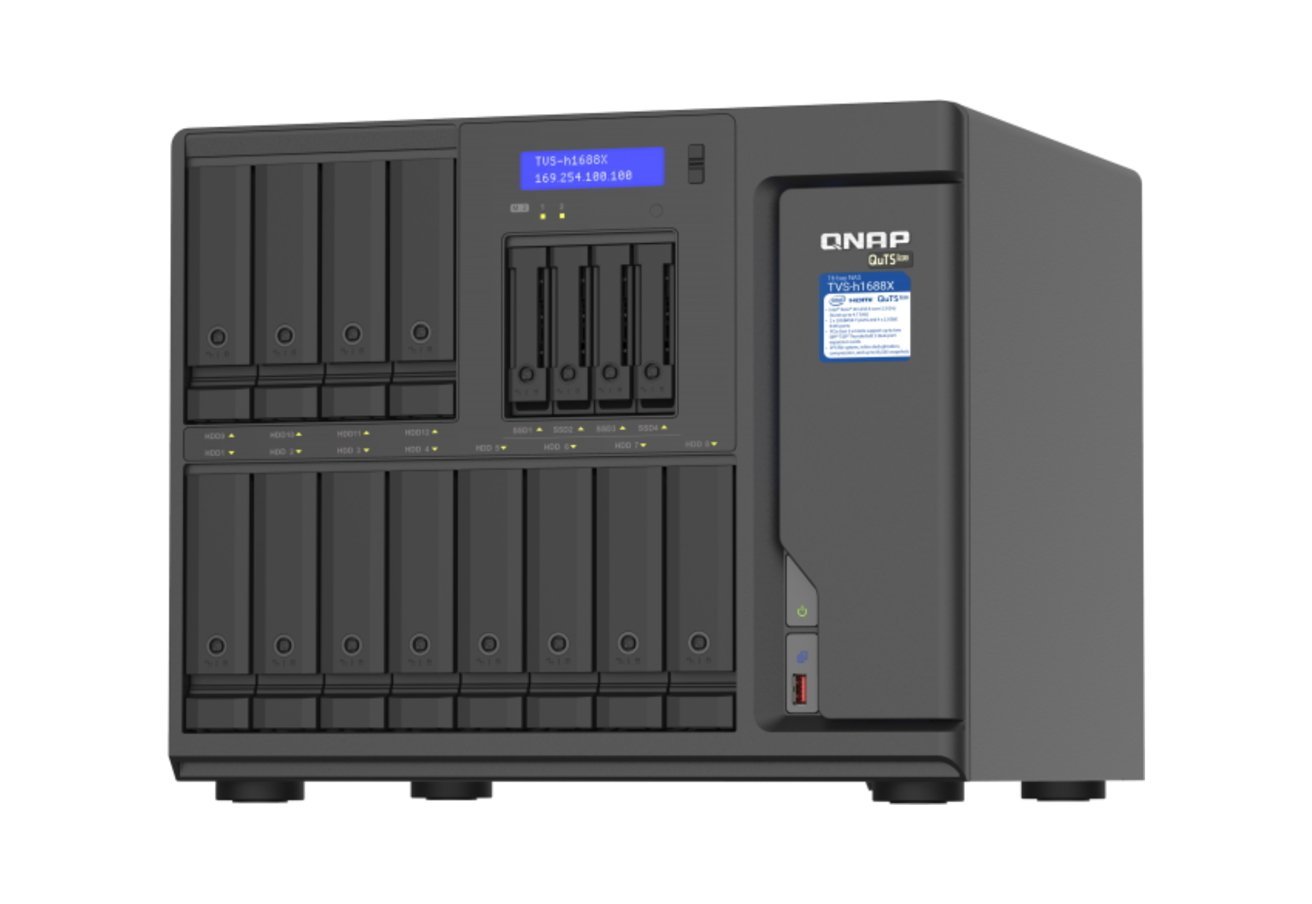
NAS buyers guide: Some commercial NAS devices offer some extreme specifications.
Aside from file storage, manufacturers frequently provide other apps and services you can install to a NAS to expand its utility.
Be aware that a NAS typically isn't going to be as powerful as a made-for-purpose server or a repurposed Mac, so you can't ask too much of it.
As an example, you will often be offered a photo library app in the collection. This can be used like the previously mentioned iCloud Photos.
Virtualization can be a possibility, as well as running different types of servers for your local network. For most home users who watch a lot of television or movies, they should check out if the NAS has support for Plex.
Using a NAS as a Plex server is handy, as a NAS is designed to handle massive data stores, like massive video files. A Plex-enabled NAS will be able to transcode video and stream it over the network to client devices.
For those who want even more data protection, you'll frequently see the option to connect cloud-based storage services.
Sometimes, you can add cloud storage so you can see it alongside your NAS data in the manufacturer's companion app. This gives the appearance of all of your data being in "one place," at least within the NAS app.
More usefully, you can connect the NAS to cloud storage services, so you can back up the data from the NAS elsewhere. This forms part of a more rigorous backup regimen that will further protect your files from being destroyed.
NAS buyers guide: Support warnings
While having apps to install is a benefit, be aware that it isn't a guaranteed thing, thanks to lawyers. Just as easily as an application could be installed on a NAS, the functionality could also get blocked.
This is keenly demonstrated by a pair of decisions made by Synology in 2025.
In April, Synology introduced a policy for its 2025 Plus-series NAS range to limit the drives that were compatible with the NAS. This was supposed to mean drives that were certified by Synology as meeting its standards would work without limitations in the affected NAS models.
In practice, since Synology's drives were the only ones to have been certified, that effectively meant you could only use Synology-made drives with the new Synology NAS units.
By early October, an update to DiskStation Manager 7.3, the software that the NAS uses, made a change to reverse the drive situation. Synology allowed "non-validated third-party drives" to be used in the NAS.
Synology said third-party drives were being tested and verified, and will be added to the supported list in the future. This wasn't a complete reversal of policy, but more a delay in its implementation.
You can expect the policy's return in the future, albeit in a form that looks less like a cash grab.
A second issue that arose in September 2025 for Synology owners was the removal of graphics drivers, HEVC, and H.264 hardware transcoding support from its 2025 NAS devices. This is functionality that allows for a video to be recompressed and streamed over a network in an optimized manner to a client device.
Synology's changes mean that software such as Plex and Jellyfin cannot use the QuickSync Video features of Intel processors installed in the NAS. That means any transcoding will have to use the CPU instead of the hardware-accelerated method that has been disabled for alleged licensing reasons.
For end users, they will see that attempts to transcode could be slower and use the CPU a lot more on the NAS, if that software can use CPU-based transcoding at all. Software that uses the hardware-accelerated method only without the CPU fallback may not necessarily work properly.
Previous Synology NAS users won't necessarily have anticipated this to be a problem when upgrading their NAS to a newer model, as it is a feature that is commonly used in prosumer households. Consumers may have expected only a minor refresh in the DS425+ and DS225+ models between years, not something that could harm in-home streaming setups.
As you would expect, some consumers have found ways to reintroduce the missing elements and revive transcoding. However, as with any software modifications, there is always some risk involved.
What this and Synology's decision to prioritize its own hard drives over others for its NAS products demonstrate is that there is a need for consumers to do the homework and research before purchasing.
Someone interested in in-home streaming doesn't want to buy a NAS and discover it only works with specific drive brands, and then find out that transcoding has been deprecated.
NAS buyers guide: What to look for - A Checklist
To sum up, there are quite a few things to consider when buying a NAS:
- Storage: How many drives can it take, what's its maximum capacity, and are there extra options like NVMe M.2 slots?
- RAID: What configurations are available to use?
- Performance: What processor and memory does it have, and can you add more?
- Network speed: How fast is the Ethernet connectivity? Is it upgradable?
- Extra features: Does it have Private Cloud facilities? Can you install other apps and server software?
NAS buyers guide: NAS recommendations
What follows is a selection of NAS devices that would be a good starting point for those wanting to buy their first one.
NAS buyers guide: Budget NAS for beginners - Synology DiskStation DS223j 2-bay NAS
The Synology DiskStation is a low-cost entryway into owning a NAS device, for those without massive data storage needs. Sold diskless, it can take two 3.5-inch hard drives, while still offering many of the bells and whistles of larger units.
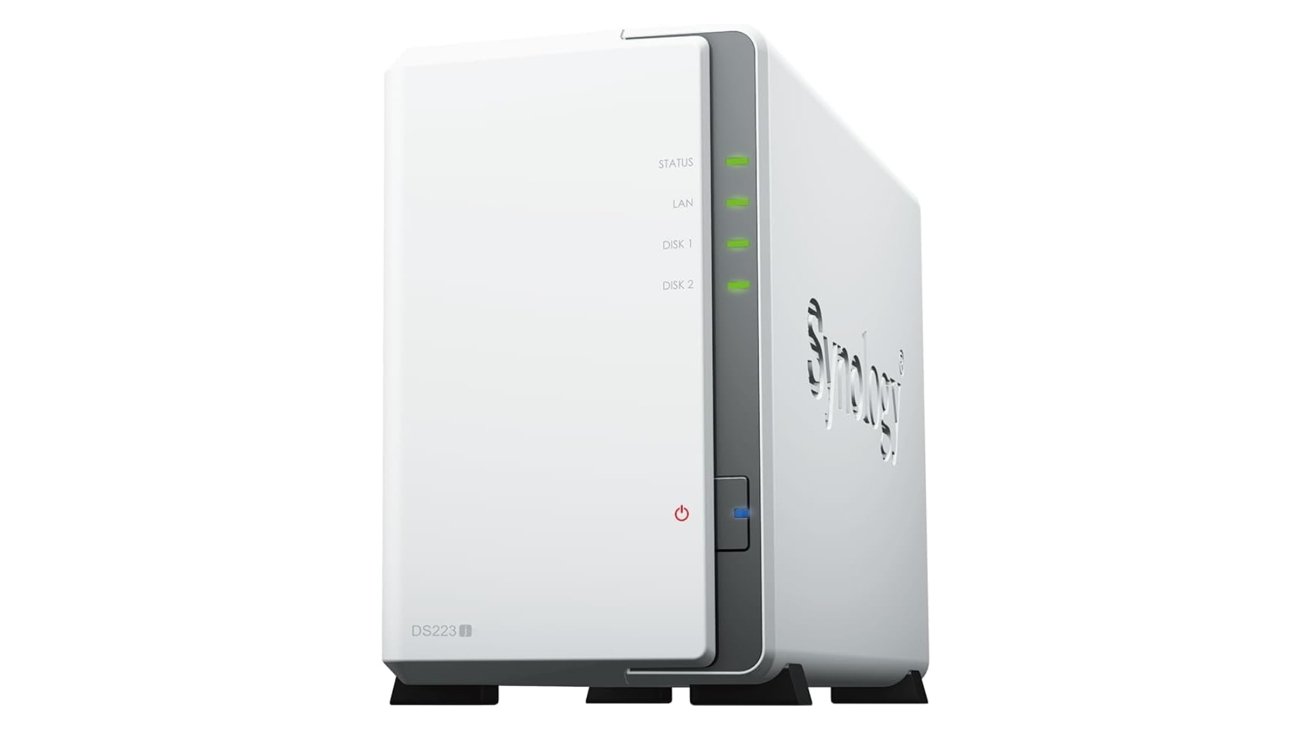
NAS buyers guide: Synology DiskStation DS223j 2-bay NAS
This includes being able to handle backups from a Mac, operating as cloud storage, and also as a cloud media server. It can even be used with 12 surveillance cameras for home security purposes.
It's available on Amazon for $194.99.
NAS buyers guide: A standard NAS - Synology DiskStation DS425+
A fairly typical example of a NAS is the DiskStation DS425+ from Synology. A four-bay NAS, it can store up to 80TB of data on supported drives, with it also able to use M.2 NVMe SSDs for caching.
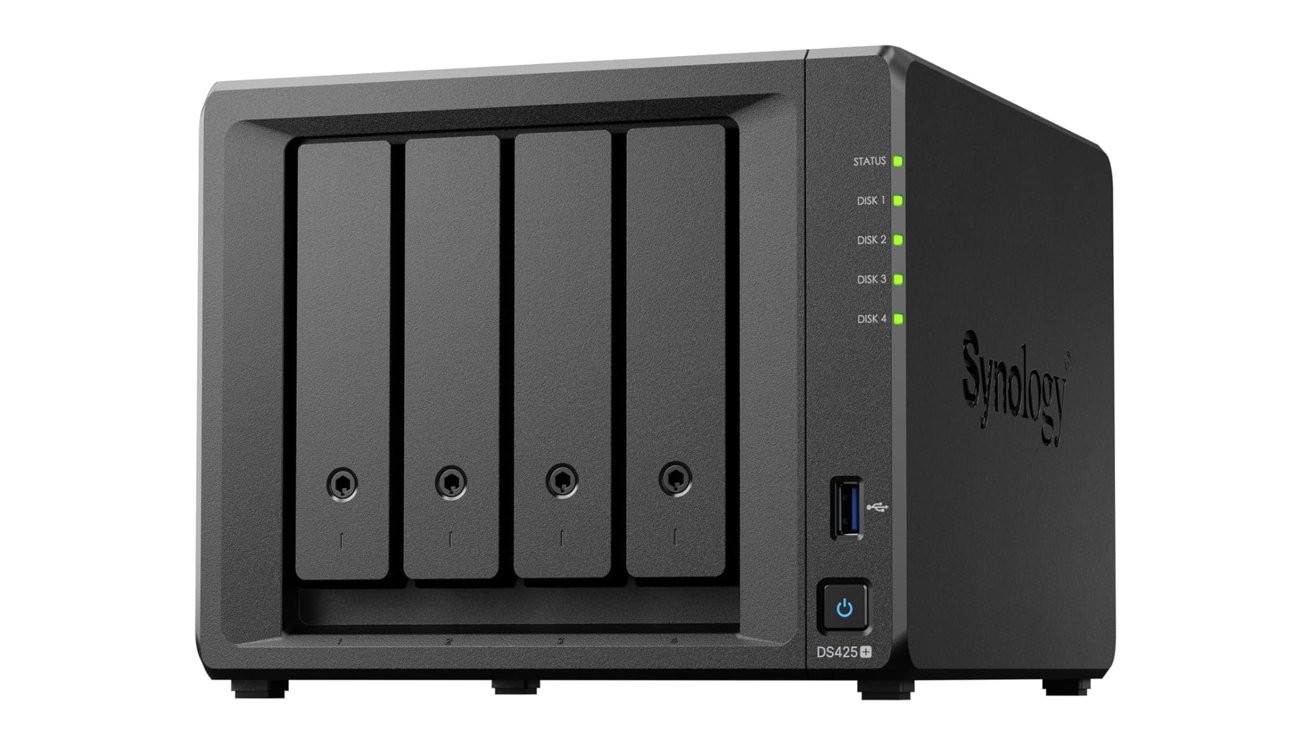
NAS buyers guide: Synology DiskStation DS425+
Equipped with two Ethernet ports, including one running at 2.5Gbit, it will work well with most home networks. It can also be used to run various services and apps onboard, and can even work with a variety of security cameras.
However, be aware that it is one of the 2025 models that has reduced transcoding capabilities. For many applications, it's fine, but streaming video will be hobbled here.
The DiskStation DS425+ is on Amazon at $519.99.
NAS buyers guide: More than standard - LincPlus LincStation S1
Tried out by AppleInsider in its July review, the LincPlus LincStation S1 balances speed and capacity. It can house up to four SATA hard drives or SSDs, with it also able to hold two M.2 NVMe sticks.
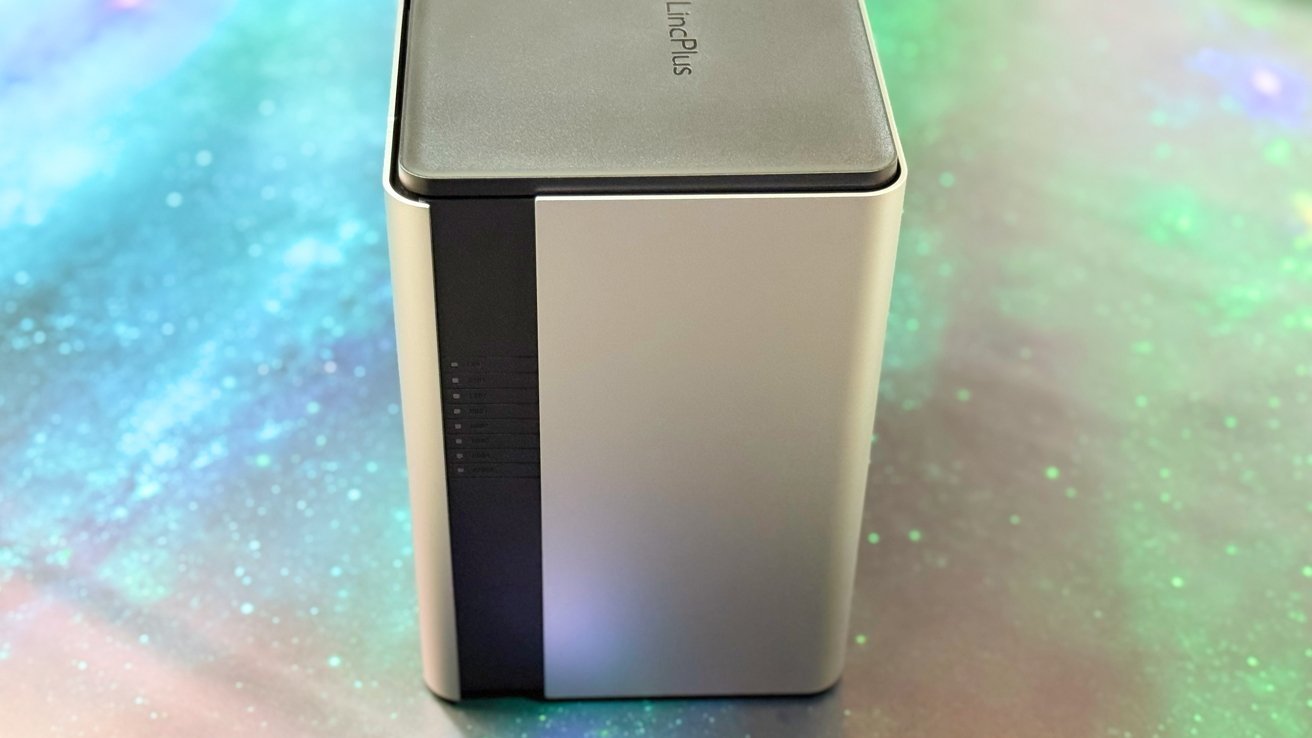
NAS buyers guide: LincPlus LincStation S1
It has a generous 8GB stick of DDR5 already, but you can replace it in the future. It also has a pair USB 3.2 Gen 2 port as well as two Type-A versions, another two USB 2.0 ports, HDMI 2.0 for external display connection, and a pair of 2.5Gigabit-Ethernet ports on the rear.
LincPlus includes a one-year UnRAID license, providing a very powerful and flexible operating system at your disposal.
The LincPlus LincStation S1 is sold from LincPlus directly for $529.
NAS buyers guide: A set-and-forget NAS - WD My Cloud Home
If you want as few configuration options and as little setup as possible, the WD My Cloud Home is a good choice. The WD My Home is a very simple NAS that ships with a preinstalled drive, two if you get the Duo model.
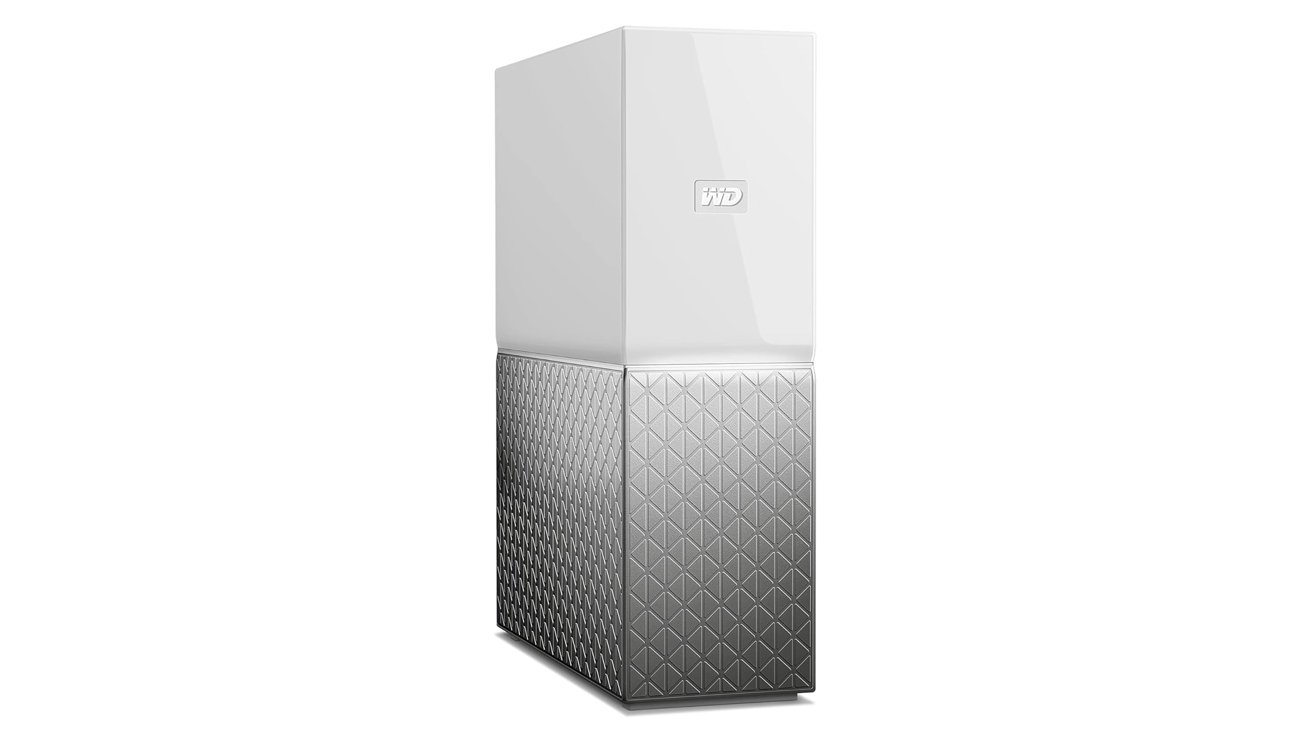
NAS buyers guide: WD My Cloud Home
After an initial quick setup, it hooks up to your network and works as a lump of storage pretty quickly, and with little fuss. There are also apps for iOS and Android for you to connect to it, with it also providing controls for private spaces and file sharing.
The capacities start from 2TB and rise to 8TB for the single-drive version. The 8TB capacity option is available on Amazon for $776.
NAS buyers guide: A NAS for capacity - Ugreen NASync DXP8800 Plus
If you need a lot of storage, you could go down the route of buying two smaller NAS units. Or, if you need it all in one unit, you get a NAS with a lot of drive bays.
The Ugreen NASync DXP8800 Plus, which AppleInsider reviewed favorably, is an overkill option that sports a total of eight drive bays and two M.2 NVMe drive bays, supporting up to 256TB of data. The professional-grade NAS also has a pair of 10GbE ports on the rear, which can be used in aggregate for up to 20Gbps of network bandwidth.
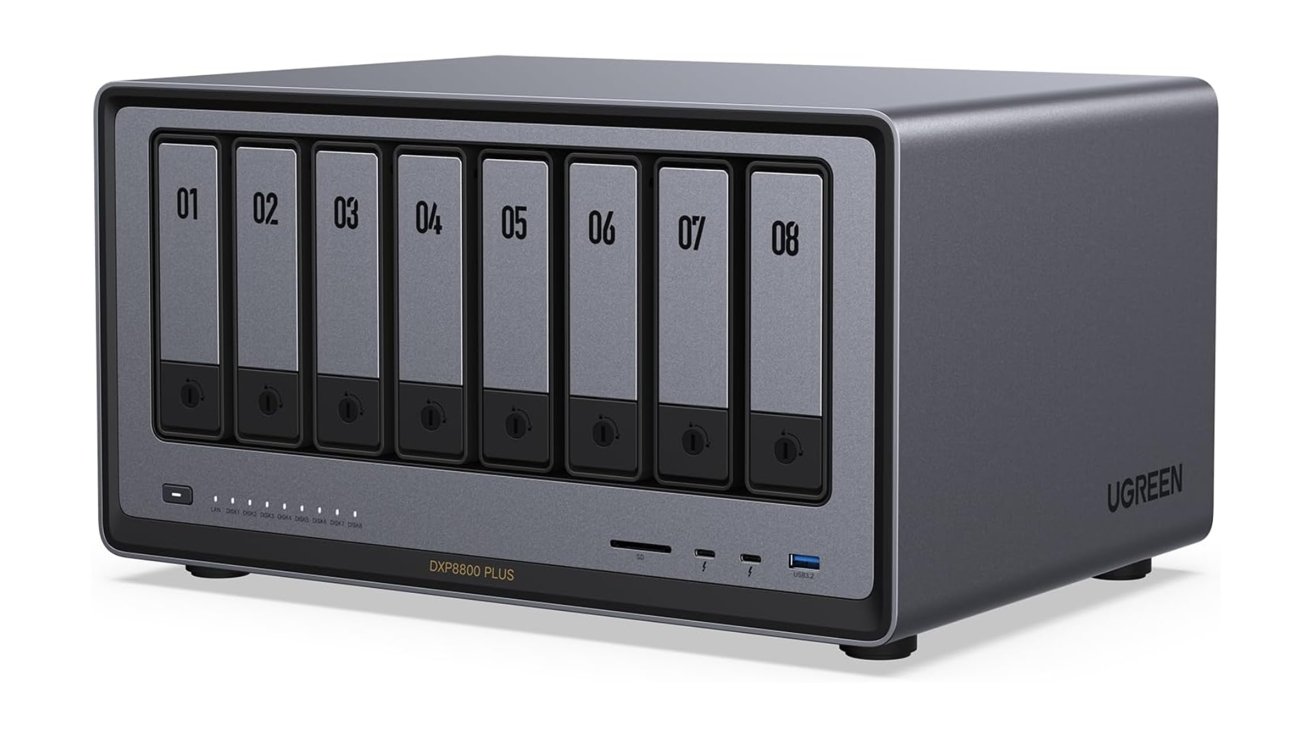
NAS buyers guide: Ugreen NASync DXP8800 Plus
Like others, it has a dedicated app for accessing files and photos stored on it remotely. But it also has a pair of Thunderbolt 4 ports for fast connectivity to external drives.
It's currently listed on Amazon for $1,349.99, without drives.
NAS buyers guide: A NAS for speed - LincPlus LincStation N2
If you need a home NAS that provides speed while looking like a set-top box, the LincPlus LincStation N2 is your best bet based on the AppleInsider review.
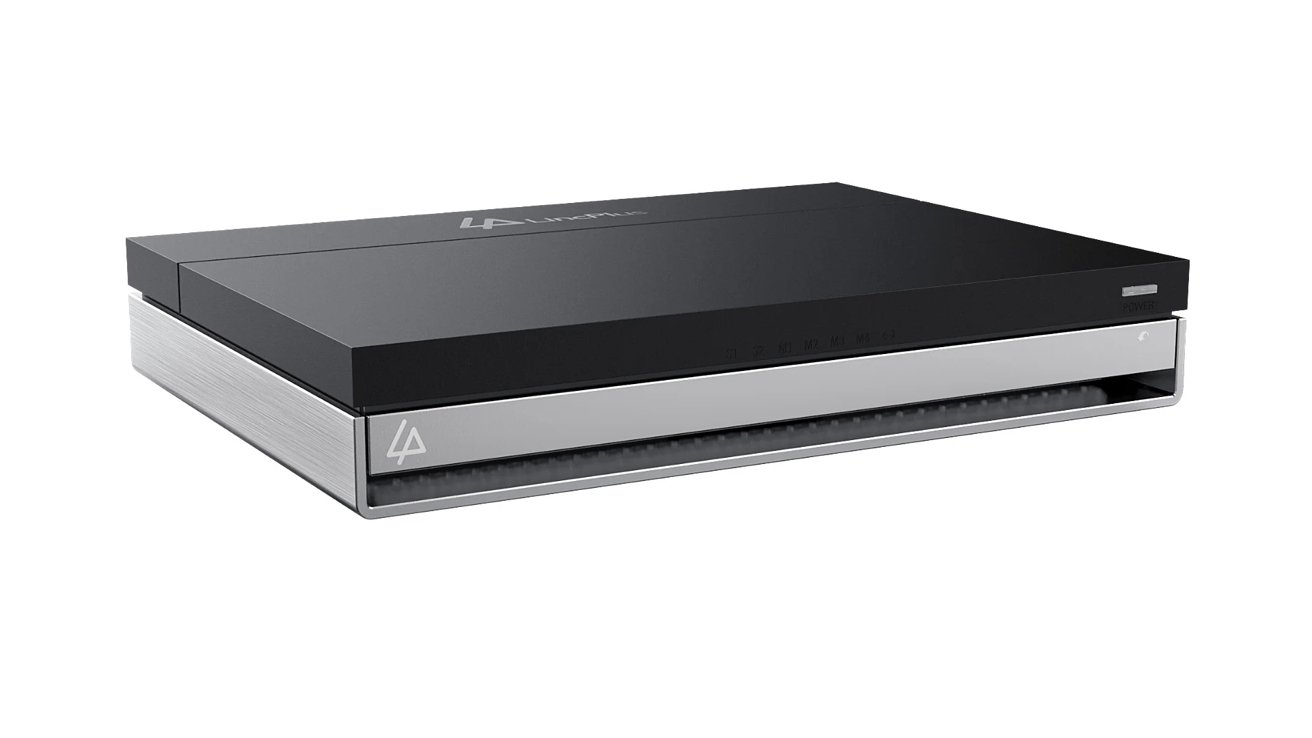
NAS buyers guide: LincPlus LincStation N2
A flatter device than other NAS units, it is one that is entirely SSD-based, capable of taking two 2.5-inch SSD drives along with four M.2 SSDs or NVMe sticks. To match the drive speed, networking is handled by a 10Gig Ethernet port.
The connection selection also includes a USB-C port running at 10Gbps, a USB 3.2 Gen 2 Type-A port, a pair of USB 2.0 Type A ports, HDMI 2.0, and even a 3.5mm audio port. It also ships with a one-year UnRAID license.
It's sold by LincPlus directly, priced at $429.