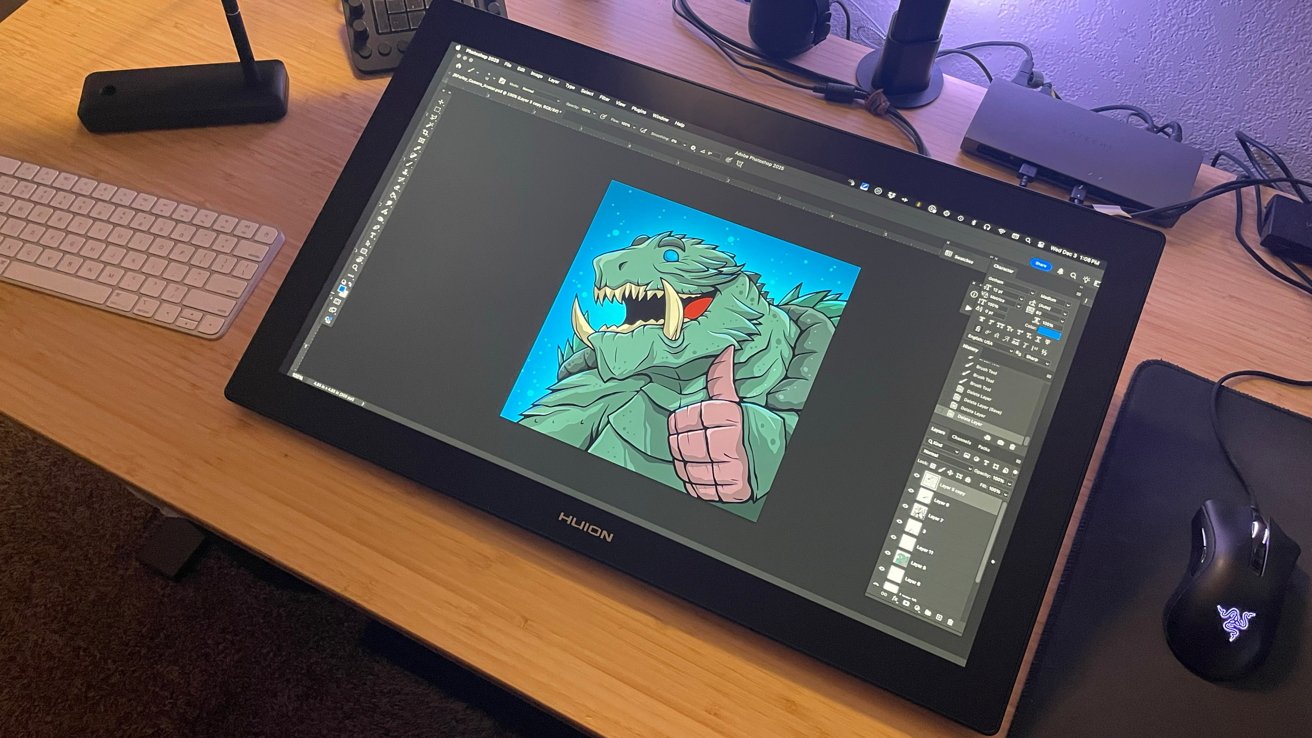
The third-generation Huion Kamvas Pro 24 is an excellent pen display for digital artists to use while working on their Mac. Wacom should be afraid.
As a professional digital illustrator, pen display tablets are the lifeblood of my work and the backbone behind everything I create. I know when a pen display delivers or when they fall short.
We're living in a time where new pen display releases steadily hit the market. The juggernaut that is Wacom is no longer the only game in town, nor is it the clear industry leader.
Now, companies like Huion have emerged as a respected and reliable name in the market. It has managed steady growth and made big strides toward improving its products with every new release.
I have reviewed Huion products in the past, and in some of my early encounters, I found its software lacking and its products to be fine, but not great. However, in recent months, that has all changed, and Huion is making incredible strides to meet and exceed previous expectations in the pen display market.
Huion recently released the Kamvas Pro 24 (Gen 3), and while that name is a mouthful, this is an update to its previous Kamvas Pro 24 with 4K ultra-high-definition and improvements aimed at artists looking for a durable and reliable alternative to other comparable pen displays.
Huion provided a Kamvas Pro 24 (Gen 3) for an extended test drive, to see if the quality and improvements have reached the upper tier it claims.
I will be referring to the Kamvas Pro 24 (Gen 3) as simply the Pro 24.
Kamvas Pro 24 (Gen 3) Review: Inside the box
The Pro 24 arrived in a padded shipping box from Huion. Inside was a product box in black with branding and additional custom-cut padding inside for the pen display and all the components.
Inside the box:
- Kamvas Pro 24 (Gen 3)
- Digital pen/stylus
- HDMI cable
- USB-C to USB-C Cable
- USB-A to USB-C Cable
- Power adapter
- AC adapter
- AC cable
- Pen box
- Standard nibs x5
- Felt nibs x5
- Anti-touch glove
- Cleaning cloth
- Quick start guide
The packaging and overall safety of the Pro 24 and all of the components for shipping is excellent.
Huion is good at delivering an experience that feels professional, and its packaging of the Pro 24 delivers. Opening the box and sorting components for setup feels like a high-end experience.
Kamvas Pro 24 (Gen 3) Review: Specifications
- Color: Black
- Dimensions: 589.2 x 364 x 22.7mm (23.2 x 14.3 x 0.89 inches)
- Working Area: 525.888 x 295.812mm
- Net Weight: 6.365kg (14 pounds)
- Touch: 10 Points Finger Touch
- Stand: Integrated
- Video Interface: HDMI 2.0, DP 1.4, USB-C, DC, USB-A 2.0 x 2, 3.5mm headphone jack
- Resolution: 3840 x 2160 (16:9) UHD
- LCD Type: IPS 60Hz
- AG Glass: Anti-glare etched Canvas Glass 3.0
- Full Lamination: YES
- Contrast Ratio: 1000:1
- Brightness: 250nit (Typ.)
- Response Time: 14ms
- Viewing Angle: 89 degrees/89 degrees(H)/89 degrees/89 degrees(V) (Typ.) (CR10)
- Color Gamut Volume: 140% sRGB
- Display Color: 1.07B (8bit+FRC)
- Digital Pen: PW600/PW600S (PenTech 4.0)
- Pen Technology: Battery-Free EMR
- Pen Resolution: 5080 LPI
- Pressure Sensitivity: 16,384 Levels
- Tilt Support: 60 degrees
- Sensing Height: 9mm
- Report Rate: 260PPS
- Accuracy: 0.3mm (Center), 1mm (Corner)
Kamvas Pro 24 (Gen 3) Review: Quality and Features
The Pro 24 is an incredibly well-made pen display from front to back and top to bottom.
With its sturdy black case, full lamination/anti-glare screen, and discreet but functional button placement, Huion delivers a modern aesthetic here. One that does not diminish the performance of the tablet at all.
The Pro 24 includes two built-in flip-down legs to add a bit of angle while working, made of heavy-duty plastic. They feel sturdy and safe.
Huion includes two types of battery-free pens with the Pro 24. A slim pen that feels more like a traditional technical pencil, and a thicker pen in the style of chunkier stylus models from Wacom and Xencelabs.
Both pens and all the extra pen nibs included with the Pro 24 fit inside a lovely pen box included with the pen display. The top of this pen box also doubles as a pen holder for both pens for safe and easy storage while not in use.
The inclusion of two types of pen nibs (standard and felt tip) is very welcome, and the anti-touch artist glove and cleaning cloth are nice things to have for daily use.
Huion also includes the Keydial Mini with the Pro 24. This is a wonderful accessory to use in tandem with the Pro 24 and a great inclusion.
Kamvas Pro 24 (Gen 3) Review: Setup
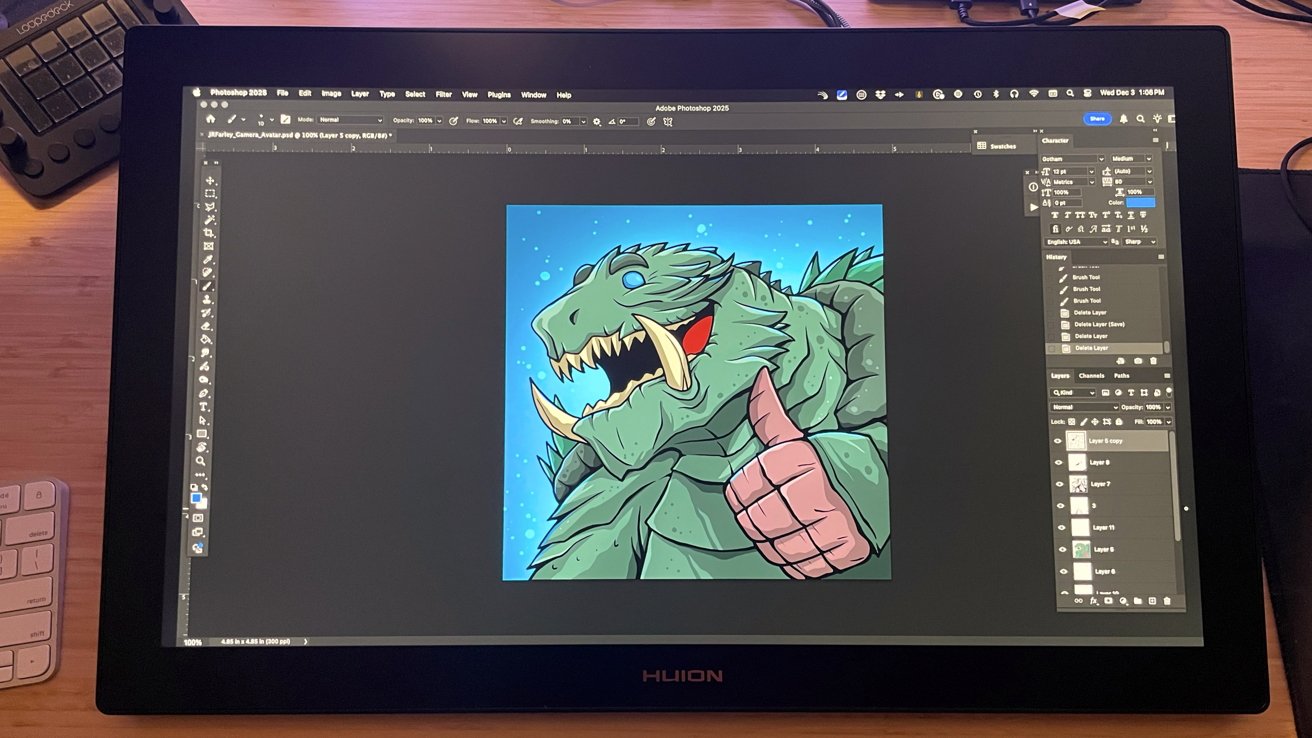
Setting up the Pro 24 for use right out of the box was incredibly quick and easy.
After unboxing and sorting the components, I plugged everything into my Mac Studio, booted it up, and downloaded the Huion driver for Mac. It was up and working within 5 minutes.
Mechanically, Huion provides three ways to connect the Pro 24 to your computer.
Kamvas Pro 24 (Gen 3) Review: Set up and in use
The first option is a direct, full-feature USB-C to USC-C connection from the Pro 24 to a USB-C port, for a single-cord existence.
The second option is the HDMI cable option paired with the USB-C to USB-A cable adapter. The third switches the HDMI for a DP cable with the USB-C to USB-A cable adapter.
I tested all the methods with my Mac Studio, and everything worked perfectly at the base level. I could have worked with all of the default settings in place, but I needed to customize settings and hope that the Huion driver software has improved.
This is an ongoing struggle when it comes to pen display tablet software. have wrestled with drivers and firmware from other manufacturers in the past, including from Huion, that were disappointing, flawed or outright did not work in a Mac environment.
So, when I have a quick, simple, and perfect setup and install process with the Pro 24 driver, I appreciate it very, very much.
Kamvas Pro 24 (Gen 3) Review: Driver options
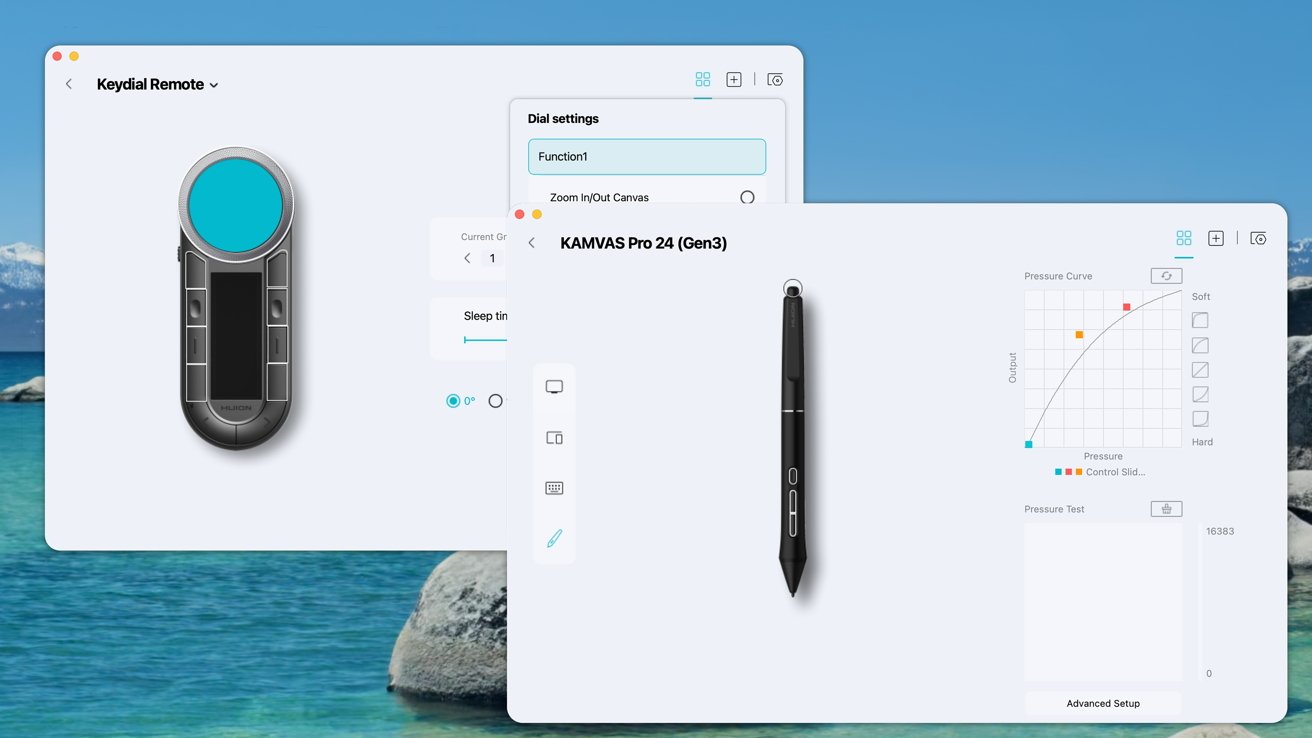
The driver does everything needed of it, and allows you to adjust button mapping on the stylus pens, adjust pen pressures, and configure finer details to meet your preferences.
I love that the driver allows you to set profiles for specific apps as well, either as blanket commands or specific to each app in use.
Kamvas Pro 24 (Gen 3) Review: In Use
After setting up the Pro 24, I dialed in my pressure sensitivity, disabled pen buttons, and double-checked my calibration. All before opening a fresh Photoshop document and settling in to draw.
There is no fan noise from the Pro 24. None at all.
I worked on the Pro 24 for consecutive hours every day of my review period, and I never noticed any significant change in surface temperature. Nor a drop in performance resulting from any internal heat issues.
The stylus pens included with the Pro 24 are lightweight and sturdy. They do not feel cheap or easily breakable, and the rubber-style grip on the pens is excellent.
Two styles of pen nibs are included with the Pro 24: Standard plastic nibs and soft felt nibs for a marker pen feel. When combined with the laminated surface, they create a wonderful micro resistance that feels slightly like drawing on paper.
The biggest issue for me with any pen display and its driver is the sharpness of the line quality and responsiveness on the display. I need to know when I draw a line that the pen display and pressure sensitivity will behave exactly as I expect it to.
With the Pro 24, not only has the line quality remained excellent and consistent from the previous Kamvas Pro 24 and Huion driver, but it has improved.
The early generation Kamvas Pro 24 was a good pen display, but the older driver had what I described as "cursor float" from time to time. It was a small annoyance then, but with Gen 3 and the newest driver, the Pro 24 did not experience any cursor float at all.
For years I considered Wacom drivers as the gold standard for pen displays. But now, companies like Huion and Xencelabs have not only met that standard but continually exceed it, and redefine what great drivers can do while paired with rock-solid hardware.
The Pro 24 utilizes smooth touch features as well. While this is not something I like to use in my workspace, I appreciate that it is available for users moving up from iPads and smaller tablets.
Especially for those with the muscle memory to take the most advantage of it.
What I love is that the feature is attached to a switch on the top of the Pro 24, just like with the Kamvas Pro 19. This allows for easy activation and deactivation for users like me, who would become frustrated by accidentally moving the canvas or zooming in or out.
The Keydial Mini is an amazing peripheral for key commands and shortcuts while using the Pro 24.
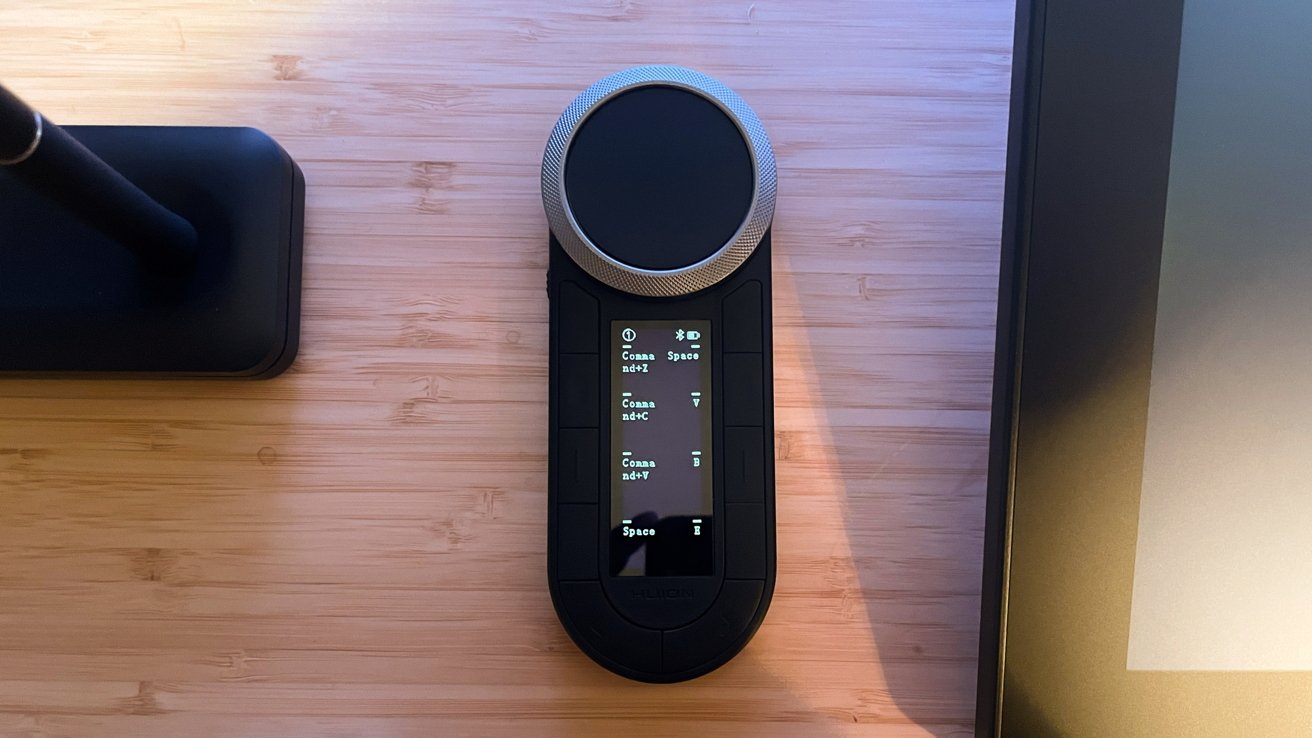
Kamvas Pro 24 (Gen 3) Review: The included Keydial Mini
The Keydial Mini has a bit of weight to it and the keys feel good, with a rotary wheel that reminds me of early iPod wheel clicking. Using the Huion driver, you can customize the key actions to press specific keys or replicate key command shortcuts.
I intend to experiment with using the Keydial Mini with my gaming PC to see if it would excel as a smaller keyboard for PC gaming as well. It is not the intended function, but I see an opportunity for multitasking, and I will take it.
While I like the Keydial Mini in general, I have one issue with it overall. It does not mount to the Pro 24 and sits on the desk near it.
This is not a deal breaker for me, but with my wireless Magic Keyboard at my left for key commands while I draw in Photoshop, the Keydial would end up lost in the shuffle. It becomes one more thing I need to reach for, when I'd like for it to be close and near the top or side of the Pro 24 for easy access.
For example, the Xencelabs Keydial slides over the edge of its pen display, and I can move it around as needed. I would like to see Huion do something like this in the future.
Kamvas Pro 24 (Gen 3) Review: Stands
The Pro 24 is a great pen display, but it suffers from the same issue that many, many other pen displays suffer. There is a pronounced lack of angle adjustment.
The Pro 24 includes durable, flip-down feet to give the display a slight elevation and angle. But if you are someone on the taller side or work at a low desk, long-term art sessions with the Pro 24 will affect your posture and neck.
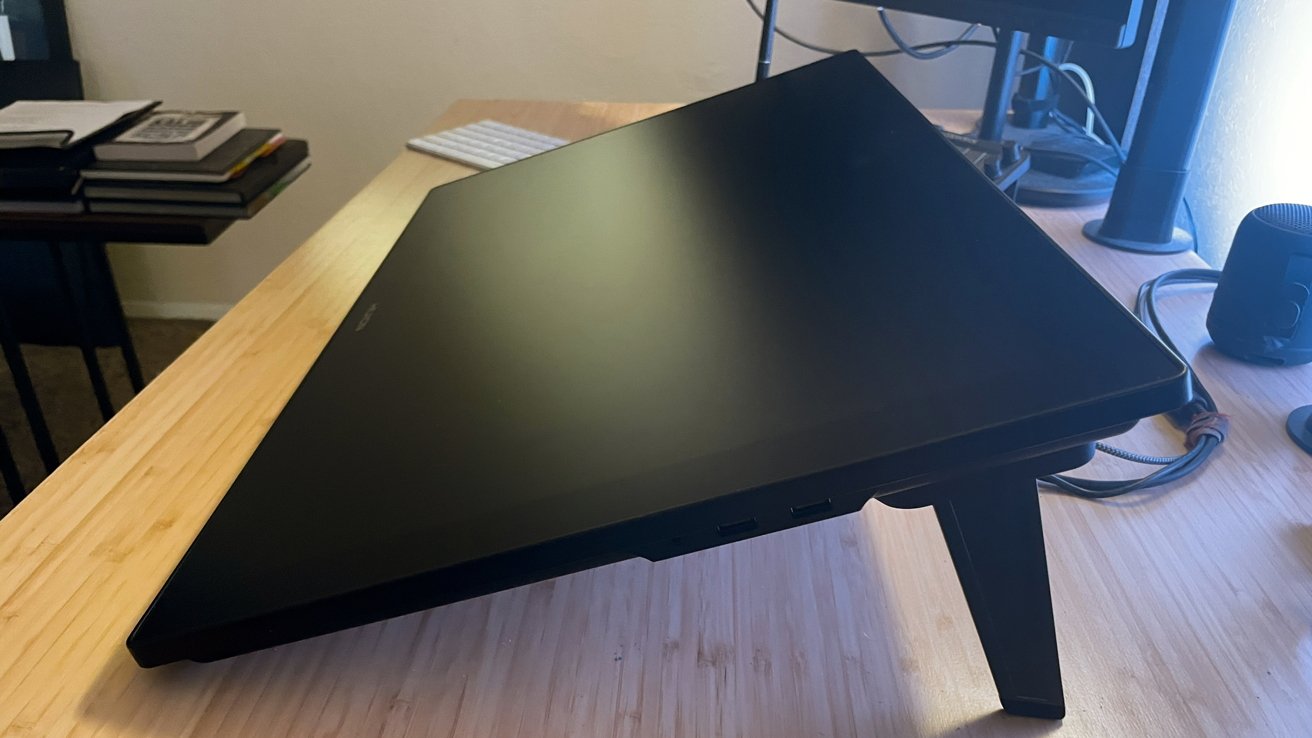
Kamvas Pro 24 (Gen 3) Review: The built-in stand works, but you can get better.
Huion sells a variety of foldable stands in its online store, and the built-in VESA mount does allow for the use of Ergotron or other sturdy monitor swing arms as a mounting option.
Kamvas Pro 24 (Gen 3) Review: Cost
The Kamvas Pro 24 (Gen 3) retails in the Huion online shop [https://store.huion.com/products/kamvas-pro-24-gen-3] for $1,399, with a variety of optional accessories and bundles available with purchase.
Wacom sells the Cintiq Pro 22 at $2,999, and Xencelabs offers its Pen Display 24 for $1,749, making the Pro 24 an excellent value for what you receive.
I own and use a Xencelabs Pen Display 24 as my daily use display, and I have used it for years. It is a great pen display, but with the strides Huion is taking and the quality and cost of investment for the Pro 24, I will be hard-pressed when the time comes to replace my Xencelabs.
From the quality of the hardware to the new driver, to the display and the colors, the Pro 24 is outstanding.
The cost for buying into a pen display like the Kamvas Pro 24 (Gen 3) is always an investment. Unless you have a surplus of expendable funds, you should always shop and compare to find the best pen display for you and your needs.
The Pro 24 is an outstanding pen display for home and office work. Huion continues to improve with every release and at a lower cost than the leading pen display manufacturers.
Kamvas Pro 24 (Gen 3) Pros:
- Easy installation
- Beautiful display
- Zero fan noise
- USB-C ports
- Functional and practical Mini Keydial peripheral
- Native VESA mount options
Kamvas Pro 24 (Gen 3) Cons:
- Built in stand option is not great
- Likely additional cost for stand or swing arm
- Not an inexpensive investment, there are less expensive large tablets
Rating 4 out of 5
Where to buy the Kamvas Pro 24 (Gen 3)
The Kamvas Pro 24 (Gen 3) is currently available through the Huion online shop for $1,329, a $70 discount.