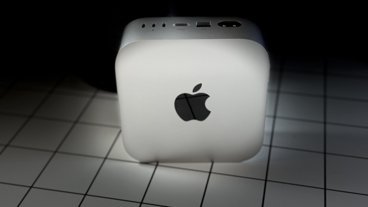
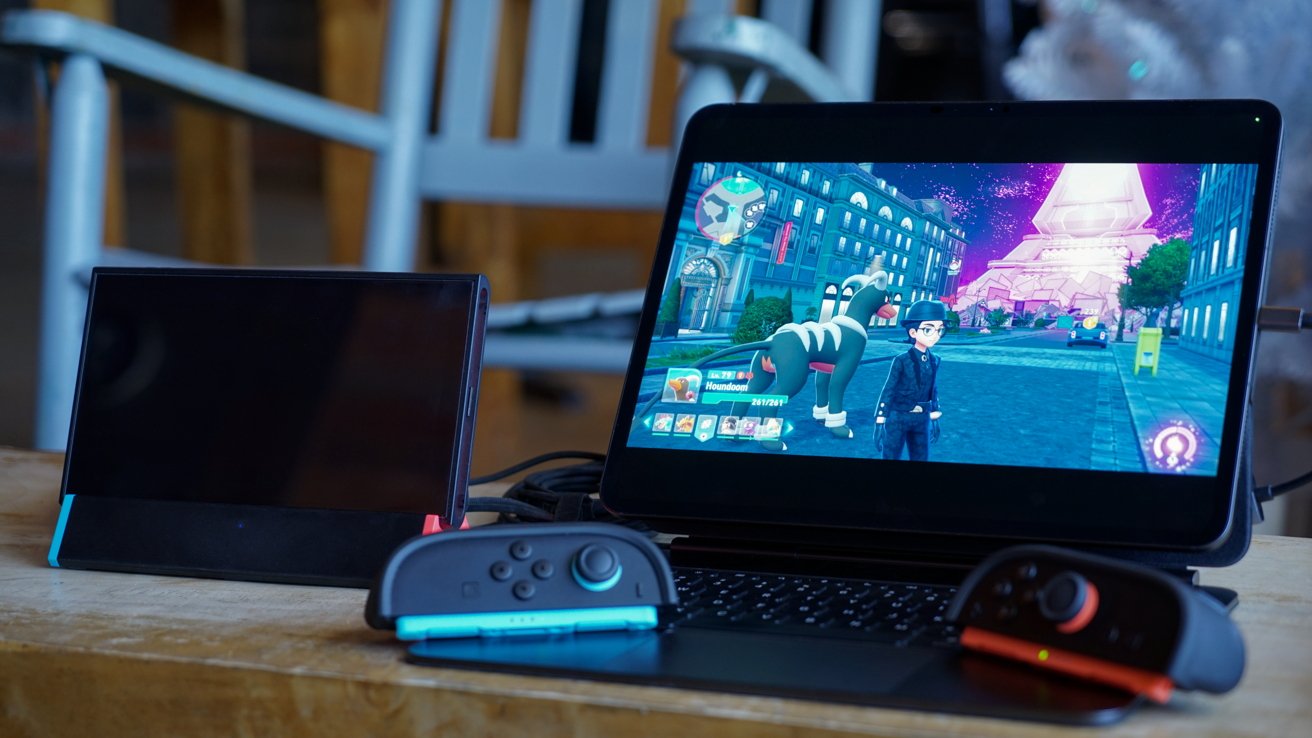
The Nintendo Switch 2 requires a compatible dock to work, and the official one is quite big, but Antank has a functioning dock that works great at a desk and on the go with your iPad Pro.
When Apple introduced support for connecting devices like capture cards via USB-C in iPadOS 17, my first idea was to use the iPad Pro as a portable Nintendo Switch display. Due to restrictions with how the Nintendo Switch 2 works, third-party docks are harder to find, but I managed to get one from Antank.
This tiny dock can be purchased with a LAN port for $40 from Amazon or without a LAN port for $36 from Amazon, so it's quite a bit cheaper than even the standard dock sold by Nintendo. It supports 4K output and has two USB-A ports for accessory charging.
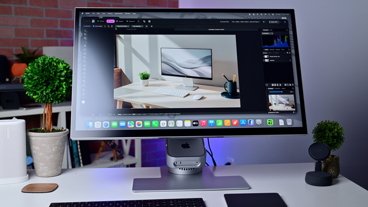
I've used it primarily at my desk to play Nintendo Switch on my Studio Display via a connected Thunderbolt 4 dock to my iPad Pro. It's less convoluted than it sounds, and even enables game streaming if I were into that kind of thing.
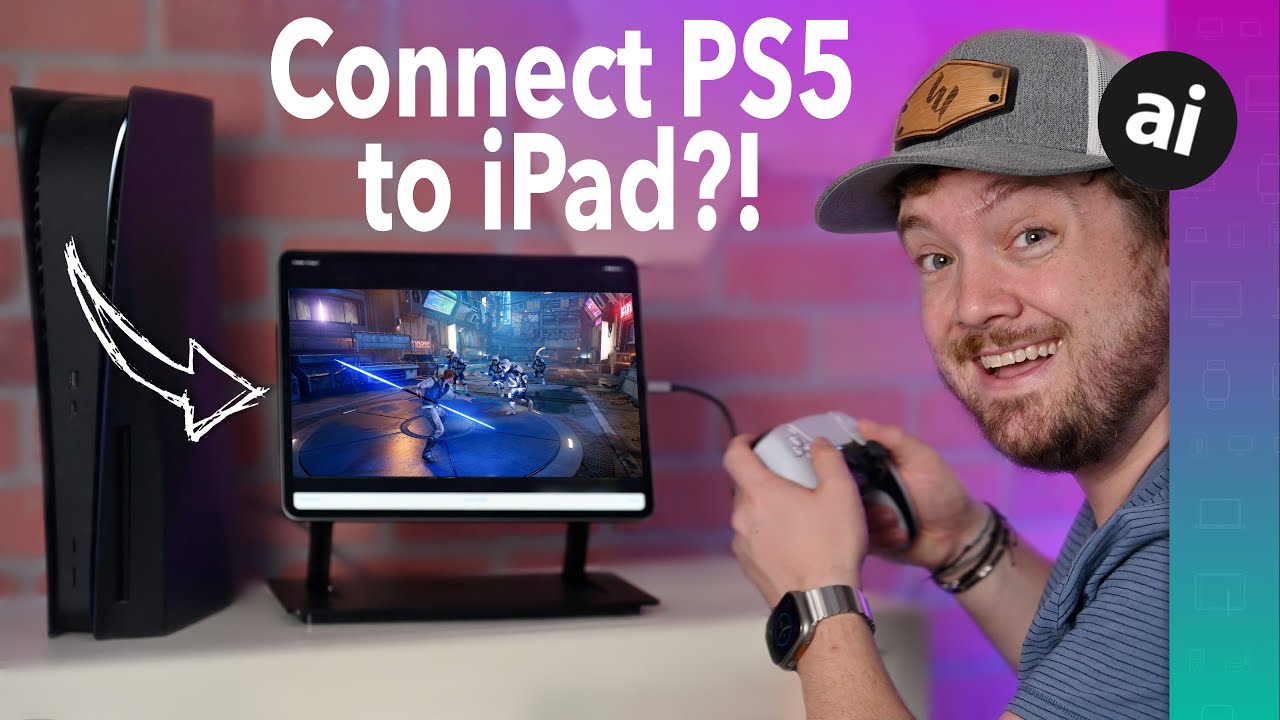
The embedded video above was recorded for iPadOS 17, but nothing has changed about how to get this setup working.
How to use your iPad as an external HDMI monitor
The capability to connect external HDMI devices to an iPad isn't new, so there's no need to get too into the weeds here. I am going to focus on setting up this particular Antank dock, but other setups should be similar.
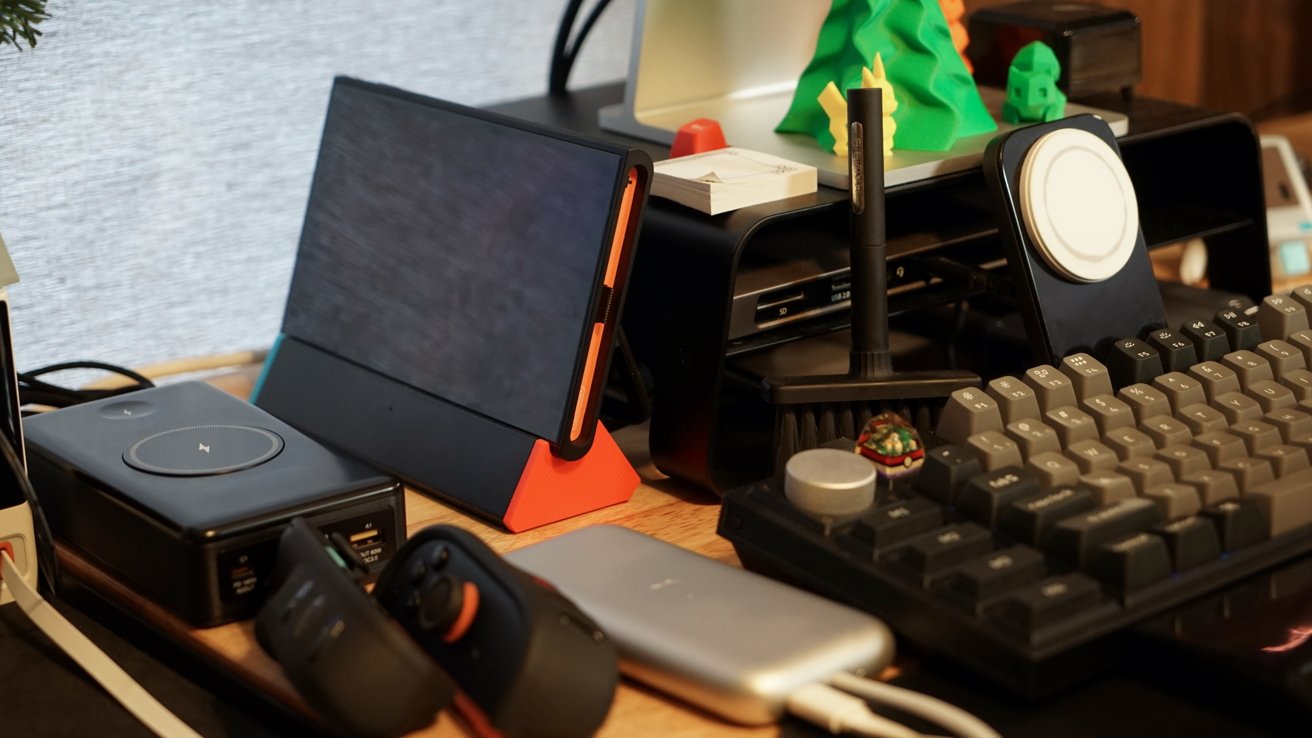
Use iPad to bring Nintendo Switch to Studio Display
Like before, the Nintendo Switch 2 can't simply connect directly to the iPad Pro through a capture card — it needs a powered dock. So, you'll need a power source for the dock that's powerful enough to drive it and a capture card to send the HDMI signal to the iPad.
I've got the Chargeasap Flash Pro Ultra and it can output 100W or 60W from its ports, and that's enough to power the dock. Of course, you can always just plug the dock into an outlet, but they're not always available, so I like having the battery, especially since it has passthrough charging.
Everything can be set up simply from a small backpack that fits the iPad Pro. You'll want the Nintendo Switch out in the open so it doesn't overheat from running inside a backpack.
My go-to app is Camo Studio, which also works for streaming. Audio control is still an issue in the app in spite of improvements to iPadOS, so your most-recent connected mic is the one used for streaming or voice capture.
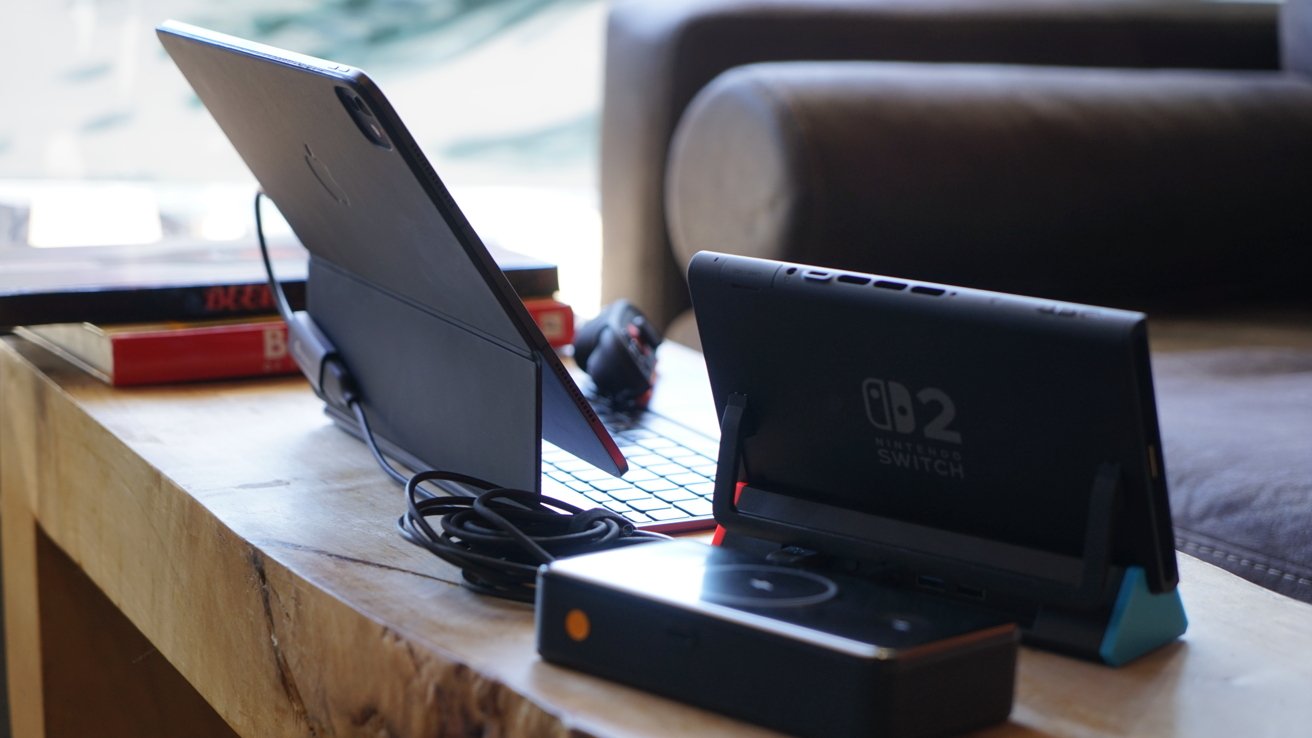
iPad Pro offers a bigger display for playing Switch 2 on the go
However, I've never had any issue with just using Camo Studio as a way to view and capture the games I'm playing over the capture card connection. I use an inexpensive dongle for the portable setup, while I have the ASUS TUF 4K capture card for my desk setup.
When at the desk, I keep the ASUS capture card connected to a Thunderbolt 4 dock at all times. The Nintendo Switch 2 dock connects to a USB-C cable and HDMI cable I keep at the ready, and the iPad Pro recognizes everything fine through its dock connection.
If you're looking to get a full 16:9 output to the Studio Display, then the Genki Studio app will do that for you. Note that it can be the only app running on the iPad and it will show the full-screen game view on the monitor.
If you're looking to power your iPad Pro while connecting to the Nintendo Switch, then you'll need a multi-port dock. This isn't an issue at the desk of course, as I'm using a Thunderbolt dock, but on the go, you'll need something like Satechi's Aluminum Stand & Hub for iPad Pro.
Step by step
In case you'd like the by-the-numbers instructions, here's how to get your iPad Pro working as a Nintendo Switch 2 monitor.
- Ensure the iPad is up to date, has a USB-C port, and has a video capture app installed.
- Connect the Nintendo Switch 2 dock to power and connect the Nintendo Switch to the Dock.
- Connect an HDMI cable to the Nintendo Switch dock then to the USB-C to HDMI capture card dongle (or desktop capture card).
- Connect the capture card dongle directly to the iPad's USB-C port, portable multiport adaptor, or desktop Thunderbolt dock connected to iPad Pro.
- Open the video capture app on iPad and ensure it is ready for incoming video.
- Power on the Nintendo Switch 2 controller or Joy-Con paired with the console and wake the console. (Or power on any console or other connected device)
- The Nintendo Switch (or other) video output should appear in the app.
If you're going to try streaming from iPad, which is possible if convoluted, be sure to understand exactly how your capture card works. The ASUS model I use requires a desktop like my Mac mini to configure its audio levels via software.
While it isn't something I use often, it is nice to know it is possible to use my iPad Pro as a portable monitor. It offers a display twice the size of my Nintendo Switch 2, and it can capture game footage or even stream to Twitch if desired.
There are no doubt better ways to get this done, especially streaming, but if you're an iPad-only user, this is the option you've got. So rather than carrying a portable monitor and an iPad Pro, now you can carry just one.