Whether you're handing off an AirTag or trying to resolve pairing issues, knowing how to properly reset Apple's item tracker ensures you can set it up on a new iPhone easily.
Every AirTag can be associated with only a single Apple Account. If you want to gift your AirTag to another person, you'll need to reset it. While this does take a little effort, the whole process can be done in about a minute.
Before you get started, we highly recommend that all small children and pets are out of the area while you reset an AirTag. AirTags, for all their usefulness, are choking hazards and can cause internal damage if they pass through the digestive tract.
How to Reset AirTag 2
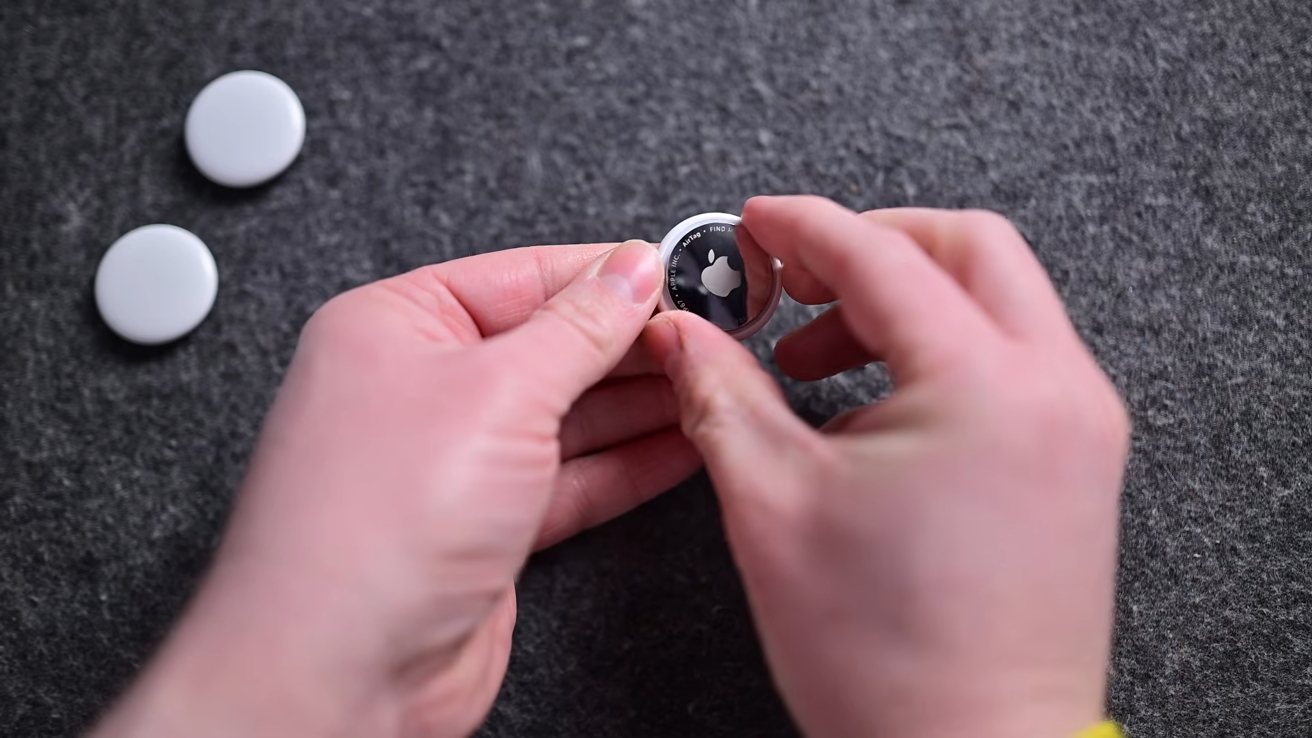
- Hold your AirTag with the silver battery cover face up
- Using firm pressure, press down on the battery cover with your thumbs and rotate the cover clockwise until it unlocks from the AirTag
- Remove the battery and wait for five seconds
- Replace the battery — it will make a sound alerting you that it is connected
- Repeat the process four more times for a total of five removals and insertions
- On the fifth time, the AirTag will make a different noise, signaling that it has been reset — the AirTag 2 may take longer to make the sound, you may need to wait up to 12 seconds
- Replace the battery cover
- Using firm pressure, twist the battery cover clockwise until it seats securely within the AirTag
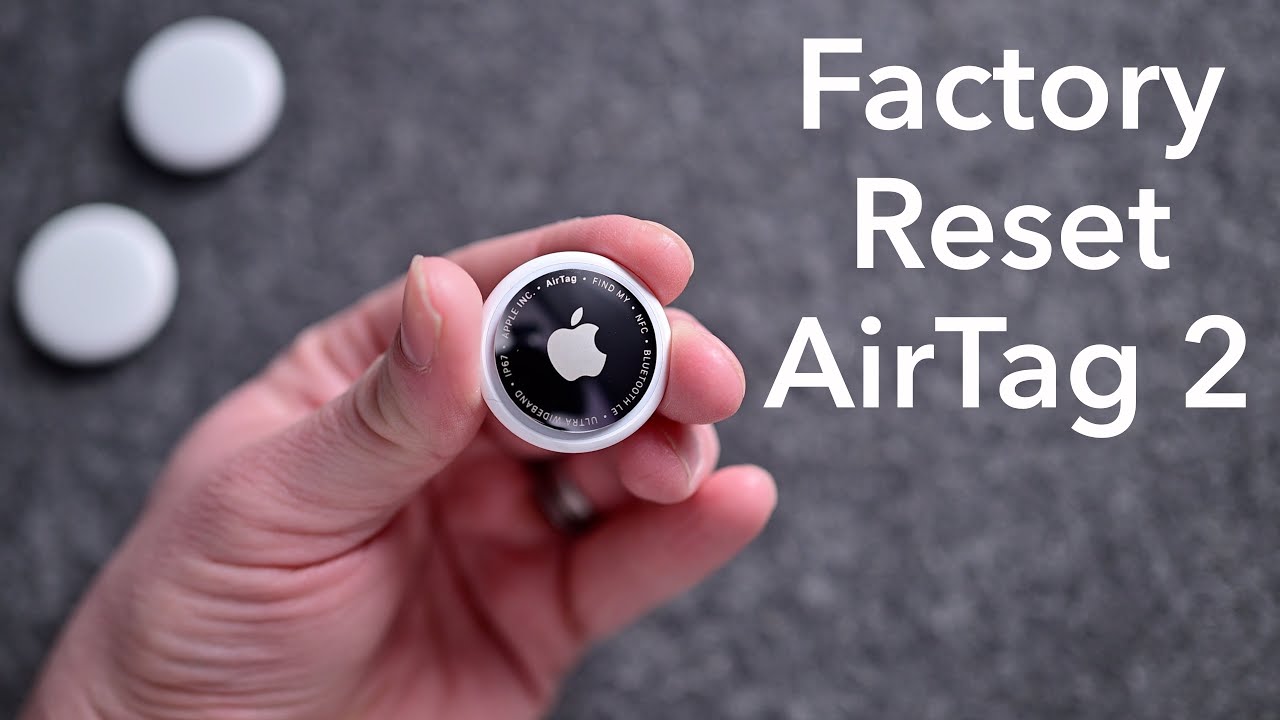
If you've had your AirTag for a while, this is a great time to replace the battery. The Apple AirTag uses a standard CR2032 battery, but Apple suggests you purchase one without a bitterant coating, as it can interfere with the connection.
Once everything has been reset, you'll need to pair your AirTag with your device of choice. Your iPhone should automatically detect the AirTag.
If it doesn't don't worry. Just head to the Find My app and tap the add button — it looks like a plus sign.
Once prompted, you'll just need to tap connect. From there, your iPhone will walk you through the process of pairing your AirTag to your device.
Getting to know AirTag
If you're unsure which generation AirTag you have, we've also got a simple way to figure out that, too.
Flip your AirTag over so the silver battery cover is facing you. If the text is in all caps and is missing the phrase "Designed by Apple in California," it's a second-generation AirTag.
If you see sentence case letters and "Designed by Apple in California" circling the Apple Logo, you've got yourself an original AirTag. Fortunately the pairing process between the two is roughly equivalent.