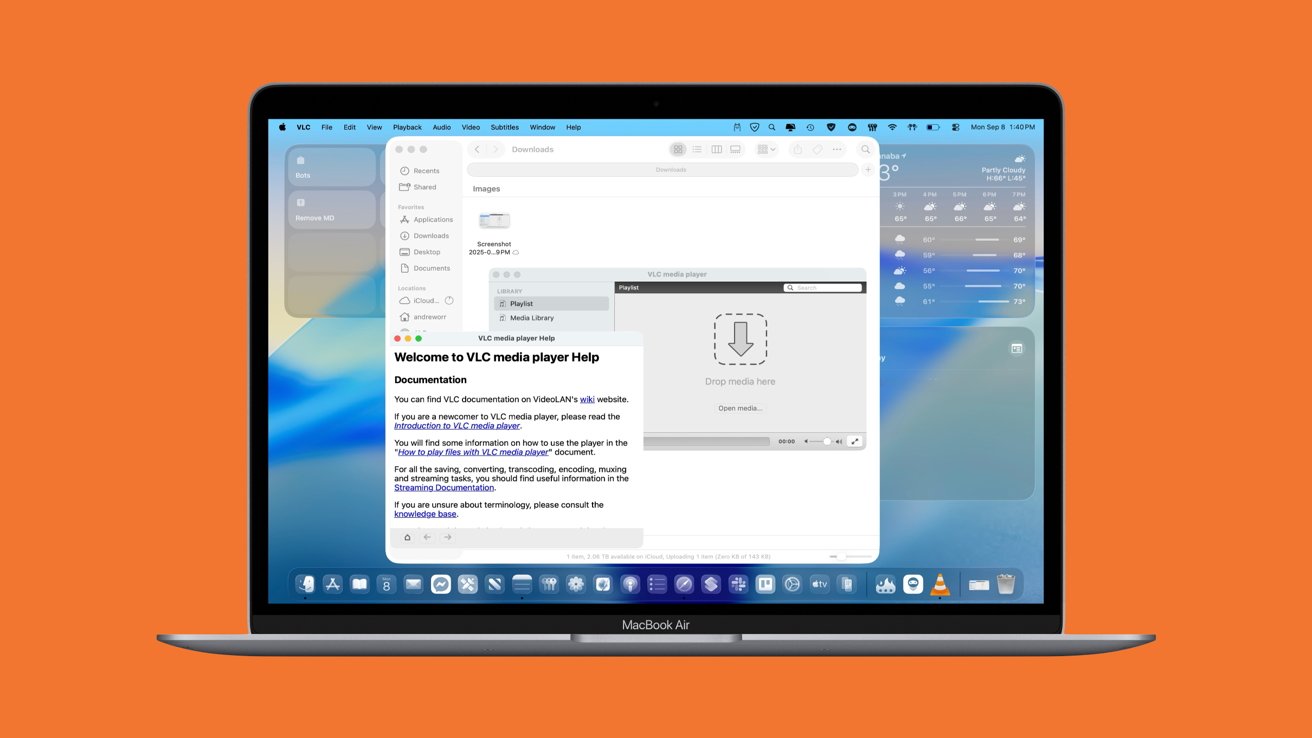
While tech giants kept building bloated media apps, a scrappy open-source project called VideoLan quietly ate their lunch by playing every weird file you could throw at it. Here's how to get the most out of it on Mac.
VLC is a free, open source media player that runs on Apple devices. Its main strength is wide format support without external codecs.
The program didn't come from a corporate skunkworks or a Silicon Valley incubator. It started in 1996 in Paris, when students just wanted to stream TV across campus.
They built a server called Video LAN Server (VLS) and a client called Video LAN Client (VLC), never imagining their late-night project would become a global staple. Most student hacks disappear when exams roll around, but VLC didn't fade.
In 2001 the school threw open the code under the GNU General Public License, and suddenly anyone in the world could tinker with it. That one decision turned a half-finished campus experiment into software that spread faster than the viruses people were downloading at the time.
The timing couldn't have been better.
Media formats were multiplying, pirated files were everywhere, and official players like Windows Media Player were choking on the chaos. VLC didn't promise beauty or convenience, just one simple truth — it would play whatever you threw at it.
VLC history and VideoLAN background
VLC media player started as a French student project and grew into the default fix for every awkward video file. The origin story goes back to Ecole Centrale Paris in 1996, where students created the VideoLAN project to test network capacity.
They weren't building consumer apps but rather experimenting with live television streams across campus. The tools came in VLS, the server software, and VLC, the client designed to play those streams.
Two years later, the students had a working system. Most academic projects would have faded at that point, but in February 2001 the school decided to release the code under the GNU General Public License.
Making the software open to everyone gave it room to grow far beyond the classroom. That decision turned a small campus experiment into the foundation for a global media player.
The timing turned out to be crucial. Media formats were multiplying, piracy was changing how people watched videos, and Windows Media Player couldn't keep up.
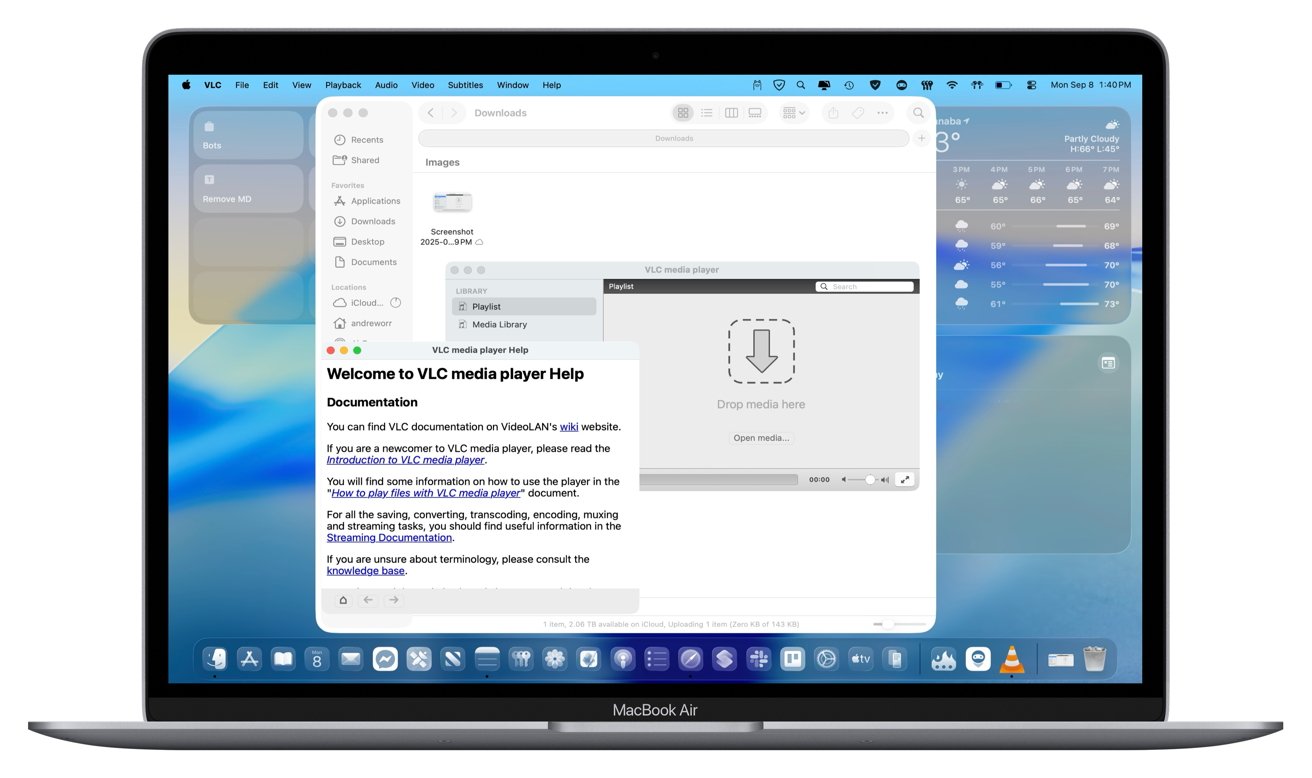
VLC showed up as a free, simple player that handled almost any file.
VLC showed up as a free, simple player that handled almost any file. It wasn't pretty, but it solved a problem people really had.
Opening the code let volunteers patch bugs, add features, and adapt VLC to new operating systems. Developers from dozens of countries joined, transforming a small academic project into a global collaboration.
The logo traces back to student life, where members of the networking club collected traffic cones after parties. One of those cones became the project's emblem, and in 2005 designer Richard Oiestad redrew it in higher quality.
By 2009, the project was too big to remain under the university's umbrella. It became a non-profit association headquartered in Paris, with Jean-Baptiste Kempf emerging as its leader.
Kempf still heads VideoLAN, serving as both advocate and coordinator for the sprawling community.
The rise of smartphones forced VideoLAN to rethink its approach. Developers started building an Android version in 2010, and it reached Google Play the following year.
On iOS, VLC arrived at the App Store in late 2010 but was soon pulled over licensing conflicts with Apple's terms. To solve that, the team relicensed VLC's engine under the more flexible LGPL in 2011.
LGPL allowed the player to return to iOS in 2013. The fix required heavy legal and technical effort, but it ensured VLC could remain available to iPhone and iPad users.
Microsoft users got their turn when VLC launched in the Windows Store in 2014. Developers later added versions for Windows Phone, Windows RT, and Xbox One.
The app faced criticism for its plain interface. Most users cared more about its ability to play unusual file types like MKV and FLAC.
Running a free project creates obvious challenges. To fund development, VideoLAN launched a professional arm called VideoLabs around 2012.
The company provided enterprise services while keeping VLC itself free. By 2017, VideoLabs was reporting roughly $1,172,300 in revenue, enough to sustain a team of developers.
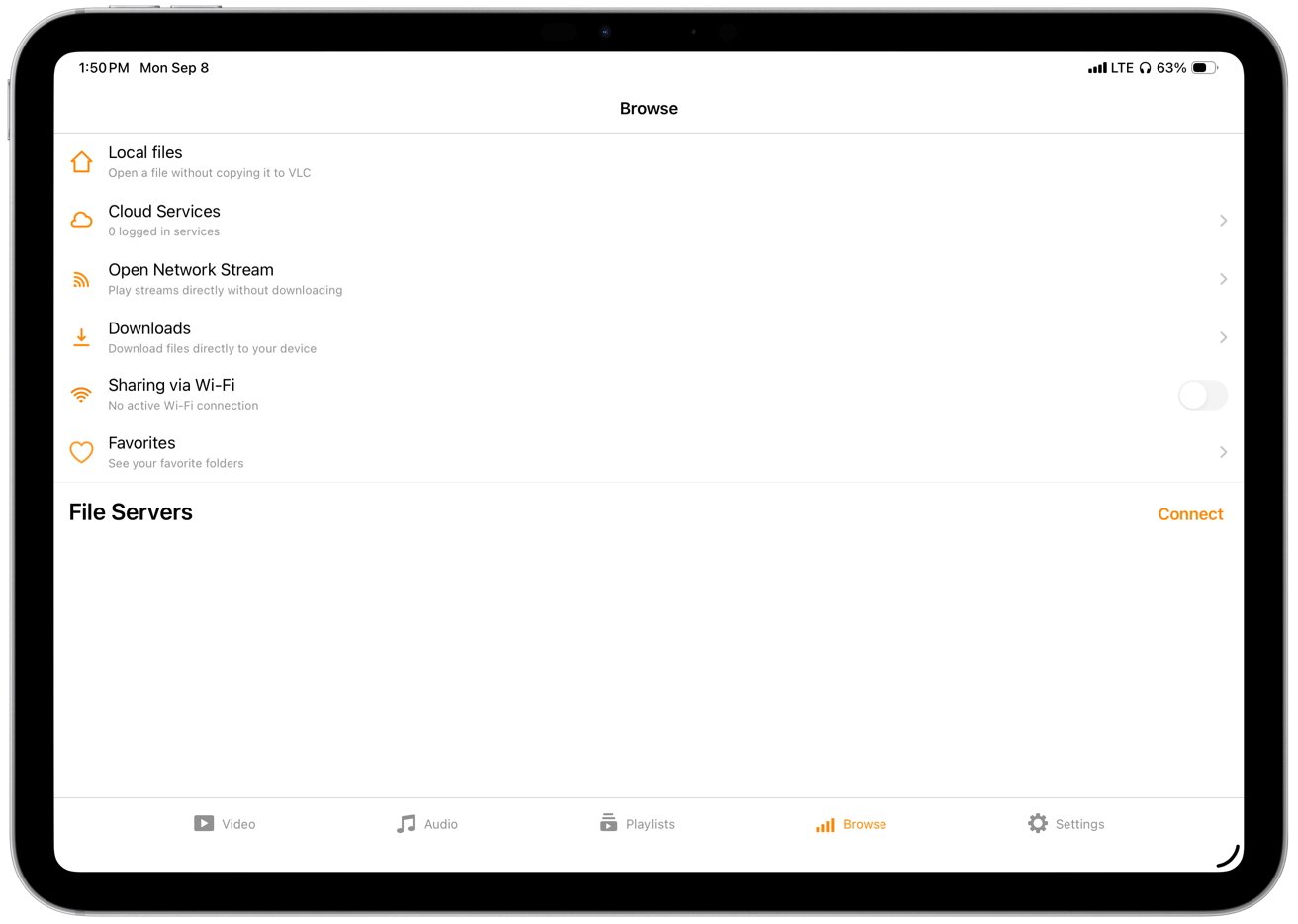
The app faced criticism for its plain interface.
The project stays alive because it's run by a non-profit with volunteer developers and modest costs, so there's no pressure to shut it down. VLC keeps going because the community wants it to.
VLC on Mac
Playlists live under the Playlist view, and you can enqueue files or folders, rearrange items, and save the queue as .xspf or .m3u for later. Subtitles are straightforward.
- Double click the file when VLC is set as the default player.
- Drag the file onto the VLC icon.
- Use File, Open File from the menu.
If an .srt or .ass file shares the base filename and folder with the video, VLC loads it automatically. You can also add subtitles manually from the Subtitle menu. Switching among multiple subtitle and audio tracks is available from the menus during playback.
Playback controls are mapped to the keyboard for speed. Space toggles play and pause. F toggles full screen.
Arrow keys seek, with Option and Shift modifiers for fine or larger jumps. Playback speed adjustments are in the Playback menu and also on bracket keys. VLC preserves audio pitch while changing speed.
Video conversion on Mac with VLC
VLC can adjust image and sound quickly. Use Video and Audio menus or Preferences to set aspect ratio, deinterlacing, brightness, contrast, and equalizer settings. These are useful for mismatched encodes or older interlaced content.
Apple's macOS is the only platform here where VLC handles conversions.
- Go to File, Convert or Stream.
- Add a source file, and choose a preset such as H.264 plus MP3 in an MP4 container.
- Set a file name and extension, and start.
You can customize profiles if needed. VLC shows progress by skimming through the media in the main window during conversion.
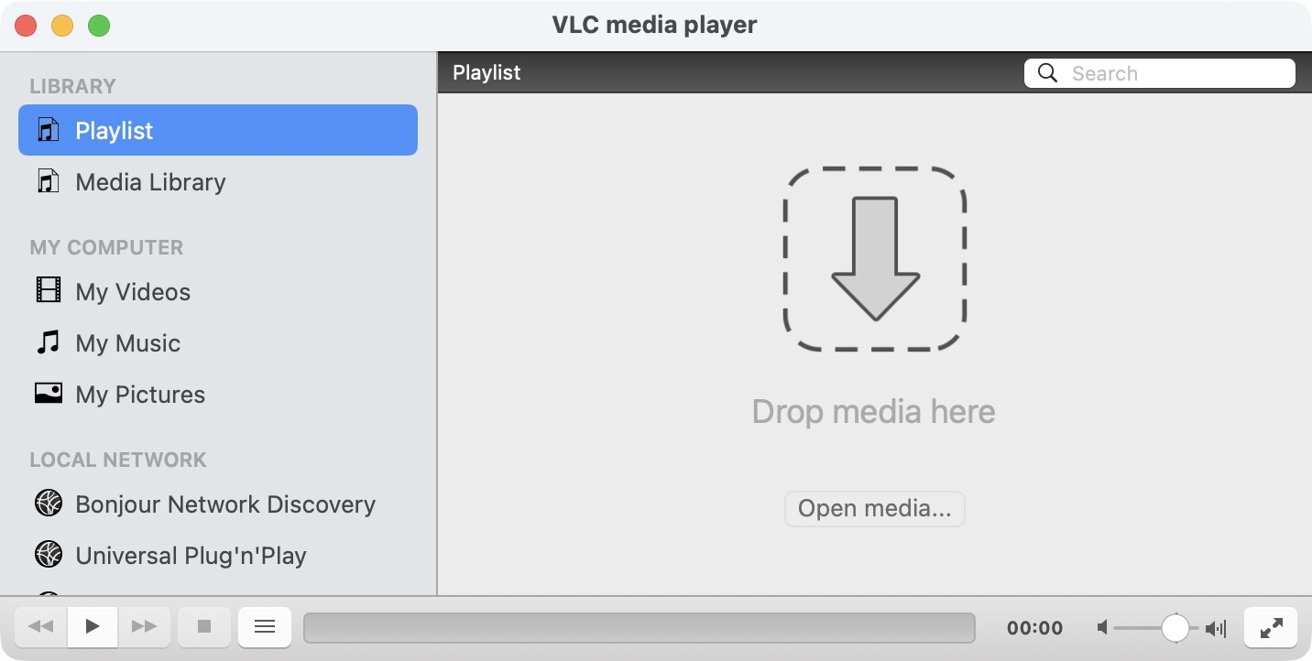
Use Video and Audio menus or Preferences to set aspect ratio, deinterlacing, brightness, contrast, and equalizer settings.
This tool is best for basic format changes or quick audio extraction. Batch work is possible through repeated setups or the command line interface. For high volume transcoding or advanced filters, a dedicated converter or ffmpeg is more flexible.
How to stream video on Mac with VLC
VLC opens network streams by selecting Open Network from the File menu. It can handle HTTP or HTTPS links, HLS playlists with .m3u8, and RTSP feeds from IP cameras.
Sites that require cookies or logins may not work unless parameters are provided. DRM-protected services aren't supported.
For shared folders, macOS Finder can mount SMB servers. Once mounted, open the files like local media from VLC. You can also paste smb or ftp URLs directly into Open Network for some setups, though mounting first is often easier when credentials are required.
VLC discovers DLNA and UPnP servers in Playlist view under Local Network. Pick a server to browse and play. Performance depends on your local networking and the bitrate of the media.
Troubleshooting VLC on Mac
Lip sync problems show up often across mixed encodes. Fix this with J and K to shift audio earlier or later by 50 milliseconds. The Track Synchronization panel under Window offers precise control for audio and subtitle delay and can store per file values.
Subtitle hiccups can happen for several reasons, so start by confirming that a subtitle track is enabled. If characters display incorrectly, adjust the text encoding in Preferences under Subtitles and OSD, with UTF-8 being the typical default.
Older files might require using Latin-1 or another encoding instead. If you are missing subtitles entirely, download them from a reliable site and load them manually.
Buffering on network streams can be improved by increasing network caching in Preferences. Switch to the Advanced view, open Input and Codecs, and raise the network caching value from the default to a few seconds.
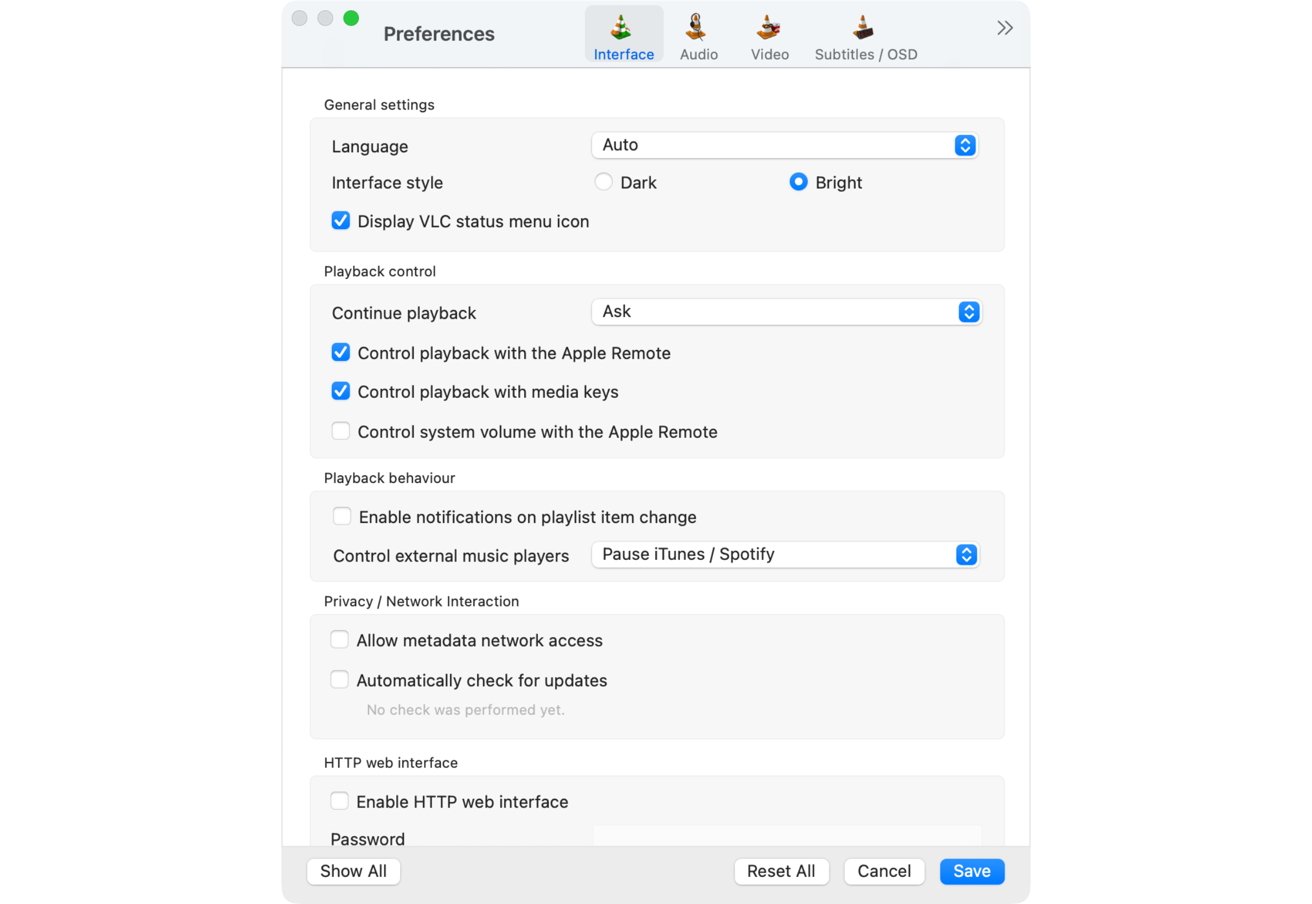
If you are missing subtitles entirely, download them from a reliable site and load them manually.
Caching helps with unstable streams at the cost of added delay for seeks and pauses. Try a wired connection for very high bitrate sources.
If video doesn't display but audio does, check codec support and update VLC to the latest release. Toggle hardware accelerated decoding in Input and Codecs. Some Macs handle particular profiles better in software or vice versa.
- Use Window, Media Information, Codec to inspect streams.
- For encrypted DVDs you may need libdvdcss.
Commercial Blu-ray playback is limited without extra libraries and keys.
Advanced VLC for Mac tips
The playlist and media library can store favorite folders for quick access, but VLC doesn't scrape artwork or metadata like a full library app. Save playlists when you want to preserve a sequence across sessions.
Speed control is granular and preserves pitch. Use it for lectures, tutorials, or replays you want to skim. External audio and subtitle tracks can be added during playback, which helps with fan subs or commentary.
VLC can cast to Chromecast from Playback > Renderer. That works best for formats the Chromecast decodes natively. VLC may transcode in some cases, but success varies.
For Apple TV, mirror your Mac display using system AirPlay and play full screen. This is a system level mirror, so performance depends on your network and the bitrate.
Power users can stream out to the network, record clips, and use video and audio filters. These are available from Stream and from the effects panels. They are handy for occasional needs like quick trims or overlays, though dedicated tools are better for heavy editing.
VLC on iPhone and iPad
VLC for iOS and iPadOS includes most playback features and solid network access. The app is free in the App Store. On first run, allow Local Network access so it can discover servers and cast devices.
There are several reliable ways to add media to your iPhone or iPad. The most direct is Finder file sharing on a Mac or iTunes on Windows.
- Connect your device.
- Open the Files tab.
- Drag files into the VLC container.
Cloud storage providers like iCloud Drive, Dropbox, Google Drive, OneDrive, and Box are supported. Link a service inside VLC and stream or download files from it. Streaming saves space.
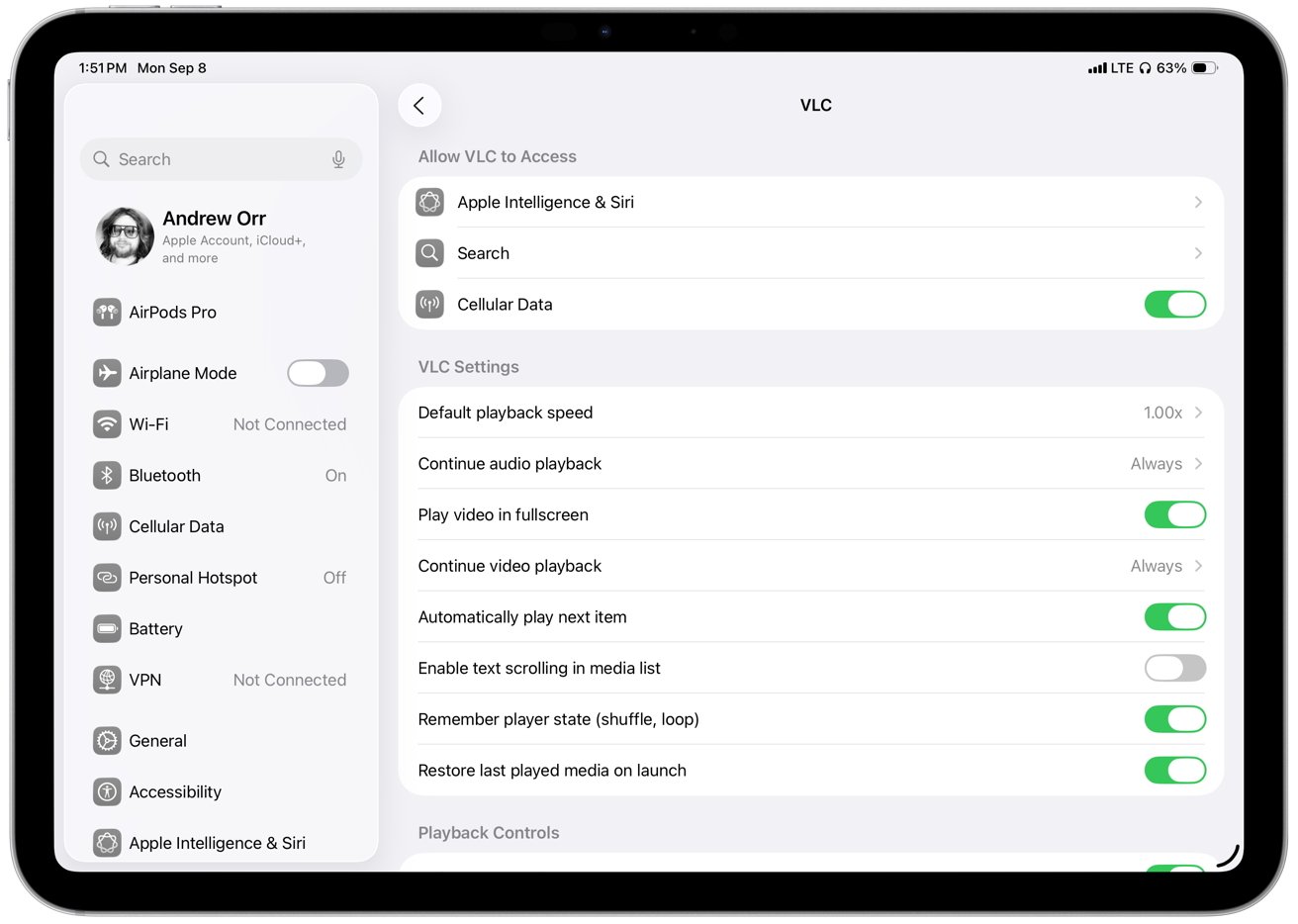
There are several reliable ways to add media to your iPhone or iPad.
Downloading offers smooth playback without relying on a network connection. VLC also includes a Wi-Fi upload feature.
- Go to the Network tab and turn on Sharing via Wi-Fi.
- The app will display a local address.
- Access this address from a browser on your computer.
- Drag files to upload them wirelessly.
- Uploaded files will appear instantly in the VLC library on your device.
You can use direct HTTP links in the Downloads section to fetch a file. For streaming without saving, use Open Network Stream and paste the URL.
You can also open files directly in the Files app, which avoids duplication and saves storage. The Share sheet lets you send a file to VLC from Mail or other apps.
Playback and subtitles in VLC for iOS
Inside the library, you can create folders, rename items, and sort by name, date, size, or type. The iPad layout offers a sidebar that speeds navigation and drag operations.
- Tap to play.
- The on screen player gives play and pause, seek, skip, speed, and controls for audio and subtitle tracks.
- VLC supports SRT and ASS styling and renders complex fonts and positions correctly.
For external subtitles, match the base filename and put the file into VLC alongside the video or load it from the subtitle menu during playback. Gesture controls are available for adjusting brightness, volume, and seeking on the screen.
- Swipe the left side of the screen to change brightness.
- Swipe the right side to change volume.
- Swipe horizontally for seeking.
- You can lock orientation or lock the screen to avoid accidental touches.
Background audio works for music and podcasts, letting you keep listening even when the screen is off. Videos can also run in Picture in Picture on supported devices, so you can keep watching while checking mail or browsing.
How to stream video on iPhone or iPad with VLC
Playback speed ranges from quarter to four times, and pitch correction keeps voices natural. This is helpful for long lectures or language learning.
- Open Network Stream takes direct URLs for web media, HLS playlists, and RTSP camera feeds.
- For local servers, the Network tab lists SMB shares, FTP, NFS, DLNA or UPnP servers, and Plex.
- Tap a server to browse, authenticate if required, and play.
- You can also download from a server to local storage for offline viewing.
Casting to Chromecast is built into the app.
- Tap the cast icon and pick your device.
- The file must be in a format that the Chromecast supports.
- On iOS, VLC does not always transcode on the fly due to device resource limits.
- For AirPlay, use Control Center to mirror the screen to an Apple TV.
- A wired USB-C or Lightning to HDMI adapter also works for direct video out.
Troubleshooting VLC on iPhone or iPad
If servers or Chromecast do not appear, confirm that iOS Settings show Local Network permission for VLC. The phone or tablet must be on the same Wi-Fi network as the server or cast device.
Next, network playback stutters, try downloading first for offline play. For live streams, check Wi-Fi strength and consider a lower bitrate source. Hardware decoding can be toggled inside VLC settings. Very high bitrate 4K video may push older devices.
No audio usually traces to volume, a muted switch, or a codec quirk with passthrough. Reduce volume boost if distortion appears. If a file crashes the app, test it on desktop to rule out corruption.
Subtitles that do not appear can be toggled on from the subtitle menu. If you don't have a subtitle file, the app can download one from OpenSubtitles during playback.
If timing is off, adjust audio and subtitle delay from the options menu. The controls match the tvOS approach even if the exact paths differ by version.
A known quirk is stalled audio playlists when the app is backgrounded with the screen off. Keeping VLC in the foreground or preventing auto lock avoids the issue, and updates continue to improve this behavior.
Advanced VLC for iOS tips
File management inside VLC is capable enough for trips and flights. You can create folders, move or delete files, and rename them. The library search finds items quickly. The app supports sorting options and provides thumbnails and metadata.

File management inside VLC is capable enough for trips and flights.
Background audio integrates with Control Center and lock screen controls. Picture in Picture makes video multitasking easy on iPad and newer iPhones. Gesture controls add quick access to brightness and volume.
Multiple audio and subtitle tracks are supported and switchable during playback. The OpenSubtitles integration is particularly useful on a TV or in transit when you don't have the right file handy.
How to add media to VLC on Apple TV
Remote Playback is the most direct approach.
- Open VLC on Apple TV and enable Remote Playback.
- The screen shows an address.
- Visit that address in a computer browser.
- Drag files into the page.
- The Apple TV caches the uploads as space allows.
You can also paste a network URL into that page to play a stream on the TV without typing it on the remote.
Local Network browsing lists SMB shares, NFS exports, FTP or SFTP servers, DLNA servers, and Plex. Authenticate with your credentials and browse folders using the Siri Remote.
Choose a file to stream on demand. If auto discovery misses a server, use manual connect and enter the address.
Network Stream lets you type or paste a direct URL for HLS and other supported protocols. Typing long links on tvOS is tedious. Use the Remote Playback browser page to paste the URL instead. VLC remembers recent streams for quick access.
Playback controls on Apple TV with VLC
Use the Siri Remote swipe and click controls to seek and pause. While a video plays, swipe down to open the overlay. There you can switch audio and subtitle tracks, download subtitles from OpenSubtitles, change playback speed, and view media information such as codec details or resolution.
Playback speed ranges from quarter speed to four times speed and preserves pitch. This is unusual for tvOS apps and is useful for tutorials or lectures watched on a TV.
If a video has chapters, VLC exposes them for navigation. Short taps on remote edges do small skips, while long swipes jump farther.
VLC is unable to play DRM-protected content, such as subscription services and FairPlay encrypted HLS. High bitrate encodes and specific HDR profiles may strain hardware.
Performance is enhanced when using Ethernet. For stuttering SMB files, try uploading them via Remote Playback or transcoding them on a computer first.
Troubleshooting VLC on Apple TV
Frequent buffering often signals a network bottleneck. Connect the Apple TV or the server directly with Ethernet.
You can use the 5GHz WiFi band for better performance. Apple tvOS lacks a caching slider, so improving the network is the best solution.
Connection failures often trace to credentials or sharing settings. If discovery fails, enable file sharing on the host system or connect manually with the full SMB path and login.
If subtitles don't show, use the overlay Track Selection panel to confirm a track is enabled and use the Download subtitles option if no file is present. For remote uploads, re-add the subtitle file if pairing fails.
Audio sync problems can be adjusted using delay settings in the overlay menus, and updates enhance these controls over time. If VLC crashes on a specific file, test a smaller encode or try a different container.
Remote Playback requires the Apple TV to stay on that screen during uploads, and if the page is unreachable by hostname, use the numeric IP. Ensure both devices are on the same subnet.
Advanced VLC for tvOS tips
The Remote Playback web page functions as a basic remote. It supports simple play and seek commands, making it convenient for use from a laptop.
Audio passthrough is available for receivers that support Dolby Digital or DTS. AirPods Pro or Max can be used with Spatial Audio on tvOS for multichannel sources.
Discovery uses Bonjour and standard scans, allowing new servers to appear without configuration. Plex servers are listed and can be used directly.
This feature is beneficial for VLC decoding of formats the Plex app might not handle natively on tvOS.
Practical VLC tips across Apple platforms
Match filenames for effortless subtitles by using the same base name for the video and its .srt or .ass file. Keep both files in the same folder because VLC will usually detect and load the subtitle file automatically.
Prefer wired networking for the most demanding media. An Ethernet link to either the Apple TV or the NAS often solves buffering. For Wi-Fi, place devices close to the router and use 5 GHz channels.
Use native container and codec pairs for better casting. H.264 or H.265 inside MP4 or MKV typically works well with Chromecast and with Apple hardware decoders. Exotic codecs often force software decoding or fail to cast.
Keep VLC updated on all your devices because new releases improve codec support, fix bugs, and enhance stream handling. Updates come frequently, and they're worth installing.
Use desktop VLC to convert or normalize tricky files. When a file won't play on iOS or tvOS, transcode it on a Mac to a common baseline.
A good choice is H.264 video with AAC audio in an MP4 container. If PGS or other image-based subtitles cause problems on mobile, convert them to SRT when possible.
Adjust the caching settings on macOS for live streams that are unstable. Adding a few extra seconds of buffer can make choppy playback smooth, but keep in mind that longer caches can delay seeking.
Use WiFi upload on iPhone and iPad to quickly transfer files from a laptop without cables or iTunes. For large libraries, using cloud integrations or SMB browsing works better.
Mirror your Mac to Apple TV for one off cases where Chromecast or tvOS playback resists. It's not as elegant as native playback, but it works for presentations and casual viewing.
VLC on Apple devices won't bypass DRM or play subscription services that need protected pipelines. It also can't convert media on iOS or tvOS.
The app doesn't manage a full media library with artwork, rich metadata, or smart lists. If you want those features, use a media server like Plex or a dedicated library app.
Quick reference for VLC on Mac, iPhone, iPad, Apple TV
On macOS, VLC offers universal playback, conversion, adjustable caching, and full keyboard control. On iOS and iPadOS, it excels at portable playback, cloud and WiFi uploads, gesture controls, Picture in Picture, and Chromecast support.
On tvOS, its strengths are Remote Playback uploads, broad network server access, speed control, and onthefly subtitle downloads. Each platform plays to its strengths, giving you a smooth experience whether you're on a Mac, iPhone, iPad, or Apple TV.
If a file won't play on your phone or Apple TV, try it on your Mac first. If it works there, convert it to a more compatible format, and for stuttering network shares, either download the file or connect at least one device with a cable.
Use audio delay controls on any platform to fix sync problems, and stick with UTF-8 and simple SRT files to avoid subtitle issues. If a stream keeps stuttering, increase caching on macOS or switch to a lower bitrate version.
VLC is a helpful tool for Apple devices
VLC remains a versatile tool across Apple devices. On a Mac, it plays nearly anything, converts when needed, and streams from many sources.
On iPhone and iPad, it provides reliable playback, good network access, and flexible file intake without a computer. On Apple TV, it turns your living room screen into an open media receiver for your home library and unprotected streams.
Keep formats sensible, networking stable, and VLC updated for a smooth experience across Mac, iPhone, iPad, and Apple TV. Use desktop VLC to handle tricky files and mobile VLC for convenience and travel.
Use the Apple TV app when you want to watch from the couch. With these workflows and fixes, VLC plays what you have where you want it with minimal friction.