After all of the betas, all of the testing, and all of the bugs, it's ready. Apple's iPadOS 26 is the closest thing to macOS on an iPad that we're likely to get, and Apple's tablets are better for it.
For years, Apple sold the iPad lineup as an option for people who wanted a computer but not a laptop. What is a computer, anyway?
Apple very much believed that the iPad was a computer for getting work done just as much as it was a tablet for consuming content. For some, that was true. But for most, it was far from it.
Apple doesn't push the iPad as a laptop replacement anywhere near as much as it once did. And that's a shame, because with iPadOS 26, it finally is one.
I'm going to go against the usual review template by spoiling the ending. I'm a big fan of iPadOS 26.
I installed iPadOS 26 on my 11-inch iPad Pro and found that it instantly felt like a different device. It's finally a viable machine for more than catching up on YouTube, thanks in part to some multitasking upgrades that feel distinctly Mac-like.
The iPadOS 26 update isn't perfect, by any means, and my iPad Pro is still a tablet. But for the first time, it feels three-dimensional. Like it can do more than run one app at a time, ready for me to get stuff done.
But being able to do something, and actually wanting to do it, are two different things.
Yes, iPadOS 26 is lightyears ahead of iPadOS 18. But it's not macOS, no matter how much it pretends to be.
So, that leaves me with my iPad Pro running iPadOS 26. Let's find out together whether it can earn a place ahead of my Mac.
iPadOS 26 review: More than just a glow up
The first thing that you'll notice when you fire up an iPadOS 26 iPad, is Liquid Glass. It's the new look for iPads from here on out, and it's quite unlike anything you've used before.
Those of us old enough to remember the Aero Glass interface that was promised by Microsoft's early Windows Vista advertising will recognize Liquid Glass. But the difference here is that Apple shipped it. For better and for worse.
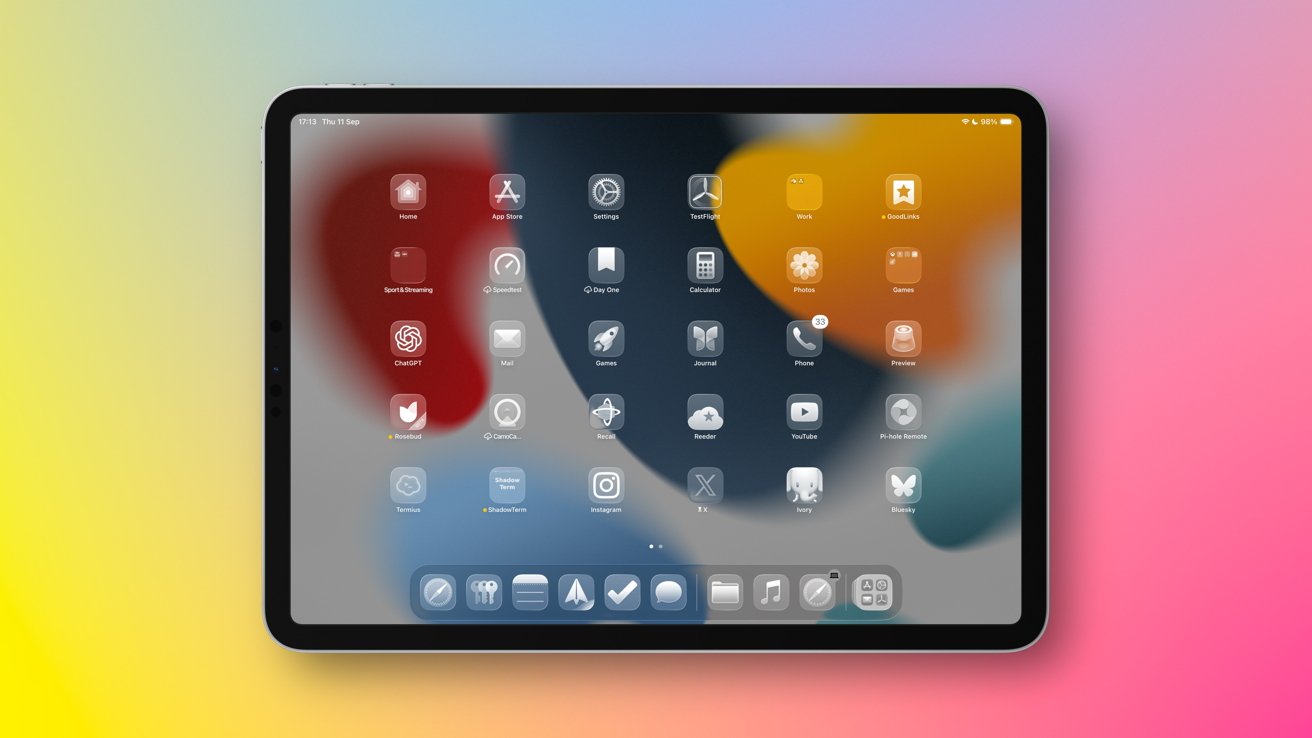
iPadOS 26 review: You can make everything look like glass
To look at, Liquid Glass is a stunner. Everything looks hyper-modern. Someone younger than me might say it looks "cool," or "sharp."
From the Lock Screen to app icons to the Settings app, Liquid Glass changes the way the iPad looks across the board. All of Apple's apps have been updated to support it, while third-party apps are already getting their own updates to keep up.
It's difficult to explain Liquid Glass in words, but I'll give it a college try.
Imagine those bubbles of condensation that slide down the outside of a nice, cold bottle. Now, imagine that bubble atop your iPad's display, and you'll have a good idea of what to expect from Liquid Glass.
I don't want that to come across as a slight, because it isn't. Not entirely.
But the point still stands. The way light bends under, through, and around that bubble is replicated in many ways across iPadOS 26's buttons, toggles, and more. It's a vibe, to be sure, and I think I like it.
But the thing is, I don't love it. I often find that the blur effect Liquid Glass applies to content as a button moves over it is a little too much. Like someone is trying a little too hard to make something look modern, if that makes sense.
But as someone who spends their days looking at iPhones, iPads, and Macs, it's true that the iPadOS 18 look was getting old. The new 2025 (maybe we should call it 2026) look is definitely refreshing. Different, if you will. And sometimes that's enough.
iPadOS 26 review: Multitasking messiah
I've already given the game away, but let's palette cleanse Liquid Glass with something purely functional — multitasking.
Apple has been trying to get iPad multitasking right for a couple of years at this point. It settled on Stage Manager, a system that was improved with iPadOS 18, but I avoided it at all costs.
iPadOS 26 review: Real multi-windowing comes to iPad
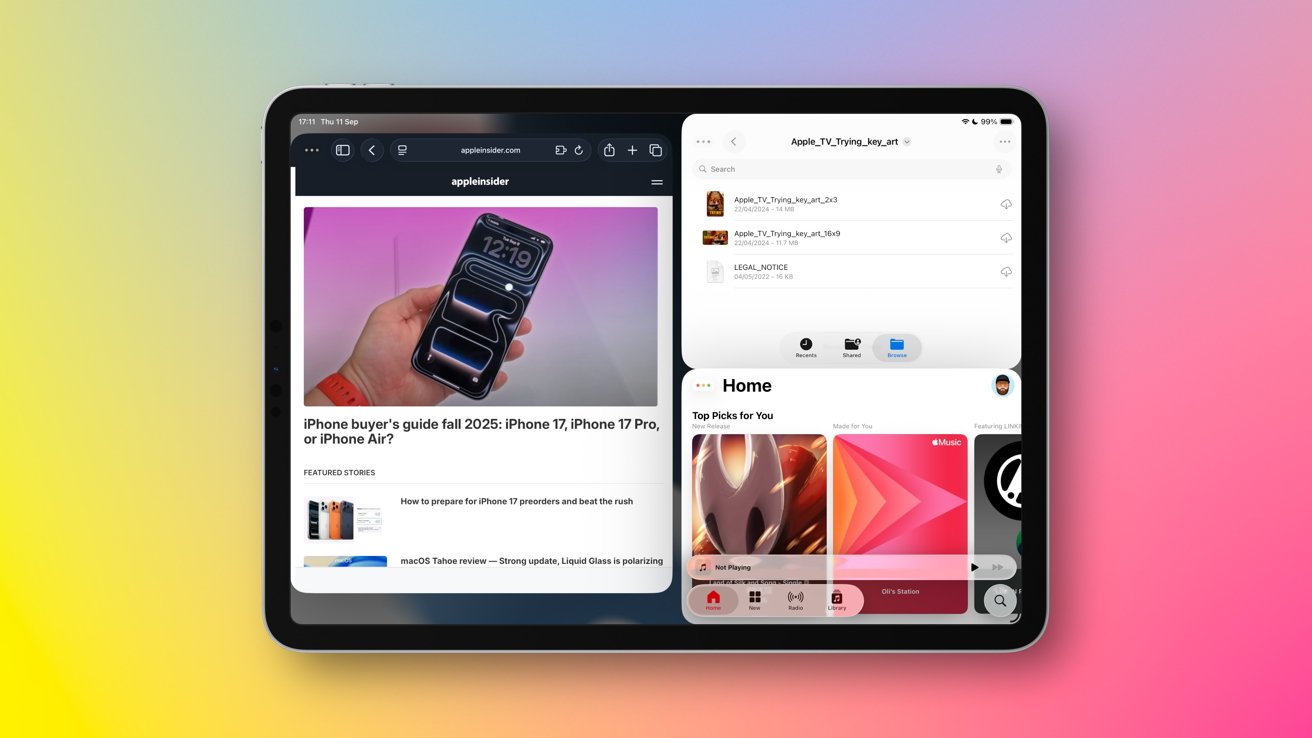
With iPadOS 26, the iPad's multitasking has been leveled up considerably. A redesigned windowing system makes the iPad less frustrating to use, especially for someone who uses multiple apps and switches between them regularly.
With iPadOS 26, you can open more than one window at once, sure. But you can then resize and rearrange them at will. Proper Mac-like window tiling is even possible, too.
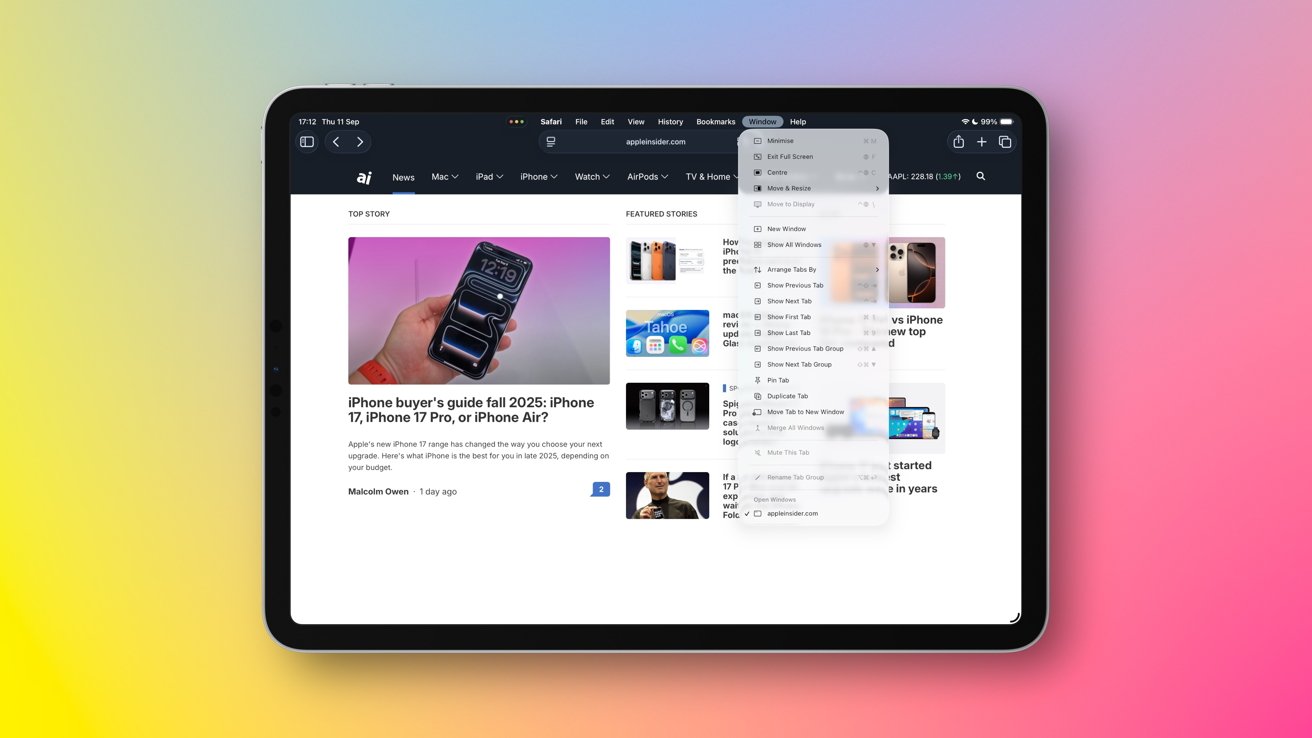
That isn't the only Mac-like feature to have jumped to the iPad this year, either. The famous traffic light buttons are present — and they work the same as they do on the Mac to boot.
Tap the green button, and you'll be given options to move the window to the left, right, top, or bottom edge of the display. Alternatively, you can open the window full-screen, or even tile it with other apps to make full use of bigger screens like the 13-inch M3 iPad Air.
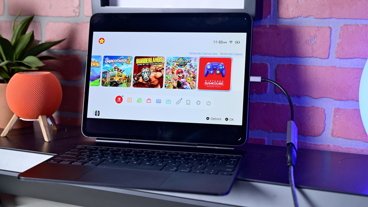
I'll admit, it's a bit of a squeeze on my 11-inch iPad Pro, but there's a secret weapon. Apple's iPads can be connected to a monitor and, if it's a modern M1 or later model, it'll work in multi-screen mode. And then the magic really happens.
The result is a big-screen multitasking experience that, for all intents and purposes, is like using a Mac. And yet, somehow, there's more.
Mac fans already love the menu bar, so its arrival on the iPad is very welcome indeed. It works as you'd expect, and tapping it gives you the same options Mac users have enjoyed for decades.
File, Edit, Format, Window, and more are all there, just waiting to be tapped or clicked. Oh, and almost forgot to mention that iPadOS 26 now has a proper mouse cursor. Finally.
iPadOS 26 review: An iPad has never been so Mac-like
For the first time since its debut 15 years ago, the iPad is a real, honest-to-goodness computer. And all it took was some windowing.
iPadOS 26 review: New and revamped apps
It wouldn't be a big new software update without a slew of new and updated apps, and iPadOS 26 is no different.
Some of the changes drive home the iPad's newfound Mac-like experience. Others are new licks of paint. Let's start with the former.
Files and Preview
Just when you didn't think that your Mac-loving heart could be filled any further, along comes Preview.
Yes, the app that offers quick and easy ways to view a range of files on the Mac has made its way tablet-side. But because it's on an iPad, it now supports using an Apple Pencil to make annotations — handy for marking up that PDF you've been meaning to get to.
The Preview app is backed up by a refreshed Files app, and it's all the better for it.
iPadOS 26 review: The Files app is like Finder in disguise
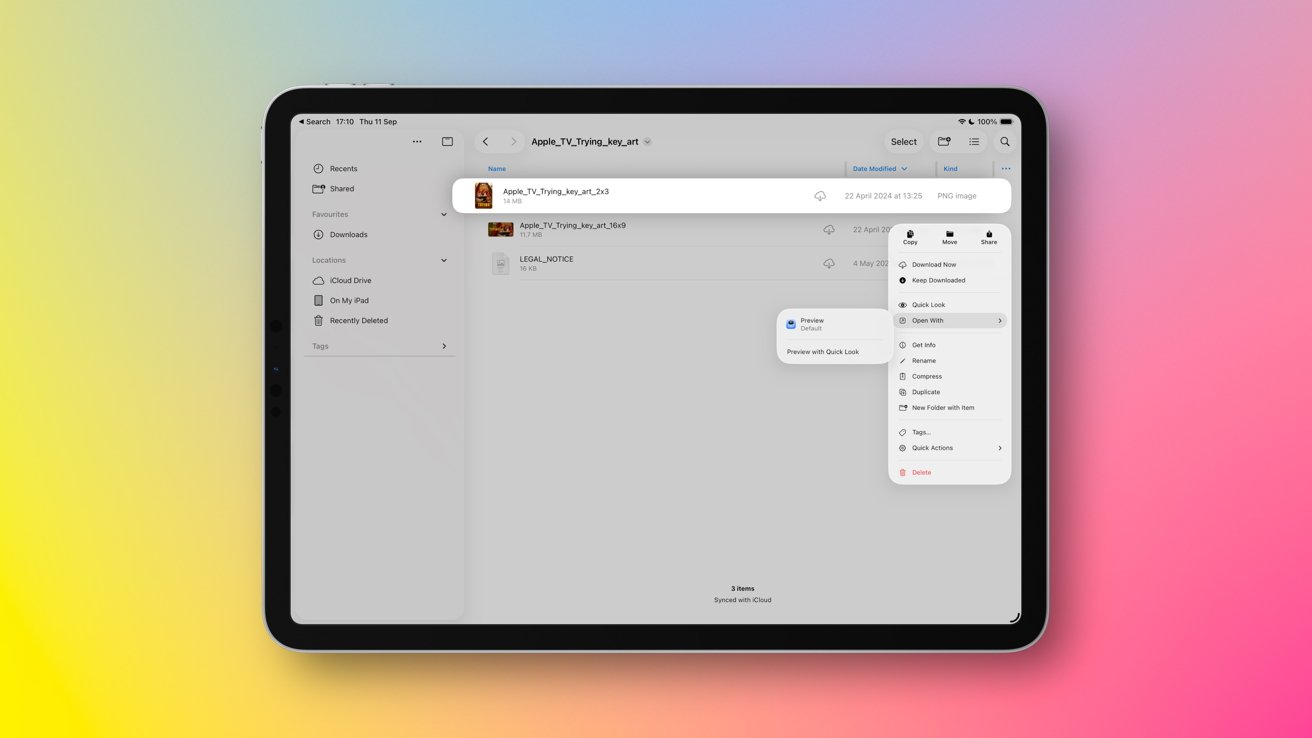
There's a pattern developing here, I know, but the Files app is more akin to that found on macOS than ever before. You can choose which apps are used when opening files by default, and there are new ways to view a folder's contents as well. You can even give folders colors and icons, if you really must.
The upgrades made to the Files app would be worthwhile on their own. Add Preview to the mix, and it's a whole new ballgame. Both make me feel more at home when being productive on an iPad
Messages, Phone, and Mail
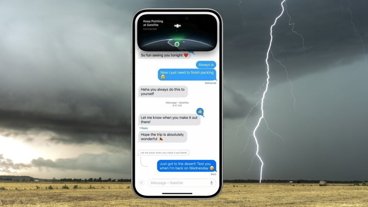
Messages is the go-to instant messaging app for millions of people, and it's now more customizable than ever before. You can choose a custom background for each chat, and you can run a poll the next time dinner decisions need to be made.
The Messages app now has a new place for messages from unknown numbers so you can screen them, and Contact Posters make it easier (and more fun) to see who's calling you.
The way the Messages app hides probable spam is a lifesaver, but being able to quickly check for false positives is just as important. I've enjoyed this feature across all of Apple's new software updates, and the iPad is no different.
Speaking of calling, the Phone app comes to the iPad with iPadOS 26. It brings with it new call screening features that can answer the call for you. If the caller gives you a good enough reason, you can take over and answer the call at will.
Live Translation is also available, as is Hold Assist. When enabled, Hold Assist can take your place in a call queue before calling you back when it's your turn — no more listening to terrible, scratchy hold music. And yes, this feature comes to the iPhone with iOS 26 as well.
Over in the Mail app, Apple Intelligence will sort your messages into categories so they're easier to find when you need them. They'll also be easier to ignore when you don't.
Categories include Primary, Transactions, Updates, and Promotions. You can disable the new categories and go back to the old way of doing things if you'd prefer. You can also move an email to a different category if Apple Intelligence got it wrong.
As a long-time Spark user, I still find the Mail app lacking. But these new improvements will help fans of third-party apps move back to Mail, depending on why they jumped ship in the first place.
For me, Mail still lacks the sharing features that Spark is so good at, among other things. But it's certainly getting better with age.
Safari, Camera, and Photos
Apple often uses these new software updates to make sweeping changes to the way Safari looks, and it's done it again this time out.
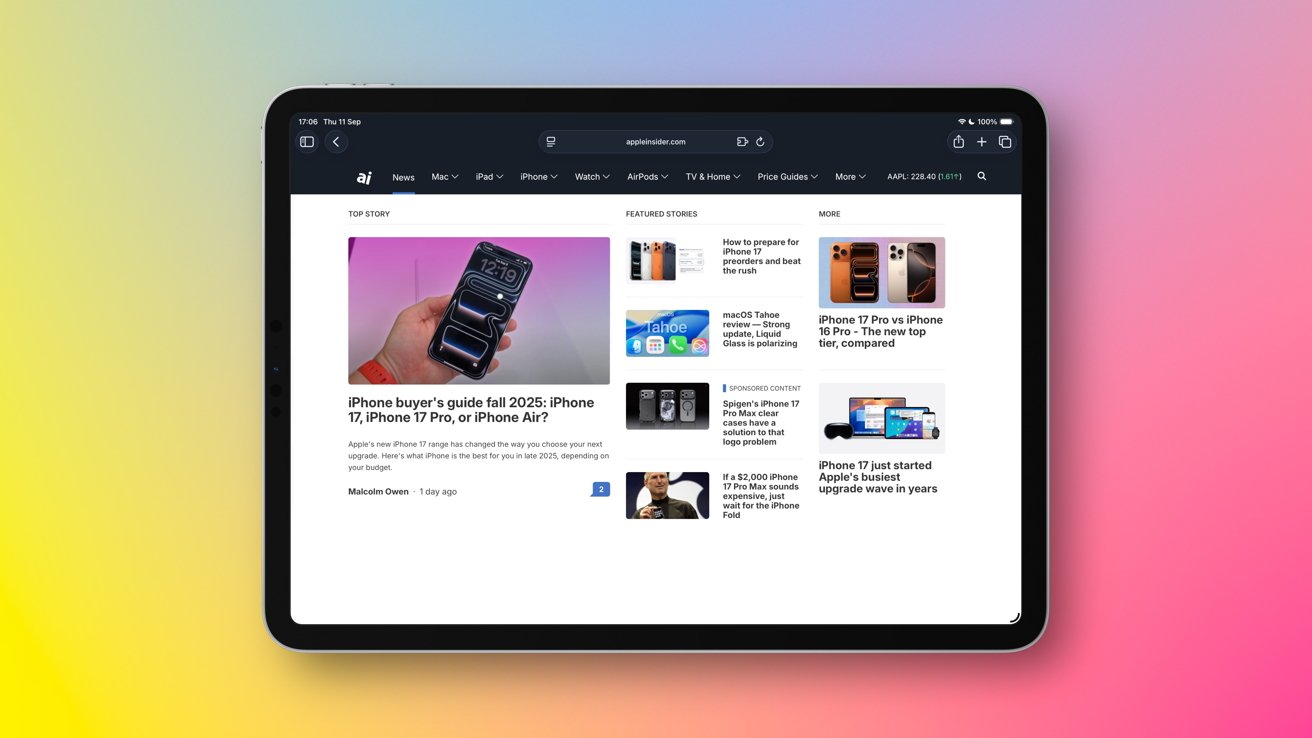
With iPadOS 26, the Liquid Glass refresh brings with it a new look that's familiar, but also different.
iPadOS 26 review: Apple's new software goes on Safari
The active tab is now easier to see thanks to rounded edges and a tint change, and the whole tab bar can be hidden when scrolling if you like.
In use, Apple has extended its private browsing features to prevent websites from tracking you from one site to another. HDR images are also supported within Safari, too.
Safari has always been my go-to browser on the iPad, as it is on the iPhone and Mac. The iPadOS 26 refresh feels new, yet familiar, which is always welcome.
Photographers will notice the new Camera layout immediately, with Apple choosing to simplify things with new Photo and Video tabs. Options for different modes and settings are hidden behind vertical swipes, but the overall look is much less cluttered — which means you can see more of what you want to capture.
Those of us with kids will be pleased to learn that iPadOS 26 now warns that a camera lens is dirty before it's too late. That alone should save countless photos from being smudge-filled blurs.
In the Photos app, those who take a lot of videos will be pleased to hear that video thumbnails now appear when searching. Apple's Spatial Scenes are also present, allowing 2D photos to be turned into faux-3D images by using their depth data.
This effect can be surprisingly impressive, especially on shots taken using Portrait Mode. I'm a fan, and the images look better on the bigger iPad screen than on the smaller iPhone.
Everything else
The iPadOS 26 update touches all of Apple's built-in apps to some degree. Some more than others.
The Apple Notes app continues to go from strength to strength, and the addition of support for exporting notes in Markdown is welcome.
The Reminders app now uses Apple Intelligence to categorize new items. It also suggests adding new tasks to a list depending on what you're doing on your iPad at any given moment — albeit with limited success in my testing. This will hopefully improve as Apple Intelligence does in the coming months.
FaceTime gains the same call screening and Live Translation features of the Phone app, while Podcasts has a new Enhance Dialogue option that makes it easier to hear what hosts are saying. More playback speed options have been added as well.
I'll be sticking with Overcast because it's just better at speeding voices up without mangling them. But like Apple's other apps, Podcasts is now better than ever. If you already use it, you'll love it even more.
The Journal app comes to the iPad with iPadOS 26, including Apple Pencil and handwriting support. I don't use the app myself, but I know people who do, and it's great to see Journal break free of the iPhone. The app also debuts on the Mac with macOS 26 Tahoe.
Gamers have a new app, too. The unimaginatively named Games is a home for all of your favorite titles, including those found via Apple Arcade. A Game Overlay feature can be used mid-game to see your friends and tweak settings.
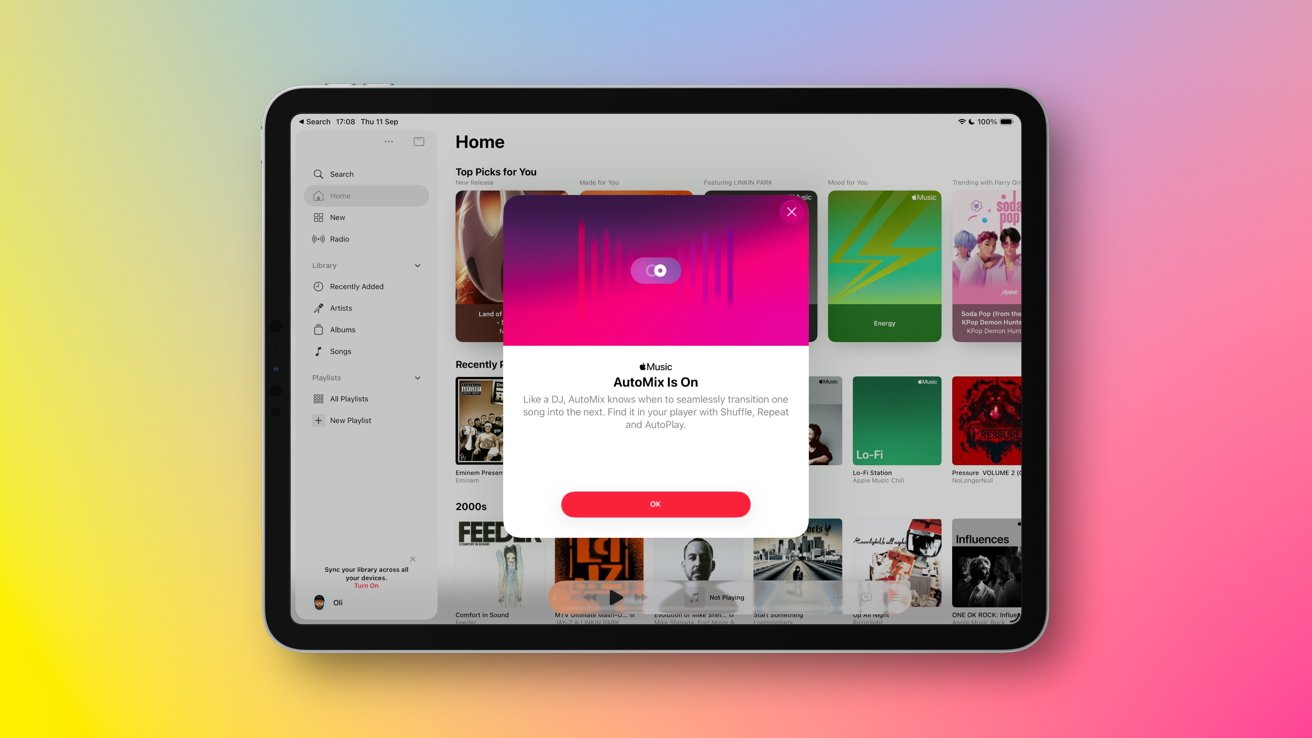
iPadOS 26 review: Apple Music goes from strength to strength
Apple Music subscribers have a new AutoMix feature to check out. When enabled, Apple Music will smooth out the transitions from one song to the next in a way that I found surprisingly impressive.
Other additions to Apple Music include pinned playlists so you can more easily find your favorites, and folders for easier playlist organization.
None of these changes will be enough to get diehard Spotify fans to switch to Apple Music. But for those of us who prefer Apple's app to Spotify's, these changes are welcome — especially pins and folders.
iPadOS 26 review: Accessibility
Apple is normally very good when it comes to accessibility, and iPadOS 26 goes even further.
A new Braille Access feature offers a new way for people to use a connected Braille display. A systemwide reading mode is also designed to make it easier for people with low vision to read on-screen content.
Apple also now makes it possible to temporarily use your accessibility settings on someone else's device. And App Store labels make it easier to figure out which apps support accessibility features like Voice Control and VoiceOver.
People using iPads in cars will be happy to hear that new options for Vehicle Motion Cues can help reduce motion sickness when on the go.
iPadOS 26 review: Apple Intelligence
We already covered the way Apple Intelligence can answer calls and hold your place in line, but it's also being used in other parts of iPadOS 26 as well.
Genmoji might not have taken the world by storm, but it now supports combining two or more emojis together to create something new, if that's your jam.
ChatGPT integration is also part of Apple Intelligence, and it's been upgraded to use the newer GPT-5 model. You'll also find ChatGPT in Image Playground, so you can make use of its image generation capabilities if you like.
Apple has also leveraged Apple Intelligence in shortcuts, with new actions available for advanced workflows. Apple uses the example of using Apple Intelligence to compare an audio transcription to some notes to check nothing was missed, for example.
While these improvements are welcome, Apple Intelligence is still some way off from where it needs to be. Siri falls back to ChatGPT far too often, and there are times it simply refuses to process a request.
Apple Intelligence will continue to improve, but how quickly, and how much, remains to be seen.
iPadOS 26 review: Lock and Home Screen
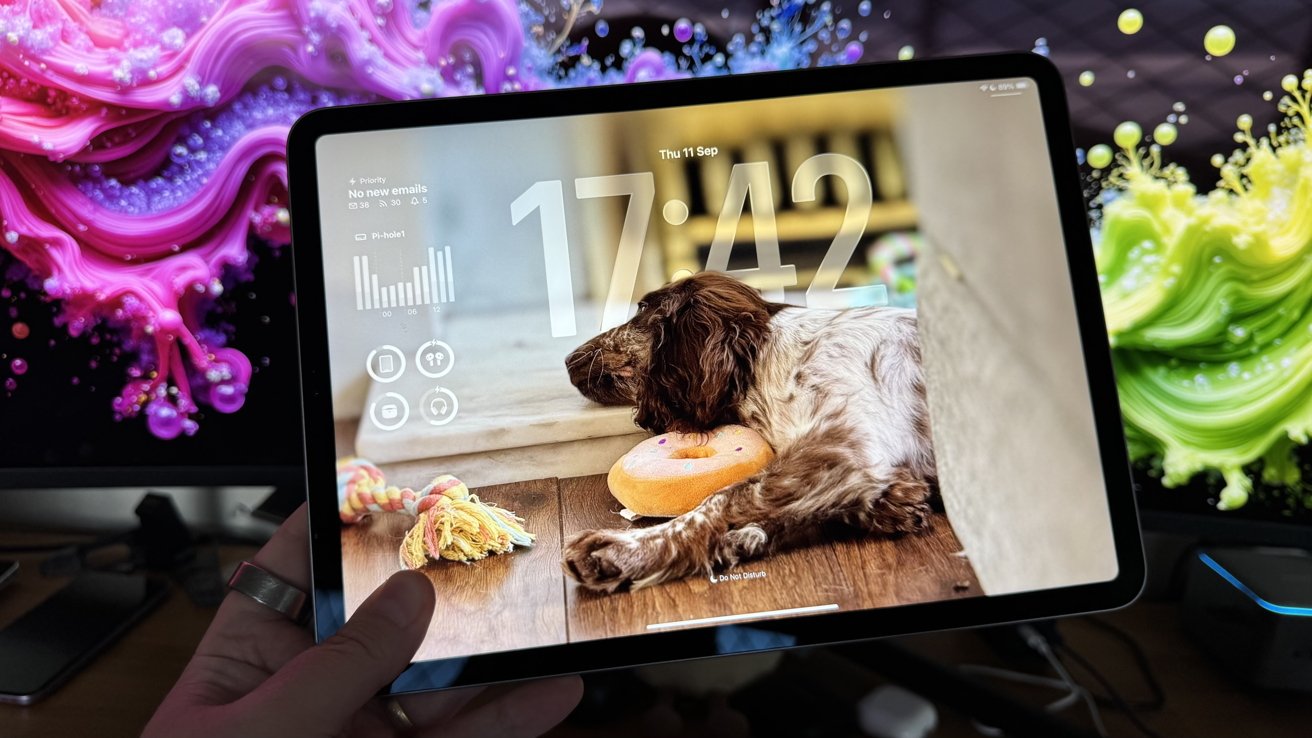
The Liquid Glass changes extend to the Lock Screen, including a new-look clock that now dynamically adjusts its size based on the wallpaper. It can be manually resized, but I found iPadOS 26 to do a good job of managing things itself.
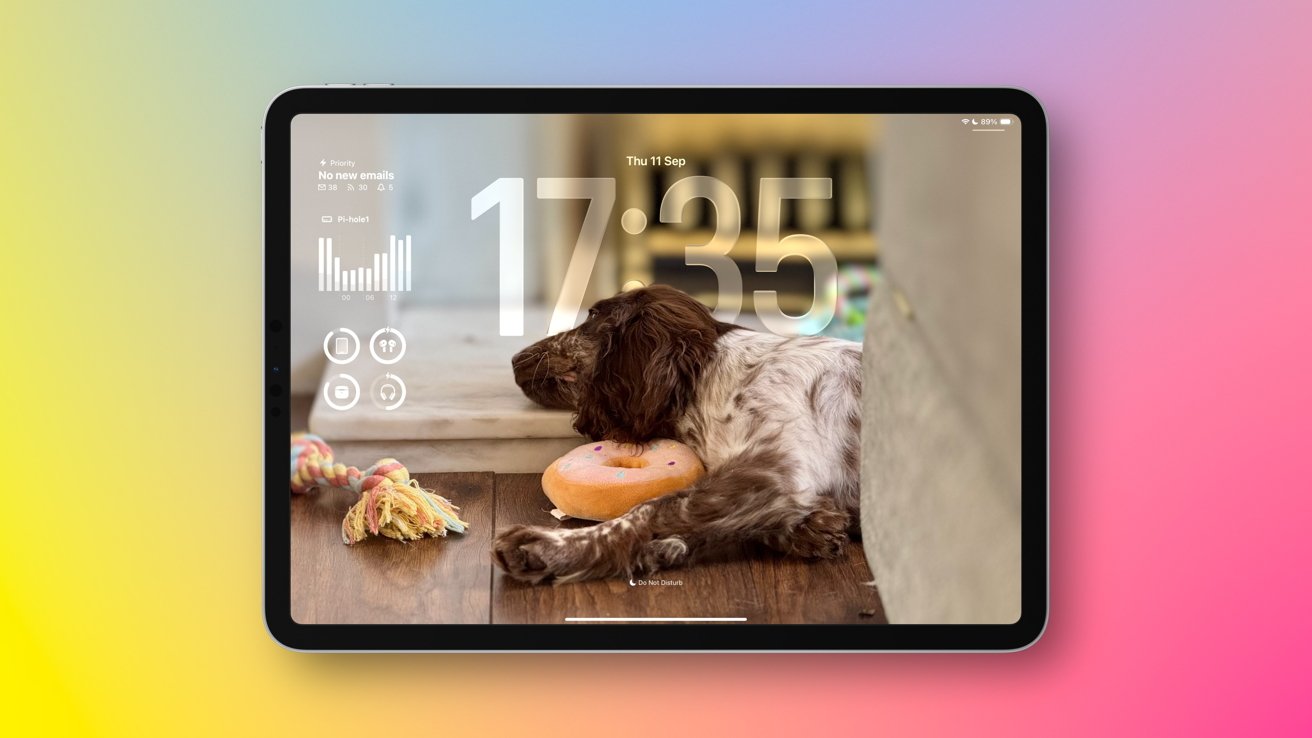
iPadOS 26 review: Notice how the clock hides behind Baxter's head
Choosing a wallpaper now means choosing between the standard 2D image or a new Spatial Scene. These images use depth data to create a 3D-like effect that moves and sways as you move the iPad. The effect is pretty cool, although ultimately you probably won't spend that much time looking at it.
Fans of the new Liquid Glass look can choose to have every icon use a new, clear aesthetic. It can make it difficult to discern one app from another, but that's the price you pay.
Personally, I just leave the icons as the developer intended. But I also wear nothing but black T-shirts and bland shorts, so I admit that might not be the best judge of aesthetics.
iPadOS 26 review: Compatibility
The iPadOS 26 update is available for almost all iPads that were supported by iPadOS 18. You can install iPadOS 26 on the following iPads, but not all features are available on older models with pre-M1 and A17 Pro chips.
- 3rd-gen. 12.9-inch iPad Pro and newer
- 1st-gen. 11-inch iPad Pro and newer
- 3rd-gen. iPad Air and newer
- 8th-gen. iPad and newer
- 5th-gen. iPad mini and newer
iPadOS 26 review: The best yet
The iPad is still the iPad, and iPadOS 26 doesn't change that. Nor should it, the iPad is the best tablet on the market for a reason. But that doesn't automatically make it a viable laptop replacement.
With iPadOS 26, the gap between Apple's tablets and laptops has never been smaller. The iPad now works much like a Mac, and that's a huge deal for those of us used to macOS.
But underneath, it's still iPadOS, for better and for worse. It's simplistic when it needs to be, yet powerful when you ask more of it.
I won't be dumping my MacBook Pro anytime soon, but I think I could if I had to. I think the same will go for a whole lot of people, too.
iPadOS 26 review: Pros
- New multitasking capabilities
- Mac-like menu bar
- Preview comes to the iPad
- Notes, Mail, and other Apple apps are better than ever
iPadOS 26 review: Cons
- You really need a 13-inch iPad to make the most of it
- Apple Intelligence still needs more work
Rating: 4 out of 5
This is undoubtedly the best iPadOS ever, and Apple's modern iPads are its best yet. Apple tablet fans have never had it so good.
With iPadOS 26, Apple's Mac fans also have a new alternative to their MacBook Airs and MacBook Pros. It still has an Apple logo on the back, and it's even better for website readers and notetakers.
For some, iPadOS 26 still won't go far enough. Those people want real macOS on their tablets. It might never come.
But for everyone else, iPadOS 26 is as close as it gets. And for them, that's close enough.