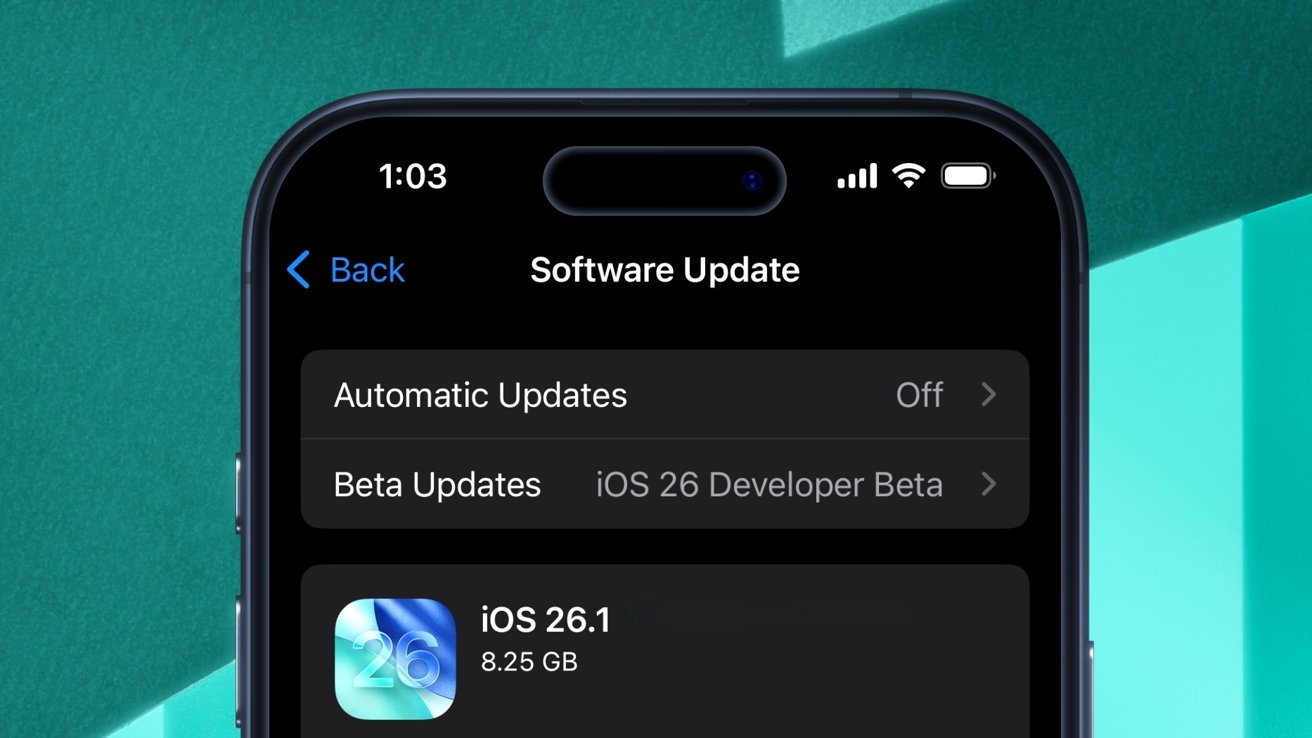
Apple's iOS 26.1 update is now available to all, featuring improved Apple Intelligence localization, along with new toggles for Liquid Glass, Local Capture, and more. Here's what's new.
Following the public release of iOS 26 on September 15, Apple has unveiled its next major operating system update. iOS 26.1 builds upon many of the visual changes and features previewed at WWDC 2025.
With the initial rollout of iOS 26, Apple Intelligence received several enhancements. Apple delivered new ChatGPT-powered styles for Image Playground, along with improvements to Shortcuts and Visual Intelligence.
Developers were given access to the Foundation Models framework as well, enabling Apple Intelligence features in third-party apps.
Apple's suite of AI-powered features also expanded with iOS 26, which offers a capability known as Live Translation. iOS 26.1 takes things a step further by making Live Translation and Apple Intelligence as a whole usable across additional languages.
New Apple Intelligence and Live Translation languages
In 2024, the iOS 18.1 update introduced Apple Intelligence, and now Apple's AI features are available to even more users. iOS 26.1 includes support for nine new languages and varieties.
-xl-xl.jpg)
iOS 26.1 expands the list of languages compatible with Apple Intelligence and Live Translation.
In addition to the languages supported by previous iOS versions, iOS 26.1 introduces support for:
- Chinese (Traditional)
- Danish
- Dutch
- Norwegian
- Portuguese (Portugal)
- Swedish
- Turkish
- Vietnamese
Live Translation was also updated, and it now supports the following additional languages:
- Chinese (Traditional)
- Chinese (Simplified)
- Japanese
- Korean
The Live Translation feature brings real-time language translation to iOS 26. It works across Messages, FaceTime, and other applications.
For instance, Live Translation can immediately translate text into other languages as you type out a message in iMessage. As texts in other languages come in, the Apple Intelligence feature can instantly translate them for you.
It also works with AirPods, provided they have Apple's H2 chip. This means Live Translation is compatible with AirPods 4, AirPods Pro 2, and AirPods Pro 3.
Users of Apple Intelligence features in India, meanwhile, will now see an additional region-based warning in some instances.
Specifically, the Clean Up tool in the Photos app will warn users if they cannot edit a specific image "due to laws and regulations." This was discovered in the release candidate build of iOS 26.1.
iOS 26.1 delivers more than just AI-related changes, though. The controversial Liquid Glass aesthetic, for example, received an additional customization option. Users now have more control of the user interface appearance, thanks to a dedicated toggle.
Liquid Glass now has a transparency toggle
When navigating to Settings > Display & Brightness on iPhone and iPad, users will see a new setting labeled "Liquid Glass." On the Mac, it's located in the Appearance menu, within the System Settings app.
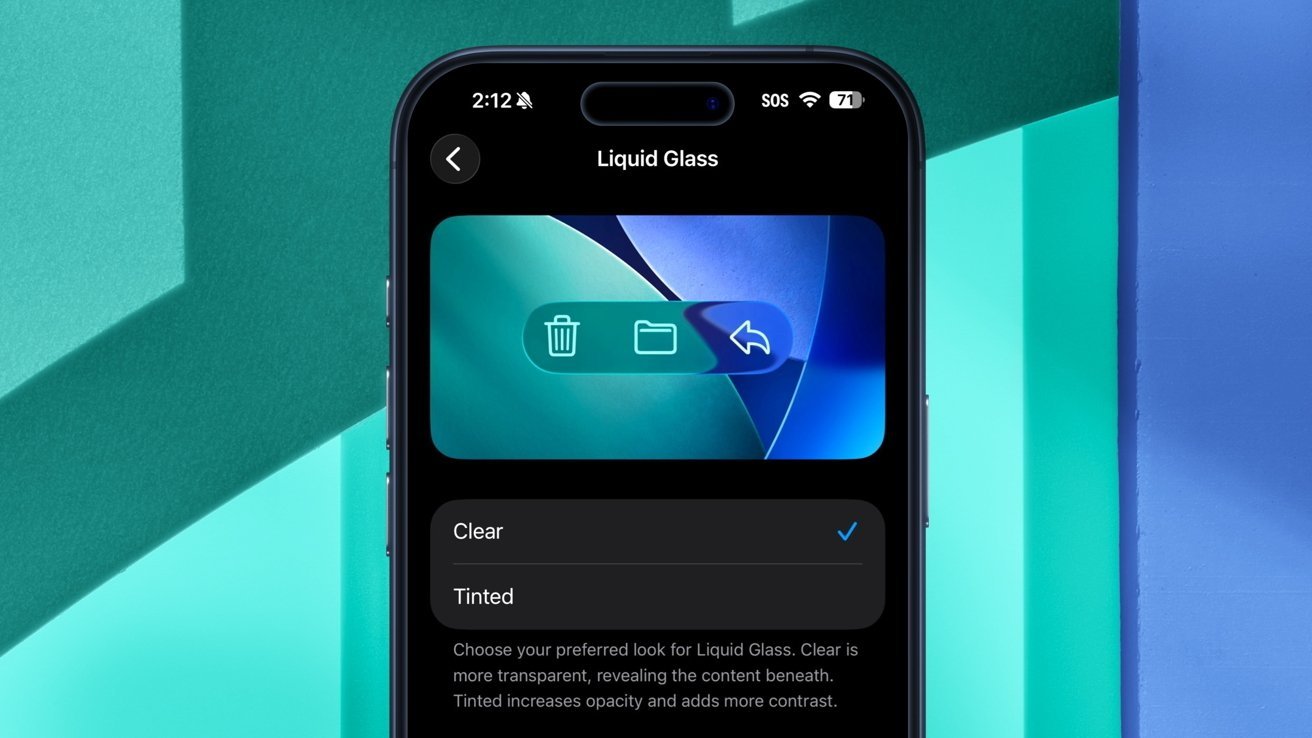
iOS 26.1 offers a new Liquid Glass toggle in the Settings app.
While it's now possible to personalize the look of Liquid Glass, there are strict limits to what users can do. Instead of an opacity slider or a series of appearance-related switches, the Liquid Glass customization toggle effectively presents users with a simple choice.
Apple only offers the following preset options: Clear and Tinted.
"Choose your preferred look for Liquid Glass. Clear is more transparent, revealing the content beneath. Tinted increases opacity and adds more contrast," says the description beneath the new toggle.
The Clear look is the default appearance of Liquid Glass, while the Tinted option makes user interface elements more opaque. The effects of this toggle are visible throughout the operating system, in areas like the Control Center, Notification Center, Dock, and more.
It's ultimately not much of a surprise that Apple added a toggle of this nature with the public release of iOS 26.1. The new toggle first surfaced in the fourth developer beta of iOS 26.1, released on October 20.
Throughout the iOS 26.0 developer beta cycle, the iPhone maker periodically made tweaks to the Liquid Glass material. Sometimes the new material was made more transparent, while other times Apple tested a darker, opaque look for Liquid Glass.
Still, the Liquid Glass transparency setting is not the only toggle that was introduced with iOS 26.1.
Camera Swipe toggle
With iOS 26.1, Apple made it possible to disable the Lock Screen swipe gesture that launches the Camera app.
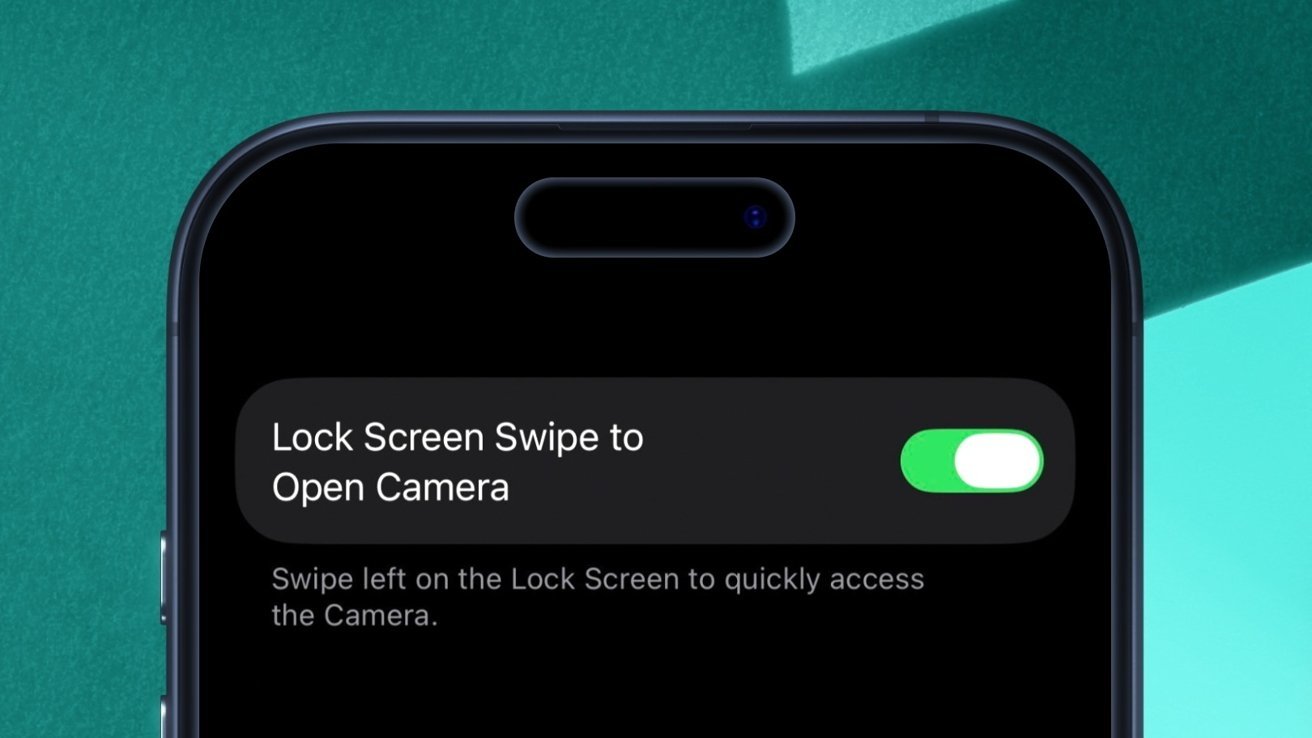
iOS 26.1 features a new toggle for the Camera Swipe gesture.
The new toggle, aptly labeled "Lock Screen Swipe to Open Camera," can be found by navigating to Settings > Camera.
When turned off, users can no longer open the Camera app by swiping to the left from the iOS and iPadOS Lock Screen.
The swipe gesture is one of several ways users can open the Camera from the Lock Screen. By default, the button at the bottom right of the screen launches the Camera.
The application can also be opened from the Control Center or via the Camera Control on an iPhone 16 or newer. The Action button can be used to launch the Camera app on an iPhone 15 Pro or newer.
However, these alternative methods of opening the Camera app could all be disabled by the user, which was not true for the swipe gesture until now.
The Local Capture feature can now be enabled through an alternative method as well.
Local Capture now available via Settings
On iOS 26, Local Capture, previously available only through the Control Center, lets users record their own audio while on a call. Whether through built-in microphones, AirPods, or an external mic connected to the USB port, you can capture an isolated audio track on iPhone and iPad.
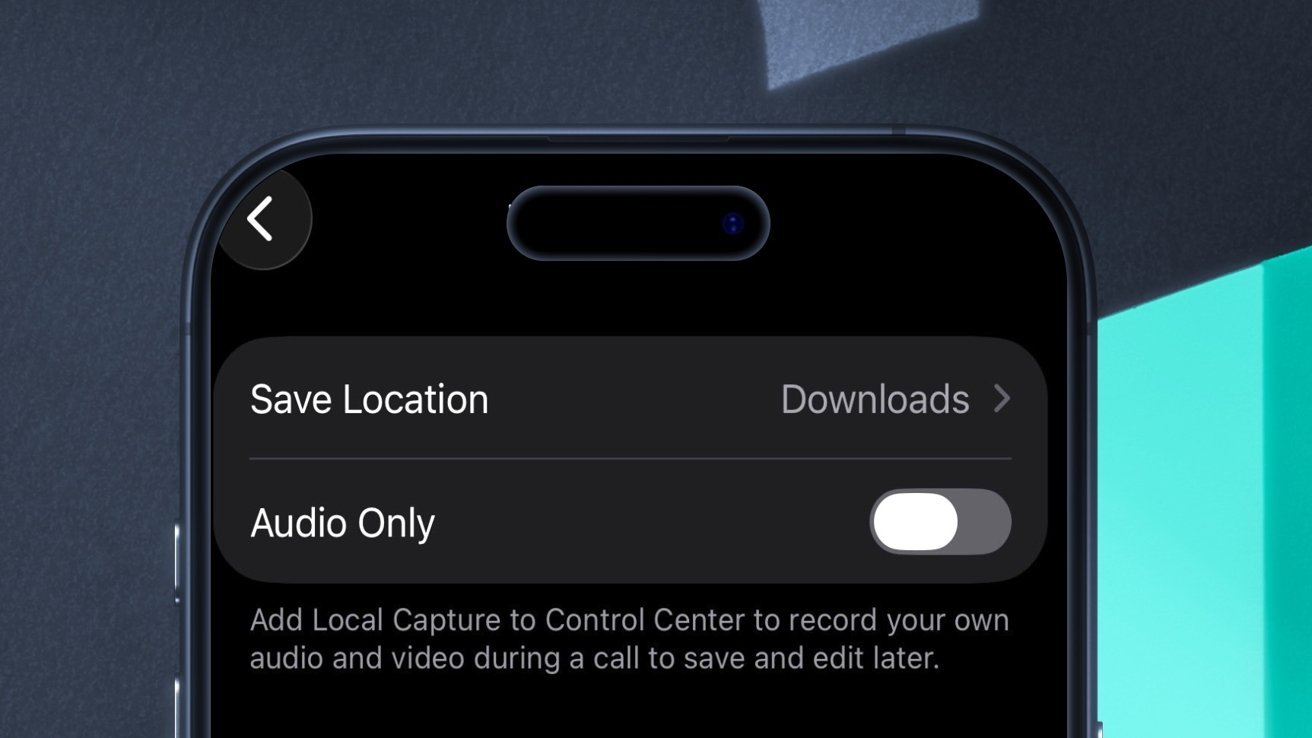
With iOS 26.1, Apple added a toggle for Local Capture.
Now, you can activate the feature via the Settings app, thanks to the iOS 26.1 update:
- Open the Settings app
- Navigate to General > Local Capture
- Toggle the feature via the Audio Only switch
It's also possible to adjust the save location directly from the Settings app. By default, saved audio recordings are placed into the Downloads folder, accessible from the Files app.
Apple has also added a new Accessibility setting. When navigating to Accessibility > Touch, users will see a new option labeled "Prefer Single-Touch Actions." As its name implies, this makes some user interface items usable with a single touch rather than a sliding gesture.
Apple TV rebrand
On October 13, Apple announced that it would be phasing out its AppleTV+ branding, previously used for its streaming service. Instead, the Apple TV app, the physical product, and the streaming service will all be known simply as "Apple TV."
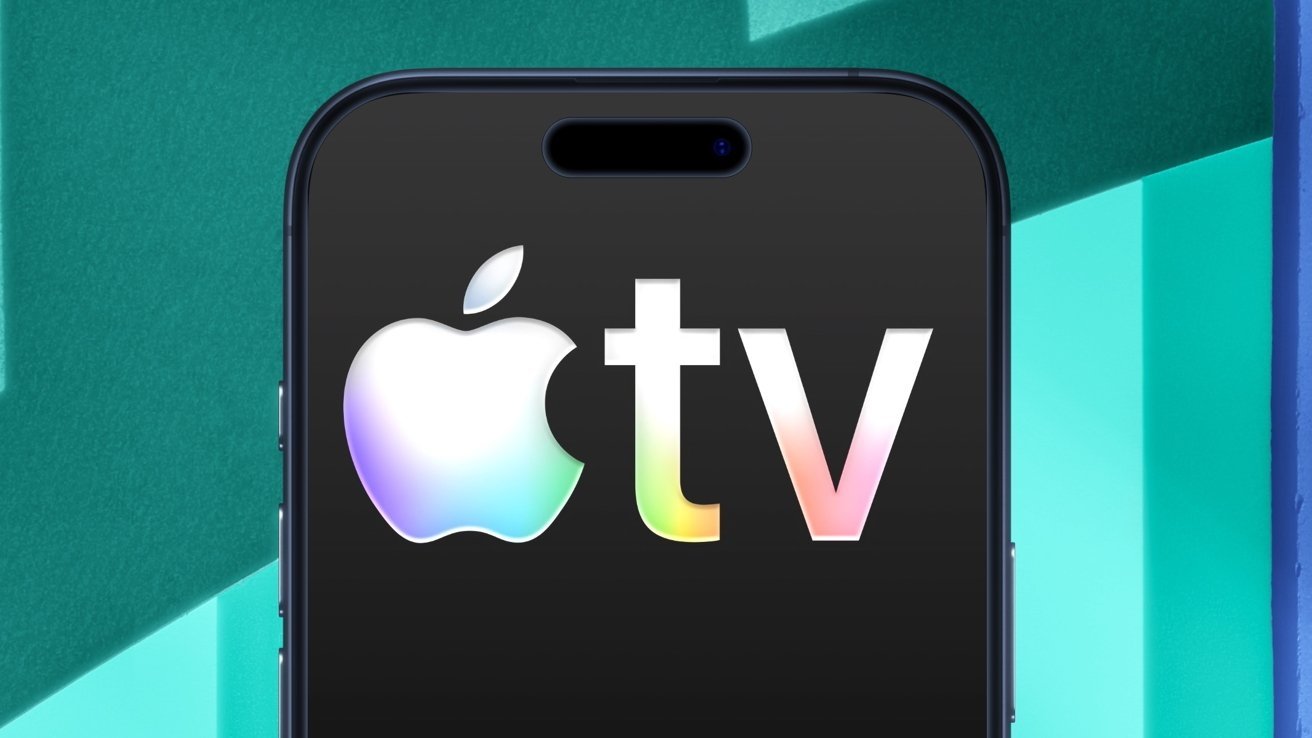
The Apple TV logo is more colorful in iOS 26.1.
In iOS 26.1, the terms and conditions of the Apple TV app were updated to reflect this name change. The user interface of the app itself, however, did not see the same treatment, with the phrase "AppleTV+" remaining visible.
The discontinuation of the Apple TV+ name is somewhat of a confusing move. First there was iTunes video, then Apple TV+, and now just Apple TV.
Apple's rebranding of Apple TV+ means that it now has Apple TV, Apple TV, the Apple TV. It'll be difficult to tell whether someone is talking about the app, the physical set-top box, or the streaming service.
The Apple TV app itself also received a new, more colorful icon, with rainbow accents towards the bottom of the "tv" text. For reference, the previous Apple TV icon was simply black with white text.
This is not the only visual change Apple implemented with iOS 26.1, though.
Clock and Music tweaks, more
Other apps received design-related alterations as well. For instance, the Clock app now has a "slide to stop" option in place of the "stop" button. This change affects alarms and timers activated from the Clock application.
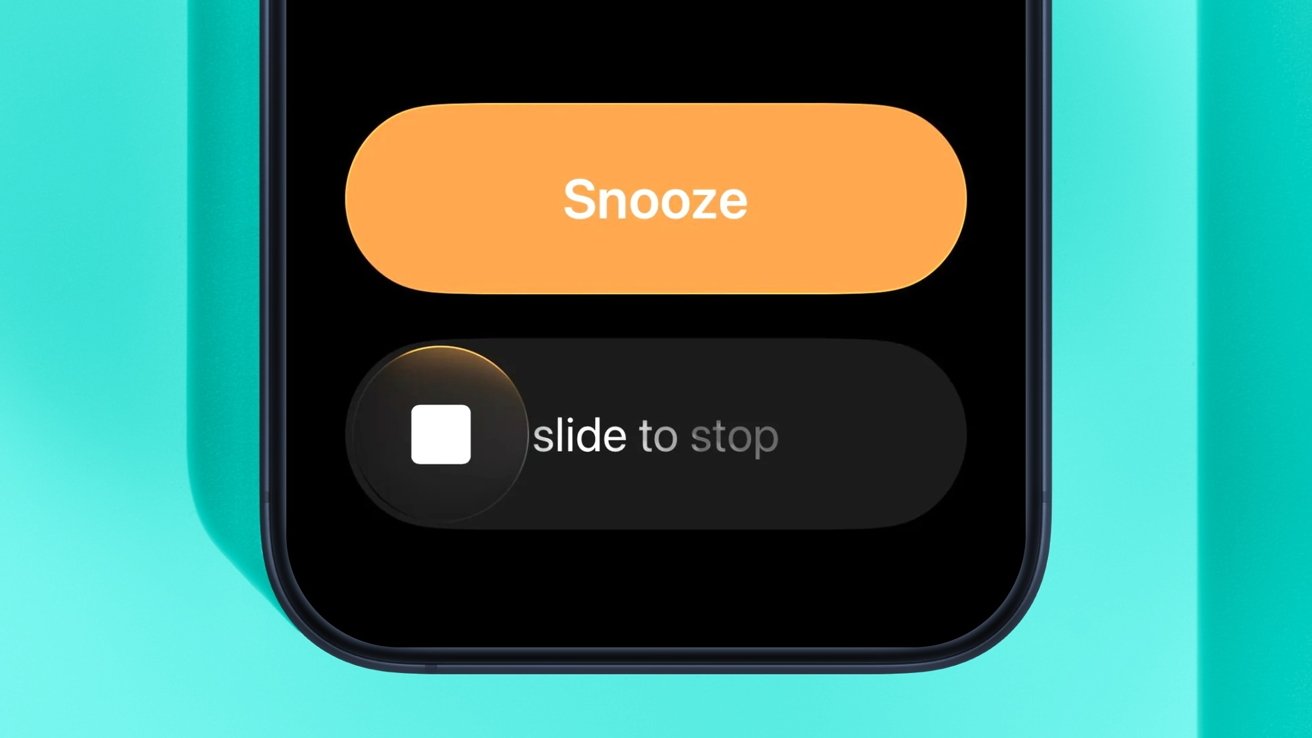
iOS 26.1 changes the way alarms are stopped.
In the Apple Music app, users can now more easily flip through tracks by swiping on the playback controls. It's a neat change, but nothing groundbreaking.
The Apple Vision Pro app, meanwhile, has finally made its way to the iPad, with iPadOS 26.1. The application now lets iPhone and iPad users view spatial experiences from their Apple Vision Pro via AirPlay.
Apple also appears to have changed "Rapid Security Response" updates into "Background Security Improvements." This is little more than a change in branding, though.
As its name implies, the rebranded feature lets users automatically install security improvements and system files even before they're visible in the Settings app.
Apple previously used Rapid Security Response updates to quickly address security vulnerabilities that were being actively exploited. Background Security Improvements offer virtually the same benefit.
Overall, iOS 26.1 isn't exactly a feature-packed upgrade. You won't necessarily notice many of the changes unless you know where to look.
Still, Apple has added convenient toggles for the Camera swipe gesture, Local Capture, and Liquid Glass. On top of that, the new Apple Intelligence and Live Translation languages could prove useful for those who interact with international clients or students.