
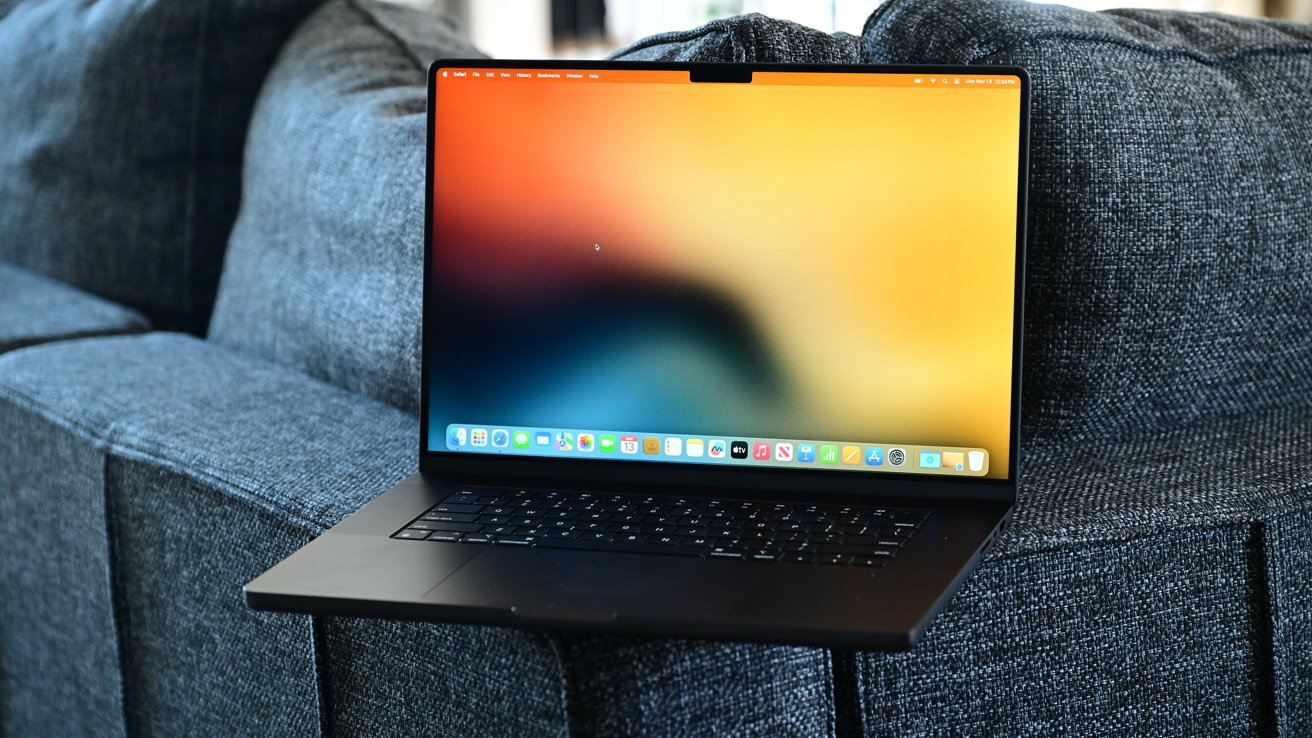
Buying a used Mac can be a great deal. But, if you don't check carefully, you might inherit someone else's issues or just get ripped off. Here's what to look for.
The secondhand market offers great deals, but it may have machines still linked to an Apple ID or managed by a company. Additionally, some might be hiding expensive hardware issues.
Apple designs its computers to be durable, making them great for resale. Even a five-year-old MacBook Air can still feel fast, and older Intel models often support modern macOS versions.
The first step to buying a used Mac is to make sure the Mac truly belongs to the person selling it. Modern Macs include a security feature called Activation Lock, which ties the computer to an Apple ID if Find My is turned on.
It's designed to protect against theft, but it can also prevent a legitimate buyer from setting up the Mac if the seller hasn't removed their account. Ask the seller to power on the computer in front of you.
A properly prepared Mac should start at the "Hello" setup screen. That screen means the device has been erased and is ready for a new owner.
If it goes straight to the desktop, it hasn't been reset yet. Ask the seller to sign out of iCloud and erase the Mac using Erase All Content and Settings in System Settings.
If the computer is already running macOS, you can confirm whether Activation Lock is off.
- Hold the Option key.
- Open the Apple menu.
- Choose System Information.
Under "Hardware," find "Activation Lock Status." If it says "Disabled," the Mac is safe to buy. If it says "Enabled," the seller still has Find My connected to the machine.
Never buy a Mac that shows a message like "This Mac is locked. Enter the Apple ID and password used to activate it." Only the person who owns that Apple ID can unlock it.
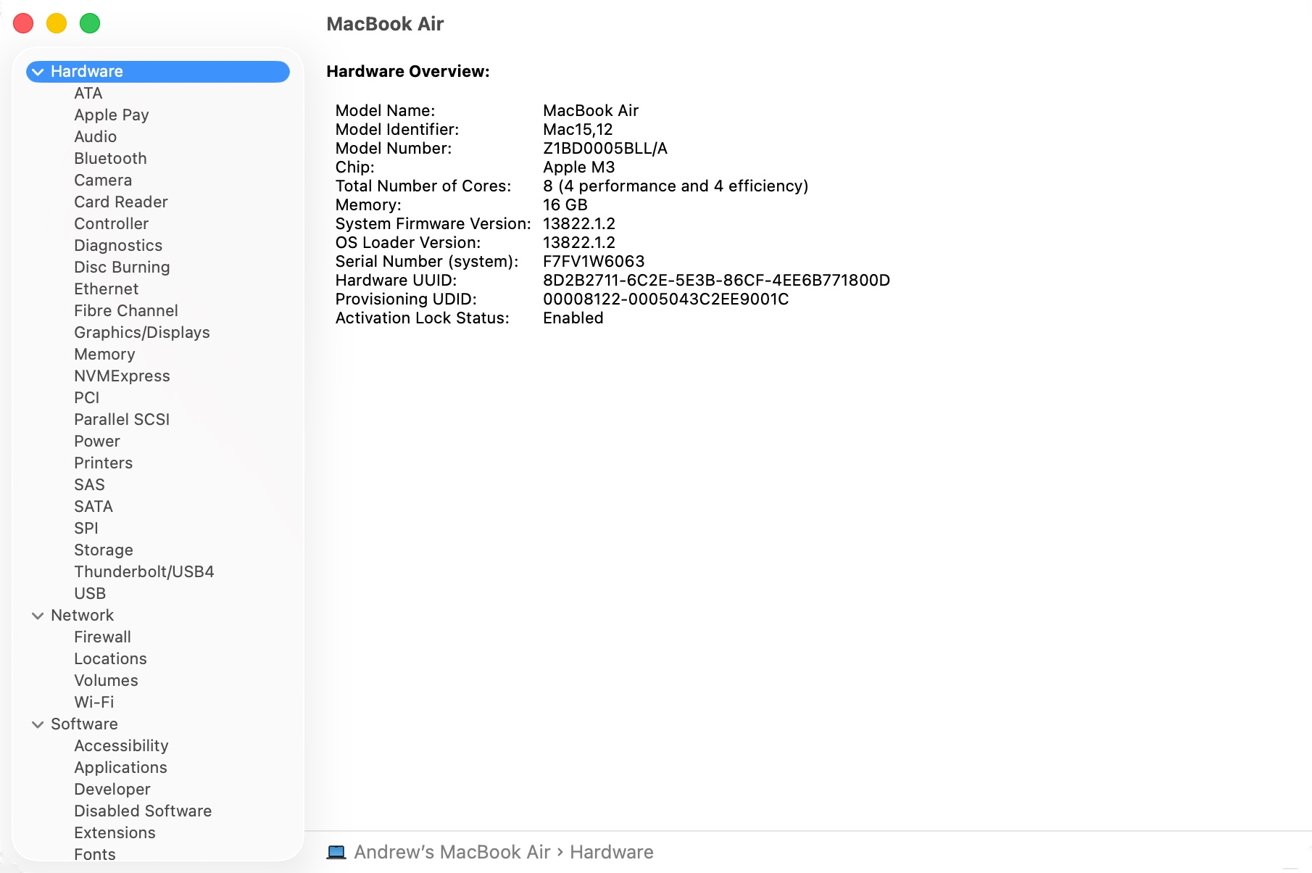
System Information on Mac
Even if the Mac looks fine at the moment, the previous owner could remotely lock it again later if they forgot to remove it from their account.
Apple's support team can only unlock a device with an original proof of purchase from an authorized retailer. If the seller can't remove the lock, no one else can.
Before you hand over money, insist that the Mac be removed from the seller's Apple ID and reset to the setup screen.
Check for MDM or organization management
Many used Macs come from schools, offices, or other institutions that manage their computers remotely. These systems use Mobile Device Management, or MDM, to enforce settings, install apps, and track hardware.
When a company sells or disposes of a Mac without fully removing it from their MDM system, the next user may inherit a computer that's still controlled by the original organization. A managed Mac can look completely normal at first.
The problem appears after you sign in or reinstall macOS, when it suddenly re-enrolls itself in remote management. You might see a message saying "This Mac is supervised and managed by [Organization Name]."
A message like that means the Mac is still registered under Apple Business Manager or Apple School Manager, and someone else can monitor or even erase it from afar.
- To check, open System Settings > General > Device Management on macOS Ventura or later.
- On older systems such as macOS Big Sur or macOS Monterey, open System Preferences > Profiles.
If you see a configuration profile or supervision notice, the Mac is still managed. In that case, you shouldn't buy it unless the seller can prove the organization has officially released the device.
A Mac that remains enrolled in MDM isn't fully yours. You might lose admin access, face restrictions on software installation, or find the Mac reverting to a company setup after an update.
Removing MDM requires the organization's IT administrator to remove the serial number from Apple's systems. Regular users can't do that themselves.
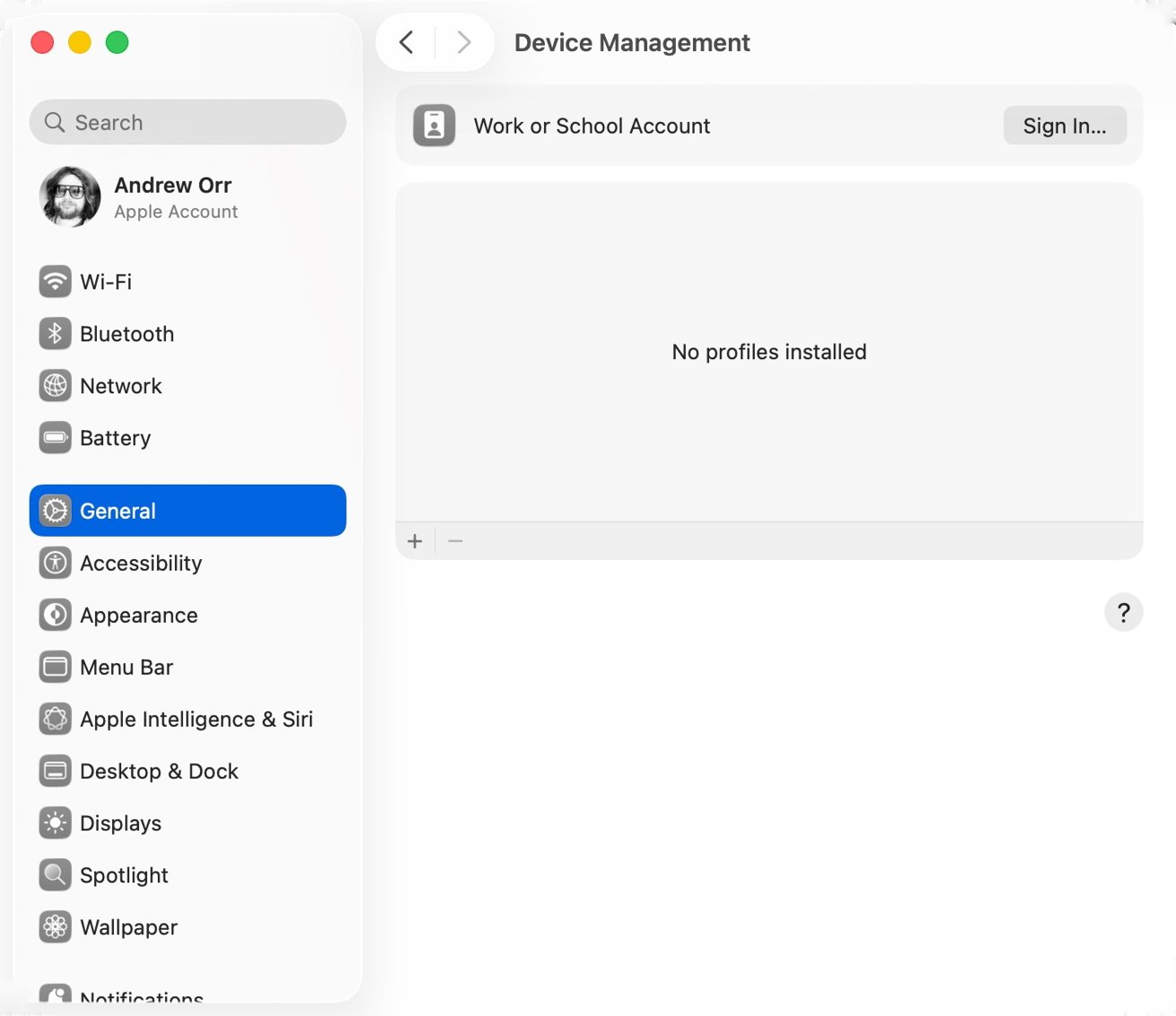
Checking for MDM management profiles
If a listing claims to be a former "company laptop," be cautious. Ask whether the machine has been deprovisioned from MDM, and check it in person if possible.
Some people sell these computers without realizing they're still linked to a management system, while others know and hope buyers won't notice. Either way, don't take the risk.
A Mac that's still supervised is still someone else's property.
Inspect the physical condition
Once you've confirmed that the Mac isn't tied to another account or organization, it's time to inspect the hardware. A computer's exterior often tells you how it was treated.
Look over the casing for dents, cracks, and deep scratches, especially near the corners and hinge. Small scuffs are harmless, but larger dents or warping can hint at past drops that may have damaged internal parts.
Check the display closely under good lighting. Open a plain white background to look for dead pixels or dark spots, then switch to black to see if the backlight is even.
For older Retina MacBook Pros from 2015 to 2017, watch for patches of peeling along the edges of the screen. That's a known issue where the anti-reflective coating wears off.
Replacement displays are expensive, so make sure the screen looks clean and uniform. Move on to the keyboard and trackpad.
Type every key in a text editor, paying special attention to the spacebar, arrow keys, and any that feel sticky or uneven. The 2016 to 2019 MacBook Pros with butterfly keyboards are especially prone to key failures.
Replacing those keyboards usually means replacing the entire top case, which can cost hundreds of dollars. Next, test the trackpad.
The trackpad should register clicks across the entire surface and respond to gestures smoothly. If the pointer jitters or the click feels weak, the trackpad may need service.
Inspect all the ports, even if you think you won't use them often. Plug in a USB drive, SD card, or pair of headphones to confirm each one works. Connect the charger to check that the Mac charges normally and the cable fits snugly.
If the charger has frayed wires or loose pins, it's best to replace it with a genuine Apple adapter. Before finishing, test Wi-Fi, Bluetooth, speakers, and the webcam.
Open a browser or play a short video to confirm the audio sounds clear and the camera image looks normal. Those quick checks can reveal problems that aren't obvious from appearance alone.
If the seller includes accessories, verify what's original and what's not. The right power adapter matters more than people think, especially on USB-C models that require specific wattage.
A used 16-inch MacBook Pro, for example, needs a higher-power charger than a MacBook Air. If the listing doesn't include the original charger, factor that into the price.
Run hardware diagnostics
A Mac can look perfect on the outside and still have hidden hardware problems. Apple includes a built-in tool called Apple Diagnostics that checks the computer's internal components.
Running it takes only a few minutes and can reveal issues that aren't visible during a normal inspection.
Apple Silicon Macs (M-series)
Apple silicon Macs use a newer startup process that replaces traditional key combinations with a power button-based interface. The diagnostic utility is built into the recovery environment, so you'll access it through the startup options screen instead of directly on boot.
- Shut down the Mac completely.
- Press and hold the power button until you see "Loading startup options."
- When the startup options window appears, press Command-D.
- The Mac will boot into Apple Diagnostics. A progress bar will show as the test runs.
- When the test finishes, results will appear on screen with reference codes for any detected issues.
Intel Macs
Intel-based Macs rely on legacy firmware that supports direct keyboard shortcuts during startup. The process is older but still straightforward, using either local or Internet Diagnostics depending on your connection and key combination.
- Shut down the Mac.
- Press the power button, then immediately hold the D key.
- To use Internet Diagnostics instead, hold Option + D.
- Keep holding until you see a language selection screen or a progress bar.
- The system will run Apple Diagnostics automatically.
- When finished, results and error codes appear on screen.
After completing the test on either platform, you can choose to rerun diagnostics or restart normally. Reference codes can be looked up on Apple's support site for more details about specific hardware issues.
A clean report is reassuring, but a failed test doesn't always mean the Mac is broken beyond repair. Some error codes point to small issues, like a fan speed sensor or an unplugged temperature cable.
Others can indicate serious logic board faults or failing RAM. If you see any codes, note them and look them up on Apple's support site before buying.
If you have time, run the extended version of the test. It takes longer but performs a more complete scan of the system.
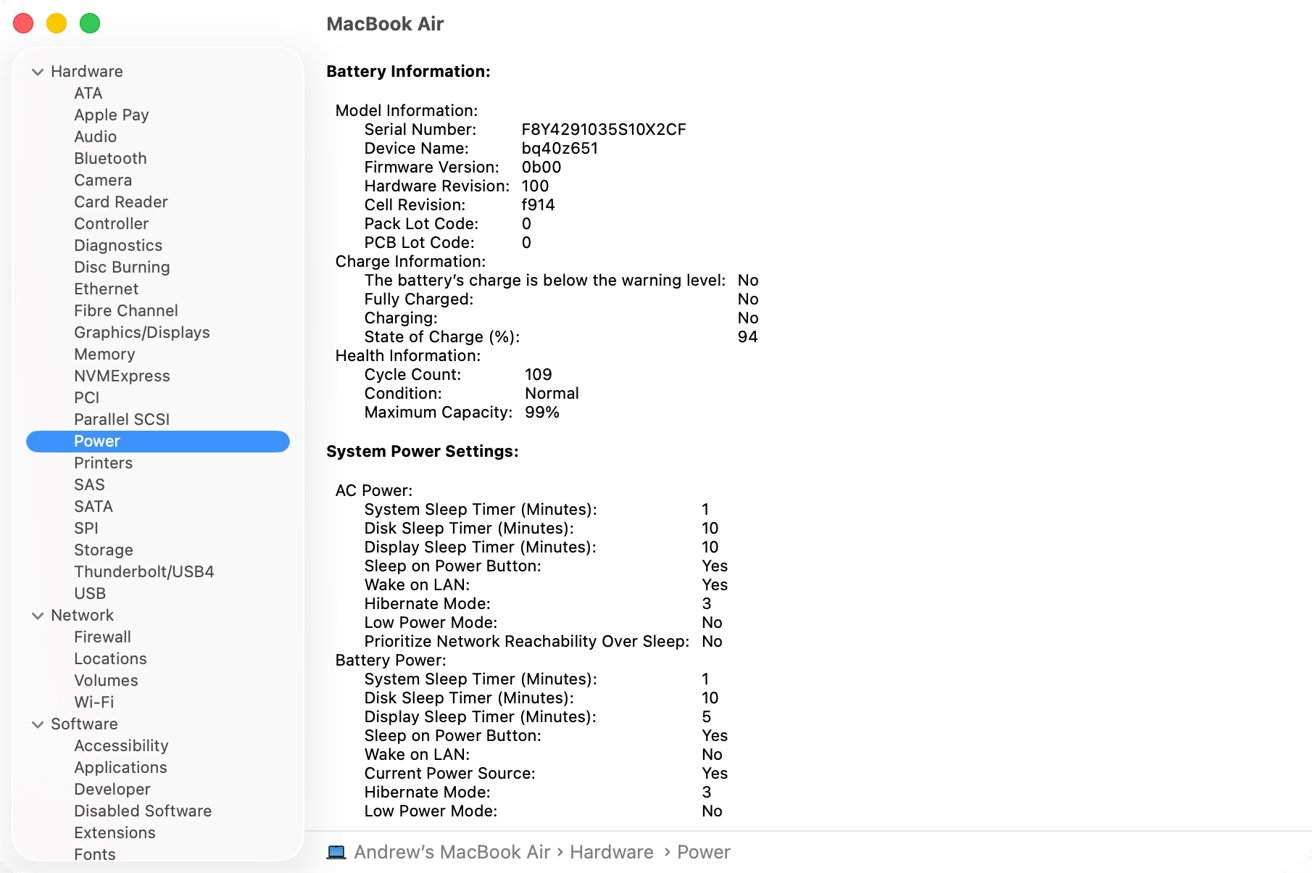
Finding data about the battery in System Information
A Mac that passes both versions is usually in solid condition. If you're testing at a seller's location, ask before running diagnostics since it reboots the system. A cooperative seller will usually agree.
Diagnostics won't catch every problem, but it's a good final check before you make a deal. A clean bill of health gives you confidence that the hardware is sound.
If it fails, think carefully before buying, especially if the repair could cost more than the discount you're getting.
Check battery health and cycle count
For any MacBook, the battery's condition plays a huge role in how useful it still is. Batteries wear down over time and can be costly to replace, so it's smart to check their health before you buy.
- Hold the Option key.
- Click the Apple menu.
- Choose System Information.
- Under Power, look for two values — Cycle Count and Condition.
Most modern MacBooks are rated for around 1,000 charge cycles before the battery is considered consumed. A single cycle means the equivalent of one full discharge and recharge, even if it's spread over several smaller uses.
A healthy battery should show "Normal" condition and a cycle count well below the limit. If the status says "Service Recommended," the battery is already degraded.
In practical terms, that means you'll get shorter runtime and may need to plug in more often. Replacement from Apple typically costs between $200 and $300, depending on the model.
The Mac reports the battery's Maximum Capacity, which compares current performance to when it was new. Anything above 85% is fine, but once it drops below 80%, you'll notice faster drain and unreliable readings.
If the Mac you're looking at has a low capacity or high cycle count, use that information to negotiate a lower price. Not every seller intentionally hides battery health, but many simply don't check it.
If someone advertises "excellent battery life," ask to see the System Information screen as proof. A battery with 90% health and 300 cycles is good for years. One with 75% and 900 cycles is on its last leg.
If you're buying an older Intel MacBook, expect a little wear — it's normal for a five-year-old model to have lost some capacity. But if you're paying a premium for a newer M-series MacBook, expect much better numbers.
When in doubt, plan for replacement costs. A great deal on a MacBook with a dying battery isn't always a bad purchase, as long as you budget for a new one. What you don't want is to overpay for a laptop that spends more time plugged in than portable.
Verify specifications and model details
Before you hand over money, confirm exactly what you're buying. Used Mac listings often contain mistakes, sometimes by accident and sometimes by design.
For example, a MacBook Pro labeled as a 2020 model might have either an Intel processor or Apple's M1 chip, since both were released that year. Some listings, especially for used or refurbished units, can have different storage or memory than what's advertised.
- Start by opening the Apple menu.
- Select About This Mac.
The window will show the model name and year, the processor or chip, memory, and storage size. Compare those details to what the seller listed. If you're checking a Mac in person, it takes less than a minute to verify.
You can also use the serial number, found in that same window, to check Apple's official coverage site. Enter it at checkcoverage.apple.com to confirm warranty status, AppleCare coverage, and exact model specifications.
A serial number lookup is the fastest way to catch discrepancies or confirm that the computer hasn't been altered.
If the serial number lookup shows the Mac as "Obsolete" or "Vintage," Apple no longer provides official repairs for it. That doesn't mean it's useless but you'll have fewer options for parts and support.
On the other hand, if the Mac still has an active AppleCare plan, that's a major bonus. AppleCare transfers automatically when the computer changes hands.
If the seller claims to have a receipt or invoice, it's worth a glance. A legitimate proof of purchase from Apple or an authorized reseller can help if you ever need Apple's assistance with Activation Lock or warranty work.
Don't reject a sale just because a receipt is missing, but treat documentation as a sign of a trustworthy seller. Also make sure the computer can run the software you need.
Apple drops macOS support for older Intel models every few years. A Mac stuck on an outdated version may lose access to new apps or security updates.
If you need to run something specific, check Apple's compatibility list for the latest supported macOS version.
Once you've confirmed that the model, specs, and software meet your needs, you'll know whether the price makes sense. A properly identified and well-maintained Mac is worth paying for, but only if what's inside matches the description.
Review software and compatibility
A clean software setup is as important as working hardware. You want a Mac that's ready for your own Apple ID and apps, not one still carrying traces of the previous owner.
When a seller properly erases a Mac using Erase All Content and Settings, it returns to the factory setup screen. That's what you should see when you power it on.
If the computer opens straight to a desktop with someone else's name, documents, or apps, stop there. Ask the seller to sign out of iCloud and perform a full erase. You can do it yourself later, but it's better for the seller to remove their information before you complete the purchase.
It prevents any lingering Activation Lock issues or software conflicts. After the sale, it's smart to reinstall macOS anyway.
- Boot into Recovery Mode by restarting and holding Command-R.
- Select Reinstall macOS.
This ensures that no hidden settings or accounts remain. It also gives you the peace of mind that the system is running a clean, up-to-date copy of macOS directly from Apple's servers.
Don't count on keeping any pre-installed software. Programs like Microsoft Office, Final Cut Pro, or Adobe Creative Cloud belong to the Apple ID that bought them. Even if they're still installed, they'll stop working once you sign out of the old account.
Those licenses can't legally transfer to new owners, so plan to install your own apps.
Newer macOS releases drop support for older hardware, particularly Intel-based Macs. As of 2025, most models older than 2018 are reaching the end of official updates.
An unsupported Mac will still work, but it won't receive the latest security patches or features. That's fine for light use but risky if you rely on it for work or online payments.
Conversely, if you run older software that depends on outdated macOS versions, an Intel Mac might actually be useful. Some creative professionals keep older machines specifically for running legacy plugins or 32-bit apps that won't open on modern systems.
Before buying, think about what software you need and check its system requirements.
Finally, test the internet connection, App Store access, and general responsiveness once the Mac boots up. A short test session can reveal performance or compatibility issues you wouldn't catch otherwise.
When everything feels smooth and clean, you'll know the Mac's software foundation is solid.
Apple Silicon vs. Intel - what's different when buying used
Apple's switch from Intel processors to its own Apple Silicon chips reshaped what it means to buy a used Mac. The M-series Macs— starting with the M1 in 2020— run cooler, last longer on battery power, and deliver far better performance for the same price.
That makes them the safer bet for long-term use, but they also come with some new limitations you should understand before buying. The biggest difference is how they're built.
On Apple Silicon models, the memory and storage are permanently soldered to the main board. Whatever configuration you buy is the one you'll have for life.
If the Mac has 8GB of memory and 256GB of storage, you can't upgrade later. When you're browsing listings, think ahead about how much you'll actually need.
For photo editing, music production, or anything with large files, look for 16GB of memory and at least 512GB of storage.
Another change is that Apple Silicon Macs can't run Windows through Boot Camp. If you need to use Windows occasionally, your only option is virtualization software such as Parallels or VMware Fusion, and those require a special ARM version of Windows.
For most users that's not a dealbreaker, but it's important to know if you rely on Windows-only tools.
Apple Silicon also ended support for external GPUs. If you were hoping to boost graphics power through a Thunderbolt eGPU enclosure, that's not possible anymore.
The integrated graphics on the M-series chips are strong enough for most creative work. However, professional 3D or high-end rendering still favors dedicated GPUs on older Intel Macs.
Security works differently on newer Macs. Traditional firmware passwords still exist on Intel models, but Apple silicon Macs no longer support them.
Instead, startup security and recovery options are built into the Secure Enclave and linked to the system's Apple ID through features like Activation Lock. All Apple silicon and T2-equipped Macs support Activation Lock, which means verifying ownership is critical when buying used.
Before purchase, make sure the seller has completely removed their Apple ID and turned off Find My Mac. If they haven't, the Mac may remain locked to their account and require Apple to unlock it.
Repairs and recovery are more limited too. If the system software becomes corrupted, you may need another Mac and Apple Configurator to restore it in DFU mode.
That's not a reason to avoid buying used, but it highlights why you should aim for a Mac that's been well cared for. Self-repair is possible in only a few situations.
Despite those limits, Apple Silicon Macs are the best choice for most buyers. They offer much better battery life and performance, stay quiet under load, and will get software support for many more years than Intel models.
If you have to choose between a 2019 Intel MacBook Pro and a 2020 M1 MacBook Air, the M1 model will almost always be the better deal in the long run.
Market Pricing and Resale Value
When you're shopping for a used Mac, it helps to understand how pricing and resale value work. Knowing the market gives you leverage.
It lets you recognize a fair deal, negotiate with confidence, and avoid paying too much for something that's already lost part of its worth. Macs usually hold their value better than most laptops, but they still depreciate.
Research shows that MacBooks lose around 20-30% of their value in the first year and roughly 10-15% per year after that. Other data points to a first-year drop closer to 30-40%, which is still slower than the 50% or more often seen with other consumer electronics.
If you're looking at a Mac that's one to three years old, you should expect a real discount from the original retail price. The size of that discount depends heavily on the condition, specs, and model.
Checking listings on resale sites can help you gauge what's normal. Data from those platforms shows that used MacBook Pro prices vary widely depending on age and condition.
Apple's trade-in program, on the other hand, tends to offer less — often topping out around $770 for a MacBook Pro. That means most of the real value in used Macs exists in buyer-to-buyer sales, not official trade-ins.
A good deal on a used Mac is one that's clearly below its new price. If a retailer or refurbisher lists a used model for nearly the same as new, take a closer look.
The condition, configuration, and remaining support period all matter more than the sticker price.
Several factors affect how well a Mac keeps its value. The model and chip type are important, since Apple Silicon models tend to hold up longer thanks to extended software support.
Specifications like RAM, SSD size, and GPU performance also add value. Physical condition and battery health make a difference too, since a clean body and healthy battery show good care.
Software support plays a big role as well — if a Mac can still run the latest macOS, it's worth more.
Market timing also matters, as prices can shift around new product launches or during back-to-school and holiday shopping seasons. Direct sales between buyers usually return the best value, while trade-in programs pay less because they account for the risk.
When it's time to negotiate, start by checking recent sales for the same model and specs. Expect newer used Macs, especially those one or two years old, to cost more than older ones.
If you see one priced close to retail, ask why. Look for signs like worn batteries, missing accessories, or no warranty. You can often use cosmetic wear, low battery health, or older hardware as reasons to ask for a lower price.
Think about how long the Mac will stay supported and factor in any possible repair costs such as a battery or keyboard replacement. A fair range for most used Macs is about 40-60% of the original price, depending on age and condition.
Even with depreciation, buying used can make sense. Macs are built to last, and many stay capable well beyond the typical PC lifespan.
The used market thrives as many prefer reliable Macs over aging Windows machines. Careful buying can yield high-end performance at a fraction of the new price.
Where to buy safely
Once you know what to look for, the next question is where to find a Mac you can trust. Not all sellers are equal, and the safest choice depends on how much risk you're willing to accept for a better price.
Apple's Refurbished Store is the gold standard. Every Mac sold there is tested, cleaned, and shipped with a new battery and a one-year warranty.
The savings aren't huge compared to brand new models, but you get factory-level reliability and peace of mind that the device is free of locks or management profiles.
If Apple's pricing still feels high, check certified refurbishers like Back Market, Mac of All Trades, or OWC Renewed. These companies specialize in used Macs, verify that each one is unlocked and functional, and usually offer a short warranty or return window.
They're a middle ground between Apple's official refurb store and the open secondhand market.
Buying directly from another person through Craigslist, Facebook Marketplace, or eBay can save you the most money but carries the highest risk. If you go that route, take precautions.
Meet in a public place with Wi-Fi, bring a flash drive, and check Activation Lock, battery health, and specs in person. Ask to see the serial number before meeting so you can run your own research. Never rely solely on screenshots, since they're easy to fake.
Avoid listings that use vague phrases like "company surplus" or "sold as-is." Those are red flags for Macs that may still be managed or have missing parts.
A legitimate private sale should include the charger, show the setup screen, and let you power the device on before paying. If a seller refuses any of that, it's safer to walk away.
Buying from small independent repair or resale shops can also work well. Many of these businesses buy trade-ins, replace worn batteries, and resell cleaned and tested machines.
The key is to check reviews, ask about return policies, and confirm that the Mac isn't tied to any account.
Final checks before paying
Before money changes hands, do a quick final inspection. Confirm that the Mac boots to the setup screen, not a previous user's desktop.
Open System Information to verify the model, specs, and battery condition match what you agreed to. Plug in the charger to confirm it works.
Ask for a short written confirmation that the Mac is free of Activation Lock, MDM, and any outstanding financing. It can be as simple as a text message with the serial number and the words "fully unlocked and paid off."
A written record gives you some protection if problems arise later. If you're buying in person, take your time.
Check the keyboard, trackpad, and ports one last time. Run Apple Diagnostics if the seller agrees. You should never feel pressured to rush the deal. Honest sellers don't mind a few extra minutes of testing.
If you're buying online, make sure the platform offers buyer protection. Sites like eBay and Swappa handle disputes well, while direct wire transfers or Zelle payments don't.
If anything feels off, like the seller avoiding direct answers, the Mac showing signs of tampering, or the price seeming too good, walk away. There are thousands of used Macs on the market, and the right one will check every box.
Analysis and conclusion
Apple's design philosophy plays a big part in why used Macs are such a strong market. The company's tight control over hardware and software makes each generation last longer than most laptops.
Even older Intel models still run modern apps smoothly, and M-series Macs have raised that longevity even further.
Because Apple integrates so much hardware into the motherboard, repairs and upgrades are harder, which means it's more important to buy a machine that's already in good condition.
The upside is that those same design choices make Macs more reliable and consistent, especially as they age. When you buy used, you're essentially trading warranty coverage for value.
The best used Mac is one that's been verified, reset, and cared for by its previous owner. Checking for Activation Lock, confirming hardware health, and testing basic functions are enough to eliminate most risks.
A well-chosen used Mac can perform just as well as a new one, but it'll cost you hundreds less. The key is to be patient, verify every claim, and walk away from anything that seems suspicious.
Once you find a clean, fully unlocked model with good specs and battery health, you'll have a computer that can easily serve you for years. With the right checks, you'll save money without sacrificing quality.