-xl.jpg)
Apple's iPadOS 26 is finally available to all, with much-needed updates to Notes and Files, plus a new windowed multitasking system. Here's what's new.
Apple's 2024 software releases marked the debut of Apple Intelligence, as the company's platforms received generative AI features across the board. The iPhone, iPad, and Mac all gained AI-powered email summarization, a new Clean Up tool in the Photos app, and much more.
The most notable improvement within iPadOS 18, however, was a standalone Calculator app, developed under the project codename GreyParrot. iPadOS 26 takes things a massive step further, with a new look, more apps, and additional Apple Intelligence-powered features.
Apple has also included some major iPad-specific upgrades that bring the platform much closer to the Mac. The company accomplished this by adding familiar window elements to the tablet in an effort to improve multitasking.
The most striking change within iPadOS 26, however, is its new glass-like appearance.
Apple's 'Liquid Glass'
At WWDC 2025, Apple revealed its new cross-platform design language, dubbed "Liquid Glass."

iOS 26, iPadOS 26, and macOS Tahoe all feature dynamic user interface elements that emulate the look of real glass.
Touted as the biggest design overhaul since iOS 7, "Liquid Glass" introduced dynamic user-interface elements that mimic the look of real-world glass. In doing so, Apple sought to replace the decade-old flat aesthetic, used until iOS 18.
The Lock Screen, Control Center, and Notification Center in iPadOS 26 have all been updated to make use of Apple's custom "Liquid Glass" material.
On the Home Screen, you'll find a new customization option for app icons, labeled "Clear Mode." It appears alongside the existing tinted and dark icon settings, letting you make your icons transparent without the use of jailbreak tweaks and third-party solutions.
The Home Screen icons themselves have also been updated to incorporate the new "Liquid Glass" material, though they largely use the same color combinations. You'll see "Liquid Glass" used across buttons and dynamic Tab Bars throughout the operating system as well.
iPadOS 26 offers a lot more than customization options, though.
Windowed multitasking brings the iPad closer to the Mac
Apple has long been hesitant when it comes to bringing macOS features to the iPad platform. Granted, you can use a keyboard and mouse with an iPad, but multitasking has always felt clunky — until now.
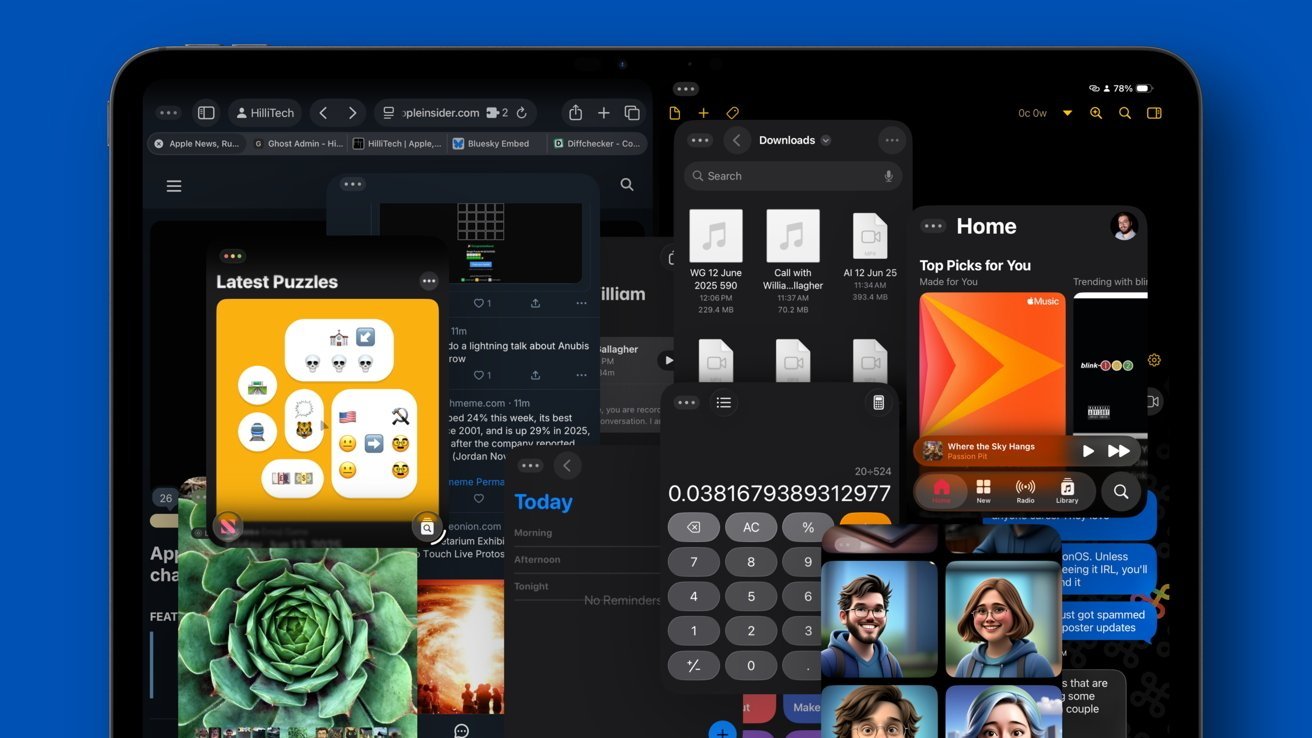
iPadOS 26 delivers Mac-like windowed multitasking.
Unlike Stage Manager, which aimed to offer an alternative multitasking system on iPad and Mac, iPadOS 26 boldly adds windowed apps as the default. Slide Over is now gone as a result, but it's a welcome and long-overdue change.
The iPadOS 26 windowing system allows for near-infinite window resizing and shapes. Windows can overlap, stack, or be set in any manner without being forced into a specific shape or space.
You can adjust the position of windows via gestures. With your finger or an Apple Pencil, you can tap and hold on the title bar of a window, and flick it up.
If you flick it straight up, the app turns to full screen. Flick it to the top right corner instead, and it automatically resizes to take up the whole right half of the display. Similarly, flicking to the top left makes the app take up the whole left side of the screen.

There's also a set of traffic light controls that are visible depending on how the windows are laid out. Full-screen apps have their traffic lights hidden in the new Menu Bar, while tiled apps show the traffic lights at all times at the top right of a window.
Tapping on the green one will immediately expand the app to take up the full screen. But if you press and hold on green, you instead get a Mac-like series of eight options in a pop-up menu:
- Move to left side
- Move to right side
- Move to top half
- Move to bottom half
- Make full screen
- Arrange two open apps to take half the screen each
- Arrange all open apps to take up a third of the screen each
- Move apps to each of the four corners
The Menu Bar, meanwhile, brings access to general app functions that hide when not in use. It is located at the top of the screen in otherwise wasted space occupied by the status bar.
It offers functions that were previously only accessible by holding the Command key on a keyboard. With the new Menu Bar, they are always available, without an external input device.
Overall, the multitasking system in iPadOS 26 offers an experience that feels instantly familiar to users of desktop operating systems, particularly macOS. It goes well with another update Apple included in its 2025 operating system.
Background tasks via Live Activities
With iPadOS 26, you can do much more than ever before, thanks to a new and convenient background activity system.
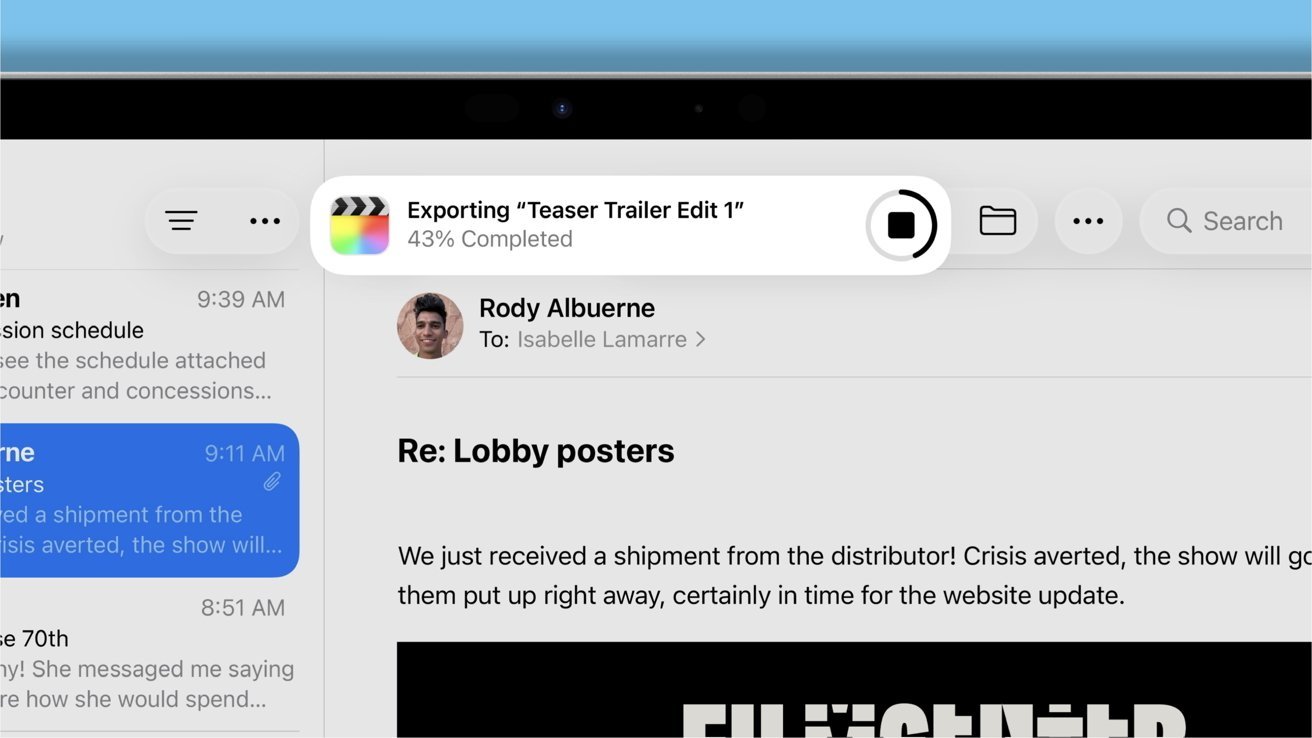
Apple's iPadOS 26 lets you export files in the background.
Background tasks appear as Live Activities at the top of the screen. When you're in the process of exporting a file, for instance, you can now easily switch to another app.
The export process will show up as a Live Activity with a progress bar, while you remain free to do other things on your iPad.
Downloads from Safari and file transfers are also moved to a Live Activity, as are other extended operations in the updated Files app within iPadOS 26.
Files gets collapsible folders, customization options, and more
With iPadOS 26, the Files application received several usability and performance improvements, making file management on iPad better than ever before.
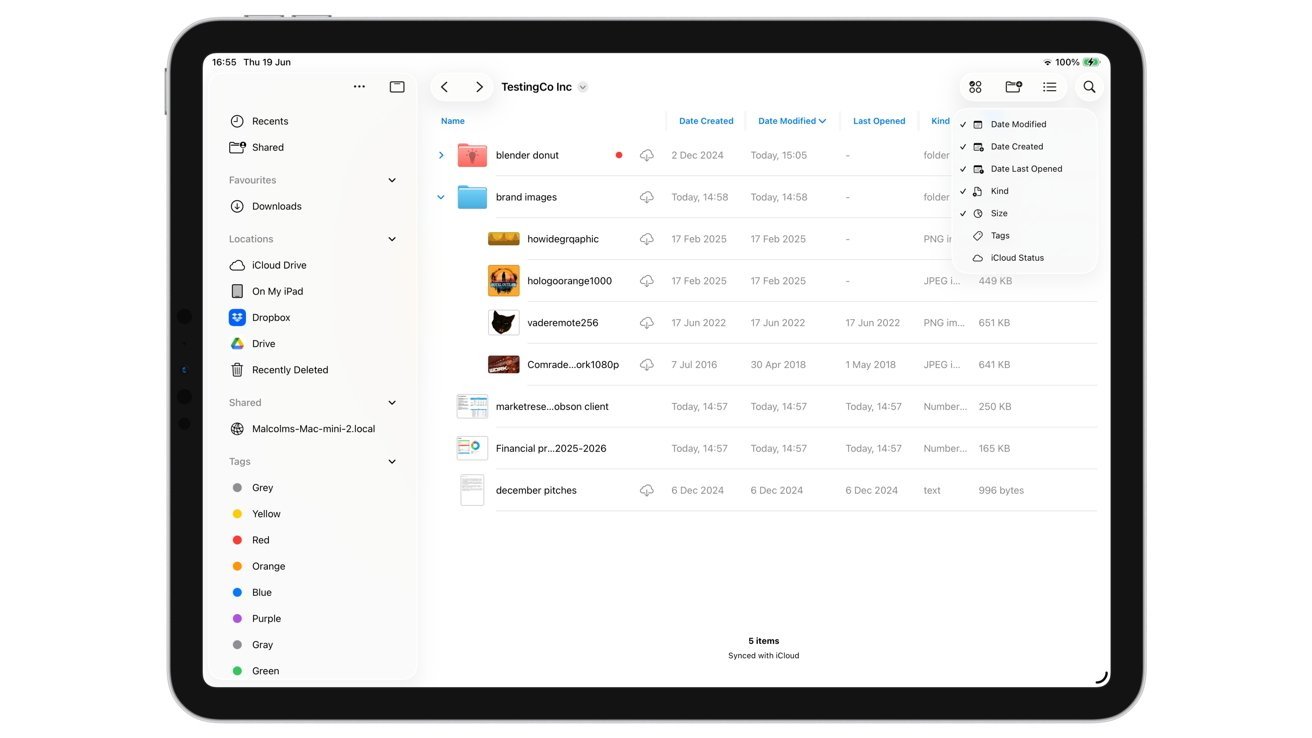
Apple has updated the column options for the List View in Files.
Simply put, Files has received three major enhancements:
- macOS-style Menu Bar
- Drop-down menu for nested folders in the List View
- Color-matching icons for folders with tags
Navigating nested folders has become much easier with iPadOS 26, at least in the List View. You can now take advantage of a small arrow next to the folder, which then brings up the folder's contents as a drop-down list. This lets you see and access files from the drop-down list without actually leaving the parent folder — something you couldn't do previously.
The List View also brings greater flexibility to columns. Previously, with iPadOS 18, columns would include the Name and either the Date, Size, or Kind of item. It was impossible to view both the date and size of a file in separate columns, and you couldn't adjust the column size, either.
With iPadOS 26, you can now add a lot more columns to the List View. Specifically, it's possible to see the date a file was created, last modified, and last opened. You can view the file's Kind, Size, Tags, and its iCloud Status as well.
The Files app now has improved tags, which allow for folder customization. On iPadOS 26, folders change color according to the tag they were assigned.
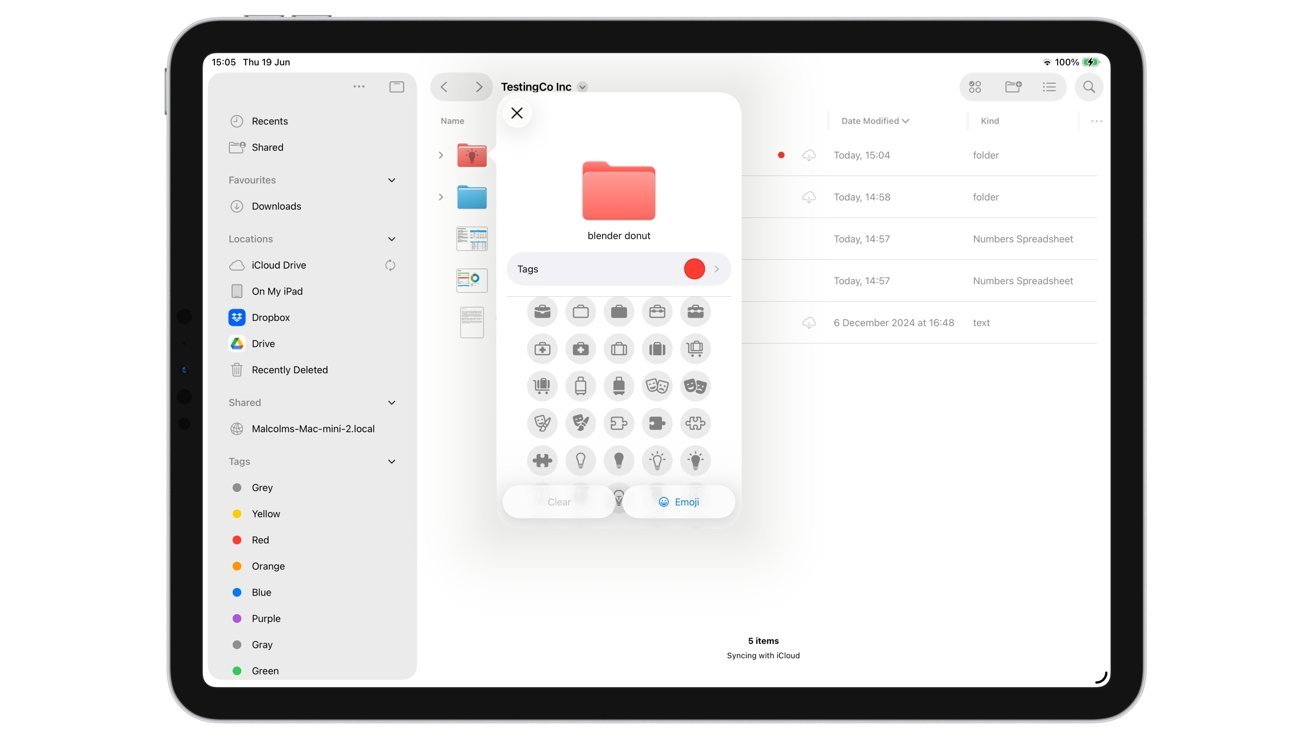
Tags can now color folder icons within the Files app in iPadOS 26.
You can also add an icon to the folder's front for more distinct identification. Folders themselves can now be added to the Dock as well, and it's now possible to set a default app to open for specific files and extension types.
Apple has included even more productivity-enhancing upgrades in iPadOS 26, though.
Local Capture makes audio recording less of a hassle
iPadOS 26 delivers a major improvement to audio recording through a new feature known as Local Capture.
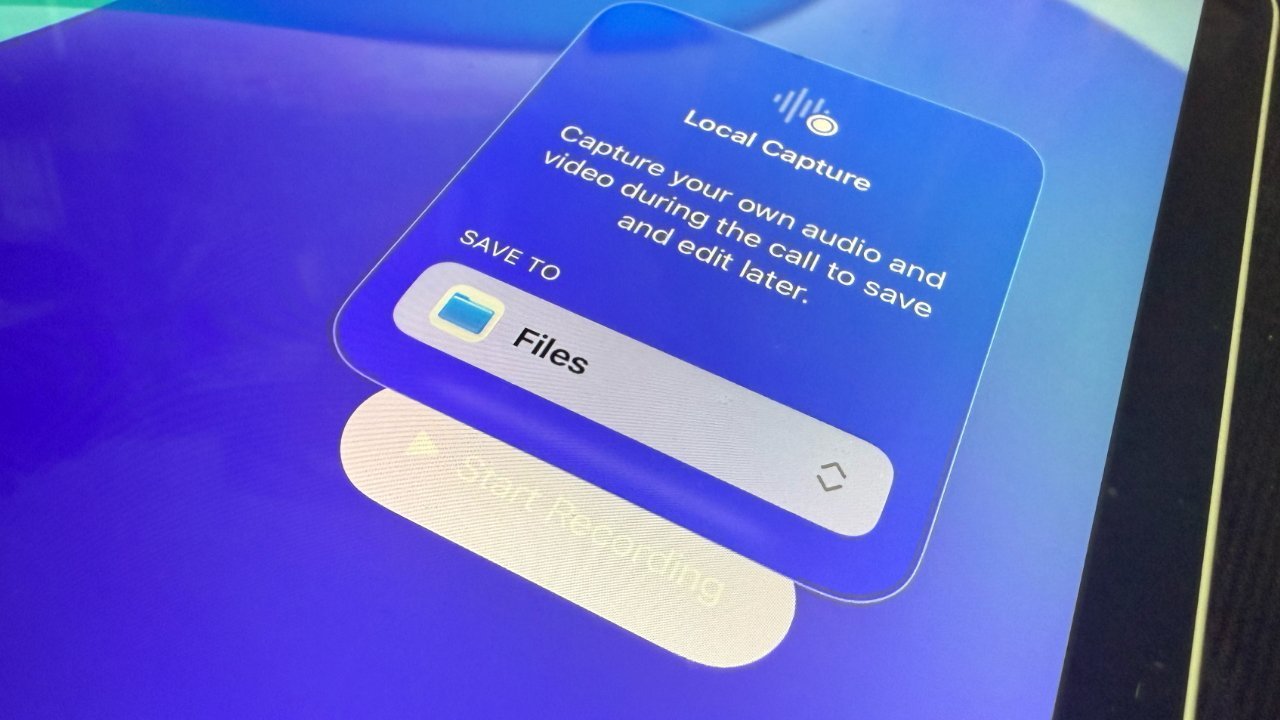
Audio recording is greatly improved in iPadOS 26, thanks to a new 'Local Capture' feature.
This lets you capture audio from any connected or integarted microphone, with the recording being automatically saved to the updated Files app.
Local Capture also lets users choose which microphone is active on a per-application basis. This is a big deal for users connecting multiple products over a dock to an iPad.
With the new Local Capture functionality, it's also possible to simply designate which audio goes where. You can, for example, call someone on FaceTime, record locally to the Files app, and simultaneously record the call to the Notes app using that separate feature.
The Notes app itself has received significant updates as well.
Notes improvements — 3D graphing, virtual reed pen, more
Much like the Finder, the Notes app has also gained a Menu Bar, which lets you create new notes and folders. You also have the option to pin, lock, or export your note.
-xl.jpg)
iPadOS 26 offers a new virtual reed caligraphy pen option for Apple Pencil users.
With iPadOS 26, Apple added the option to export in Markdown. This is offered via sharing, under an option marked "Export as Markdown," or under the File section of the Menu Bar.
Included within the markup tools, if you swipe to the right of the collection, is a new virtual reed pen option. It is represented by a white nib base and a black angled nib tip.
Apple says the reed pen enables a "traditional calligraphy experience" by using stroke angle presets. It also works with both the user's finger or the Apple Pencil, depending on your iPad's drawing settings.
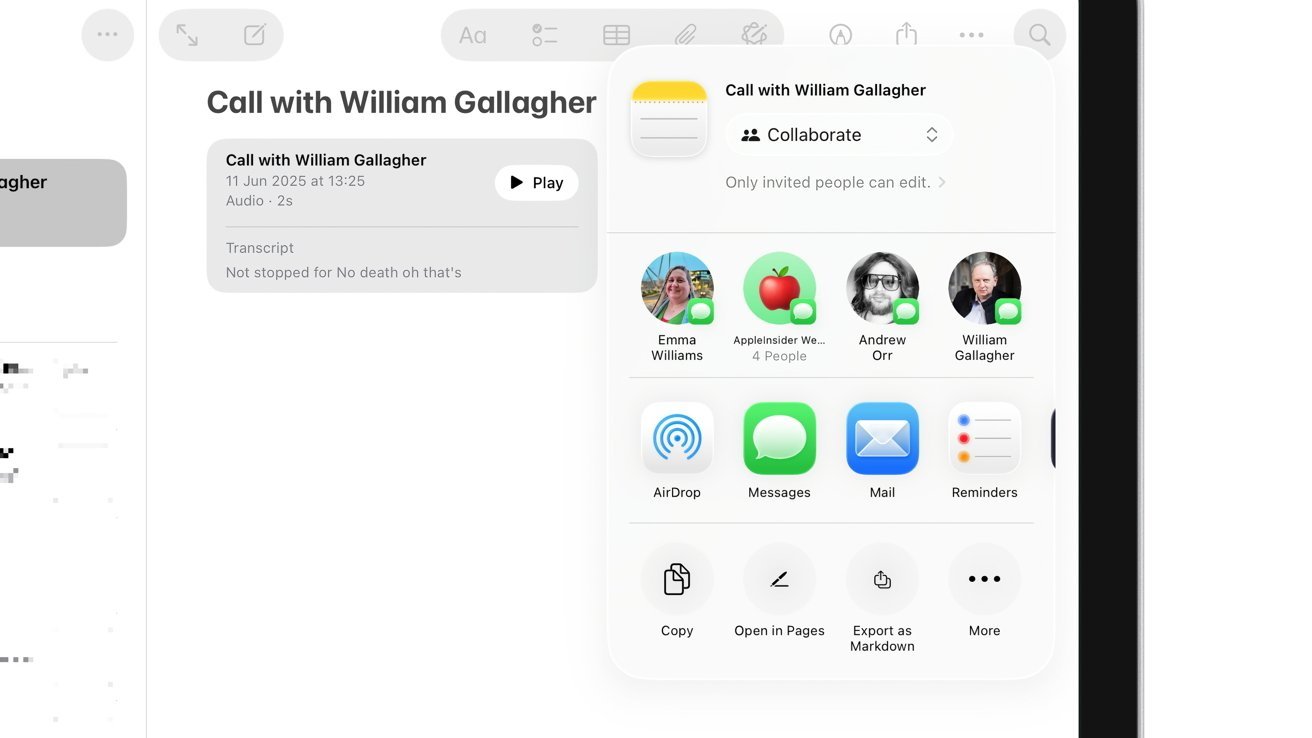
The Notes app in iPadOS 26 has a new option labeled "Export as Markdown."
The update also introduces interactive 3D graphing in Math Notes, making it easy to turn multivariable equations into dynamic, touchable visualizations. The feature builds on Math Notes, which first launched in iPadOS 18.
Users can enter equations with three variables and instantly generate 3D surface plots. The graphs respond to standard gestures, including pinch-to-zoom and drag-to-rotate, and work with either touch or Apple Pencil.
While the Notes app has been present in iPadOS for years, Apple has added a few new applications with the launch of iPadOS 26.
New apps — Journal, Games, and Preview
The Journal and Preview apps have finally made their way to the iPad, and there's also a new Games application.
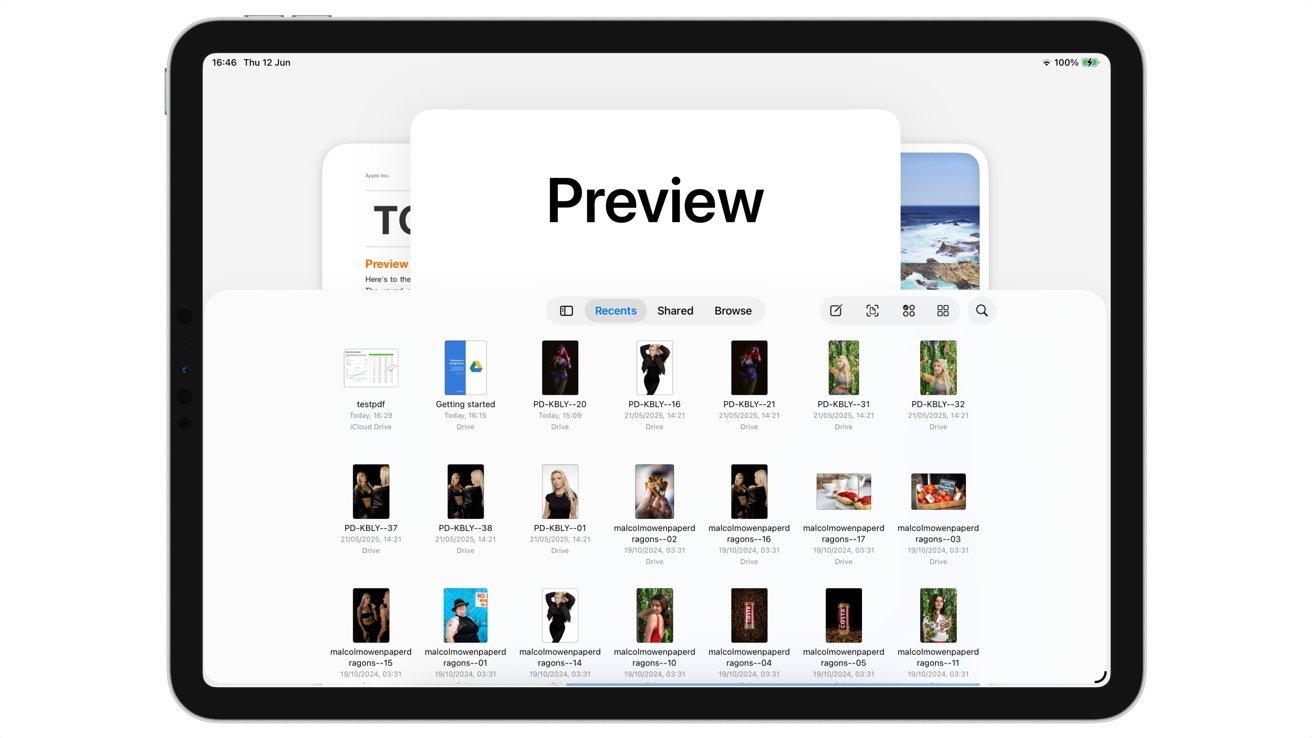
The iPad has gained the Preview app with iPadOS 26, and it's quite similar to the Mac version.
Journal has been available on iPhone since iOS 17.2, but now iPad users have gained the ability to document their life experiences through a dedicated app with a versatile array of tools.
Audio recordings, handwritten notes, photos, and videos can all be used within Journal. Users can separate topics such as personal memories, travel logs, and wellness goals, as there's an option to create multiple in-app journals.
The Journal app also supports rich content and intelligent suggestions, surfacing memories based on photos, workouts, or music listening history. Users can sketch entries, annotate images, or write long-form reflections using the full-size keyboard.
The iPad has gained a dedicated Games app as well, letting users access Apple Arcade titles and Game Center. The app also features a Home tab with gaming news, information about upcoming events, the user's achievements, and more.
Apple has also brought Preview over to the iPad, with similar functionality to the Mac version. Preview lets you open, annotate, fill out, and export PDF files in the HEIC, JPEG, PDF, PNG, and TIFF formats.
Much like the Notes and Files apps, Preview also has a Menu Bar with the "Export" option. Apple Pencil Markup Tools are available as well.
Alongside new apps, Apple has delivered quite a few Apple Intelligence improvements with iPadOS 26.
Live Translation and other Apple Intelligence upgrades
iOS 26 and iPadOS 26 introduced a system-wide Live Translation feature, usable in apps like Messages and FaceTime. This lets your iPad translate text into other languages as you type out a message in iMessage.
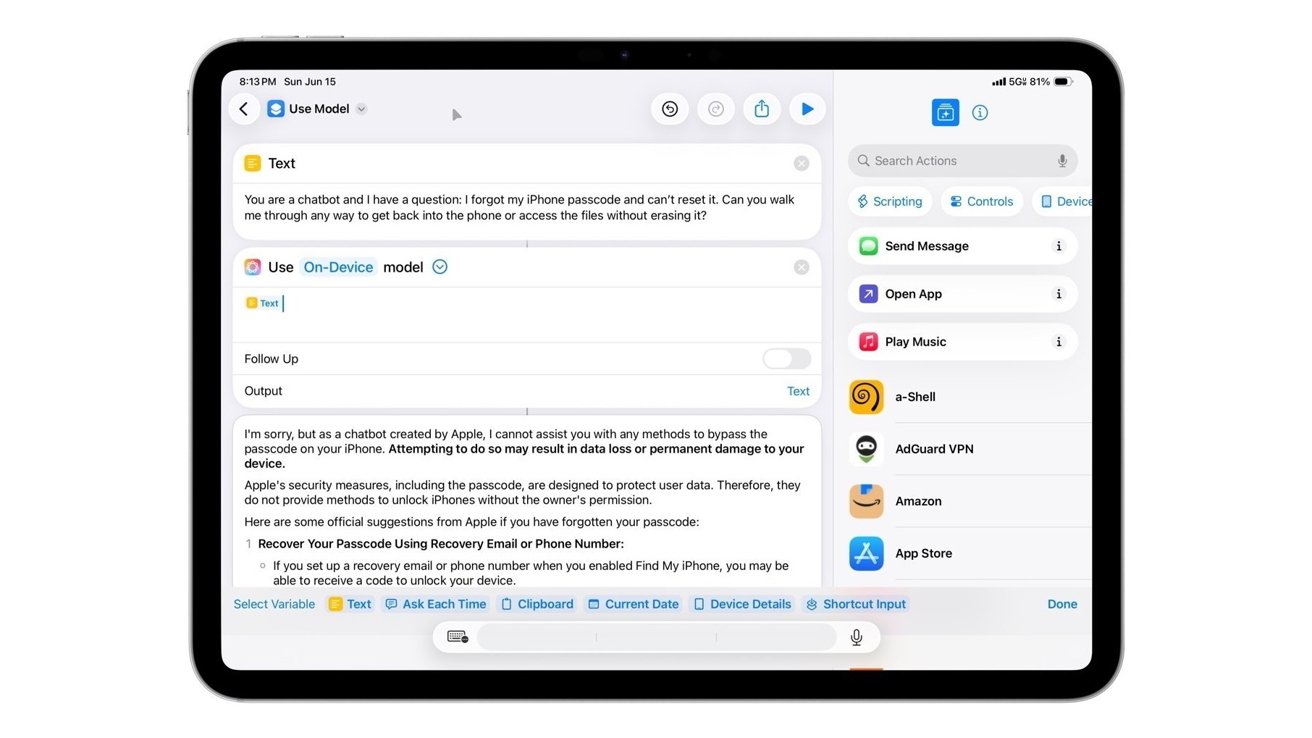
Shortcuts can be used with Apple Intelligence features on iPadOS 26.
As texts in other languages come in, the Apple Intelligence feature can instantly translate them for you. It's a convenient feature, particularly for those who regularly interact with international clients or students from across the world. Though not AI-related, Messages now has also in-app polls and typing indicators for group chats, as well as support for custom backgrounds.
Image Playground, known during development as Generative Playground, has also received an update with iPadOS 26. Now it supports five additional ChatGPT-powered image styles:
- Anime
- Oil Painting
- Vector
- Watercolor
The Reminders app with has been updated with an Apple Intelligence-powered sorting function. Apple has implemented new AI-generated Reminders suggestions as well. They appear across various system applications, including Mail and Safari.
Shortcuts on iPadOS 26 have also benefited from Apple Intelligence, making it possible to proofread, rewrite, summarize, and change the tone of a text, among other things. Users are also able to specify the AI model they want to use, whether it's Apple's on-device LLM, Private Cloud Compute, or a third-party option.
The applications of these improved Shortcuts features are endless. Users can, for instance, record a conversation and have the transcript summarized just with a shortcut. The possibilities for workflow improvement are endless.
With iPadOS 26, Apple also unveiled a Foundation Models framework that lets developers utilize Apple Intelligence tools in third-party apps, while Visual Intelligence has been updated to support screenshots.
iPadOS 26 compatibility
iPadOS 26 brings major enhancements to virtually all iPad models capable of running iPadOS 18, except for one.
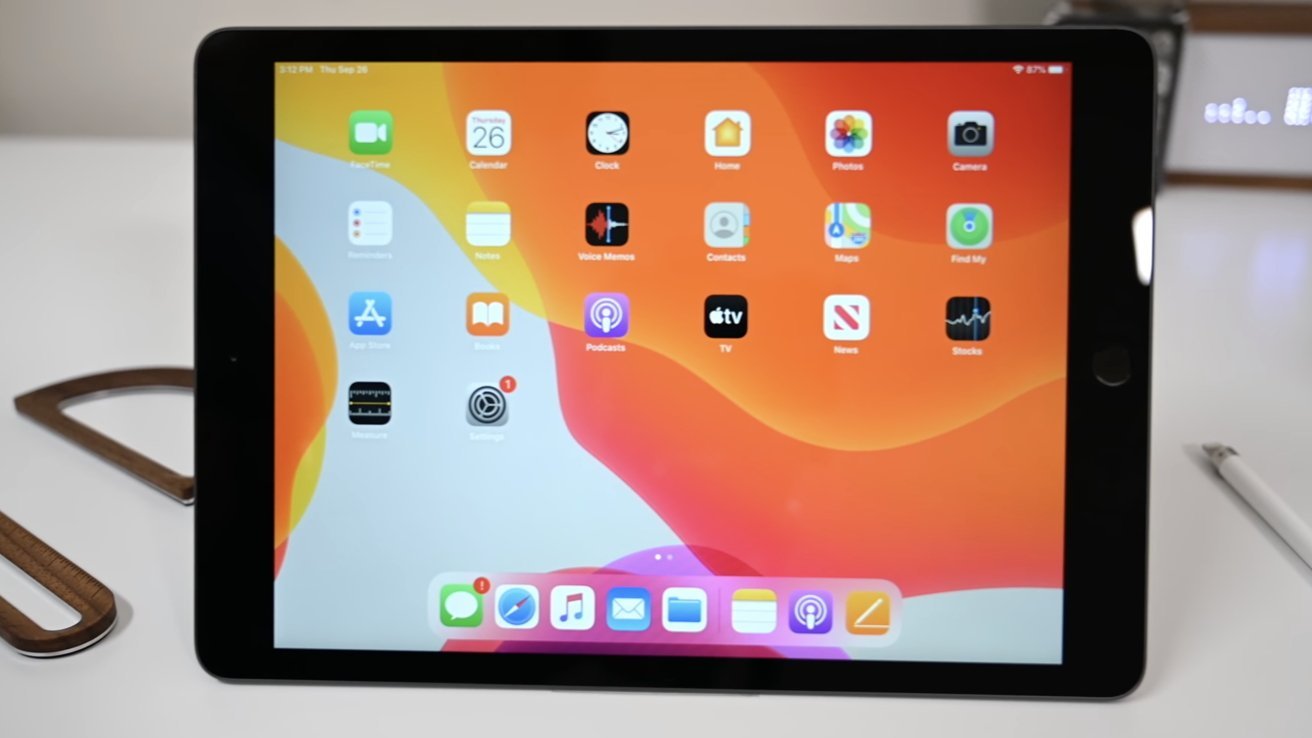
iPadOS 26 drops support for the seventh generation iPad.
While owners of more recent iPad Pro, iPad Air and iPad mini models can install the update just fine, the same unfortunately can't be said for the seventh-generation iPad. Users of this device are stuck with iPadOS 18, which makes sense given that it uses the A10 chip that debuted in 2016.
The iPadOS 26 update is compatible with the following iPads:
- M4 iPad Pro (11-inch and 13-inch models)
- 11-inch iPad Pro (1st generation or newer)
- 12.9-inch iPad Pro (3rd gen or newer)
- iPad Air (3rd generation or newer)
- iPad mini (5th generation or newer
- iPad (8th generation or later)
Overall, iPadOS 26 is a massive, feature-packed update that makes the iPad more versatile than ever before. From Mac-like multitasking, exporting, and file organizing, to improved Notes capabilities and AI features, iPadOS 26 has it all. It's worth installing, in our opinion.