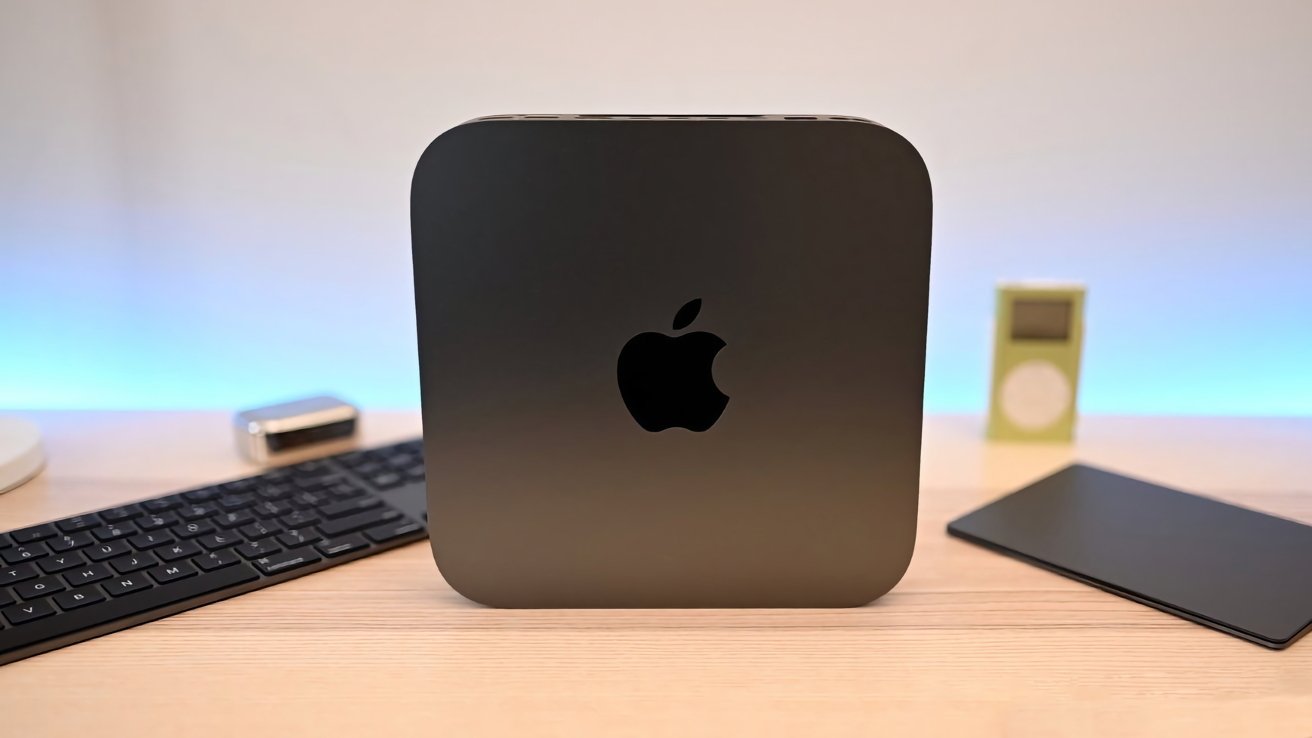
If you've upgraded to a new Mac, don't throw away your old one. Here are some ideas of things you can do to get more out of your older Apple desktop.
Buying a new Mac or MacBook can be a thrill. The bump of speed, the extra memory and storage that's free of clutter, and the unscratched, clean casing can make most Mac users instantly happy.
However, after drinking in all the potential of your new digital workspace, you'll soon be reminded that you still have your old one. After you've migrated your software and files over to your new daily driver, it may seem that there's little point in keeping your old one around.
The immediate thought is to sell it and get some money back for your old hardware. To be fair, this isn't entirely a bad idea, but you're not going to get that much back for your device.
Apple's own trade-in values for Mac models puts the MacBook Pro at up to $710, while a Mac mini can net you up to $340. However, those values are at the higher end of the spectrum, far from what you'll actually get.
Configuration, time of ownership, and the condition of the device will all affect how much you can get for it.
If there's little monetary benefit to a trade-in of your old Mac, you could hand it over to someone who may still benefit from the hardware. An M1 Mac mini may feel like it's a bit slow for power users, but it's still an excellent starter computer for a teenager or child as a hand-me-down.
This doesn't necessarily apply, though, as you may not want to inflict a glacial-in-comparison Intel-based Mac mini onto someone else.
There's also the possibility of sentimentality, which could prevent you from letting go of a much-loved piece of kit.
Whatever the reason, you've got a spare and old Mac that isn't being used, and you can't emulate Marie Kondo and get rid of it.
If it's hardware you want to keep, you're also better off trying to actually use it instead of letting it become a shelf ornament. Or worse, being consigned to storage.
A better idea is to find a purpose for that old Mac. Give it a task to do that benefits your life, instead of wasting space.
It may be underpowered to be your workhorse, but there's still life in the old dogs yet.
Upgrade older Macs
The influx of Apple Silicon coincided with the company's move away from a user-serviceable product ideology. It was a shift in favor of one where only advanced or adventurous users would attempt to open up their Mac and make changes.
Sure, you can use Apple's Self Service Repair programs to replace worn parts on a Mac or MacBook, or you could pay for a technician to do it for you.
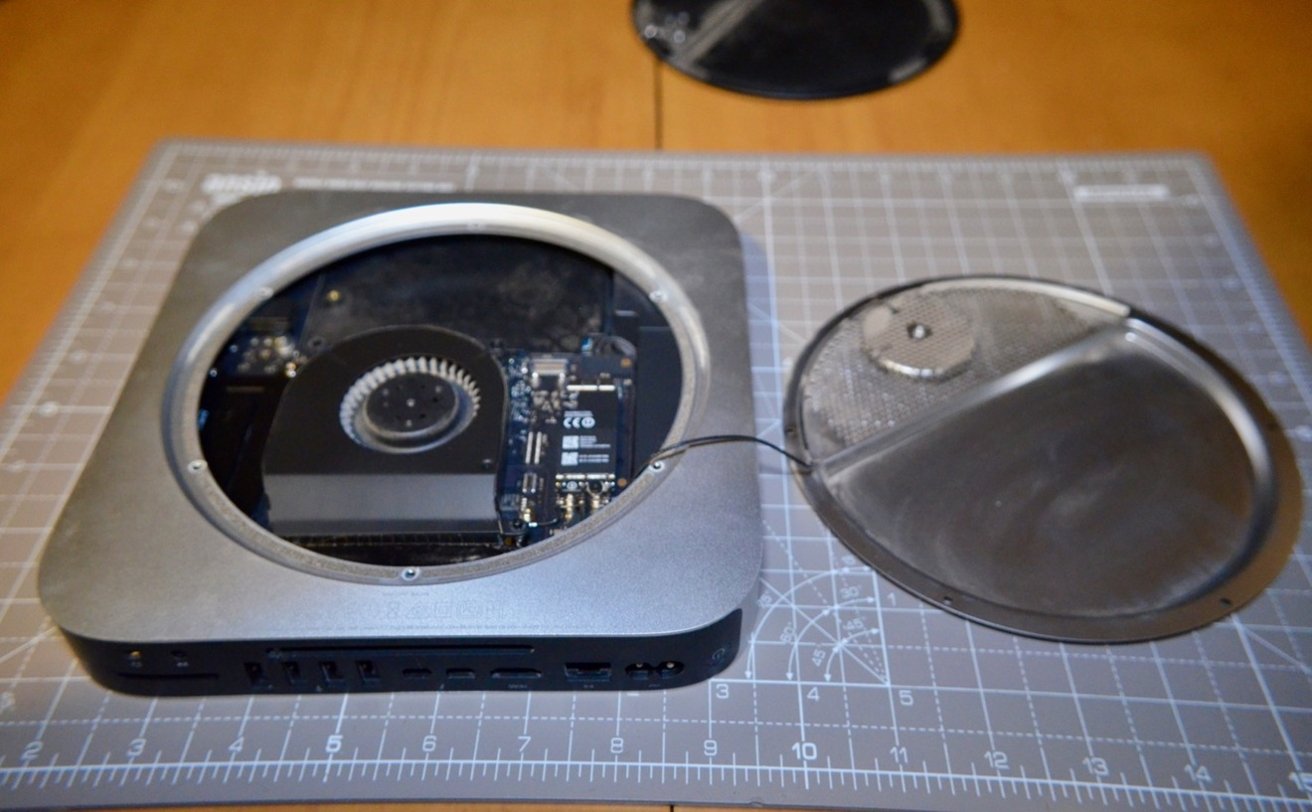
Upgrading the storage on an Intel Mac mini
But in the olden days a few generations before Apple Silicon, Apple still provided opportunities to make upgrades to your hardware, without risking further damage. Depending on your older Mac, you have various ways to improve the performance without too much trouble.
We at AppleInsider have documented our own attempts to upgrade older Macs, including adding more memory to a 27-inch iMac from 2020. Increasing the memory can have big benefits when it comes to more intensive tasks, especially if it doesn't have to use a swap file on a built-in drive.
Speaking of drives, for the 2012 and 2014 Mac mini, Apple made it possible to take the Mac apart and replace the storage. This was a very useful thing for users to do, since replacing the slower mechanical drive with an SSD significantly improved performance by preventing storage from being a bottleneck.
After replacing the mechanical drives for SSDs, we found that booting and loading times were significantly reduced. Not necessarily to modern Mac levels, but certainly enough to be noticeable.
With a few simple tools and a small number of Internet purchases, you can get everything you need to replace that internal drive.
Making upgrades to the older Macs won't bring them close to the performance of modern equivalents. Not by a country mile.
But, they will make the hardware faster and snappier, and better for performing other tasks you may give it.
Upgrading the unupgradable
While you're at it, you could also try to give your old Mac a new lease of life by installing a newer version of macOS. However, if your Mac is too old, you won't be able to install updates to newer versions directly from Apple, simply because it has deemed them obsolete.
Depending on the age of the Mac, there are options available. A good one, if you want a taste of newer macOS versions on older Intel-based hardware, is OpenCore.
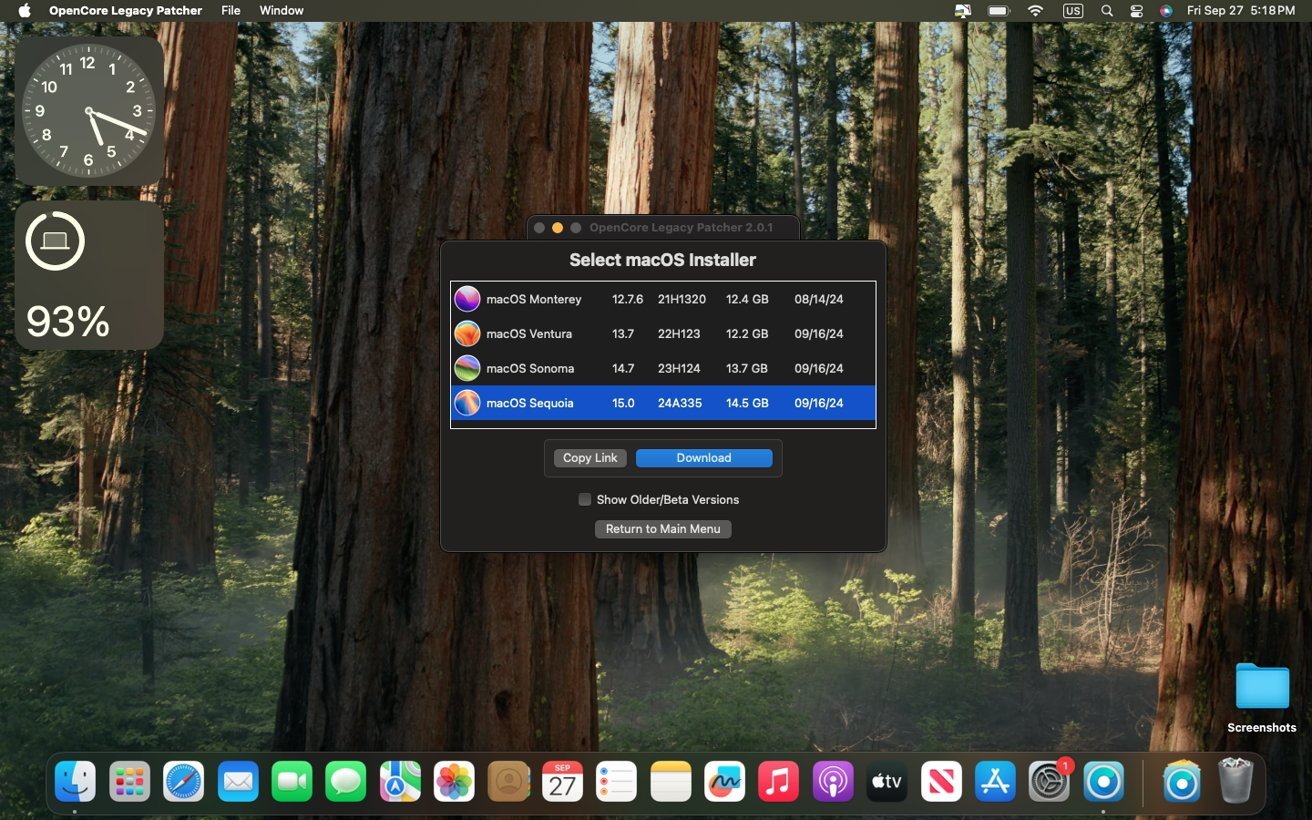
Using OpenCore to upgrade older macOS versions
OpenCore was a project that allowed a legacy patcher update macOS to newer generations, if they were no longer supported by Apple. Using some software trickery, you could ignore Apple's limitation and still upgrade to a more recent macOS release.
Of course, with the end of support for Intel Macs, that does put a hard limit on the macOS versions you could potentially install using OpenCore. But even so, you could find that you can update the operating system quite far from where Apple left the hardware.
Mac file serving
This seems like a fairly obvious thing to do to an old Mac. If you're not directly using it for your computing needs, it could still hang around on your home network as a resource.
At its simplest, it can become a file server. For a Mac with a built-in Gigabit Ethernet port, this is a no-brainer, but you can always add Ethernet using a dock or a dongle to a MacBook without one.
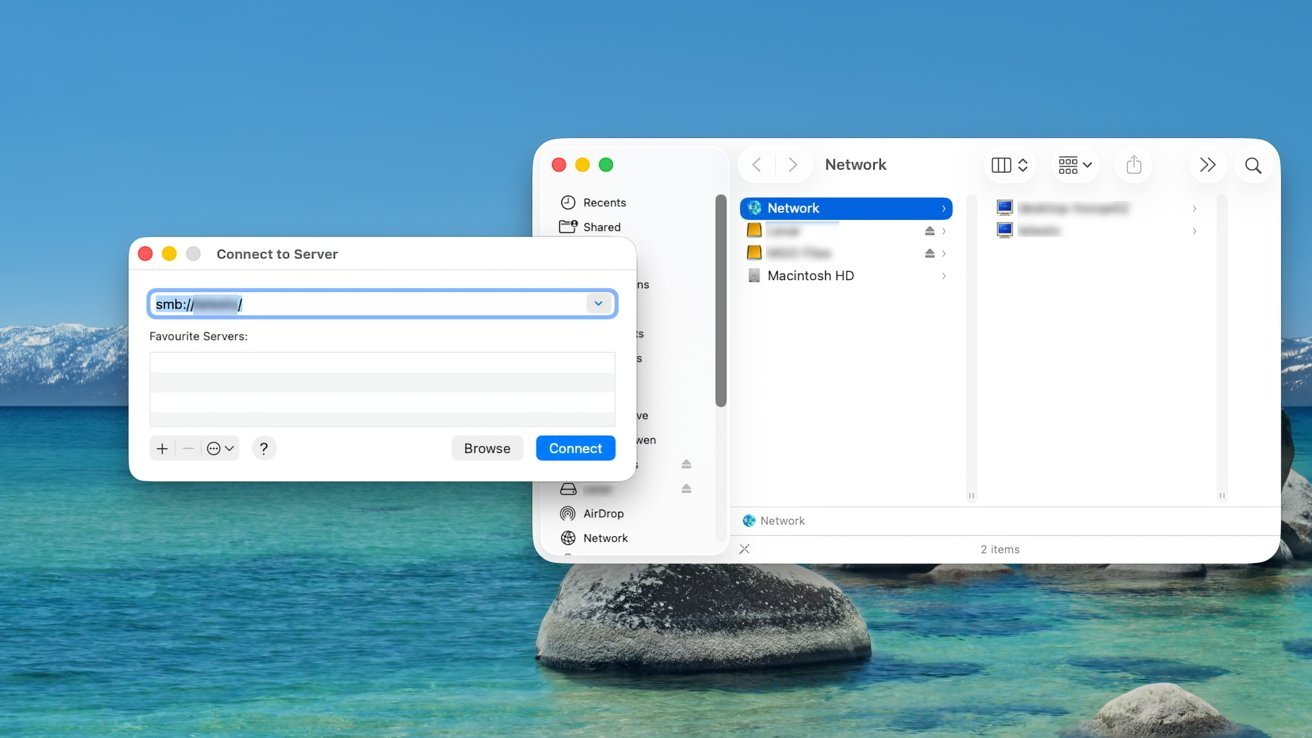
Setting up file sharing in macOS isn't hard.
If you have a pile of files that you want accessible from multiple computers on your network, it makes sense to take advantage of the old Mac's built-in storage. Even for those with mechanical drives.
At its simplest, all you have to do is share folders from your old Mac to the network and, if Windows is involved, make a few key additional changes, and your files are accessible.
Of course, if you have greater storage needs, you may be tempted to get hold of a proper NAS. Instead, you could get enclosures for your Mac that add more storage, which you can then share on the network in exactly the same way.
Time Machine
If you've gone to the trouble of adding a lot of storage to your old Mac, you may be tempted to use it to help your new Mac for backups.
Just like a NAS or an external drive, it's possible to have Time Machine, Apple's backing-up software, use a folder on a different Mac as a storage location. It's also not that hard to accomplish beyond setting up a shared folder.
- Head to System Settings or System Preferences then General, then Sharing, then toggle on File Sharing.
- Click the information icon, then under Shared Folders, click the plus icon and select your folder for holding backups, then click Open.
- Right-click that folder and select Advanced Options.
- Select the option Share as a Time Machine backup destination.
Once this has been done, you can go to Time Machine under System Settings or System Preferences, click Select Backup Disk, and navigate to the new shared folder.
Now, all of your Time Machine backups of your current desktop Mac will be saved to storage on the old Mac, over the network.
Network services
You can, of course, take this idea a lot further if you want to, beyond just serving files.
As it's a server, so long as you can get the right software for what you want to do, you can use it for many other purposes.
If you are a movie buff or have an extensive movie collection, you can create your own private Netflix by installing Plex. With a Mac acting as the central server, you can create a single repository for your media files, saving space on your main desktop for other data.

Installing Plex on a spare mac
You don't have to stop there. If you use containerization software like Docker or full-blown virtualization tools, you could run many different types of server for use on your network.
Developers could take advantage of it by running a dedicated webserver, instead of running it locally. Gaming-centric households could create their own private Minecraft server, as a persistent and safe space for children to build within.
If there's anything that has a server component for it, there's a good chance you can either install it or something similar on a Mac and roll your own home box.
Mac media center and retro gaming
While smart TVs are becoming more popular, the software can still be quite clunky to use. There's also never a guarantee that the built-in software will do what you want it to do either, as not all streaming services work on all platforms.
An answer to this is to get an Apple TV, but if you have an old Mac on standby, you could use that instead.
A Mac mini could be considered an Apple TV on steroids. While it doesn't have the immediately accessible tvOS interface, it's still a platform that can play media on a TV without any trouble.
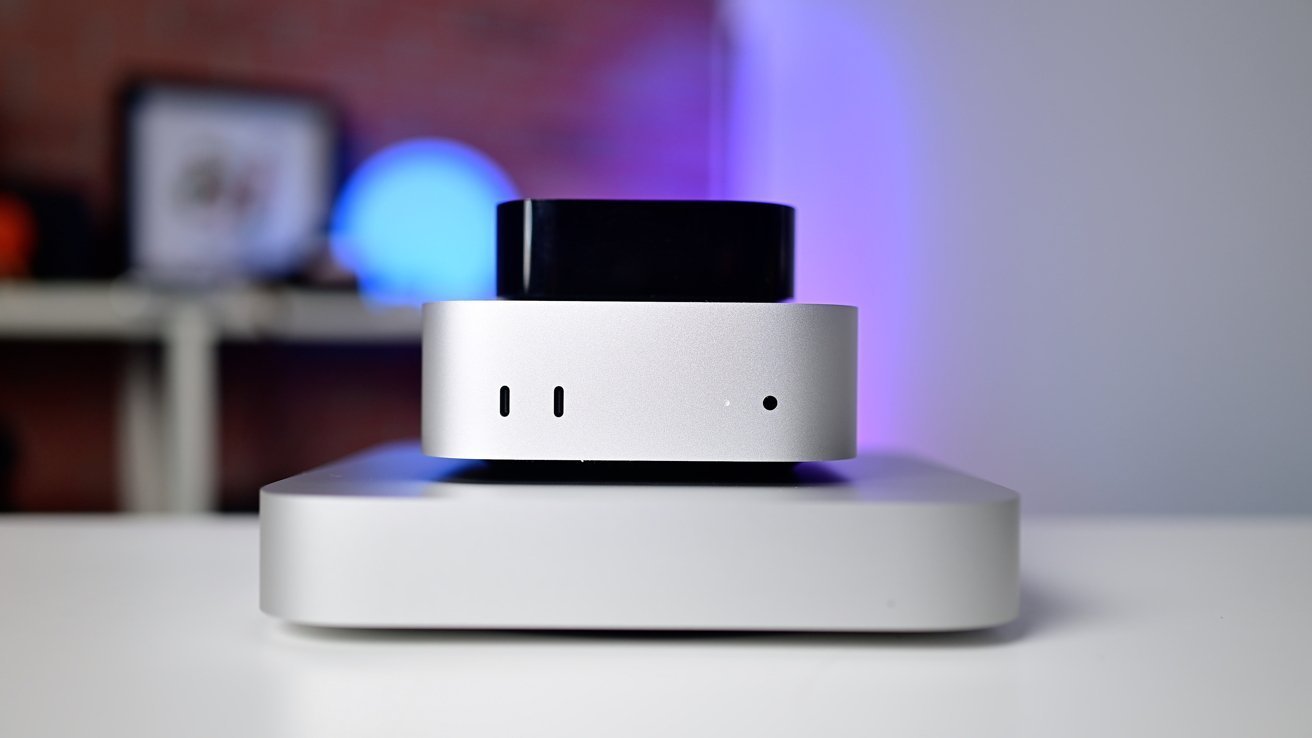
The Mac mini (middle and bottom) could easily do the same stuff as the Apple TV (top), and even more!
Simply plug an HDMI cable between the TV and the Mac mini, acquire yourself a Bluetooth keyboard and trackpad, and you're immediately able to use the Mac on your living room TV while laid on the couch.
Using a spare Mac this way adds in some benefits that wouldn't necessarily be available on an Apple TV, too. For a start, you can use web browsers to access services that don't have an Apple TV app, or to do big-screen Google searches directly, without necessarily needing to AirPlay your iPhone to the Apple TV beforehand.
Gaming is also more flexible on a Mac than an Apple TV. Sure, the Apple TV has Steam Link so you can play something from a PC or Mac on your living room TV, but you can get the same thing by playing from a Mac directly, and without the network lag caused through streaming, either.
You're also not limited to Steam, either. Other storefronts, even the Epic Game Store, offer titles that are not available on tvOS that you can still install and play from a Mac.
There's also an entire world of retro gaming to consider. While Apple has opened up iOS and tvOS to allow game emulators into the App Store, there's a massive amount of emulators that existed before that change.
It's also considerably easier to deal with the associated files on a Mac than on an iPhone or Apple TV.