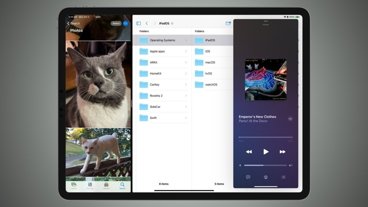
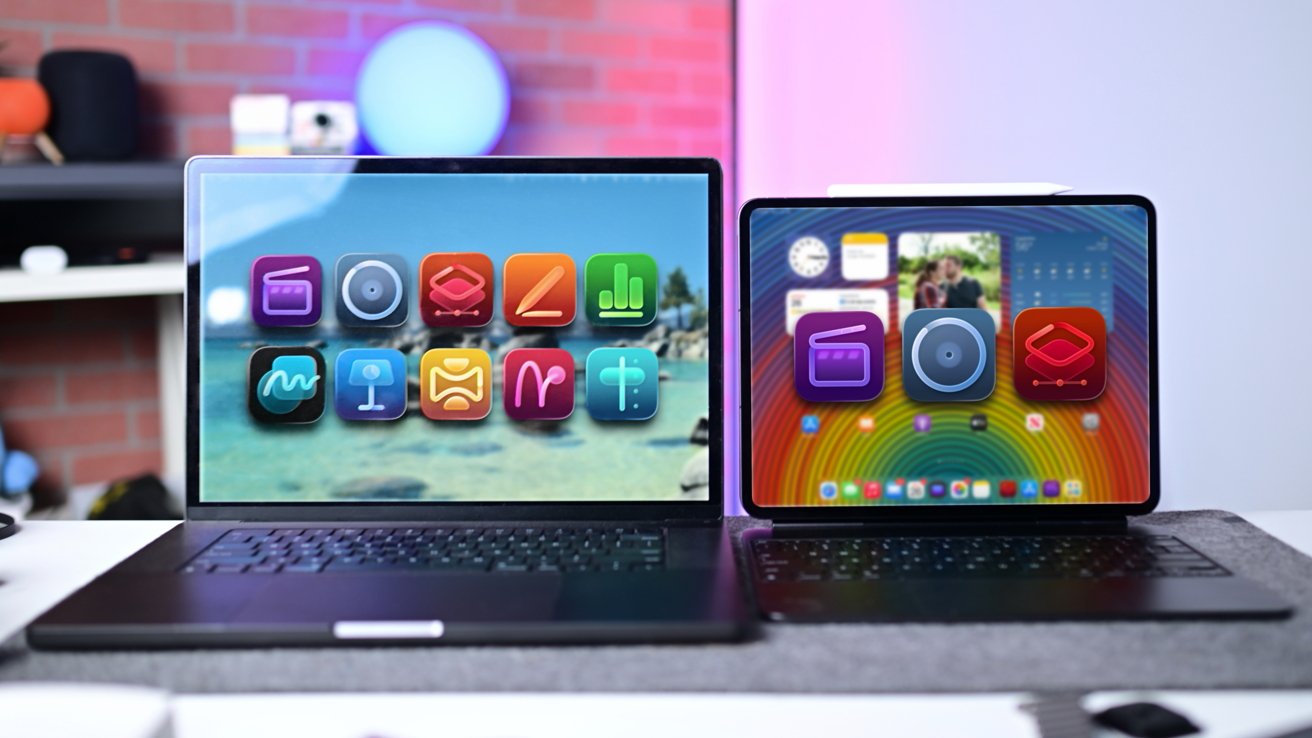
The new Apple Creator Studio bundles the company's flagship creative software in a monthly subscription package for the first time. It's a great value, assuming you haven't bought most of them individually.
The iPhone maker has been creating pro creative software for decades. It hasn't been without missteps, though.
I've been testing Creator Studio for the past couple of weeks, and so far, it's been a positive experience. Most of the core apps are the same, and Apple has just built upon them with a series of new features and a semi-optional updated pricing model.
Creator Studio comes with Final Cut Pro, Logic Pro, Pixelmator Pro, Motion, Compressor, MainStage, Pages, Keynote, Numbers, and Freeform. Final Cut Pro, Pixelmator Pro, and Logic Pro are all available on both Mac and iPad.
I will say the new subscription pricing model isn't great for everyone. While the one-time purchases are sticking around and Apple promises to bring the same features to both for the time being, the iPad apps are only available via a Creator Studio subscription.
Of the new features, many are billed as "intelligent features" by Apple. This seems to be somewhat of a distinction from the largely broad consumer target of Apple Intelligence features.

Still, they're AI-powered and run on various models. Some use OpenAI, while others are built on Apple's own models.
These features are noticeably designed to aid creatives, not replace them. The new intelligent features, as well as the other new features, make a compelling case for Apple's new software.
Creator Studio review: Final Cut Pro
You'll get the most out of Creator Studio if you use all 10 apps that Apple bundles. Realistically, there are going to be some apps that you use more than others.
For me, I live in Final Cut Pro. Pumping out several long-form videos each week, coupled with an ever-increasing amount of short-form content, not a day goes by that I am not editing in Final Cut Pro.
Unfortunately, the app seems to have been an afterthought for Apple, as major updates were few and far between. The most recent addition is Image Playground support, as well as Magnetic Mask to remove the background from video without the need for chroma key — A.K.A. green screen.
In the era of Creator Studio, Apple is bundling both the Mac version as well as the iPad version of Final Cut Pro together. At the same time, it is adding several new notable features.
When Apple first moved from Final Cut Pro Studio 7 to Final Cut Pro X, it initially launched without many key features. This resulted in Apple ceding most of the market to Premiere, Blackmagic, and other editing suites.
Crucial features like multi-cam weren't ready, and pros couldn't wait around. Apple's new magnetic timeline was cool, but it would take years and many updates for pros to start to return.
I'm not sure many pros have, as most editing houses in Hollywood still don't use it. Fortunately for Apple, there's a huge audience of short filmmakers, content creators, and others who have embraced it.
While Final Cut Pro can handle a feature film, it's these other editors that Apple is catering to. Tools like Magnetic Mask, a new montage builder, and beat sync all make it easy to create great content with Final Cut Pro.
One of the flagship new features is an enhanced clip search within Final Cut Pro for Mac. You can search based on what is in the clips or what is said.
For example, I can quickly find the clip in my library where I am talking about Cinematic Mode on my long-term iPhone Air review. You can go by a line verbatim, or you can be more fuzzy and search for the transcript that is just related to your search term.
These Final Cut Pro AI features run locally, meaning they won't require any cloud upload or internet connectivity to use. This applies to almost all AI features in Creator Studio except the generative stuff in the productivity apps.
For large projects, this search feature is massive. I was digging through hundreds of clips from CES this year, and it took seconds to find certain clips of products using this visual search.
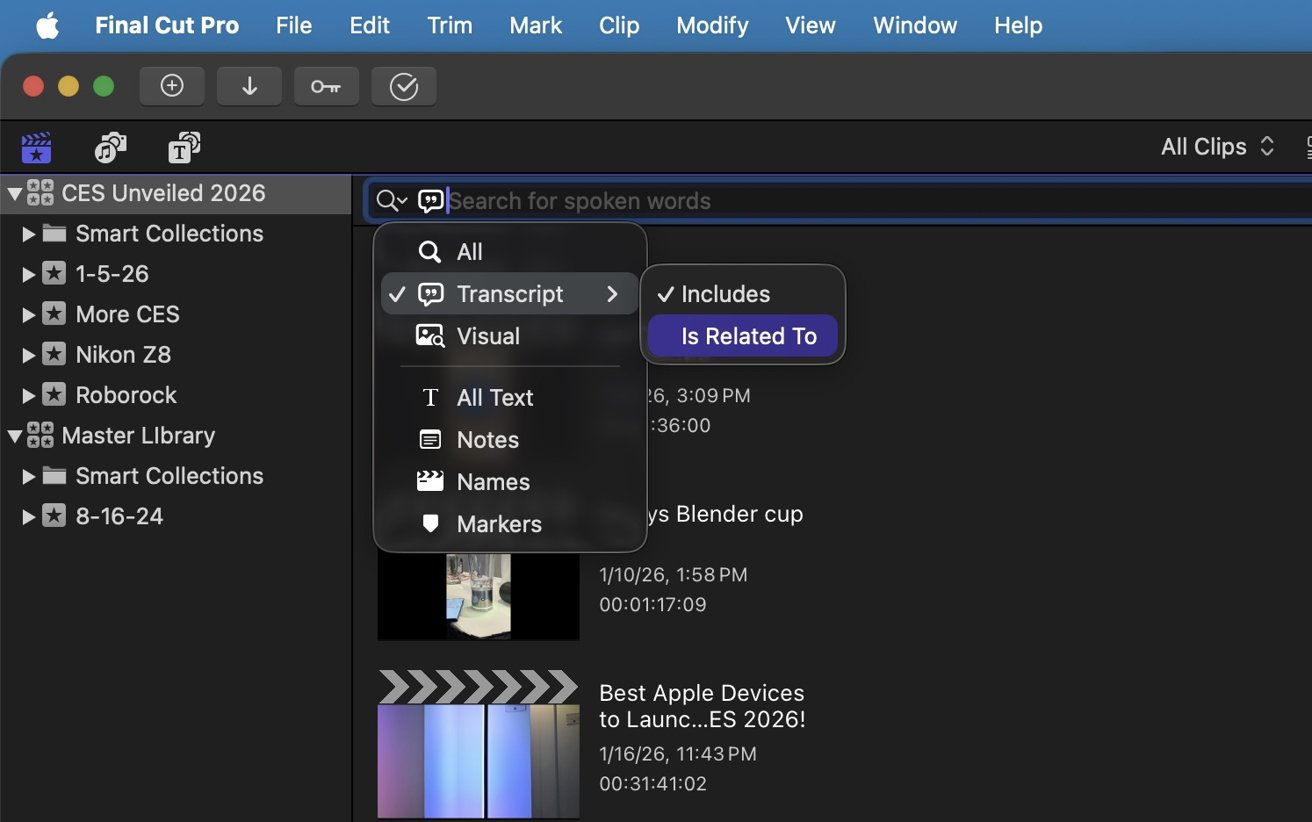
Apple Creator Studio review: The new search works for the transcript and visuals
The fuzzy audio search is also amazing. Clips without clear audio won't work for the transcript search, for obvious reasons, but if you have an interview, this will save a ton of time for editors tracking down takes.
Most of my current projects don't use backing tracks, but it does happen from time to time. Part of using music is syncing your cuts to match the beat.
It's a basic rule of editing and usually requires some fiddling to place the cut exactly where the beat lands or adjusting the audio if that's possible. The new beat detection feature makes that significantly easier.
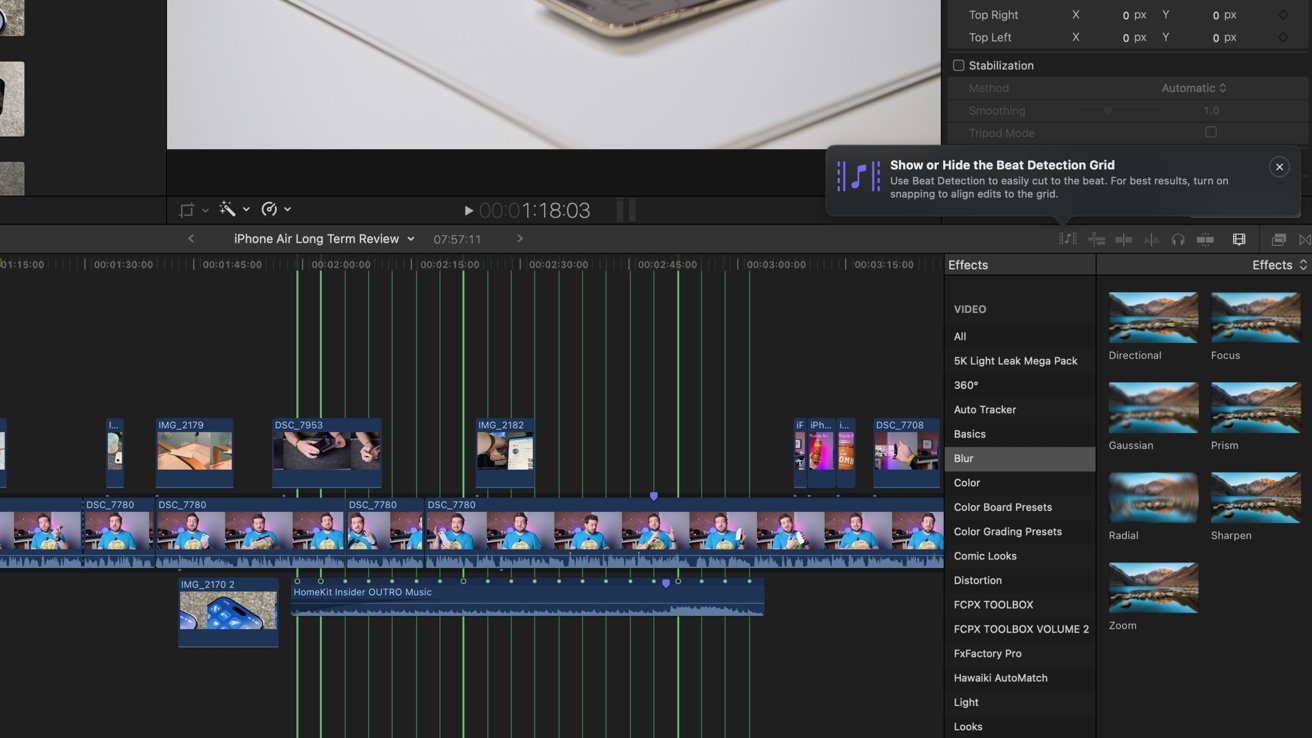
Apple Creator Studio review: Synchronize your cuts with the music
You apply your music track as usual, then go to Clips > Enable Beat Detection to turn it on. It will analyze the audio and show visually on your timeline where the beat falls.
Then it's just a matter of making your cuts and transitions line up with the guide, which does aid in snapping them into place. The grid, which can easily be toggled off, even highlights the primary downbeats versus the others.
I also started playing around with importing Final Cut Pro video projects into Logic Pro to add music to. This feature has been around, but now it is better integrated with session players.
Before, just dropping in loops can be repetitive, but session players will be able to adapt more organically. They adjust based on beat and timing to create unique audio each time.
Once you finish your audio, you can mute the timeline audio and drop the track right into Final Cut. It's so easy to do, and it's another way to improve the workflow between Apple's pro apps.
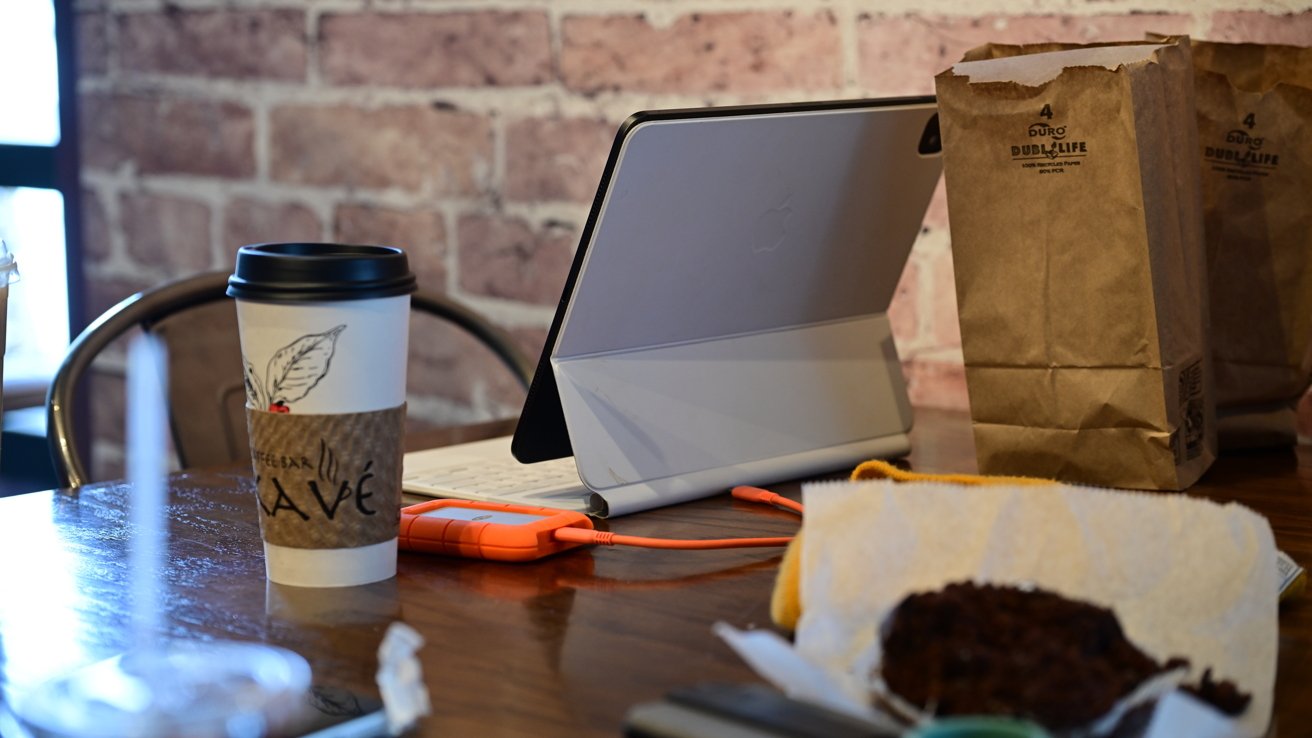
Apple Creator Studio review: I love being able to edit anywhere with whichever device is most handy
Over on iPad, the Final Cut Pro app got some updates on the mobile front, too. The most obvious one is probably the new montage tool.
This is an entire workflow for taking a series of clips and automatically turning them into a finished project. It's very similar to the Memory Maker inside the Photos app.
You import the images and videos you want to use, tap the Create Montage button in the empty timeline, and it will spend the next couple of minutes — depending on your tablet and media — converting it into a polished video.
Each clip is shown as a thumbnail, and you have a lot of options for things like aspect ratio, auto-crop, rearranging the order, adding additional media, and speed. For music, you can choose from the Final Cut catalog, or you can import your own.
All the clips and transitions will sync to the beat of the music for a polished look. My favorite thing about this is that, unlike with Photos, once you add the montage to the timeline, you have full granular control over everything.
It shows just like any other media in the timeline, so you can adjust framing, color, transitions, and everything else. That's much preferable to just having it automatically export after the basic edit.
At this point, things feel like the iPad app is almost full-featured enough for real work. Apple delivered two other major enhancements that users like me had been pining for.
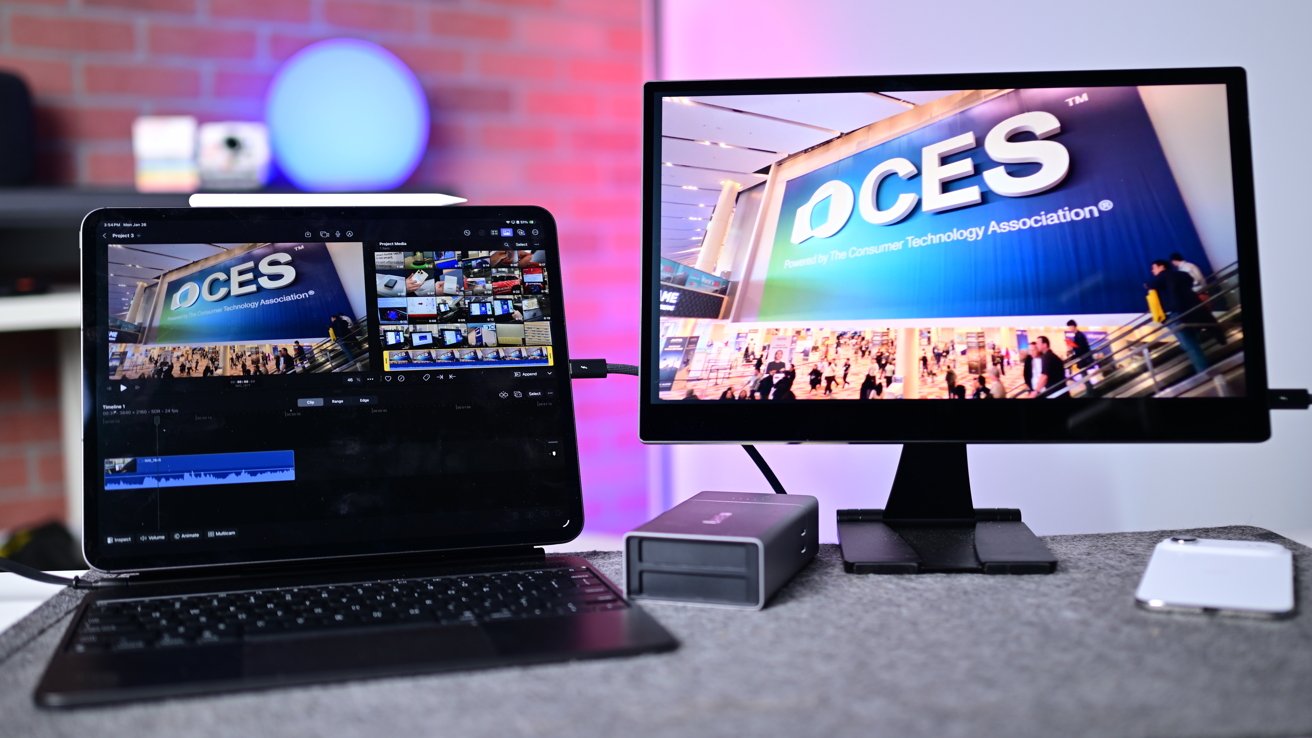
Apple Creator Studio review: Previews look great on an external monitor for iPad
We now have external monitor support for playback. I can be editing on my iPad Pro with an external monitor connected and playback the project on the external display with my timeline and everything else still on the tablet.
If you're on an 11-inch iPad Air or iPad Pro, there is not a lot of space for the timeline, clips, and the preview window. Using an external display — even something reasonable like a portable Espresso Display — lends itself to a far more comfortable setup.
The second major, oft-requested feature on iPad is background export. I can't celebrate this enough.
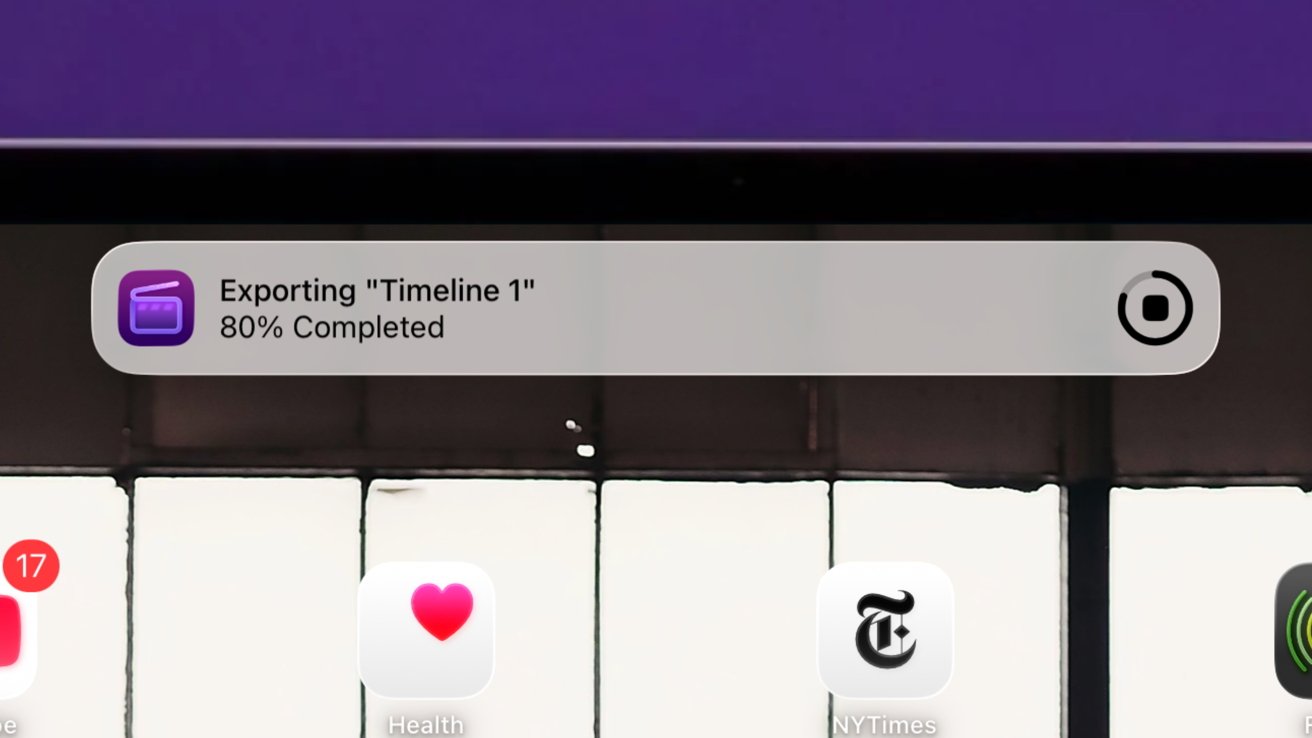
Apple Creator Studio review: Background export means I can keep working while bouncing a project
Before, I'd edit a project and have to literally leave the window open and wait for the export to finish before doing anything else. Now, I can go back to my Home Screen or go into other apps and continue working while the export happens in the background, with real-time status displayed as a Live Activity.
Other additions with the 12.0 update include more than 60 new titles and transitions, as well as more graphics, visuals, and countdowns. These will largely come to both platforms.
Still, Apple hasn't found a way yet to deliver the one feature I truly want to see — round-trip support between Mac and iPad. It's possible to start on iPad and finish on the Mac, but not the other way around.
There are many times when I have started a project at my desk, only to find myself in need of finishing it on the road. I can't do it on iPad, and instead I need to bring my Mac in tow.
With my current setup, I use the Lexar Workflow Professional Docking Station that has a series of removable SSDs. In a perfect world, I'd start that project, slide out an SSD, and bring it with me to finish on my tablet.
If I didn't finish, I could just come back and slot that drive back in and pick up where I left off. This is what true round-trip support would deliver.
I understand there are a ton of plugins, third-party tools, and effects for the Mac version that aren't on iPad. Apple could either give you a warning that your project contains unsupported attributes or deliver and bring plugin support to the iPad.
Full round-trip support is available for Logic and Pixelmator, but not Final Cut. Hopefully, this is something Apple has been actively working on and will eventually ship one way or another.
Creator Studio review: Pixelmator Pro
Since getting acquired by Apple in 2024, Pixelmator Pro has received only minor updates.
The biggest of which was in mid-2025 where Apple added additional raw support and baked in Image Playground, its image generation tool. Otherwise, it's largely been stagnant, with some wondering if it was going to continue as a standalone app.
Apple has laid those fears to rest with the Creator Studio announcement. It not only includes a new update to the Mac app, but is launching on iPad for the very first time.
Backing up a bit, Pixelmator Pro is a fantastic photo editing app. In a world filled with Adobe's Photoshop and the now-free Affinity suite, Pixelmator has held its own.
It runs natively on Apple Silicon and is a perfect prosumer app with an approachable interface yet deep toolset. It has a verbose set of templates, spanning YouTube thumbnails, social media posts, product mockups, and more.
After growing up using Adobe Creative Suite and Apple's long-dead Aperture, I've always felt very comfortable in Pixelmator Pro. That doesn't mean you need to be a seasoned pro, though.
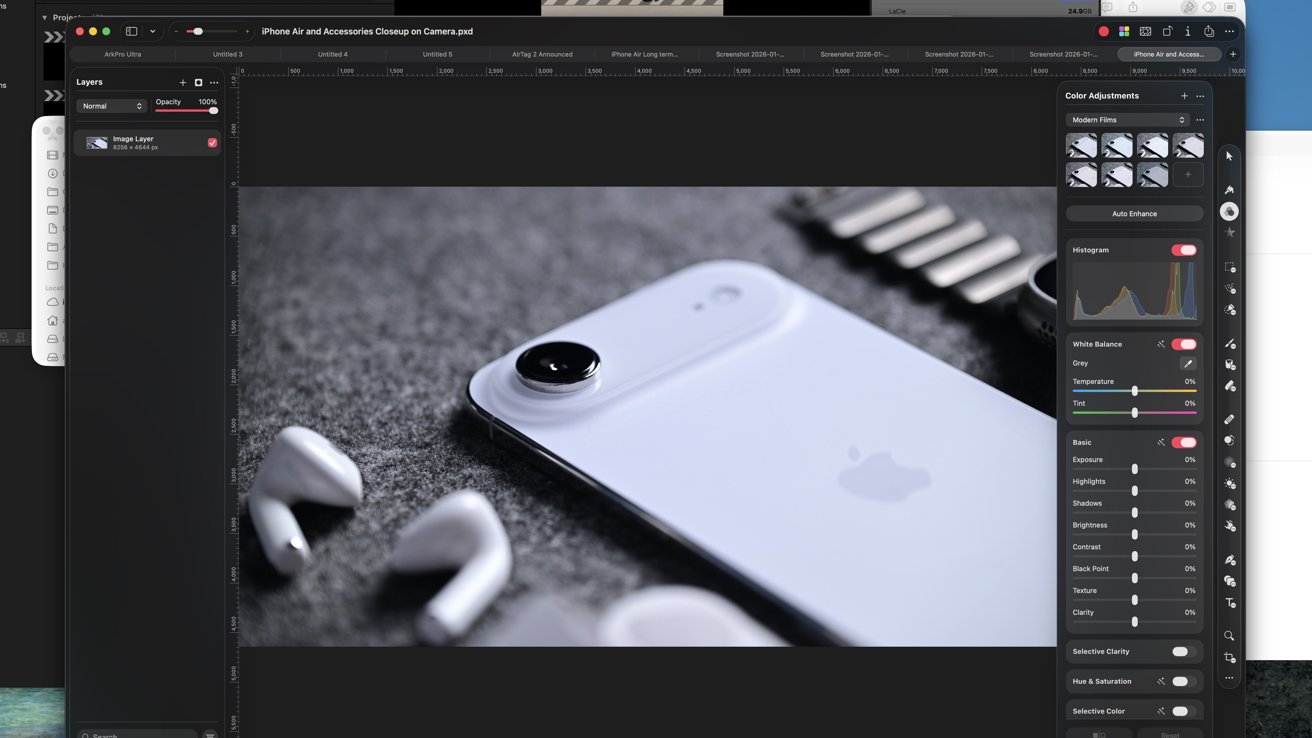
Apple Creator Studio review: Pixelmator has all the tools for photo editing
It's easy to open a photo in Pixelmator Pro and use Color Adjustments to make your pic look better. You can apply filters, adjust any of the sliders, or let Pixelmator Pro give it a whirl with the ML Enhance button.
Expanding outside of that, many of the tools are industry standard. Things like blending modes, masks, layers, and more work just like any other image manipulation program.
All your layers are nested on the left, while the right has your tools and the settings for each of those tools. Opening the Styles tool, for example, lets you apply drop shadows, border stroke, fill, or inner shadows.
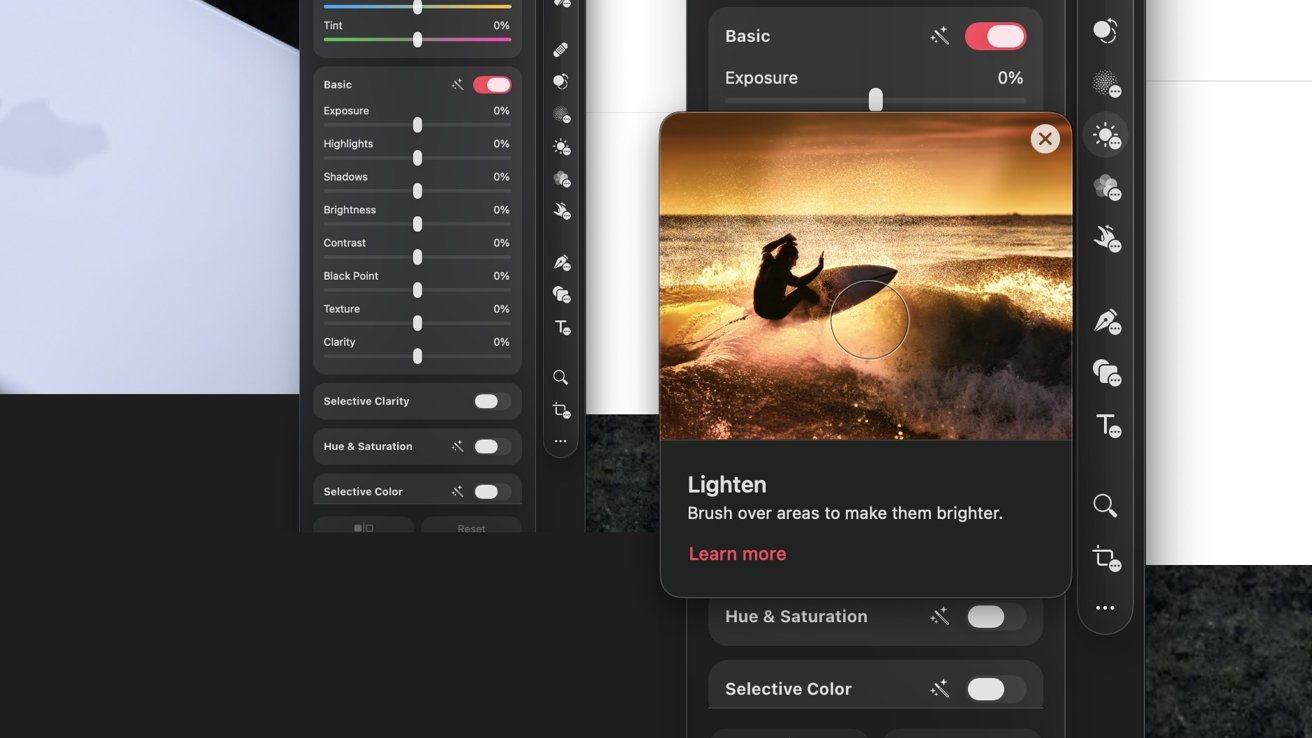
Apple Creator Studio review: Hover over a tool on the Mac version and a video demonstrates the tool use
One thing I love about Pixelmator Pro that makes it easy to use is that it shows a small video to explain each tool when you hover over it, instead of just a normal tooltip. Hovering over the Repair tool, for example, shows how you can remove objects from photos.
With the Creator Studio version, Apple has added plenty more content for users to pull from. There are many new templates when starting, including devices like the iPhone 16 Pro and more product mockups, like a canvas bag or aluminum can.
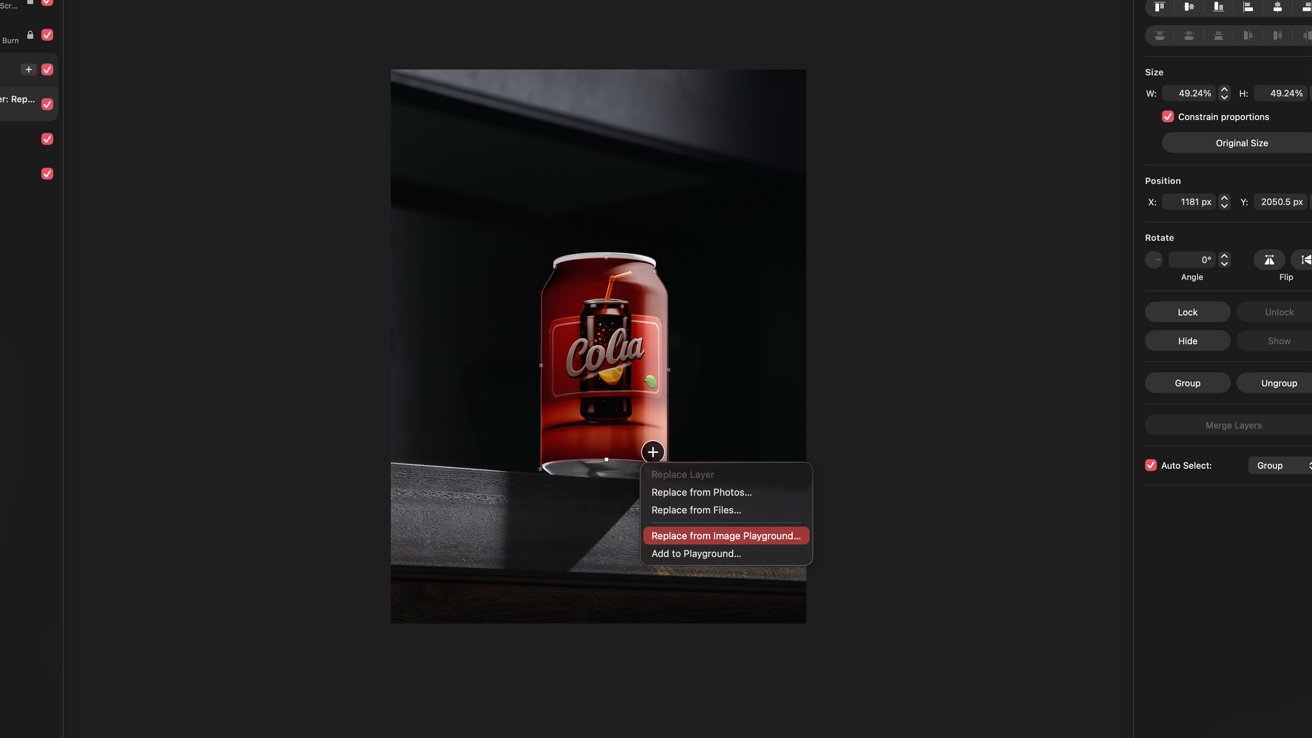
Apple Creator Studio review: A can is just one of many new product mockups and I generated a label with OpenAI
This should be a great resource for small brands, musicians, and others who want to easily create merch or product mockups. At the same time, it's also very limiting, with only one or two options for common products like t-shirts.
Those with the initiative can take those initial projects and modify them. They contain all the layers and effects applied, so that you could go and take your own photo and superimpose images in the same way.
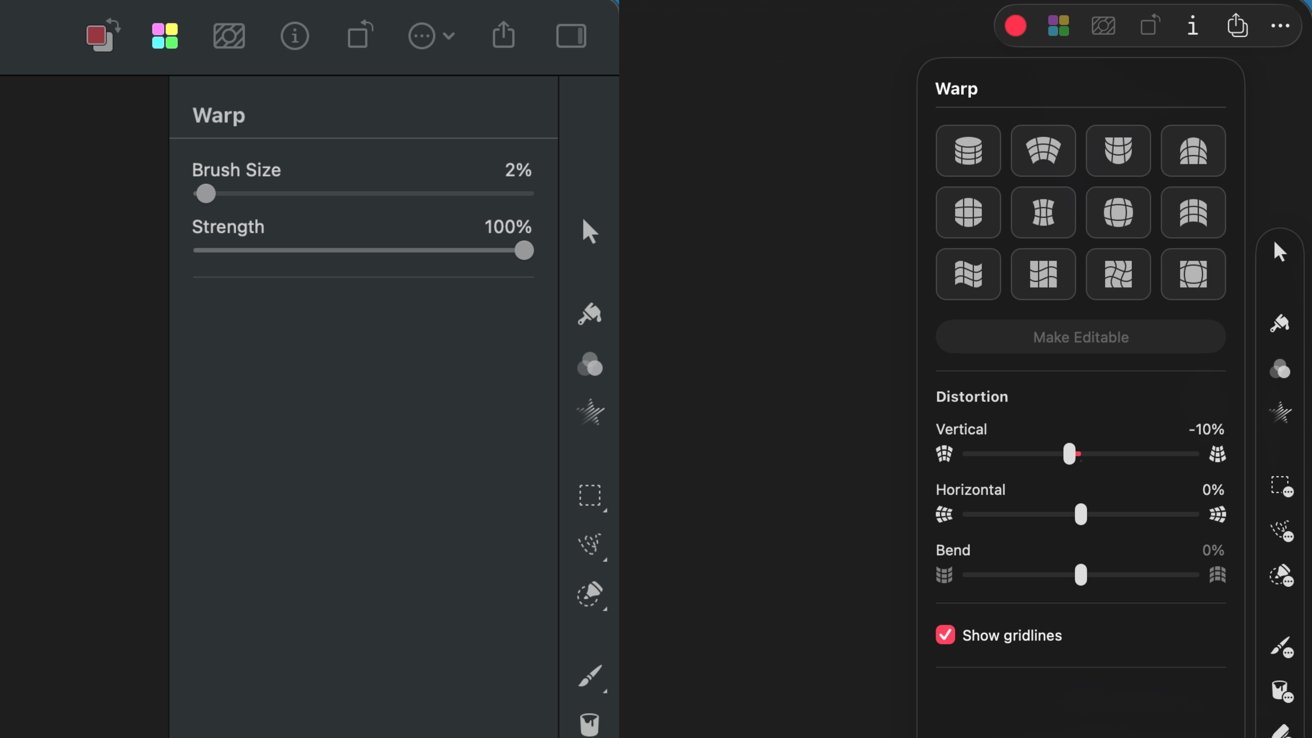
Apple Creator Studio review: The new warp tool (right) is much more powerful
Another big change is an alteration to the warp tool. This builds upon the original warp by allowing your images to be manipulated in 3D space.
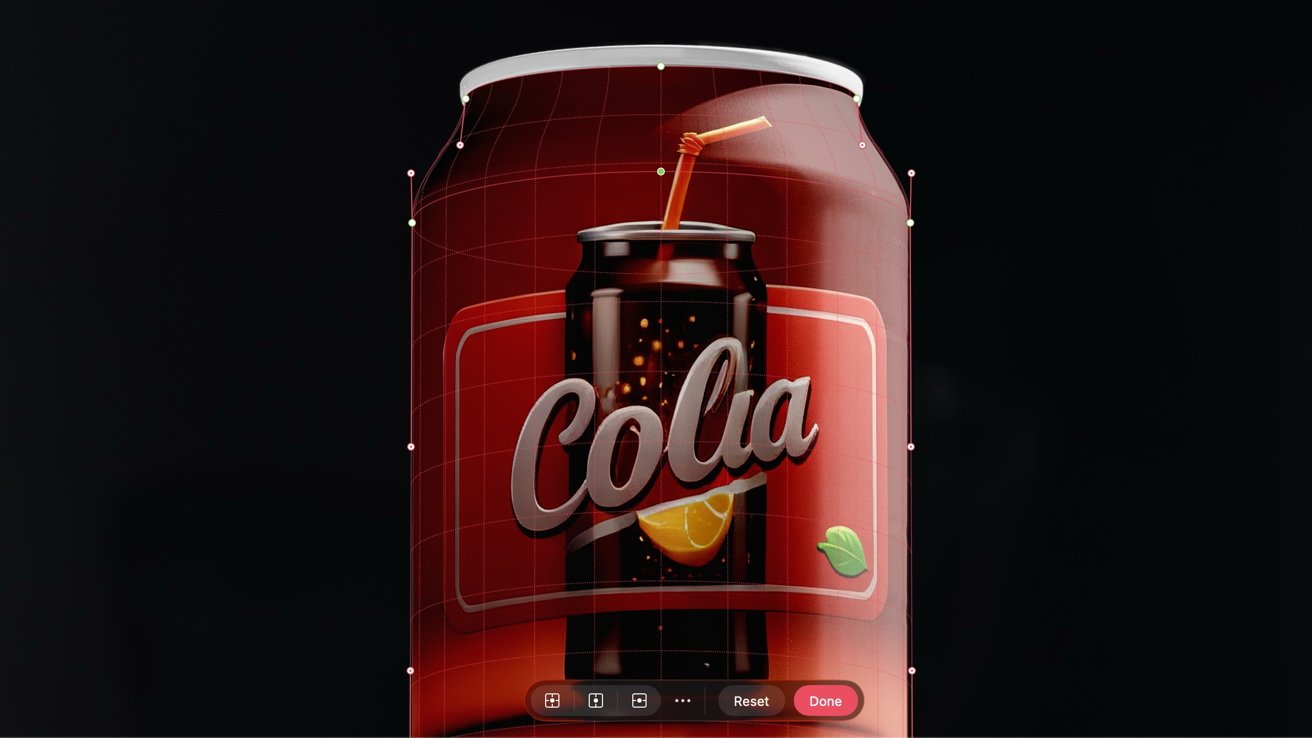
Apple Creator Studio review: Using the new warp tool on an irregular object, like a pop can
Think about taking a static photo, then warping it around the surface of a ball. Before, images were warped using a brush, now there is much more control over perspective, with a ton of preset options for warping around different surface types.
Of course, the biggest addition here is the newfound iPad app. It requires an iPad running an A16, A17 Pro, or M1 or later with iOS 26 or newer.
I love a good mobile workflow, so I was thrilled with this news. The ability for my projects to automatically sync from my Mac to my iPad via iCloud and edit with whatever device I have on me is amazing.
That means if I do an entire YouTube edit from my iPad Pro, I can also bounce a still frame and turn it into a thumbnail with the iPad version of Pixelmator Pro. No Mac is required to stick to the same desktop-based workflow.
The iPad app interface is very heavily inspired by the Mac app. If you've used the Mac version of Pixelmator Pro, then you'll be using the mobile version in no time.
On the left are all the layers, and on the right side are all your tools. It has Liquid Glass effects that look great as elements overlap the image below.
The interface is customizable, like the toolbar on the right. Plus, it supports windowing and resizing to make multitasking easy — especially with an external monitor.
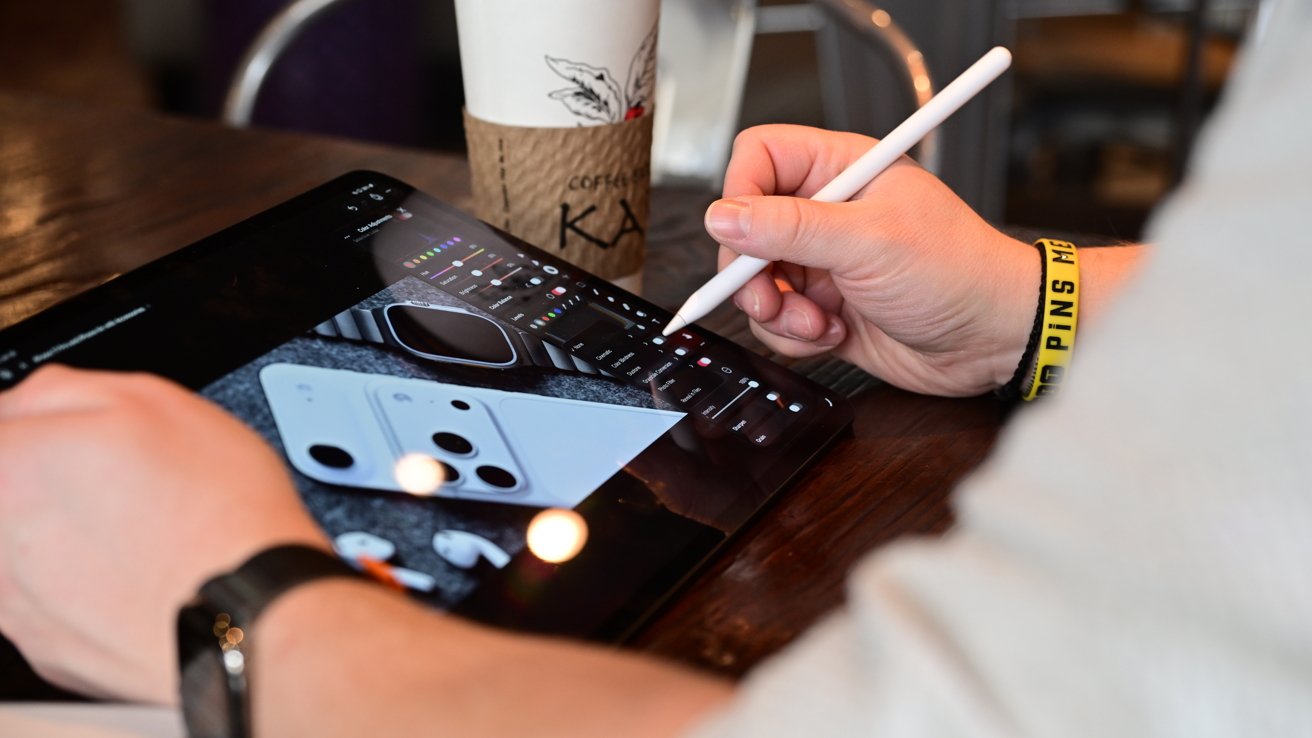
Apple Creator Studio review: Editing photos while sitting in a coffee shop
Apple also baked in native functionality for Apple Pencil support. That includes squeeze and hover functionality, though they seem a bit underutilized at the moment.
In Affinity Photo for iPad, you could hover over tools to see which one you were about to select and see a tooltip that lets you know what the tool is. Pixelmator Pro does not do that.
Rather, it's only with the tool sub-menus — such as the various selection types when you hold down the selector tool — where the hover effect highlights the tools. For an Apple app, it seems like it could have deeper integrations there.
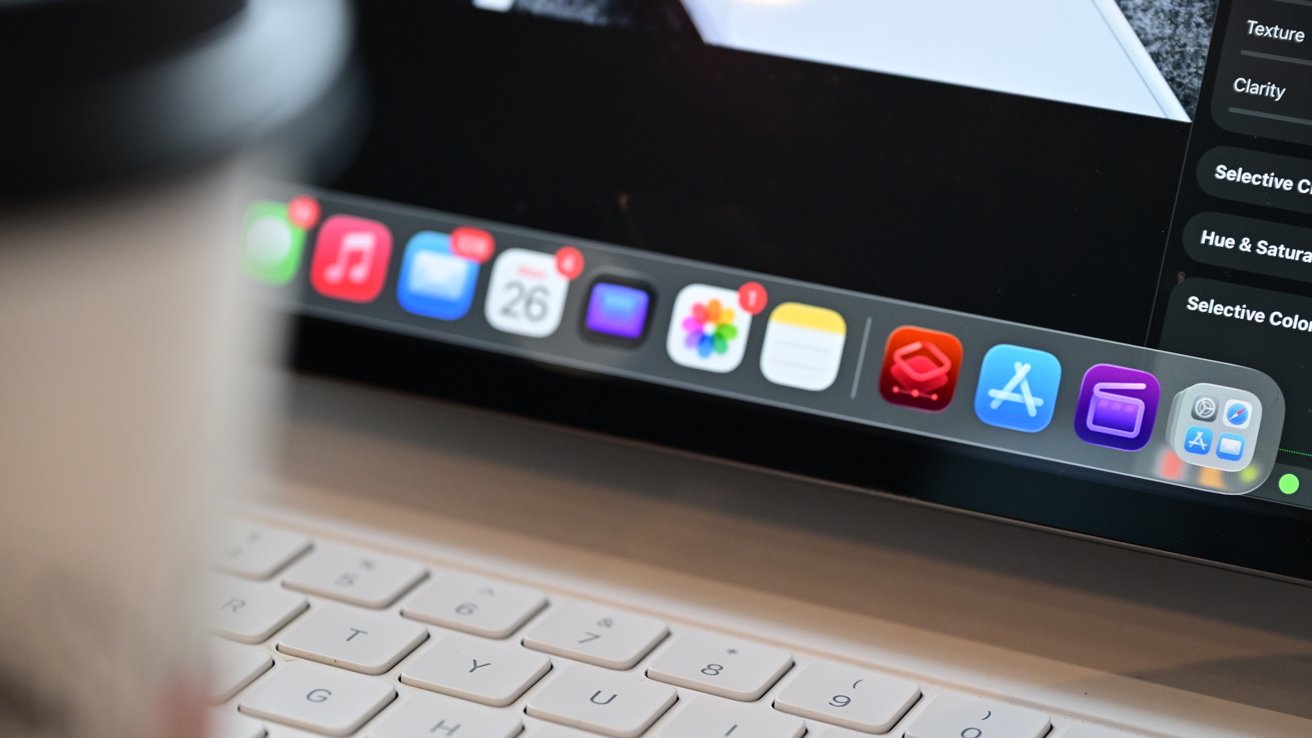
Apple Creator Studio review: Logic Pro, Final Cut Pro, and Pixelmator Pro are all on iPad
The biggest use of the hover effect is with the actual tools, though. Like the repair, paint, or eraser tools that allow you to see what you're about to do before you do it.
Squeezing the Apple Pencil Pro brings up the undo/redo buttons, which are already visible at the top. Other creator apps would maybe open up a color picker, brush selector, and more — including Apple's own Notes app.
Pixelmator Pro is feature-rich for a first release. It has essentially every feature as found in the Mac version, though it did take me some time to find a few of the hidden ones.
It doesn't have the same menu bar for access, so while the UI is very familiar, some things needed to be moved. The automatic background removal is hidden beneath a menu on a per-layer basis.
Right now, I'd say that other apps do a bit more than Pixelmator Pro does. I think the biggest draw is the native functionality and integration within the Apple ecosystem.
I love opening the app and immediately seeing my most recent projects listed. That works so seamlessly, you don't have to think about it.
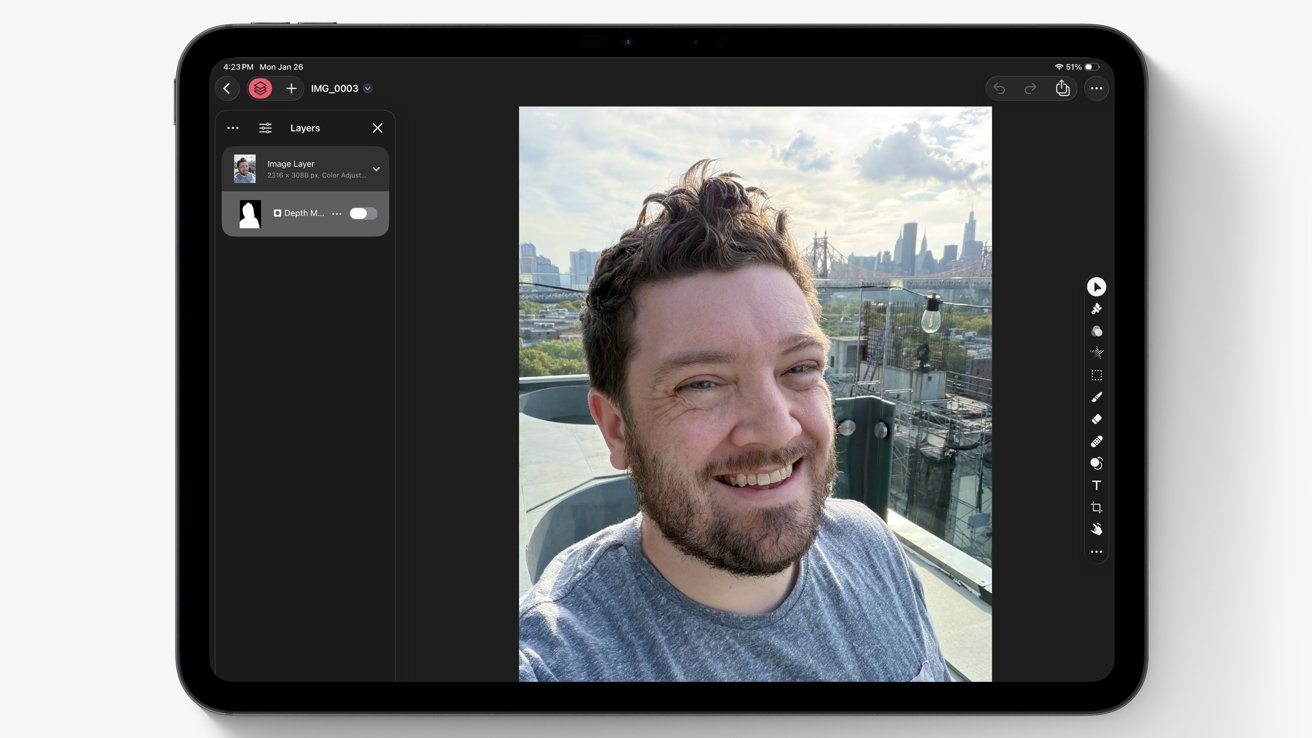
Apple Creator Studio review: Pixelmator Pro naturally supports depth data from Portrait Mode photos
I was pleasantly surprised, too, when I opened a portrait photo I shot on my iPhone. It imported the depth data and allowed me to edit the foreground and background separately off the rip, without any extra hassle.
With such an impressive feature set, Pixelmator Pro is going to easily be my new go-to for editing on the go.
Creator Studio review: Logic Pro
For audio creation, Apple has Logic Pro, which is available on both Mac and iPad. It's a fantastic application for music creation that has seen a number of powerful additions over the last several years.
You can use it to score your videos or write an original song. You can record directly into Logic Pro, supplement a project with recordings from the Voice Memos app, or create it entirely from scratch digitally.
One of the more recent additions has been Session Players. These are virtual players that will analyze the loops to create original companion instruments.
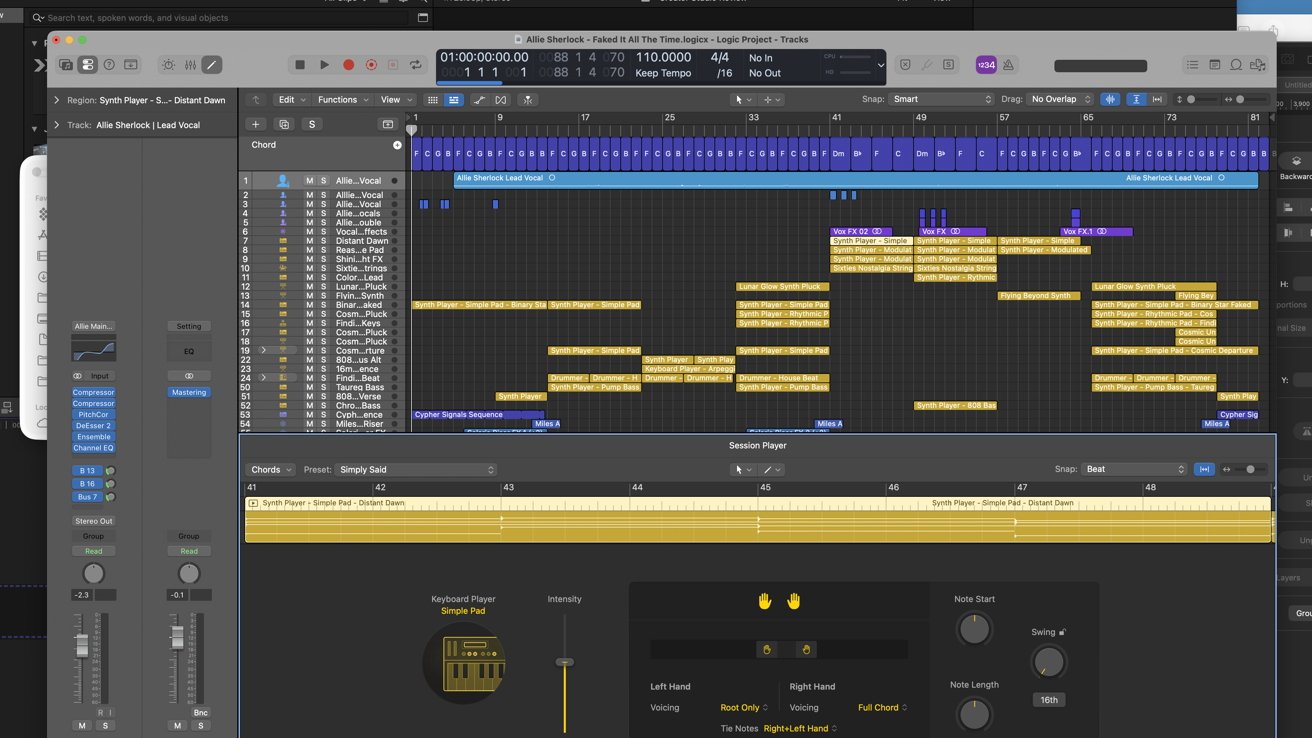
Apple Creator Studio review: The new synth Session Player for Logic Pro
In the new update, Apple is adding a new Session Player to the list — synthesizer. Like the other Session Players, you can adjust the performance to your needs with granular adjustments for note length, strum, phrasing, and more.
To go with Session Players, we have Chord ID. This is another local AI-based tool that will analyze the original sounds that you recorded and identify the chords, removing the need to do so manually.
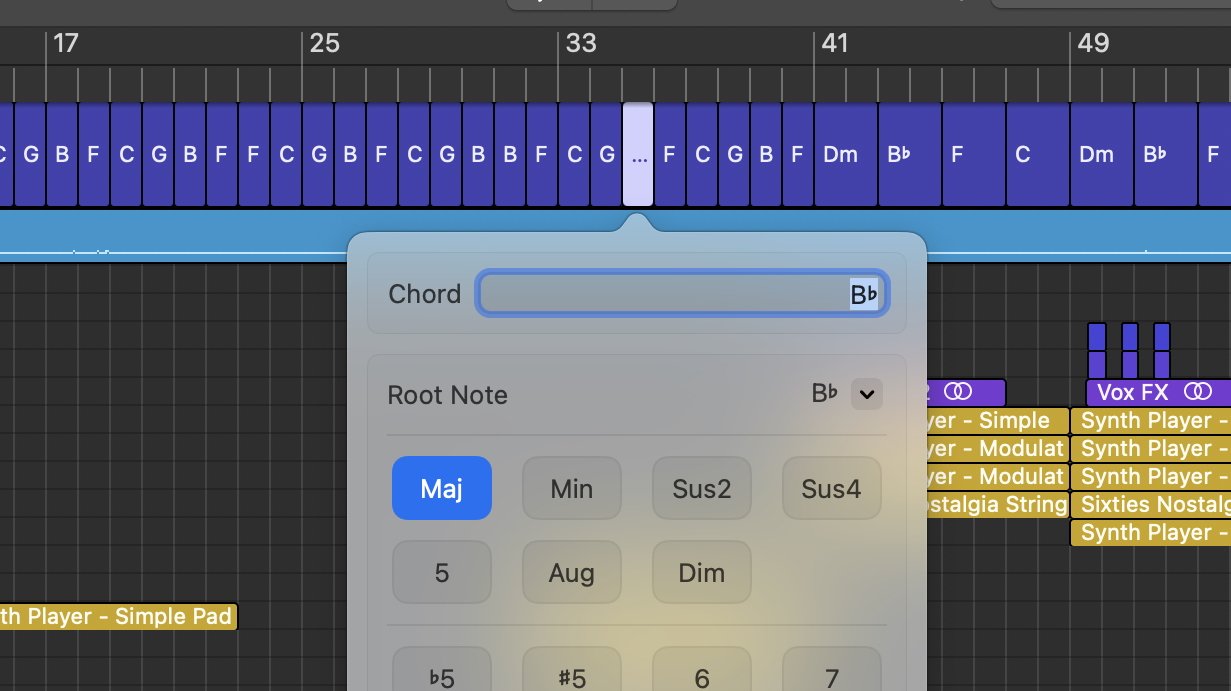
Apple Creator Studio review: Chord ID can identify chords on music you've recorded
This will analyze those original recordings, pull the chords, and allow the Session Players to follow along effortlessly.
The Sound Browser is also increasing. There are more loops, sounds, and other tracks you can add to your project.
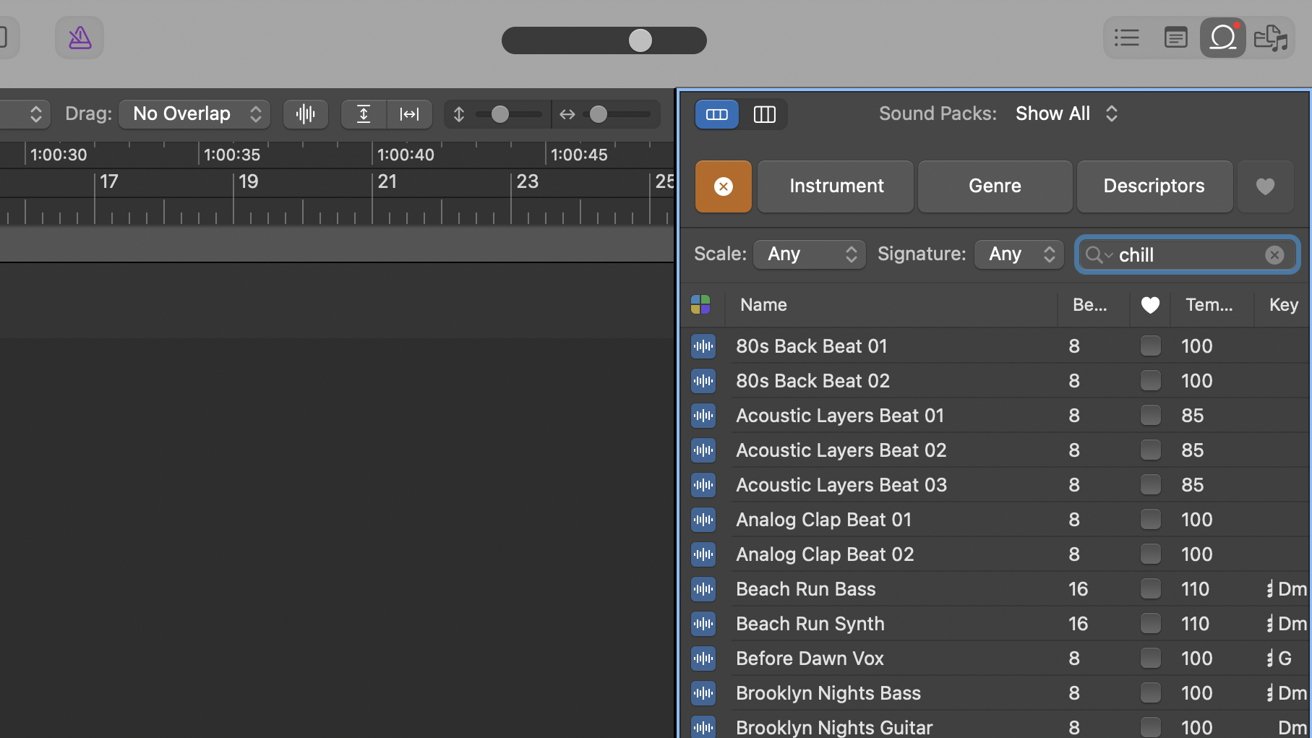
Apple Creator Studio review: The sound library keeps getting bigger and is easier to search
It's surprisingly easy to find sounds, too. I could search just for the vibe I wanted, and a bunch of relevant tracks showed up.
Quick Swipe Comping is new and incredibly cool. On Mac, this made it easy for musicians to quickly swap out comparable alts for a part of the song.
Now, those alternative takes can be swapped easily on iPad, too. You can use Apple Pencil for precise control in selecting part of a track, then swipe through the different takes to get the one that sounds perfect.
Still, my favorite feature of all with Logic Pro is how easy it is to move from iPad to Mac and back again. It has true round-trip support that I want to see for Final Cut Pro.
Creator Studio review: Pages, Keynote, Numbers, & Freeform
There's more than just the pure creative apps bundled with Creator Studio. Apple is also offering up more advanced versions of its productivity apps: Pages, Keynote, Numbers, and Freeform.
To be clear, all four of these apps will continue to be free for users to use, without the new intelligent features. Previously, Apple used to charge for all of the apps in its iLife and iWork suites, as they used to be called, before making them free in 2013.
The added features are somewhat minimal, but like the others, they will likely continue to expand. I think the best new addition is what Apple is calling its Content Hub.
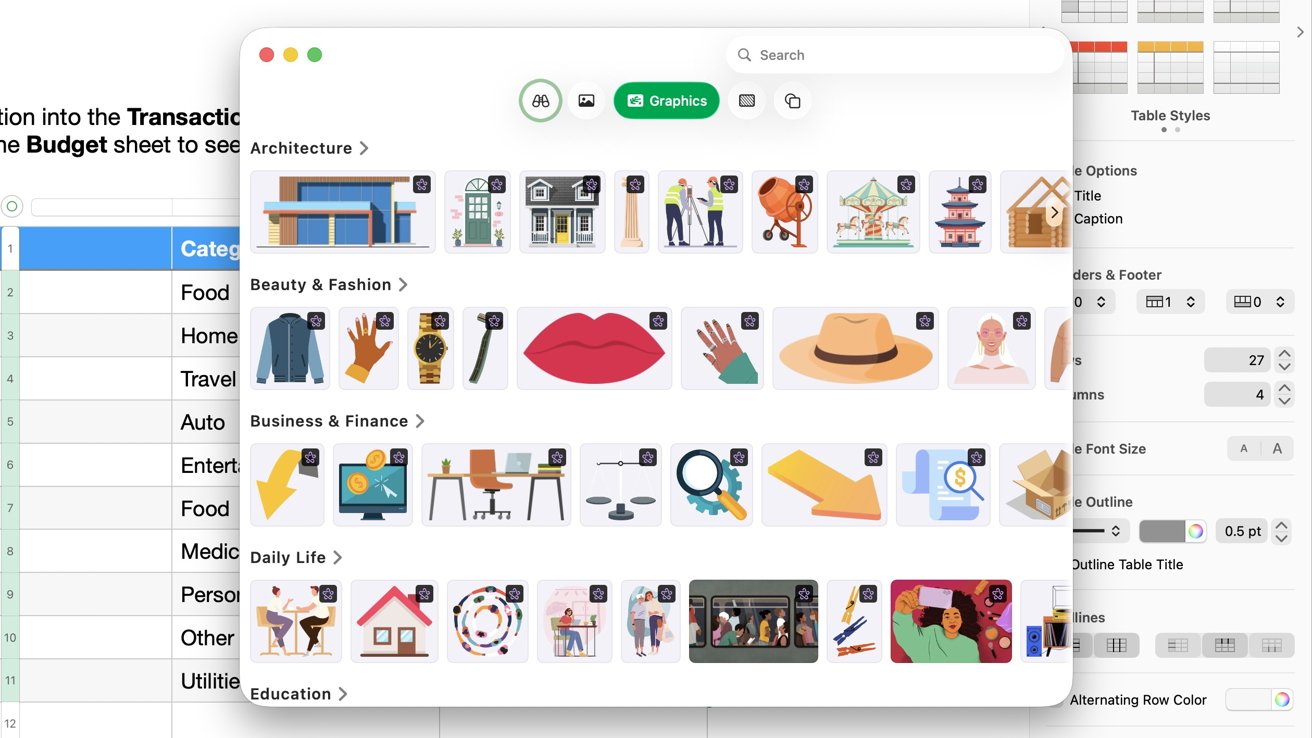
Apple Creator Studio review: Content Hub will be super useful
Content Hub has a series of images, graphics, and illustrations to use in projects. It lives in its own window and has a nice gallery view for easy discovery.
You can also filter by photos, backgrounds, graphics, and shapes, which then have their own subcategories within them. If you use search, you can narrow it down by category, aspect, and transparency options.
Apple emphasizes that these images are highly curated, which originally gave me concern that it would be a bit sparse. The worry would be that a lot of content would look the same if they relied on Apple's content, and there weren't a lot of choices.
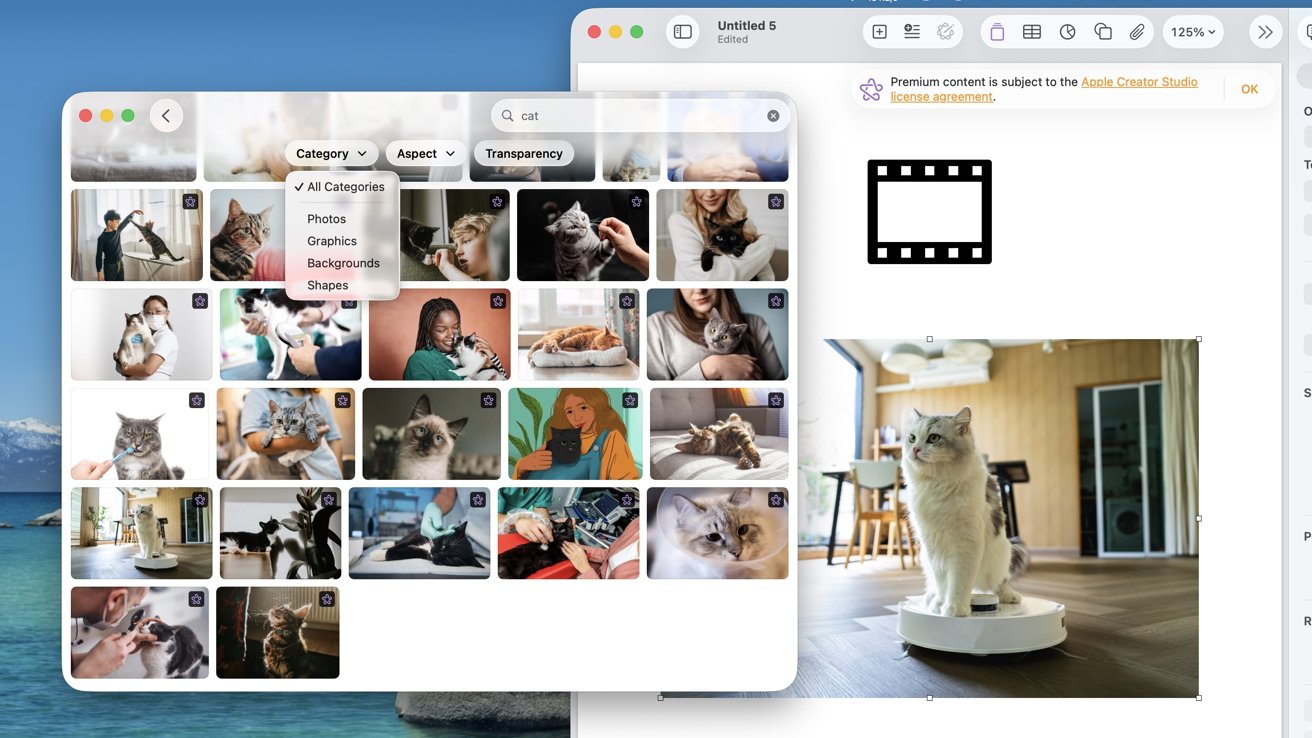
Apple Creator Studio review: Content Hub is found in the productivity apps and has a ton of options, like a cat on a vacuum
Fortunately, there is a good selection to choose from. There are a wild amount of shapes available, and photos are pretty plentiful — I even found a cat riding on a robot vacuum.
Hopefully, more are still added over time. I also wouldn't be surprised to see video clips and sounds added in the future, though currently Apple is only focusing on static image content.
What I found odd is that Apple is limiting this Content Hub to the productivity apps. You can't access the Content Hub in Pixelmator or Final Cut Pro, both of which would benefit from this stock imagery.
Your subscription to Creator Studio includes licenses for all the content in the Content Hub to use in your projects. Should you cancel your subscription, you retain the license for that content within the context of that project.
If there isn't anything in the Content Hub you need, you can always use the upgraded image generation option. When inserting images, Auto Crop will speed up the alignment process.
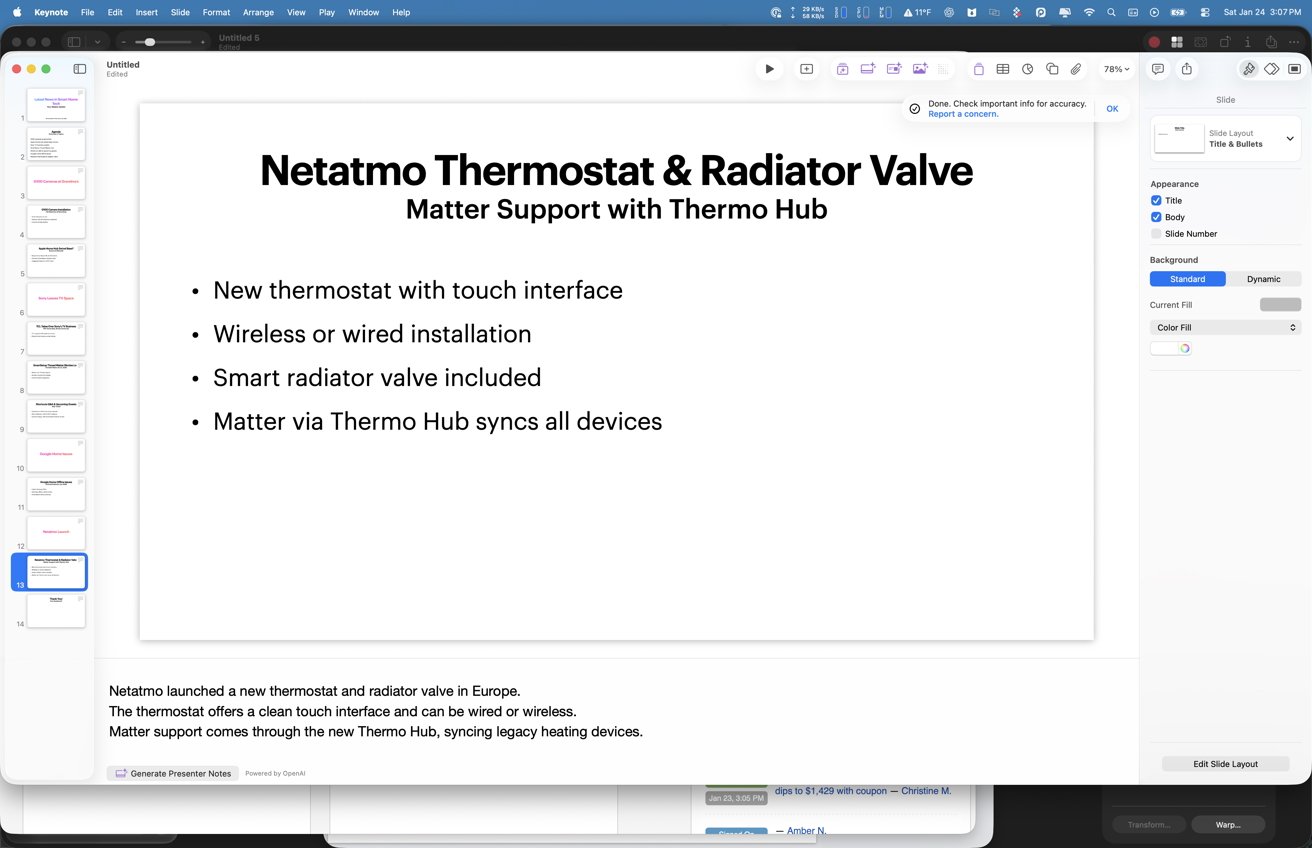
Apple Creator Studio review: I created these slides with just copying in my show notes
Looking at each app specifically, there are a lot of useful tools here. In Keynote, for example, you can use AI to automatically generate a set of slides just from your outline.
The slides aren't incredibly complicated, but they're a great jumping-off point. To test, I took the outline from the latest episode of HomeKit Insider show notes.
Using OpenAI, Keynote spent a few minutes thinking about my outline before making a handful of slides based on the theme I chose. It even includes useful presenter notes.
I wouldn't give it an outline and call it finished, but this is a great way to get the bones of an outline before going in and making small tweaks, adding images, and any nice transitions you may want to apply.
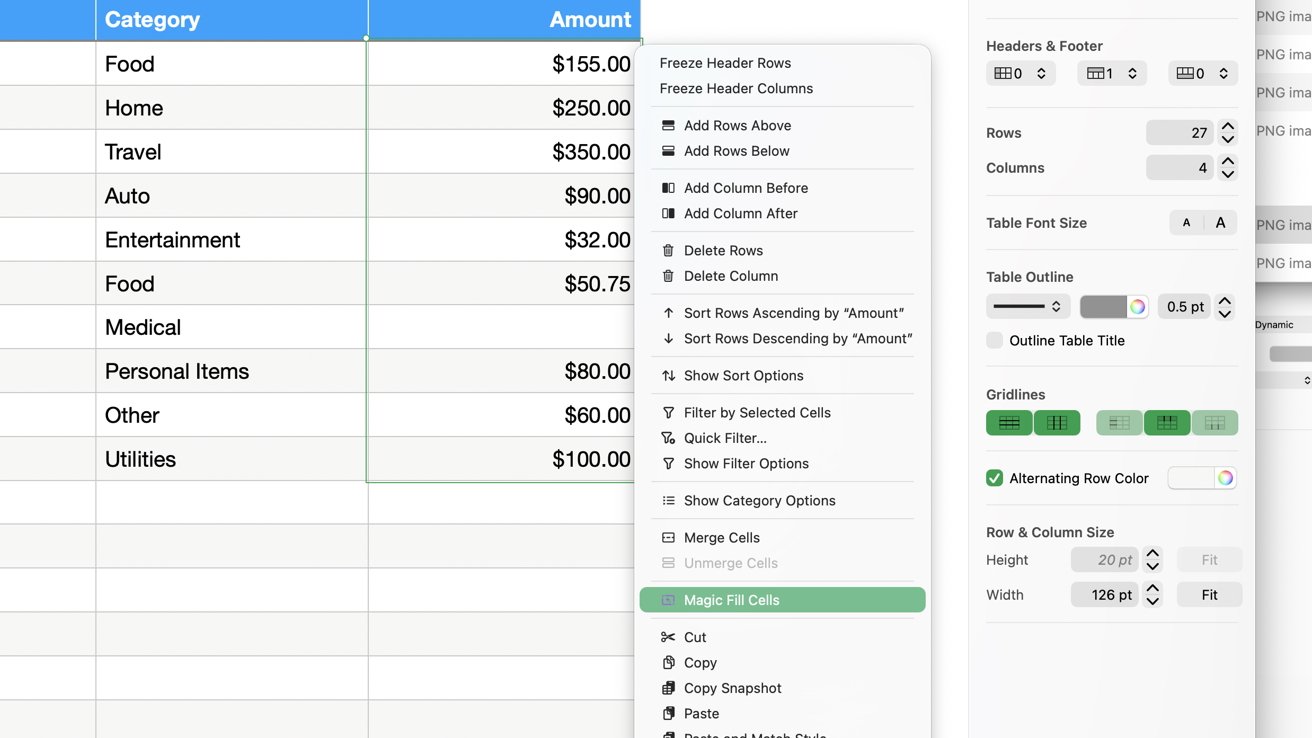
Apple Creator Studio review: Magic Fill can identify patterns and fill in missing data
In Numbers, AI can be used to run a pattern analysis on your spreadsheet. That will, in turn, suggest data that you may be missing, based on patterns it identifies.
I know most of my basic formulas, but Numbers can generate ones for you now. As a bonus, it will describe what it generated so you can learn to make better content down the line.
Pages and Freeform don't have specific features of their own, other than the addition of the Content Hub, image generation, and Pixelmator's Super Resolution feature, like the rest of the productivity apps.
Apple introduced some new templates, too, though you have to customize them a good amount or risk your content looking very similar to someone else's.
Creator Studio review: Will Apple's new suite convert pros?
At launch, Apple Creator Studio is incredibly powerful and full-featured. It took apps that have been around for ages and infused them with fresh features, AI tools, and stock content.
Compared to the standalone prices, this makes the lot more approachable. Someone new can not only try the free trial but can continue to try all the apps for only $12.99 a month.
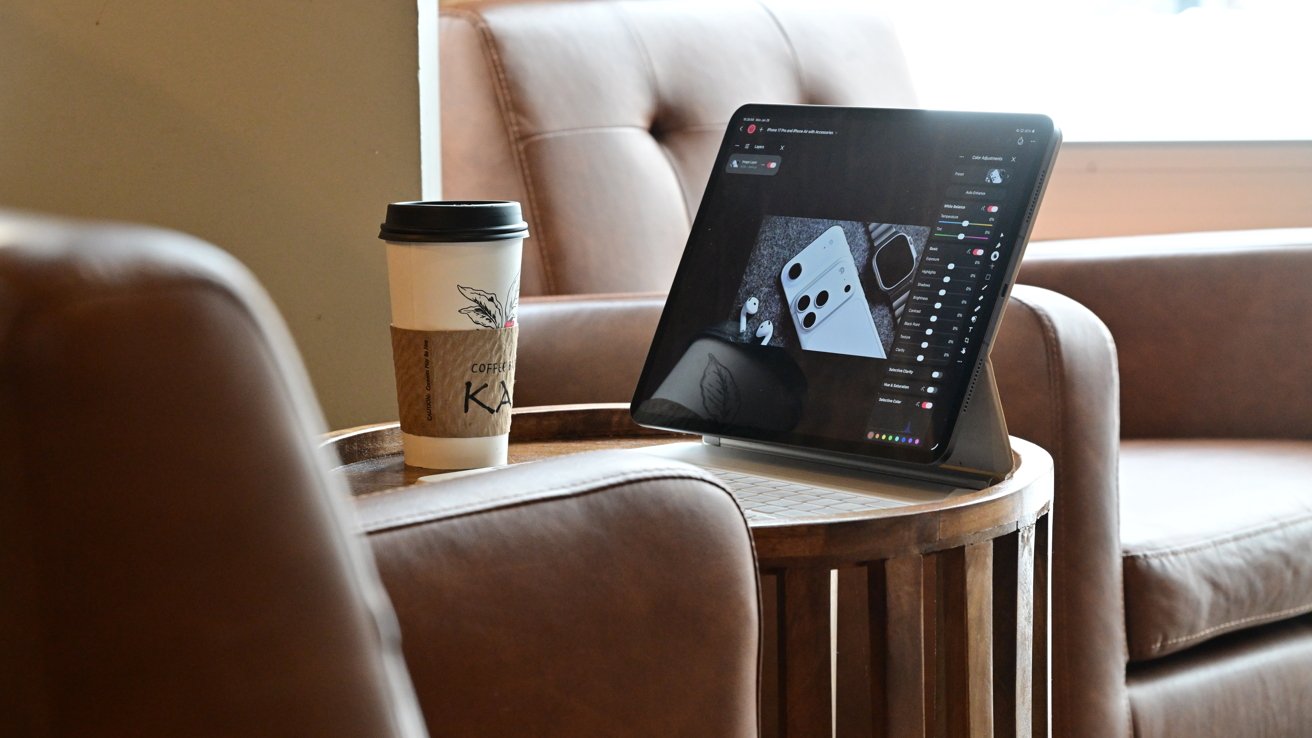
Apple Creator Studio review: Editing a video on CES while sitting in a coffee shop
Compared to the hundreds, Final Cut Pro and Logic Pro would cost alone. Not to mention you get the productivity suite, MainStage, Motion, and Compressor.
Just $12.99 feels like a bargain for what you're getting. At the same time, there are two issues I currently see.
Many shy away from subscription options. Personally, I despise ongoing subscriptions, and it seems like everything has moved to this model.
The benefit is that there is no large capital expenditure upfront for users, but over time, it ultimately ends up far more expensive. If I had been paying monthly for Final Cut Pro at the same price the iPad version used to be at, $4.99/month, I'd have paid over $900 by now.
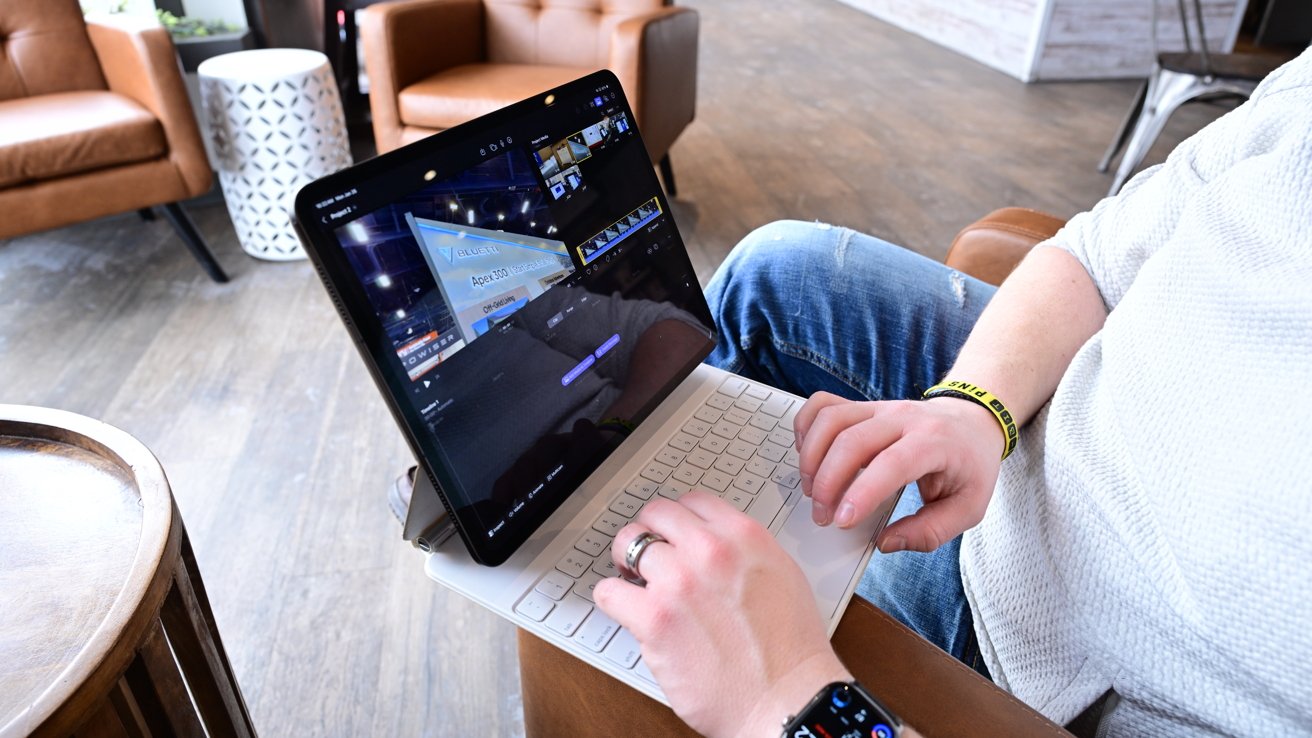
Apple Creator Studio review: It's great to edit from anywhere
That's compared to the actual single purchase price of $299. If you go with the subscription and you aren't using all the apps, you end up paying even more over time per app you use.
I dropped Adobe products the moment they moved to Creative Cloud instead of Creative Suite. At least Apple is, for now, keeping those single-time purchases around.
What makes the move to a subscription harder is my second issue.
If you already purchased these apps, many of the upgrades are minor and somewhat underwhelming to warrant buying them again via the subscription. They don't feel like whole new versions of the apps, but the same versions with a couple of new features.
During testing, I was moving between the existing version and the new one, and I couldn't tell the difference until I checked the app icon.
I'd expect someone who upgrades will, at least in the interim, feel like the apps haven't changed and yet they're shelling out $13 a month for the privilege. Unless the new features I walked through are monumental enough for your particular workflow.
I don't want to sound overly critical, though, because this is also the biggest sign of life Apple's pro apps have gotten in ages. With a subscription, I'm fully expecting regular updates to all of these apps at an expedited clip.
The biggest draw for the new suite has to be the mobile workflow. Getting all three mobile apps is great, and if you are a heavy iPad user, Creative Studio is a great value.
I was absolutely impressed that Pixelmator Pro is as full-featured as it is. The fact Apple got basically every feature from the Mac app into the iPad version is a miracle.
This is a great sign that Apple is, long term, intending to keep the mobile and desktop versions of these pro apps in feature parity. They just need to make sure they're pushing powerful new features, and not holding it back because of the iPad versions.
I'm not convinced that right now the Creator Studio updates will draw back some of the high-end pros freshly tethered to Adobe. The suite as a whole is just not Adobe-spec yet, and the Adobe Creative Cloud suite in particular has much more powerful features, especially when it comes to generative AI.
I do like the way Apple is approaching AI, and slowly bringing it into the picture. With where Creative Studio is now, prosumers, small businesses, students, independent creators, and general creatives are sure to find ample reasons to subscribe — especially if they haven't already purchased the flagship apps.
Even though I'm cautious right now, I'm optimistic that Apple is getting back on the right track with these pro apps, and they're going to get back to their elite status for Apple pros.
Creator Studio review: Pros
- Includes all of Apple's pro creative apps and productivity suite
- Many of the new features work great and are great additions
- Content Hub is a fantastic resource
- Native iPad apps are great value
- Pixelmator Pro lands on iPad for the first time
- Big focus on helping creatives, not replacing them
Creator Studio review: Cons
- Less value for those who already own the apps
- Content Hub missing here and there
- General dislike of subscription-only options
Apple Creator Studio rating: 4.5 out of 5
Where to buy
Apple's Creator Studio will be available on Wednesday on the App Stores. It costs $12.99 per month.
There is no prorating for existing app ownership.